
Tutorial on Using the Playback Validity Period Function
I. Feature Introduction
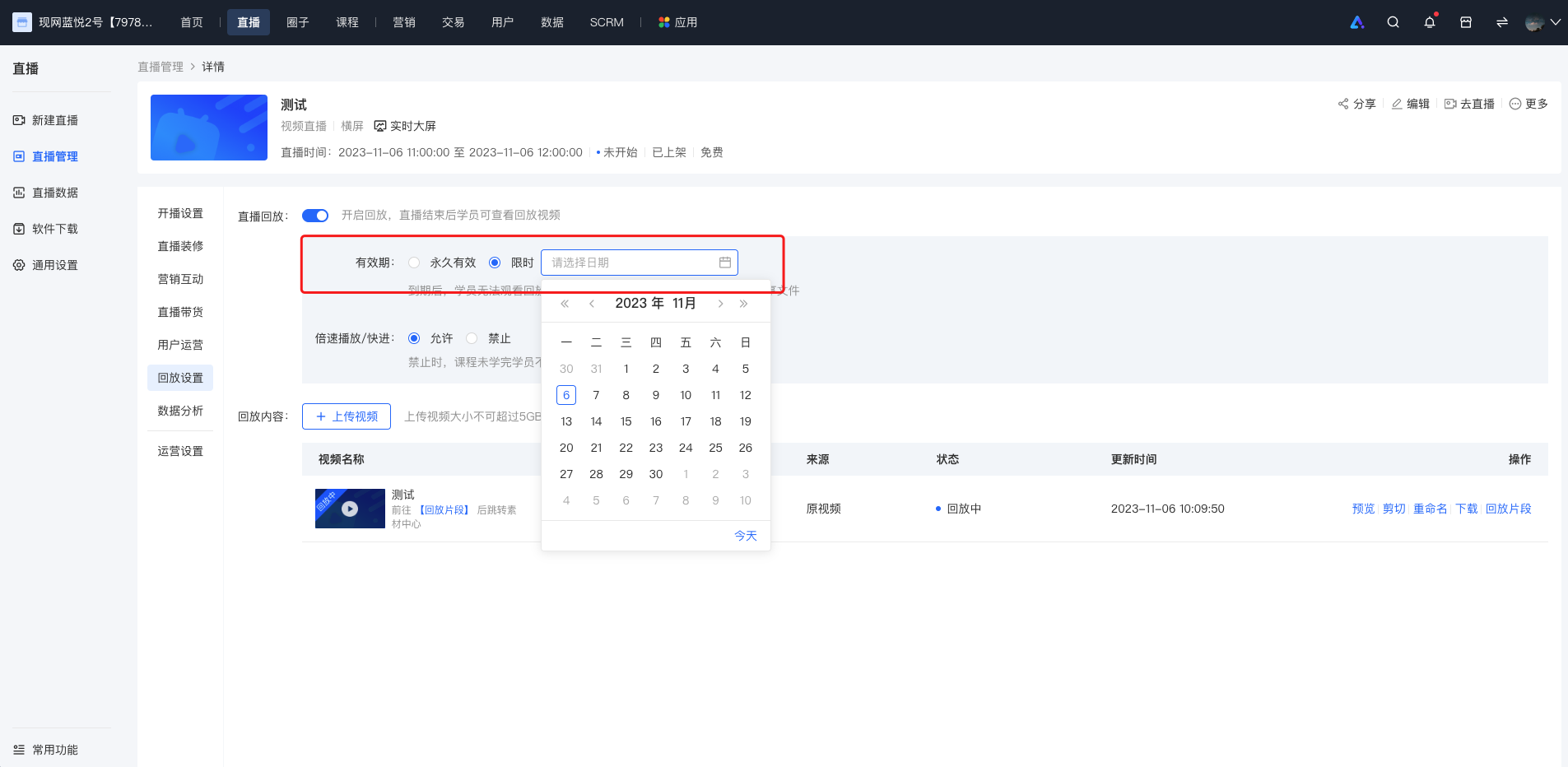
Merchants can set the validity period of the replay. They can control the viewing duration of students by selecting the [Limited Time] option on the replay settings interface or the live course editing page and specifying the expiration date of the replay.
II. Purpose of Use
To meet the merchants' needs to encourage students to watch the content promptly and improve the viewing rate.
III. Usage Scenarios
Merchants notice that students are lazy and lack motivation in learning. They hope to urge students to study the purchased courses by setting a validity period for the replay.
IV. Operation Path
Merchant side: Merchant backend
Student side: Live room details page → Enter the live broadcast
V. Usage Tutorial
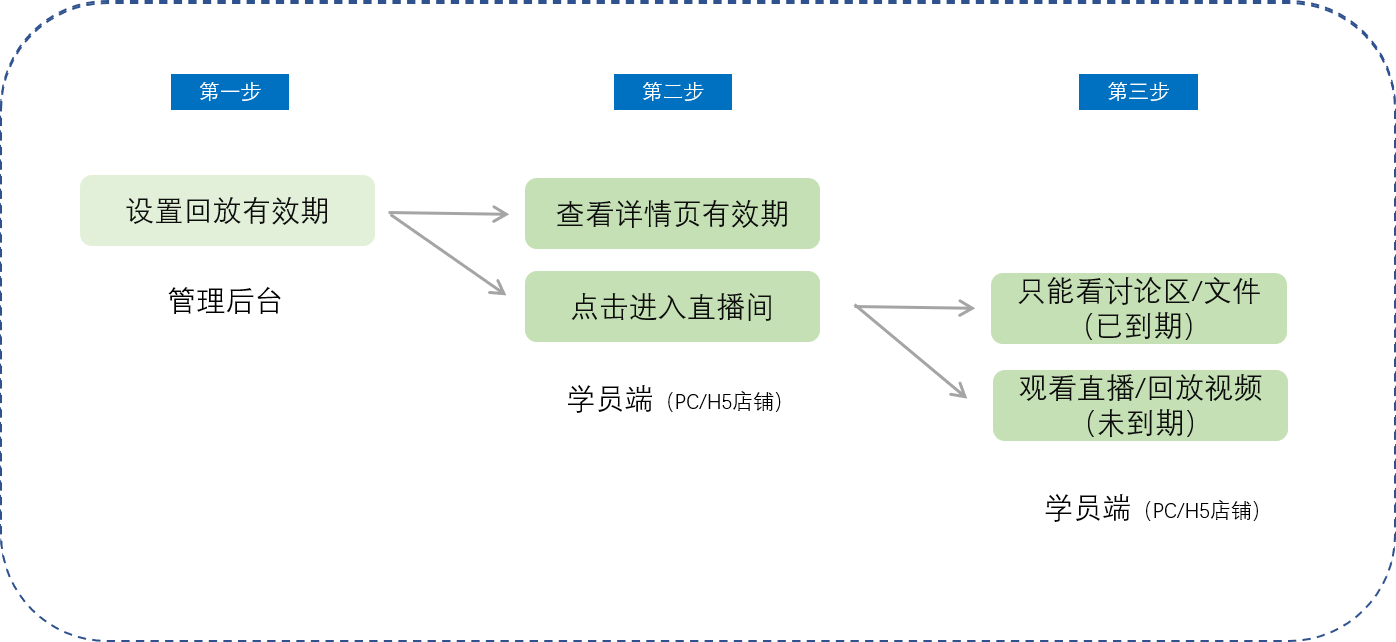
Step 1: Set the replay validity period (Management backend)
Step 2: Check the validity period on the details page (Student PC/H5 store)
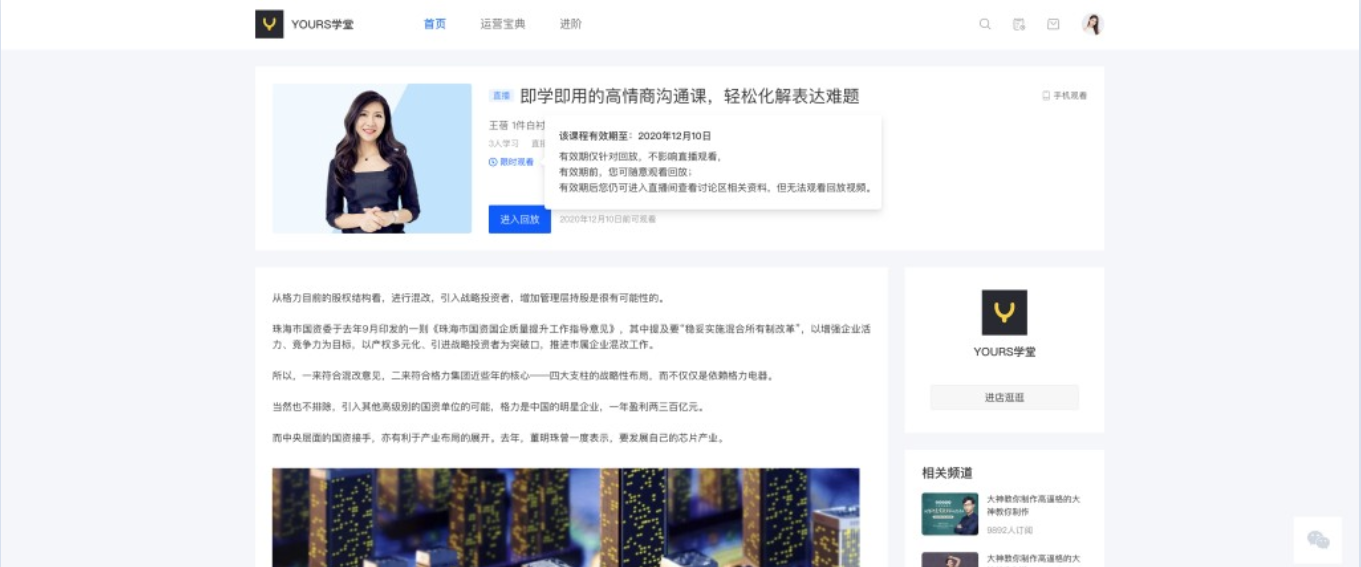
PC student store
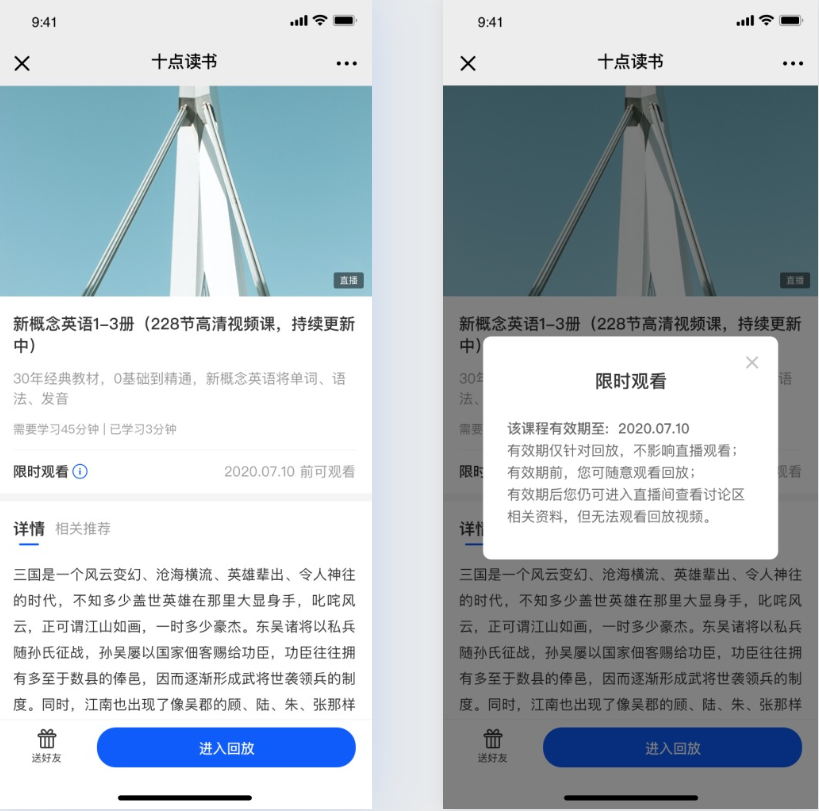
H5 student store
Step 3: Enter the live room (Student PC/H5 store)
When the replay is still within the validity period, students can watch the replay video normally without any issues.
When the replay has expired and students enter the live room:
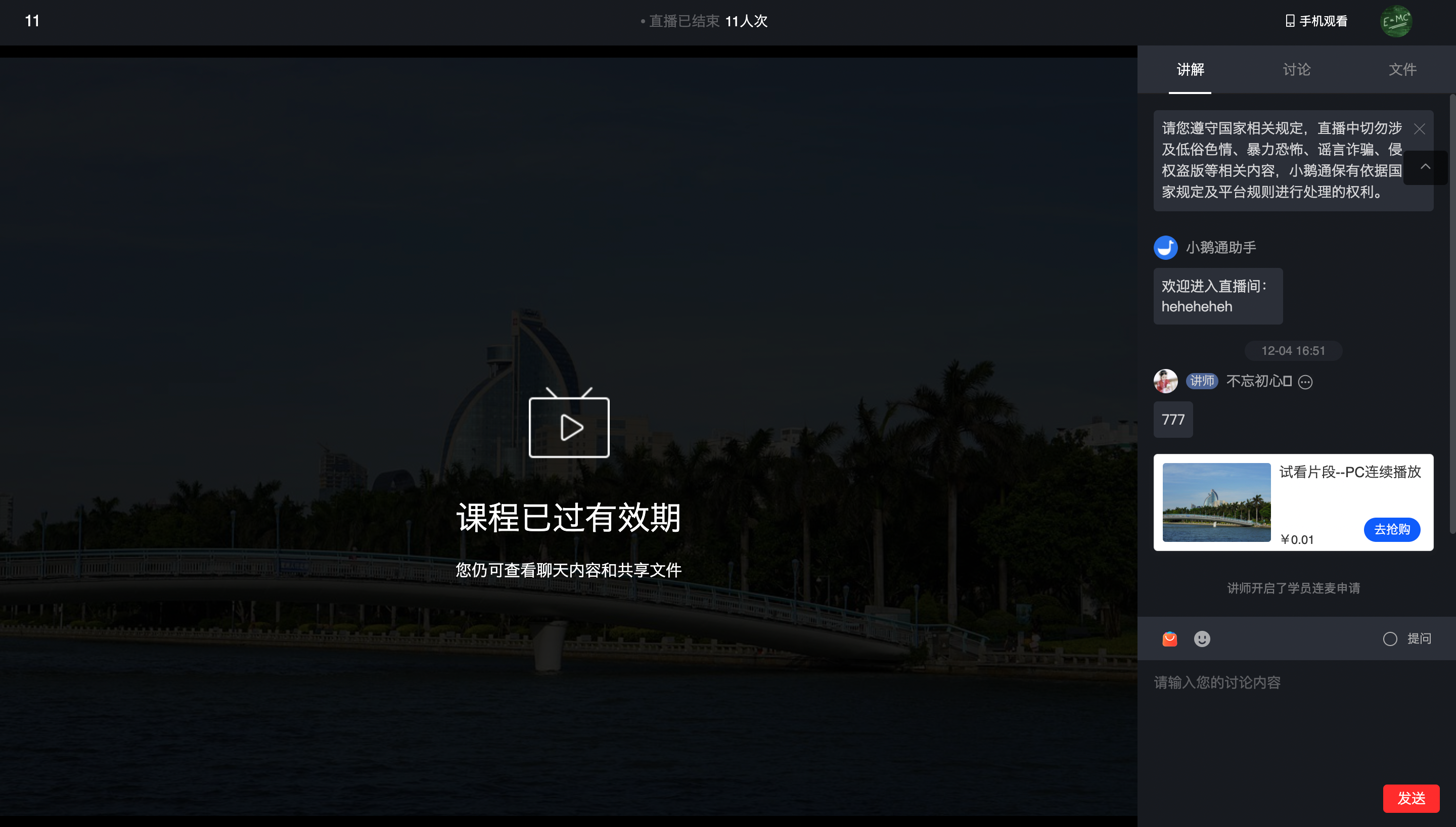
PC student store
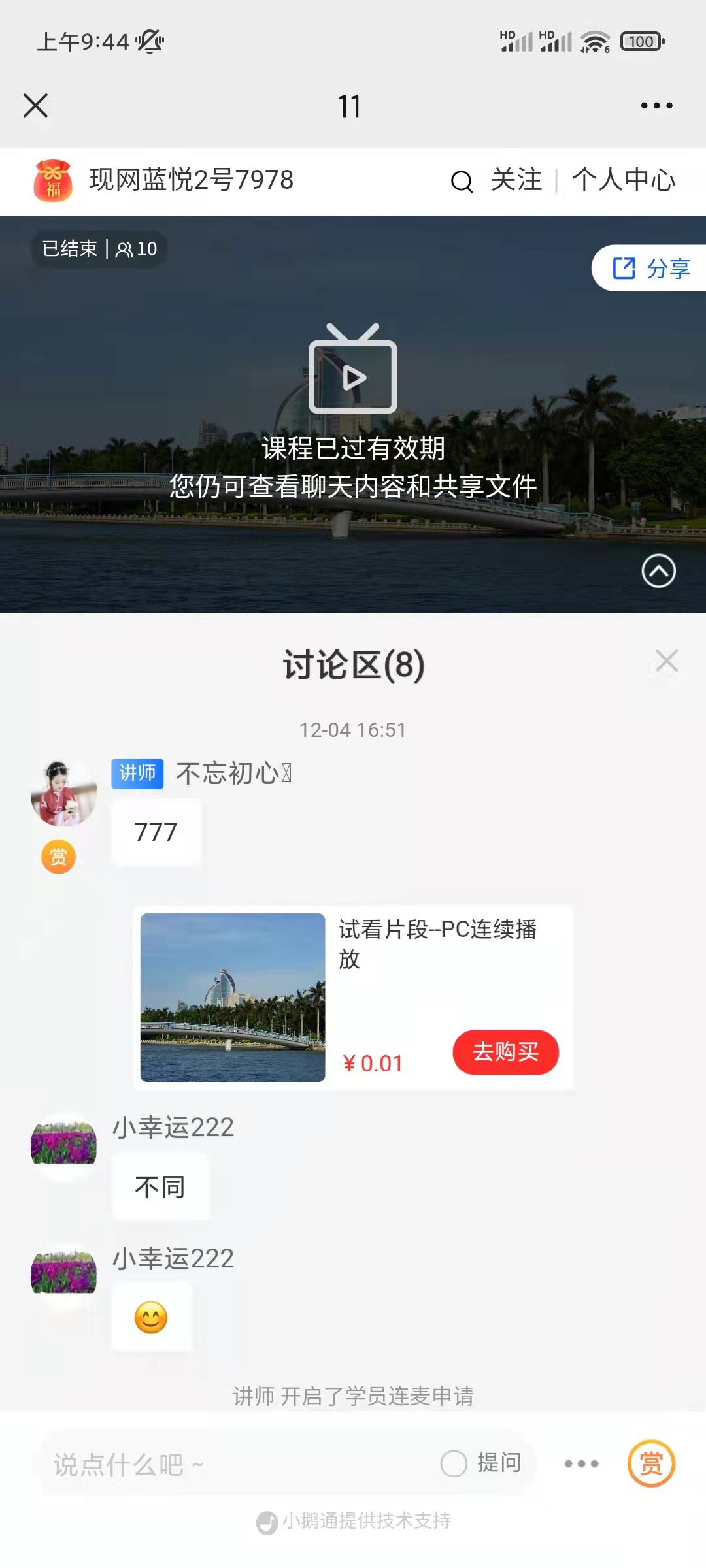
H5 student store
No comments to display
No comments to display