
Tutorial on Sending Audio and Video by Instructors in the Live Streaming Terminal
I. Feature Introduction
Support instructors to send audio and video in the live streaming room
II. Purpose of Use
Merchants can use audio and video during live streaming to assist teaching and enhance the live streaming effect
III. Use Scenarios
Meet the merchants' needs to send audio and video during live streaming
IV. Operation Path
Merchant side:Upload files → Send files → View files
V. Usage Tutorial
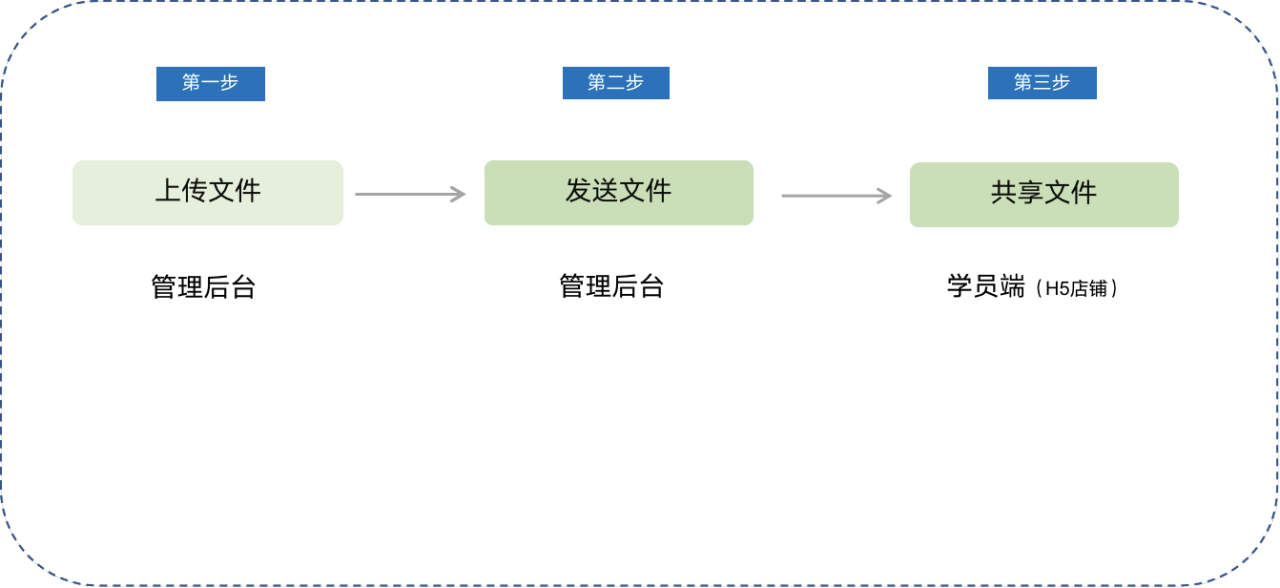
Step 1:Upload files
Web version
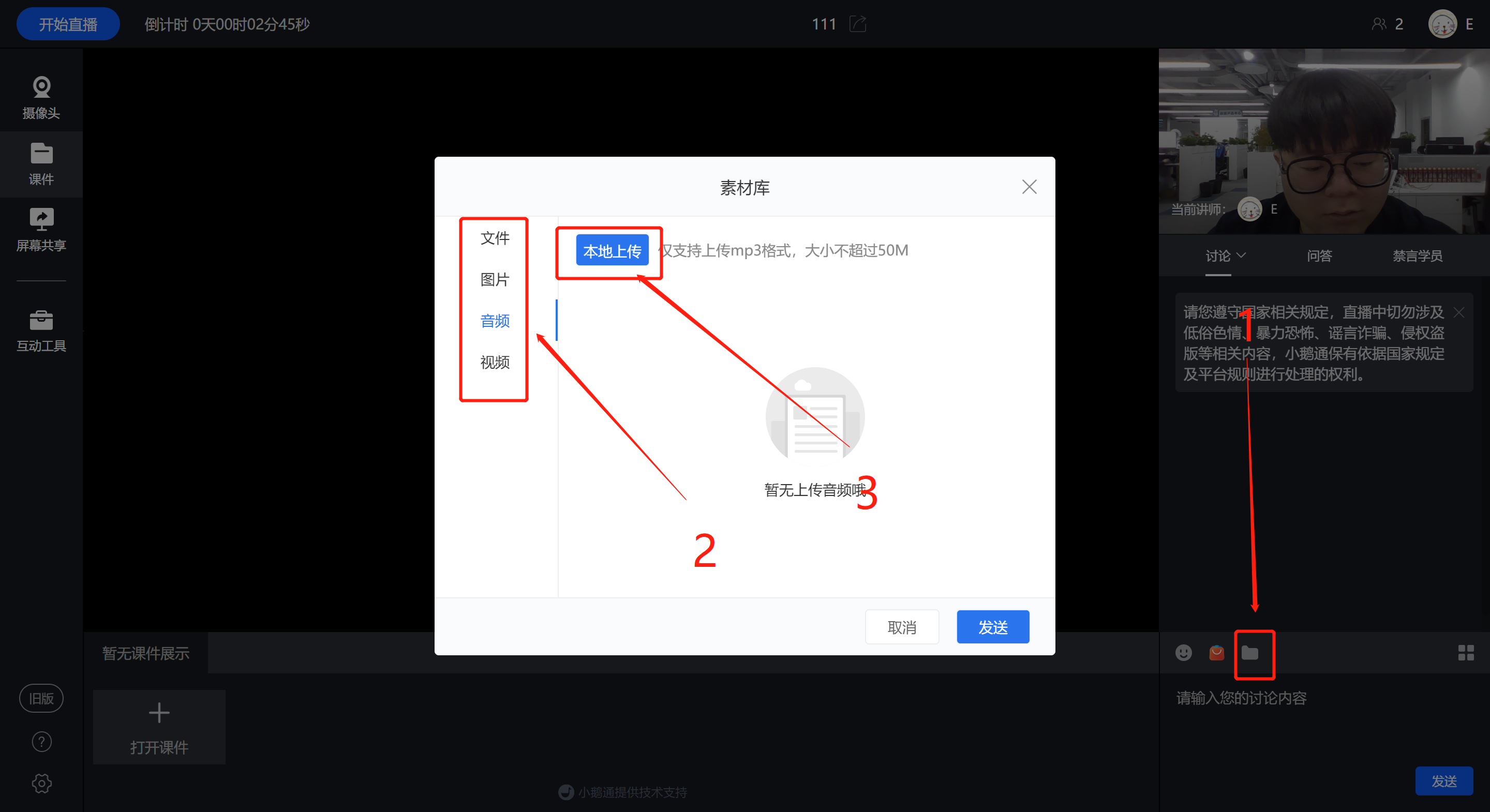
1. Instructors can upload the corresponding audio or video files to the material library on the web streaming end
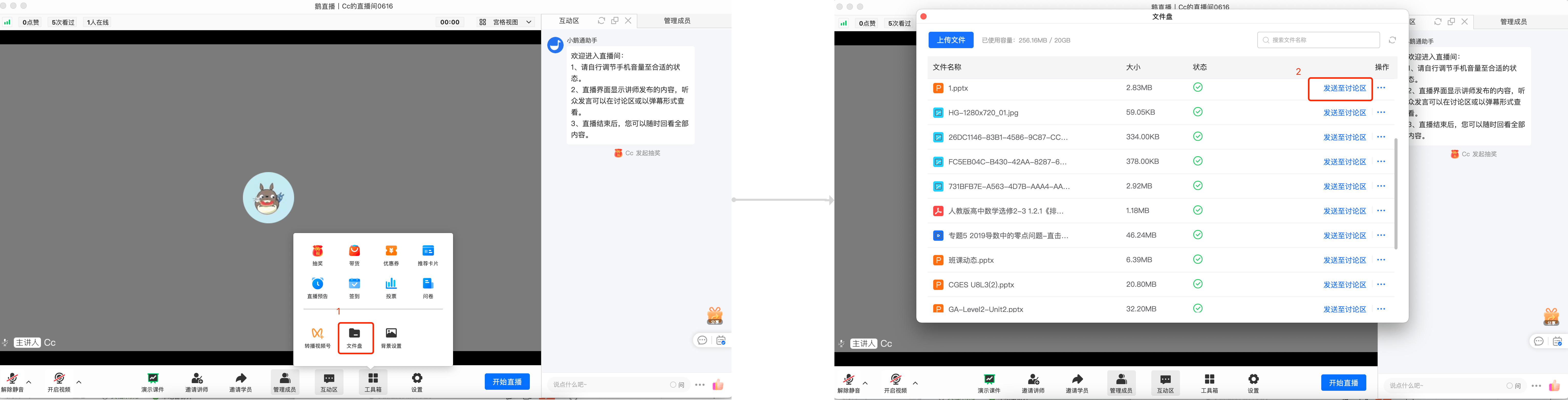
elink Live Client
Open the toolbox, select 'File Disk', find the corresponding audio or video file, and click 'Send to the discussion area' to send the file to the discussion area for students to view and download
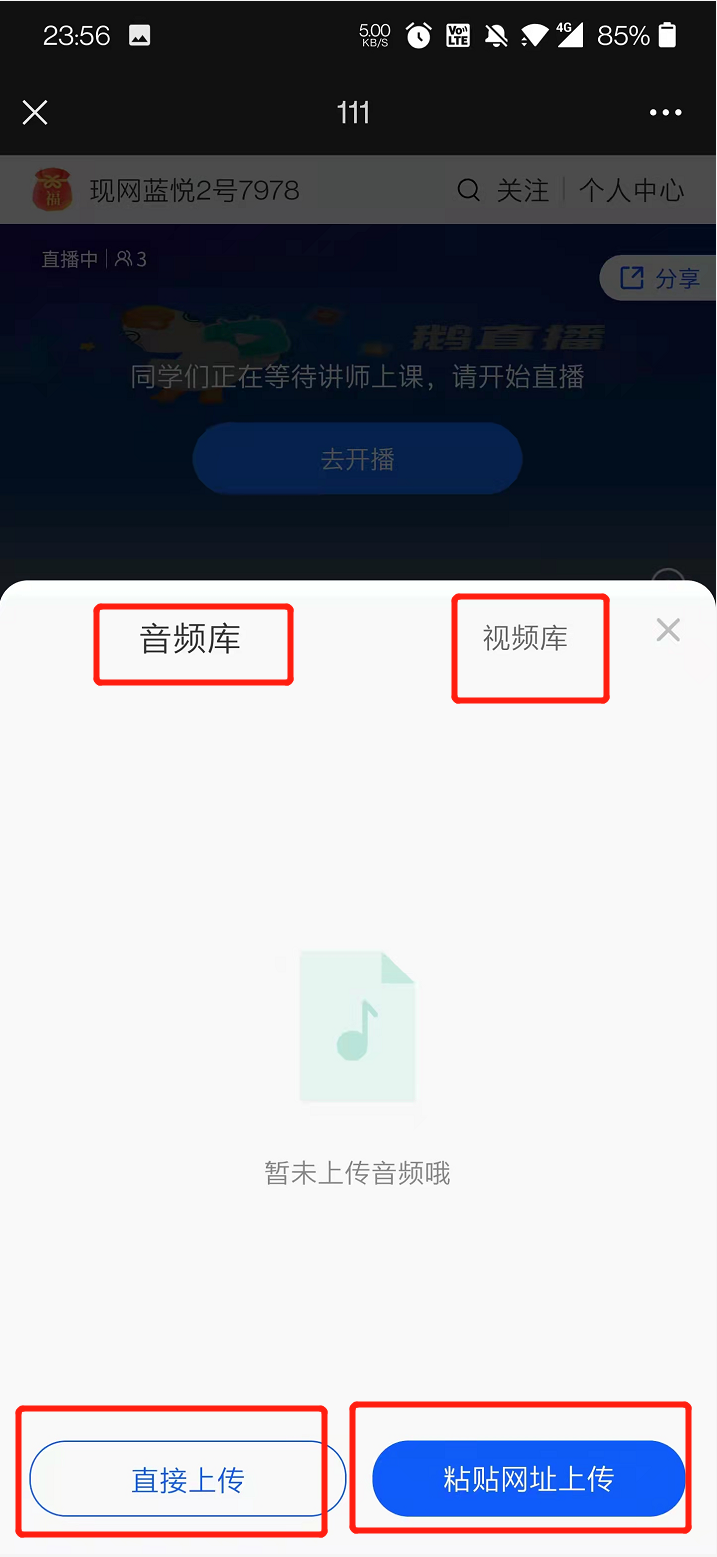
2. Instructors can alsopaste the link in the H5 live streaming roomTencent Videoto upload audio and video files.Currently, due to the upgrade of QQ Music, the function of pasting URLs is temporarily unavailable.
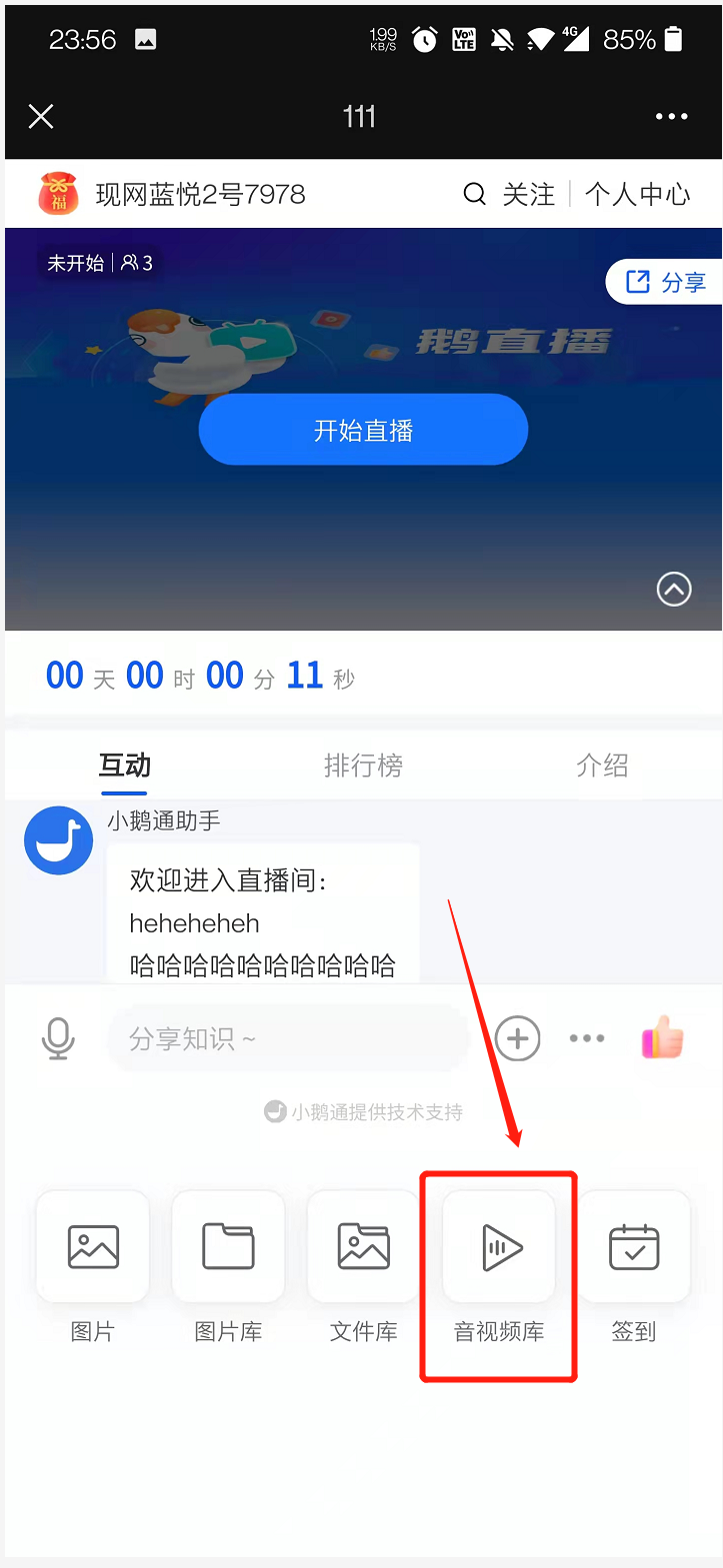
Step 2:Send files (Student side)
1. After uploading is completed, you can click the relevant file to send it to the explanation area
Step 3:View files (Student side)
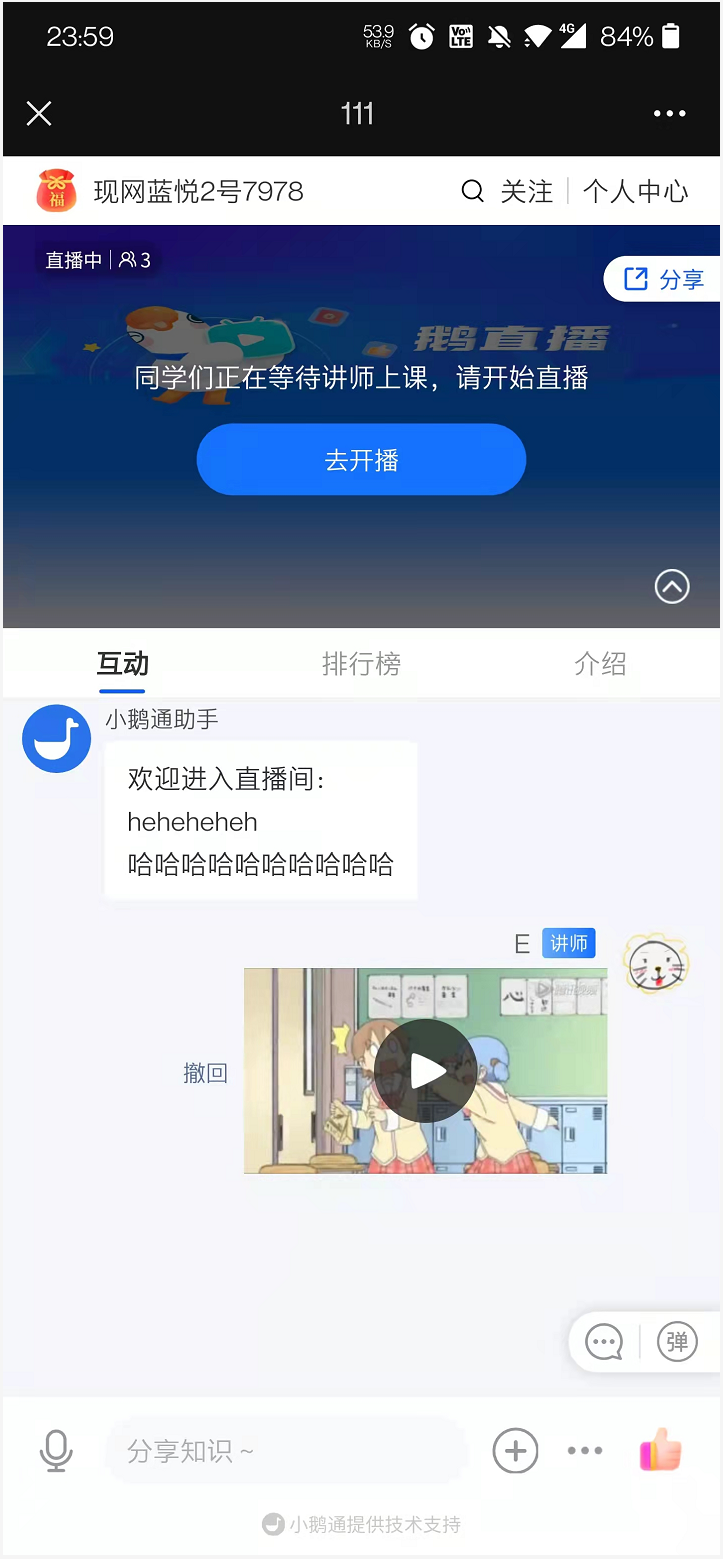
After the instructor successfully uploads the audio and video files, students can view them in the explanation area
No comments to display
No comments to display