
Tutorial on Using Live Streaming Watermark Settings
I. Feature Introduction
Add watermarks to live videos
II. Purpose of Use
Prevent merchants' live videos from being illegally recorded
III. Scope of Application
Scope of application for live watermark settings: Real-time video live streaming, Desktop sharing live streaming
IV. Operation Path
Merchant side:Live Streaming Management→General Settings→ Watermark Settings
V. Usage Tutorial
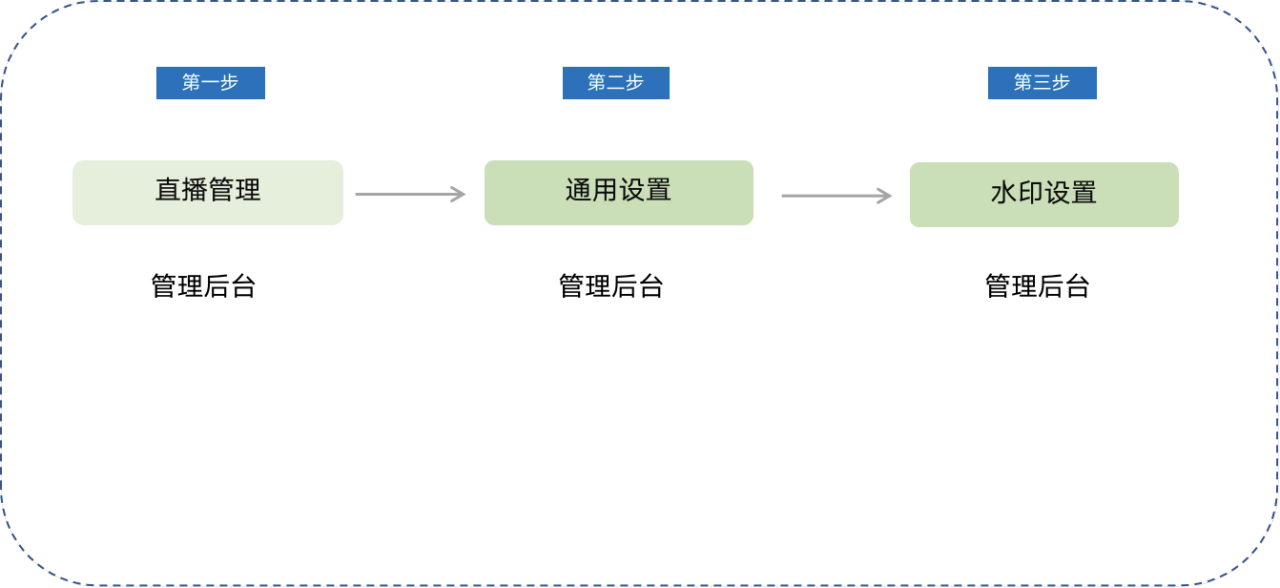
Step 1:Live Streaming Management (Store Management Console)
Enter the live streaming management page
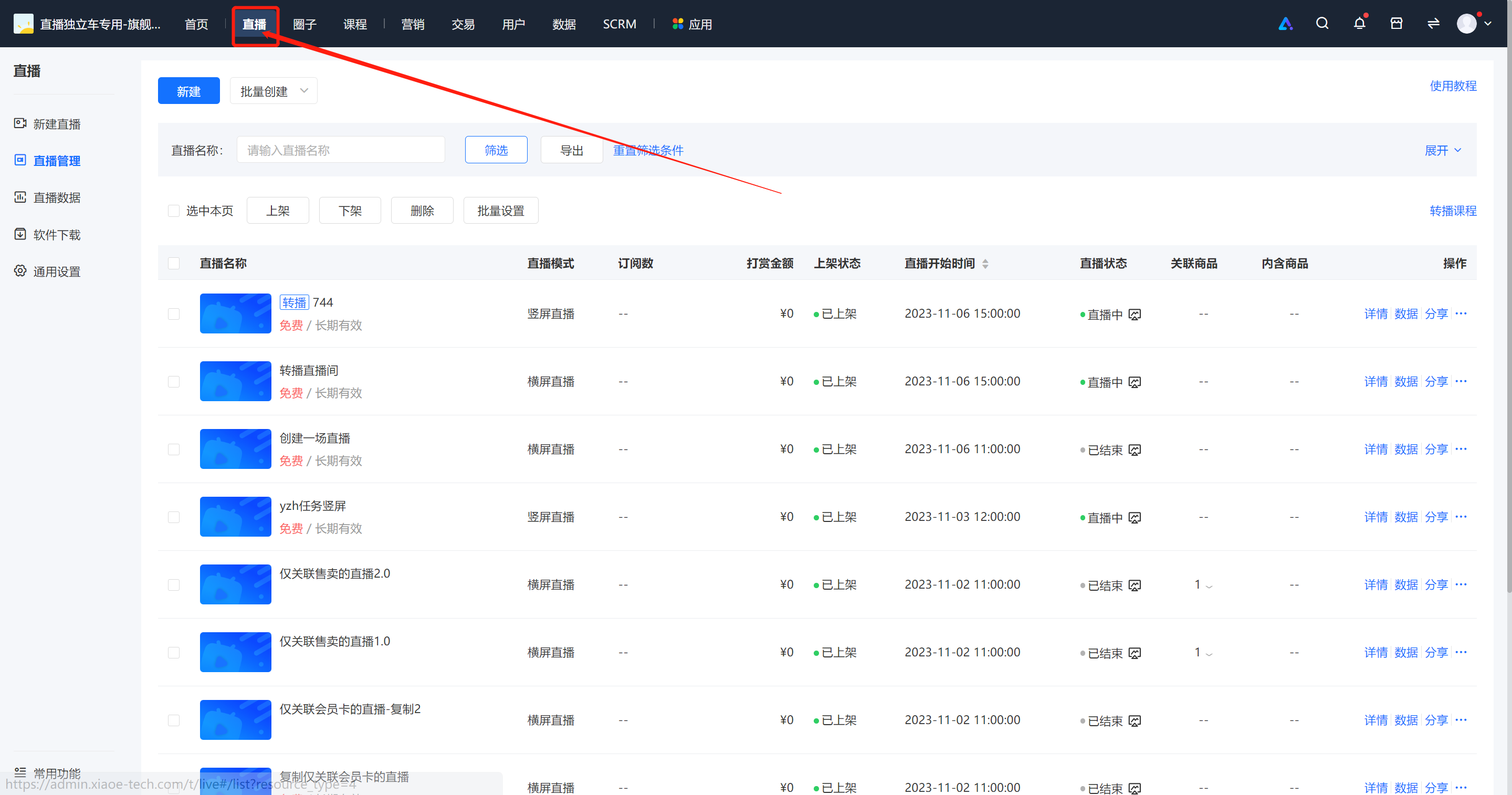
Step 2:General Settings (Store Management Console)
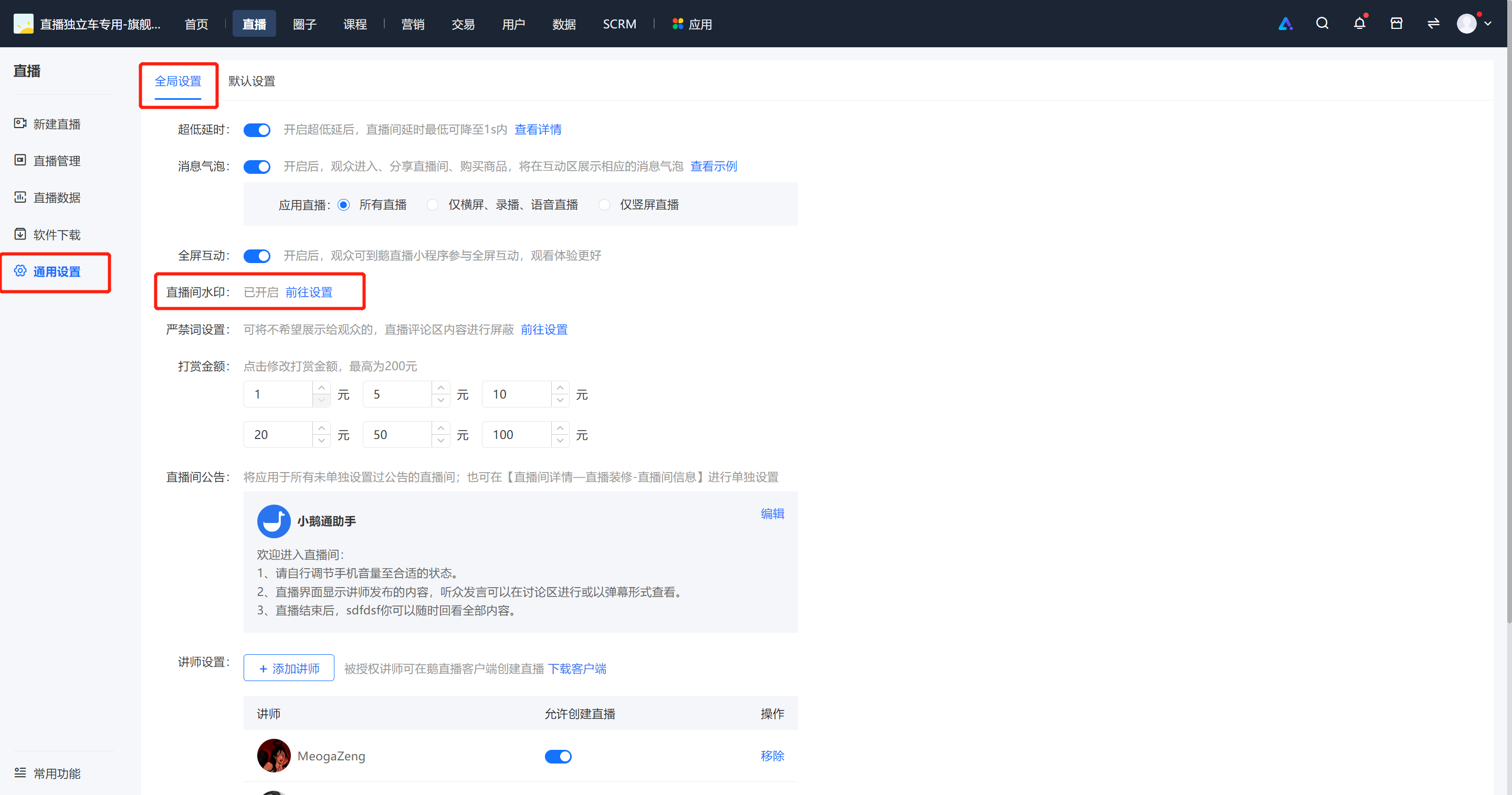
2Click General Settings - Global Settings - Live Room Watermark - Go to Settings
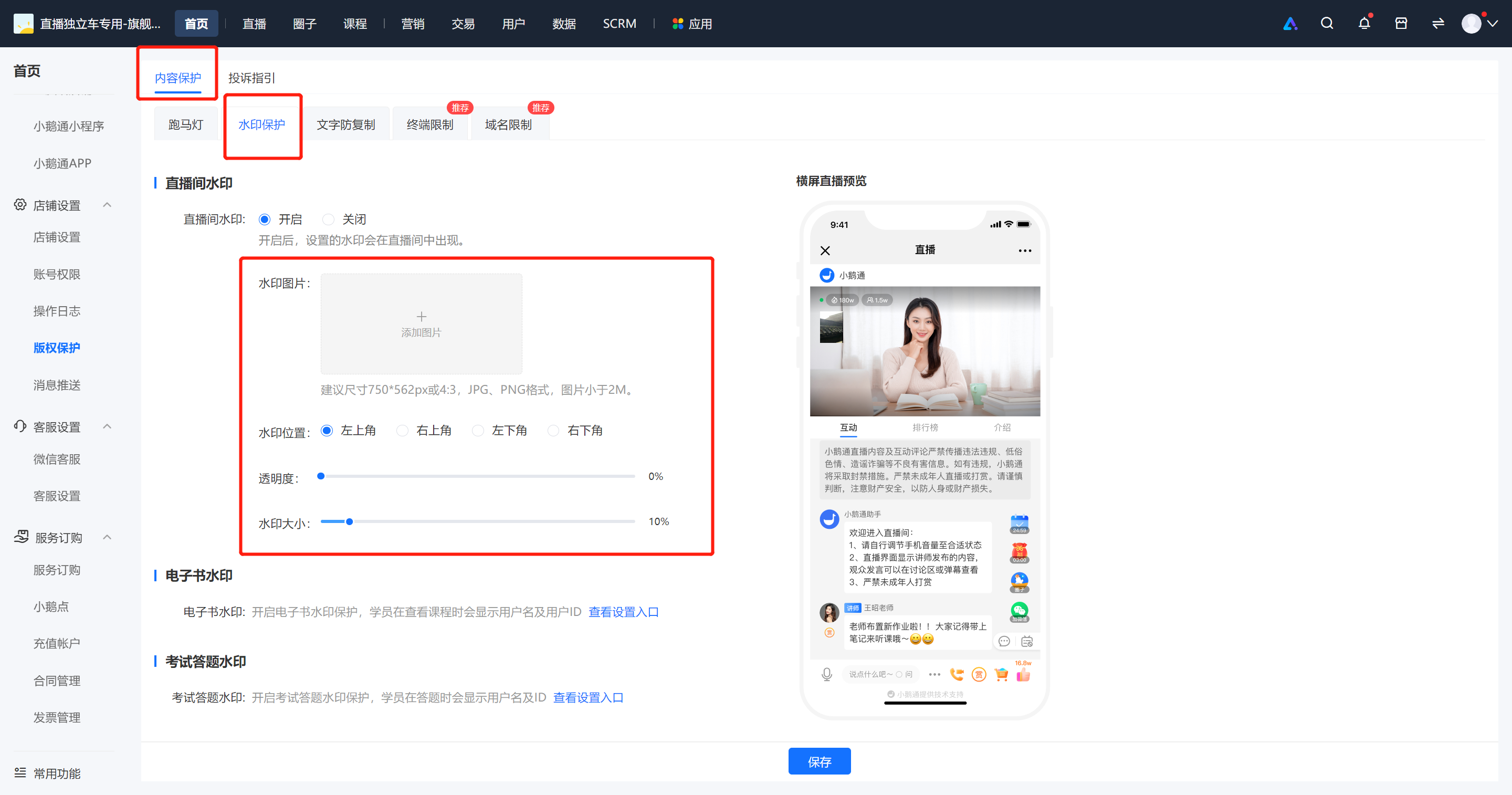
Step 3:Watermark Settings (Store Management Console)
3.Currently, watermark settings support real-time video and desktop sharing live streaming across the entire store;
Third-party streaming: After enabling watermark settings before the live stream, watermarks will appear in the live course;
elink Assistant streaming: After setting the watermark and restarting the stream, the watermark will take effect immediately.
Select to display the watermark, upload the watermark image, adjust the watermark position, transparency, and size, and click Save. For real-time video and desktop sharing live streaming, the watermark will be enabled by default when the live stream starts.
No comments to display
No comments to display