
Tutorial on Using the Check-in Feature in the Live Streaming Room
Tutorial on Using the Sign-in Function in the Live Streaming Room
I. Function Introduction
SupportThe instructor can initiate sign-in at any time during the live streamsign-in, and can also set up scheduled sign-in on the management console. When the sign-in time arrivesstudents can sign in within the live streaming room. After completingsign-in, they canobtain the list of students in the current live streaming room.
II. Purpose of Use
Through sign-in, merchants can interact with students in the live streaming room and view the list of students currently in the room. The scheduled sign-in on the management console supports pre - configuration, improving operational efficiency.
III. Use Scenarios
1. Education and Training: Merchants can use the sign-in function to obtain the list of students in the live streaming room before or at the beginning of the live stream to check which students are absent;
2. Education and Training: Merchants want to know the listening status of students in the current live streaming room. After initiating sign-in, they can view the listening status of current students.
IV. Operation Path
Merchant side: Live stream details - Interactive settings - Turn on the sign-in switch - Configure scheduled sign-in as needed - View sign-in data
Instructor side: The instructor can set up sign-in at any time
Student side: Participate when sign-in is triggered
V. Usage Tutorial
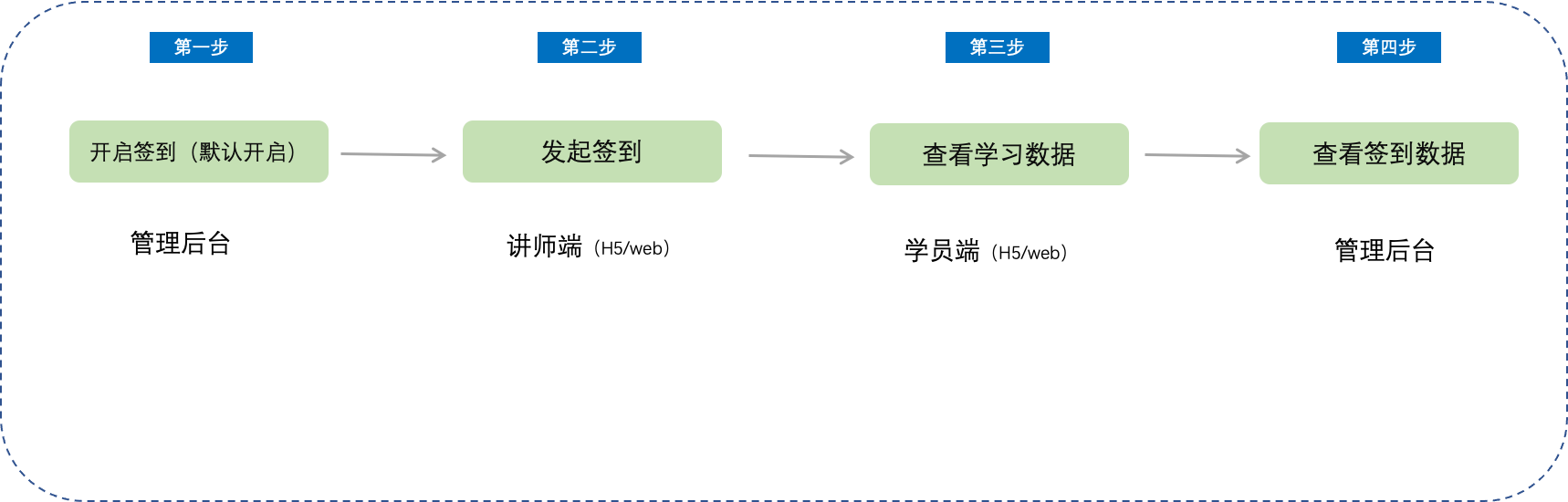
Step 1Turn on the sign-in switch(Management background)
1. Find the live streaming room that needs to be set up and click to enterthe live stream details page. Find [Marketing interaction] - [Interactive settings] and turn on the [Sign-in switch] (default is on);
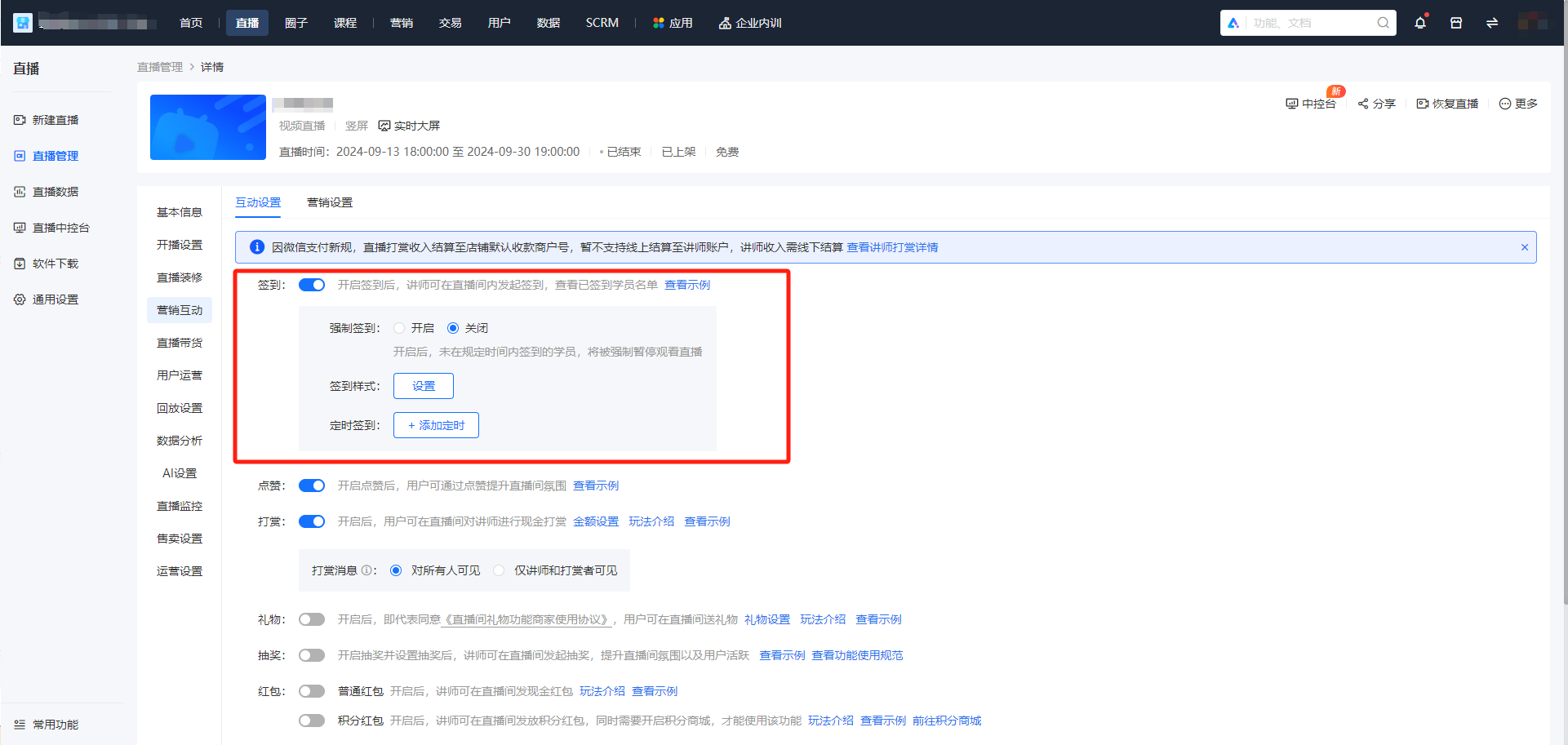
(Management background -Live stream management - Marketing interaction - Sign-in)
Step 2 The instructor initiates the live stream
1. The instructor initiates sign-in on the H5 landscape screen instructor side
The instructor can click on the 「+」 on the H5 landscape screen instructor side to pop up a window, click on sign-in, and enter the sign-in initiation page;
Click on 「Initiate sign-in」, and you can select a sign-in duration of 「30 seconds」, 「1 minute」, 「2 minutes」, 「5 minutes」, 「10 minutes」, and 「30 minutes」, or customize the sign-in duration. After confirmation, you can initiate sign-in;
At the same time, the instructor can click on 「Sign-in records」 to view the initiated sign-ins and the corresponding list of signed-in students;
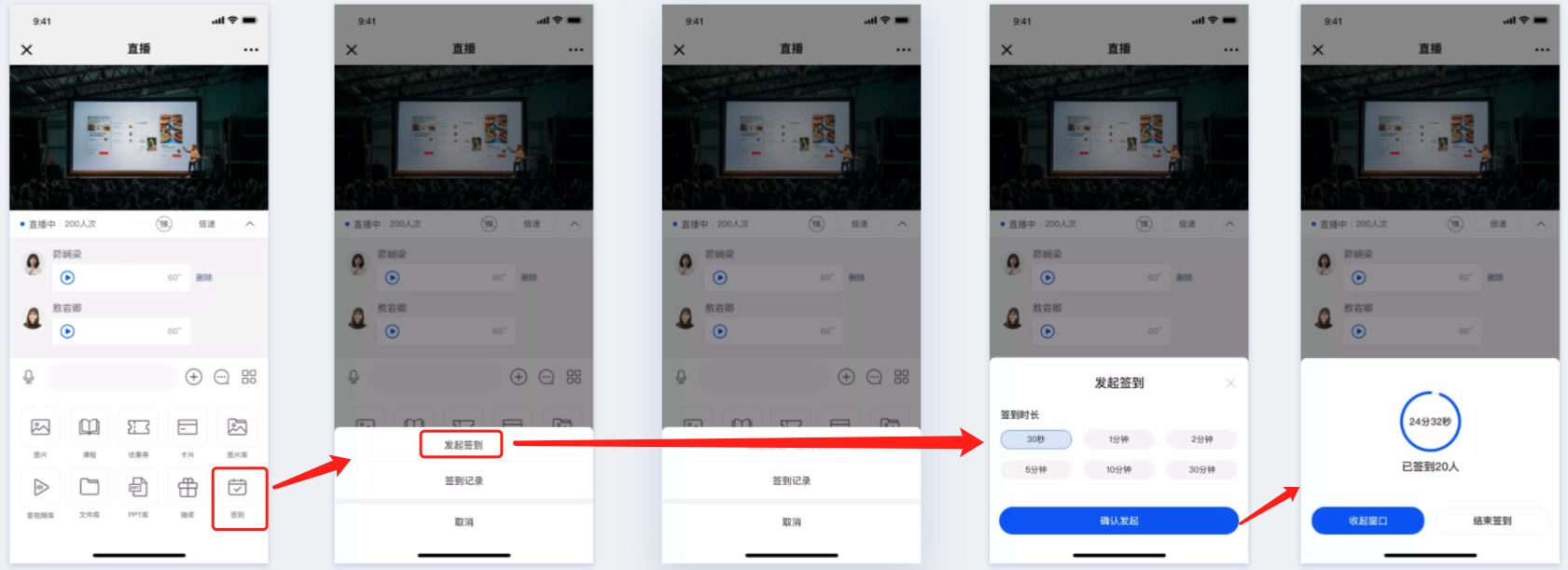
(The instructor initiates sign-in on the landscape screen)
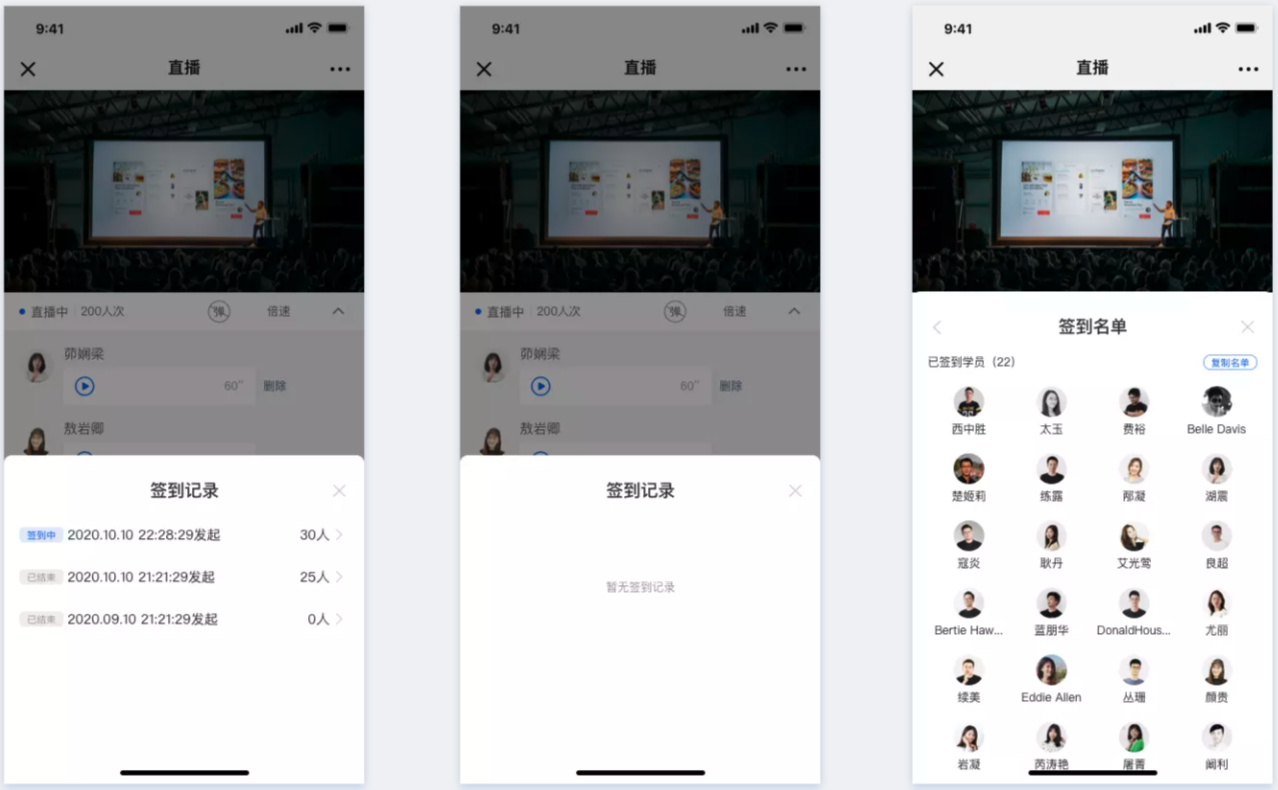
(The instructor views sign-in records on the landscape screen)
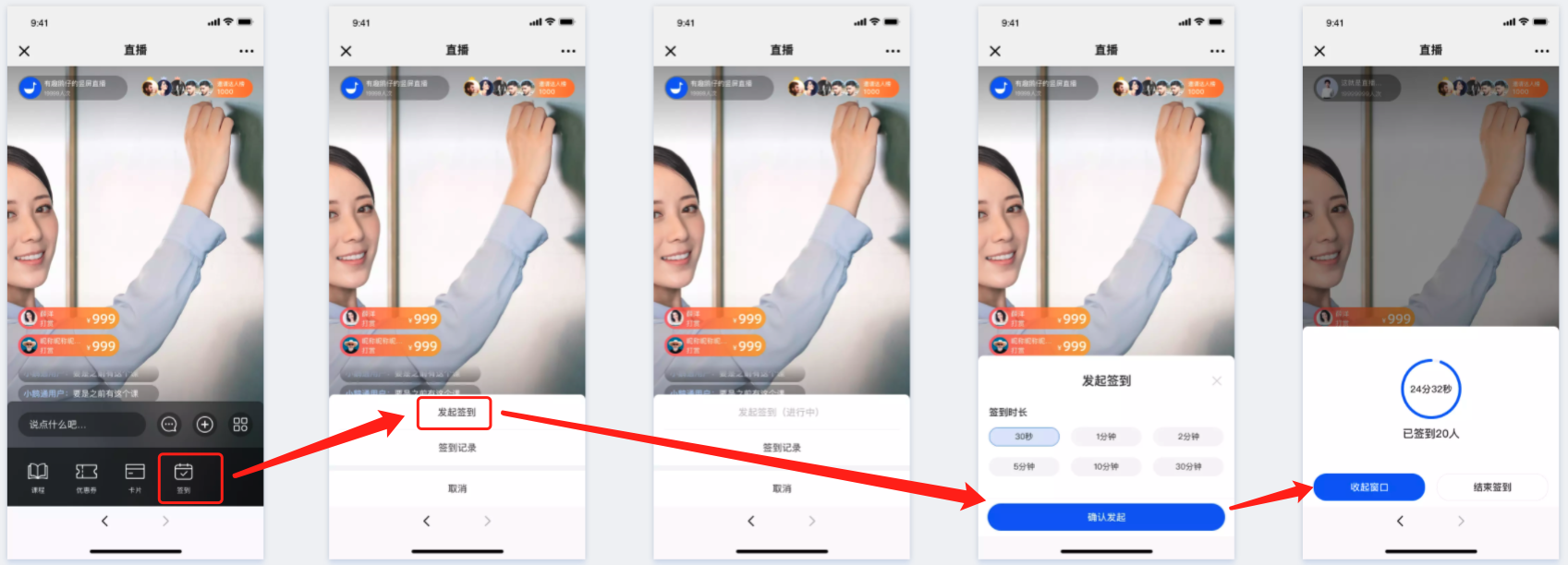
(Instructor sidePortrait screenInitiate a sign-in)
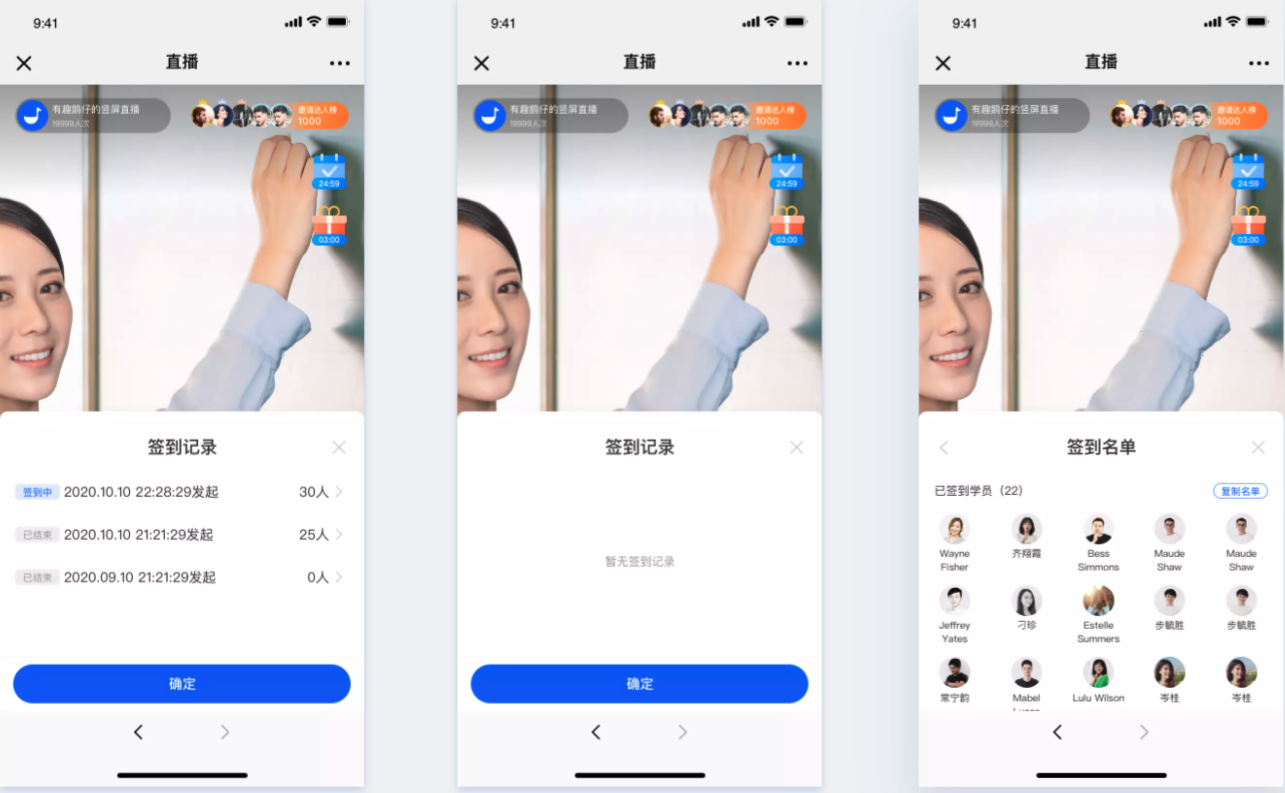
(Instructor sidePortrait orientationView sign-in records)
2. The instructor initiates a sign-in on the web side
The instructor can click on 'Interactive Tools' on the web instructor side, and click on 'Sign-in' in the pop-up window to enter the sign-in initiation page.
Click on 'Initiate Sign-in', and you can select a sign-in duration of '30 seconds', '1 minute', '2 minutes', '5 minutes', '10 minutes', and '30 minutes'. You can also customize the sign-in duration. After confirmation, you can initiate the sign-in.
At the same time, the instructor can click on 'Sign-in Records' to view the initiated sign-ins and the corresponding list of signed-in students.
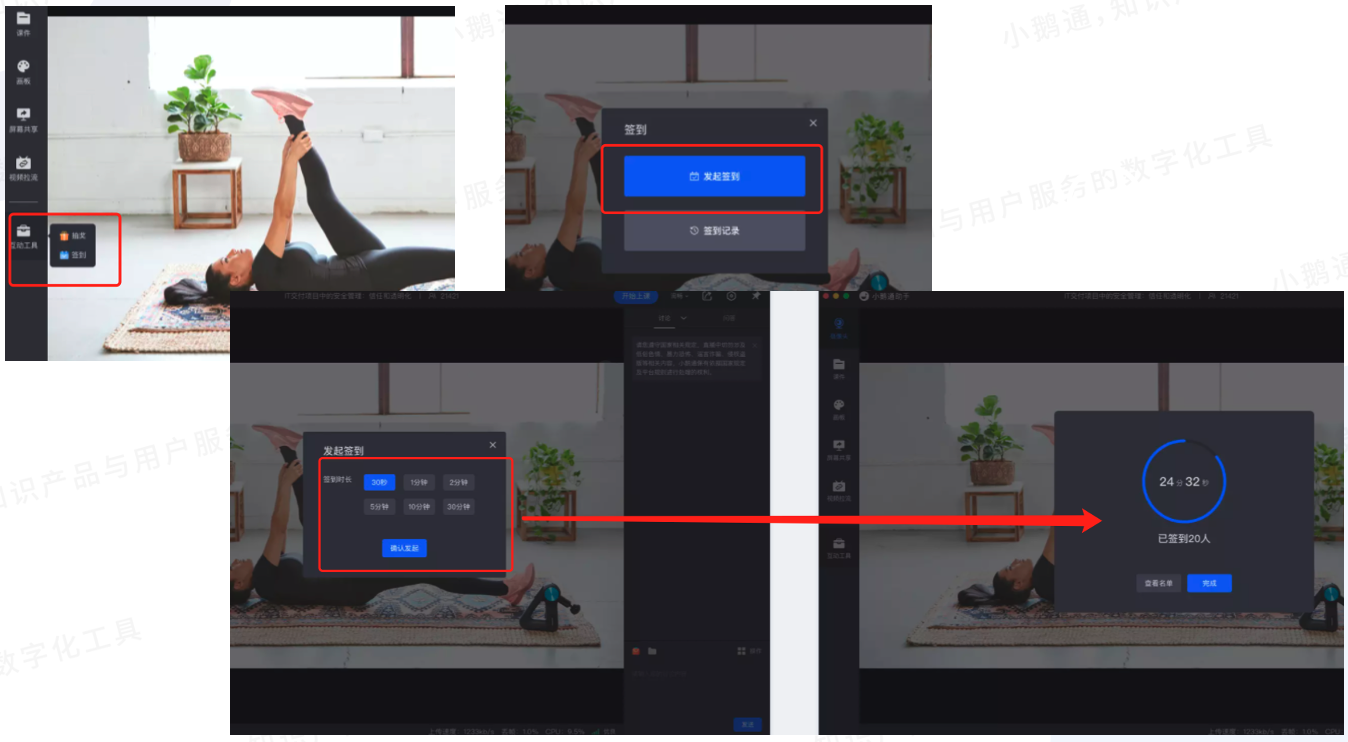
(Initiate a sign-in on the web instructor side)
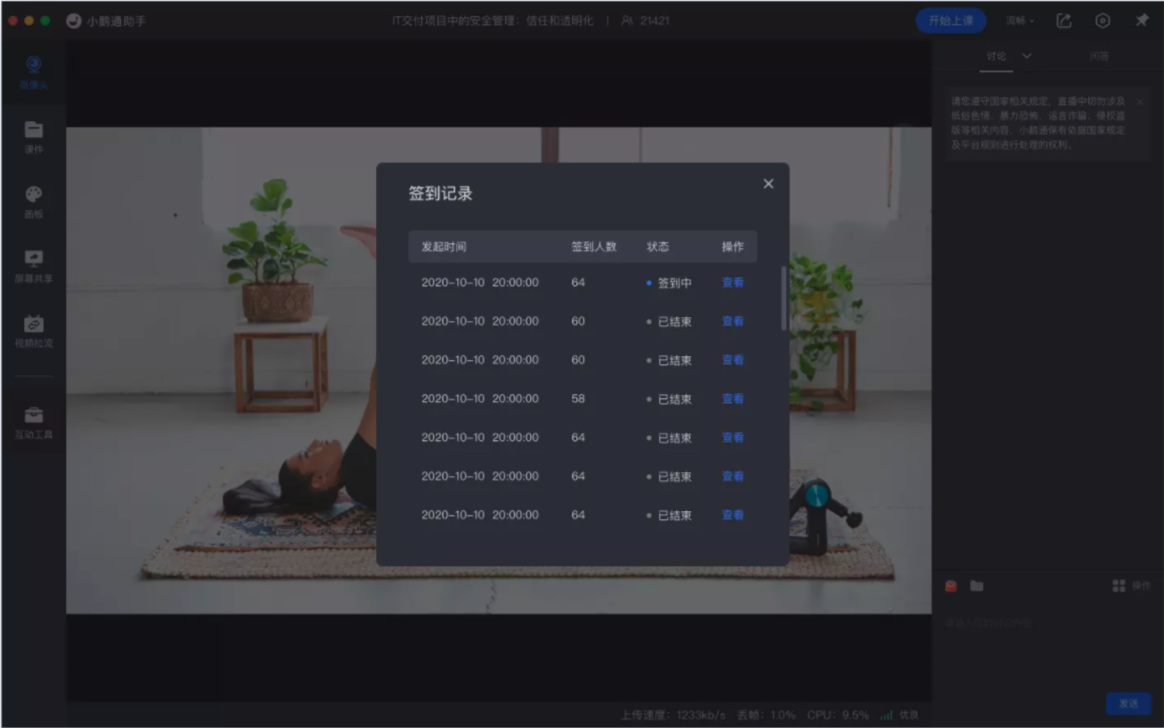
(On the web instructor sideViewSign-in data)
3. eLinkThe instructor initiates a sign-in on the live streaming client

4. Set scheduled sign-ins on the management consoleSign-in
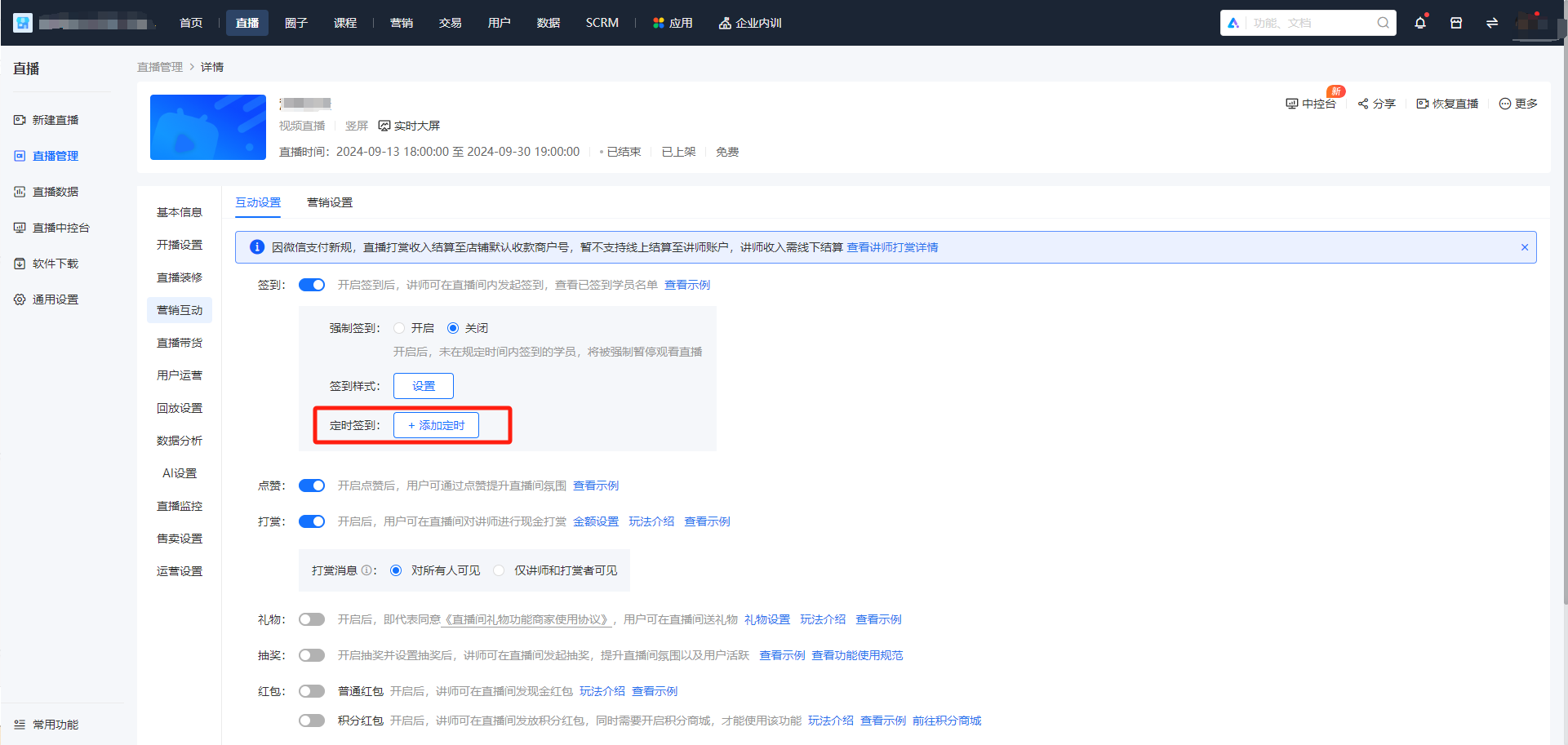
① You can set scheduled sign-ins on the management console. When the trigger time is reached, the sign-in will be automatically triggered in the live streaming room without the instructor's manual setting. If the instructor needs to end the scheduled sign-in, they can directly close it manually without affecting the live streaming rhythm. The display method of scheduled sign-in data is the same as that of the sign-ins set by the instructor.
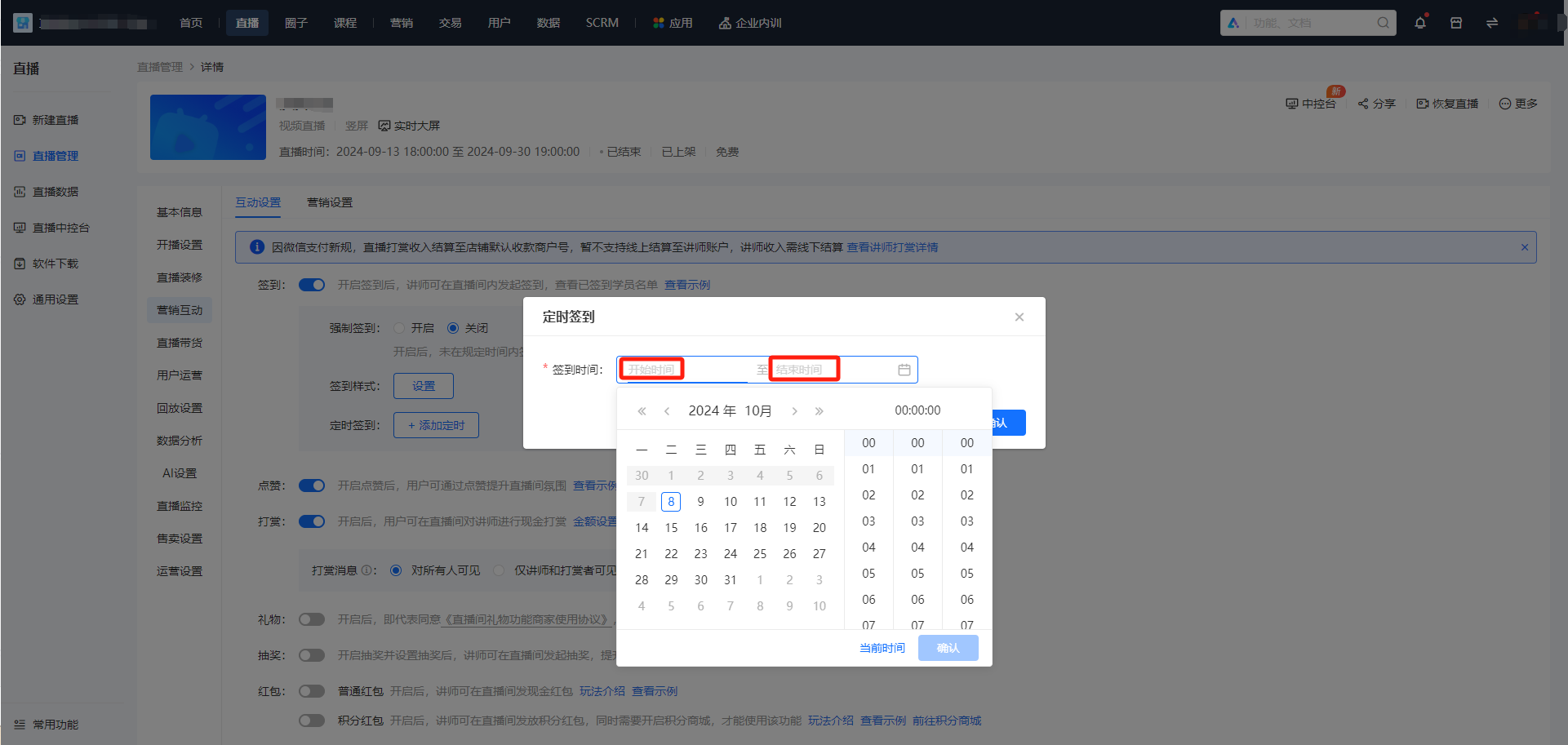
② Sign-in is a periodic function. You need to configure the start and end times. If the configuration is not fully completed, it cannot be saved.
The time limit for configuring a single scheduled sign-in on the management console is the same as that on the instructor side. The shortest sign-in duration is 30 seconds, and the longest is 2 hours, 59 minutes, and 59 seconds. If the time difference configuration does not meet the requirements, it also cannot be saved.
There should be no time overlap between scheduled sign-ins for different sessions. If there is time overlapIt also cannot be saved.
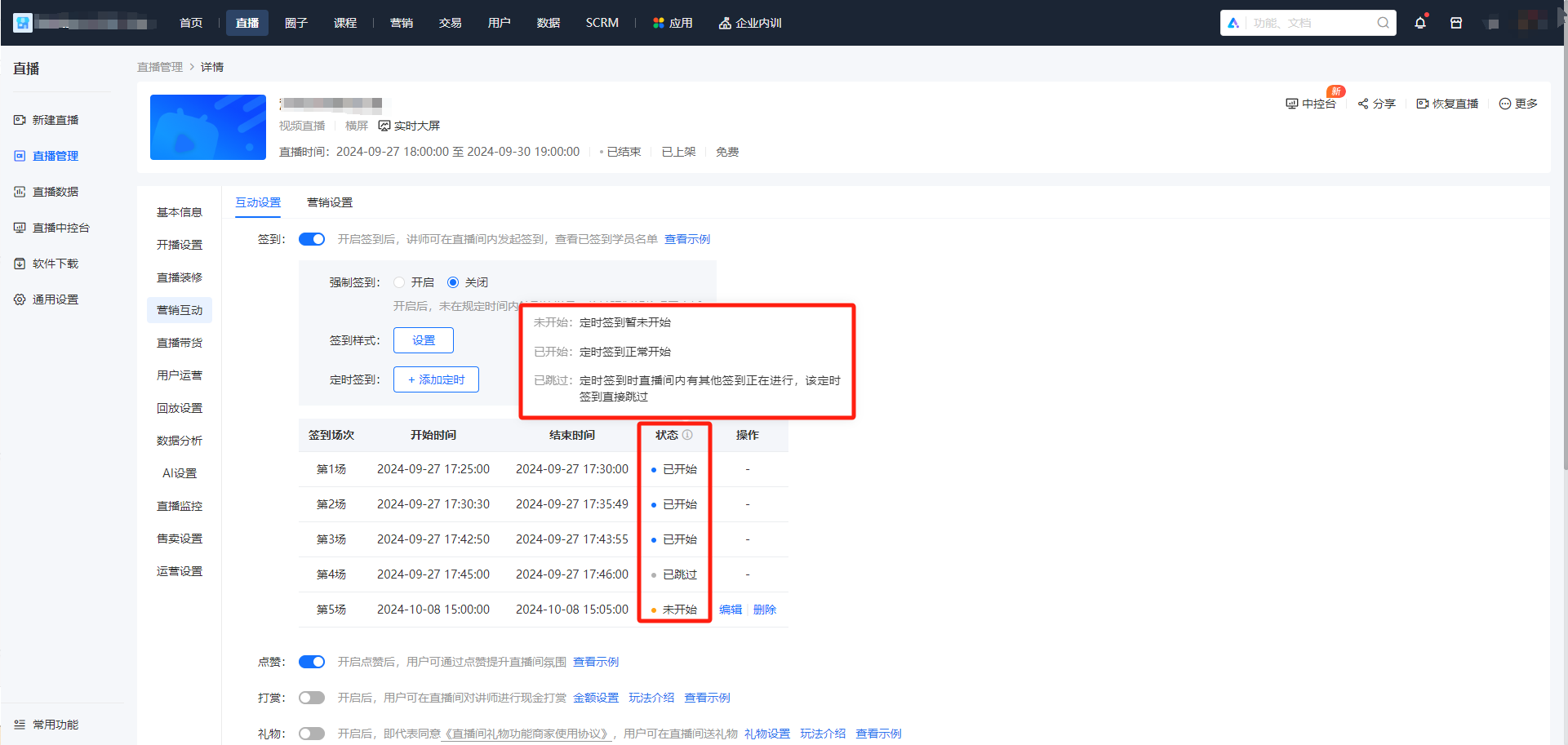
③ After the scheduled sign-in configuration is successful, a session list will appear. There are a total of three states
Not started:The scheduled sign-in has not started yet. At this time, editing and deletion are supported. Editing can adjust the start and end times of the scheduled sign-in. Deletion means that the sign-in will not be automatically triggered.
Started:The scheduled sign-in has started normally. Users in the live streaming room can participate in the sign-in. This state cannot be edited or deleted.
(There is no 'ended' state. As long as the sign-in starts on time, the status will be displayed as 'started')
Skipped:When a scheduled sign-in is triggered, there is another sign-in in progress in the live streaming room. This scheduled sign-in will be skipped directly. This state cannot be edited or deleted.
This situation means that the instructor in the live streaming room is randomly initiating a sign-in and the sign-in has not ended. For example, the instructor initiated a sign-in at 17:00 with a duration of 10 minutes, and there is a scheduled sign-in starting at 17:05 on the management console. Since this time overlaps with the instructor's sign-in, it will not be triggered, and the status will be recorded as'skipped'.
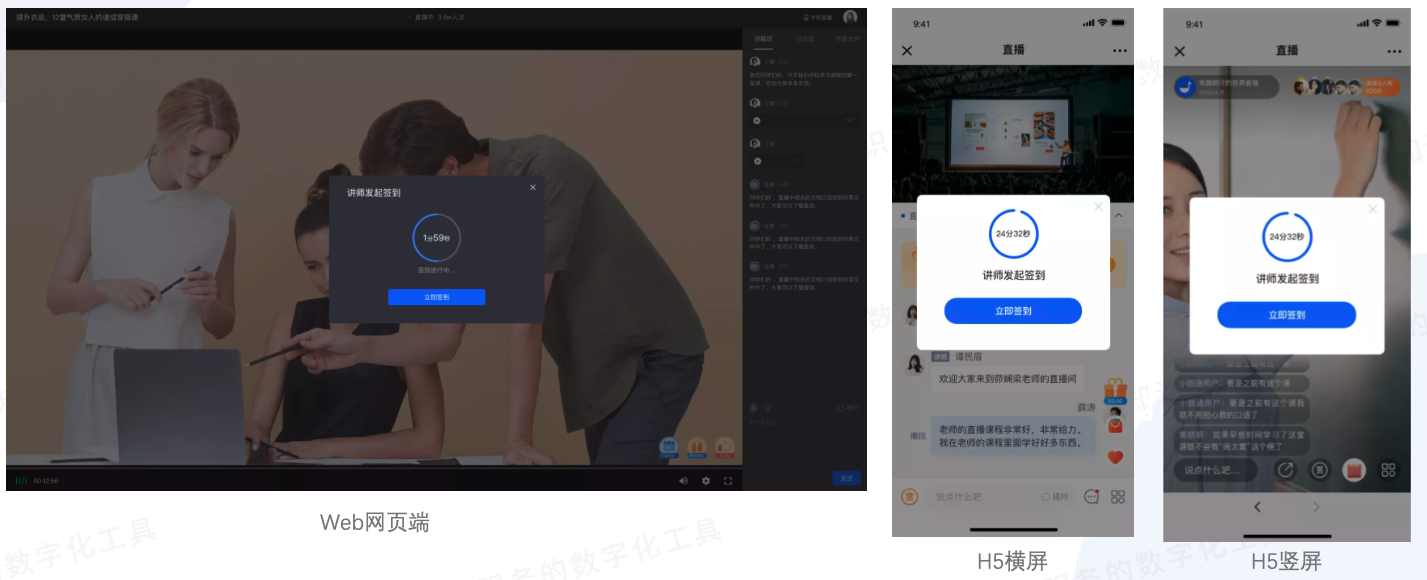
Step 3: Students participate in the sign-in
After the instructor initiates a sign-in, students can click on 'Sign in immediately' in the pop-up window to participate in the sign-in. Even if they close the pop-up window immediately, they can click on the sign-in icon in the live streaming room to sign in again.
StepFourStepView and export sign-in data (Management backend)
In the live streaming room details - data analysis - interaction data, you can find the sign-in details corresponding to the live stream and export the relevant data.
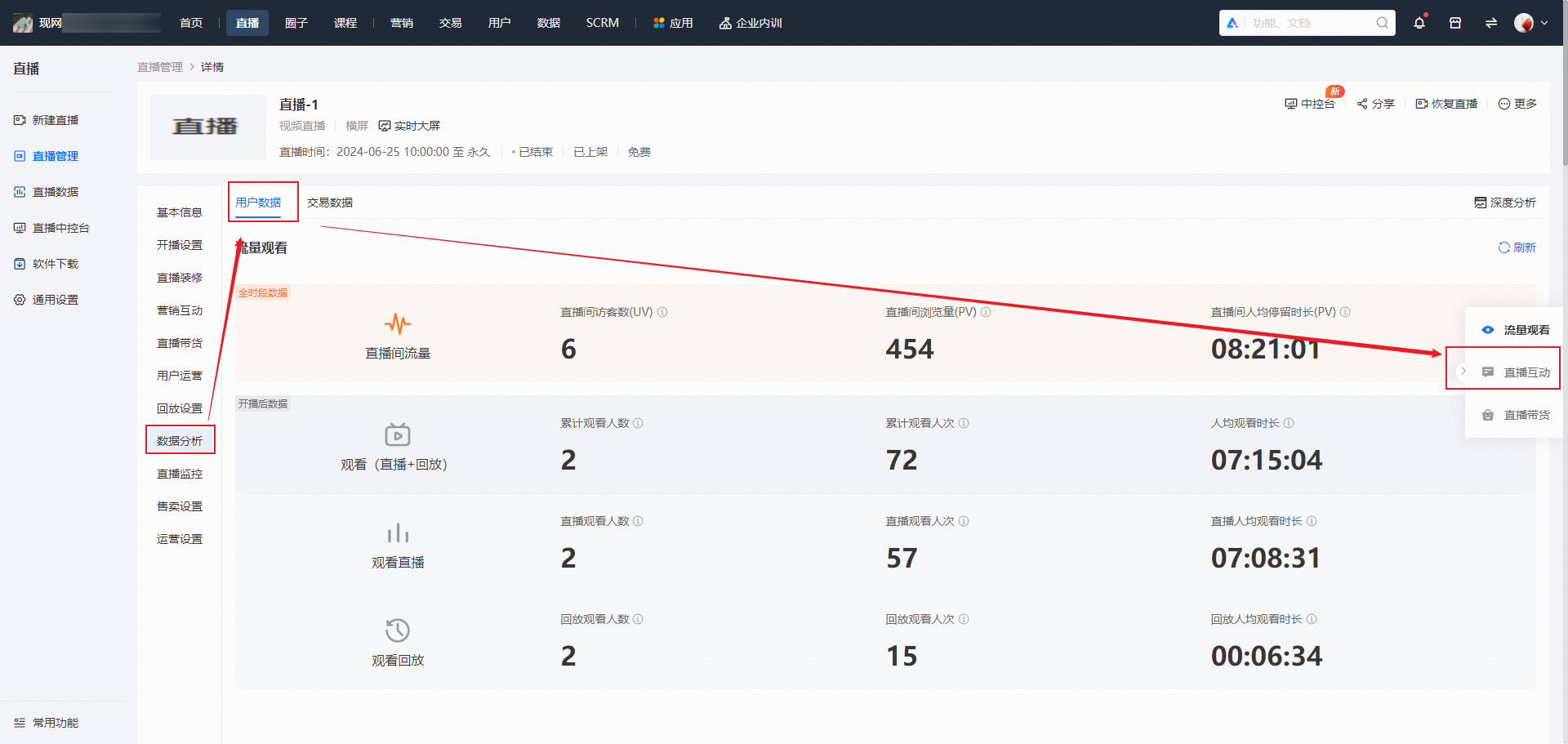
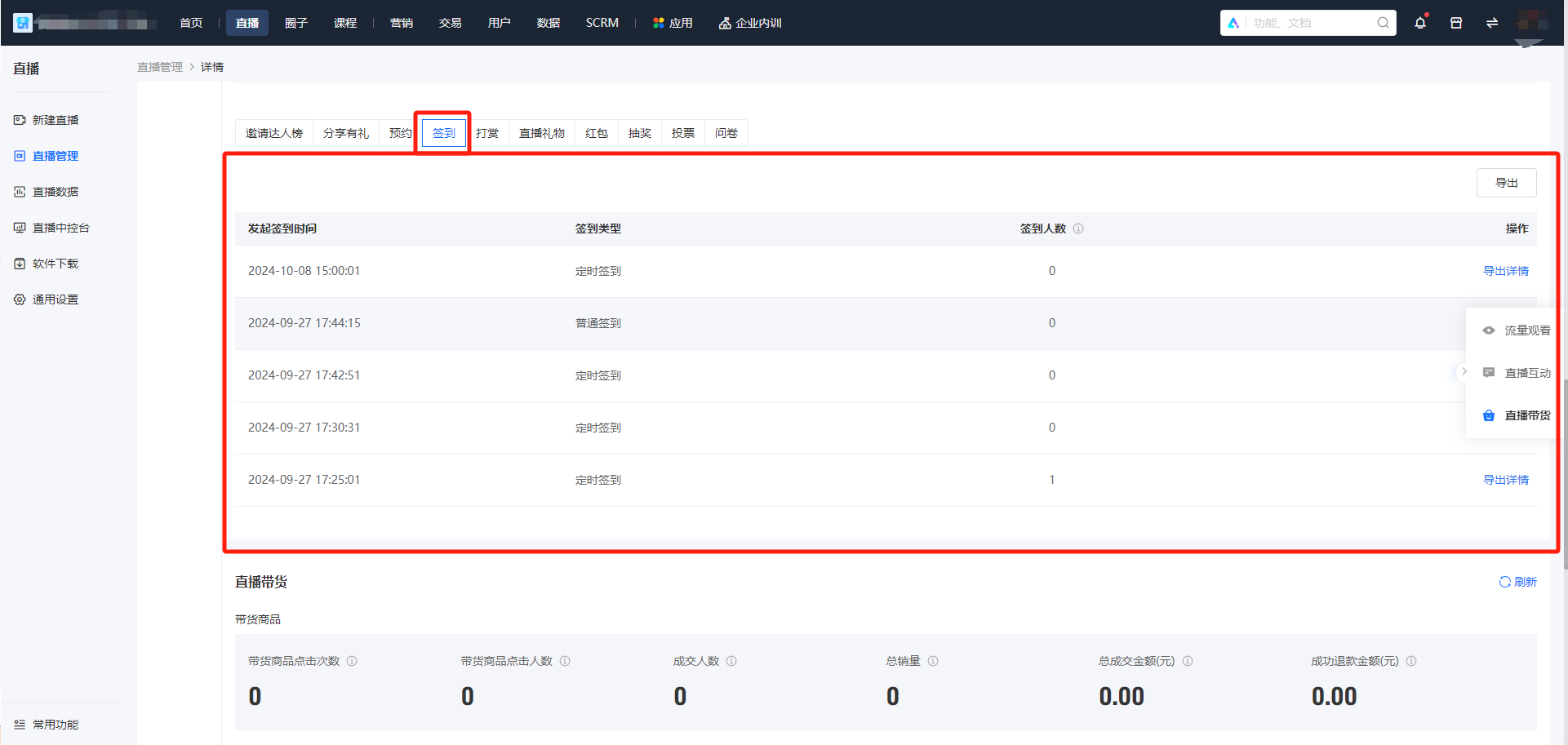
(Management backendView sign-in data)
No comments to display
No comments to display