
How to prevent users from discussing during a live stream?
1. Instructors or guests can click [Operations] in the bottom right corner of the live streaming room on the mobile app and enable [Mute Students Mode]. After enabling this mode, all users will be unable to post messages in the discussion area.
2. Instructors can click the [Operations] button in the top right corner of the live streaming room on the PC browser to enable [Mute Mode].
3. Instructors can mute students on the elink Live client.
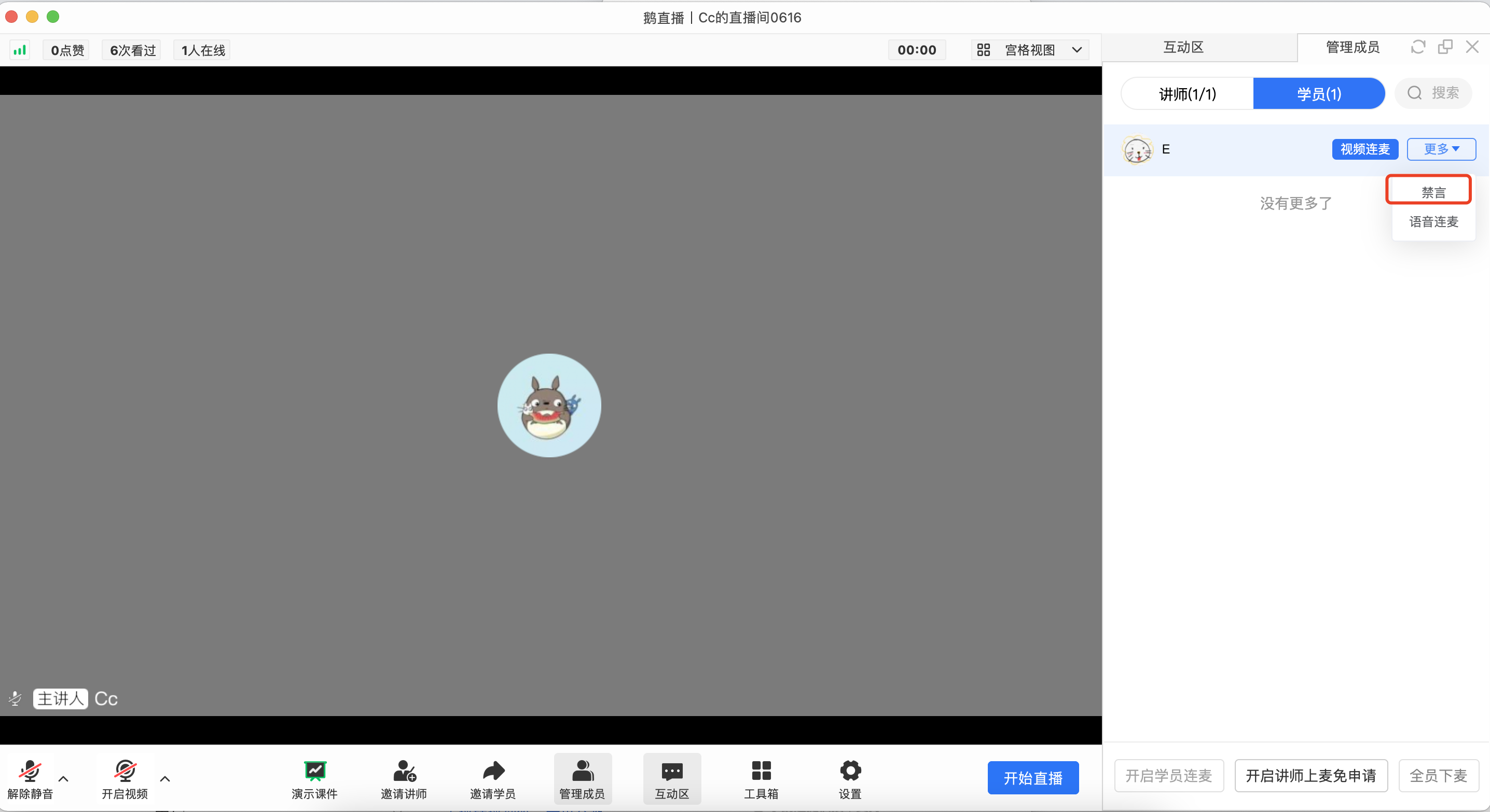
Mute a single student
Find the student's card, click "More - Mute". The mute will take effect after confirmation.
Click "More - Unmute" again. The student will be unmuted after confirmation.
Mute all students
Open the "Interaction Area", click the three dots of "More". After confirming to enable the "Mute Students Mode", all students will be muted.
When the "Mute All Students" mode is enabled, a single student cannot speak even if unmuted.

No comments to display
No comments to display