
Tutorial on using the Live Comment Wall and Voice Message Sending features for trainees
I. Feature Introduction
During the live stream, the instructor can conduct the following interactive operations with the students:
● The instructor manages the students' (i.e., the audience's) permission to post on the discussion board.
● The instructor manages the students' (i.e., the audience's) permission to speak via voice.
II. Purpose of Use
The instructor uses live - stream interaction to assist teaching and enhance the live - stream effect.
III. Usage Scenarios
Meet the scenarios where merchants interact with students during live - stream teaching.
IV. Usage Tutorial
(1) Managing Students' Permission to Post on the Discussion Board
Enable the function for users (i.e., the audience) to post their speeches on the board. Users' speeches will be displayed on the main live - stream interface, just like the instructor's.
Operation path: The instructor clicks [Operations] in the bottom toolbar → Enable [User Posting on the Discussion Board].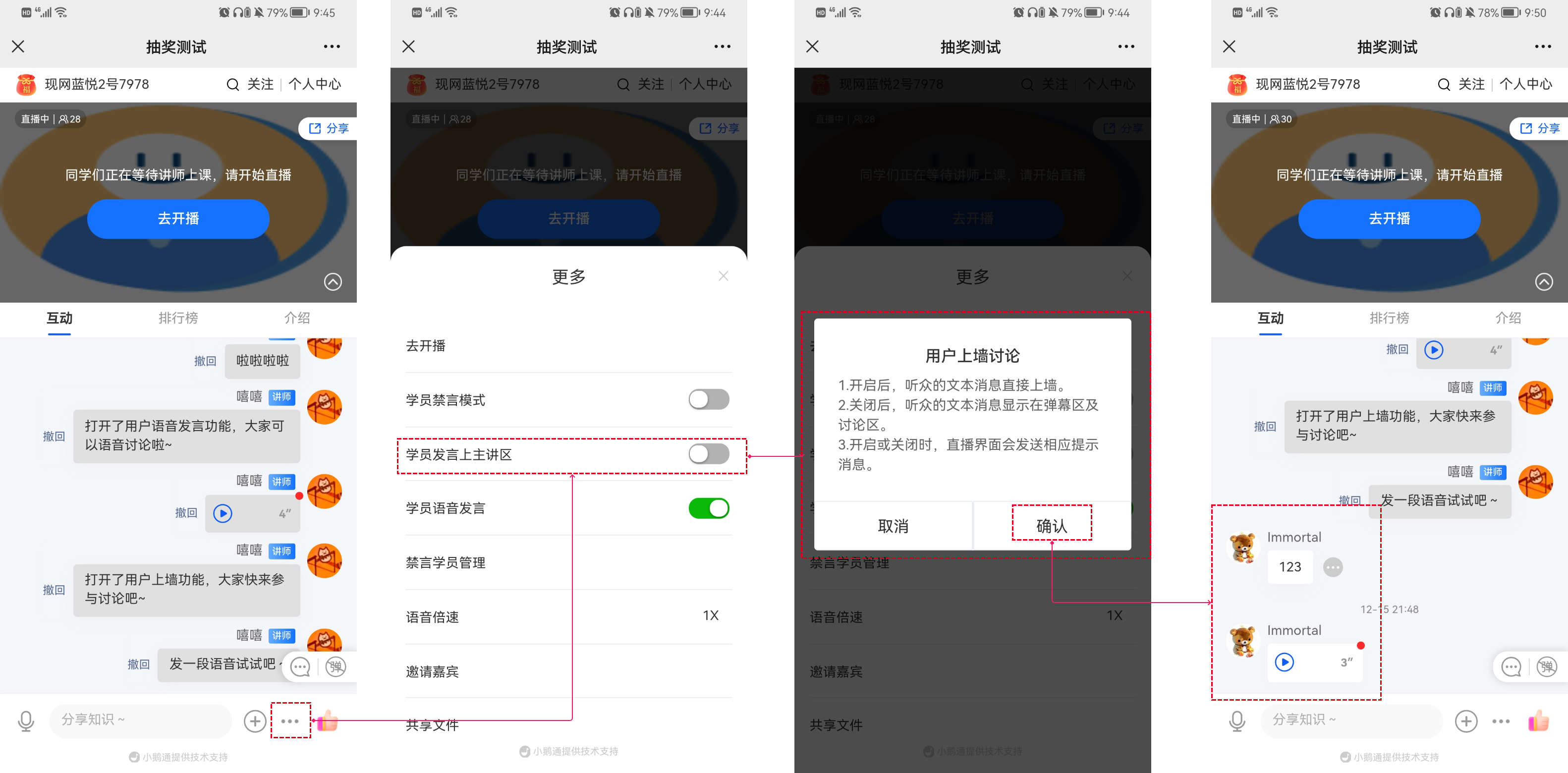
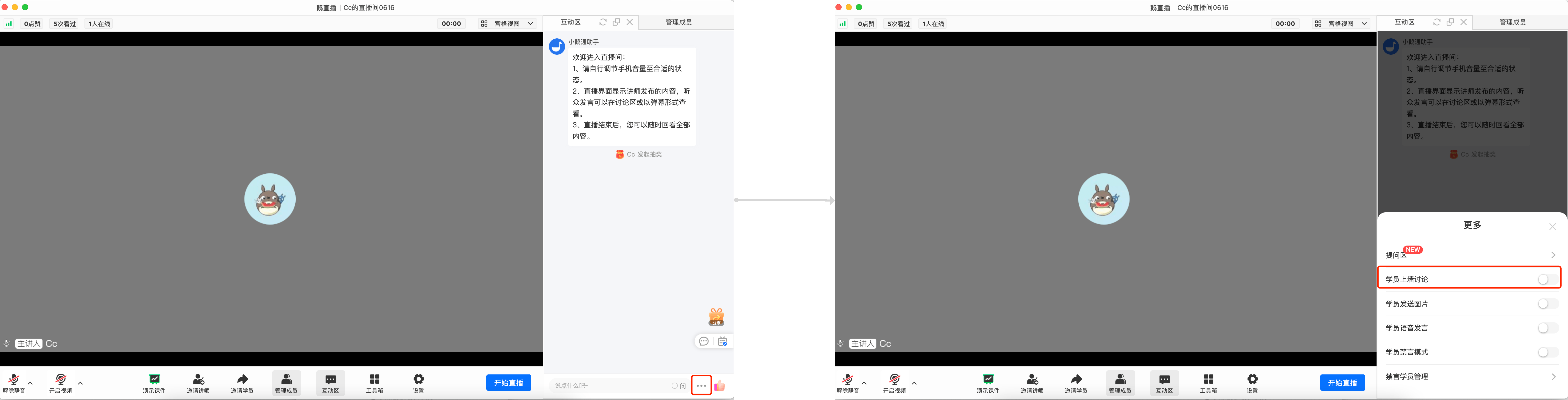
elink Live Streaming Client
Open the "Interaction Area", click the three dots of "More", and enable "Students' Comments on the Wall". The comments sent by students will be displayed in the comment wall area of the live - stream room.
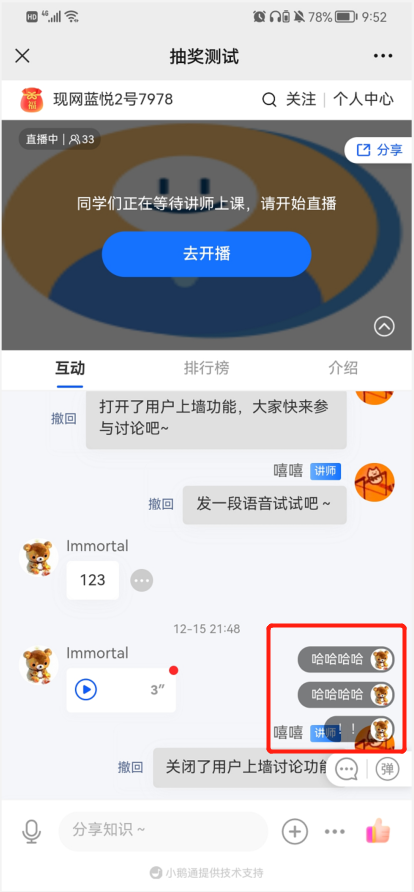
After disabling the user posting on the discussion board, the system automatically helps the instructor send a message to remind the audience that the function has been disabled. The messages sent by the audience will be displayed in the bullet - screen area.
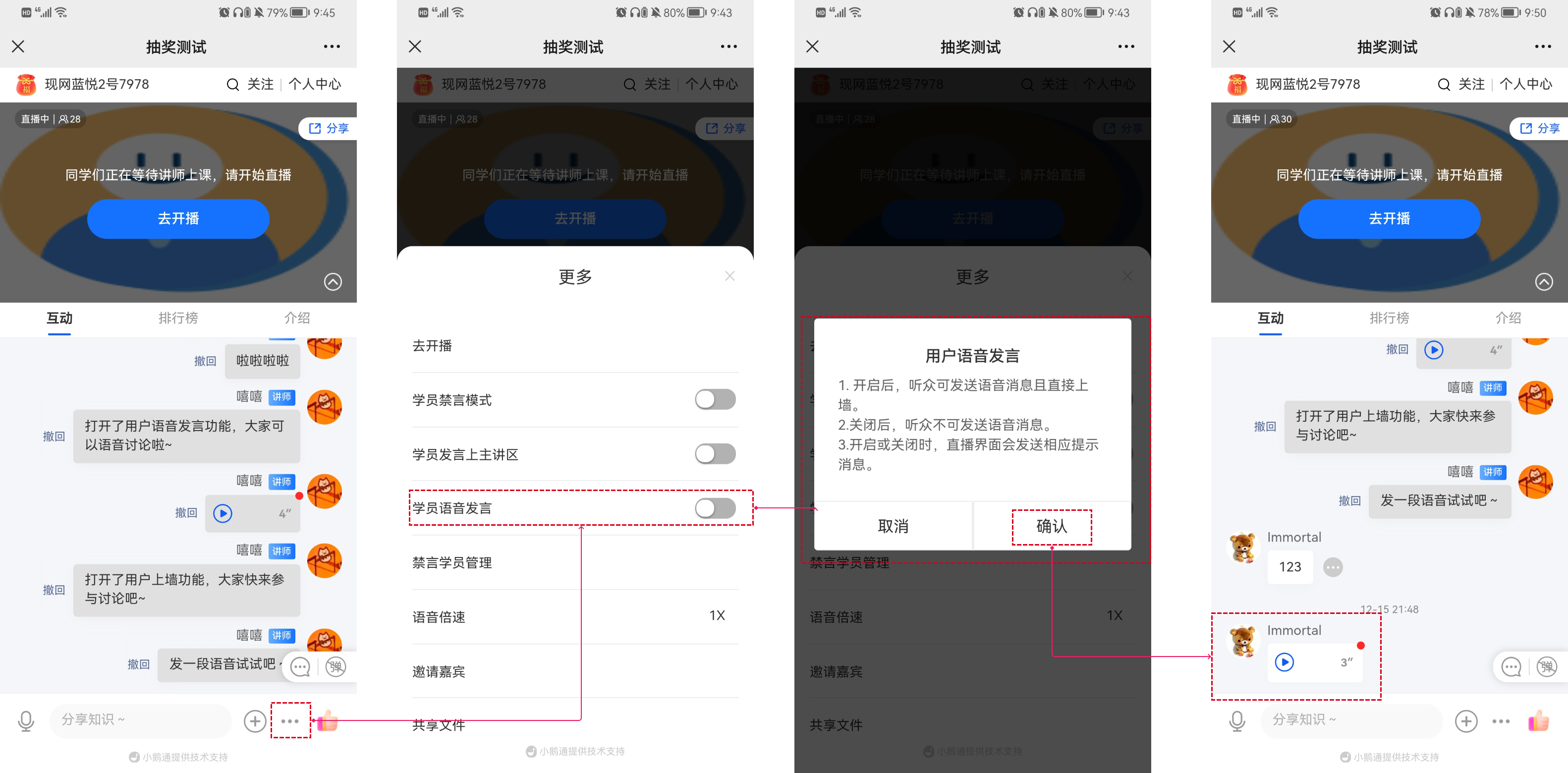
2. Managing Students' Permission to Speak via Voice
Enable the function for students to speak via voice. The audience can send voices, and the voices will be presented on the main live - stream interface. Operation path: The instructor clicks [Operations] in the bottom toolbar → Enable [User Voice - Speaking Function].
elink Live Streaming Client
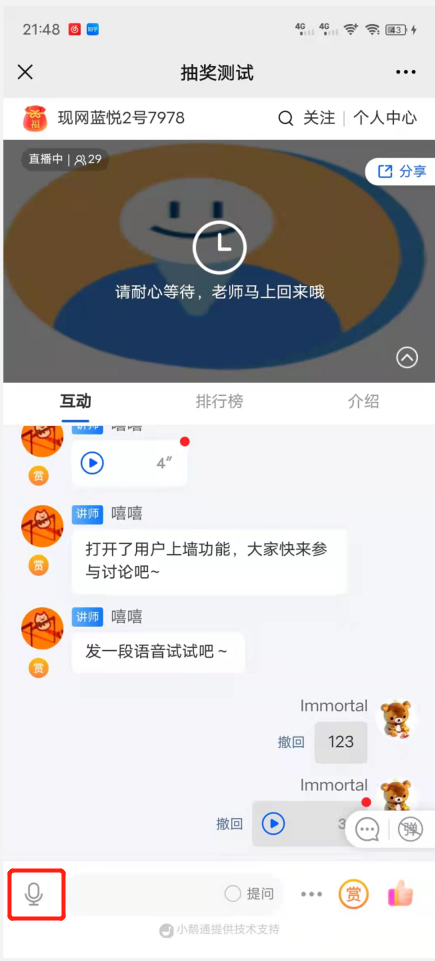
Open the "Interaction Area", click the three dots of "More", and enable "Students Sending Voices". Then students can send voices as comment content.
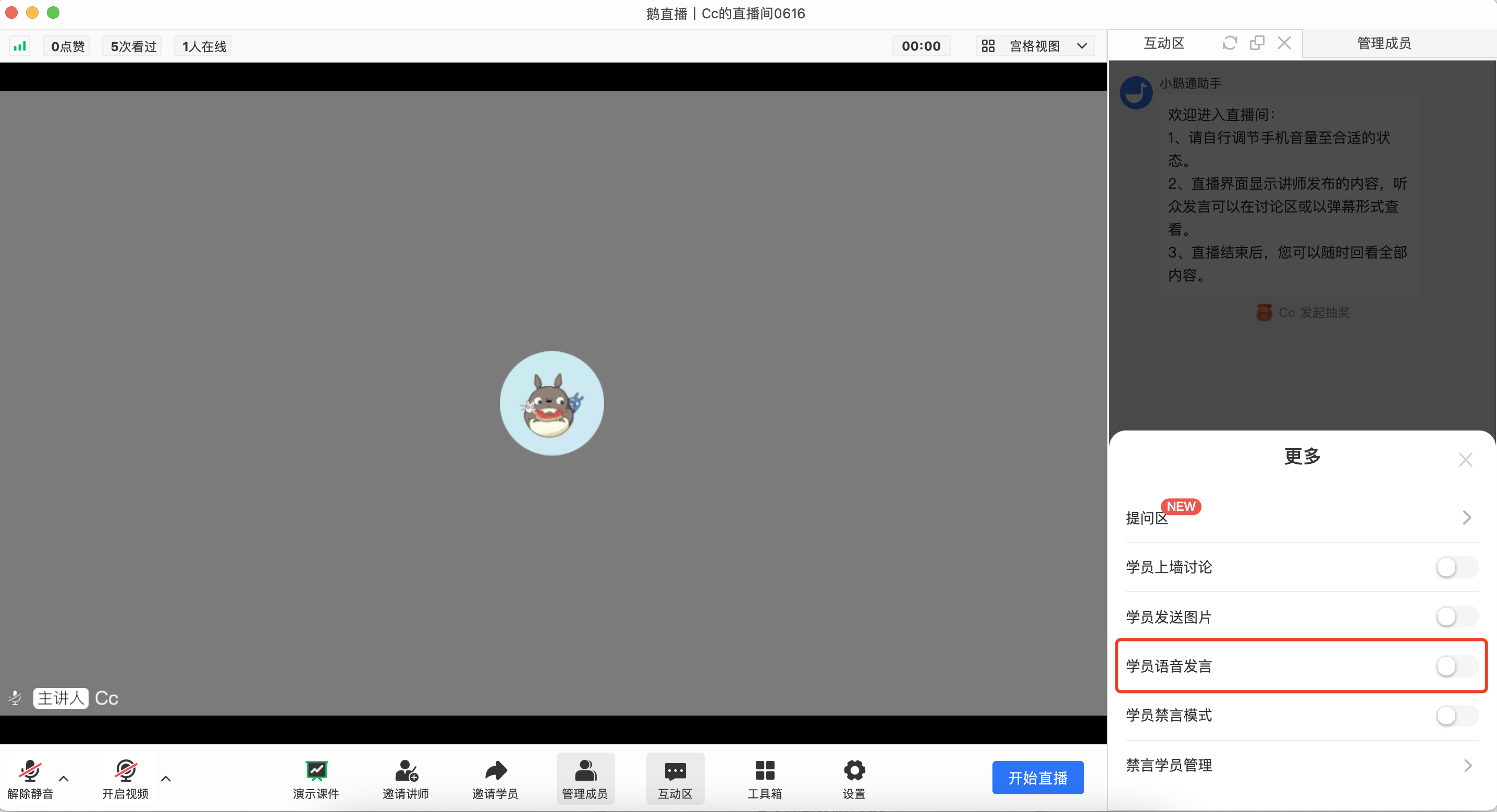
After enabling, the system automatically helps the instructor send a message to remind the audience that the function has been enabled. The "Microphone" icon appears on the audience's end, and they can use the voice - speaking function.
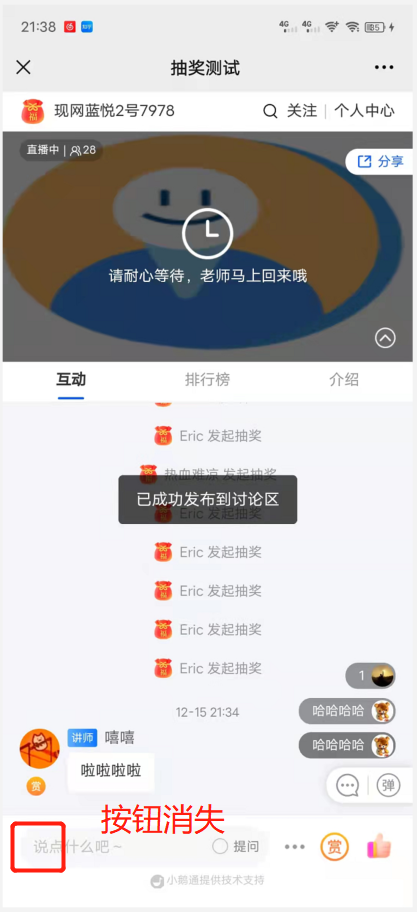
After disabling, the system automatically helps the instructor send a message to remind the audience that the function has been disabled. The "Microphone" icon disappears on the audience's end, and they cannot use the voice - speaking function.
No comments to display
No comments to display