
How can instructors share learning materials in the live streaming room?
Terminals supporting instructors to share videos:elink Live client,elink Assistant client, computerWeb terminal, H5Live room
The operation steps are as follows:
Upload the corresponding files to the material library (currently only files in word, ppt, excel, and pdf formats are supported). After the upload is completed, you can click the relevant file and send it to the lecture area. After sending, students can find the corresponding file in the shared files in the live room for download.
1. elink AssistantUpload from the client live room:
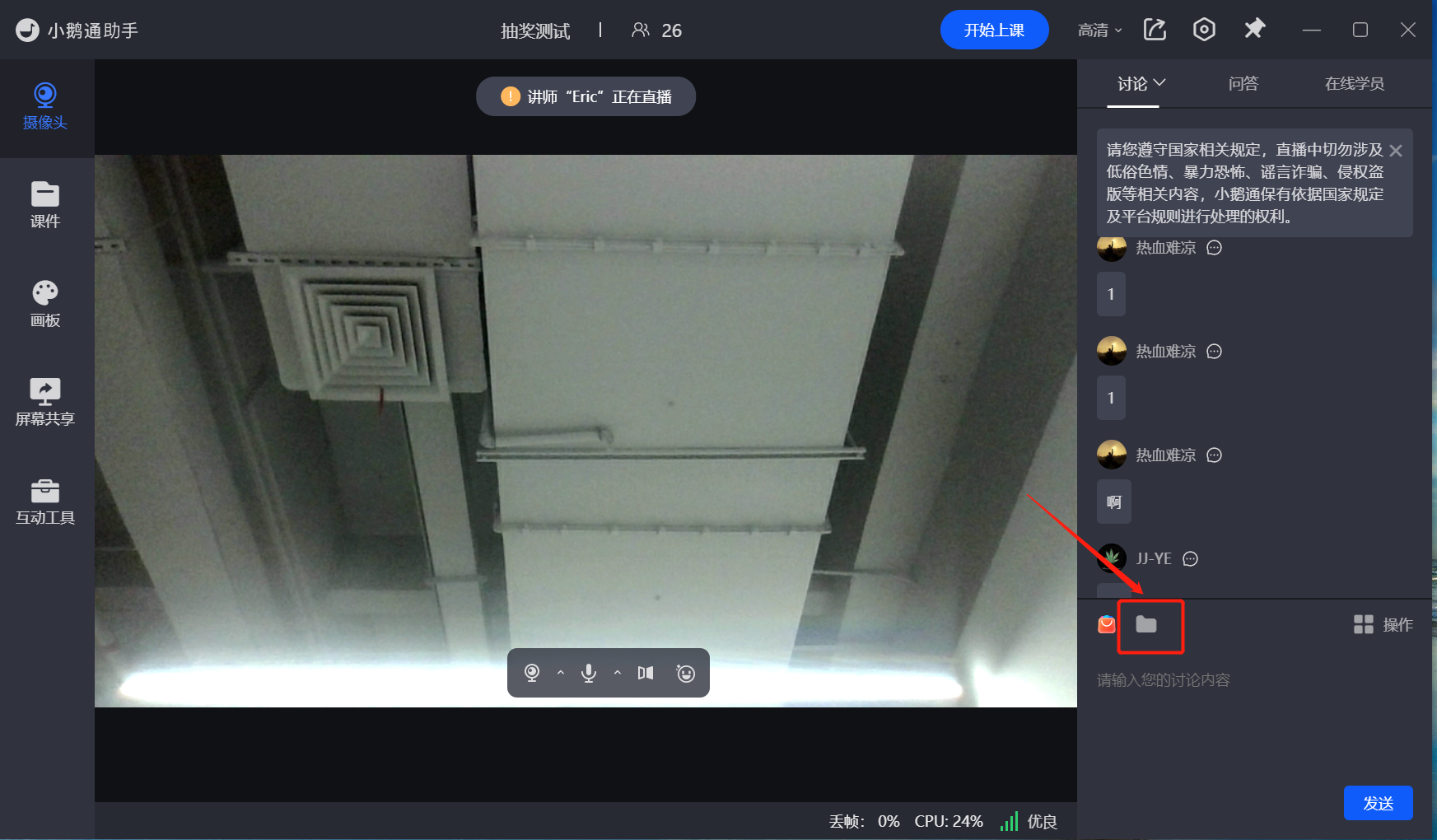
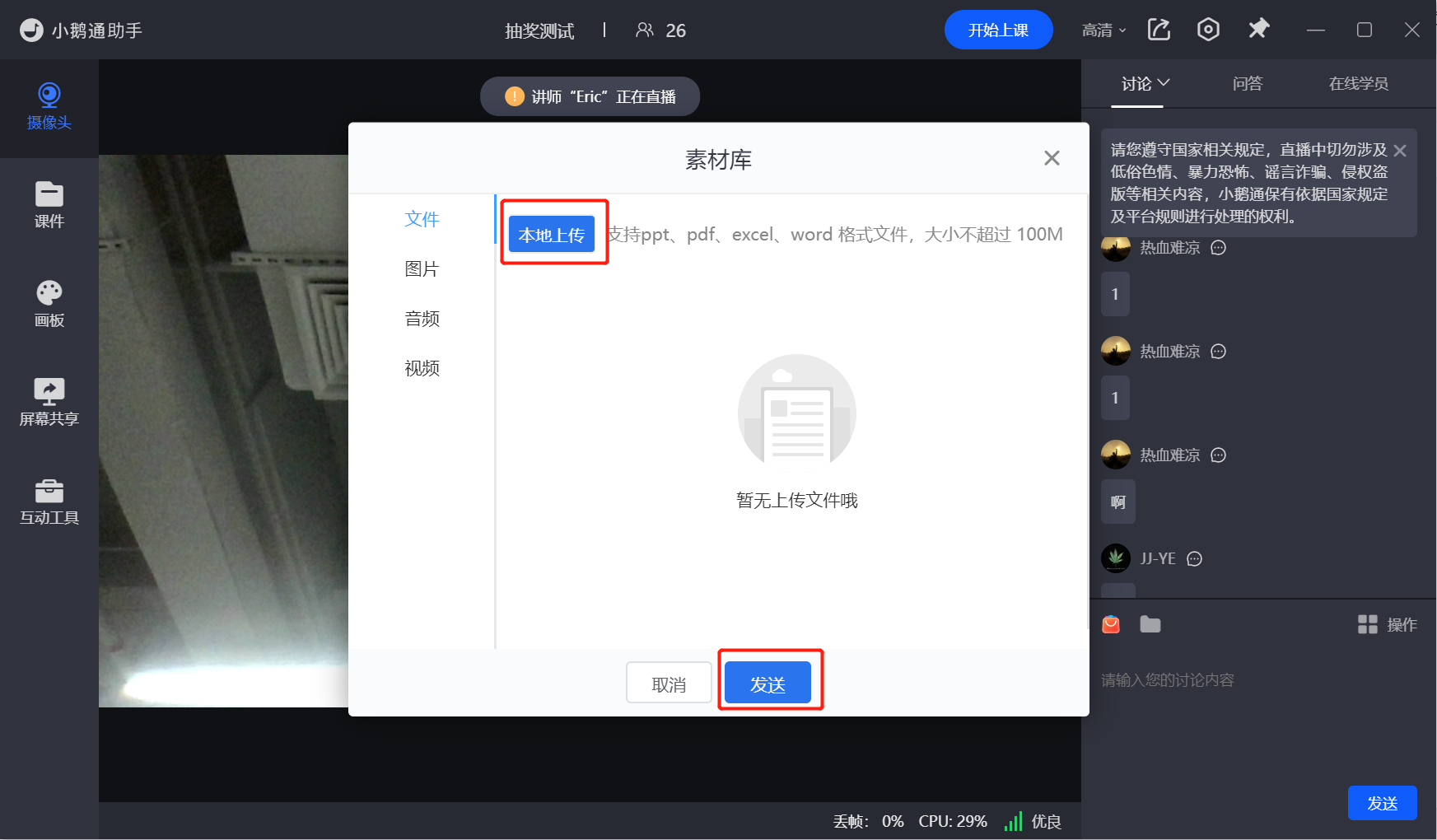
2.WebUpload from the web - terminal live room:Find the location of [Folder] and click to upload
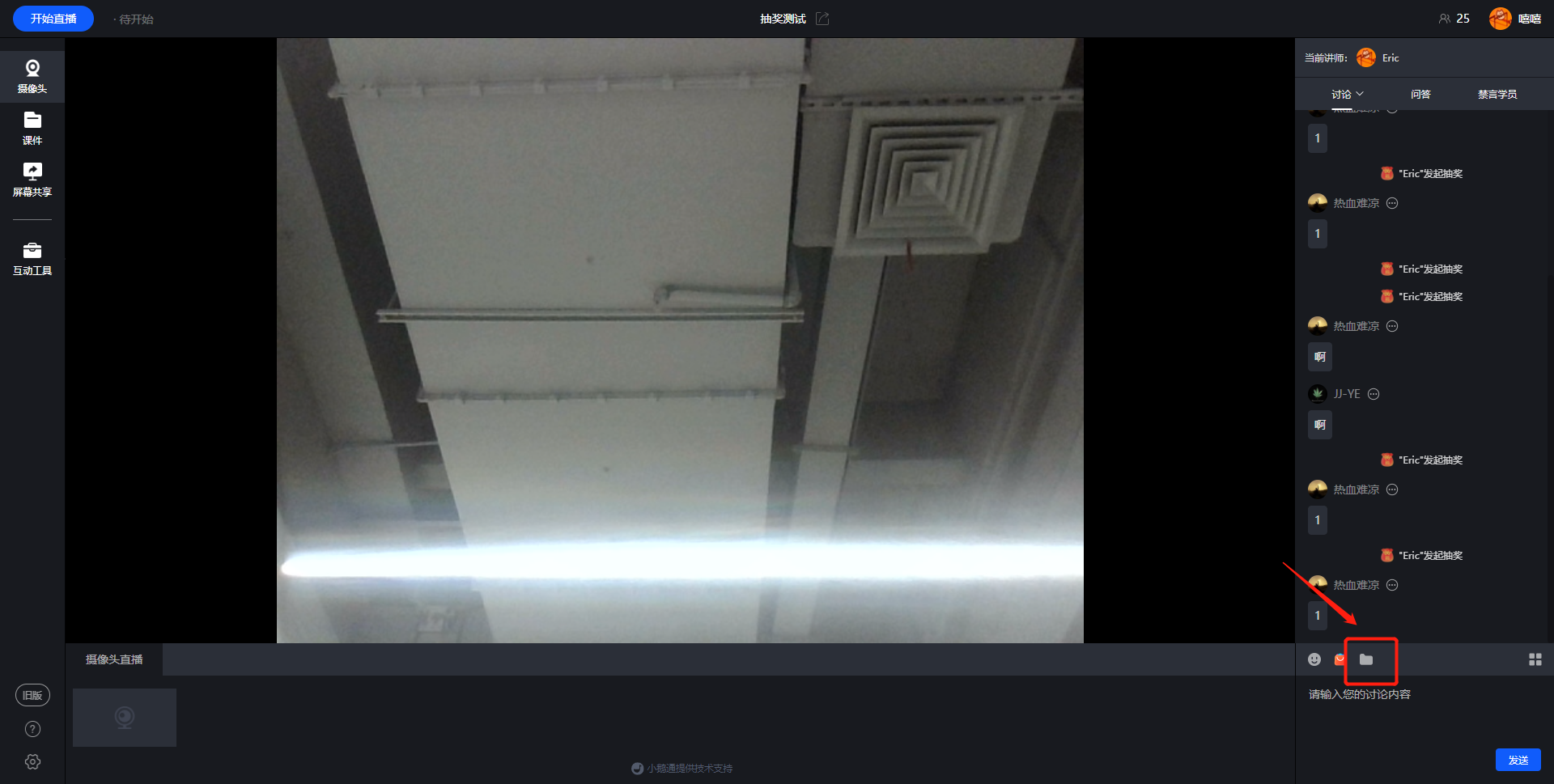
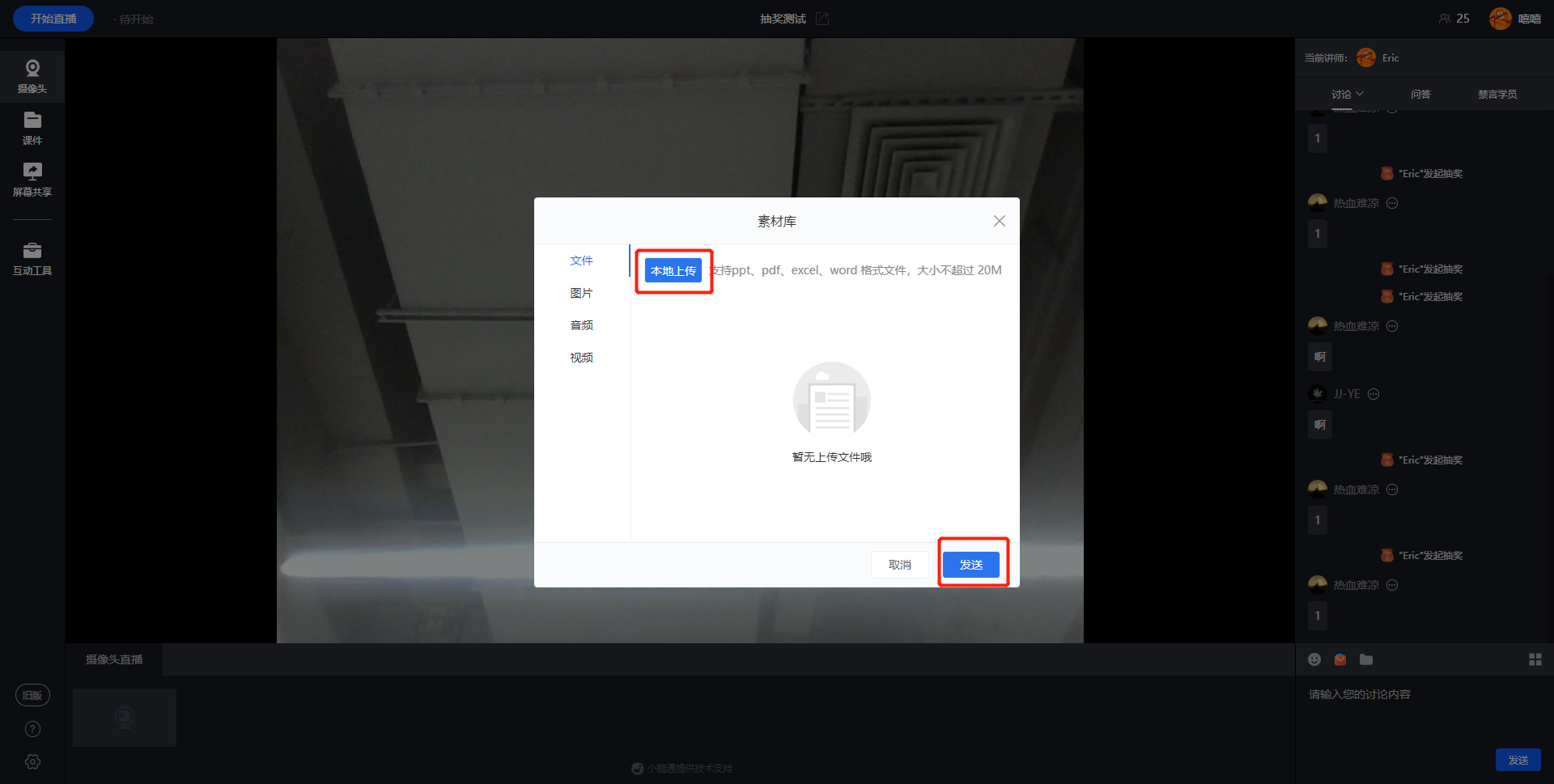
3. Upload from the instructor's WeChat H5:The instructor enters the H5 live room, clicks the [+] sign on the left, and selects [File Library] to upload files
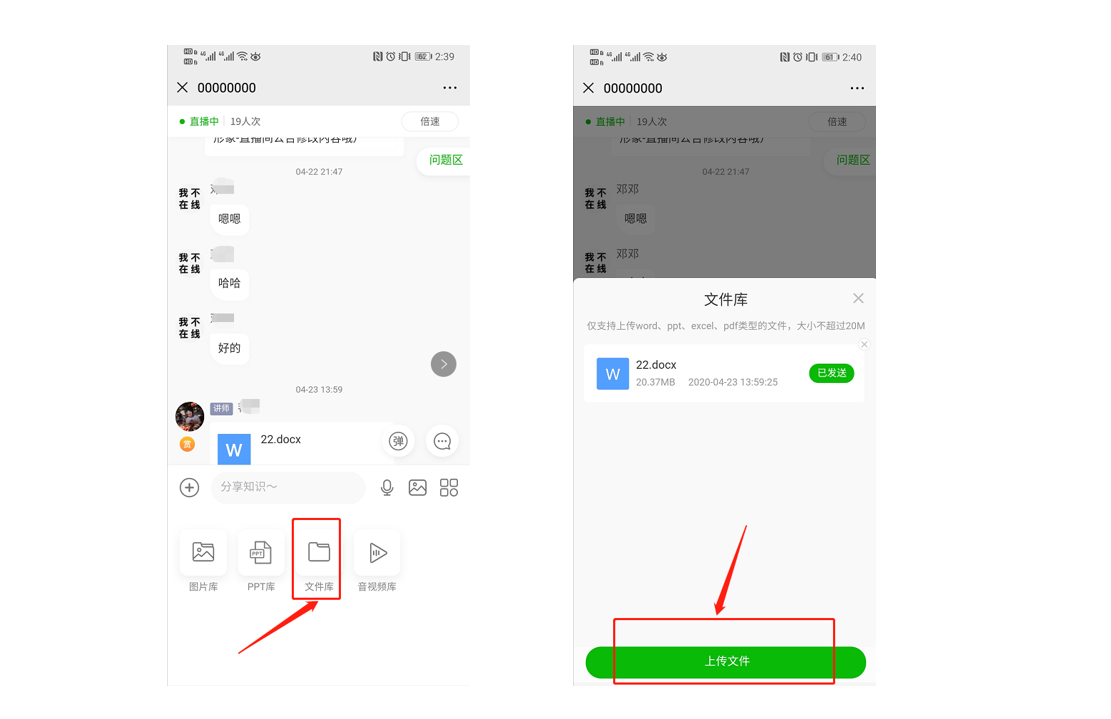
Note: Only when the instructor uses the Android mobile - phone client or the PC browser to open the live broadcast can files be uploaded
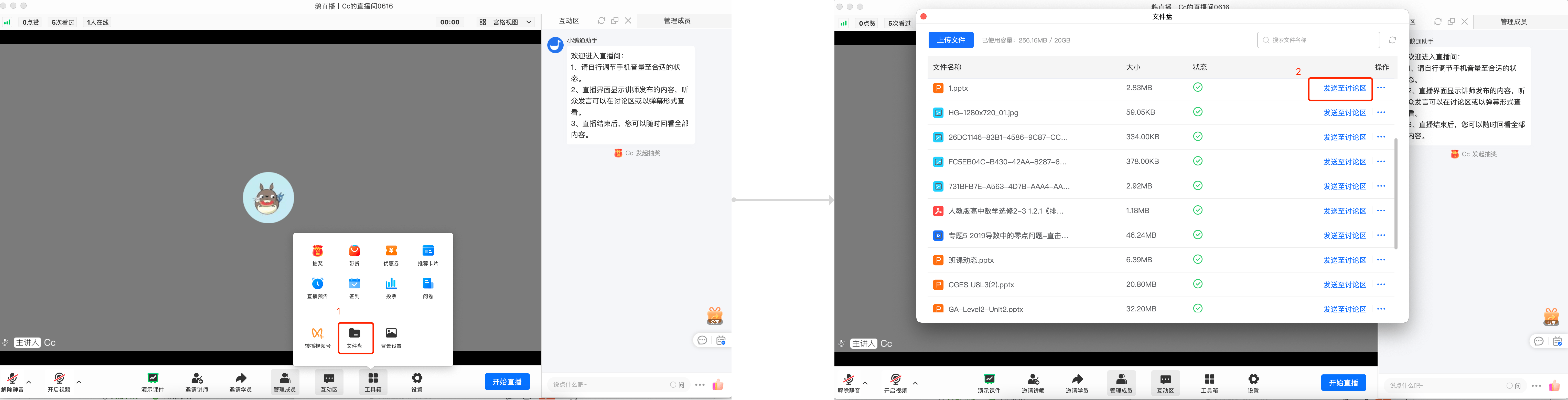
4. Upload from the instructor's elink Live client: The instructor enters the live room, clicks the toolbox, selects [File Disk], and clicks to send to the discussion area
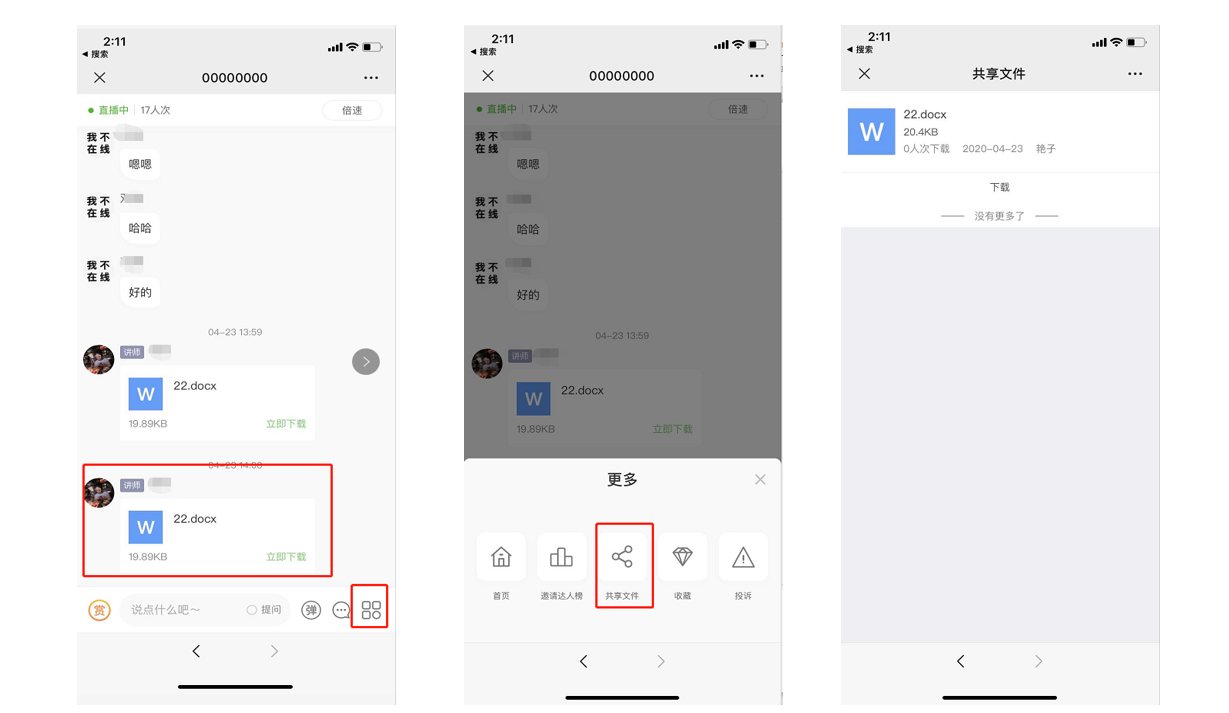
5. Download location for students:Students click [Operation -> Shared Files -> Click to download] in the live room. Or if the instructor sends the file to the lecture area, students can directly download it in the lecture area.Download
No comments to display
No comments to display