
Content Management
I.Function Introduction
After the live stream ends, for merchants who have enabled the replay feature and wish to share the content of voice live streams, we offer replay,+editing+download functions for video live streams, and a voice export function for voice live streams. This facilitates merchants in secondary management and reuse of their live stream content.
II.Purpose of Use
For video live stream merchants, once the replay is enabled, learners can replay the live stream repeatedly, enhancing the learning effect. Replay editing also helps merchants remove irrelevant footage from the live stream. Meanwhile, merchants can download the replay for secondary use.
For voice live stream merchants, after exporting the audio, they can create new audio courses, which is convenient for secondary use or further promotion.
III.Operation Path
Video Live Stream:Merchant backend → Live Stream → Details → Replay Settings → Live Stream Editing or Download
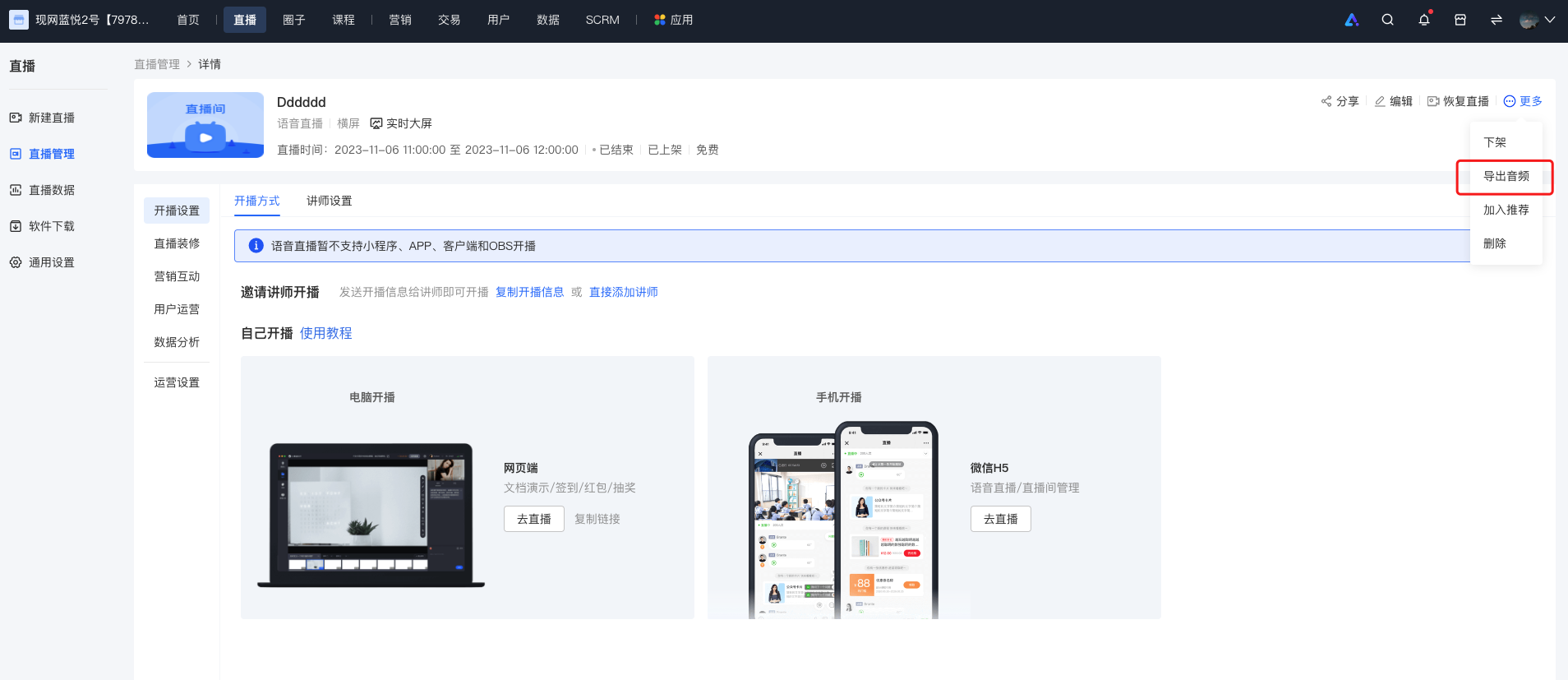
Voice Live Stream:Merchant side: Merchant backend → Live Stream → Details → Export Audio
IV. Usage Tutorial
1.Video Live Stream
Enter the 「Live Stream Details」, turn on the 「Live Stream Replay」. After turning it off,the live streamcourse page will not display the live stream replay video.
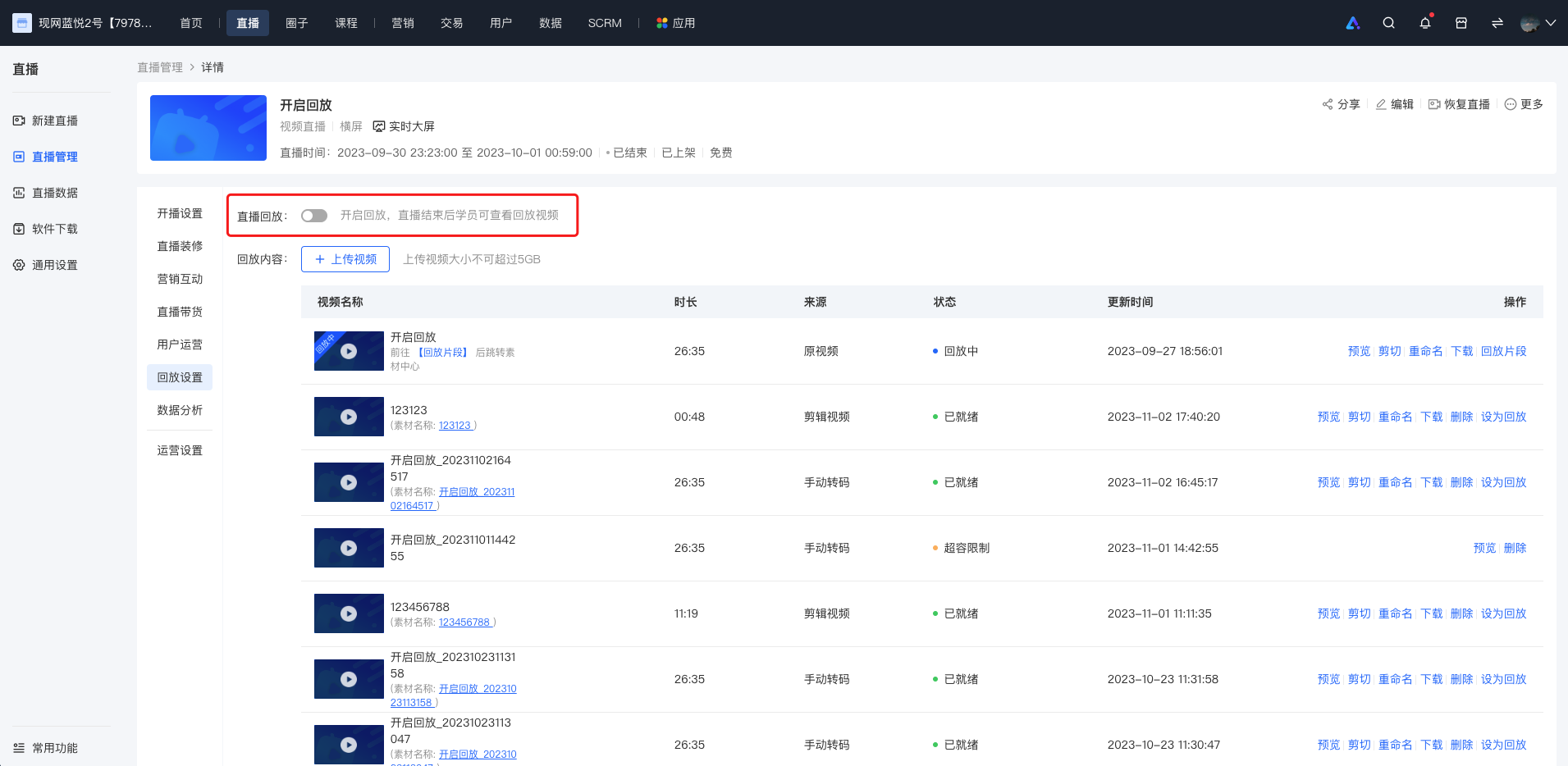
After the original video is transcoded, you can edit the original video in the operation section.
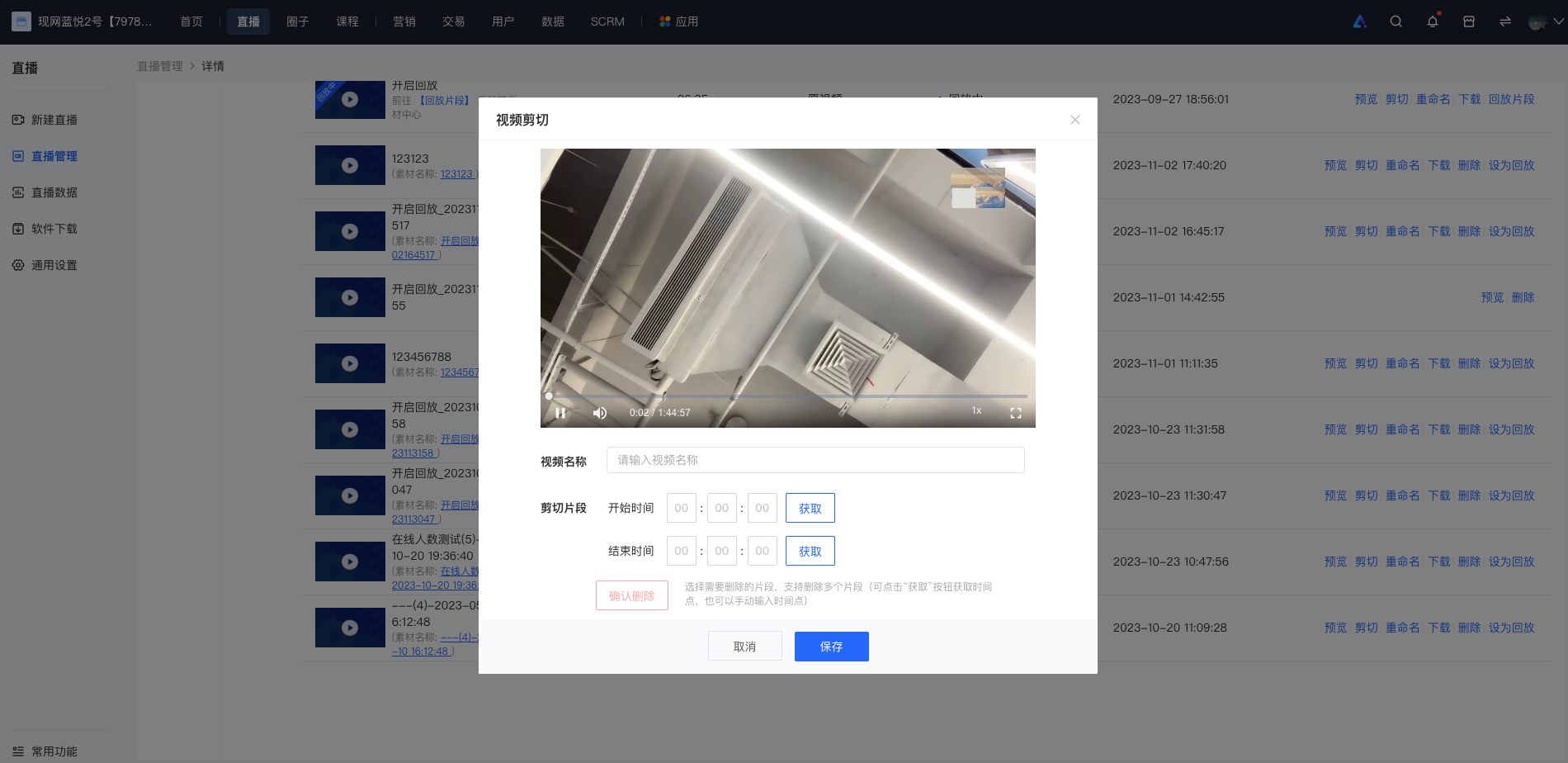
Editing Method1:Click “Get” to obtain the time point of the currently playing video. After selecting the start and end times, you can delete the segment.
Editing Method2:Manually enter the start and end time points. After entering, click “Delete Segment” to delete it.
Multiple segments can be deleted during video segment editing. Click “Save” to save the edited video.
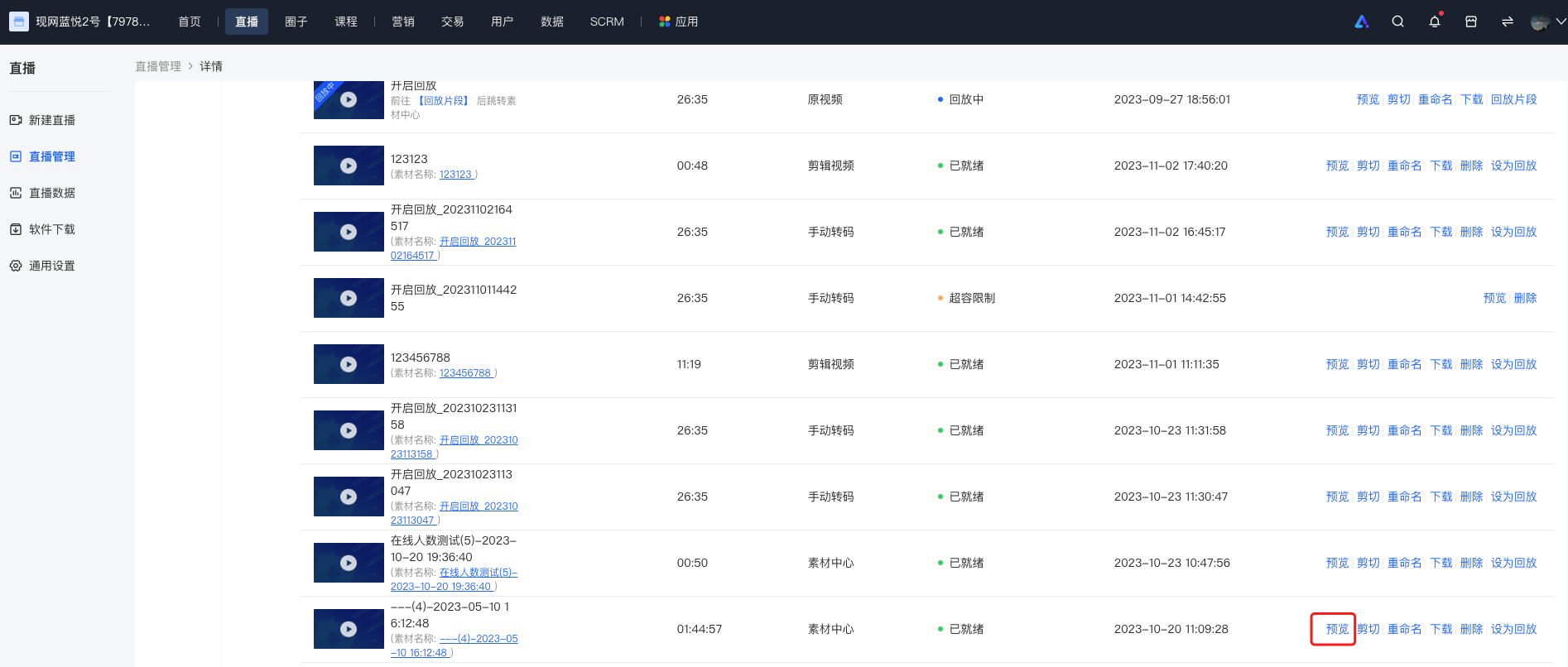
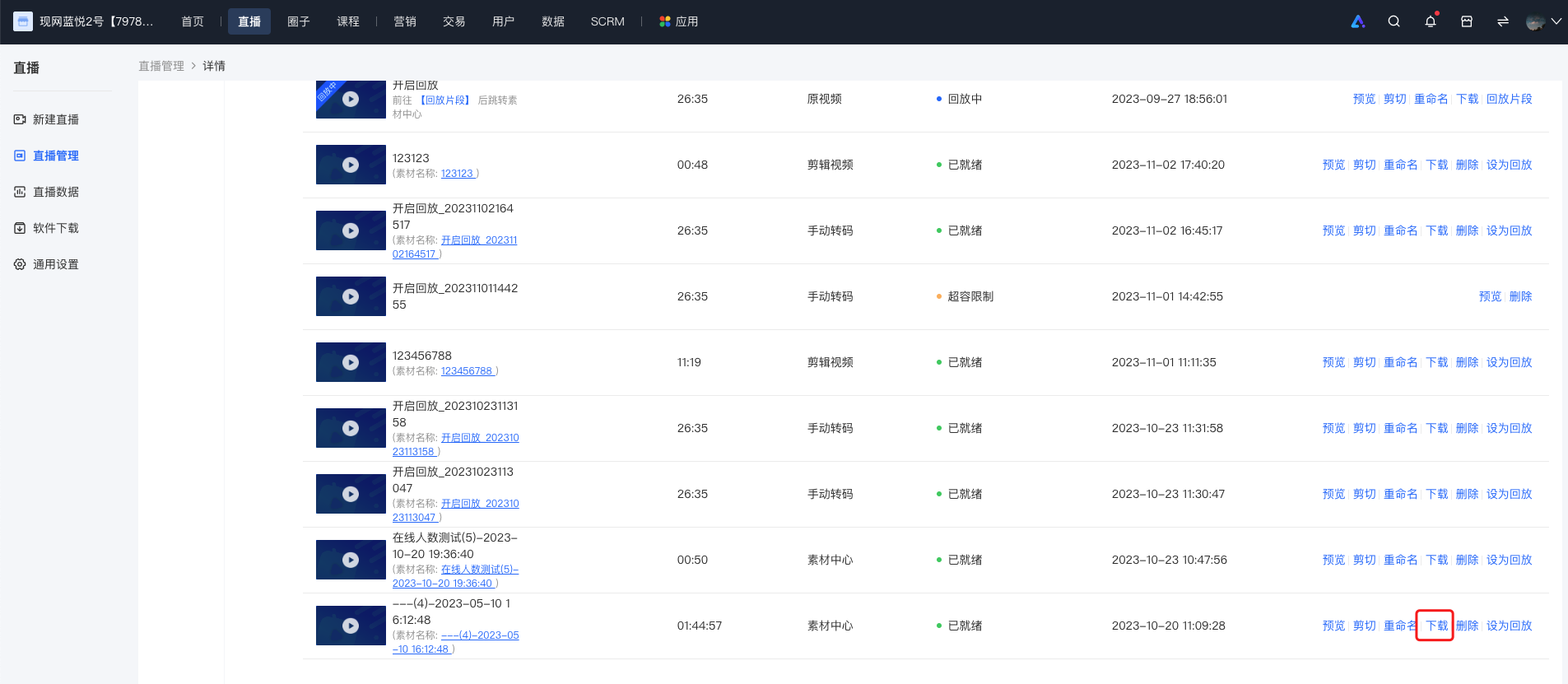
Preview: Click “Preview” to preview the edited video/the original video.Click “Download” to download the
Click “Download” to downloadm3u8format live stream video.
2.Voice Live Stream
Enter the 「Voice Details」 of the voice live stream, click “More” in the upper - right corner and select 「Export Audio」 to complete the audio export.
No comments to display
No comments to display