
Tutorial on setting up live streaming instructors (guests)
I. Function Introduction
When creating a live stream, you need to set the corresponding instructor for your live stream. You can be the instructor yourself or invite others to be instructors. Instructors can enter the live stream without purchasing the paid content and have functions such as speaking, managing the live stream, interacting with students, and ending the live stream.
II. Purpose of Use
Merchants can use this function to configure live - stream instructors.
III. Use Scenarios
Video live streams and audio live streams.
IV. Operation Paths(Merchant side)
Currently, there are two paths to add an instructor:
Path 1: Create a new live stream → Add an instructor → Customize the instructor's information
Path 2: Live - stream room details page→ Live - stream settings→ Instructor settings
V. Usage Tutorial
(1) Path 1: Create a new live stream → Add an instructor → Customize the instructor's information
Step 1: Create a new live stream
Log in to the elink store management console, click [Create a new live stream], and add an instructor during the new live - stream creation process.
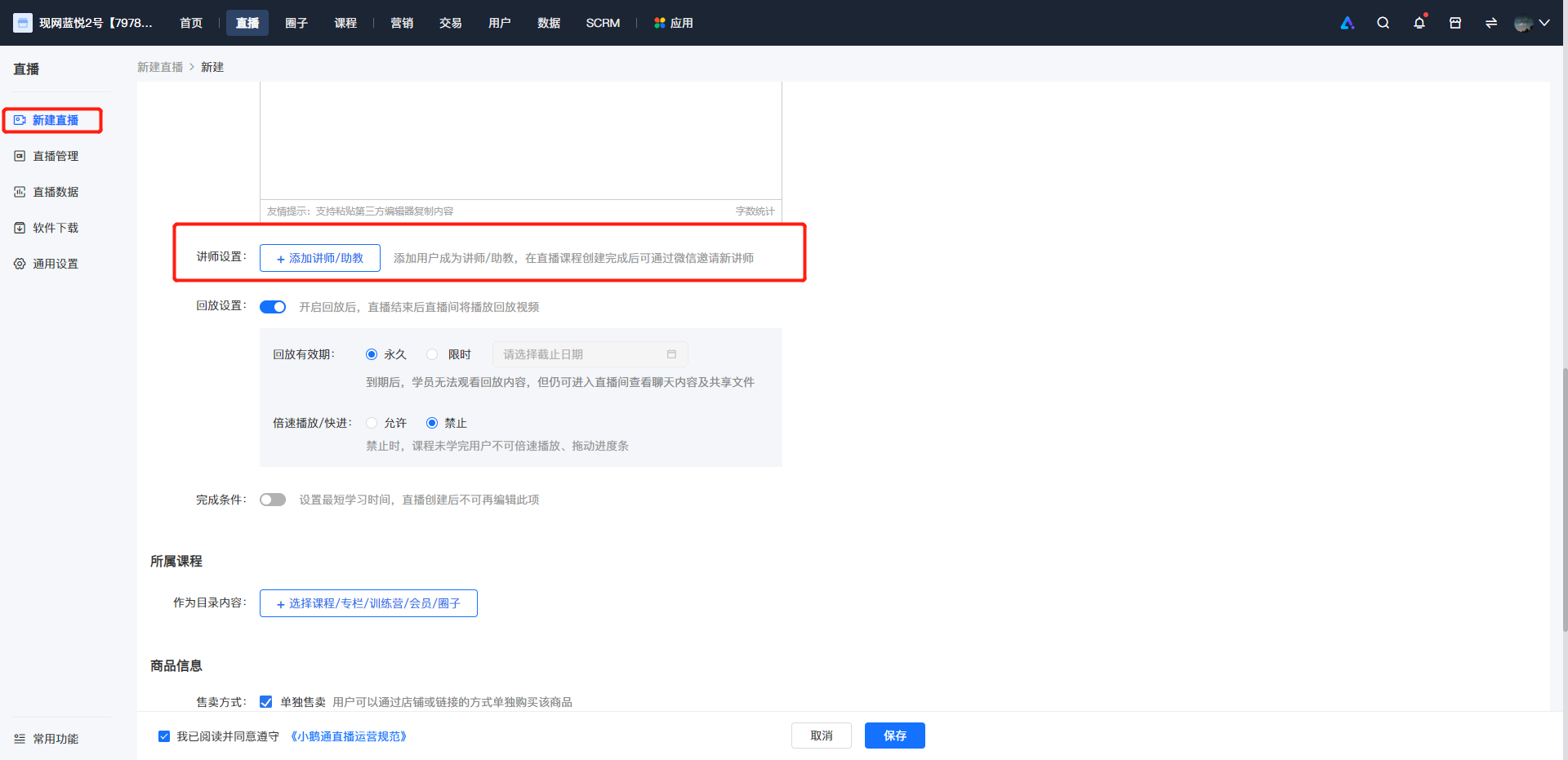
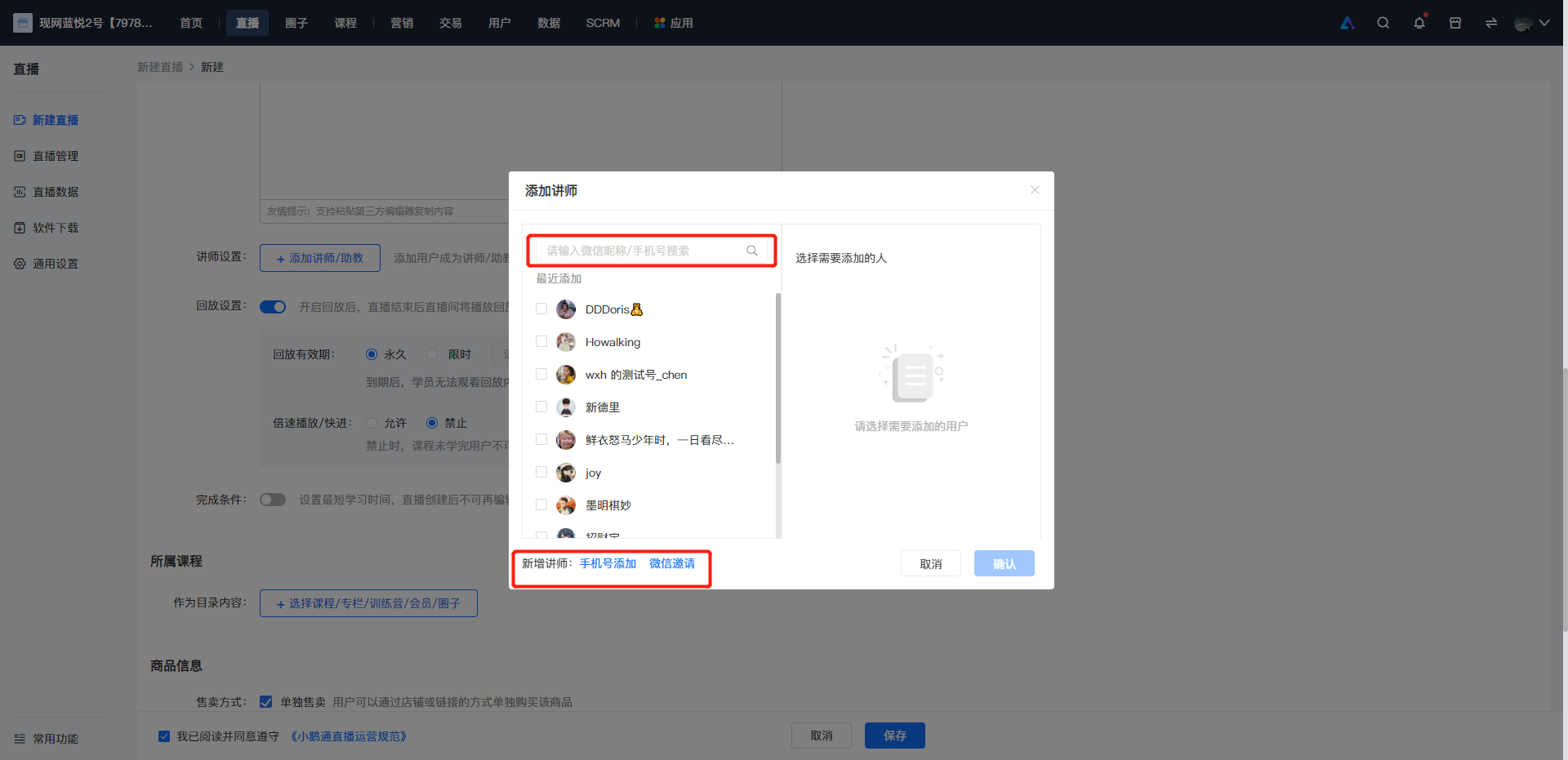
Step 2: Add an instructor
① You can search and add an instructor by WeChat nickname/phone number;**Note:You can only search for the WeChat nickname or phone number if the instructor has entered the store.
② Add an instructor by phone number. Simply enter the user's phone number to successfully add the instructor.
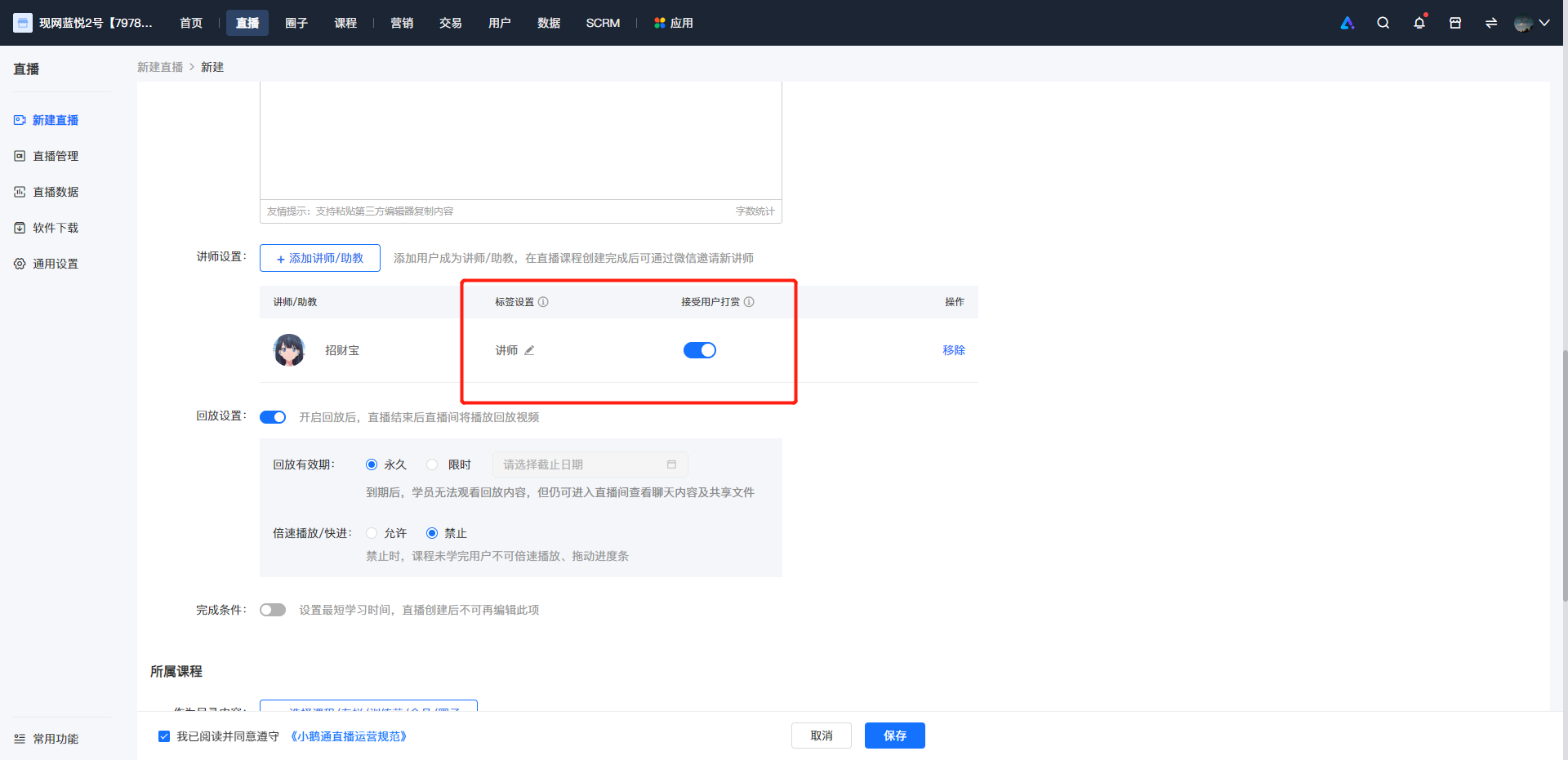
Step 3: Customize the instructor's information
After adding, you can set the instructor's label and whether to accept tips;
① Label setting: The label sets the title or honorific of the instructor in the live - stream room, such as 'Instructor' or 'Teaching Assistant', which is convenient for distinguishing when there are multiple instructors in the live - stream room.
② Tip acceptance switch: Control the tip switch for the corresponding instructor. After the tip switch is turned off, the tip entry for this instructor in the live - stream room will be hidden.
③ Removal: If you add too many instructors or add the wrong instructor, you can remove them.
(2) Path 2: Live - stream room details page → Live - stream settings → Instructor settings
Step 1: Find the corresponding live - stream room and enter the live - stream details page - Live - stream settings
Step 2: Select the corresponding scenario to start the live stream (invite an instructor to start the live stream or start the live stream by yourself)
① Invite an instructor to start the live stream
● Click 'Copy live - stream information' in the [Invite an instructor to start the live stream] module → Click 'Copy all information';
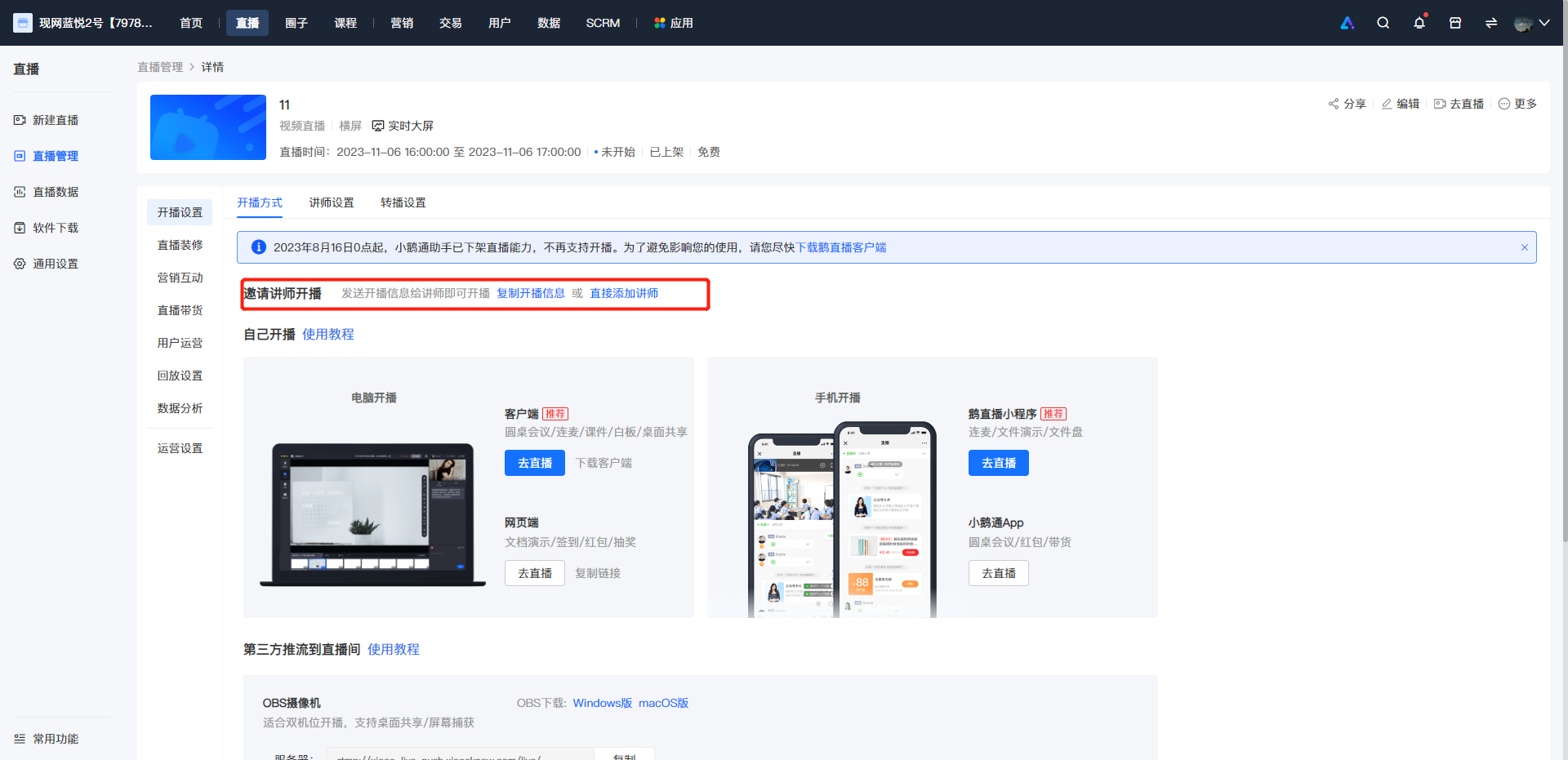
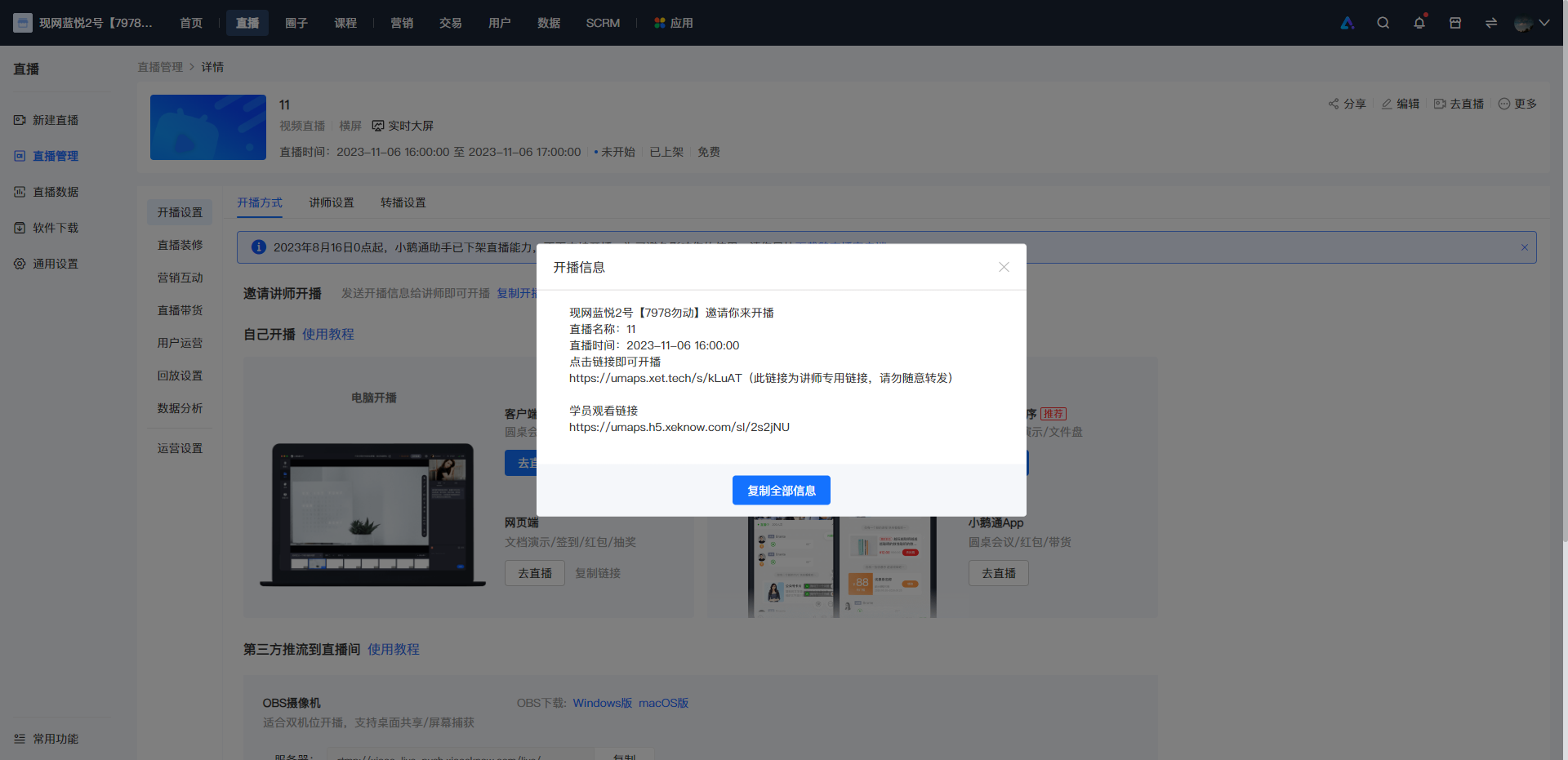
● Send the copied content directly to the instructor/teaching assistant;
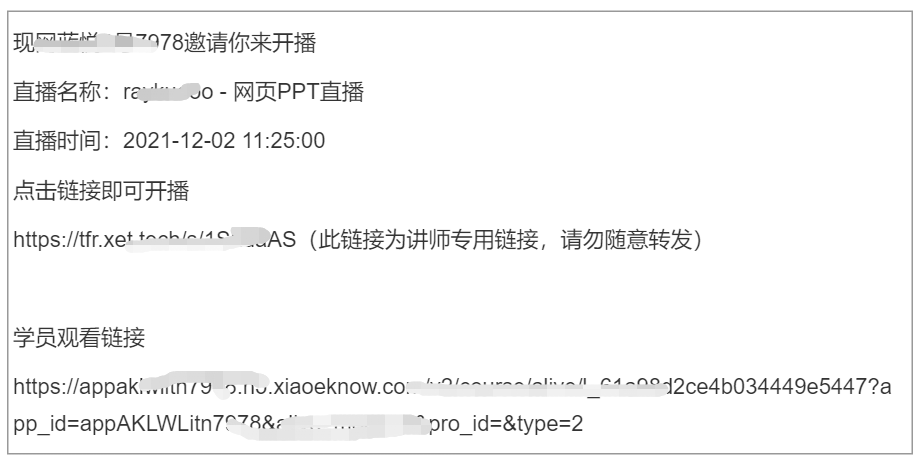
● The instructor or teaching assistant can click the link to select the corresponding live - stream terminal to enter;
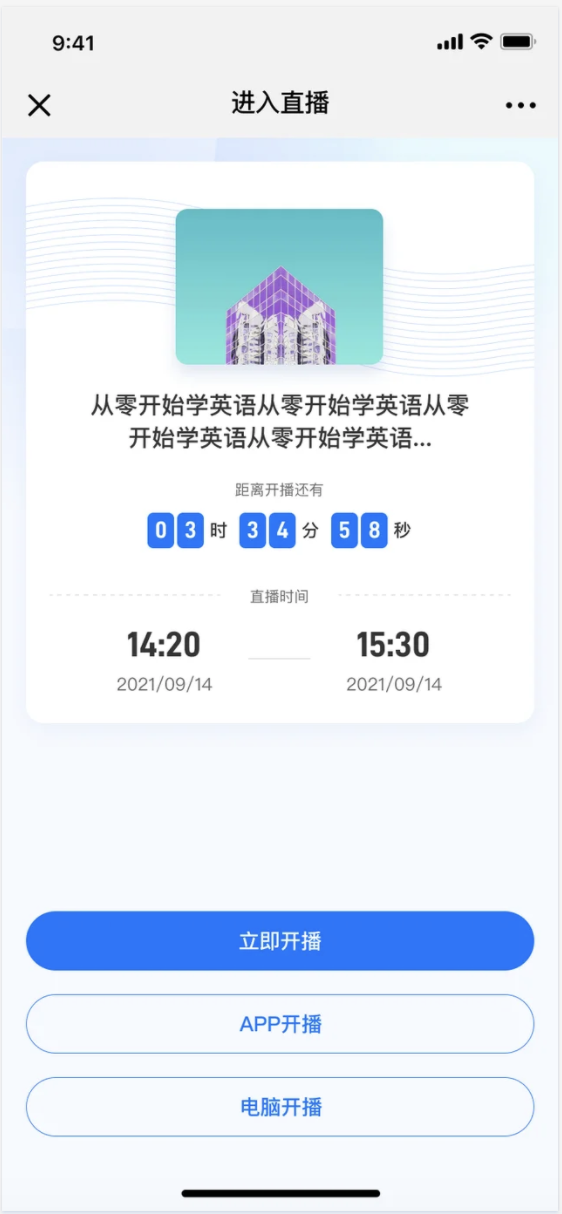
**Note:The available terminals here will vary according to the live - stream mode;
To start a live stream using the App, the version needs to be V3.2.8 or higher to directly enter the live - stream room. If you cannot enter, it is recommended to update the version first and then click 'Start live stream on the App', or search in the live - stream list by the live - stream room name.
② Start the live stream by yourself: The administrator is the live - stream instructor
In the [Start the live stream by yourself] module, select a suitable live - stream terminal. After scanning the QR code/opening the live - stream room, you will automatically become the instructor and start the live stream;
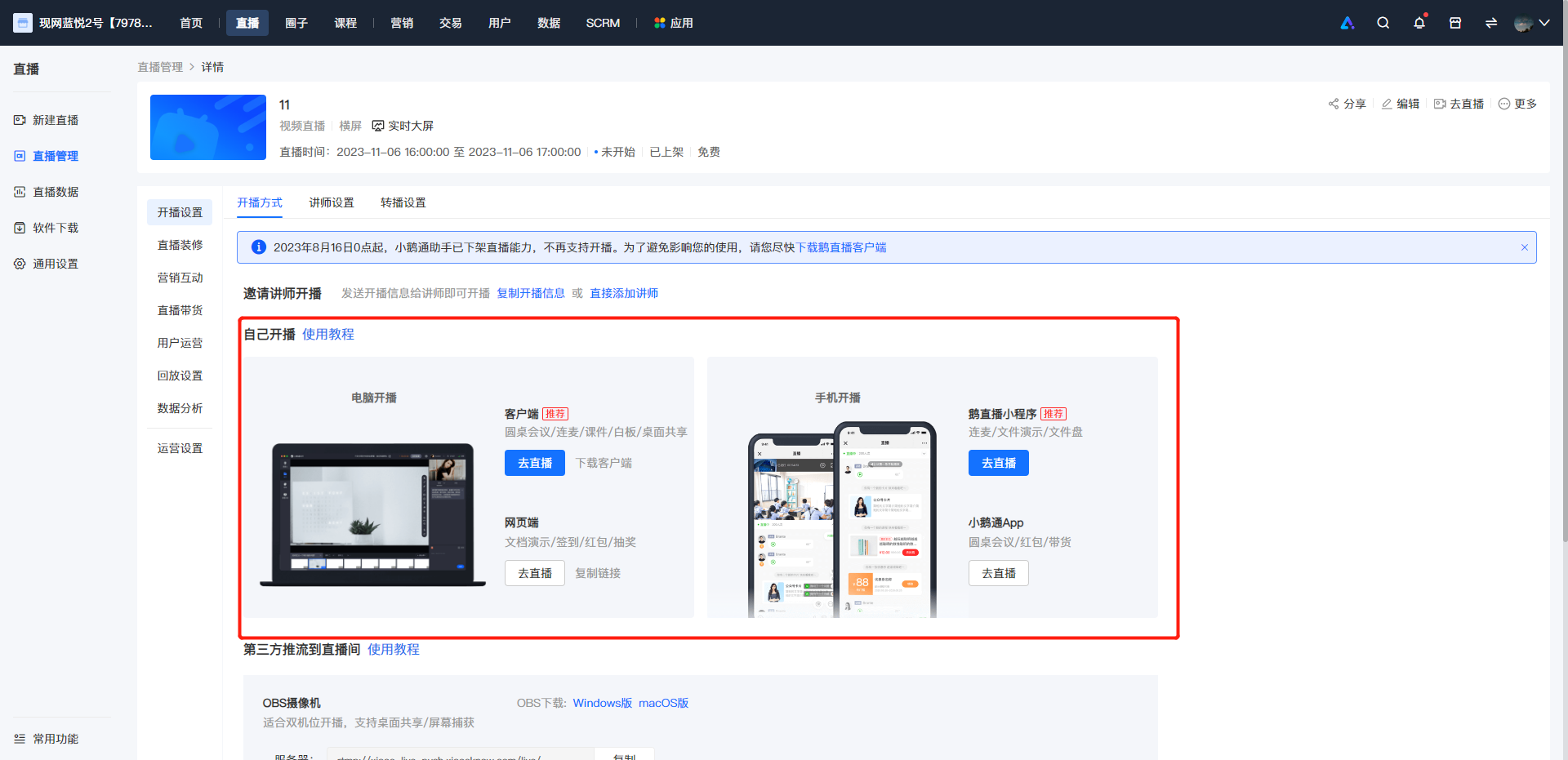
**Note:The available terminals here will vary according to the live - stream mode. To start a live stream using the App, the version needs to be V3.2.6 or higher to directly enter the live - stream room. If you cannot enter, it is recommended to update the version first and then select, or search in the live - stream list by the live - stream room name.
(3) Path 3: Live - stream room details page → Live - stream settings → Instructor settings
Step 1: Find the corresponding live - stream room and enter the live - stream room details page - Live - stream settings - Instructor settings.
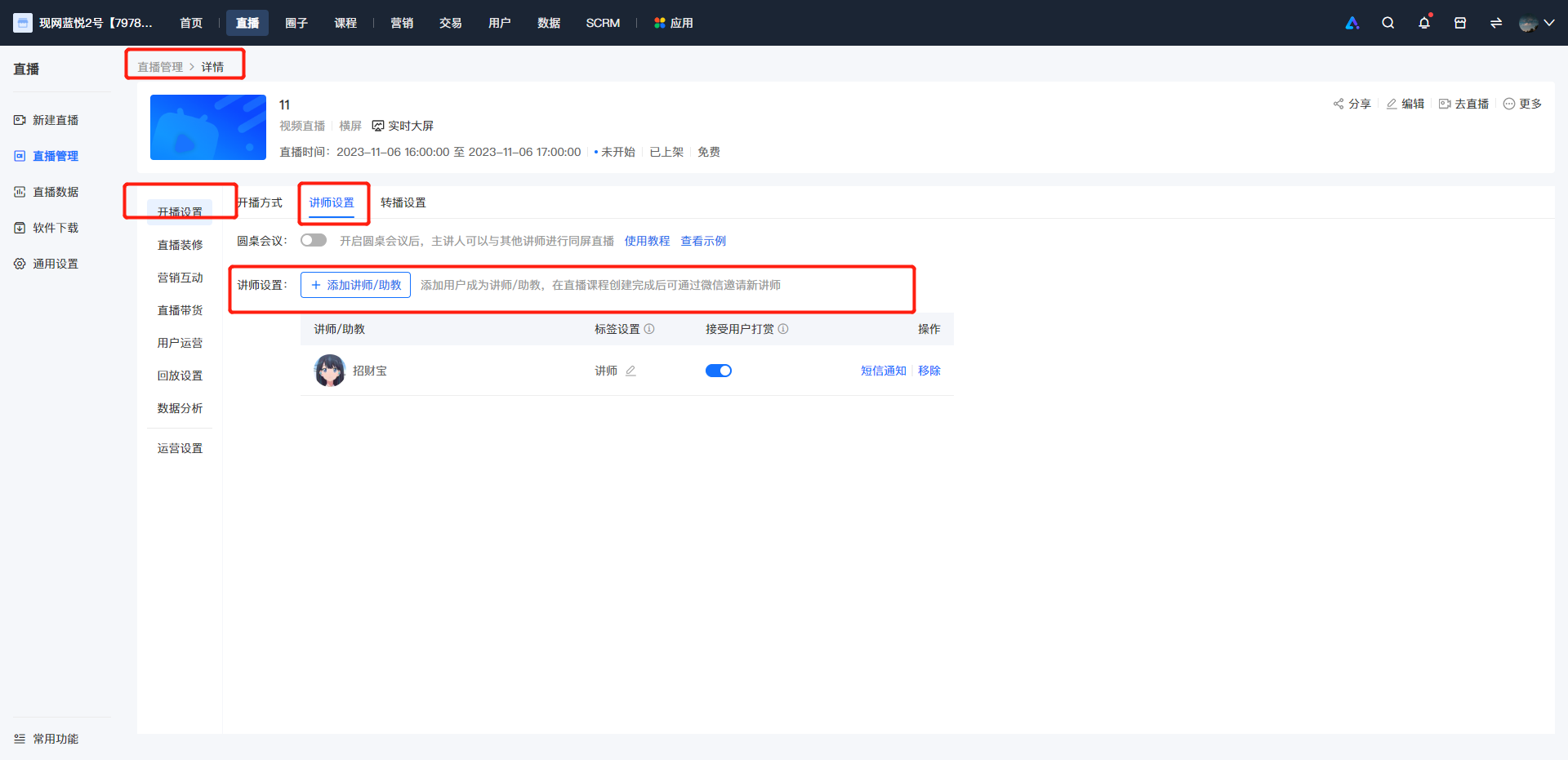
Step 2: Click 'Add an instructor/teaching assistant'
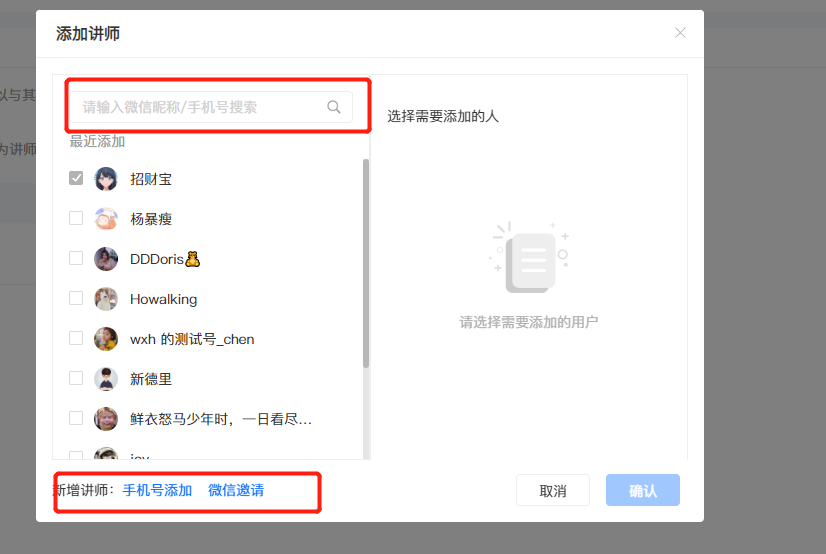
① You can search and add an instructor by WeChat nickname/phone number;**Note:You can only search for the WeChat nickname or phone number if the instructor has entered the store.
② Add an instructor by phone number. Simply enter the user's phone number to successfully add the instructor;
③ Invite an instructor via WeChat. Copy the invitation link or QR code to invite friends to be instructors; administrators can also scan the code and then forward the invitation;
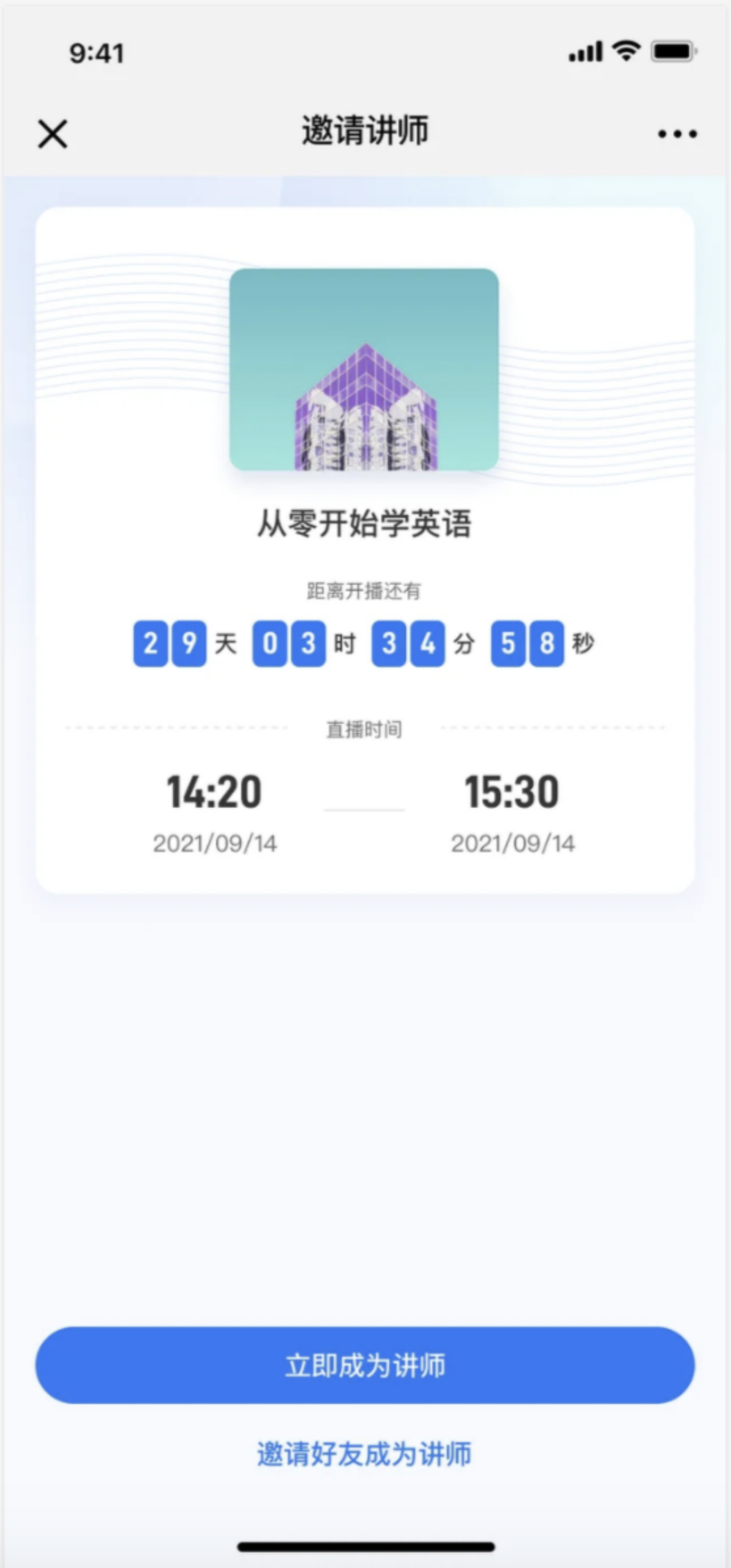
● After the user scans the code: They can choose to be the instructor for this live stream or forward the invitation to friends to be instructors;
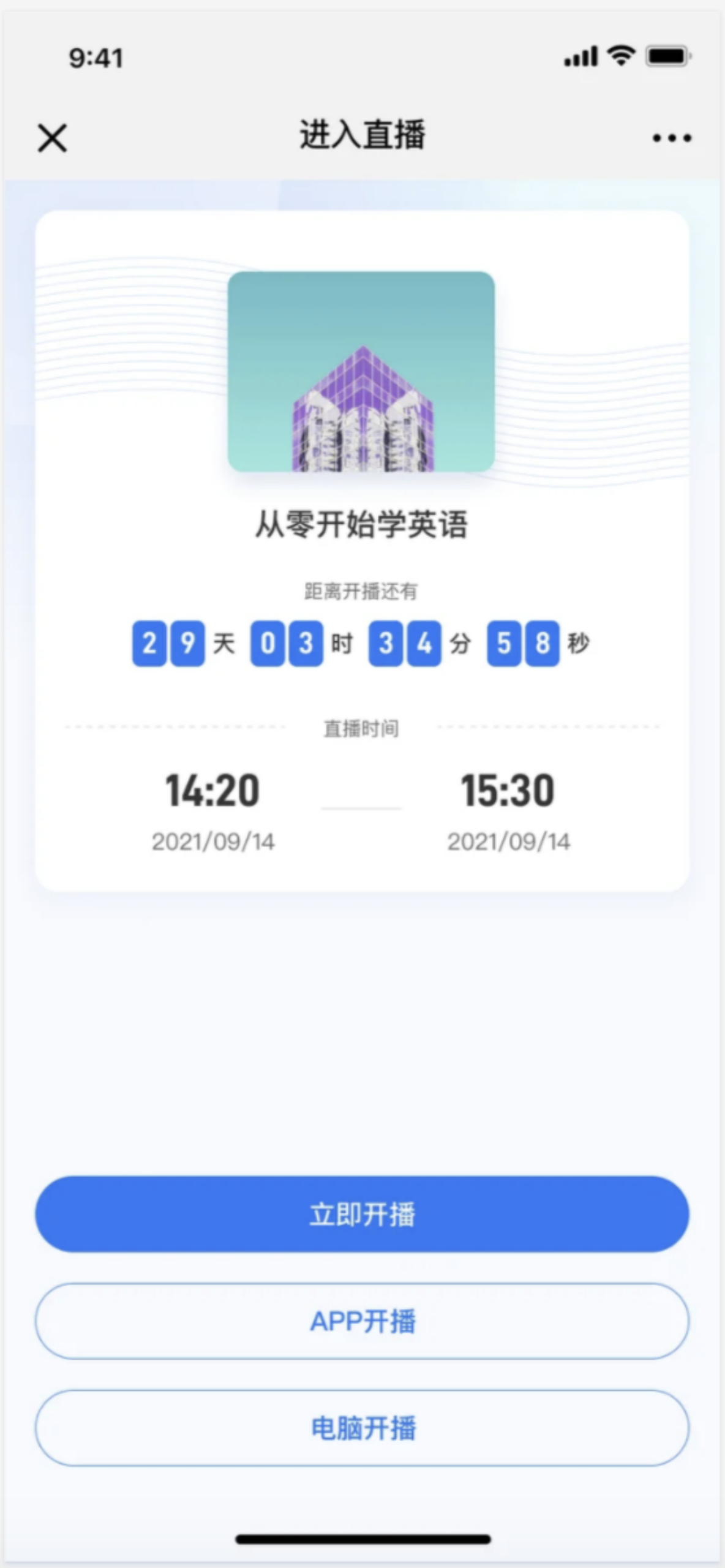
● After becoming an instructor: Select a terminal and enter the live - stream room to start the live stream;
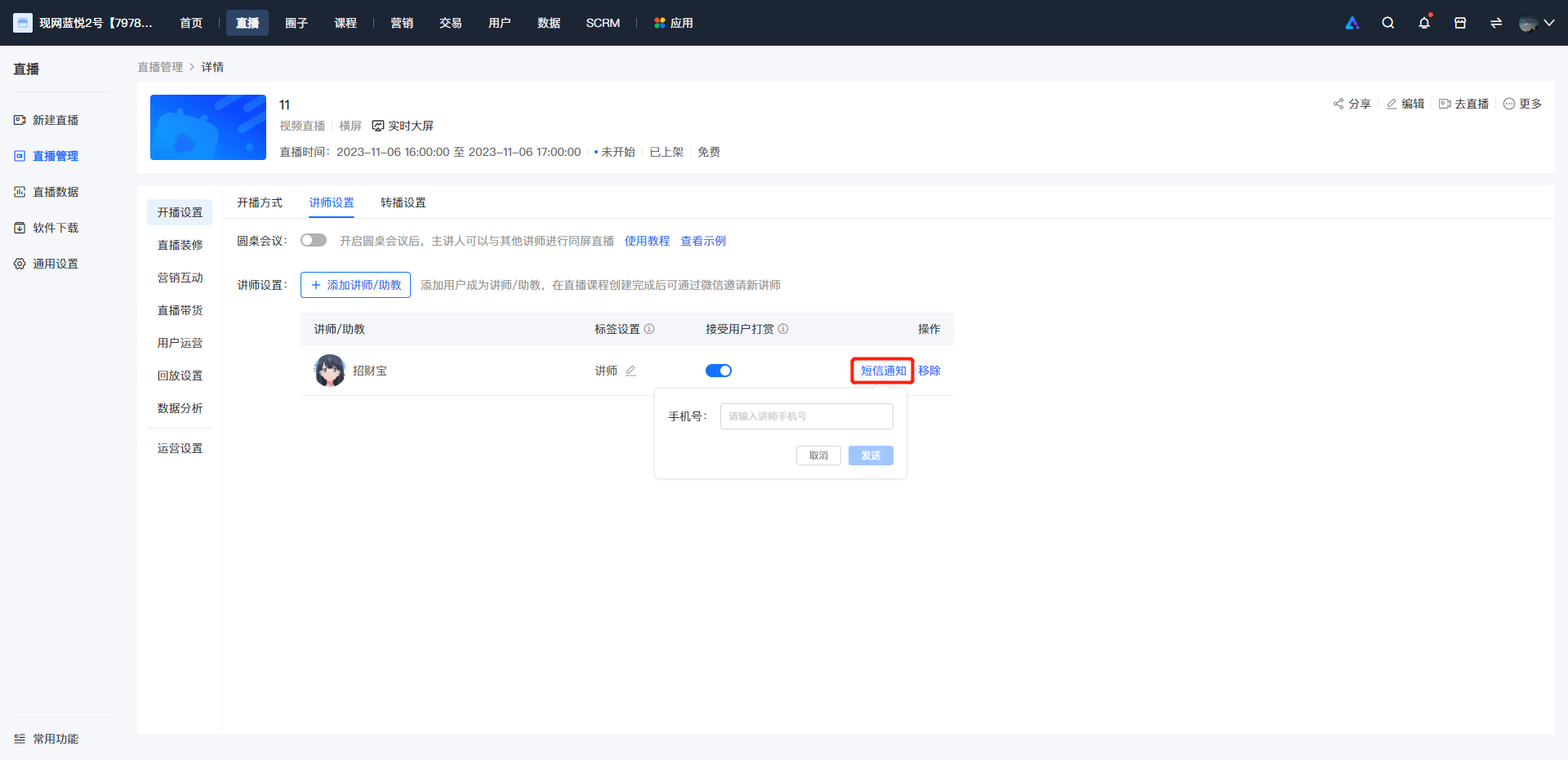
PS:In the live - stream room settings - Course settings, you can sendSMS notifications;
By default, SMS notifications will be sent to the phone number bound to the instructor in the store. If the phone number is not filled in or does not match, you can enter the phone number and then send the notification.
No comments to display
No comments to display