
Tutorial on Using Points Exchange in the Live Streaming Room
Tutorial on Using Points Redemption in the Live Streaming Room
I.Function Introduction
It supports students and viewers to directly pull up the points redemption page without leaving the live streaming room, which is connected with the process of distributing points in the live streaming room, enabling more convenient and faster use of points.
II.Purpose of Use
When users complete tasks and receive points red envelopes in the live streaming room, it allows the instructor to quickly guide users or users to spontaneously redeem points, promoting the consumption of user points.
III.Usage Scenarios
Scenario 1: When users obtain points in the live streaming room, the instructor can guide users to consume points in real - time, accelerating the consumption of points.
Scenario 2: After integrating points redemption into the live streaming room, points redemption can be used as a marketing method to stimulate viewers to interact in the live streaming room and obtain points.
IV.Operation Path
Merchant side: Merchant background → Live streaming → Live streaming management → Marketing interaction → Marketing settings → Points redemption
WeChat H5, elink APP, elink Live Mini Program, elink Live Client: Live streaming room → “Redeem points” icon
V.Usage Tutorial
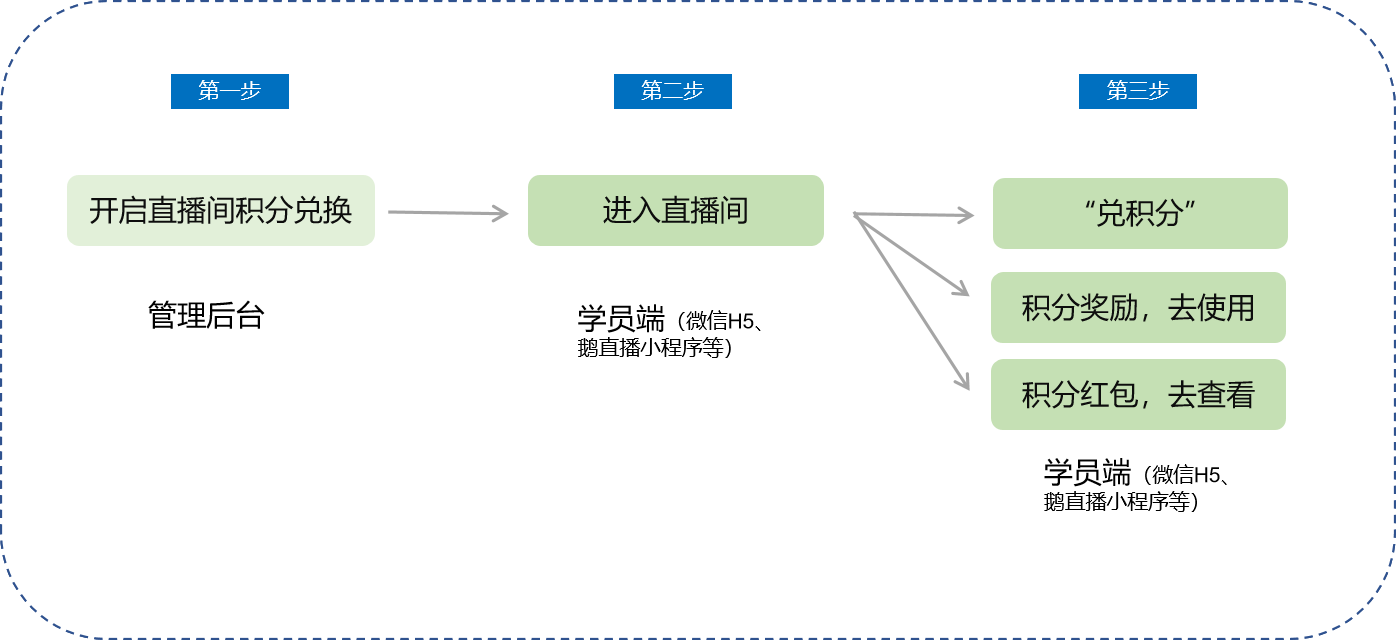
Step 1: Enable points redemption in the live streaming room and add redemption products(Management background)
1.Enter live streaming management and enable the live streaming roomPoints redemptionSwitch
Prerequisites:
①The merchant's store function rights include the points mall function
② The points function has been enabled in [Users - Points mall]
③ (Recommended) Enable points redemption and add redemption products in [Users - Points mall - Points consumption - Points redemption settings]
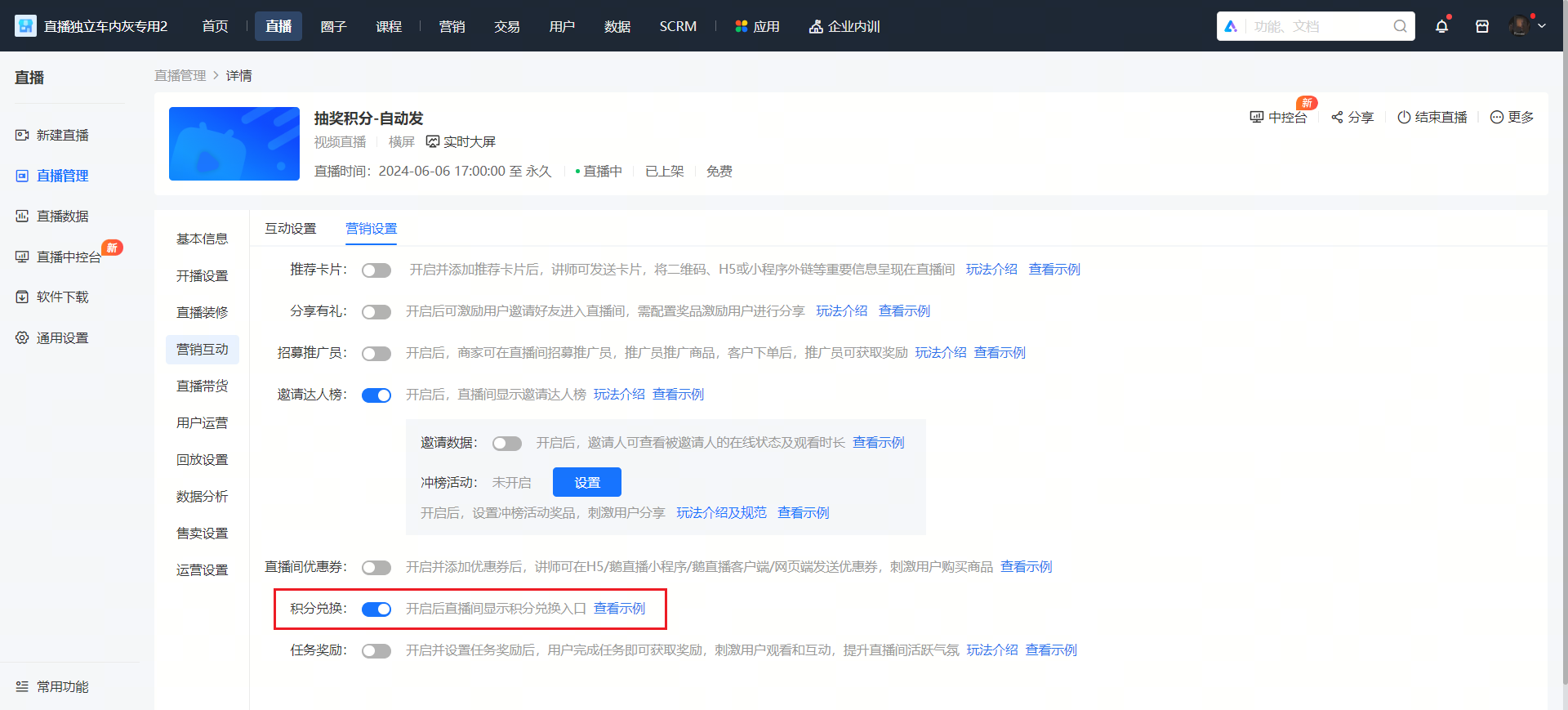
(New - version management background - Live streaming management - Marketing settings)
If you want future newly created live streaming rooms to open the points redemption entrance by default, you can turn on the points redemption switch in the live streaming default settings. Future newly created live streaming rooms will open points redemption by default (Note: already created live streaming rooms are not affected by the default configuration).
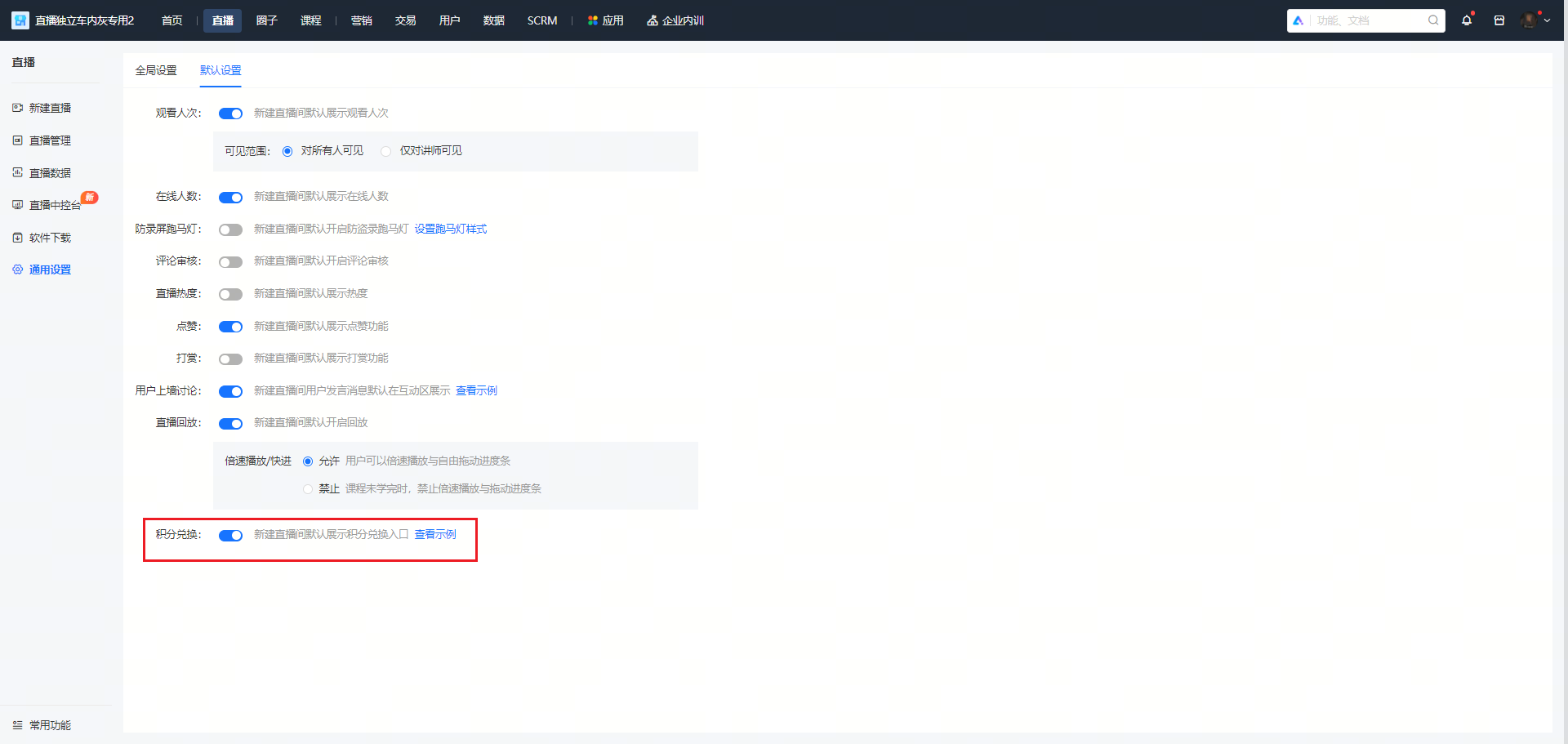
(New - version management background -General settings - Default settings- Points redemption)
If you are using the old - version management background,you need to enable the new - version management background for use.
If you don't want to display the points redemption entrance in the live streaming room later, you can similarly turn off points redemption at the corresponding switch in the live streaming module, which will not affect points redemption in the personal center.
2.Add points redemption products to ensure that viewers in the live streaming room have products to redeem
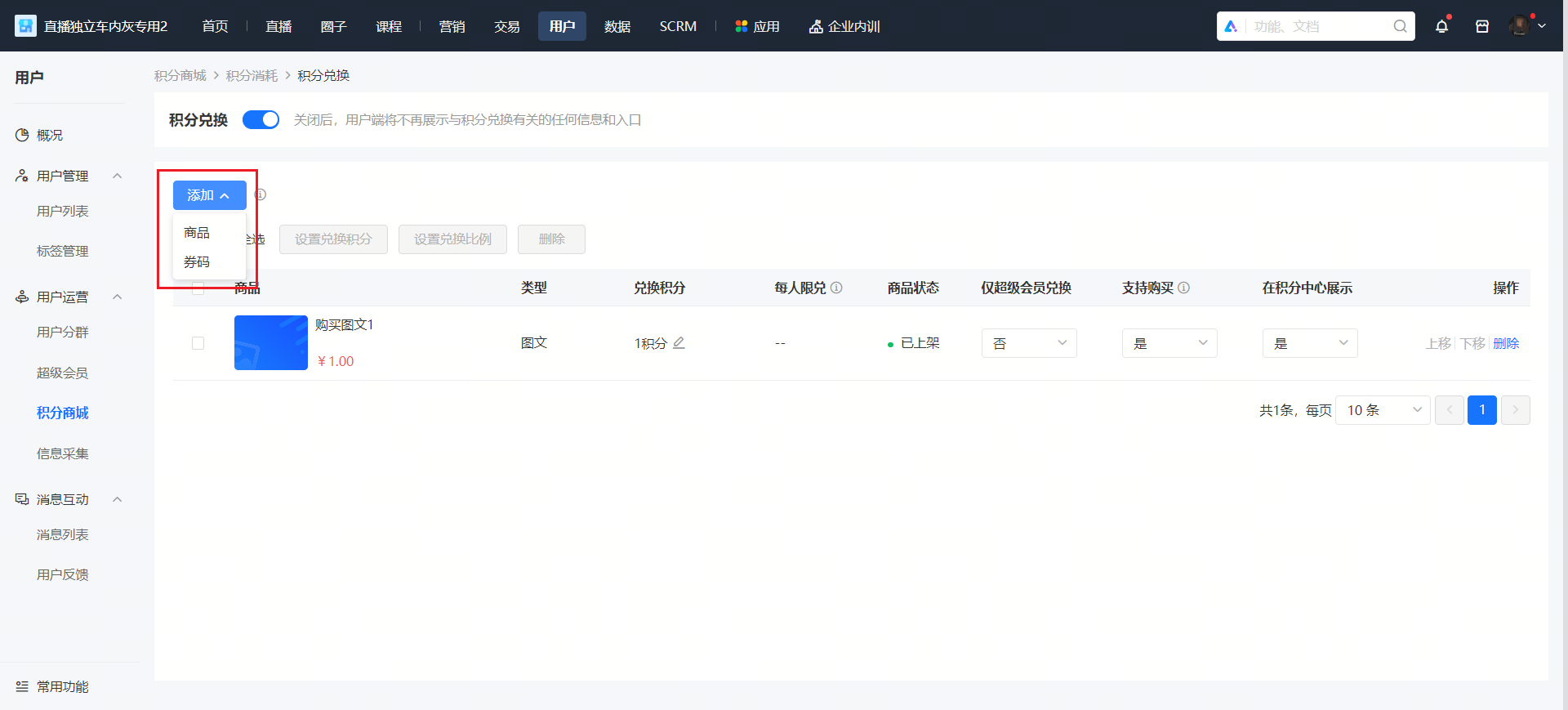
(New - version management background -Users-Points mall - Points consumption - Points redemption)
Step 2: Guide users to use points for redemption in the live streaming room(H5, elink Live Mini Program)
When points redemption is enabled in the live streaming room,Enter the live streaming room through the H5 store or the elink Live Mini Program. You can guide viewers to use points for redemption according to the following three scenarios:Guide viewers to redeem points in the following three scenarios:
① Directly pull up the points redemption page: Check points and redeem points products
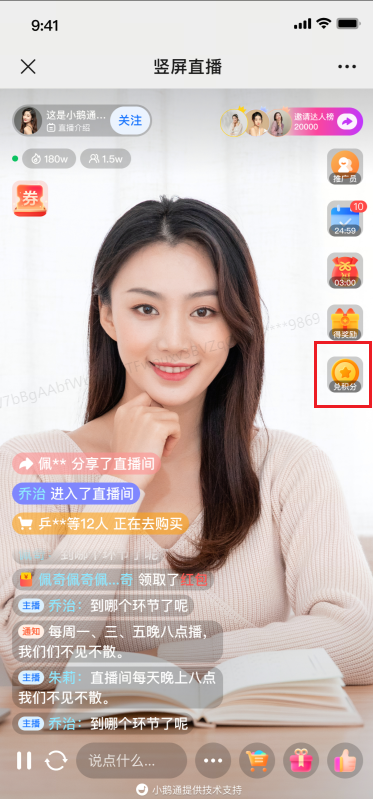
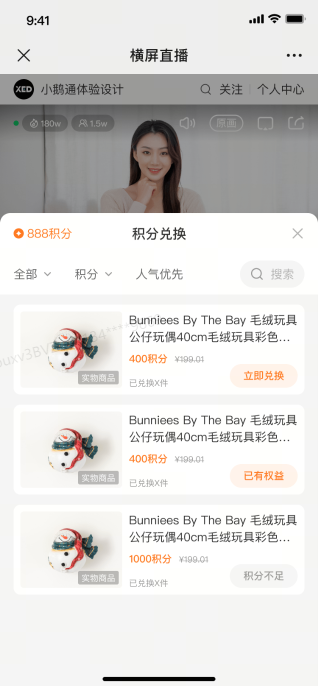
(Live streaming room- RedeemPointsIcon -Points redemption)
② After completing tasks and getting points rewards, use the points:Check points and redeem points products
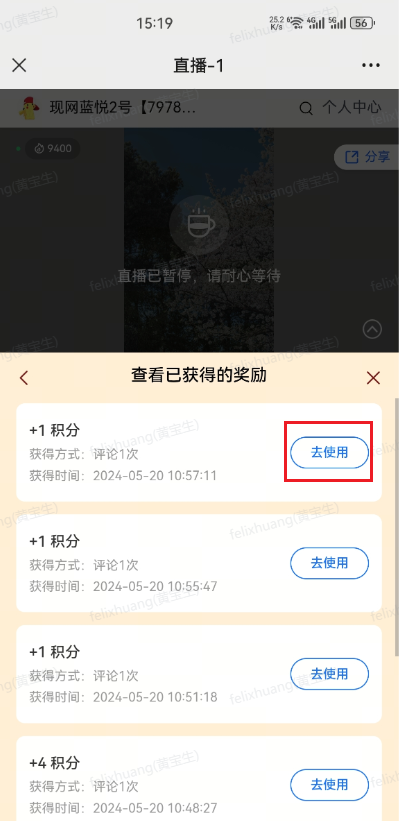
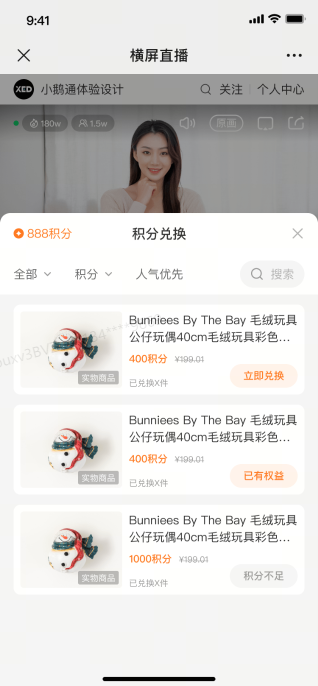
(Live streaming room -Reward icon - View obtained rewards- Go to use-Points redemption)
③ After receiving points red envelopes, check the points:Check points and redeem points products
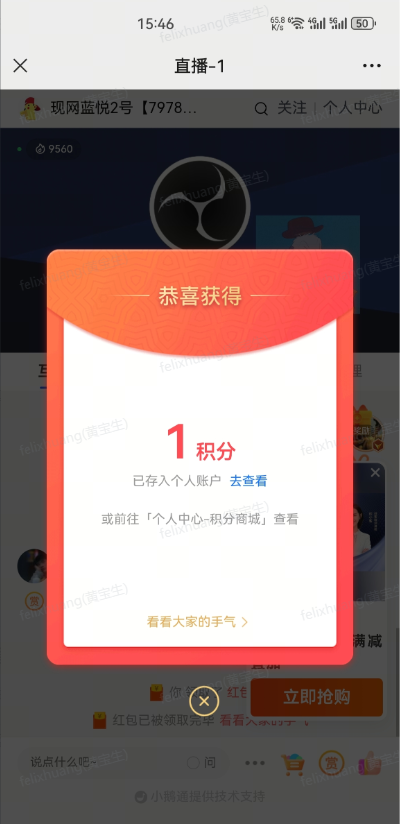
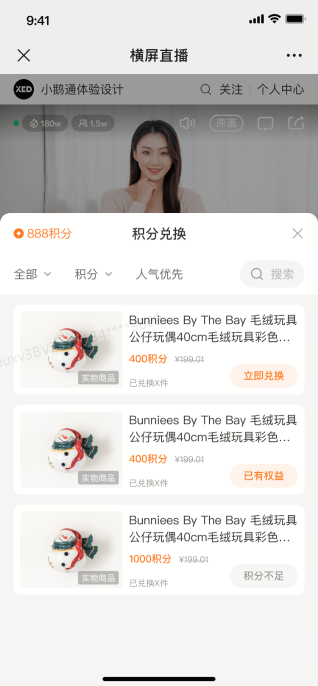
(Live streaming room -Receive points red envelope- Go toCheck- Points redemption)
No comments to display
No comments to display