
Tutorial on Using the Live Sharing Reward Program
I. Function Introduction
The Live Stream Share-and-Win function is a tool for attracting new users and driving traffic to the live stream room. It encourages students to spontaneously share the live stream room by offering prizes, thereby boosting the popularity of the live stream room. When the prize is a coupon, it not only motivates their friends to watch the live stream but also encourages target students to place orders in the live stream room.
II. Purpose of Use
Motivate students to share the live stream room with prizes to attract new users and drive traffic to the live stream room.
III. Use Scenarios
1. Merchant Xiaotong has just started trying live streaming, and the live stream room has a low number of visitors. To address this, Xiaotong created a share-and-win activity. Users saw the activity and thought it was easy to get a gift, so they shared the live stream with their friends. After multiple friends clicked on the link, the user received a 20-yuan coupon as a reward. As a result, the number of visitors to Xiaotong's live stream room continued to increase.
2. Merchant Xiaozhi wants to host a free public course live stream and hopes to attract a large number of students to the live stream room for subsequent live commerce. Students noticed the share-and-win activity in the live stream room and kept sharing it with their friends. As a result, Xiaozhi's live stream room attracted many students. The lecturer also gave a great presentation, and many courses were sold.
IV. Operation Path
Merchant side: B-side management console - Live Streaming - Live Stream Room Details - Live Stream Room Settings - Interaction Settings - Share-and-Win Switch;
Lecturer side (H5): Live Stream Room - Bottom Toolbar - More - Share-and-Win;
Student side (H5): Entry ①: Live Stream Room - Interaction Area - Share-and-Win Card;
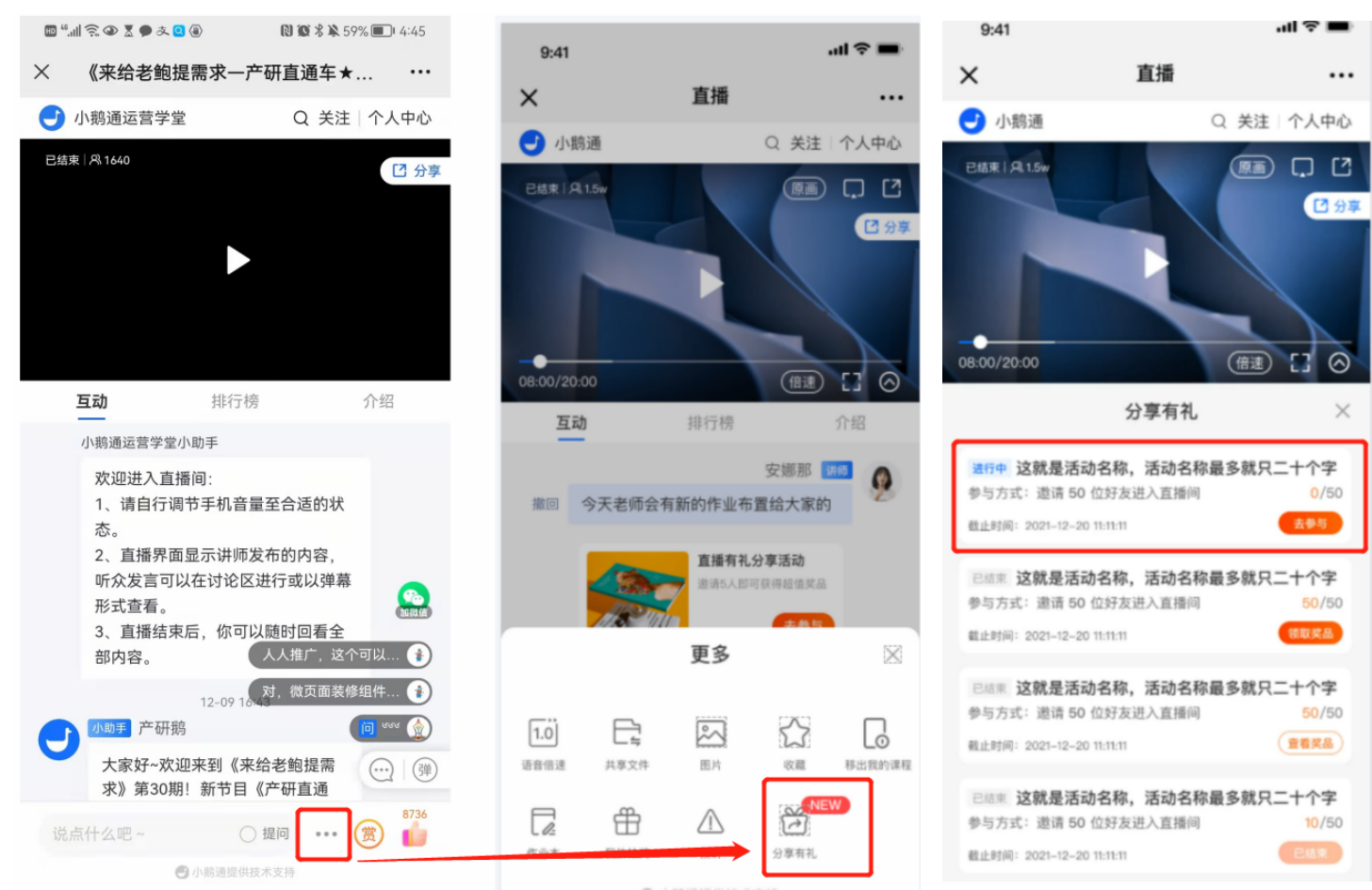
Entry ②: Live Stream Room - More - Share-and-Win.
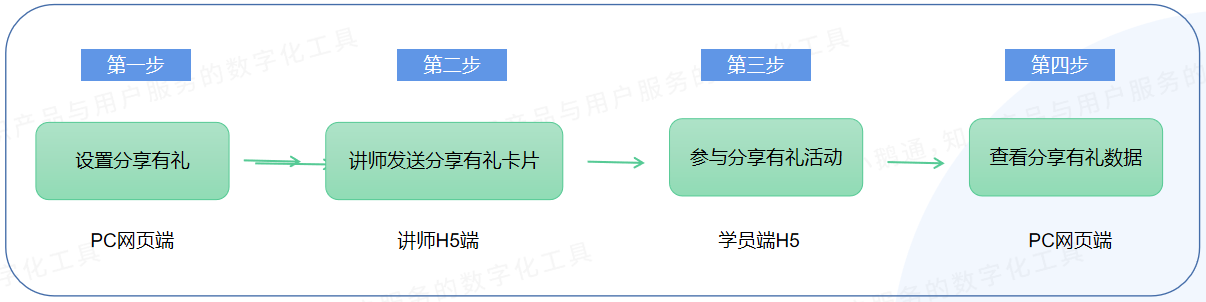
V. Usage Tutorial
Step 1: Turn on the Share-and-Win switch and set up the share-and-win activity.(PC web management console)
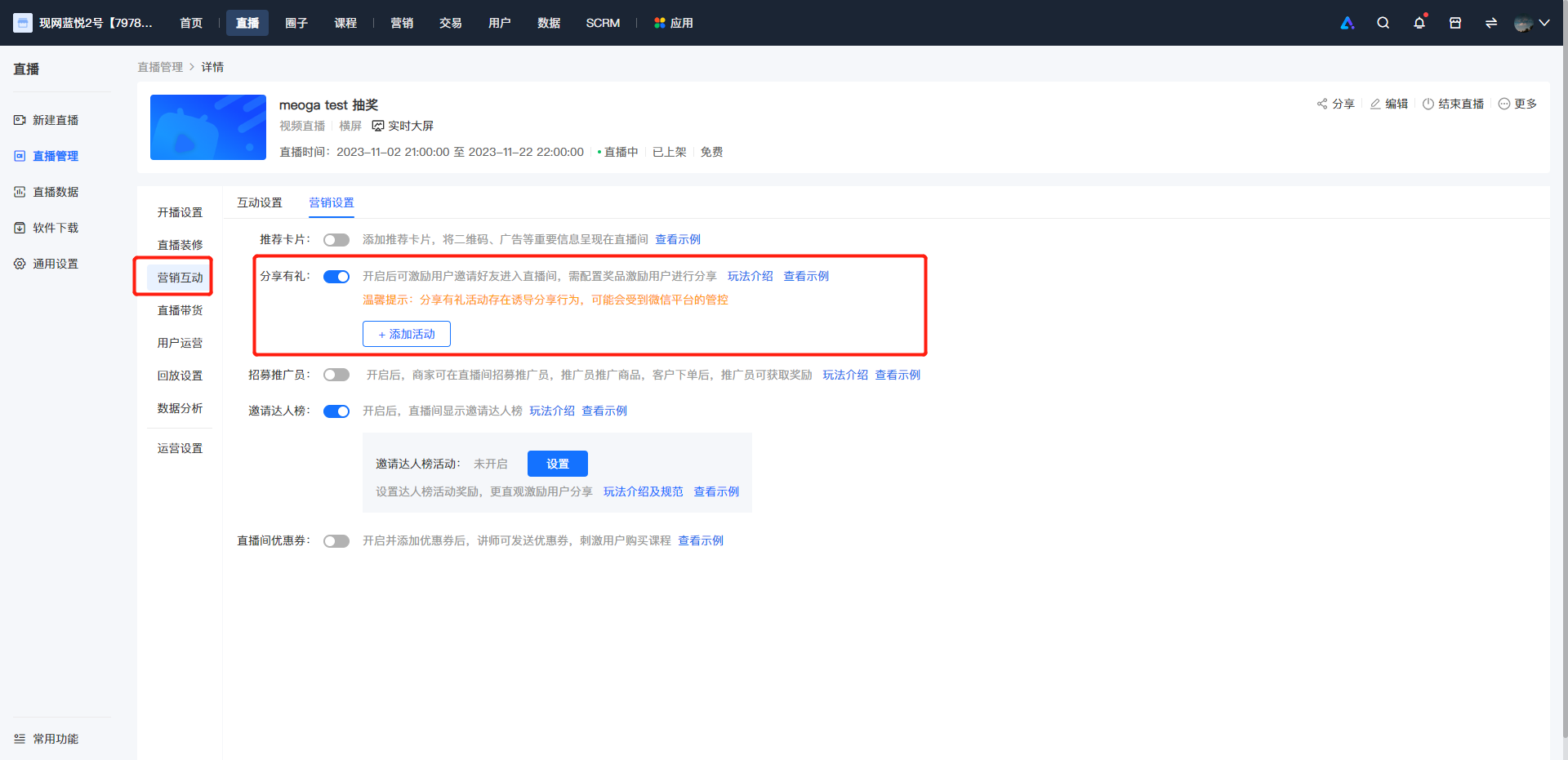
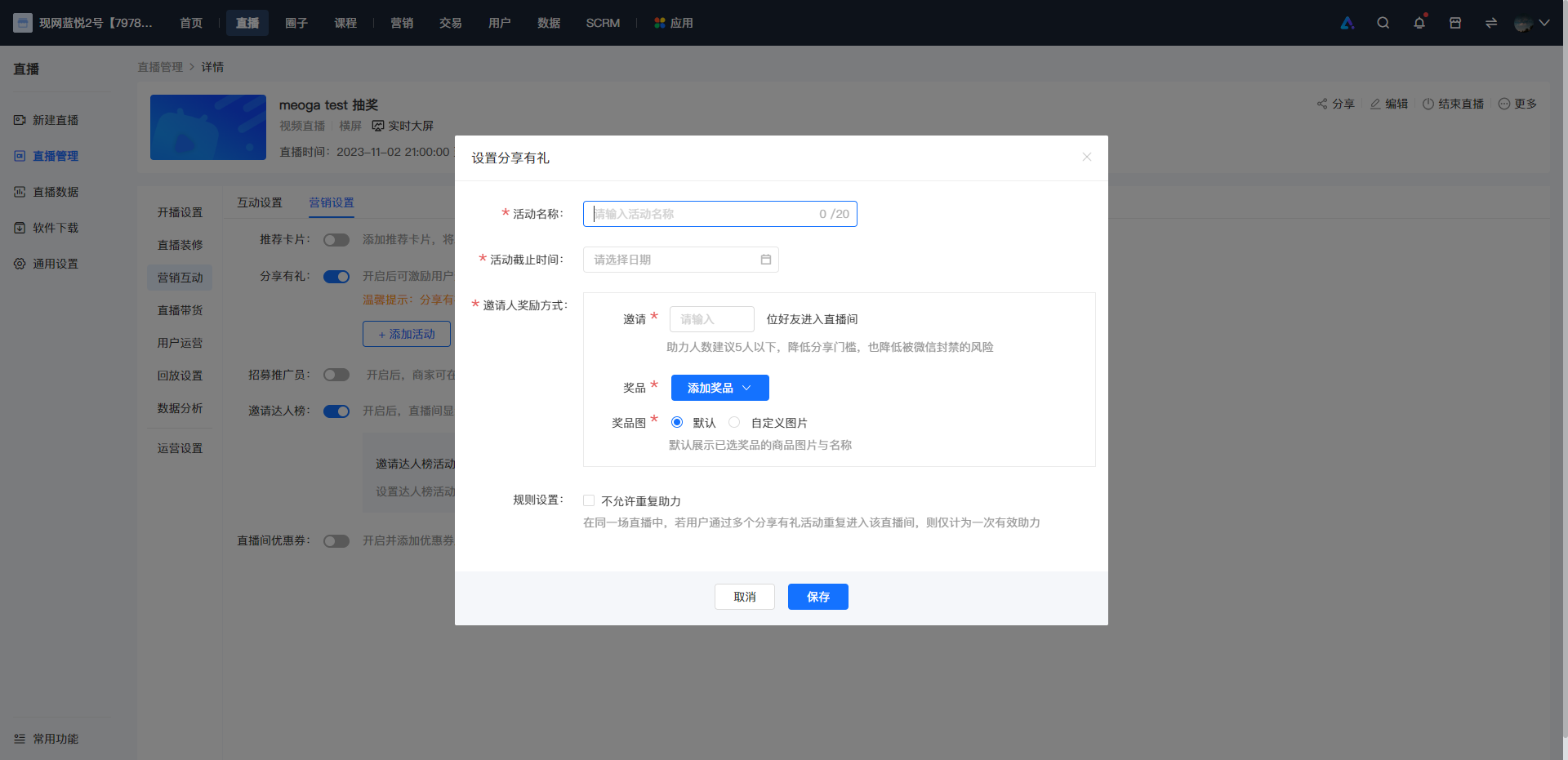
● When setting up the share-and-win activity, you need to configure the [Activity Name], [Activity End Time], [Number of Invitees], [Prize Settings], and [Prize Image Settings].
○ The [Activity Name] should not exceed 20 characters.
○ The [Activity End Time] should be later than the current time when setting up the activity. It is recommended to set it as the estimated end time of each live stream. (After the end time, the C-side will display the status of 'Activity has ended'.)
○ The [Number of Invitees] should not exceed 999. It is recommended to set it to less than 5. On the one hand, it can reduce the risk of being blocked by WeChat. On the other hand, it can lower the threshold for students to obtain prizes and encourage them to share.
○ The [Prize Settings] include: online courses, physical prizes, student benefits, marketing coupon codes, and custom prizes.
○ [Prize Image Settings]
Option ①: The default is the product image and name.
Option ②: Custom image: You can use the big gift package image on the cover or upload your own image. It is recommended that the size be 4:3. You can customize the prize name, which should not exceed 20 characters.
After successful saving, the share-and-win task is created successfully, and the share-and-win icon entries on the lecturer side and student side are enabled.
Step 2: The lecturer sends the share-and-win card.(H5)
1. Landscape live streaming:
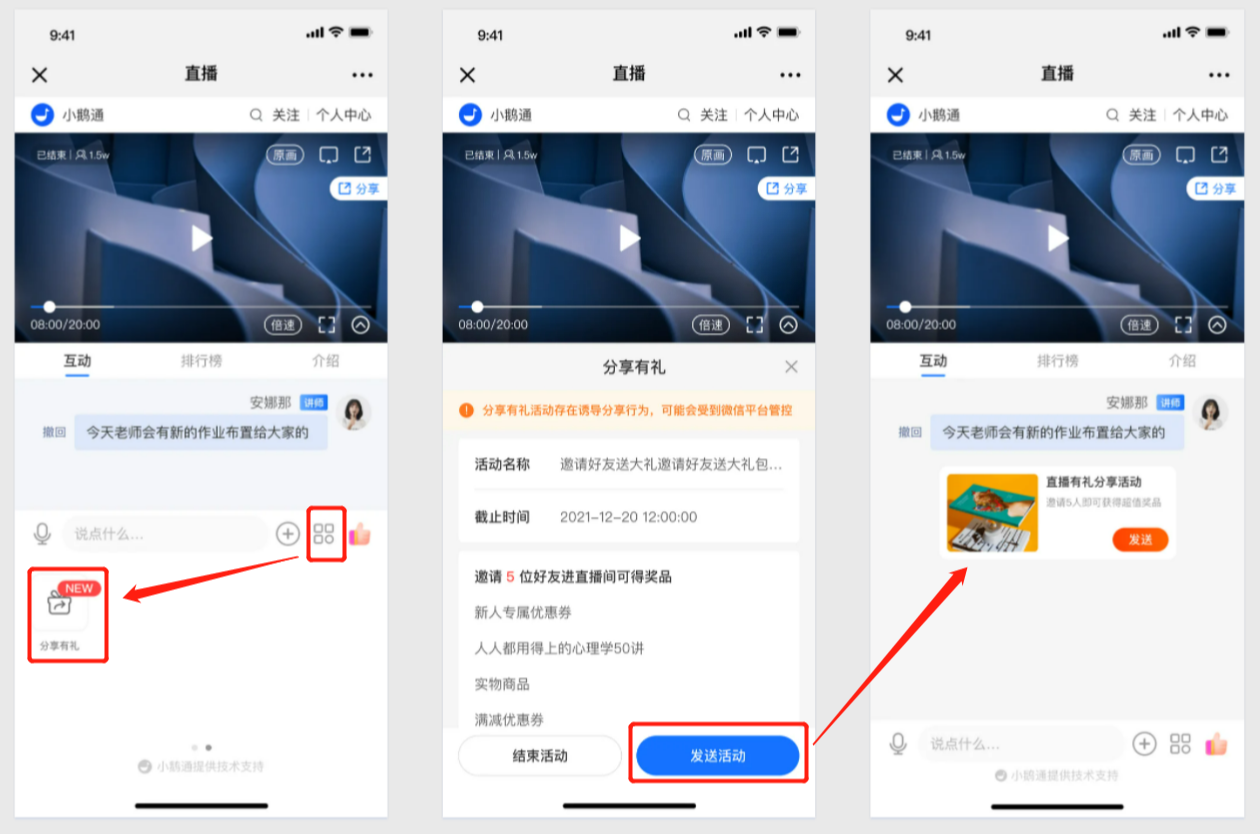
2. Portrait live streaming:
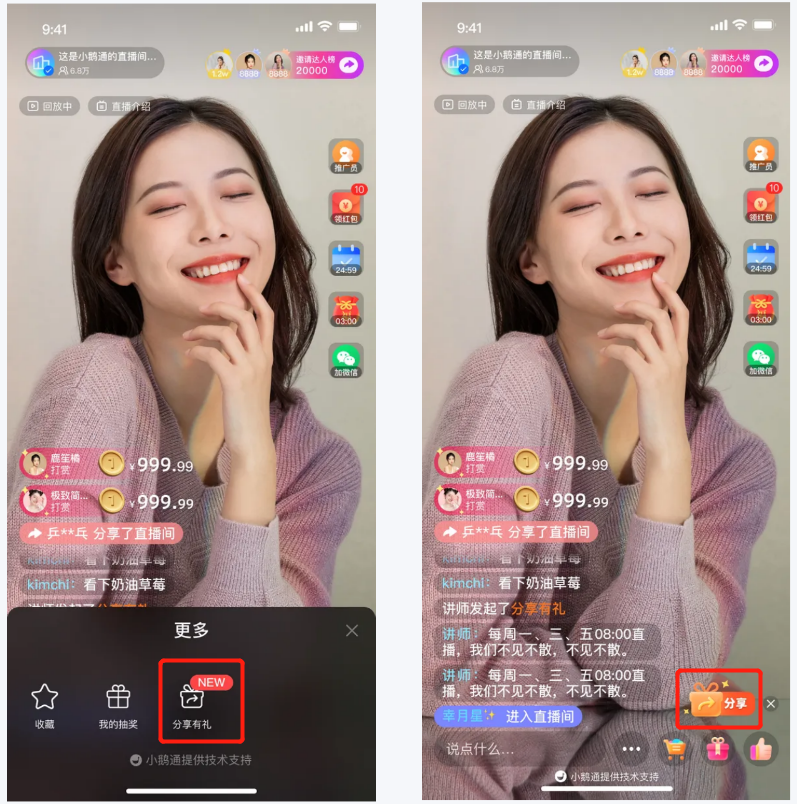
Step 3: Students participate in the share-and-win activity.(H5)
1. Click on the share-and-win participation entry:
● Landscape live streaming:
Entry ①: Students click the 'Go to Participate' button.
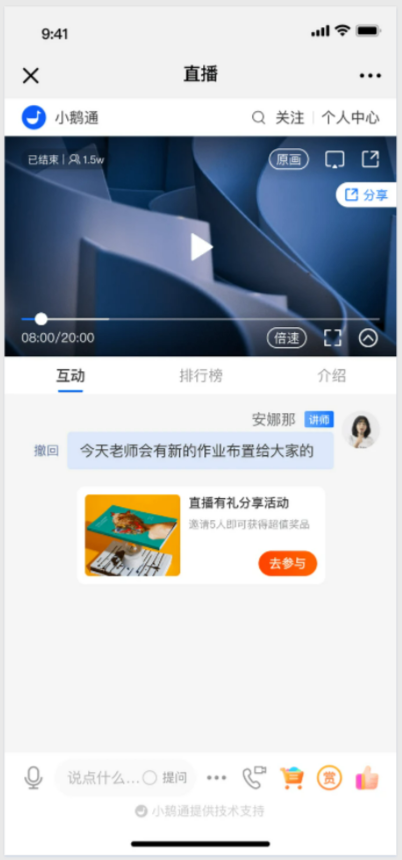
Entry ②: It is fixedly displayed in the live stream room - More - Share-and-Win icon.
Entrance ③: The “Share” icon permanently displayed on the right sidebar of the live streaming room;
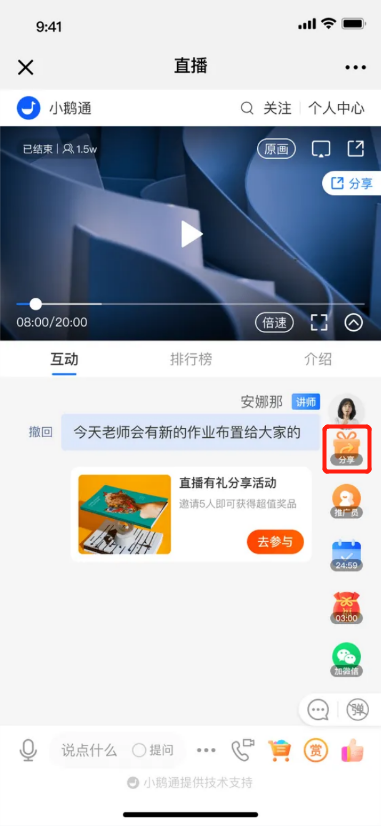
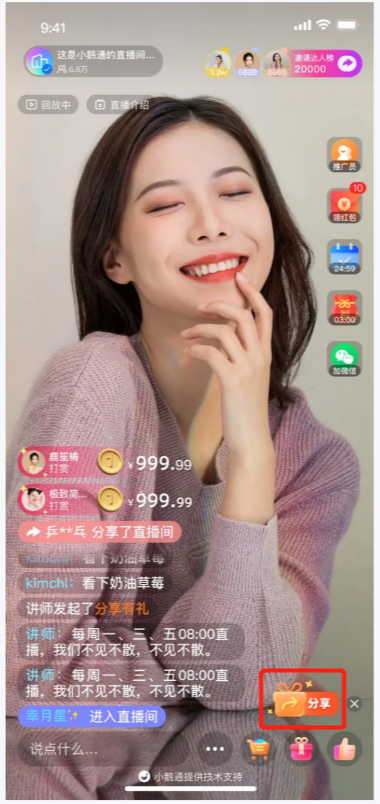
● Portrait live streaming:
Entrance ①: Learners click the “Share” button;
Entrance ②: More - Share for Rewards icon
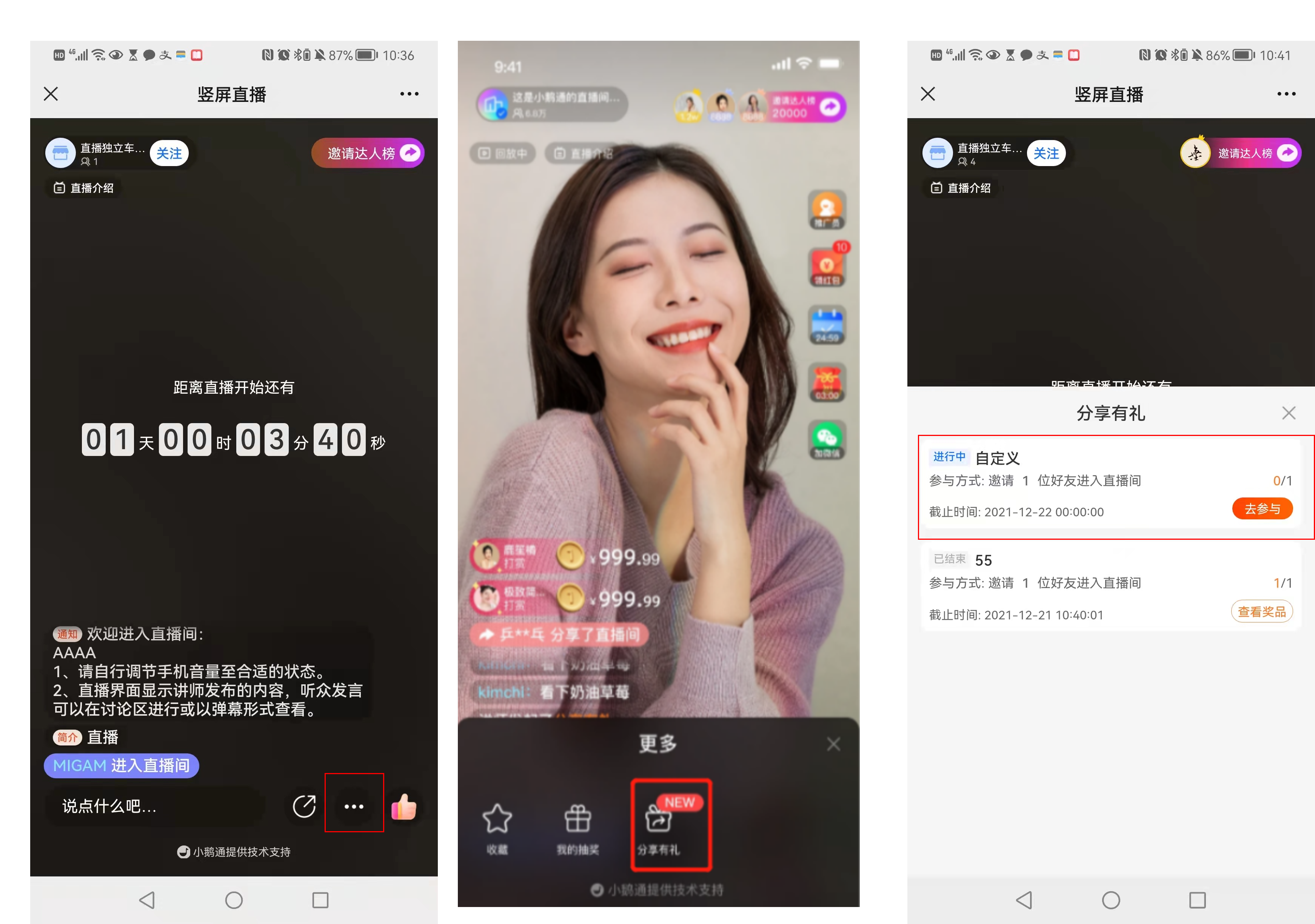
(More about Share for Rewards) (Share for Rewards icon) (Share for Rewards list)
2. Learners participate in the Share for Rewards activity
Click the “Invite Now” button to participate;
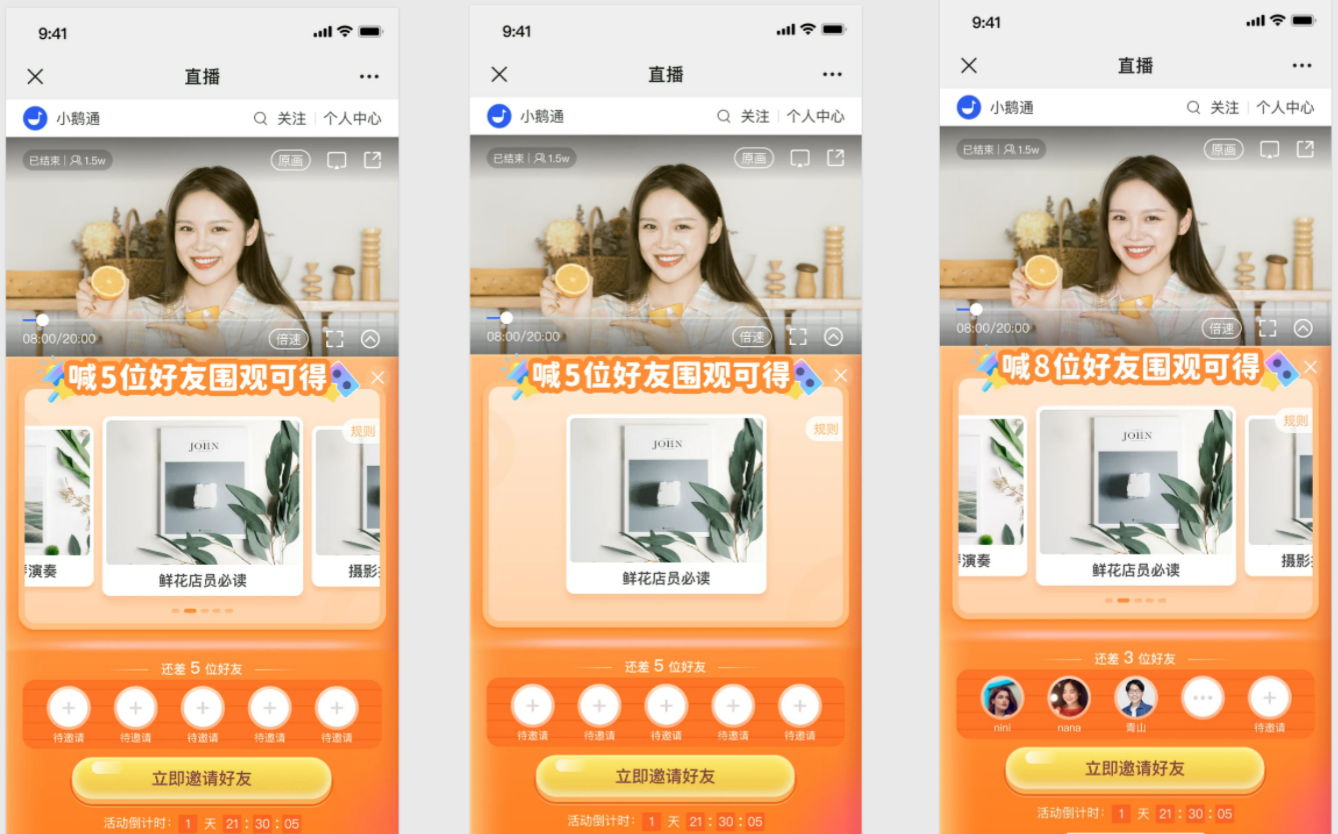
(Multiple prize images) (Single prize image) (Inviting in progress)
3. Friends successfully provide assistance
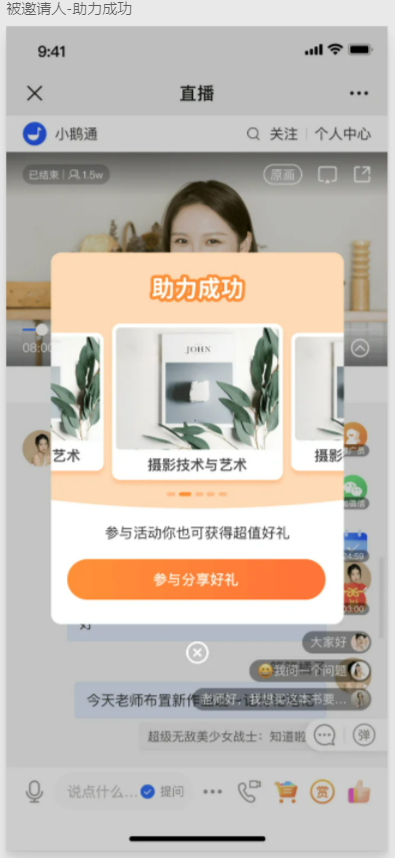
(Assistance pop - up window)
4. Claim prizes:
After inviting the specified number of people, a winning pop - up window will automatically appear. Click it to claim the prize;
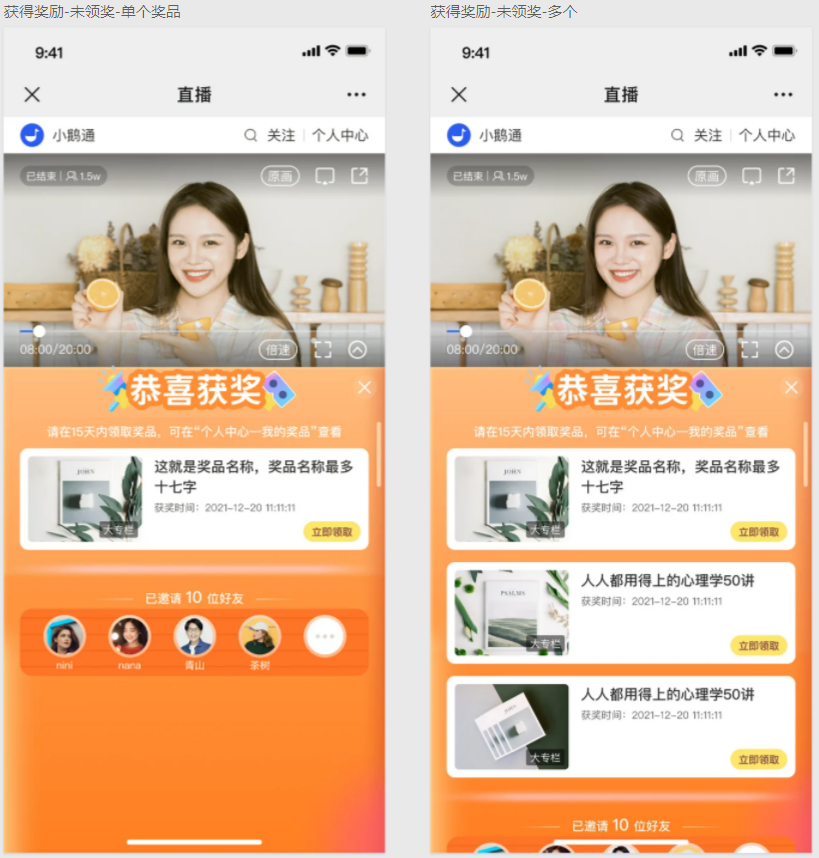
(Winning pop - up window for a single prize) (Winning pop - up window for multiple prizes)
5. View prizes:
If you haven't claimed the prize, you can continue to claim it in the prize list or in Personal Center - My Prizes - Share for Rewards;
If you have already claimed all the prizes, you can still view them here.
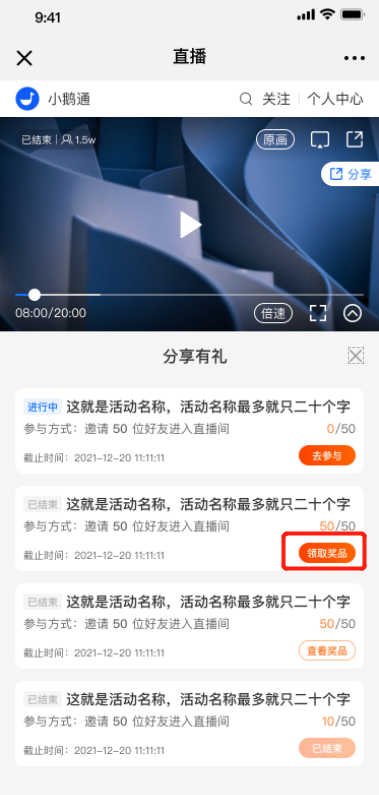
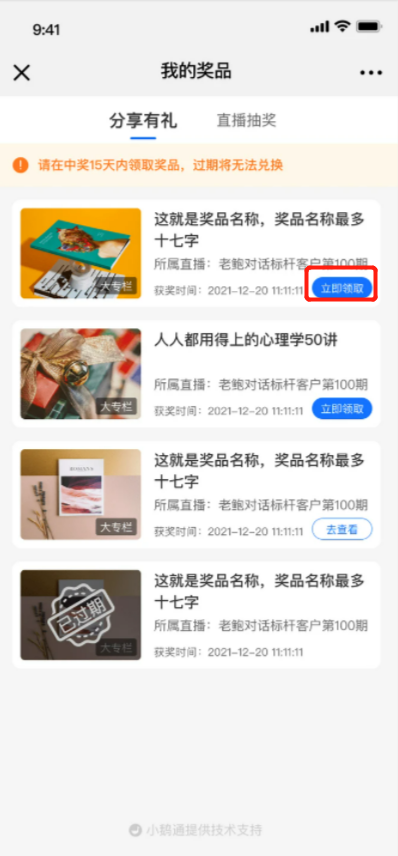
Step 4: Check the event effectiveness(Merchant management background)
Check the data analysis. You can view detailed invitation data and export the data.
Live streaming - Live streaming room details page - Data analysis - User data - Share for Rewards - Invitation records
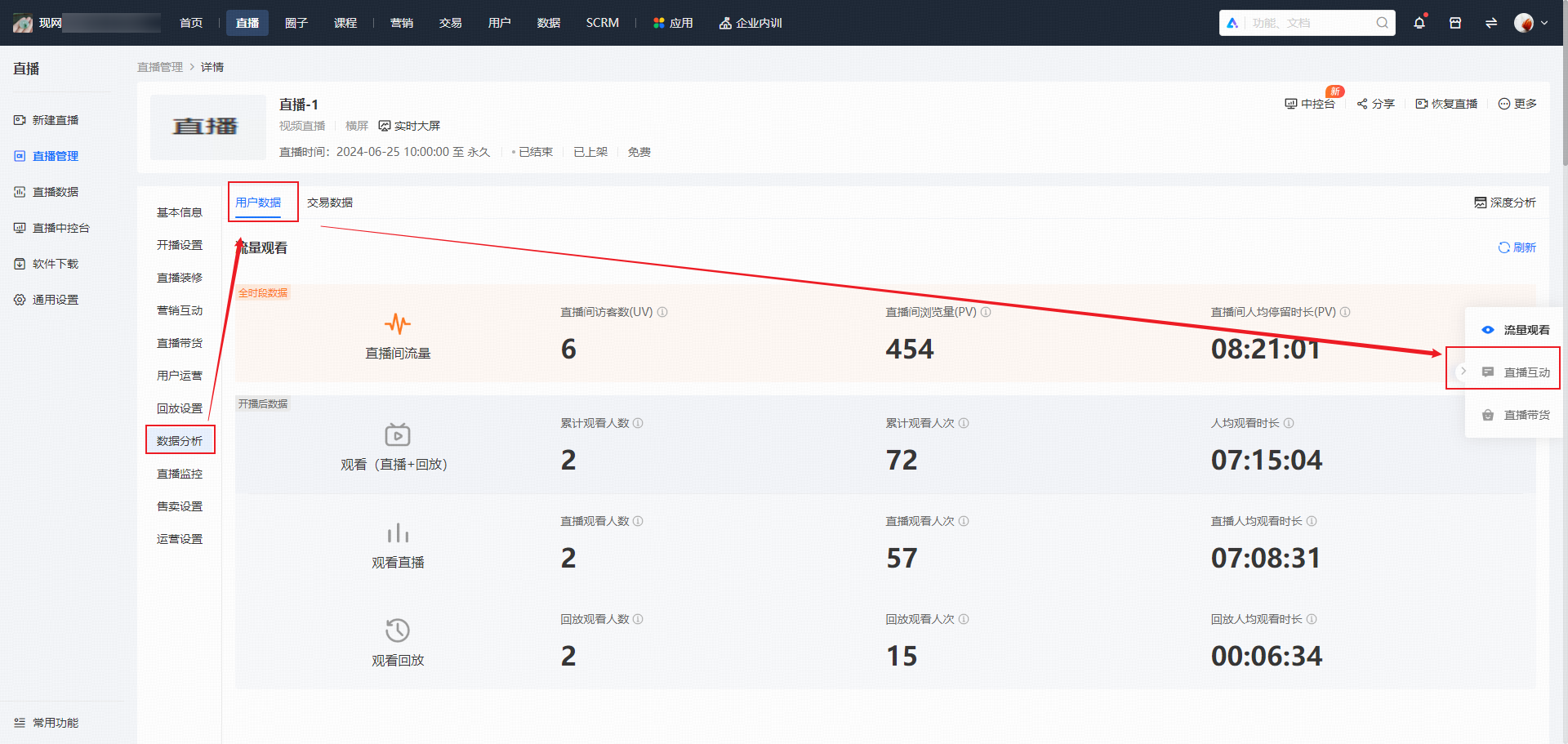
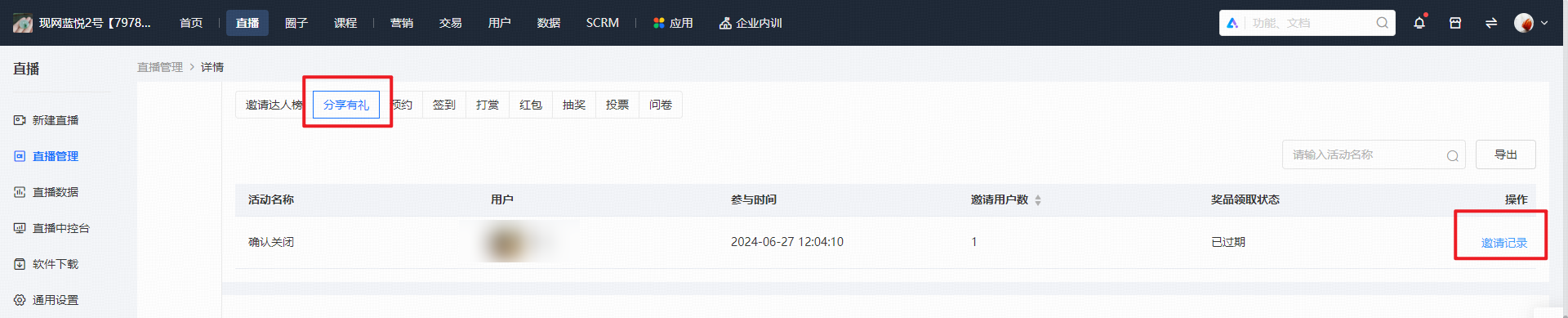
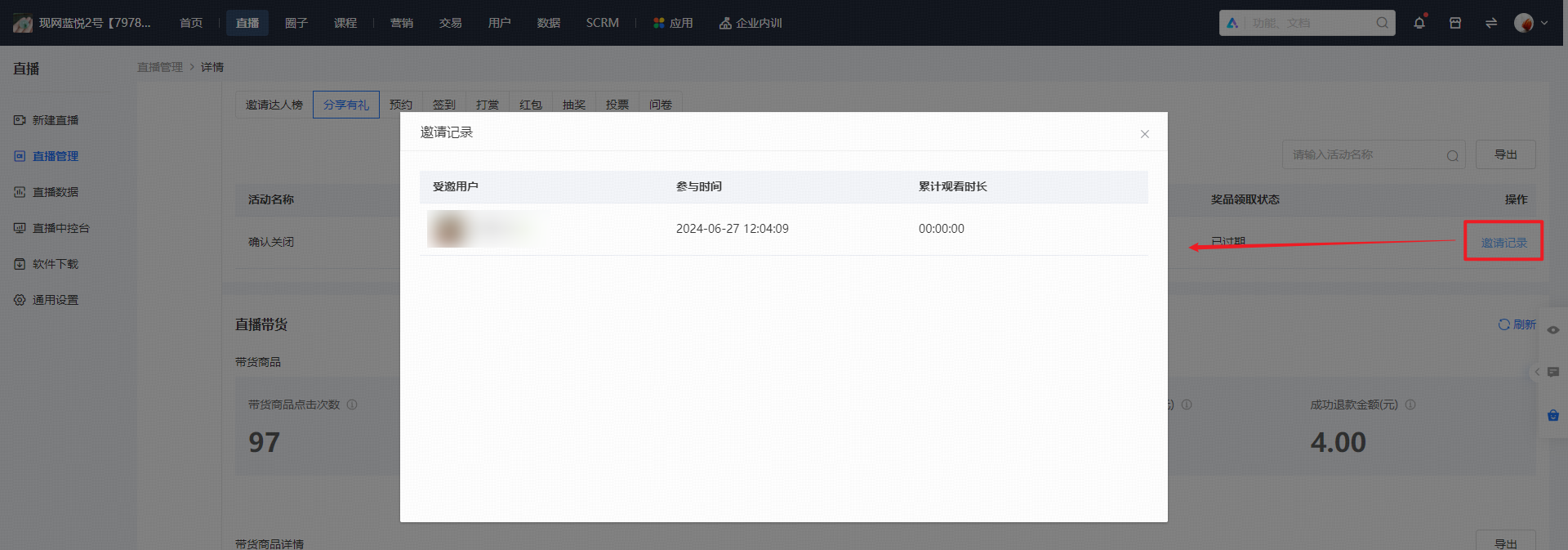
(Management background - Share for Rewards invitation data)
VI. Frequently Asked Questions
1. How to ensure the viral effect of the live streaming room and guide more learners to participate in the Share for Rewards activity to invite people back to the live streaming room?
Answer: ① Create posters with the Share for Rewards activity before the live streaming to let more learners know about this activity; ② During the live streaming, ask the host to regularly orally guide learners to share.
2. Can multiple Share for Rewards tasks be carried out simultaneously in one live streaming session?
Answer: No. Currently, multiple ongoing Share for Rewards tasks cannot exist simultaneously in a single live streaming session. If you want to start a new event task, you can end the current event in advance or wait for the current event to end and then create a new one.
3. How many times can each learner win prizes at most within the validity period of each task event?
Answer: Once. To prevent learners from taking advantage of the system repeatedly, each learner can win prizes at most once.
4. Is there a limit to the number of prizes?
Answer: Currently, a maximum of 5 types of prizes can be set. If the prizes are virtual products, there is no limit to the quantity; if the prizes are “physical products”, “coupons/codes”, or “classes” with inventory, you need to fill in the number of prize copies (less than or equal to the inventory) when configuring the prizes.
VII. Notes:
No comments to display
No comments to display