
How can live course students download course materials?
I. Feature Introduction
Merchants can upload relevant courseware on the instructor's end, and then students can download the relevant courseware on their mobile phones and computers, which improves the students' review effect after class.
II. Purpose of Use
By downloading the courseware, students can study the live - streamed courses repeatedly in combination with the live replay content, thus enhancing the learning effect. They can also achieve this by repeatedly studying the courseware.
III. Use Scenarios
Teacher Zhang San conducts training for the sales staff in the company via live streaming. However, the sales staff usually face high work pressure and rarely have time for online review outside of class hours, resulting in less - than - satisfactory learning results. So, Teacher Zhang San shares the courseware with his students through elink live streaming. After downloading the courseware, the students watch and study it repeatedly during their free time, and both their learning effect and performance have improved significantly!
IV. Operation Path
Merchant's End:elinkAssistantClient/Web Version/WeChatH5 Instructor's End → Share Courseware
Student's End:WeChat H5/Web Version→ Live Room → Shared Courseware → Download Courseware
V. Usage Tutorial
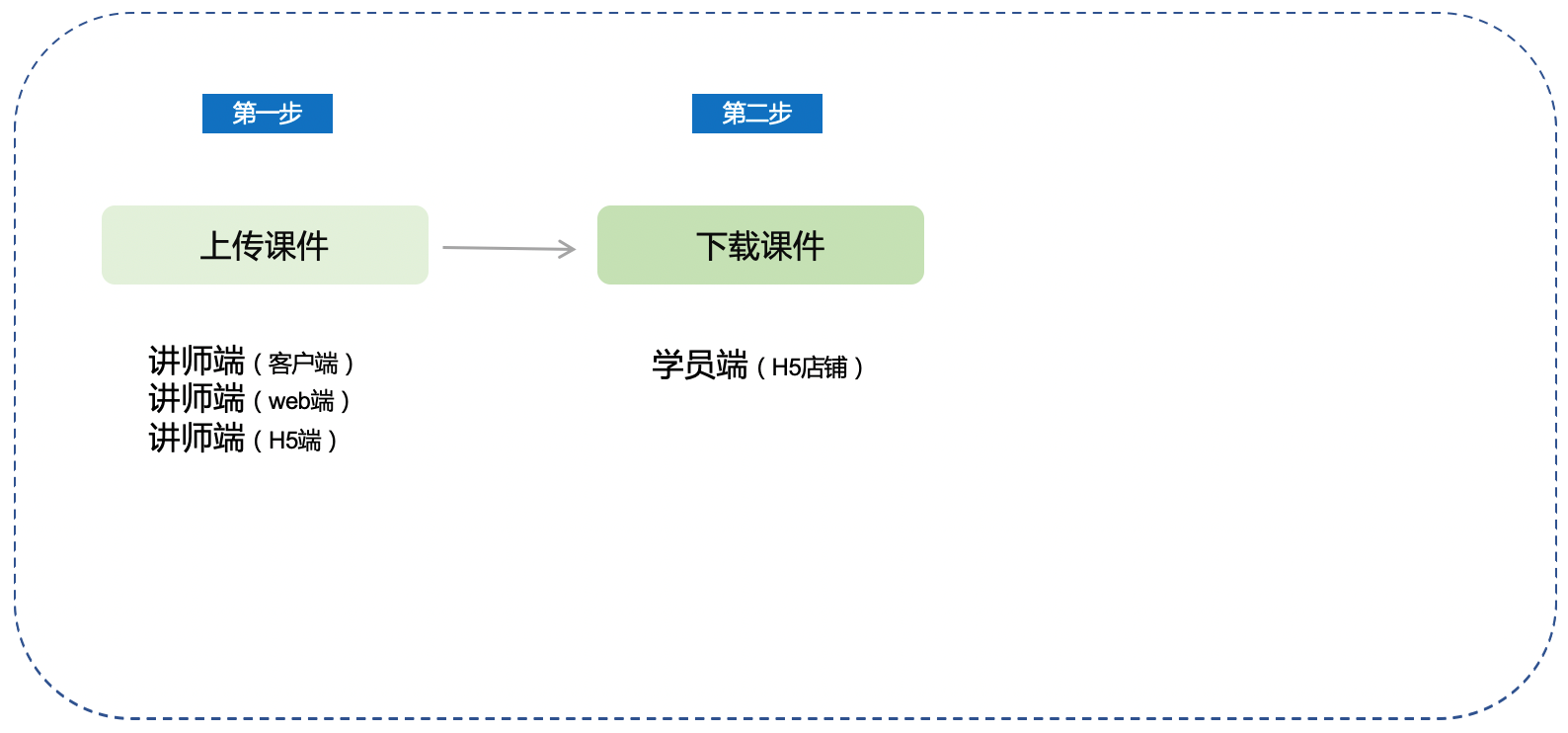
Step 1: Instructors Upload Courseware (e - Live Client/elink Assistant Client/Web Version/H5 Instructor's End)
1. Instructors enter the e - Live client and open [Presentation Courseware - Upload Courseware].
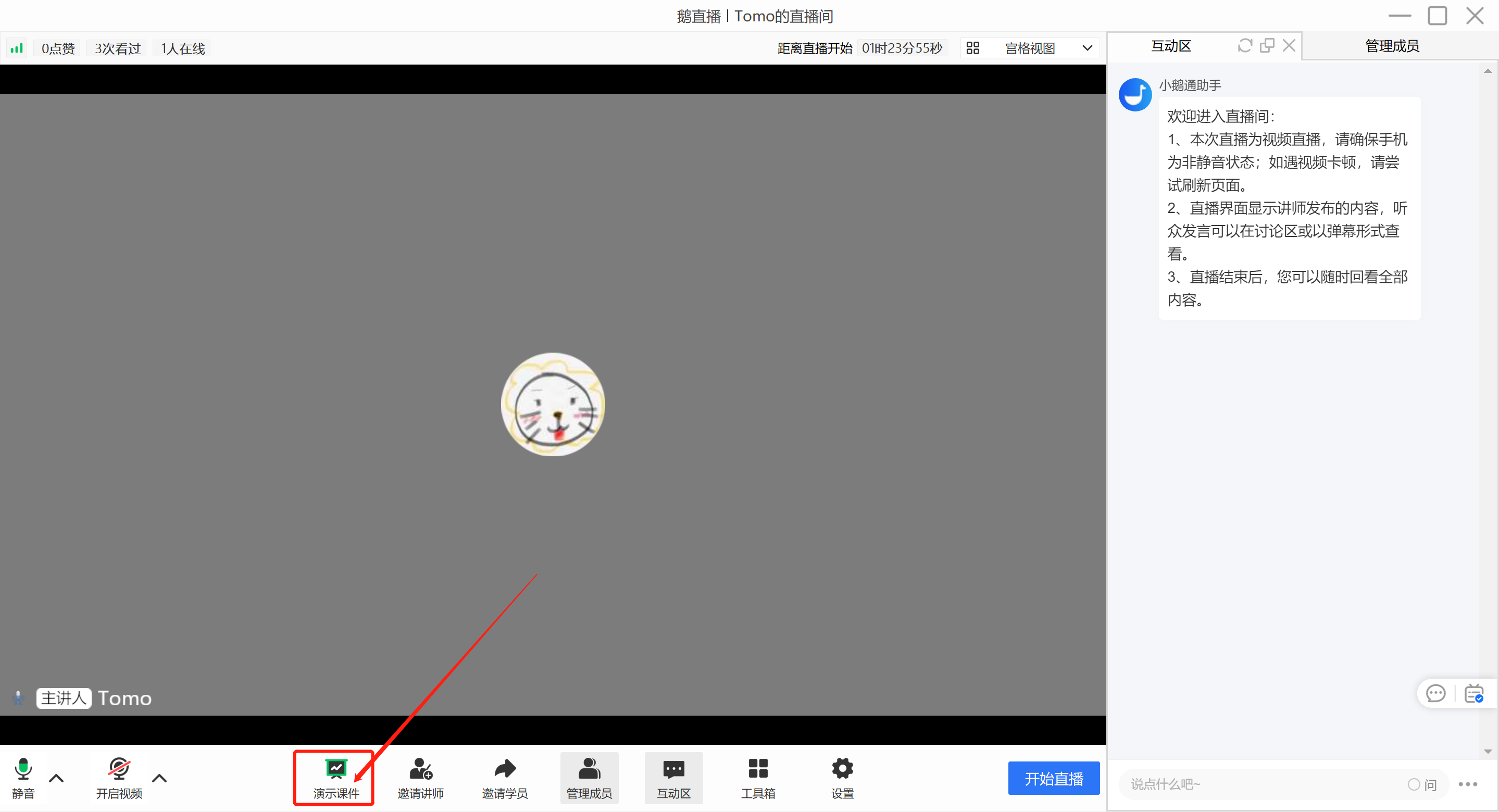
(e - Live Client Instructor's End)
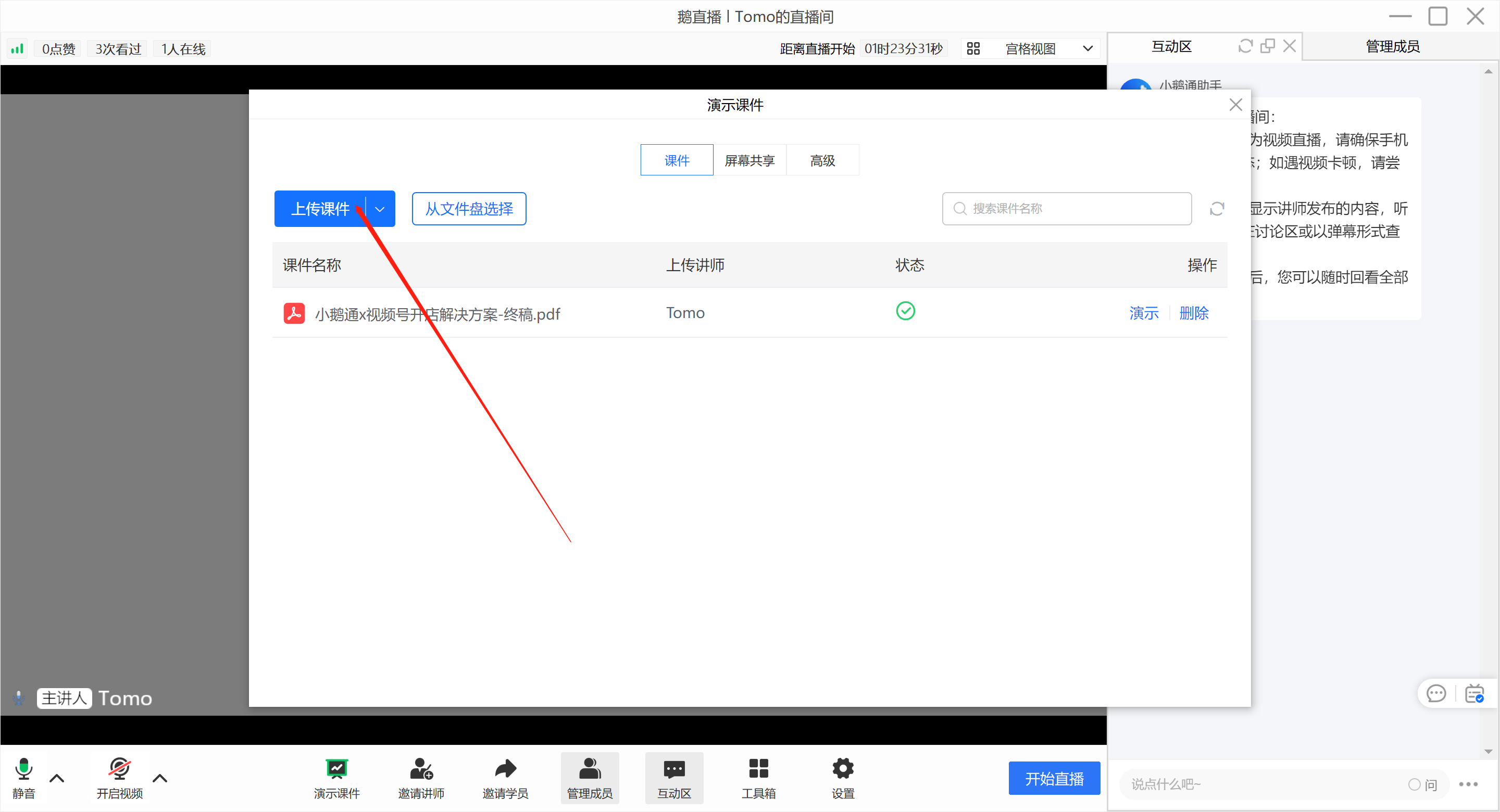
(e - Live ClientInstructor's End)
2. Instructors enter the elink client and open the material library to upload courseware.
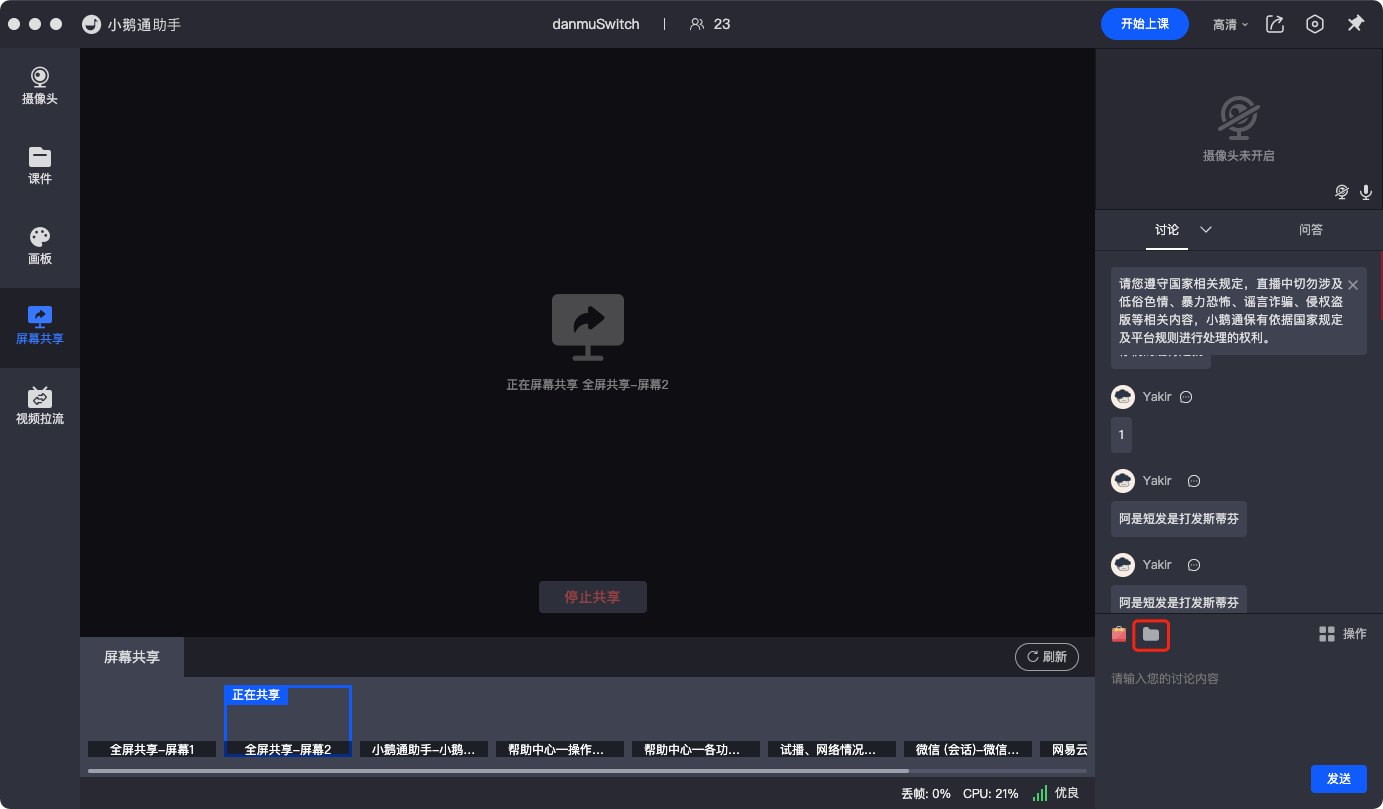
(elink Assistant Client Instructor's End)
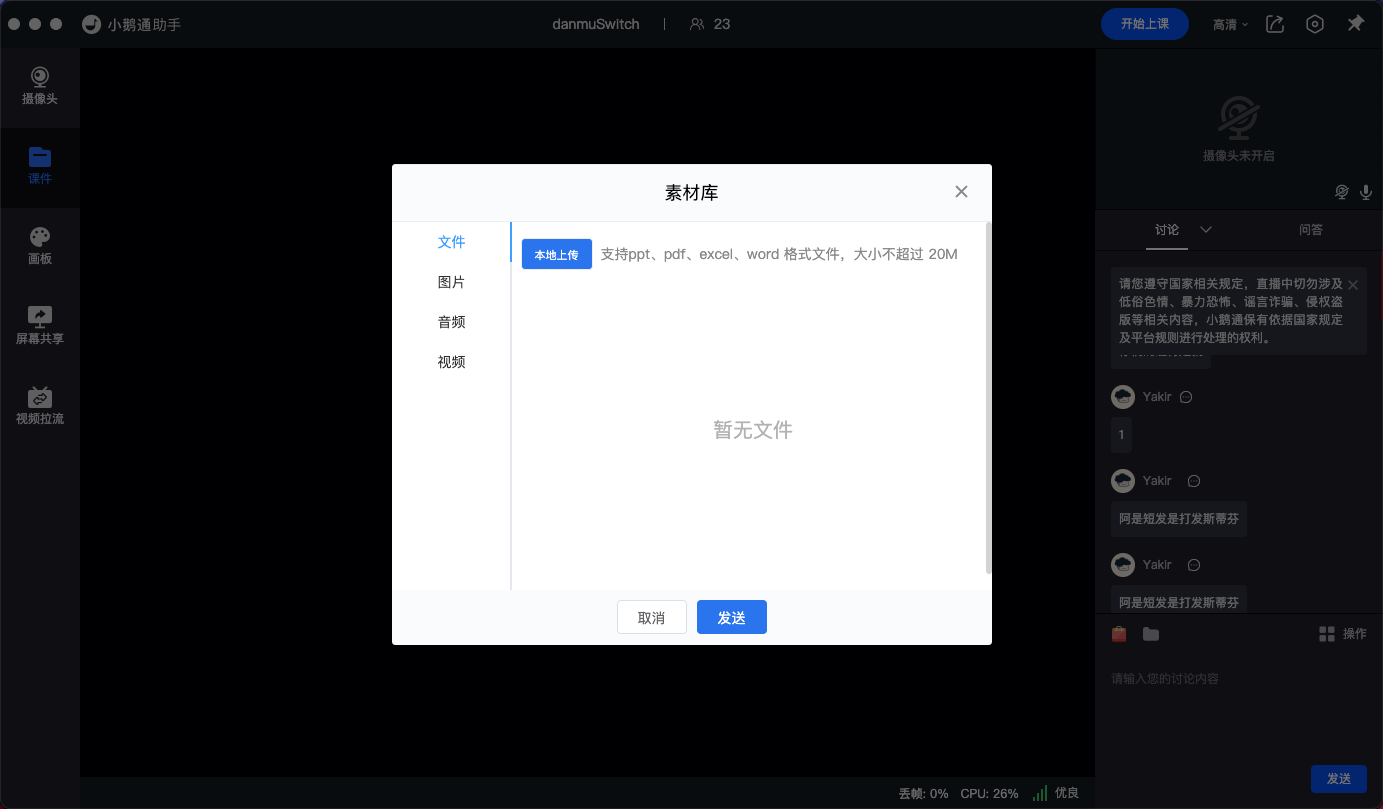
(elink Assistant Client Instructor's End)
3. Instructors enter the web - based instructor's end and open the material library to upload courseware.
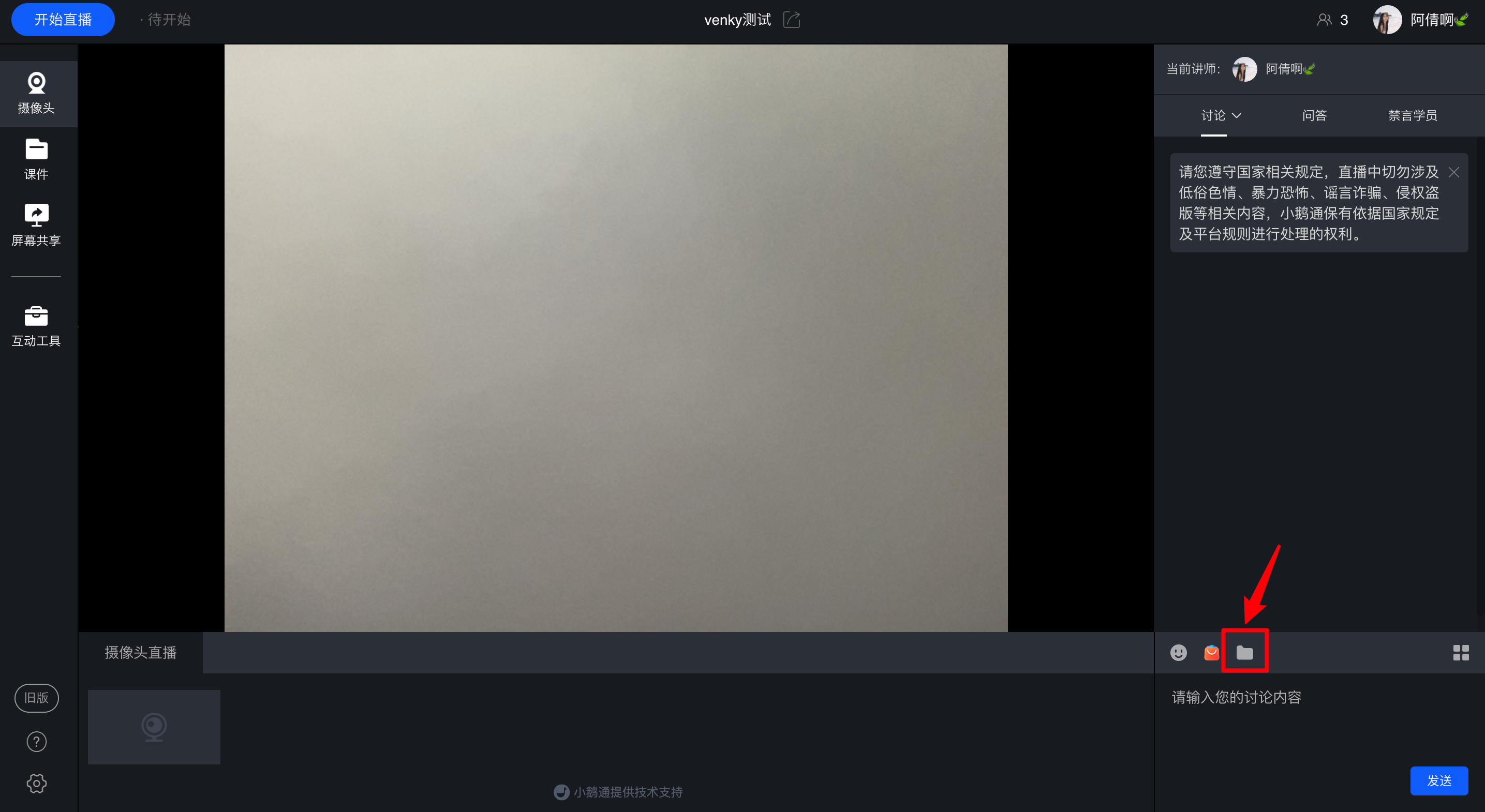
(Web - based Instructor's End)
4. Instructors enter the H5 instructor's end and open the material library to upload courseware (only Android phones are supported for courseware upload).
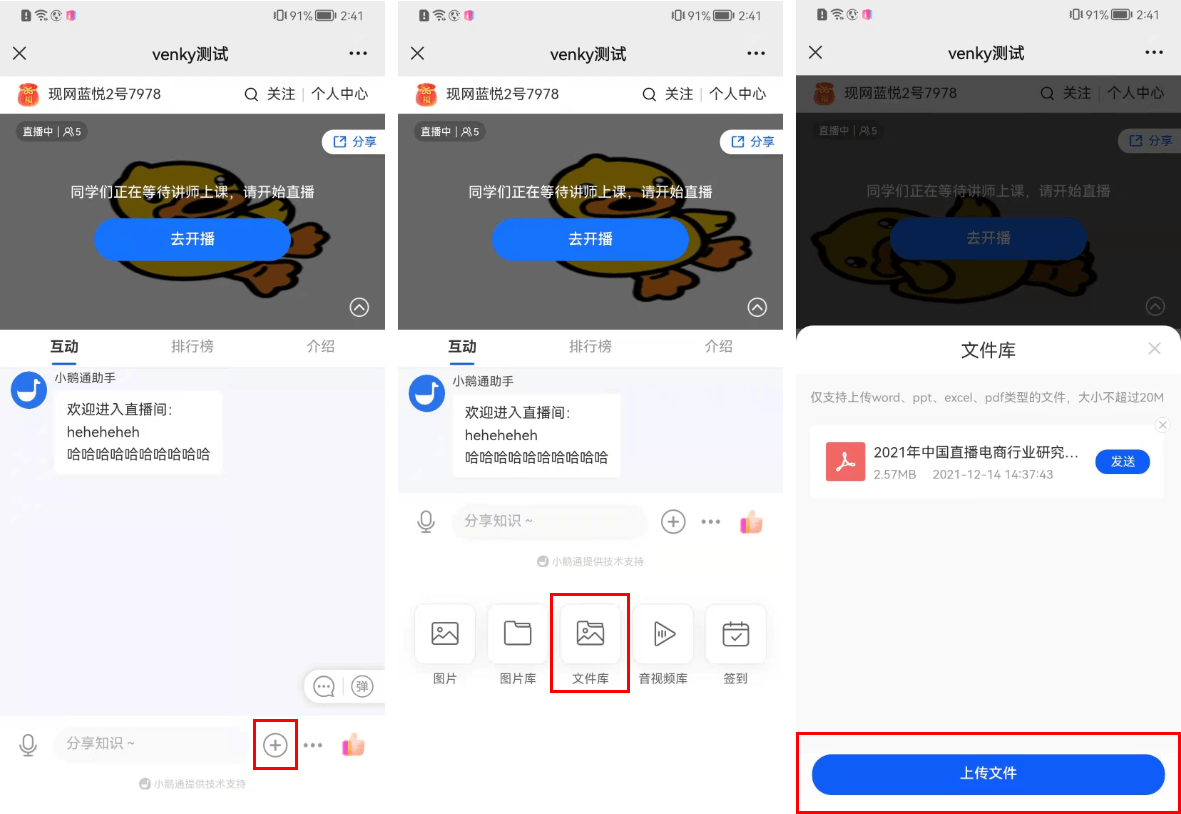
(H5 Instructor's End)
Step 2: Students Download Courseware (Web Version/H5 Student's End)
1. Download courseware on the H5 student's end:Find the shared files in the live room, enter the shared file page, click to download. You can preview the current courseware content. Copy the link and open it in the browser on your phone or computer to directly download the courseware.
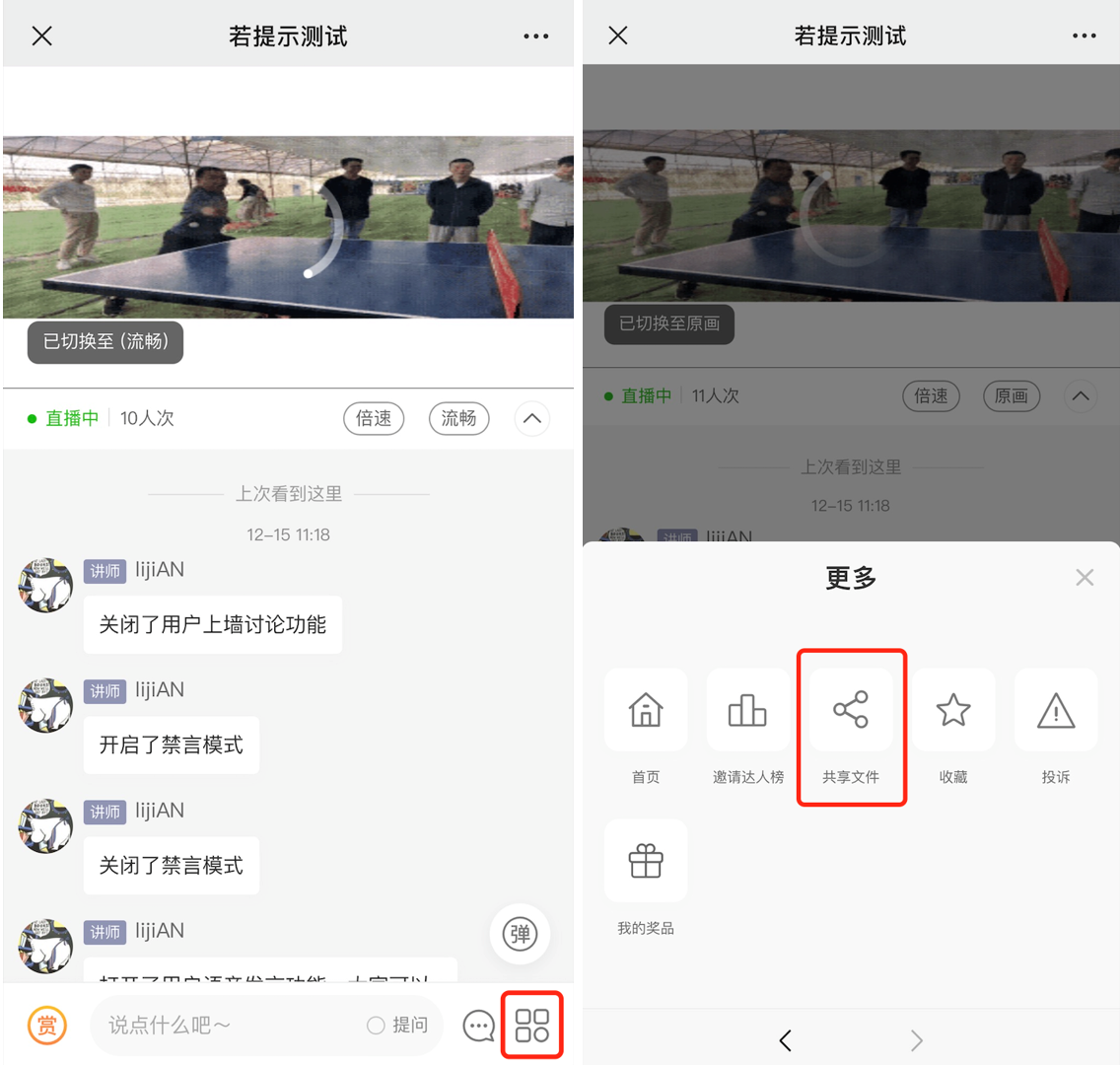
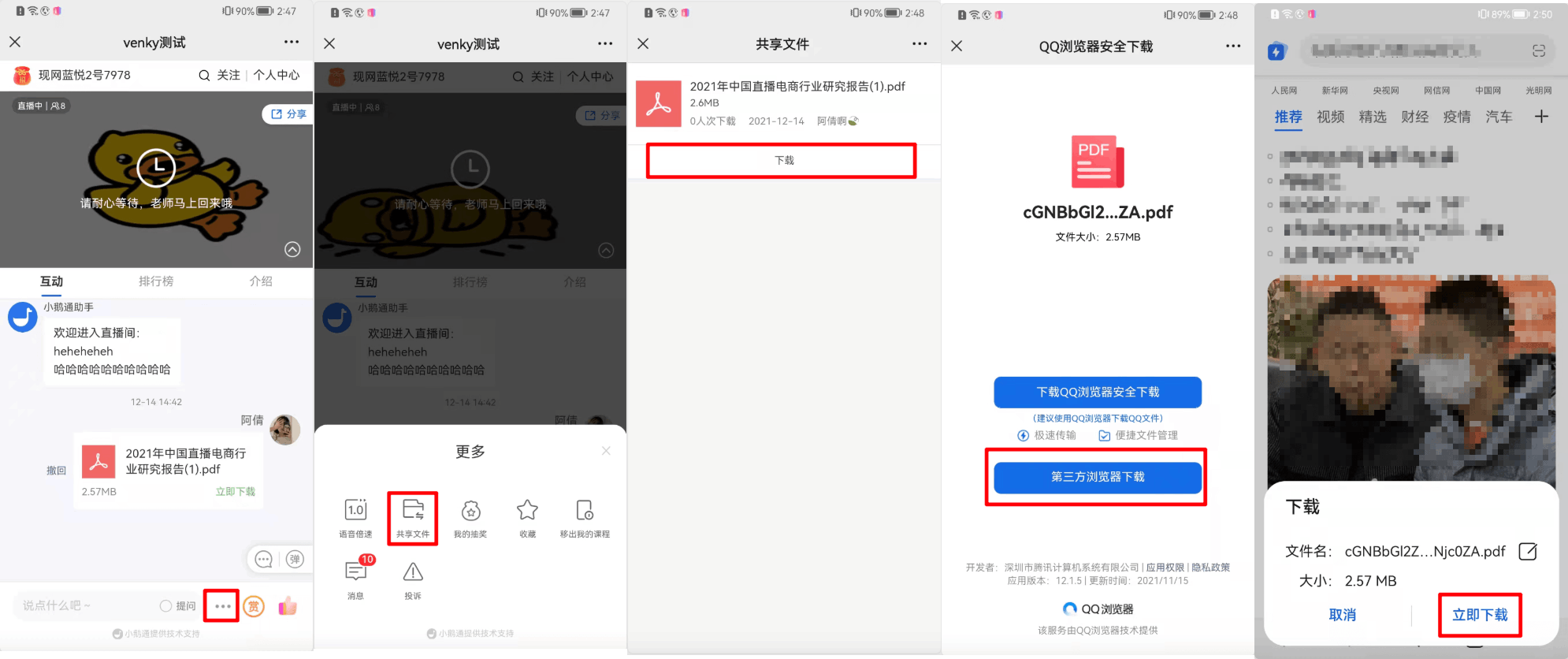
(H5 Student's End - Shared Files)
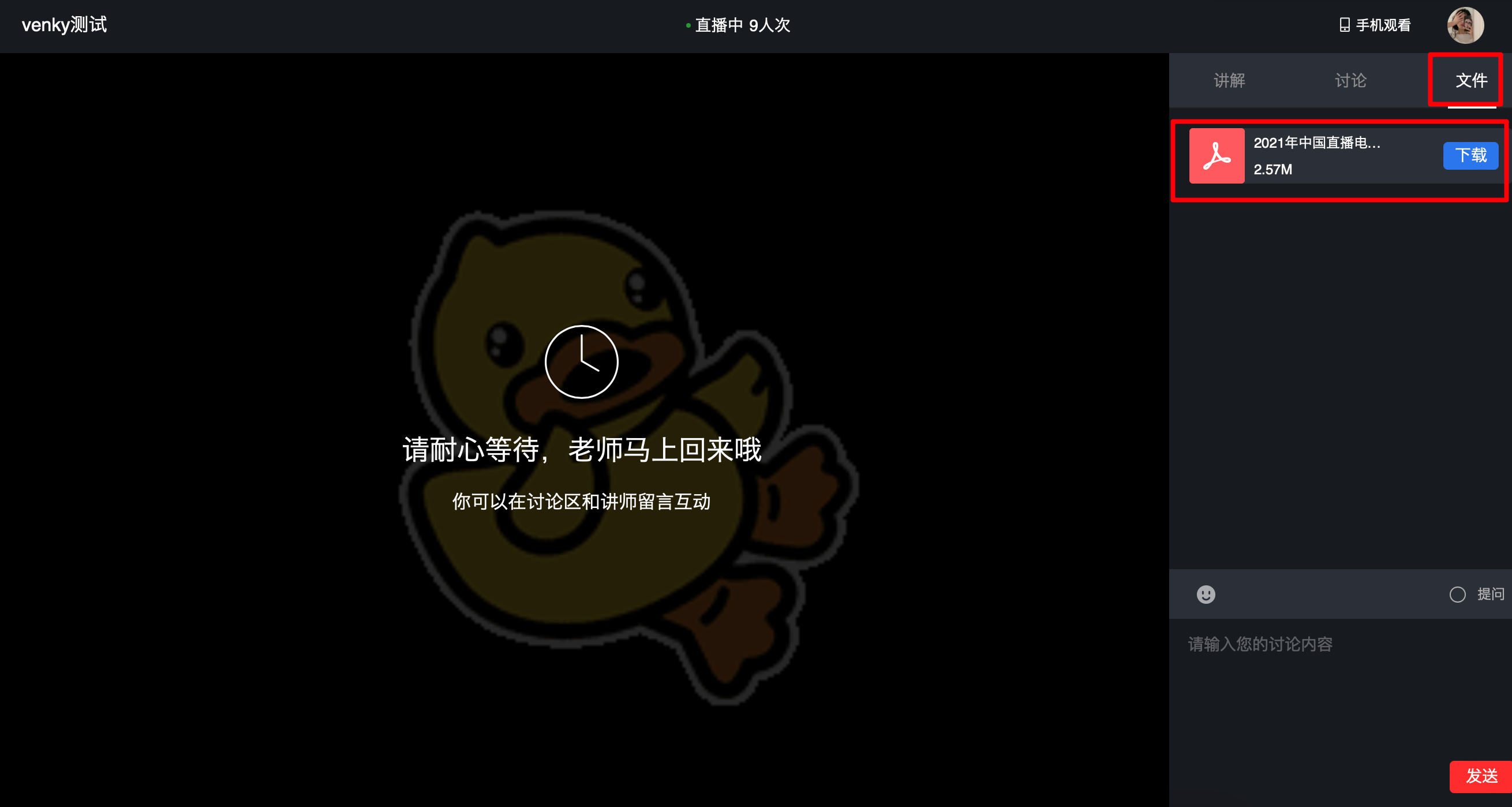
2. Download courseware on the web - based student's end:Find the shared file area on the web - based student's end, locate the file you want to download, and click to download the corresponding courseware.
No comments to display
No comments to display