
Solutions to common problems with screen sharing failure
Solutions to common problems of screen sharing failure
I. Why can't I find eLink Live in the authorization permission list?
● Reason: Whether eLink Live appears in the authorization list is determined by the system. The behavior that triggers authorization is the black - box logic encapsulated by the system, and ordinary apps cannot intervene. Therefore, this problem usually results from system issues.
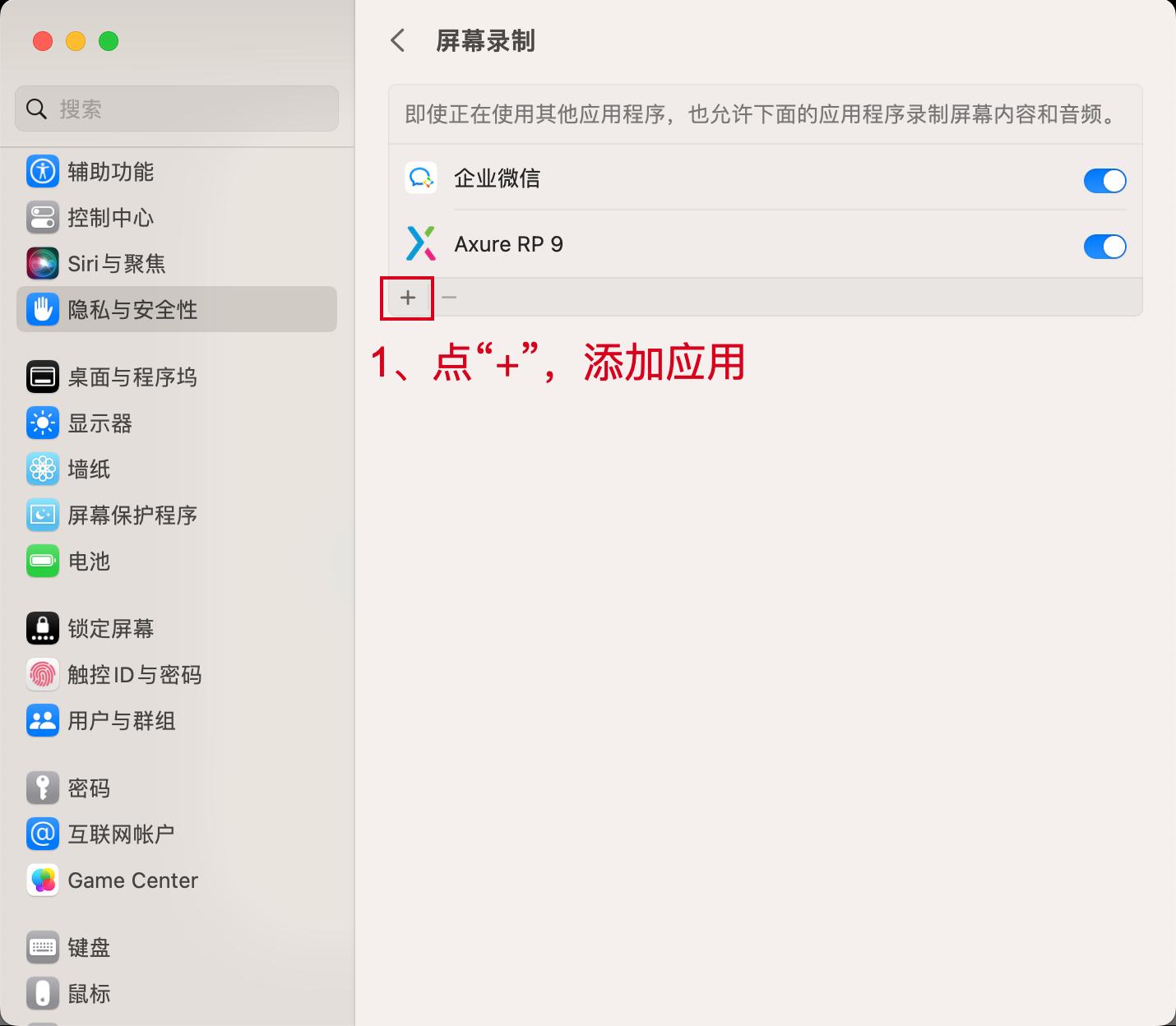
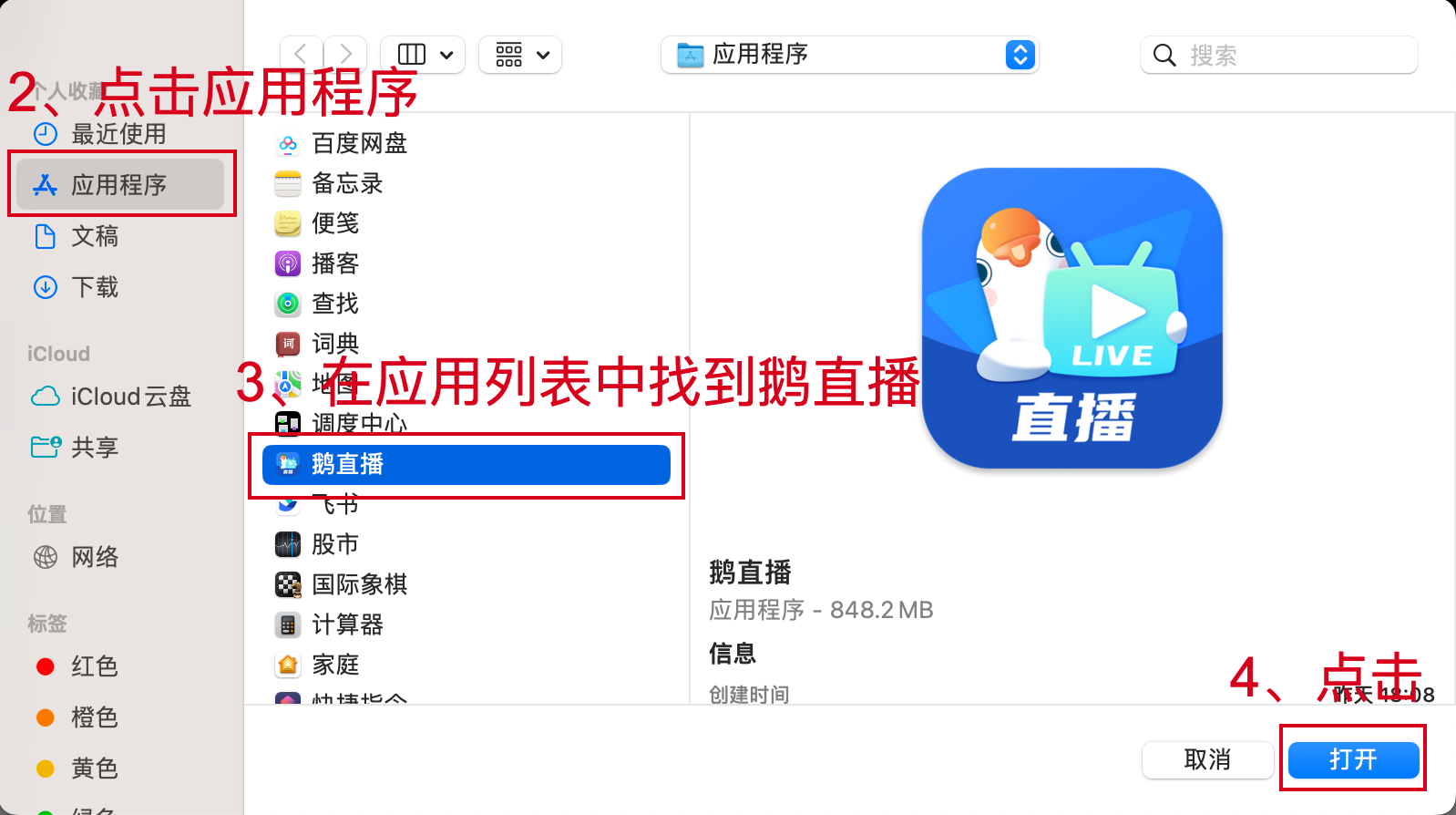
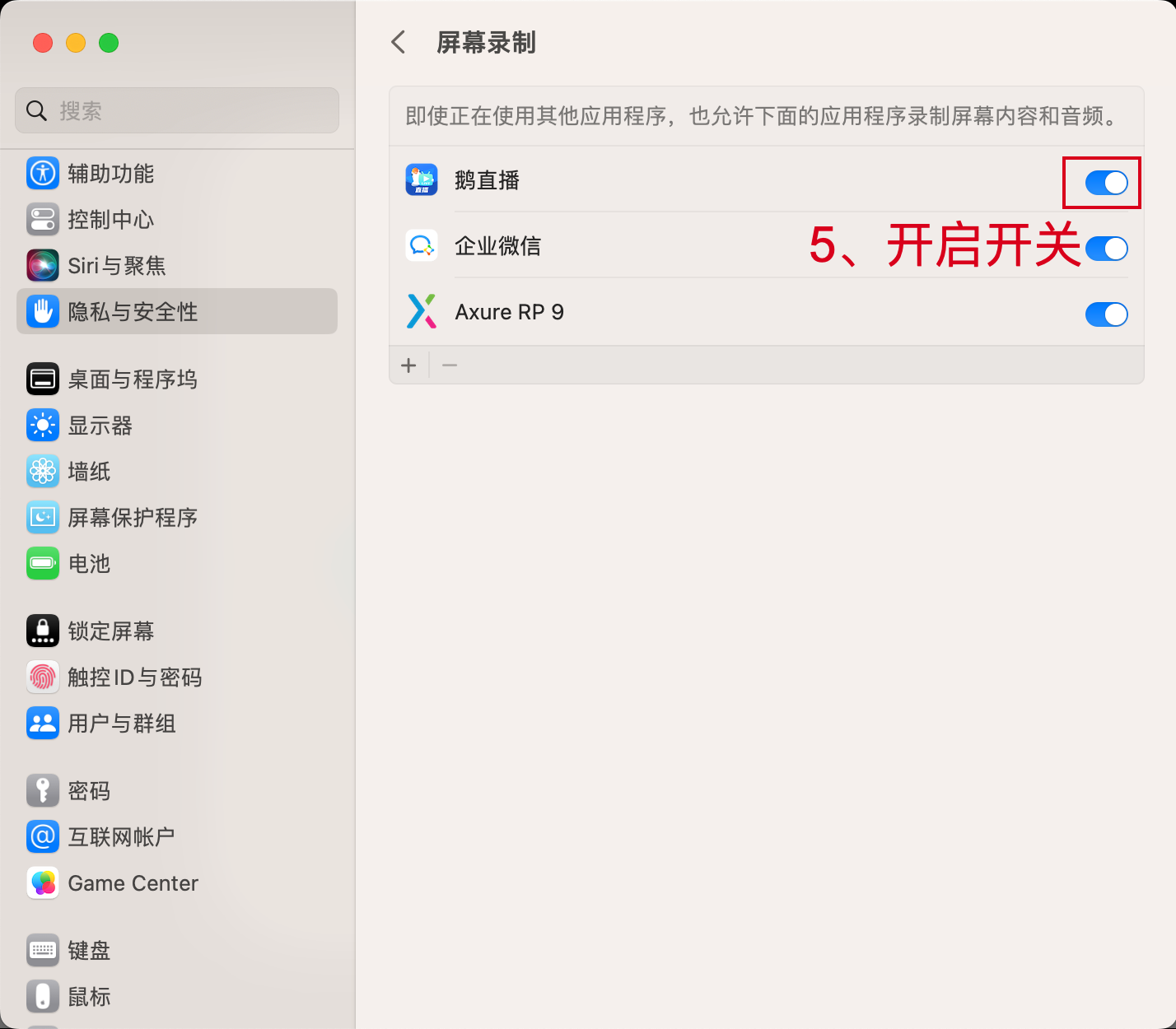
● Solution: Add the app to the screen recording list and re - check the authorization.
● Operation demonstration:
II. Why, after completing the authorization settings, no shareable windows are displayed and I'm still prompted to set the authorization?
● Solution: First, complete the authorization for eLink Live, then exit the eLink Live app, reopen eLink Live, and select window sharing for screen sharing.
If the authorization prompt still appears, it is recommended to restart the computer after completing the authorization, then reopen the eLink Live app and select window sharing for screen sharing.
● Operation demonstration for exiting eLink Live:
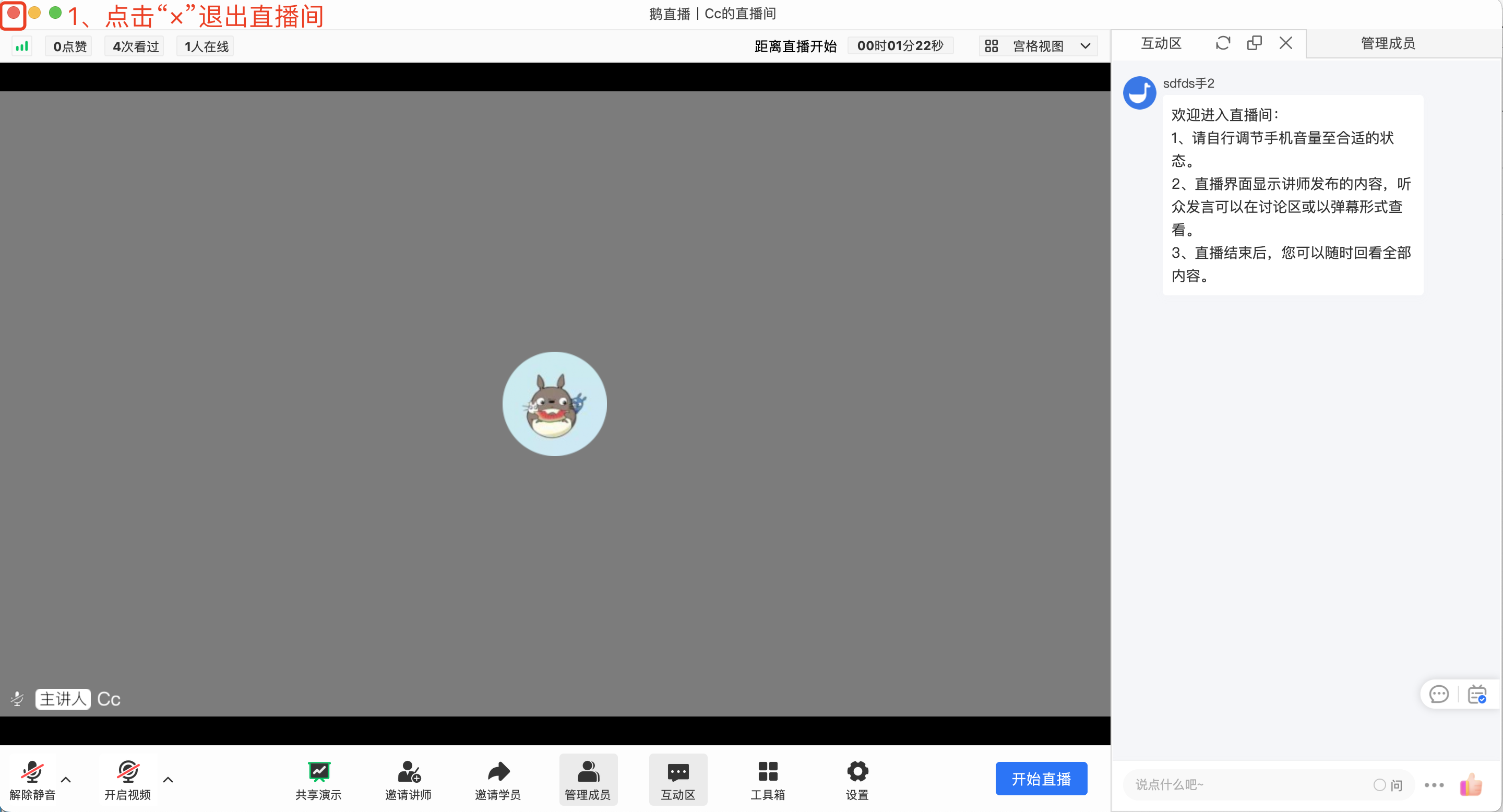
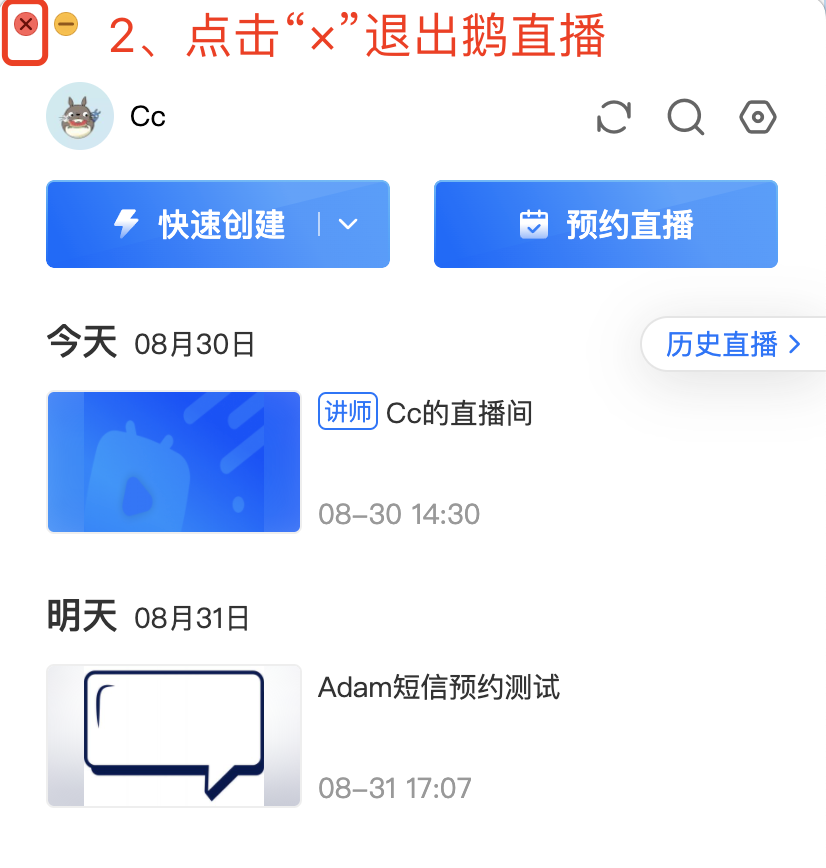
If eLink Live cannot be exited normally, you can open the Activity Monitor (press command + spacebar simultaneously and search for “Activity Monitor”), find the eLink Live app, and click “×” to force it to exit.

No comments to display
No comments to display