
Tutorial on Using Exam Certificates
I. Function Introduction
Instructors can customize the background and comments of exam certificates. Students who achieve high scores or meet the requirements will automatically receive exam certificates after passing the exam. They can then share and show off these certificates.
II. Purpose of Use
Enhance students' engagement with the courses and their initiative in learning. Encourage students to actively promote the exam certificates, thereby attracting traffic to the courses.
III. Use Scenarios
Merchants organize an exam and want to award certificates to outstanding students.
IV. Operation Path
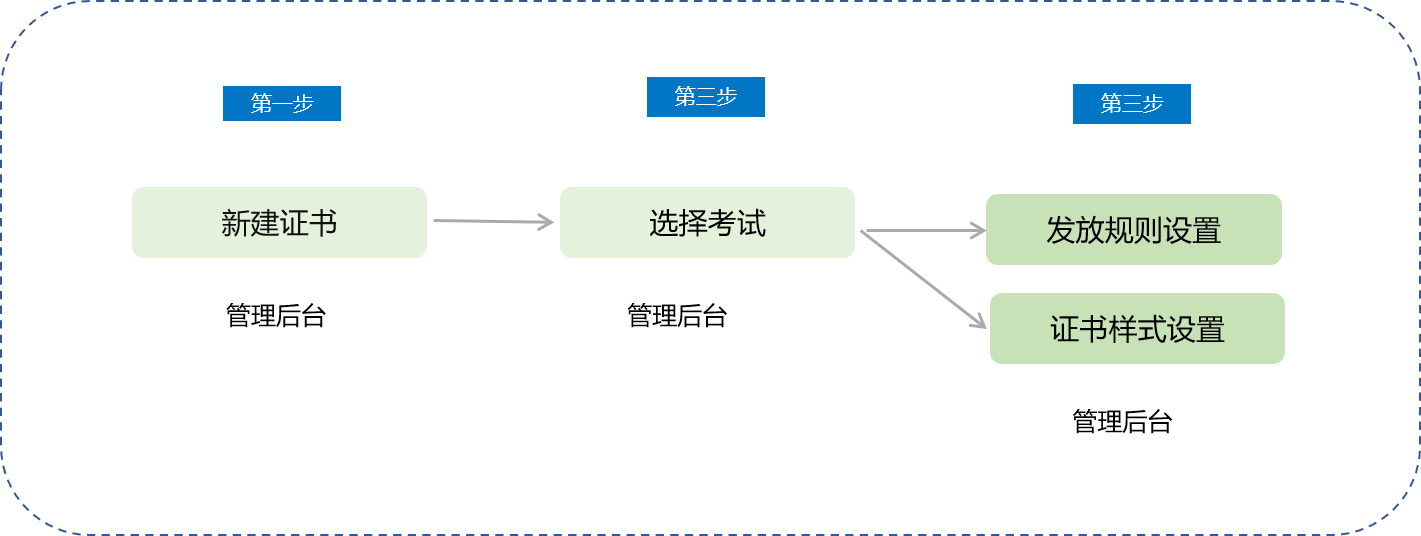
Associate an existing exam on the certificate function page:
Management Console → Courses → Interactive Management → Certificates → New Certificate → Select Exam → Certificate Settings
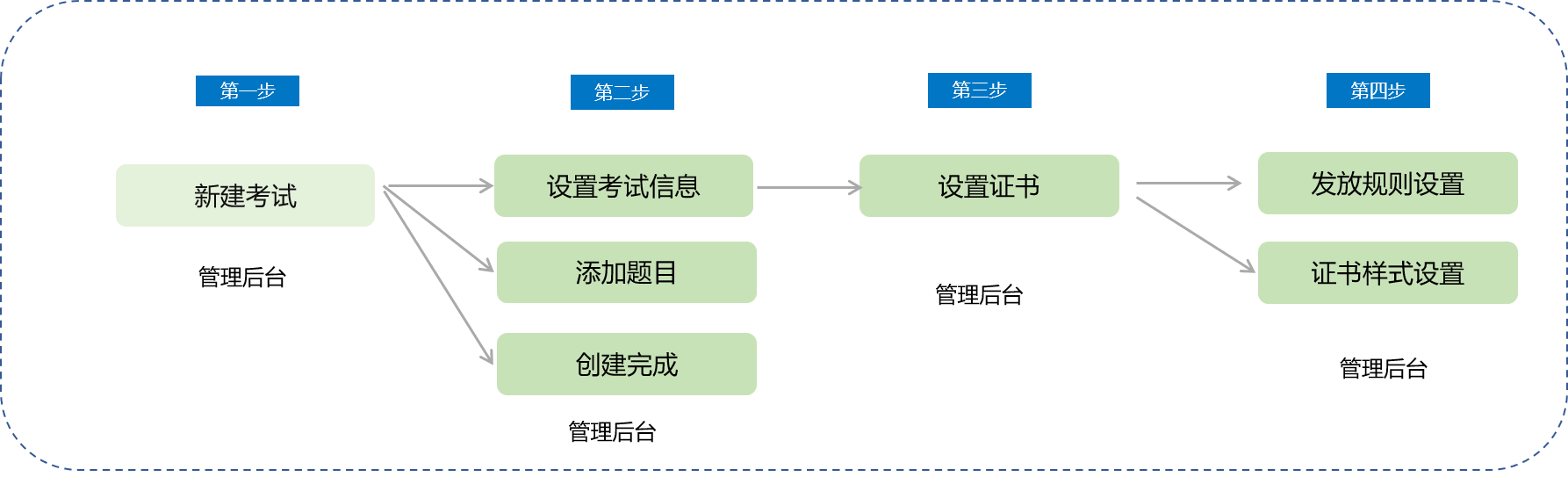
Configure and add certificates at the end of the exam creation process:
Management Console → Courses →Interactive Management → Exams →New Exam → Set Exam Information/Add Questions/Complete Creation → Set Certificate → Certificate Settings
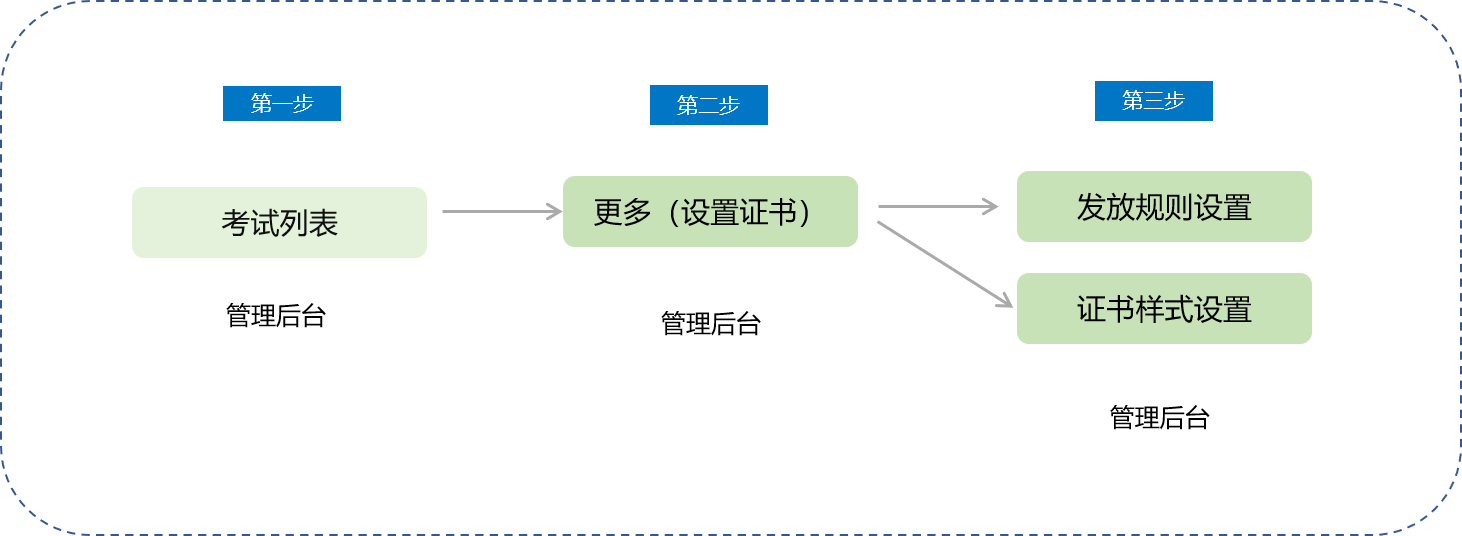
Supplement the configuration and add certificates for an existing exam on the exam function page:
Management Console → Exam List → More (Set Certificate) → Certificate Settings
V. Usage Tutorial
Associate an existing exam on the certificate function page:
Configure and add certificates at the end of the exam creation process:
Supplement the configuration and add certificates for an existing exam on the exam function page:
Method 1:
Step 1: Enter the certificate management page through the [Learning Tools] - [Certificates] entry on the management console, and click the [New Certificate] button.
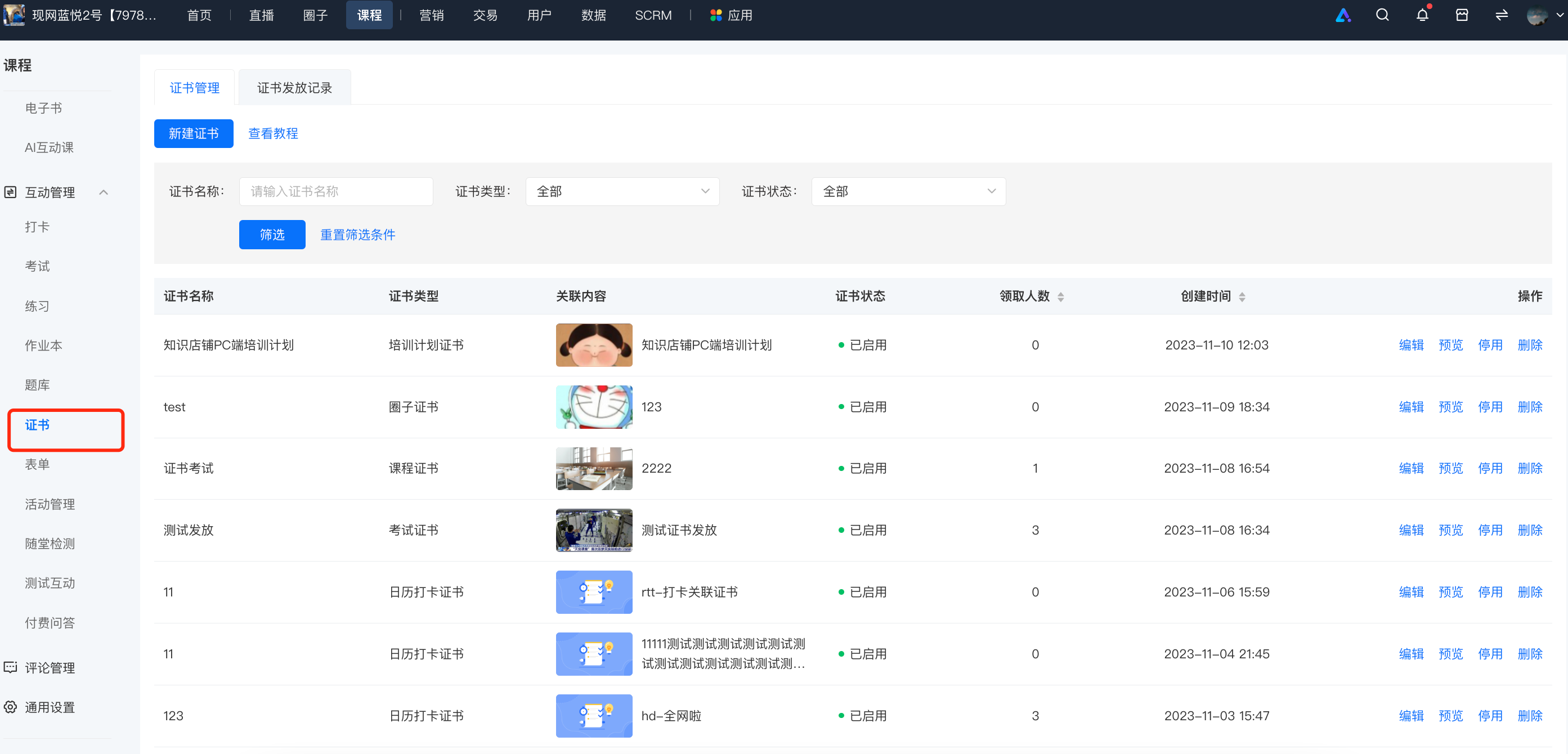
Step 2: Create a new exam certificate.
① Associate an exam and set the rules for issuing certificates. Certificates will only be issued when students' exam scores are higher than a certain score.
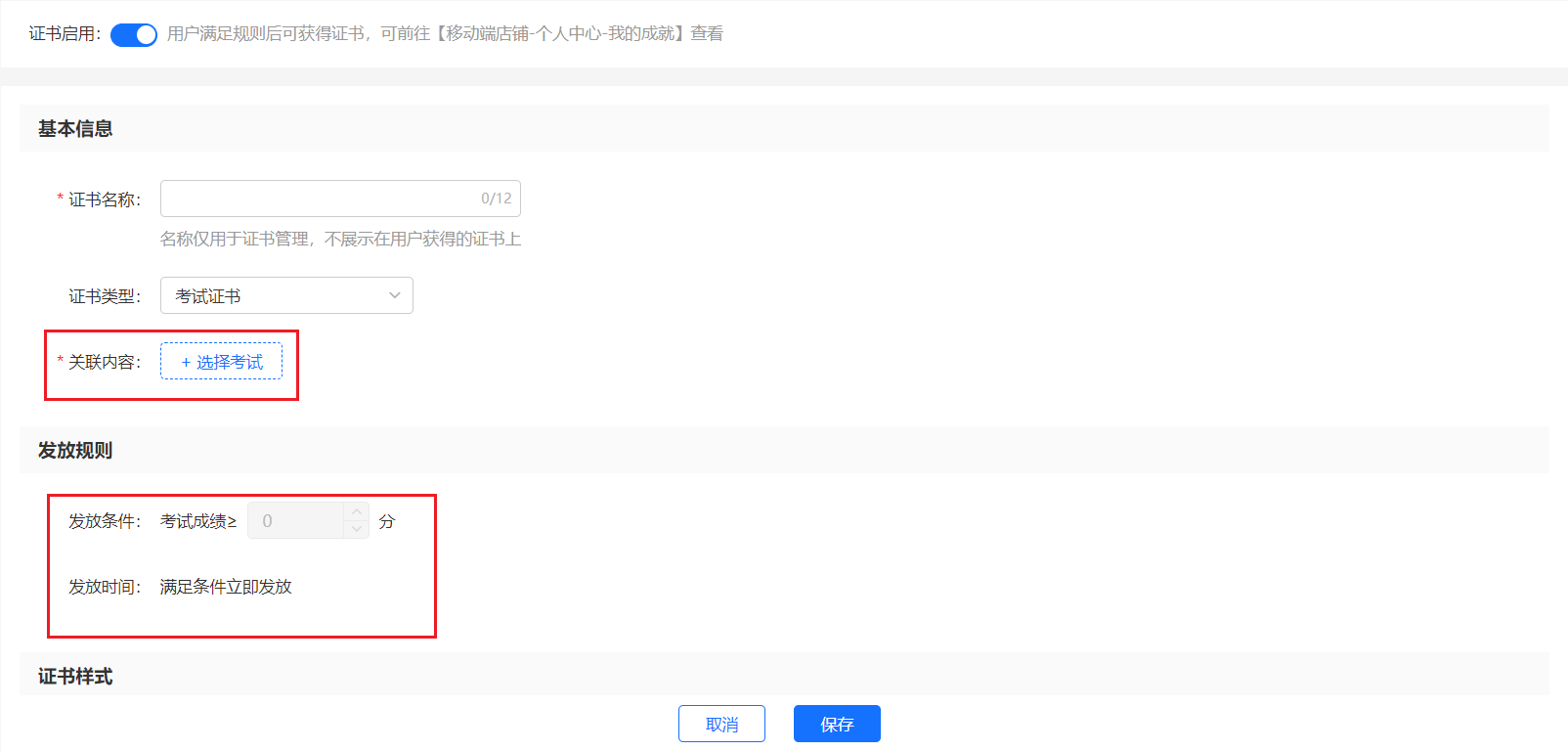
1. Enable the exam certificate switch: You can choose whether to issue certificates after the exam ends.
2. Exam score: You can choose the minimum score required for students to obtain the certificate.
3. Certificate name: The name of the certificate, for example, ** Honor Certificate in 2020;
Certificate background: The background of the certificate. You can use the default background or upload a custom image background;
4. Score settings: You can set different comments for certificates based on different score ranges;
5. QR code settings: You can upload the course QR code for traffic attraction after sharing;
6. Sharing message: Limited to within 20 characters, you can briefly introduce the course content.
Method 2:
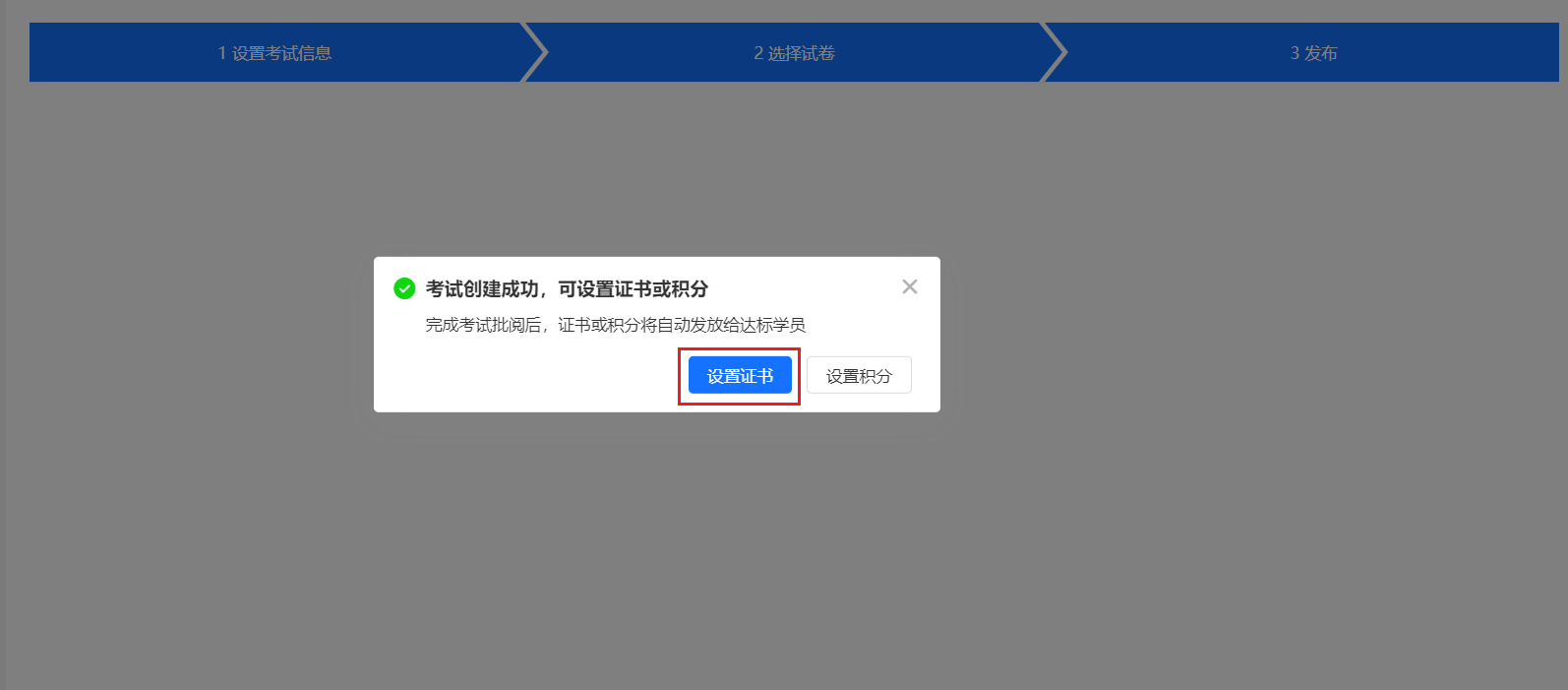
At the last step of creating an exam, you can conveniently go directly to the certificate setting process. Click the [Set Certificate] button to jump to the certificate setting page (refer to the certificate settings in Method 1).
Method 3:
After an exam is created, or add a certificate to an exam created previously.
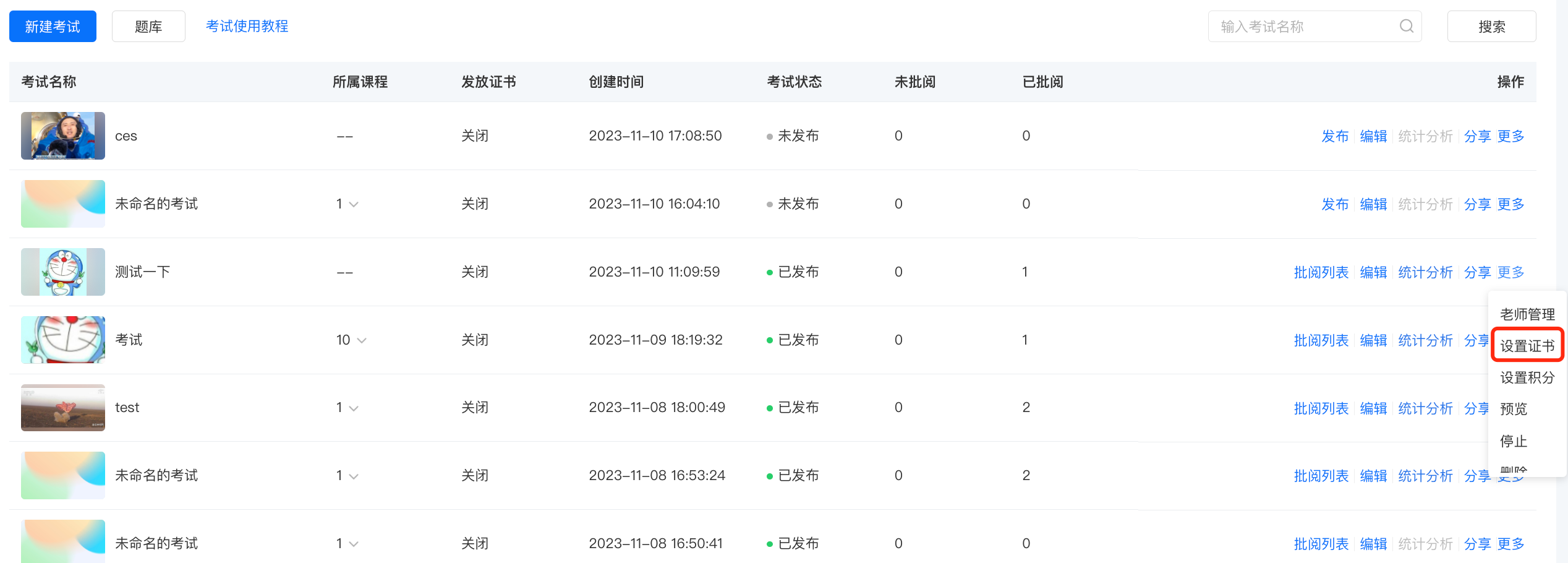
Through the [Courses] -[Interactive Management] -[Exams] entry on the management console, you can enter the exam management page to view previously created exams. Click [More] - [Set Certificate] to enter the certificate setting interface, and then start setting according to the certificate setting process introduced in Method 1.
VI. C - end User Display Screen
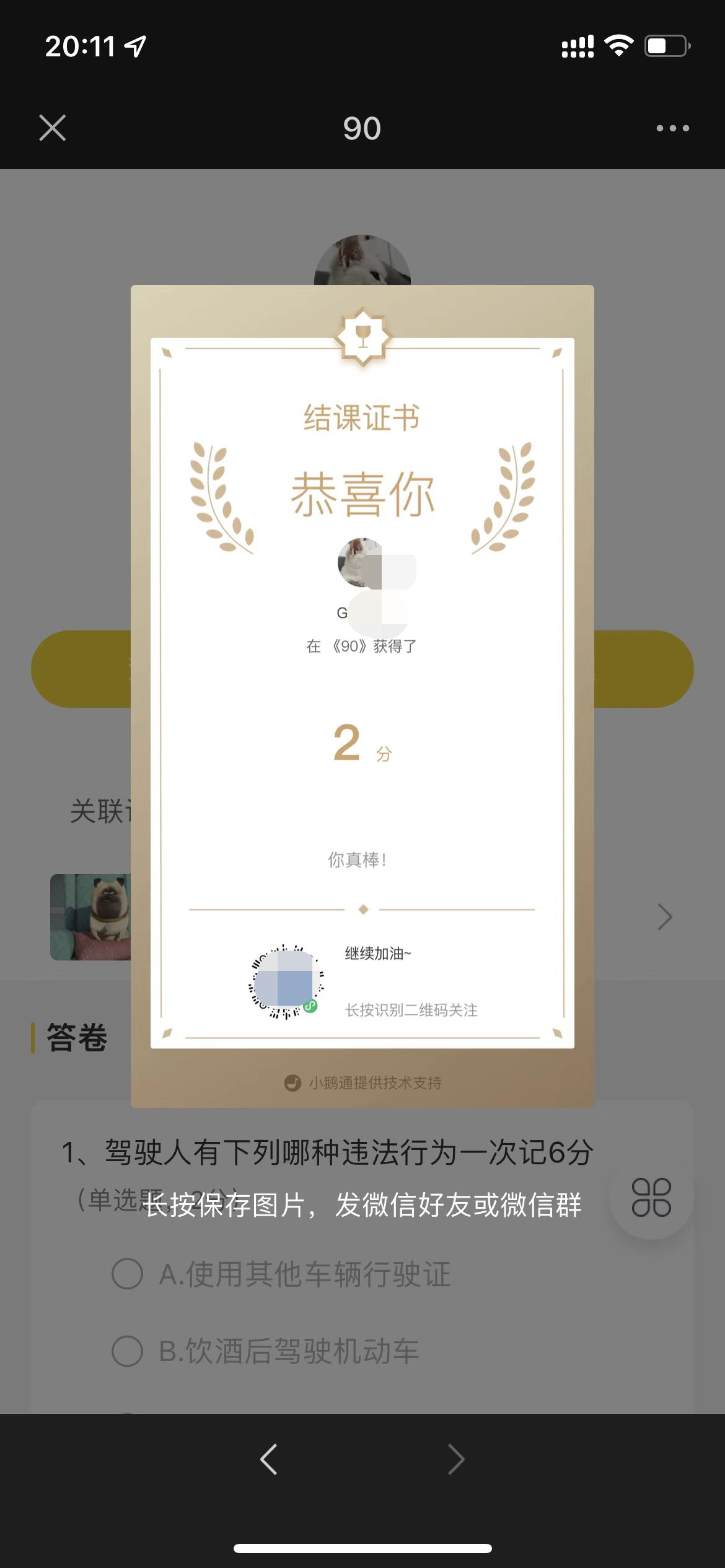
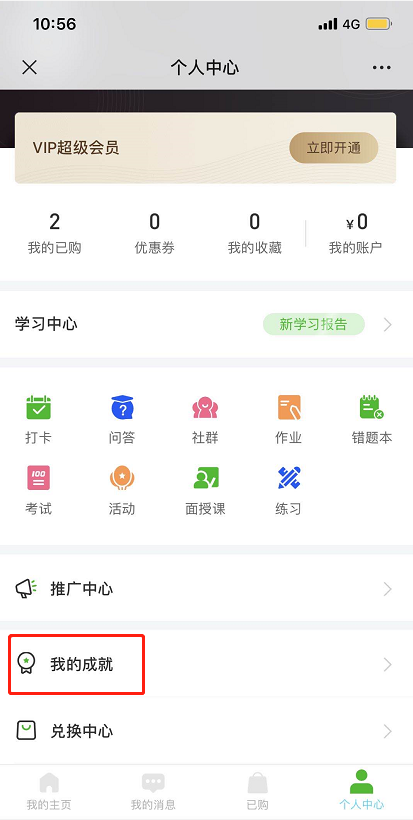
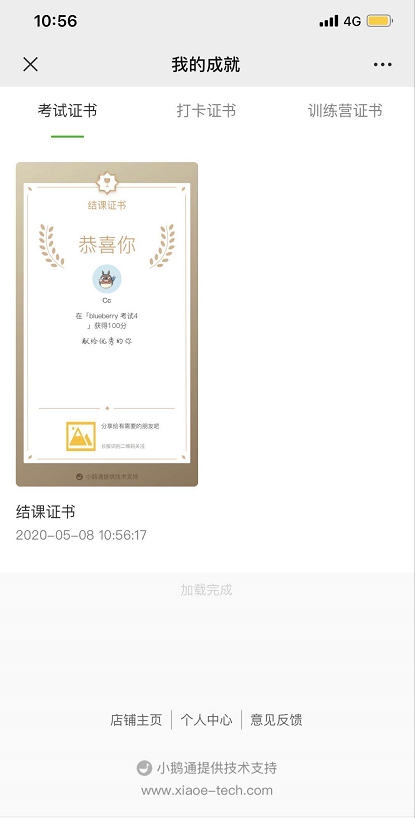
View all obtained certificates through [Personal Center] → [My Achievements];
No comments to display
No comments to display