
Customization tutorial for check-in daily sign-in images, long images, and invitation cards
I. Function Introduction
Daily check-in cards, long images (posters), and invitation cards arethe images shared by trainees in the check-in activity. Itallows merchants to customize the styles and backgrounds in the backend.
II. Purpose of Use
With this setting, you can enable users to generate unique check-in content with brand personality. This not only encourages users to share more actively but also enhances brand exposure and influence during the sharing process.
III. Use Scenarios
A training institution uses the check-in feature to launch a trainee check-in activity. After trainees check in daily, daily check-in cards are automatically generated. Meanwhile, long sharing images containing check-in content can be generated in the check-in records. Through the operator's custom settings, the daily check-in cards and long sharing images better showcase the institution's brand characteristics. After trainees share these images, the institution's brand is widely promoted.
IV. Operation Path
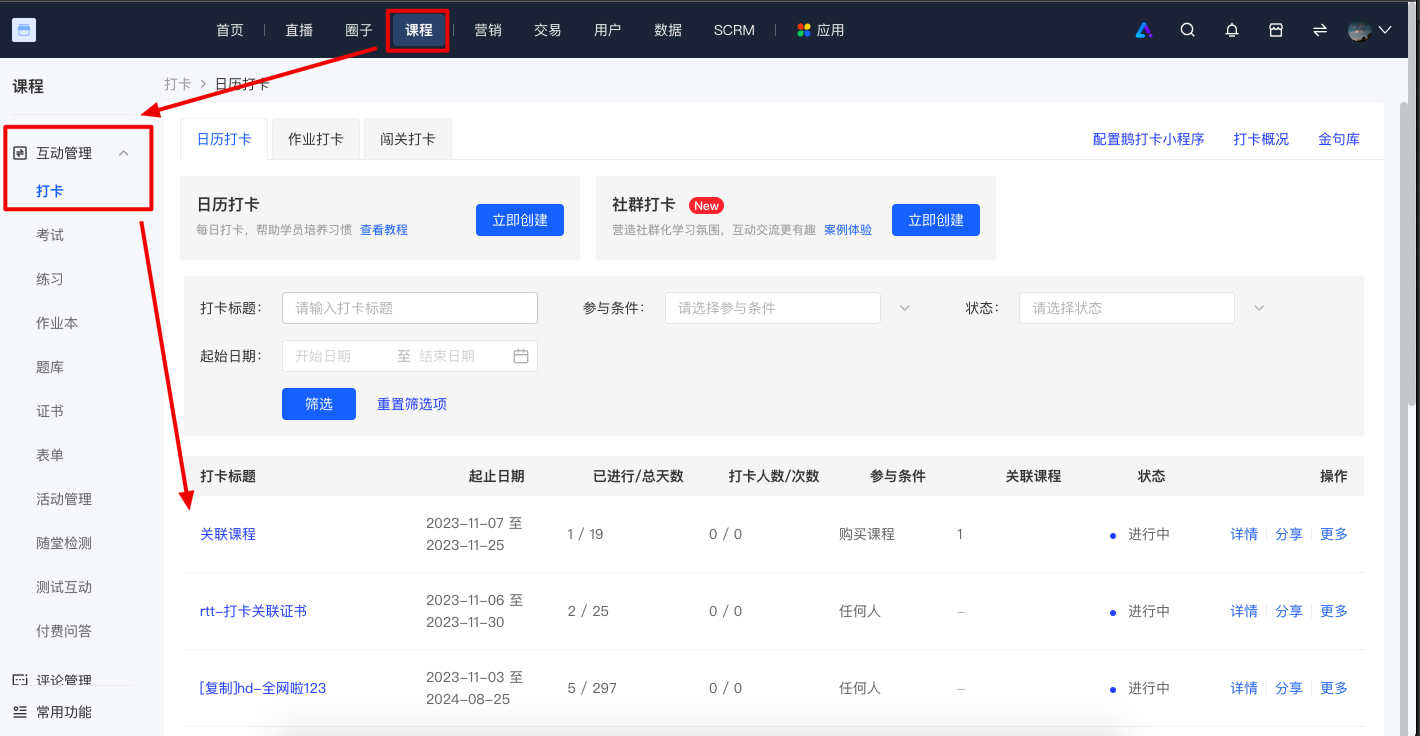
Merchant side: Desktop management console → Courses → Interaction Management → Check-in → Check-in details → Operation Settings
V. Usage Tutorial
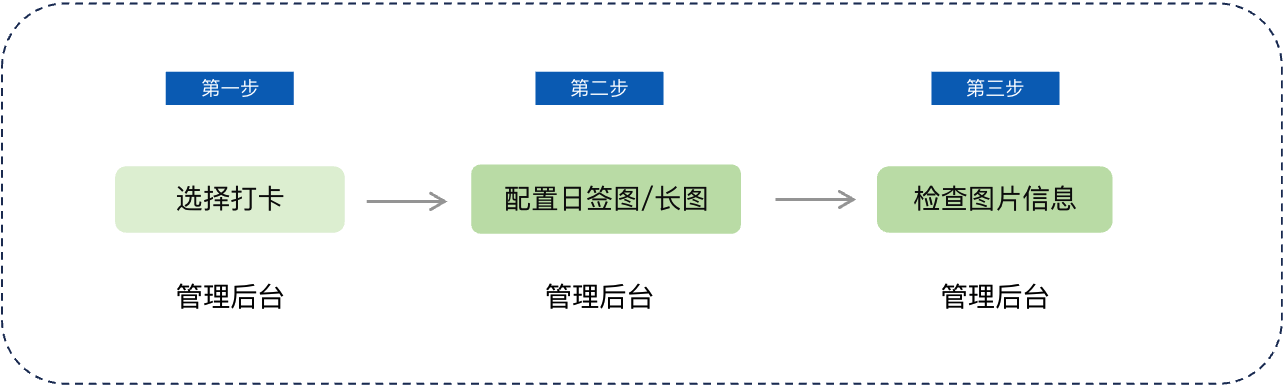
Step 1: Select a check-in (Management backend)
Log in to your elink account. Click [Content] in the left sidebar, then click [Check-in], and select the check-in to be configured.
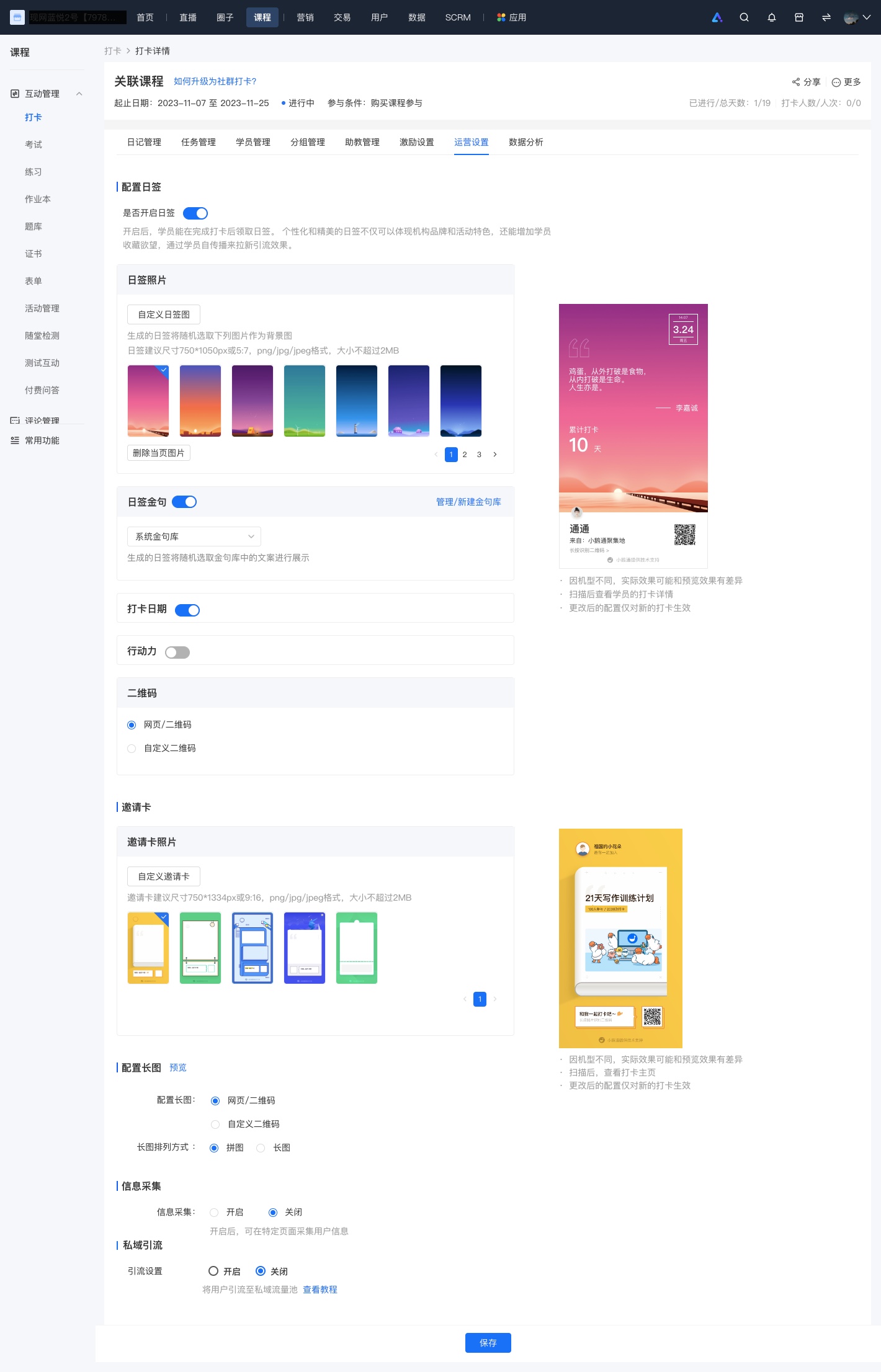
Step 2 Configure daily check-in cards/long images/invitation cards (Management backend)
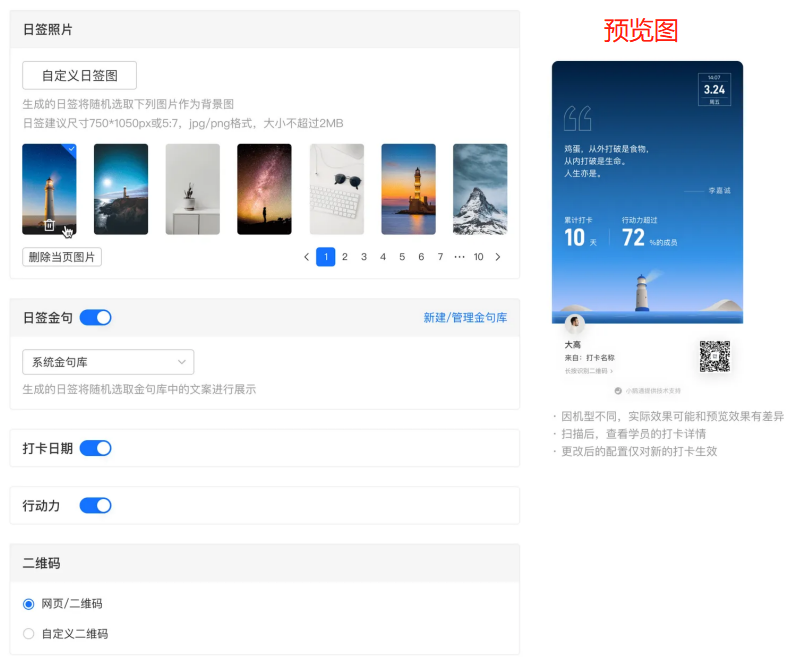
Enable the daily check-in card feature. You can choose to add a custom background image and configure whether to display inspiring quotes, QR codes, and other information.
Step 3: Check image information (Management backend)
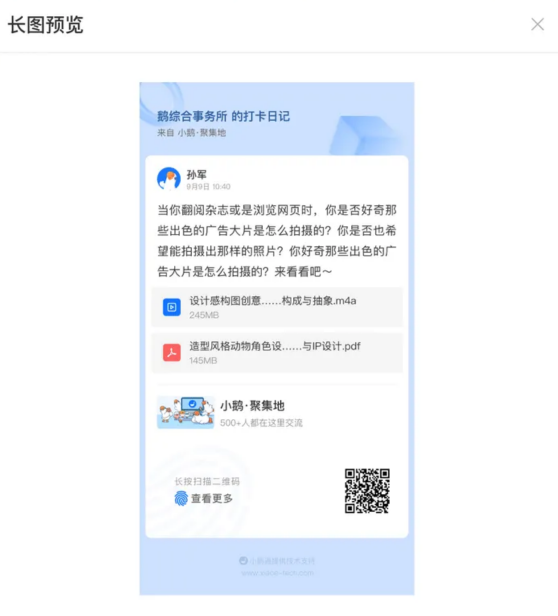
You can preview the daily check-in cards and long images. After confirming the information, click the [Save] button at the bottom.
① Daily check-in card
② Invitation card
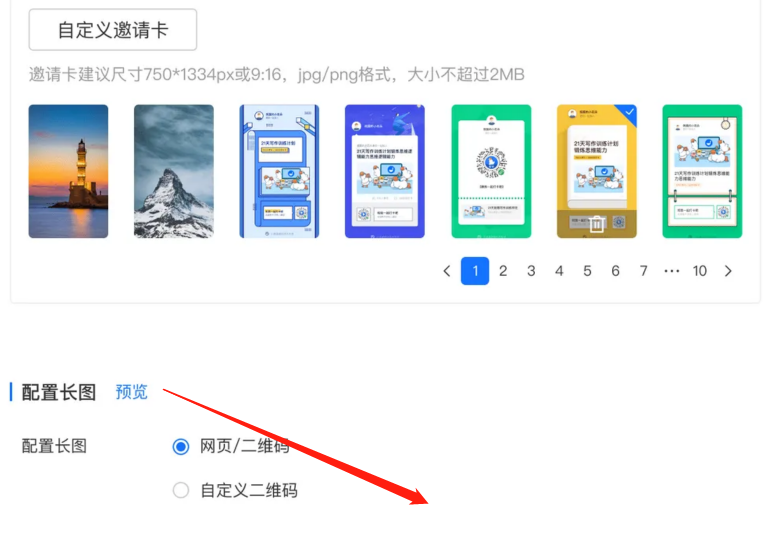
③ Long image
No comments to display
No comments to display