
Tutorial on Using Check-in Groups
I. Feature Introduction
Check-in grouping refers to the ability of operators to manage trainees participating in check-ins in groups.
II. Purpose of Use
When there are a large number of trainees participating in check-ins, you can divide the trainees into several groups and assign a teaching assistant to each group for management, which can greatly improve management efficiency. In addition, teaching assistants can also use the filtering function to select the trainees' diaries in the groups they are responsible for to provide comments, which can improve the efficiency of comment - giving.
III. Use Scenarios
A training institution uses check - ins to launch a trainee check - in activity, but the large number of participants makes unified management difficult. By grouping the trainees and assigning a teaching assistant to each group to comment on the trainees' diaries, the management efficiency of the institution has been greatly improved.
IV. Operation Path
Merchant side: Merchant background → Courses → Interactive Management → Check - in → Check - in Details → Group Management
V. Usage Tutorial
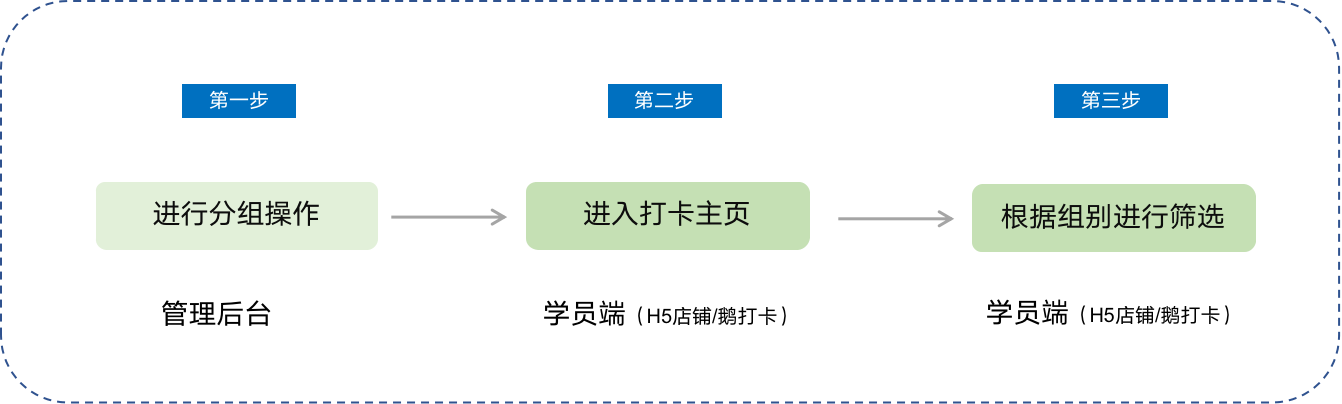
Step 1: Perform grouping operations (Management background)
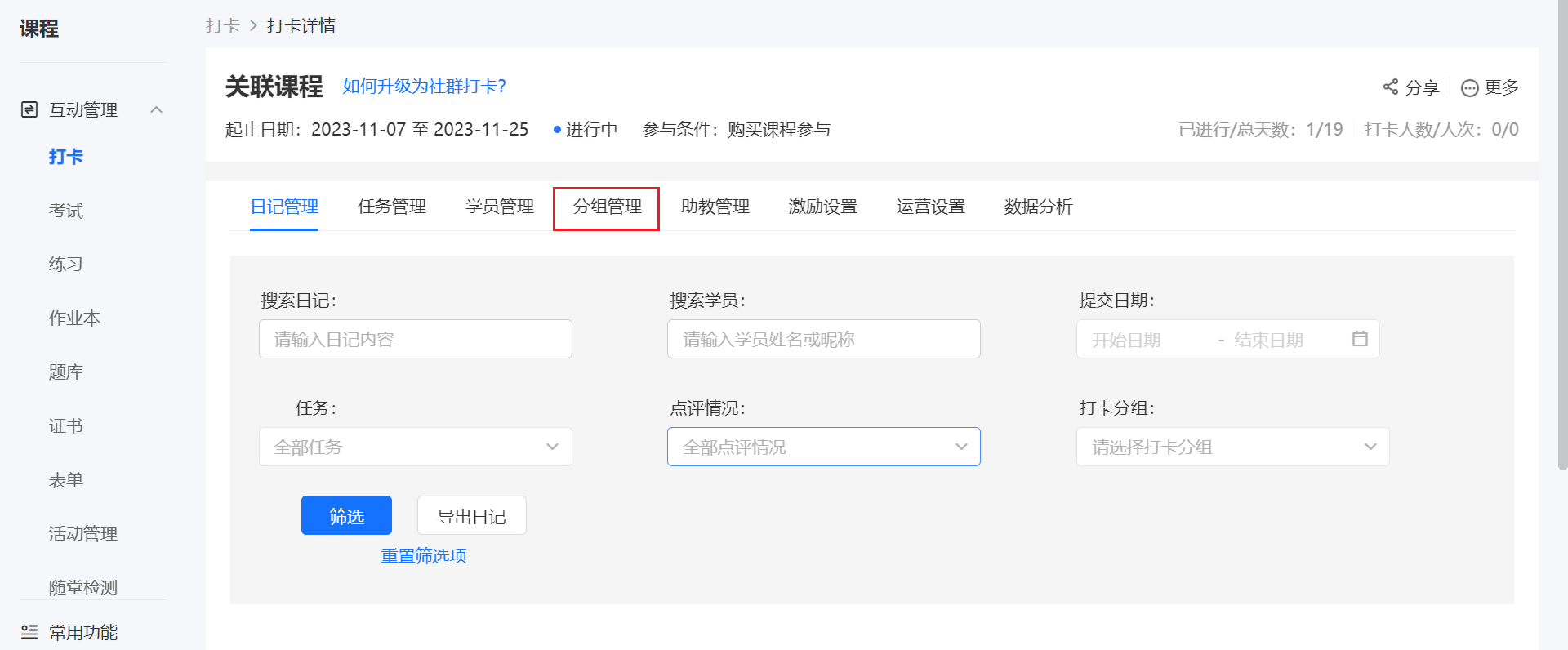
1. Enter the and select [Group Management];
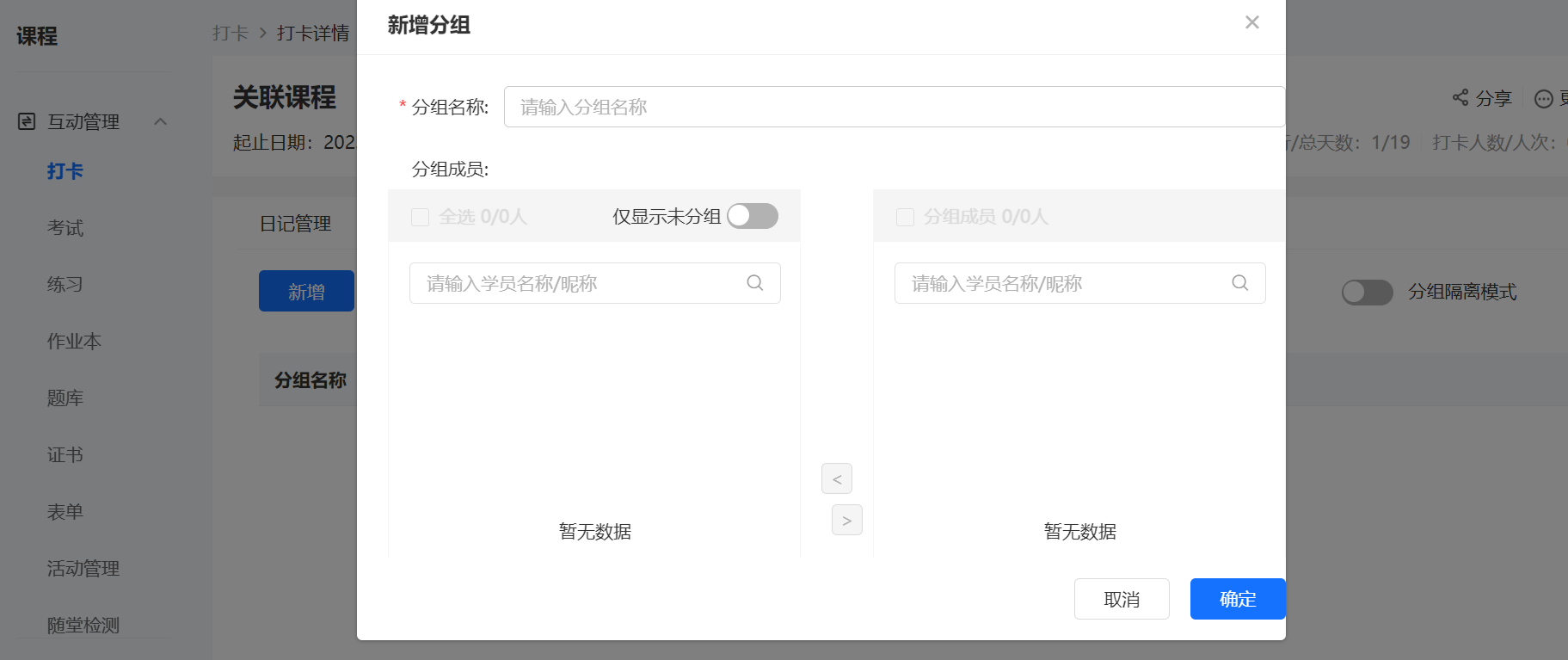
2. Click the [New Button], enter the group name, and select the corresponding trainees to join the group;
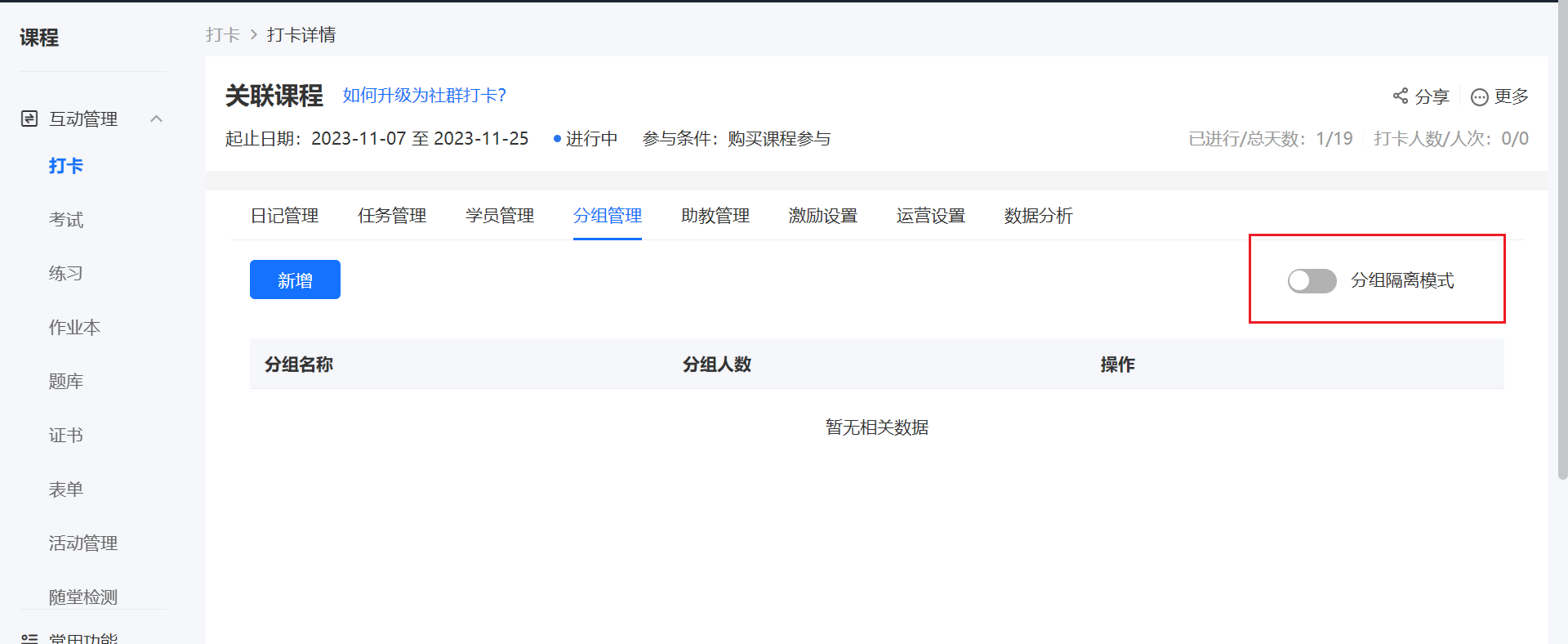
3. You can choose to enable the [Group Isolation Mode]. After enabling, trainees can only view the diaries of other members in the same group.
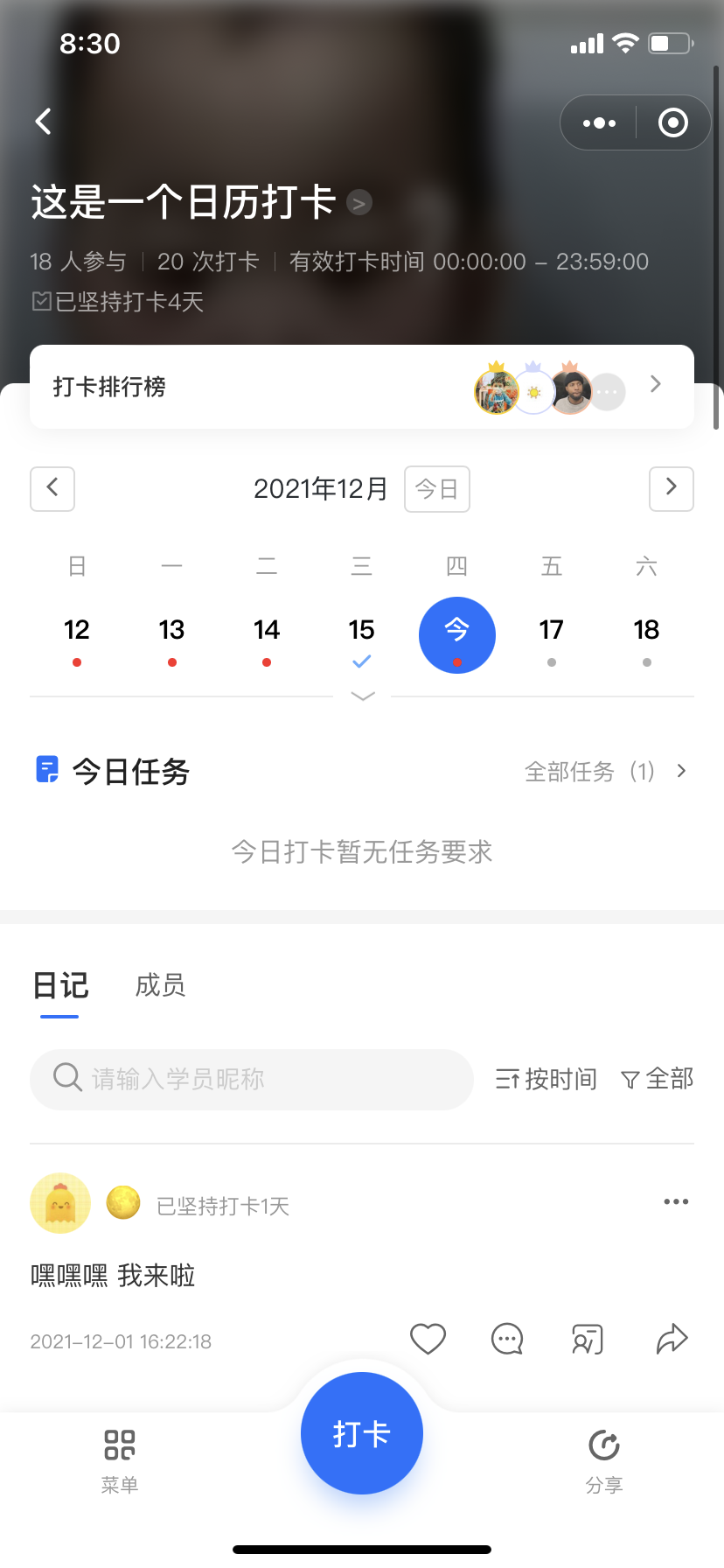
Step 2: Administrators/Teaching assistants enter the check - in homepage (H5/elink Check - in Mini Program)
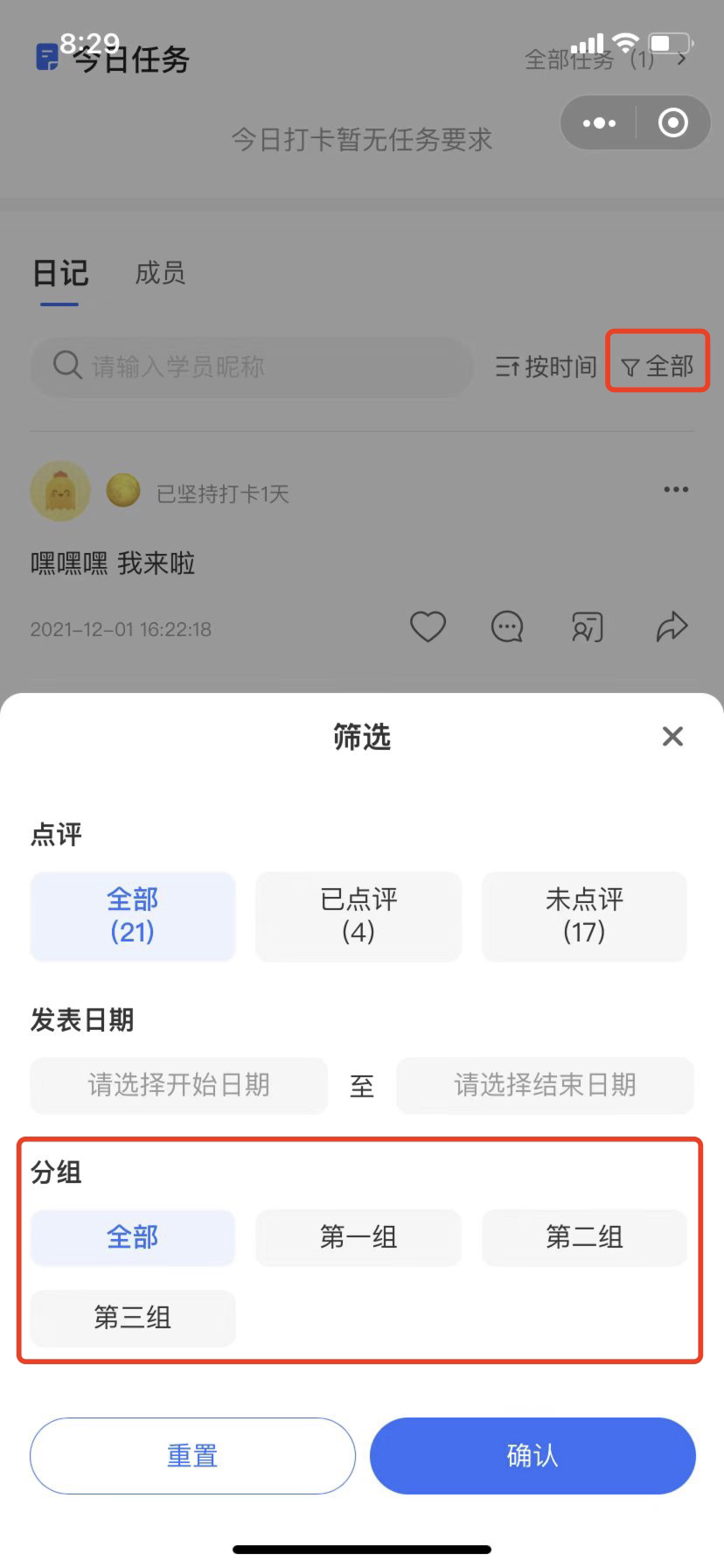
Step 3: Filter by group (H5/elink Check - in Mini Program)
Click the filter button to select the corresponding group to view the diaries. (Currently, the grouping situation is only visible to administrators & teaching assistants, and trainees cannot view it.)
No comments to display
No comments to display