
Tutorial on Using the Challenge Check-in Feature
I. Feature Introduction
Level-based punch-in is a punch-in mode based on "levels". Operators can set course level checkpoints. Learners must complete the current lesson and punch in before they can unlock the content of the next lesson.
II. Purpose of Use
Enable learners to complete the entire series of courses like playing a level-based game. Effectively stimulate learners' autonomous learning and allow them to complete the entire series of courses while having fun in the process of clearing levels.
III. Usage Scenarios
Using level-based punch-in can make learning as interesting as playing a game. Learners must punch in after completing the current task before they can unlock the content of the next task, making knowledge the reward for clearing levels and forming a positive incentive feedback mechanism.
IV. Operation Path
Merchant side: Desktop management console → Courses → Interactive Management →Punch-in → Level-based Punch-in → Create New Level-based Punch-in
Learner side:
1. H5 store/Merchant Mini Program → My → Learning Tools → Punch-in
2. elink Punch-in Mini Program → Home Page → My Participations
3. elink app → Learning Center → Classroom Interaction → Punch-in
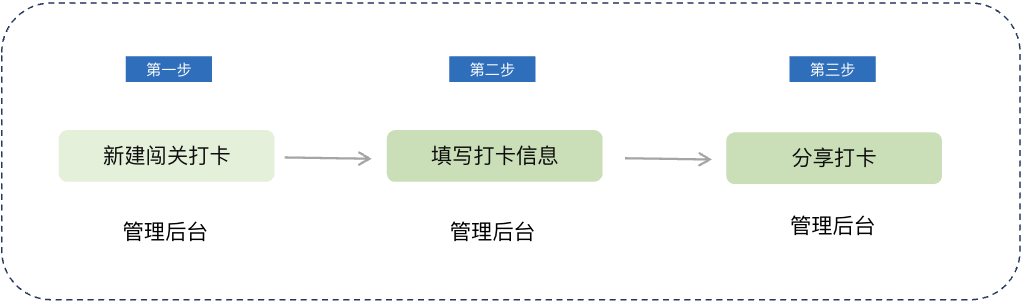
V. Usage Tutorial
Step 1 Create a New Level-based Punch-in(Management background)
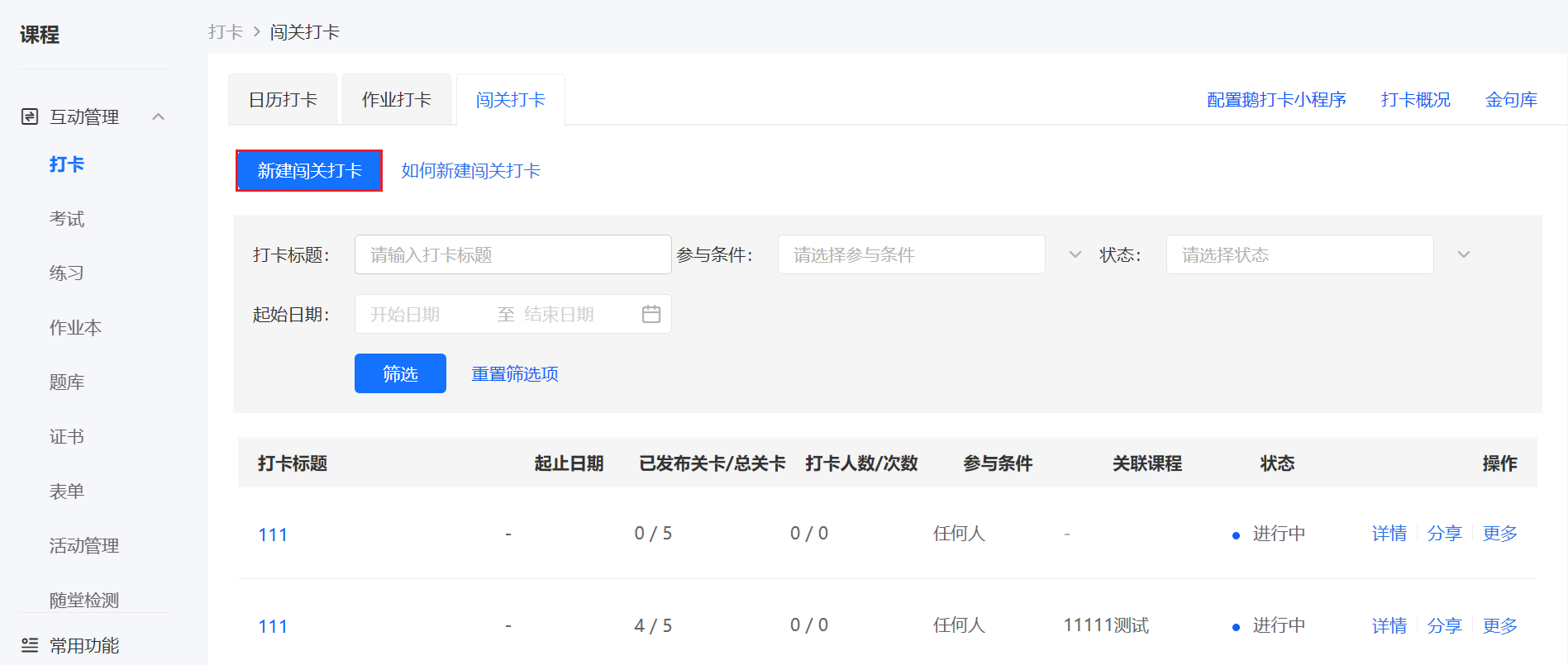
Log in to your elink account, click [Content] in the left sidebar, select [Punch-in], enter the page, select [Level-based Punch-in], and click [Create New Level-based Punch-in];
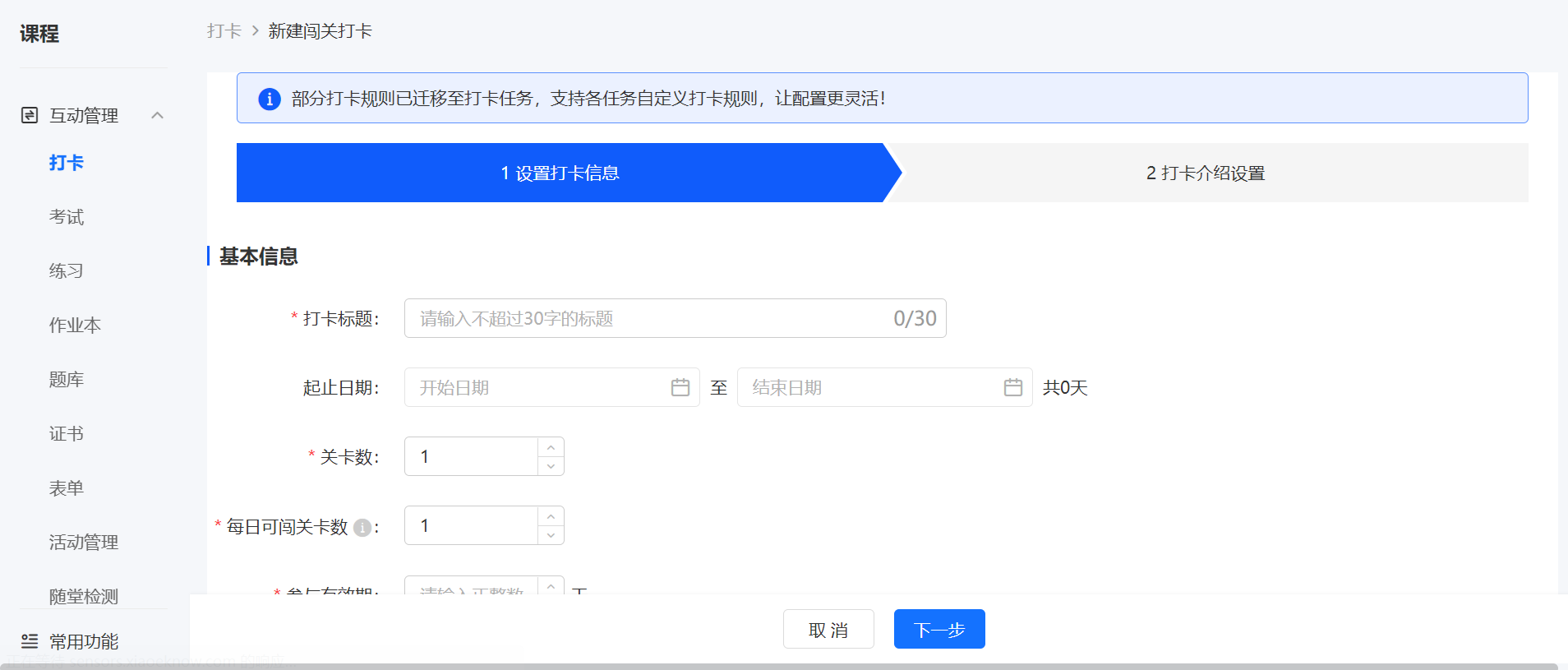
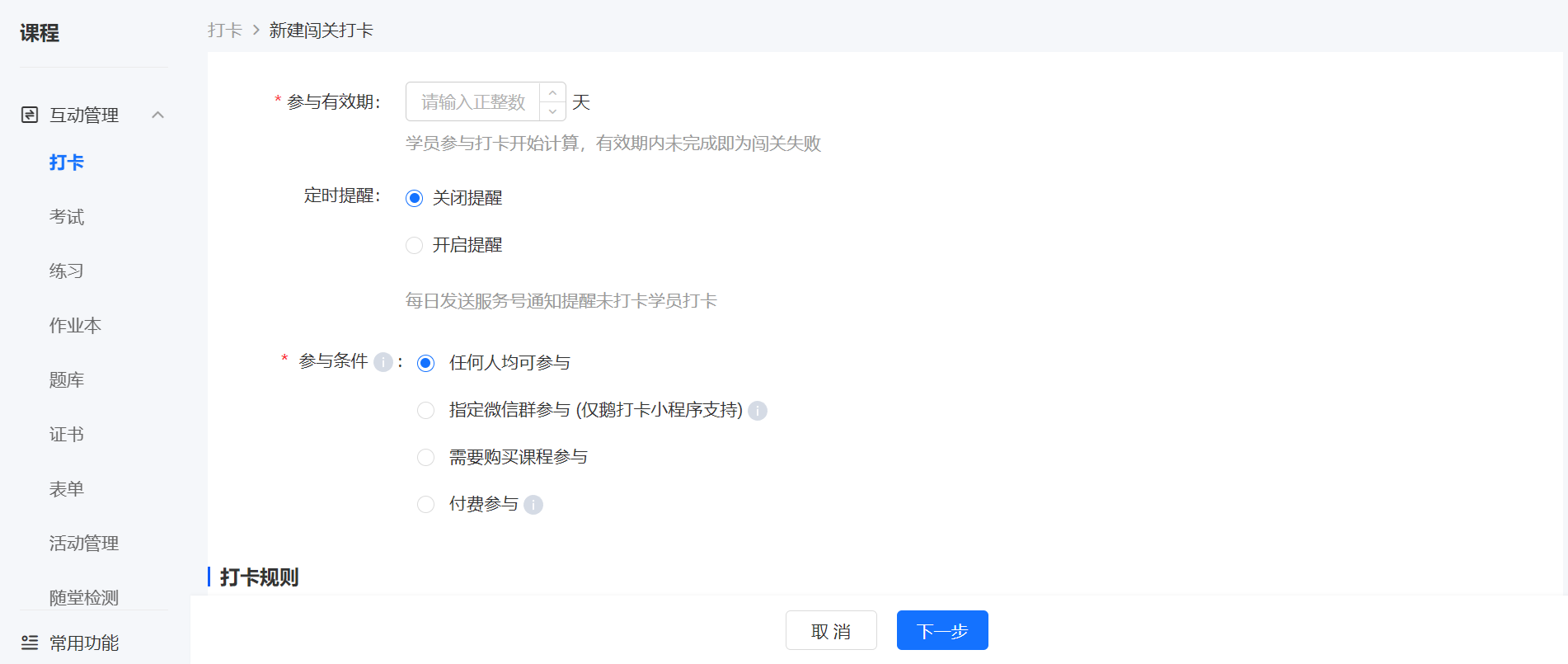
Step 2 Fill in Punch-in Information(Management background)
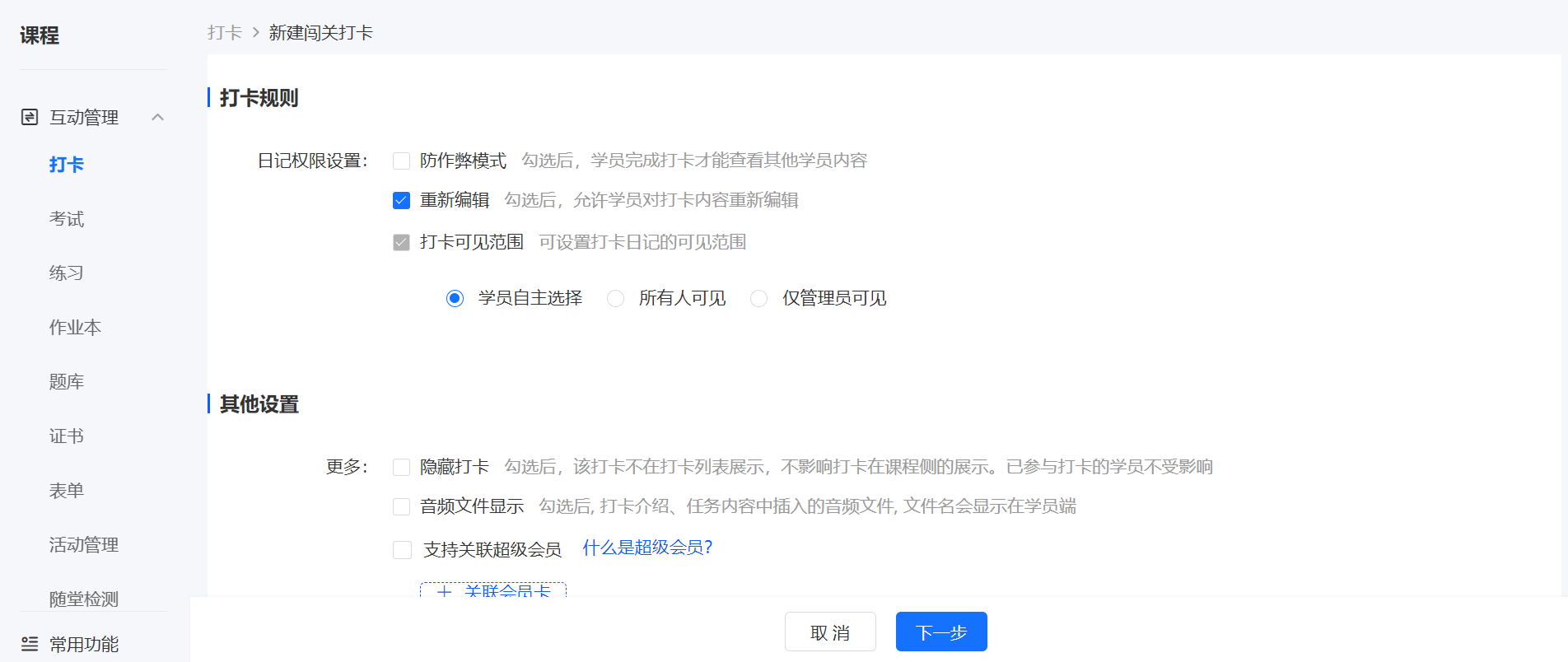
Fill in the title of the level-based punch-in and configure the punch-in rules;
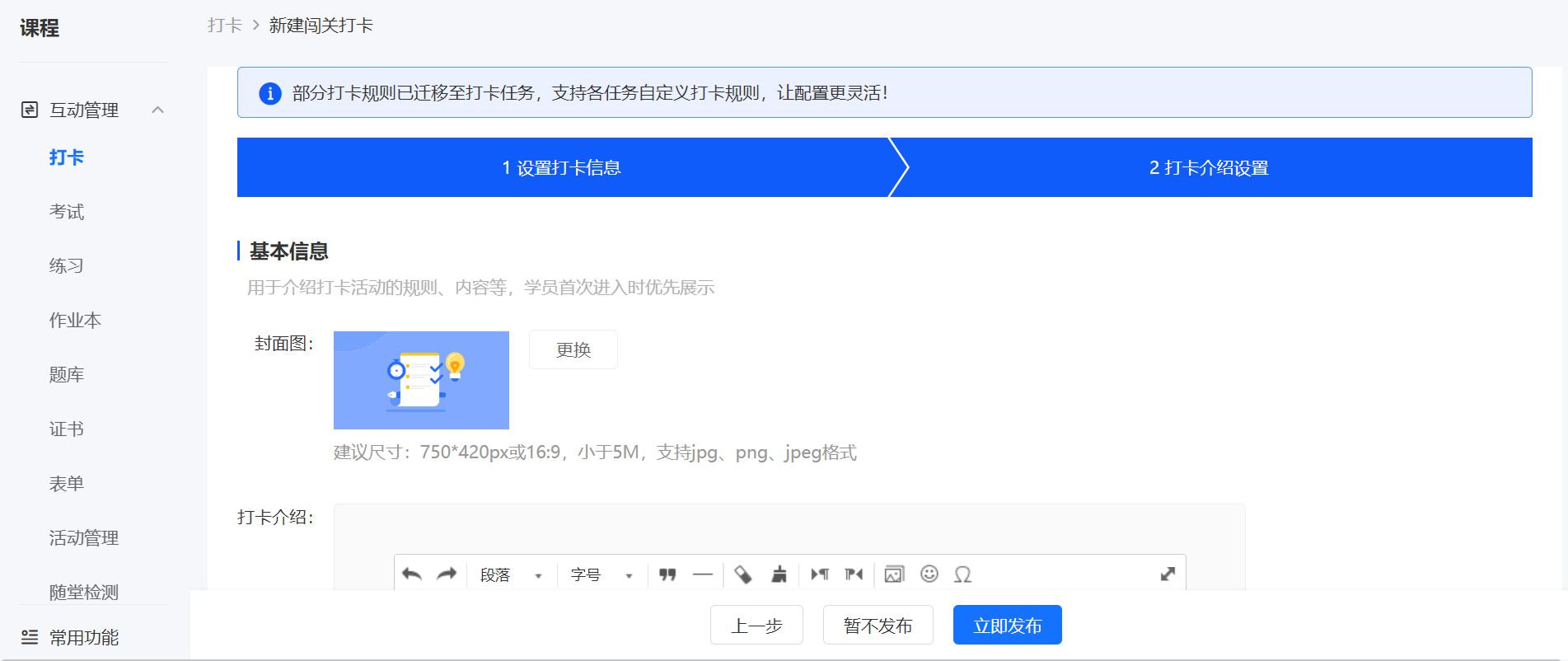
2. Replace the punch-in introduction cover and edit the punch-in introduction content, then click the [Save as Draft] or [Publish Now] button below to generate a new level-based punch-in.
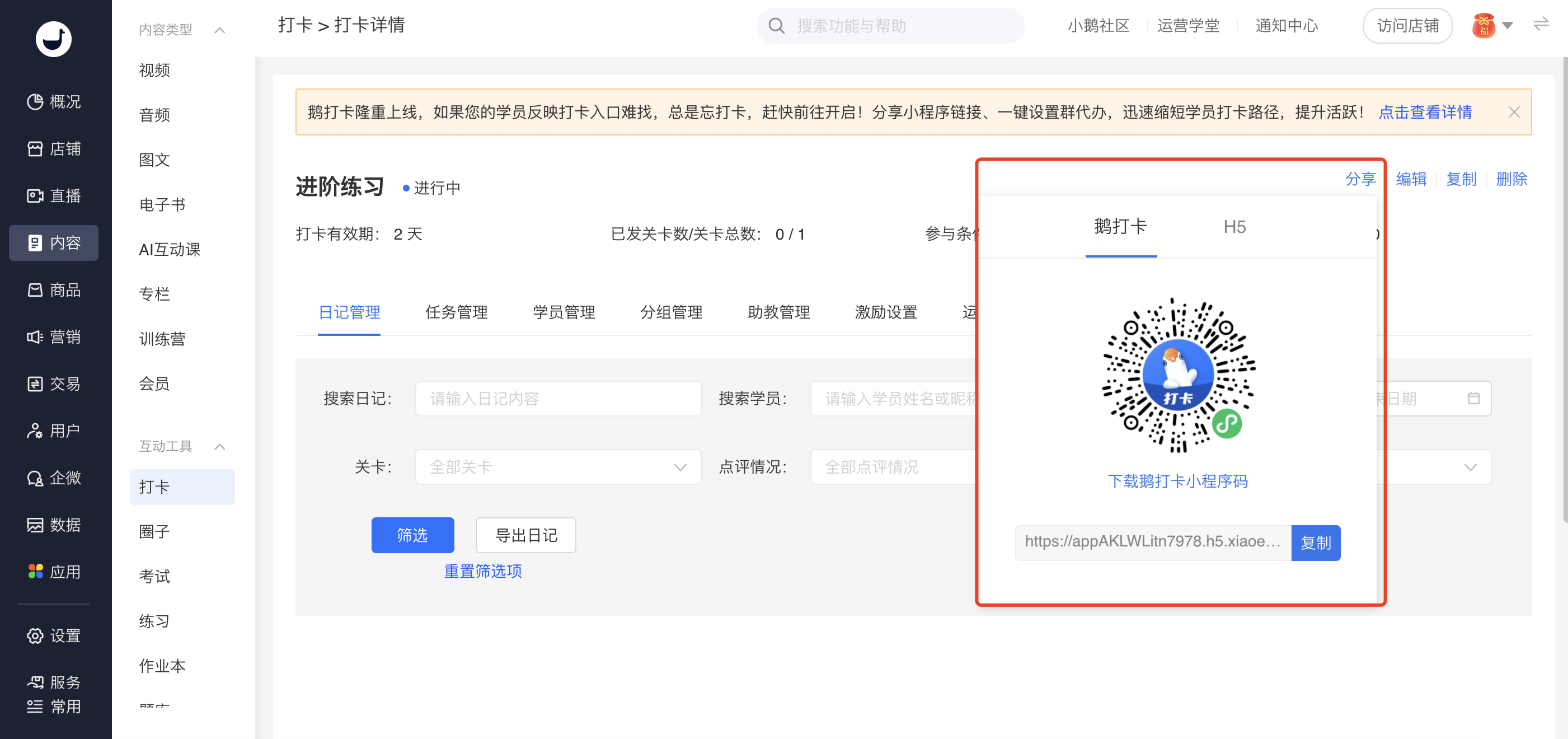
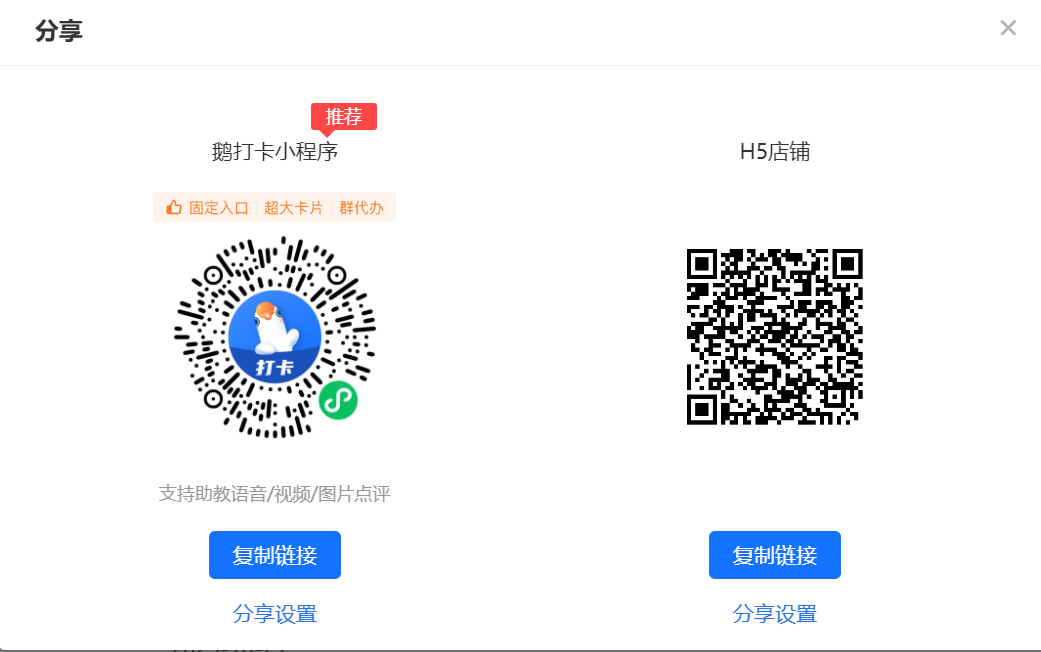
After creating the punch-in, click [Share] to get the sharing code and link for the corresponding punch-in.
No comments to display
No comments to display