
Tutorial on Changing the Store Administrator
I. Feature Introduction
During the operation of an online store, there may be changes in the administrator (person - in - charge). In the past, it was necessary to contact customer service to go through the process. Now, you can change the store administrator self - service.
II. Purpose of Use
When an online store needs to change its administrator, you can change it self - service, which is safe and efficient.
III. Operation Path
Merchant side: Merchant backend AI Assistant → Settings → Store Settings → Store Administrator

IV. Usage Tutorial
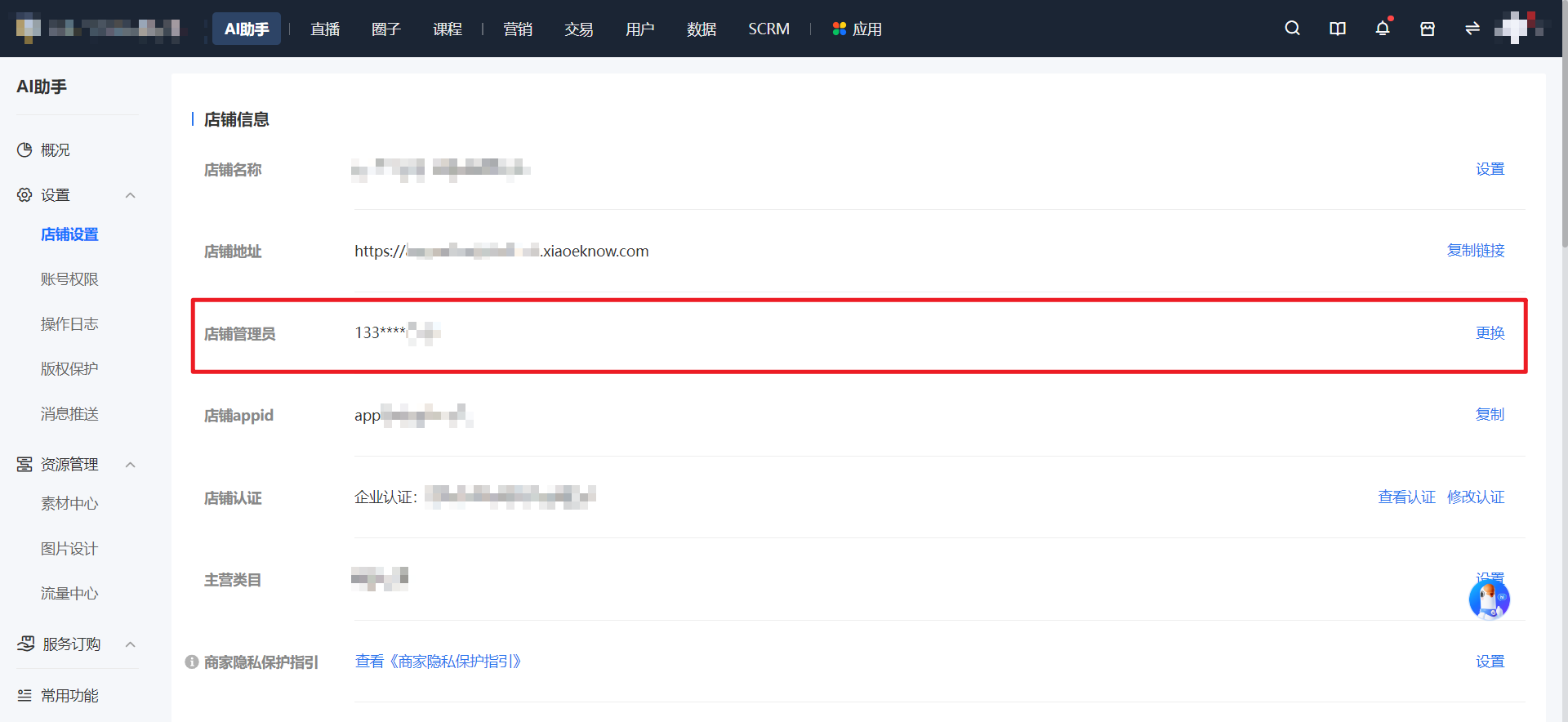
Step 1:Click the 'Change' button on the store settings page(Management backend)
On the store settings page, find the store administrator and click the [Change] button.
**Special attention:
1. The change is only allowed after the verification of the original store administrator.
2. Only one change is allowed within 30 days.
3. For old accounts, there will be a pop - up window prompting that the account needs to be upgraded before the change can be made.
Step 2: Administrator identity verification(H5 store)
1. For the identity verification of the original store administrator, you need to enter the SMS verification code.
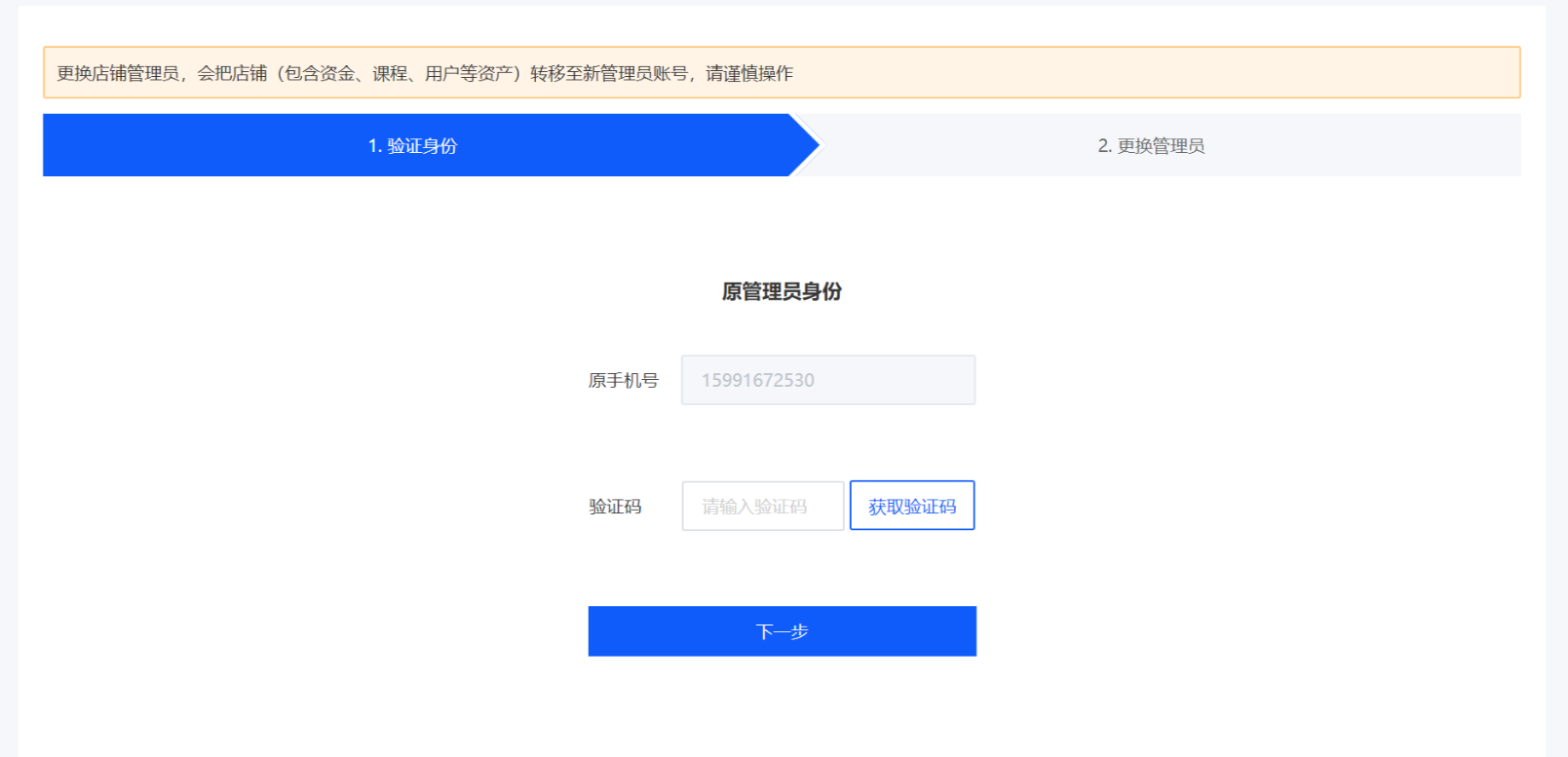
(Identity verification step)
2. For the identity verification of the new store administrator, you need to enter the SMS verification code.
**Special attention:The mobile phone number of the new store administrator must be registered on elink. If not, please register in advance.
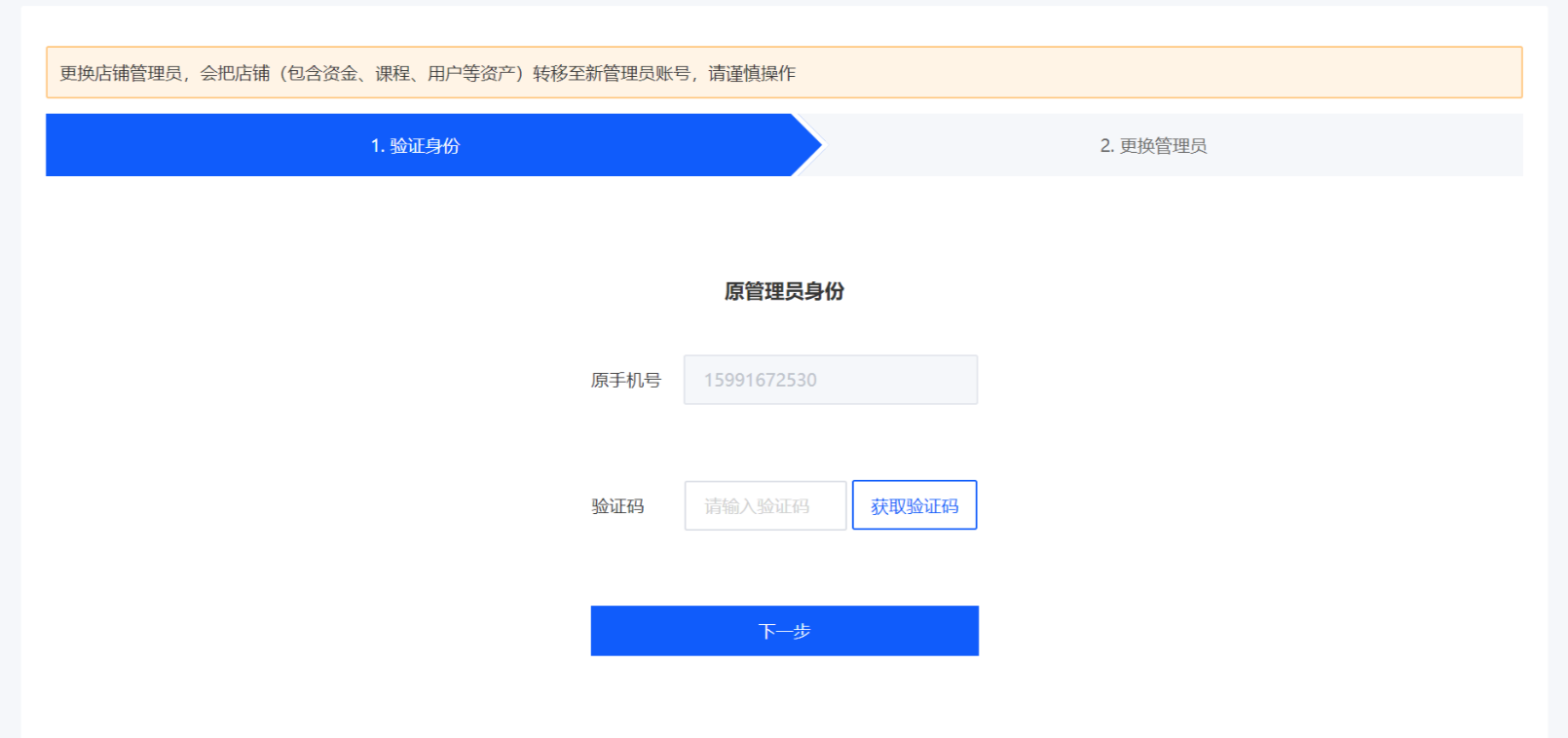
(Change step)
Step 3: The name should be consistent with that in the flow chart(H5 store)
After the change is successful, the system will automatically jump to the login page. At this time, you can log in with the new store administrator account to view the store;
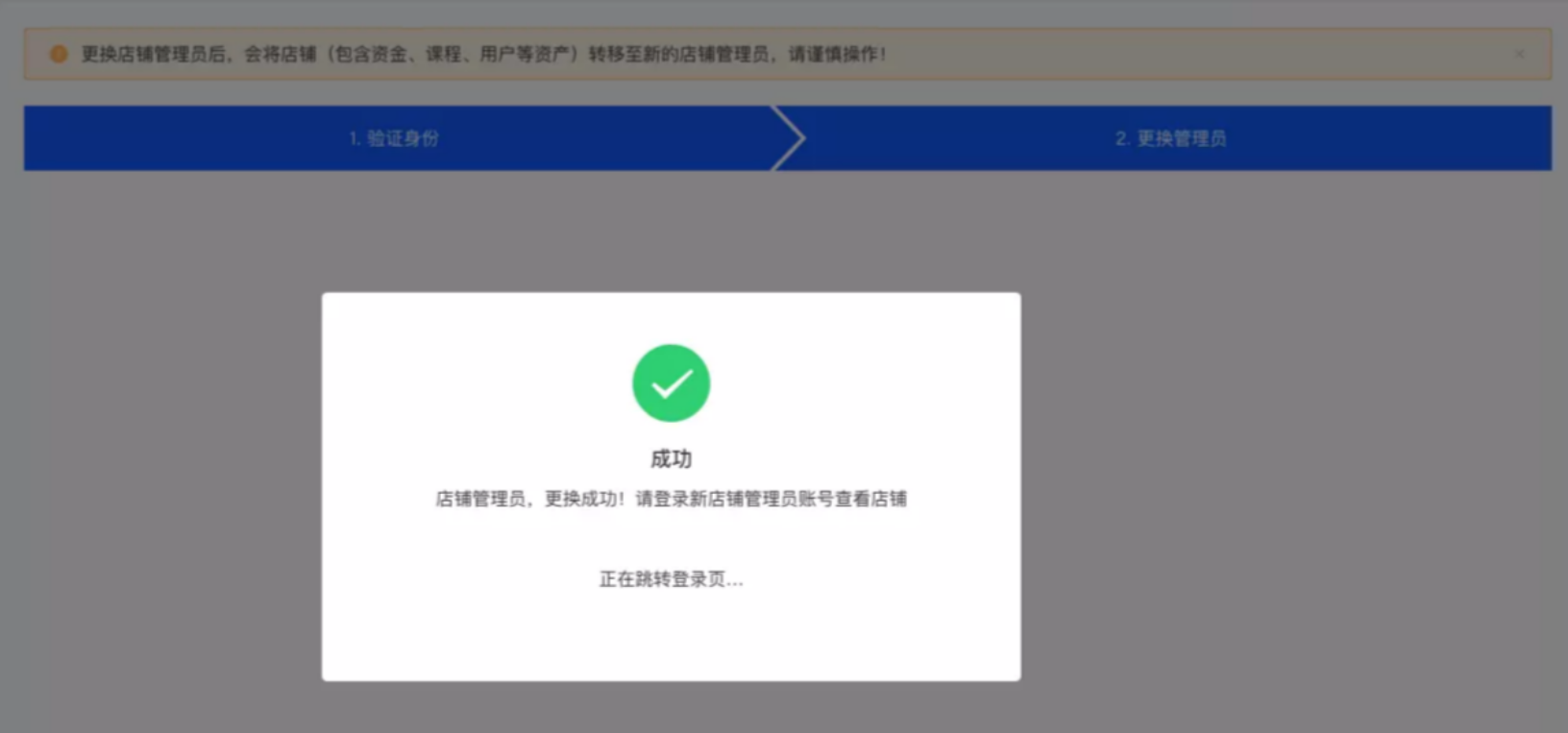
(Pop - up window for successful change)
No comments to display
No comments to display