
Tutorial on Using the Overview
The AI Assistant - Overview page is the first page you see after entering the management console. It provides an overview of the overall store's business operations. Next, we'll introduce the main modules of the overview page:
I. AI Assistant
The AI assistant displays the latest AI notification content. Click on this section to start a conversation with the AI assistant and inquire about solutions to various problems.
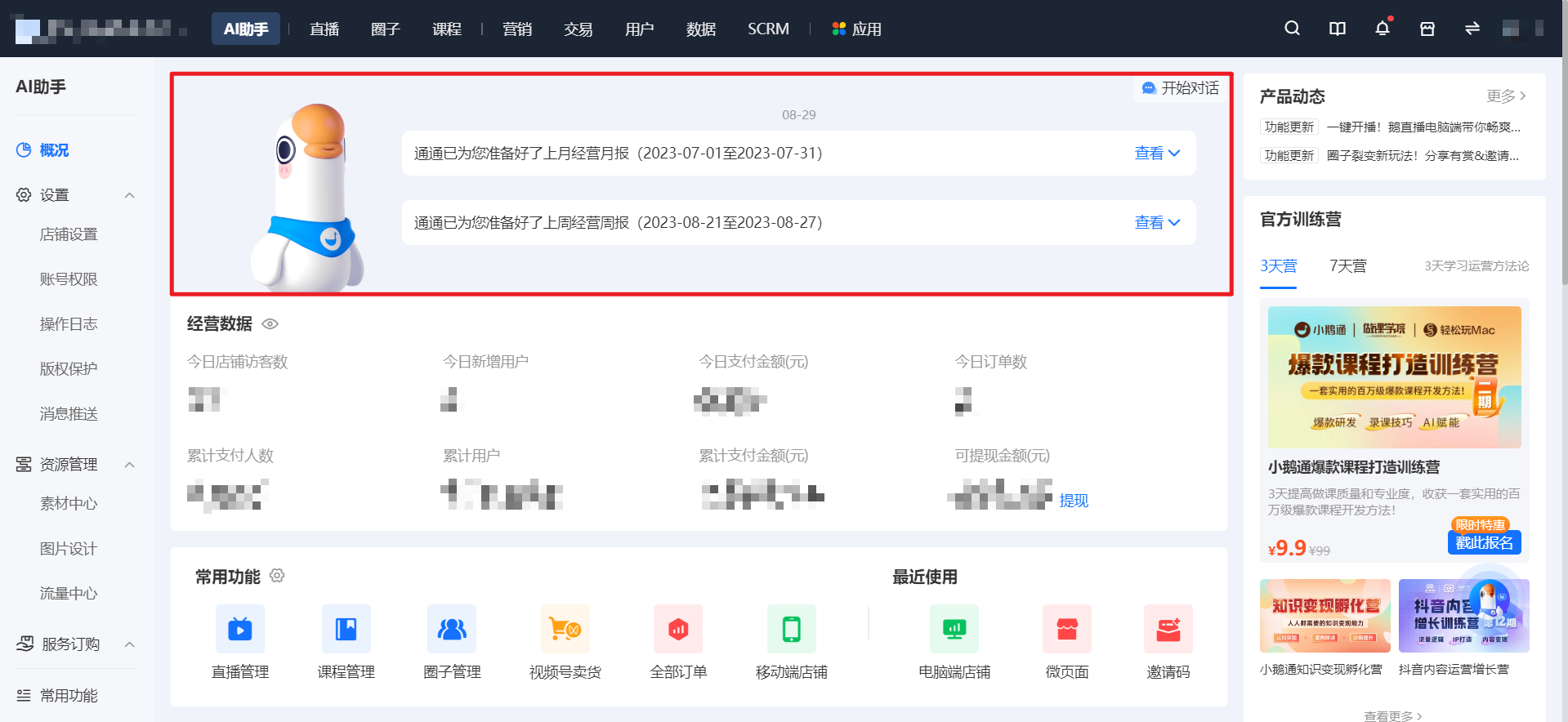
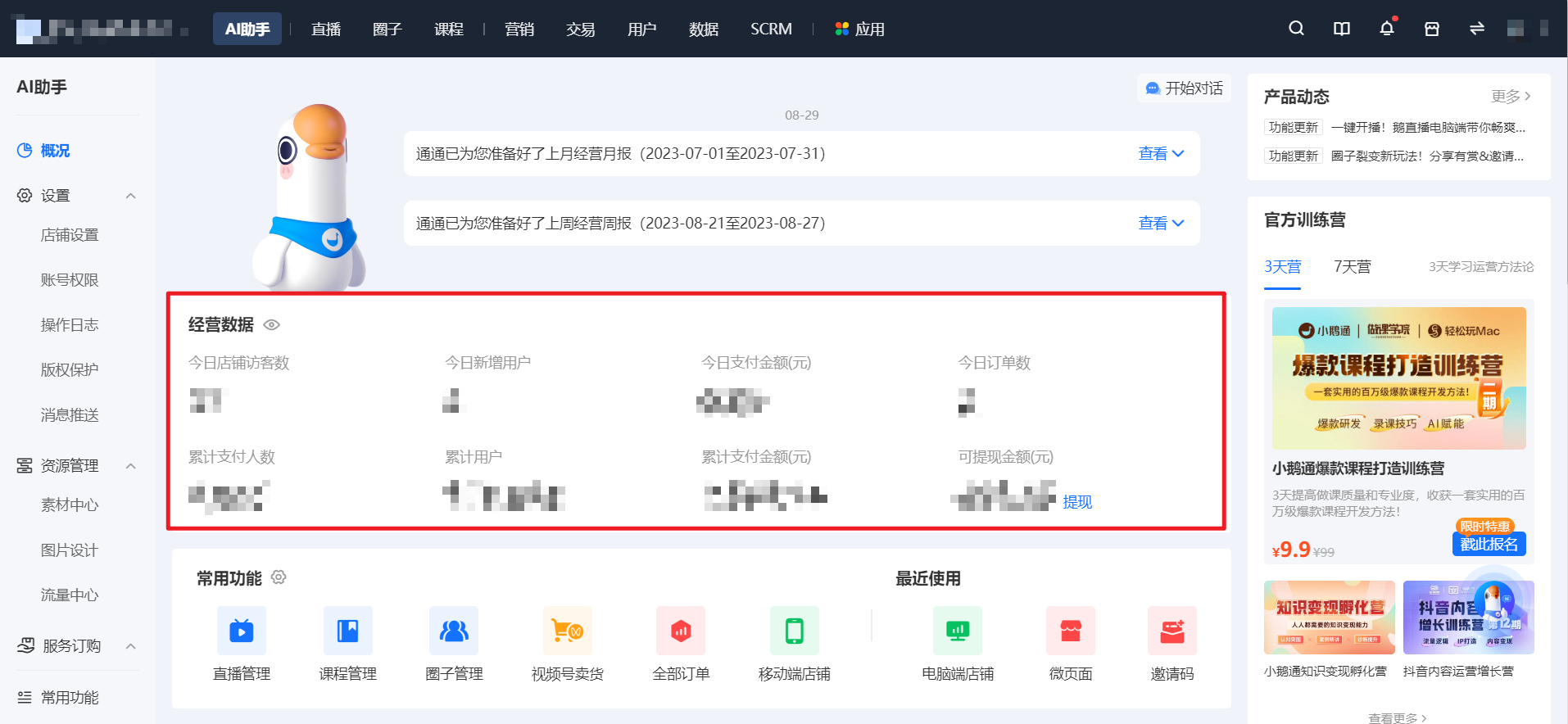
II. Business Data
The core of the business data section shows 8 data points, which are real - time data. Click on a data indicator to quickly jump to the corresponding page; click on the eye icon to hide the data display.
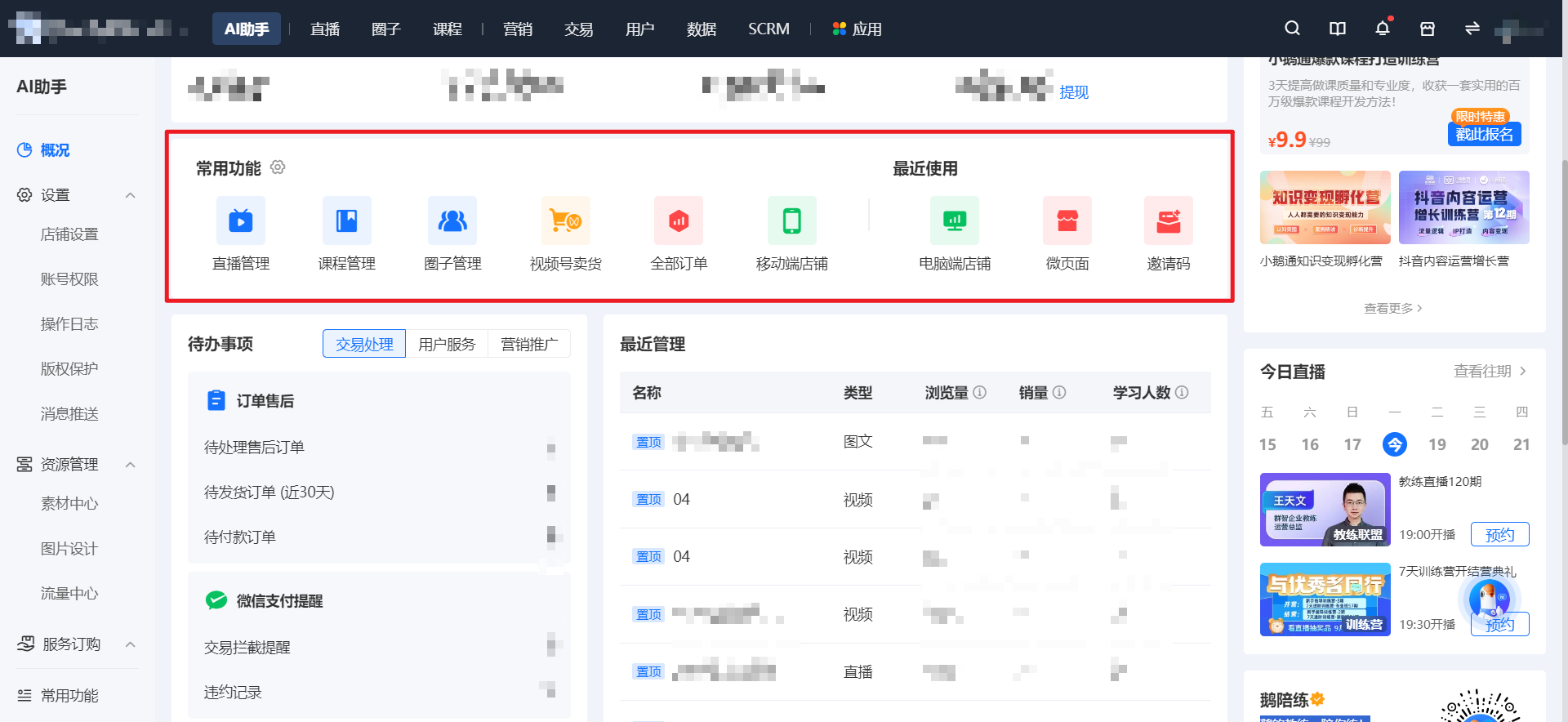
III. Quick Access to Commonly/Recently Used Functions
Displays quick access to custom commonly used functions and recently used functions.Click to quickly jump to the corresponding module for processing; click on the settings button next to the commonly used functions to open the custom settings pop - up window for commonly used functions.
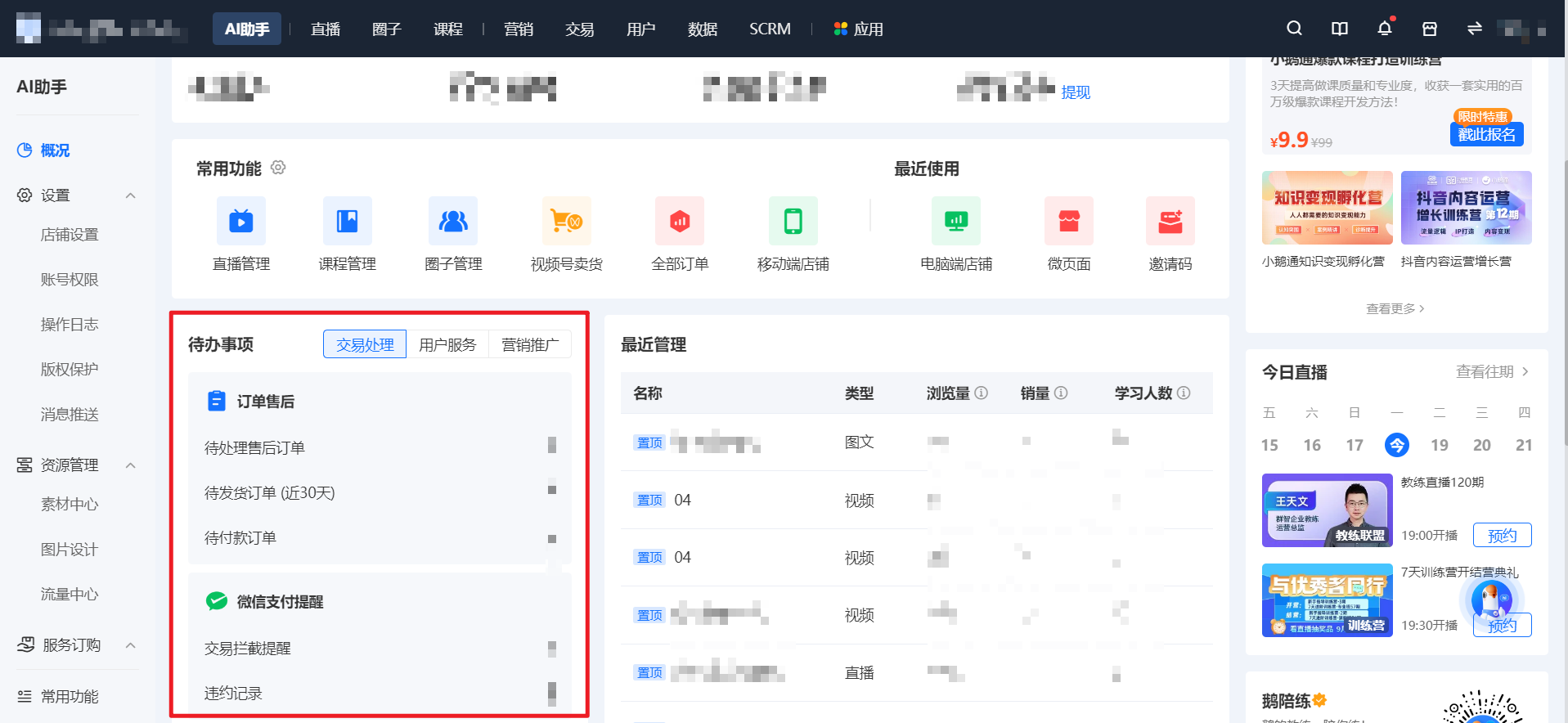
IV. To - Do Items
Displays the store's current to - do items related to business operations. Click to quickly jump to the corresponding module for processing.
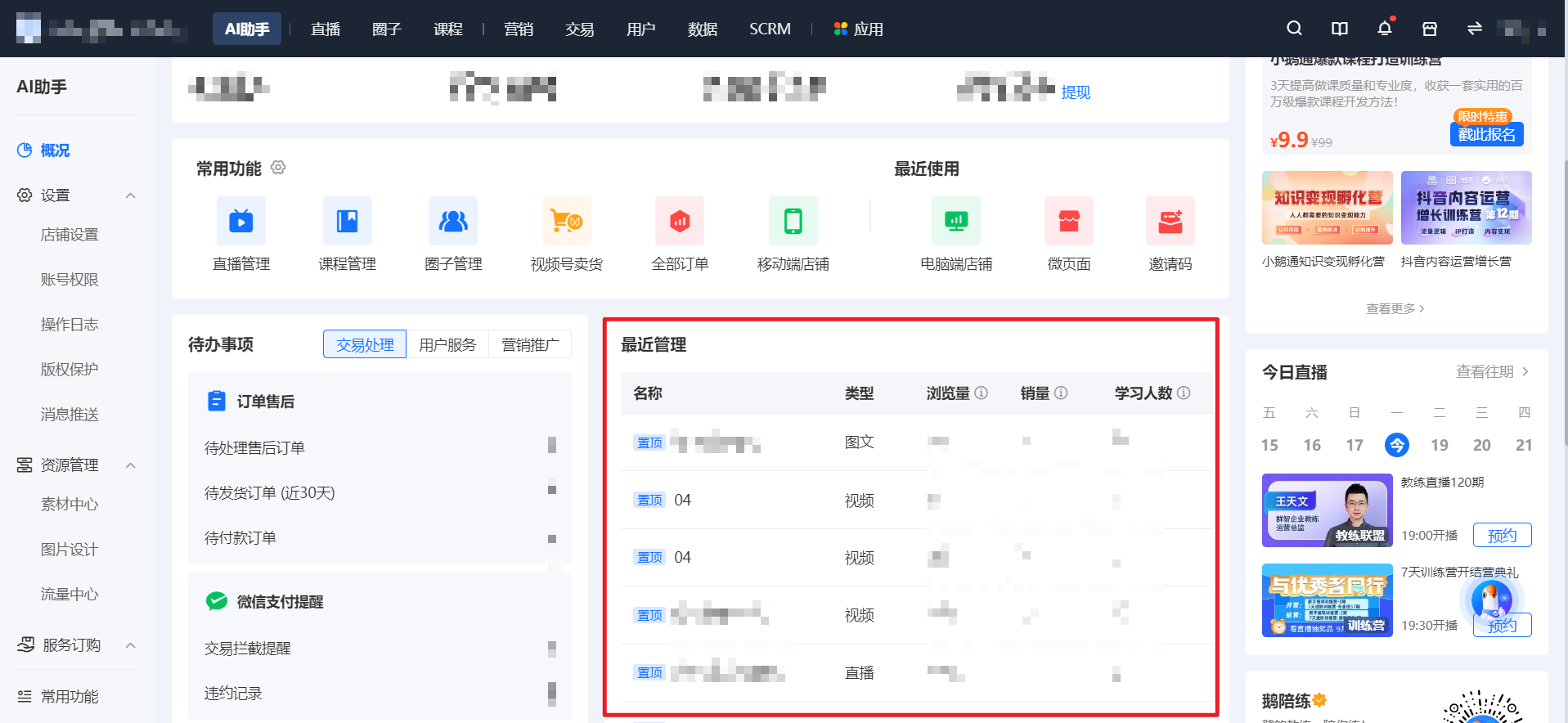
V. Recent Management
By default, it shows the recently created/edited management courses/live streams, etc. You can quickly view the views, sales volume, and the number of learners. It supports pinning for quick access to the courses/live streams you're interested in./Live Streamsaccess status;
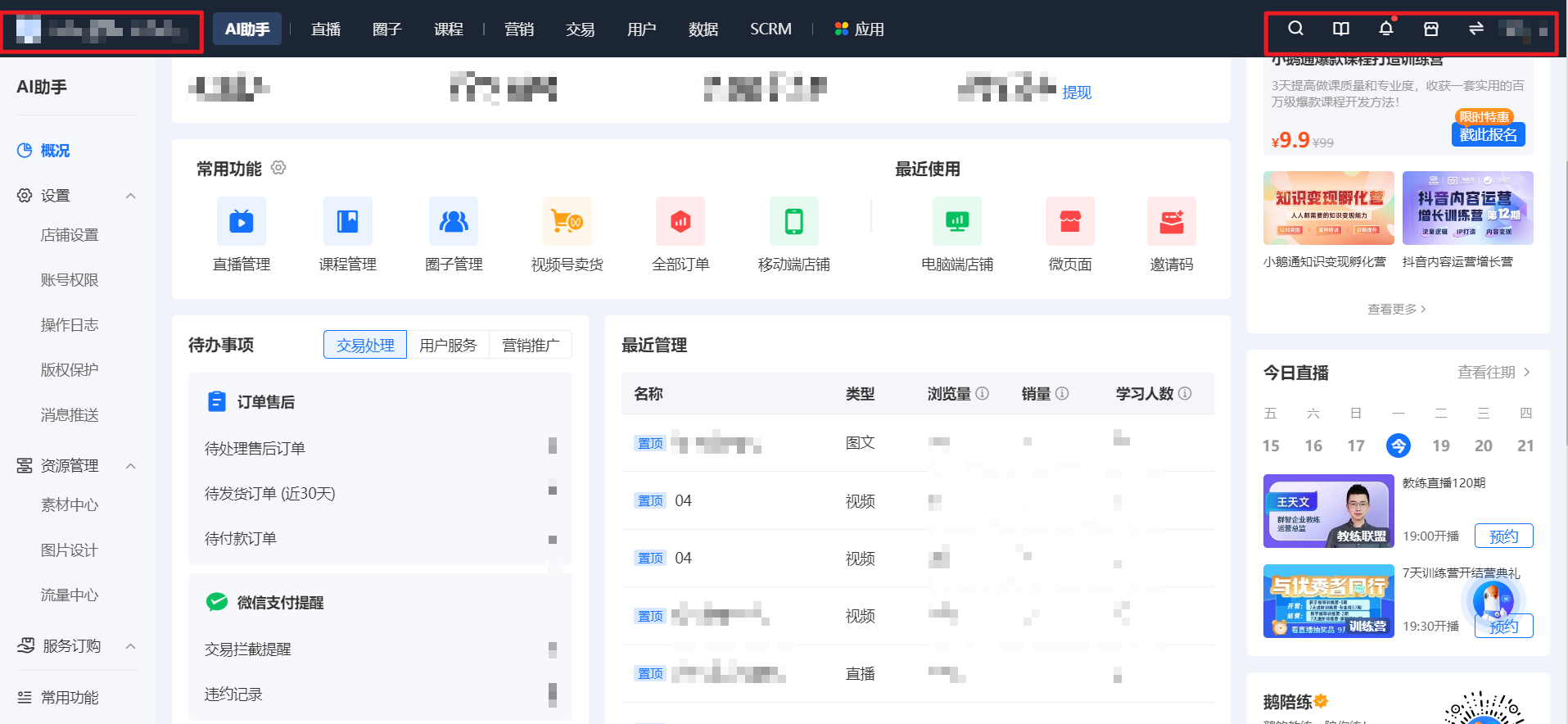
VI. Top Bar
Store Information: Displays the current store's logo and name; hover to show more store information, including the version, expiration time, material space, traffic account, etc. Click to jump to the overview page.
Search: Search for functions, help content, and merchant cases.
elink Academy: Learn about function details, operation cases, etc., to help merchants grow quickly.
Notification Center: View in - store notification content.
Access Store: Click to quickly view the QR code and link for accessing the store.
Personal Account: Click to view information about the currently logged - in B - end personal account and access functions such as switching stores, help center, and logging out.
Switch Version: Switch to the old - version management console.
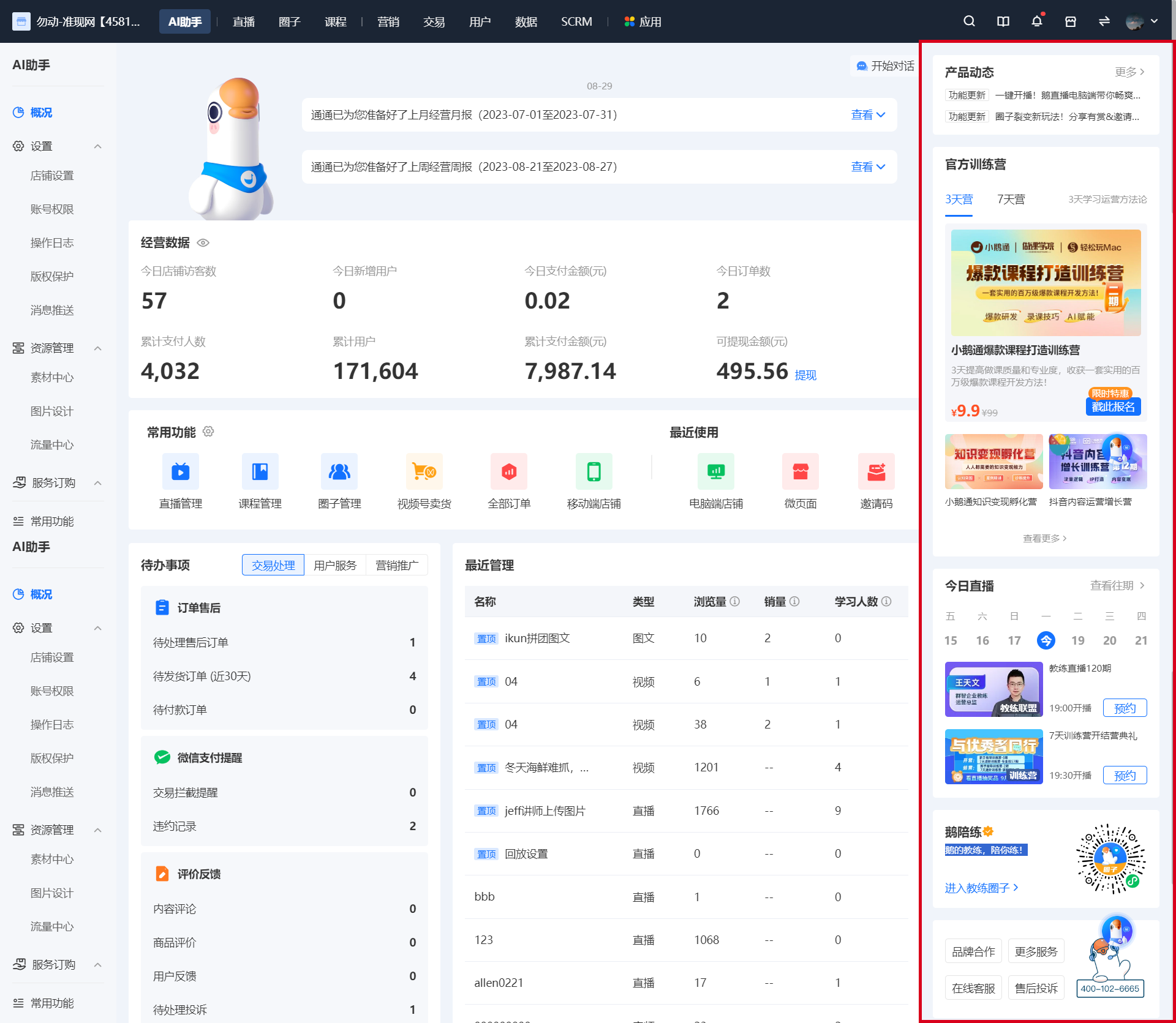
VII. elink Latest News
Product Updates: elink's latest platform announcements or feature updates. Click to view details.
Official Camps:Brings you the latest information about elink's official camps;
Today's Live Streams:Brings you the latest information about elink's official live streams;
elink Coaching Alliance: Access to the elink coach training alliance community;
Pre - sales/After - sales Service: Contact information for elink service staff.
No comments to display
No comments to display