
Operation Guide for Self-pickup Delivery
I.Function Introduction
The headquarters can use this function to ship orders, record the express tracking numbers of the goods sent to the stores, and the logistics tracking of the orders. Merchants can view the logistics status on the B - end, and users can view the transportation status of the goods on the C - end. Note: Merchants need to contact the express company to place an order and collect information such as express tracking numbers on their own.
II.Purpose of Use
To show users the arrival status of goods at the store. When an order is in the 'Pending Pick - up' status, users can go to pick up the goods.
III.Use Scenarios
Xiaomin's store has many offline stores. The headquarters will send goods to different stores, but the transportation of goods takes a certain amount of time. Users don't know if the goods have arrived at the store. And if the goods have been sent to the store and the user applies for a refund, Xiaomin doesn't know if the order is in transit at this time. Therefore, for orders with self - pick - up stock preparation, users can view the logistics status. Merchants can handle refund requests for orders in transit on the B - end, and users can decide when to pick up the goods on the C - end based on the transportation status of the goods.
IV.Operation Path
Download the template and fill in the information - Ship on the B - end - Click Ship or Import in Bulk
V.Usage Tutorial
1.Single Order Shipping
1.1
Transactions - Self - pick - up Shipping - Ship

1.2
Fill in the logistics information - Confirm

1.3
The orders after shipping are displayed under [Shipped]

2.Bulk Shipping
2.1 Download the shipping template
Transactions - Self - pick - up Shipping - Bulk Shipping - Bulk Import - Download Template


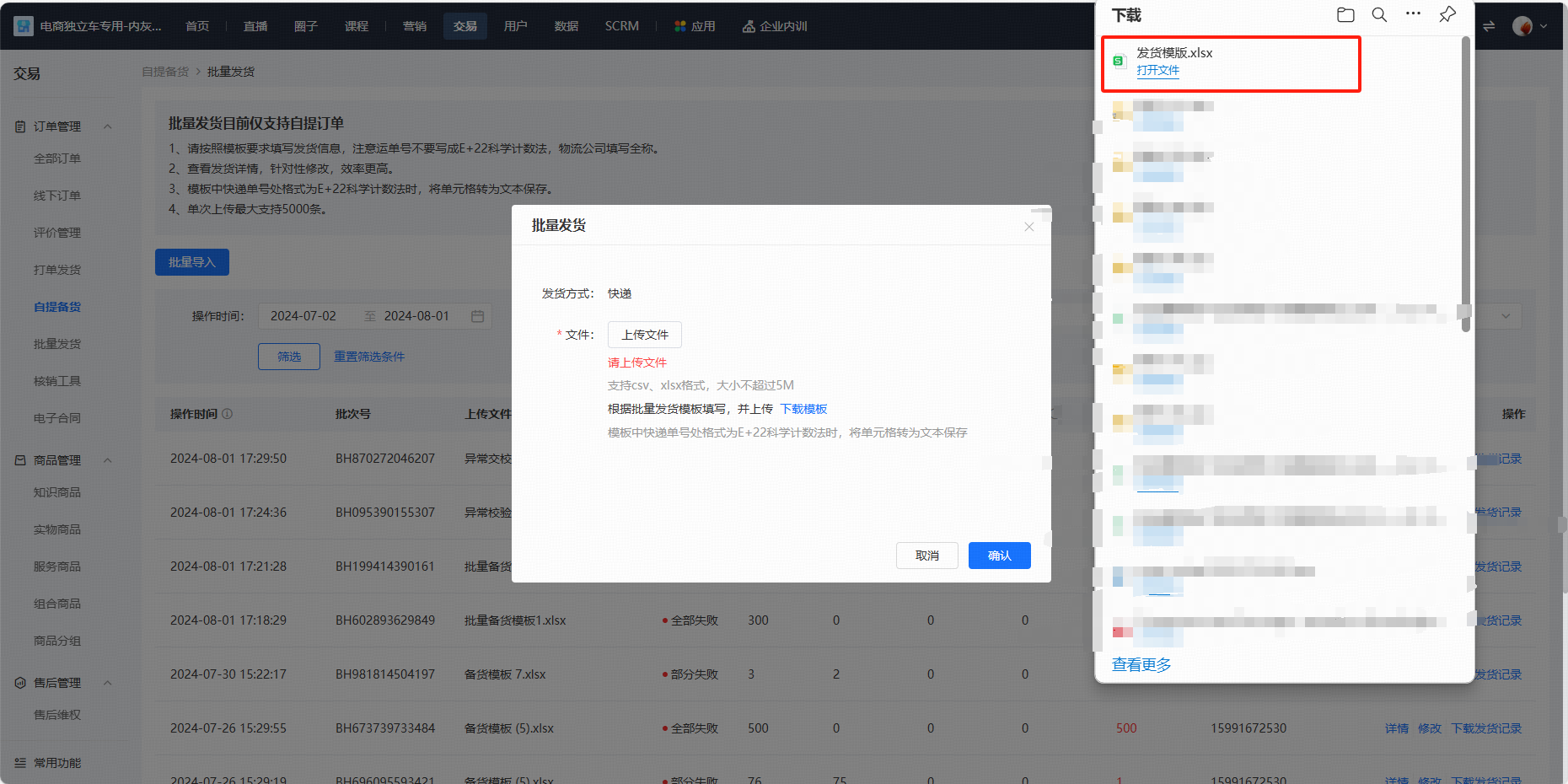
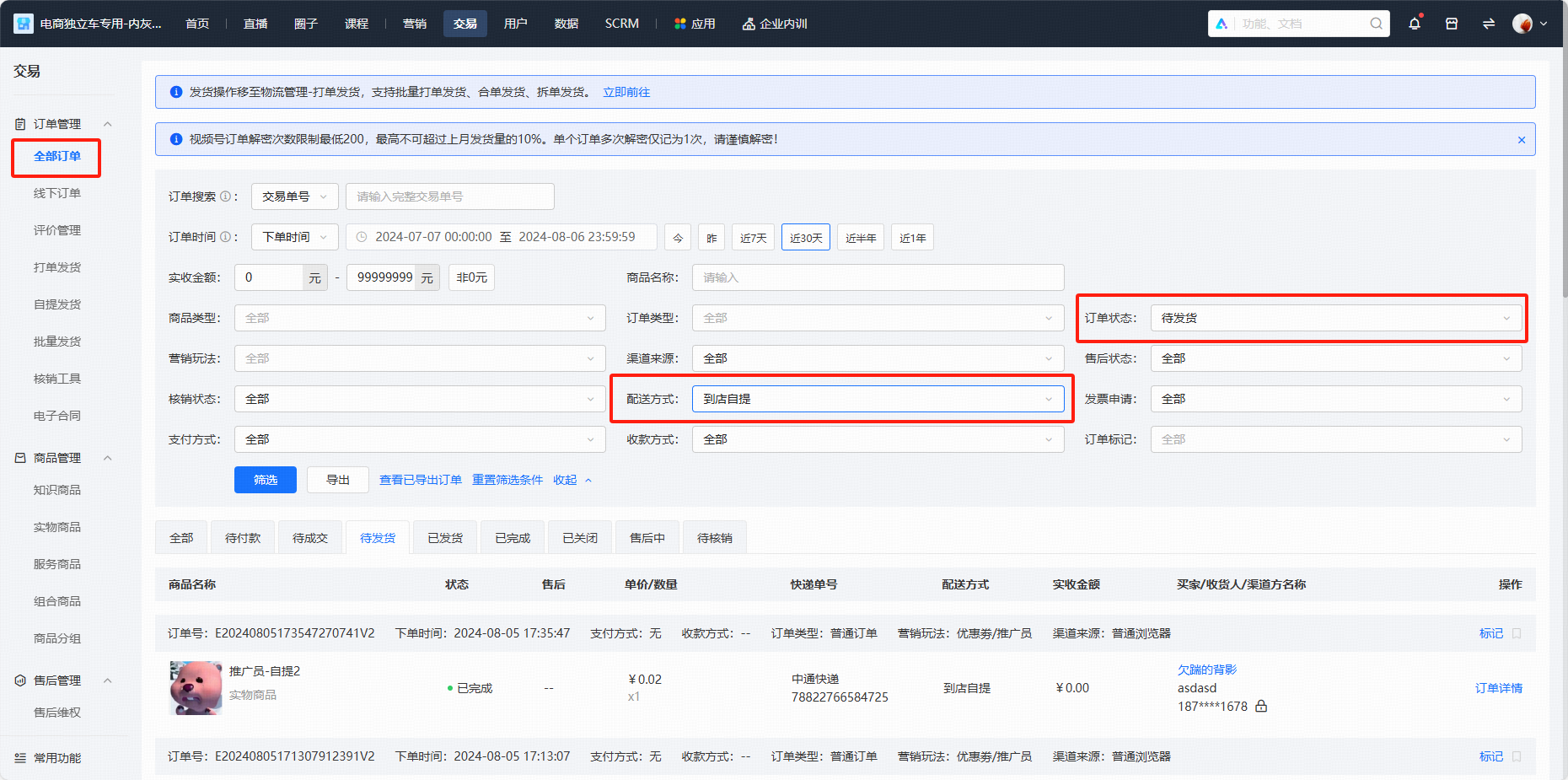
2.2 Export the list of self - pick - up orders pending shipping
Transactions - All Orders - Filter [Pending Shipping] [Self - pick - up at Store] - Export - Export
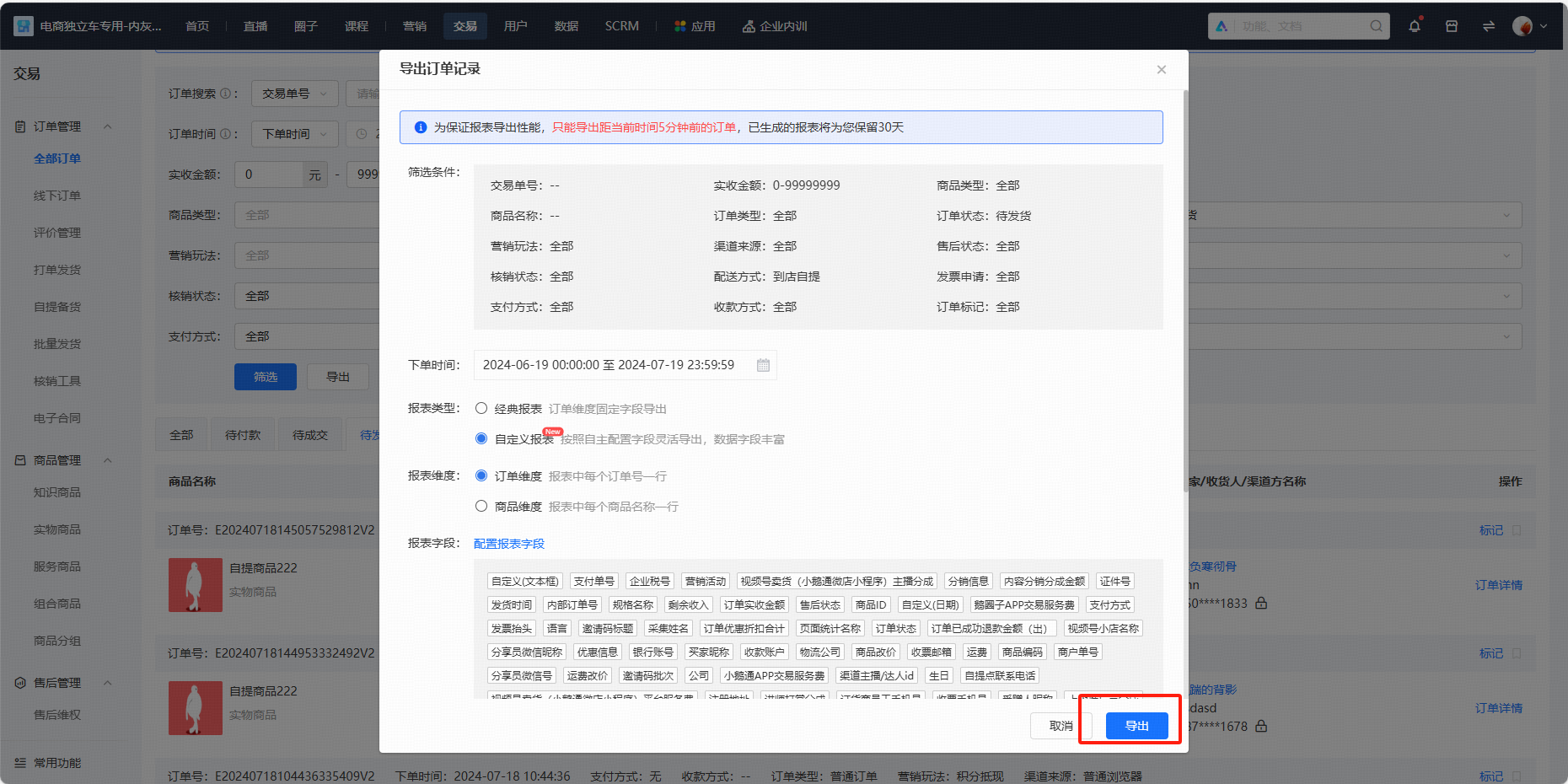
2.3 Fill in the information according to the template
Copy the internal order number from the order export form - Paste it into the order number field of the shipping template - Fill in the express company and tracking number - Save


2.4 Submit the form on the B - end
Bulk Shipping - Bulk Import - Upload File - Confirm

2.5 View the operation record
Transactions - Self - pick - up Shipping - Bulk Shipping (You can view the operation results)

Click Details (View the specific reason description)

Click Download Shipping Record (View the specific operation results of the orders)

3.Handle Refunds
3.1 Transactions - After - sales Rights Protection - Filter the after - sales status - You can handle refunds according to the shipping status

VI. Precautions
1.Please upload the correct express company and tracking number, and do not ship the same order repeatedly;
2.You can modify the logistics information before order verification;
3.If there is an after - sales situation for an order, you cannot operate the shipping. Orders in the process of shipping will also fail to be shipped;
4.The self - pick - up shipping function supports sending SMS to users. Please recharge the SMS push account in time. If the account balance is insufficient, the order can still be shipped, but SMS will not be sent.The shipping function supports sending SMS to users. Please top up your SMS push account in a timely manner. If the account balance is insufficient, the order can still be shipped, but SMS will not be pushed.
No comments to display
No comments to display