
Fill in the payment settings on the elink management console
Step 1: Return to the elink management console and directly fill in the WeChat merchant ID recorded in Step 3 and the WeChat merchant API key recorded in Step 4.
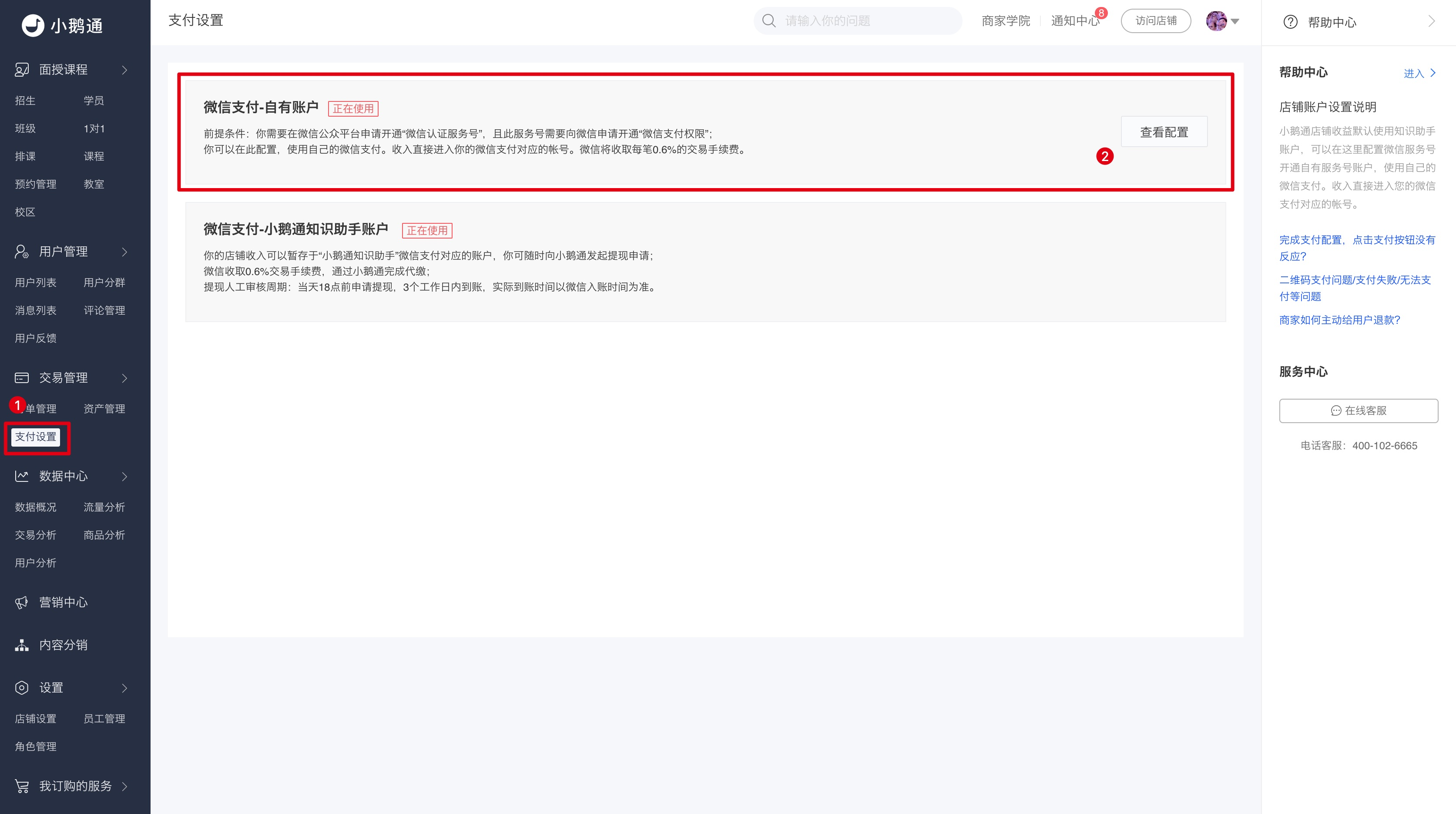
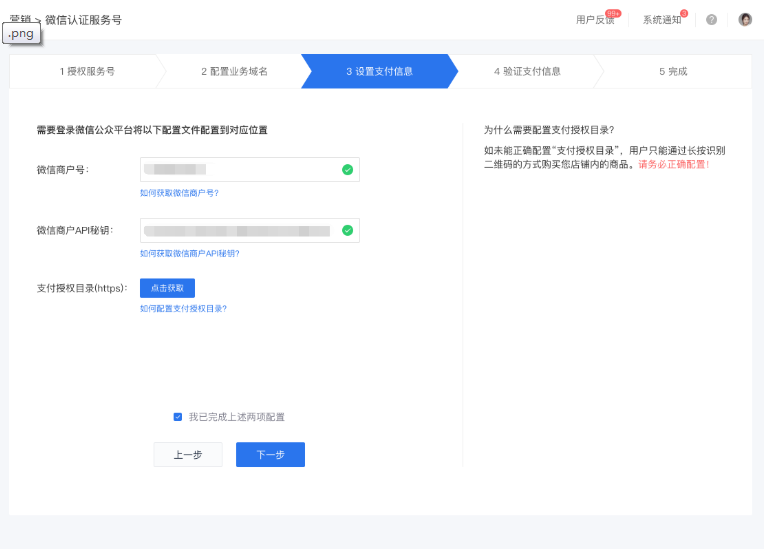
Step 2: In the [Payment authorization directory (https)] field, click the [Copy link] button on the right to copy the payment authorization directory of your elink store in full. Do not close the elink management console page after completing this step.
Step 3: Return to your WeChat Pay merchant platform page. Click [Product Center] in the top menu bar, and then click [Development configuration] in the left sidebar.
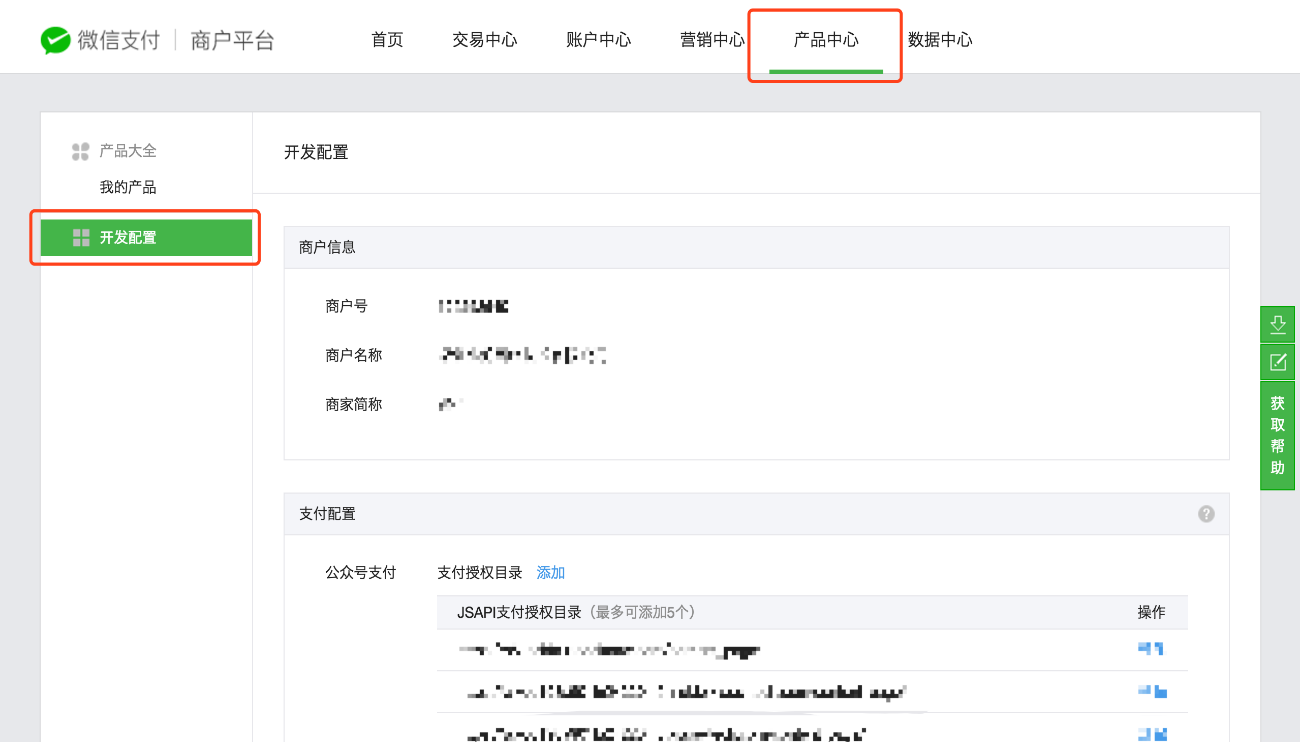
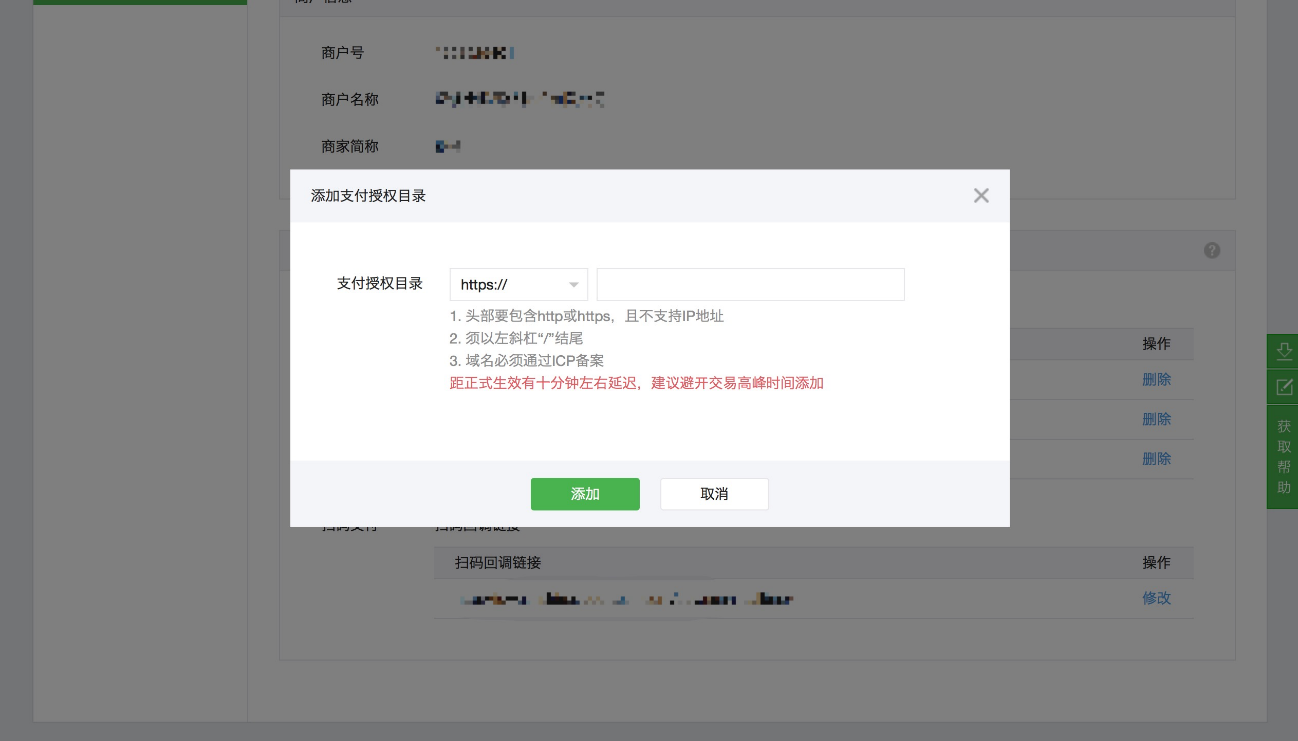
Step 4: In the [Payment configuration] section, click the [Add] button next to [Official Account payment] - [Payment authorization directory]. The browser will automatically pop up an add window. First, be sure to select the https:// type in the drop - down menu at the top of the directory, then paste the payment authorization directory of your elink store that you just copied, and click [Add] to confirm.
Step 5: Click [I have completed the above two configurations] and then click [Next] to complete the payment settings configuration process for your elink store.
No comments to display
No comments to display