
How to set the minimum purchase quantity for products
I. Feature Introduction
Can be setPhysical productsorPaid couponsMinimum order quantity to control the minimum number of items a user can purchase each time.
II. Use Cases
If the unit price of the physical products sold by the merchant is low, the merchant can set the minimum order quantity to 5 items, thereby increasing sales volume and average order value.
III. Operation Path
Merchant side: [Physical products] Merchant PC management console → Products → Product management → Create/Edit products
[Paid coupons] Merchant PC management console → Marketing → Paid coupons → Create/Edit paid coupons
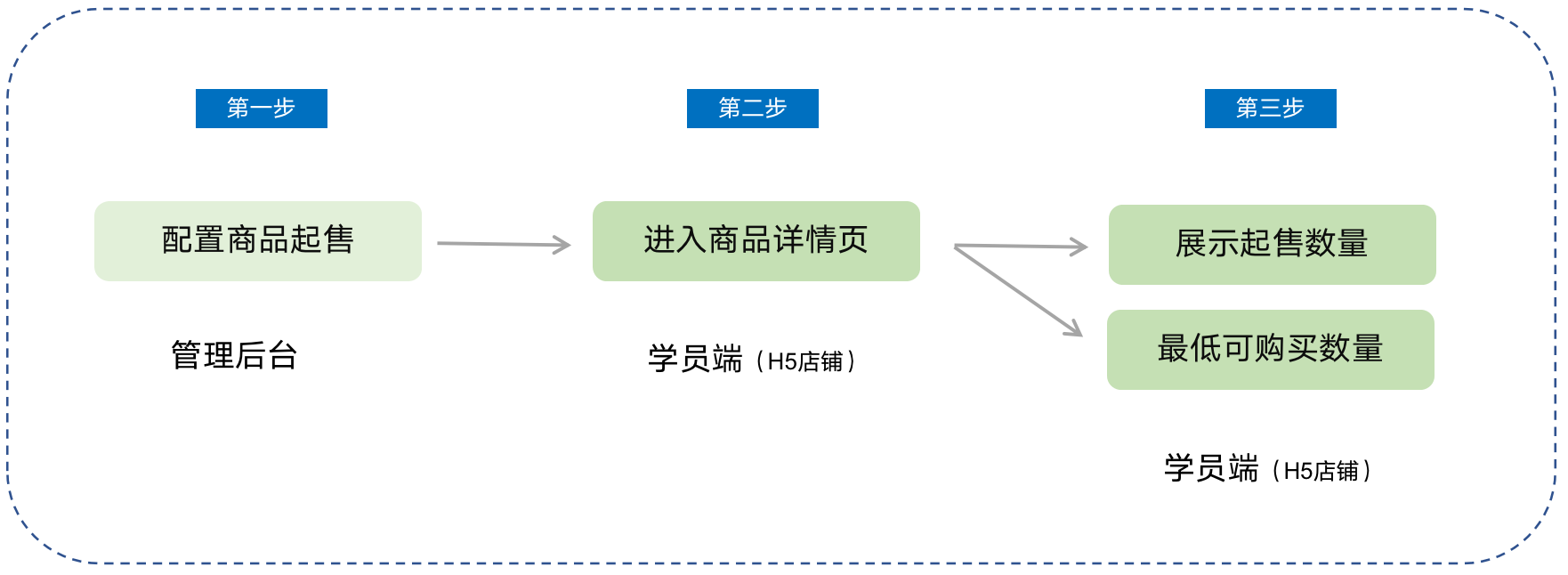
Student side: WeChat H5 store → Product detail page → Click to purchase
IV. Usage Tutorial
Step 1: Configure the minimum order quantity for products(Taking physical products as an example)
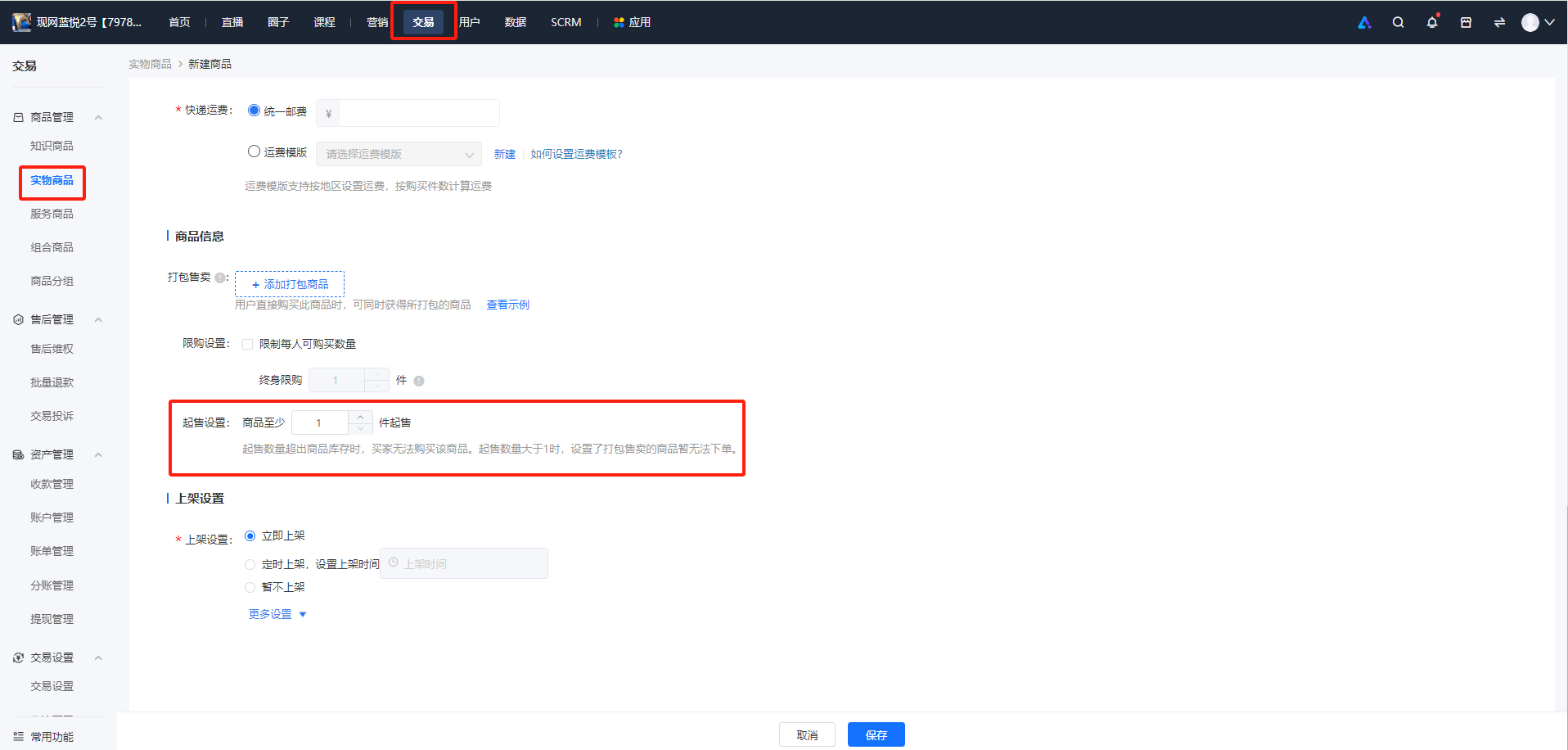
1. Log in to the store management backend, click [Transactions] - [Product management] - [Physical products], and click [New product].
2. In the [Product information] section, check [Minimum order quantity setting] and set the quantity.
**Note:When the minimum order quantity exceeds the product inventory, users cannot purchase the product. And when the minimum order quantity is greater than 1, associated products for sale cannot be ordered temporarily.
Step 2: Purchase on the student side
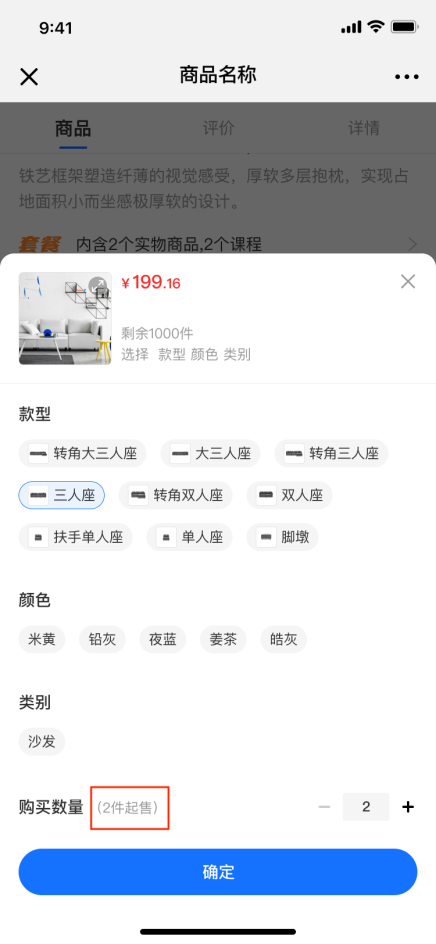
On the product detail page of physical products/paid coupons, it displaysthe minimum number of products that users can purchase.
No comments to display
No comments to display