
How to convert videos with mismatched encoding to the H264 encoding format?
Due to browser compatibility issues with different video encodings, the elink platform only supports videos in H264 encoding format. After uploading non-H264 encoded videos to the material center page, the video status will be displayed in an orange reminder state (as shown in the figure below). The video files cannot be previewed on the B-side management console, but it does not affect the viewing experience of C-side learners.
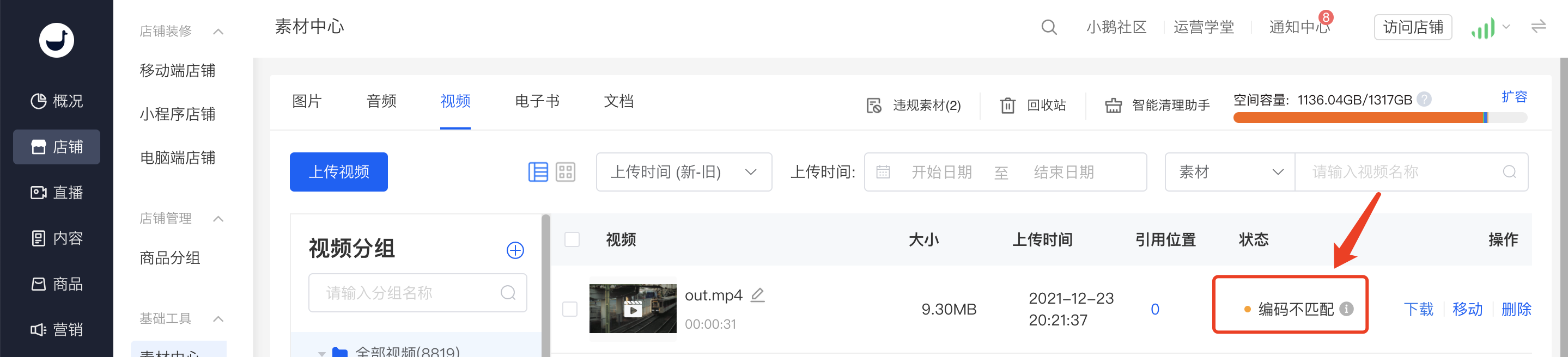
For such video files with encoding mismatches, merchants can use third-party video format conversion tools to convert the video encoding. The following provides two tool examples and operation processes for Windows and Mac systems:
1. Windows system: It is recommended to use the 'Format Factory' software.
1. Download the 'Format Factory' client software, enter the 'Format Factory' page, and select the video format you want to export.
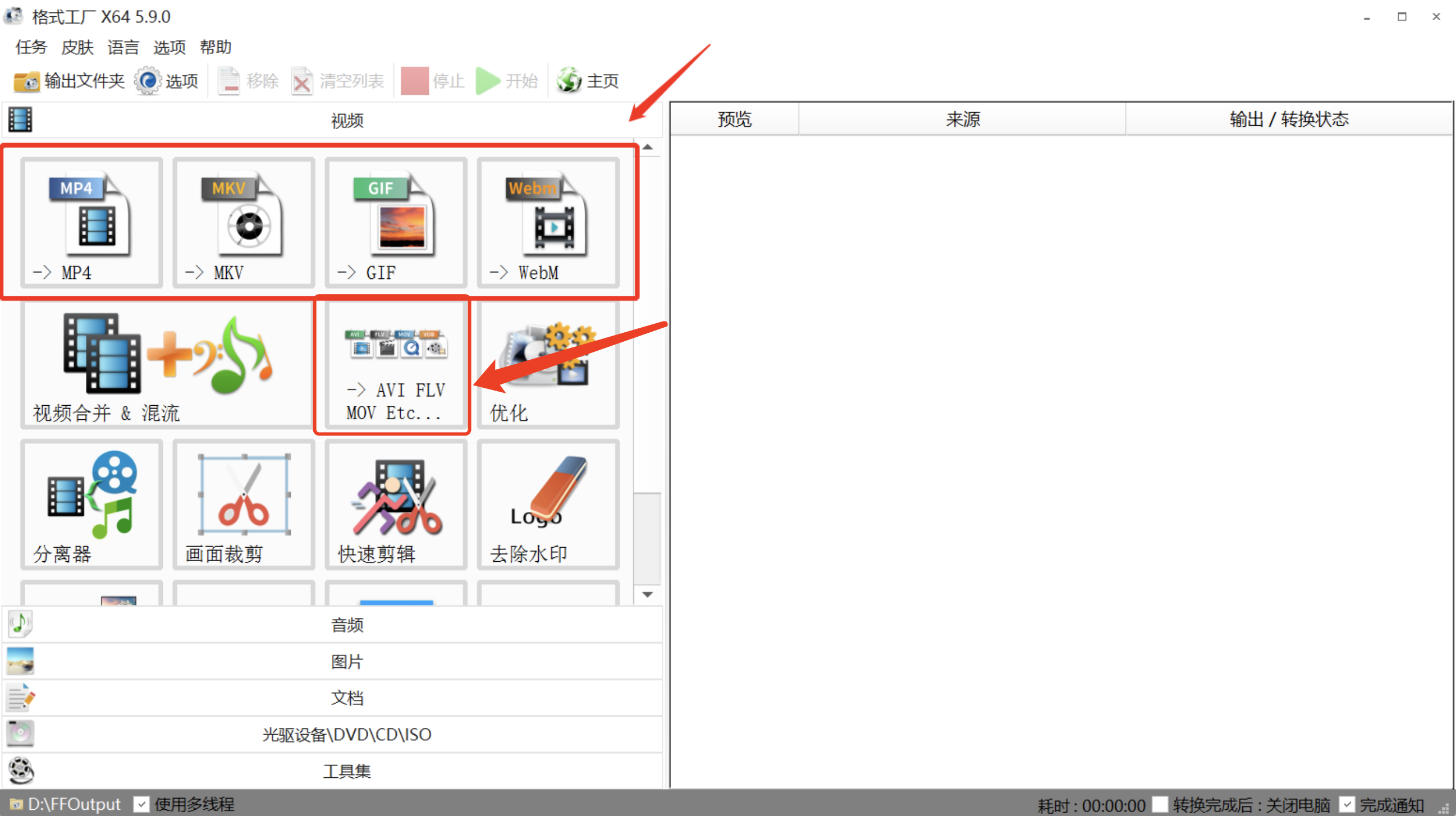
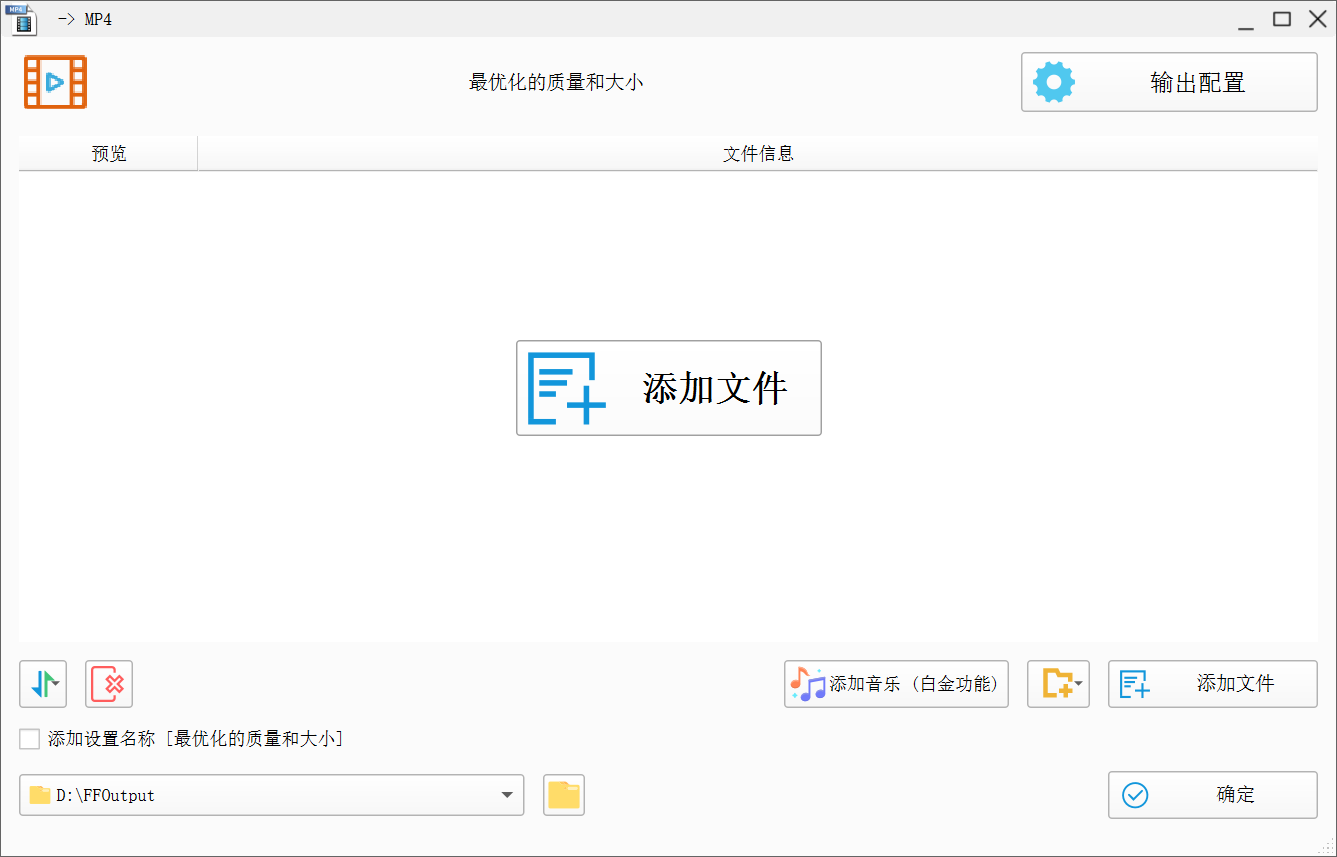
2. Enter the format conversion page and click [Add Files].
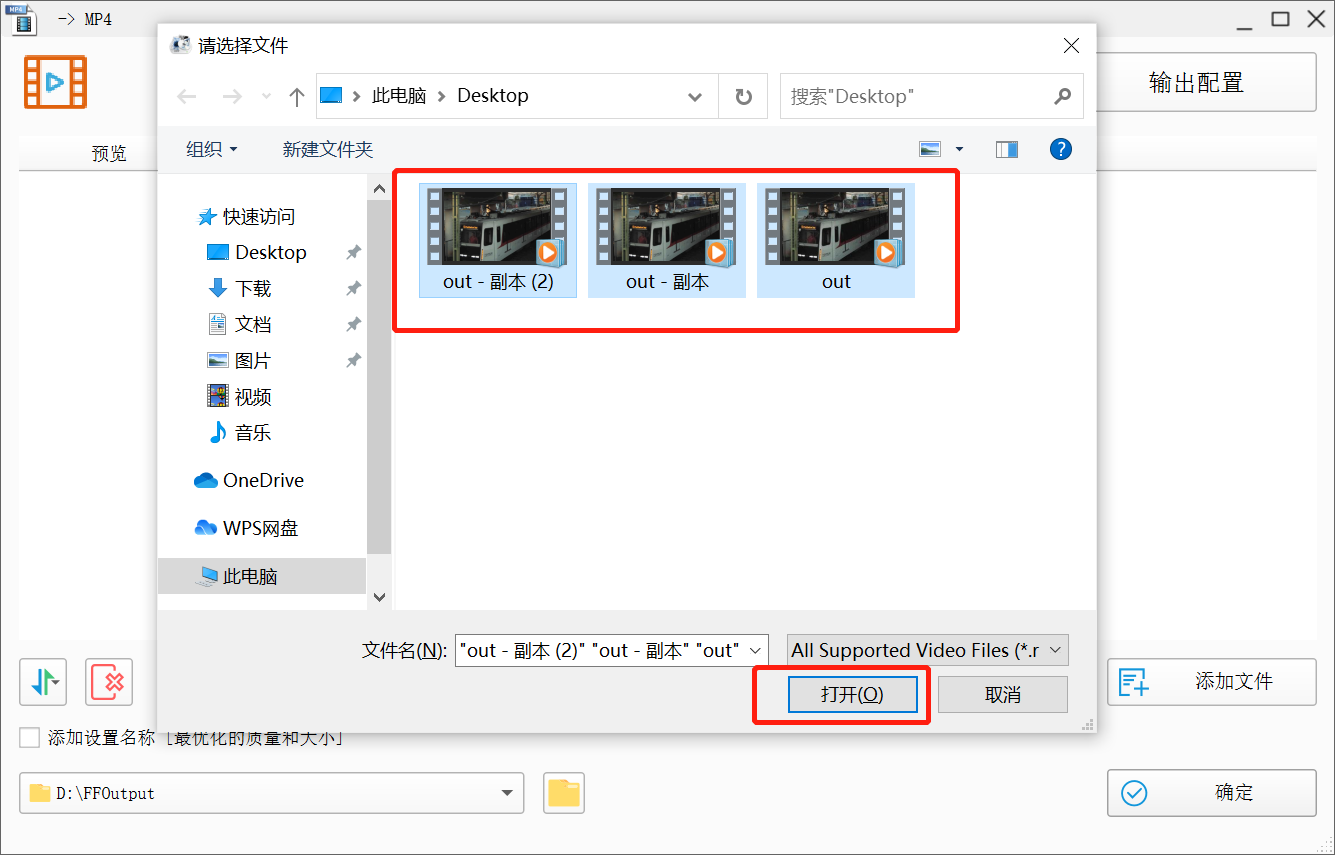
3. Select the files you want to convert. Multiple files are supported. Click [Open].
4. Click [Output Configuration], and a configuration pop-up window will appear.
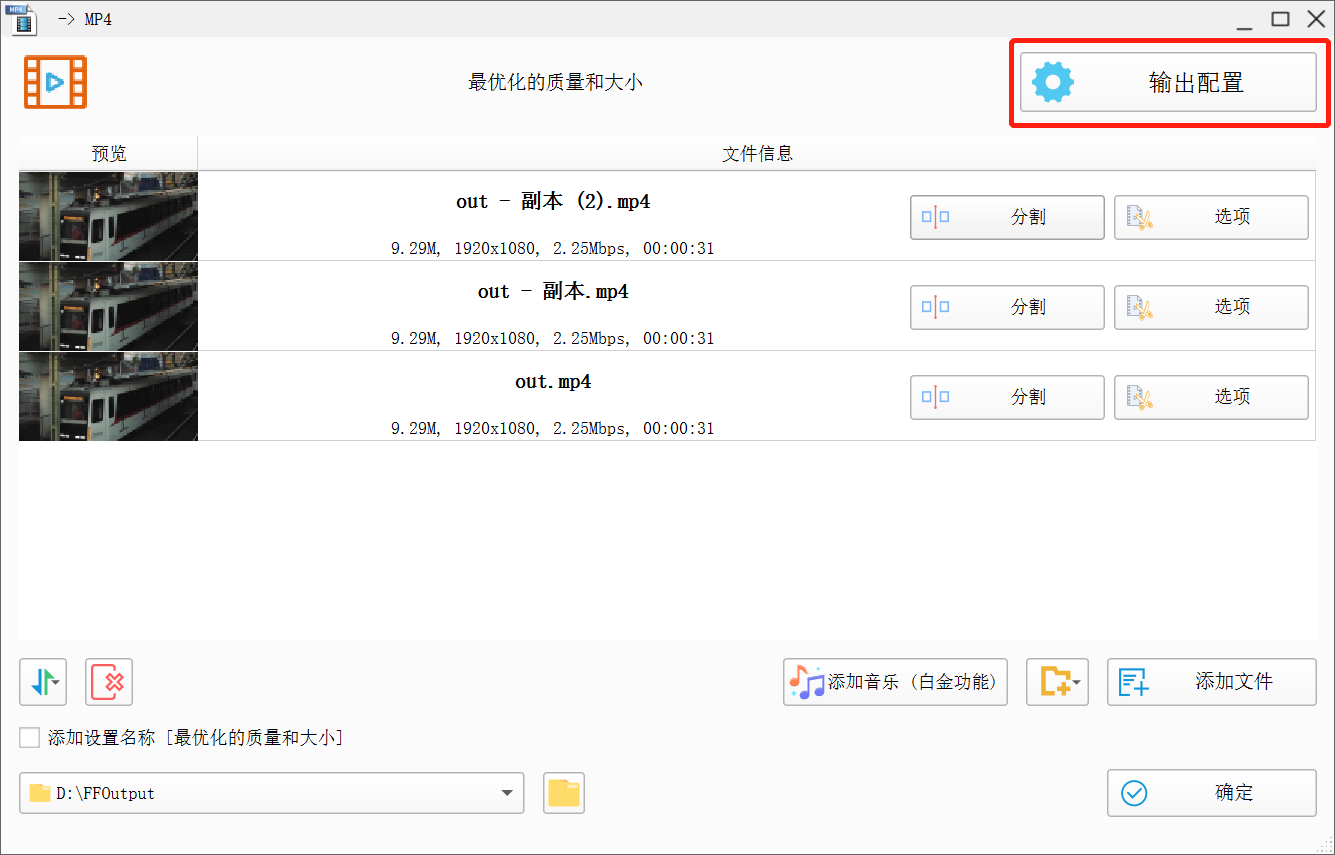
5. Select [Video Encoding: AVC (H264)] and click [OK].
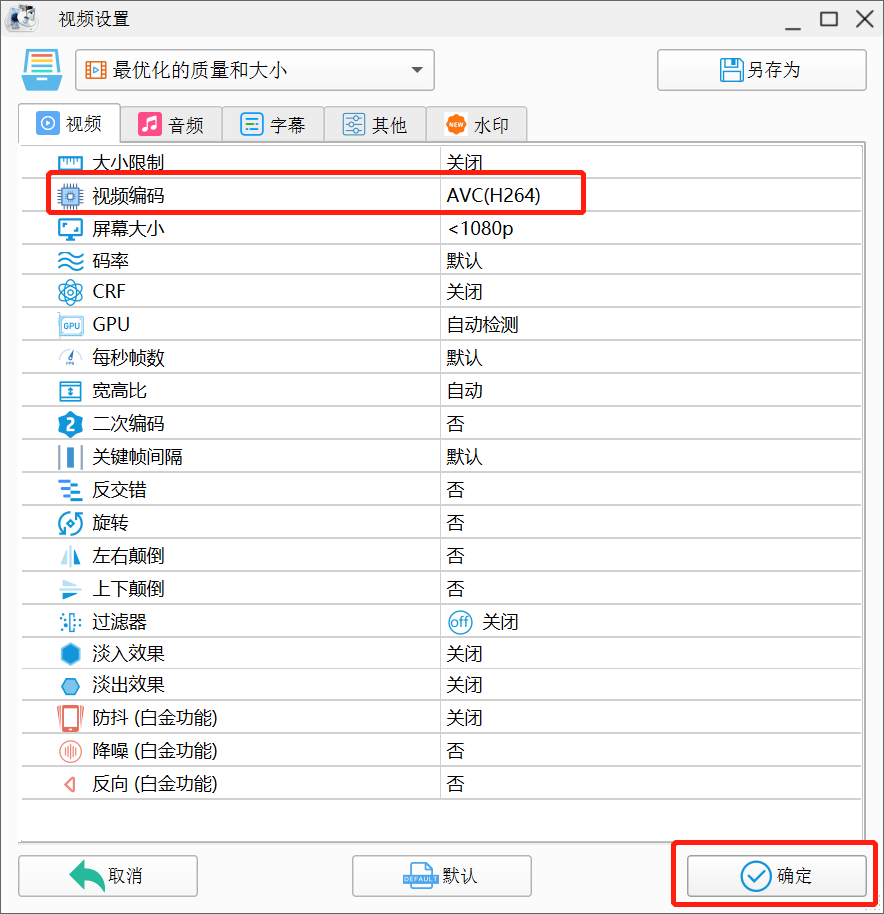
6. Click [OK].
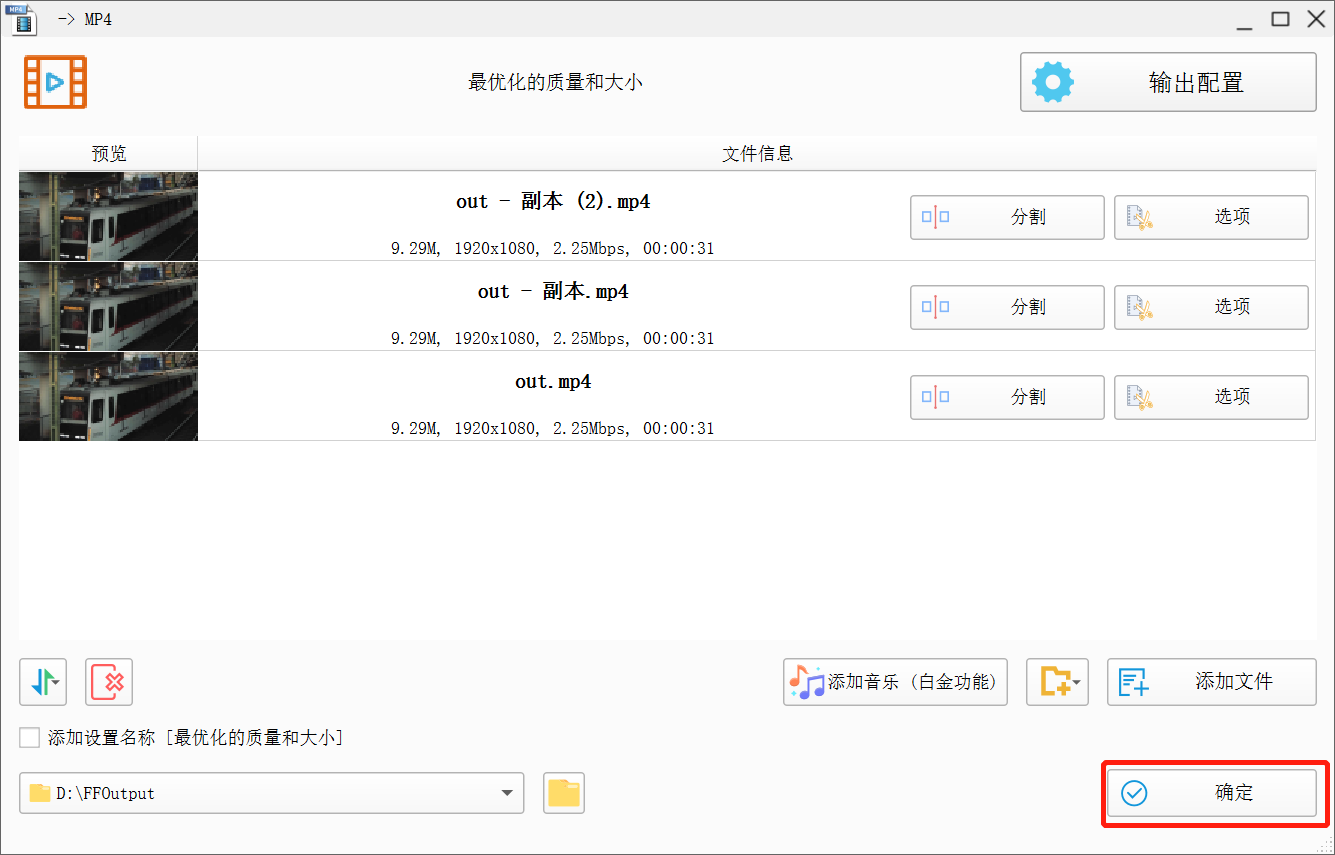
7. Click [Start], and the video will start transcoding.
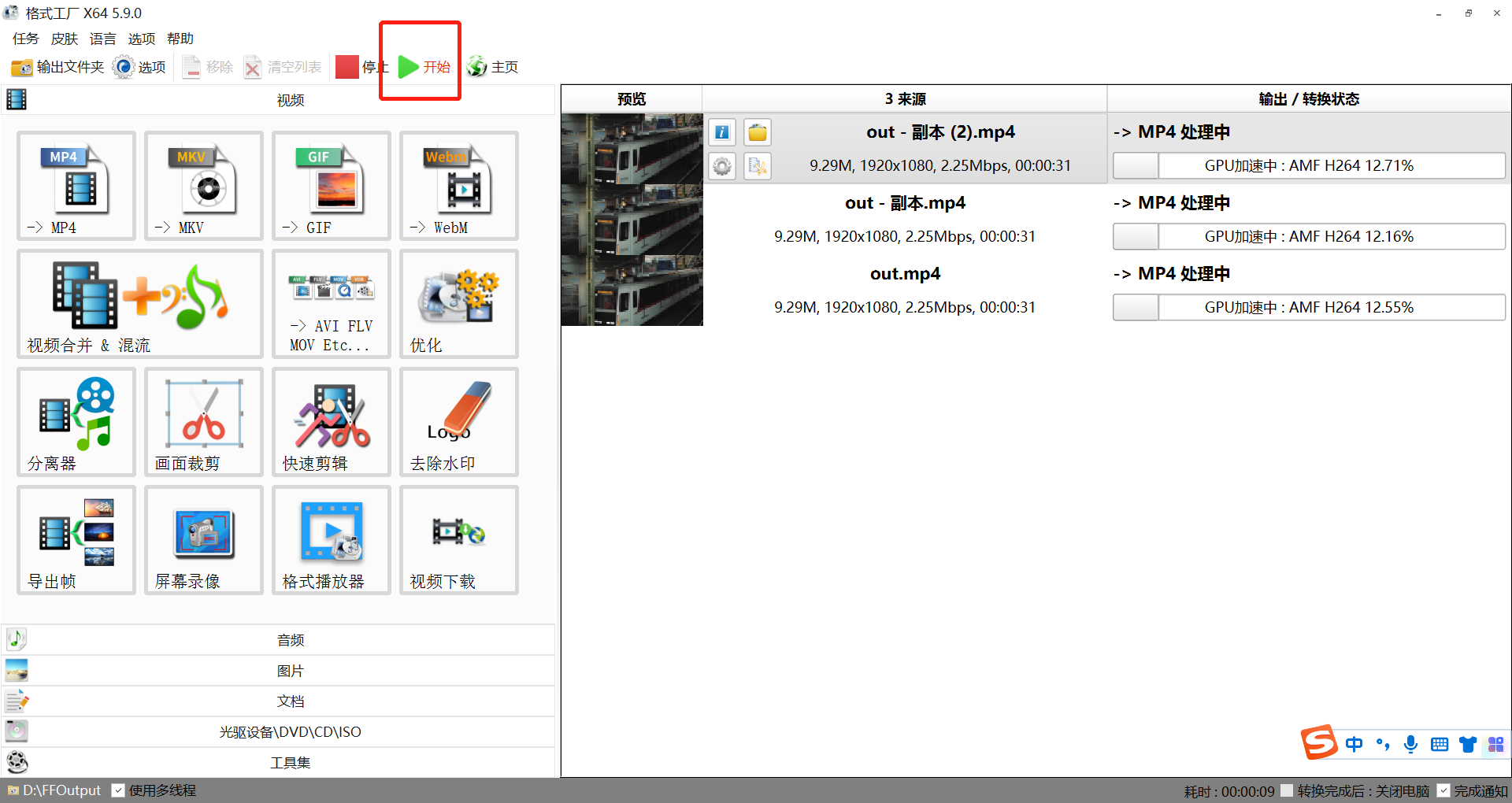
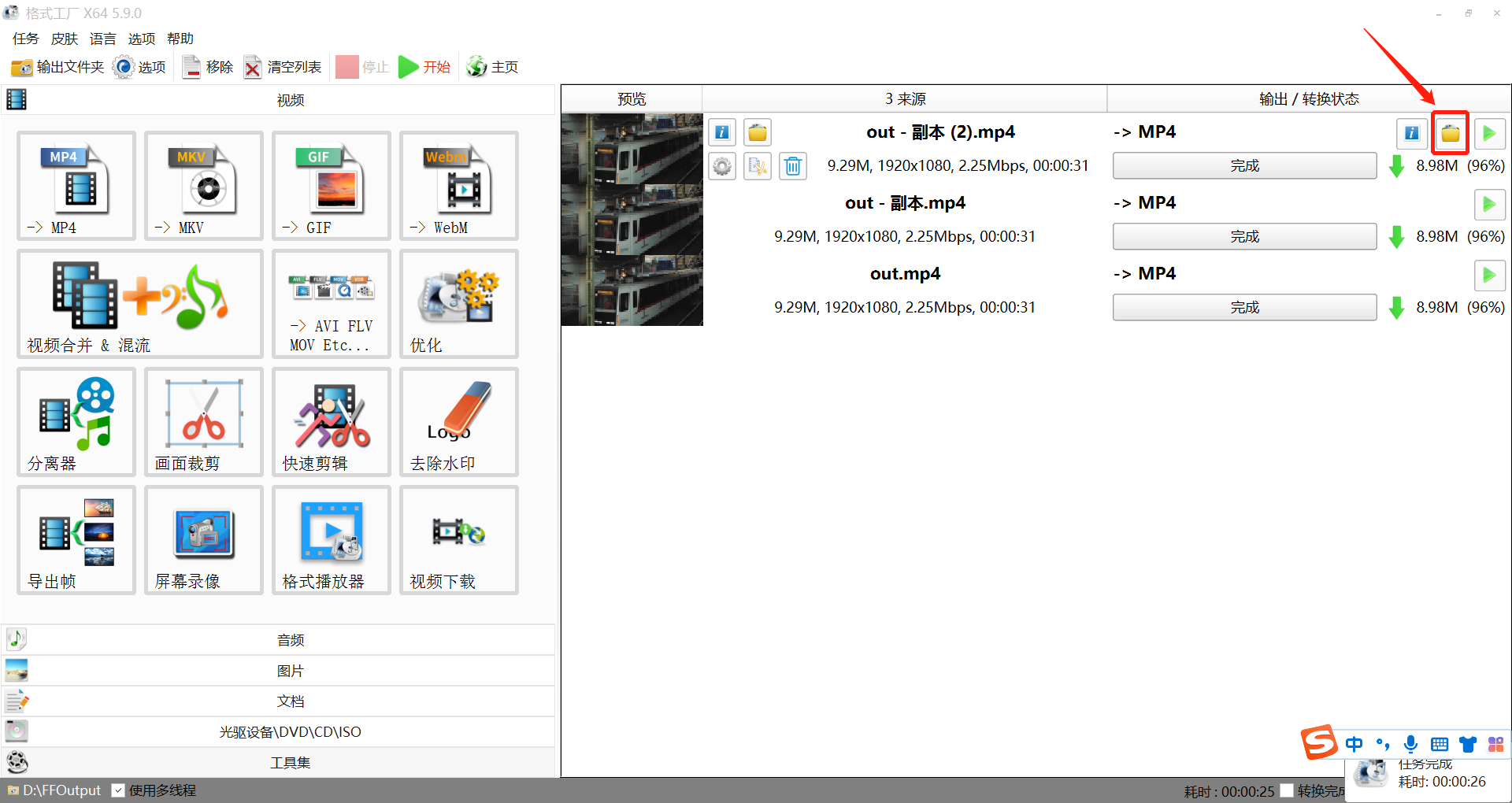
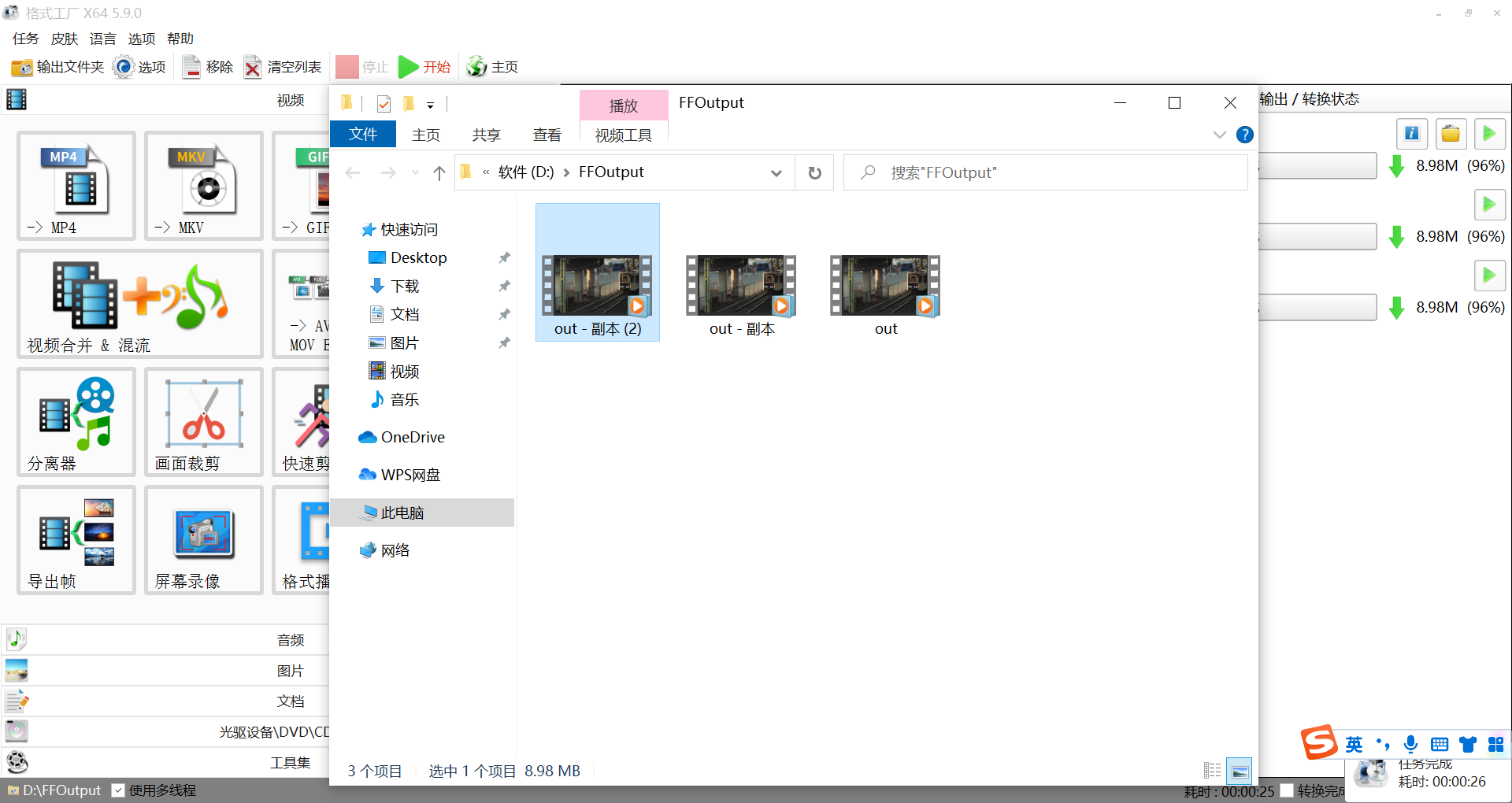
8. After the transcoding is completed, click [Folder] to view the storage location of the transcoded video.
2. Mac system: It is recommended to use the 'Jianying Pro' client software.
Reminder: Currently, Jianying only supports transcoding MP4 and MOV video files to H264 encoding.
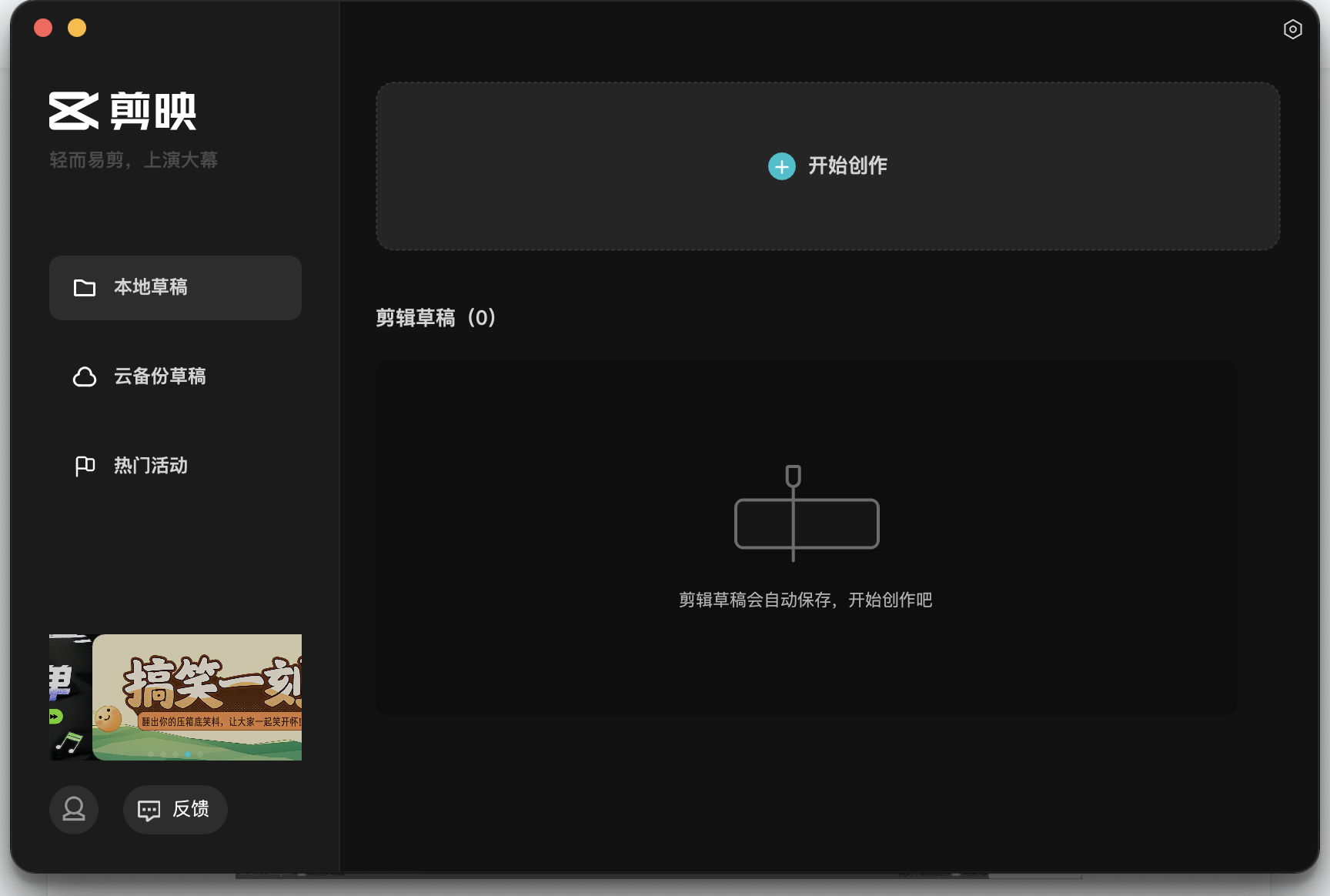
1. Download the 'Jianying Pro' client software, enter the 'Jianying Pro' page, and click [Start Production].
2. Enter the production page and click [Import].
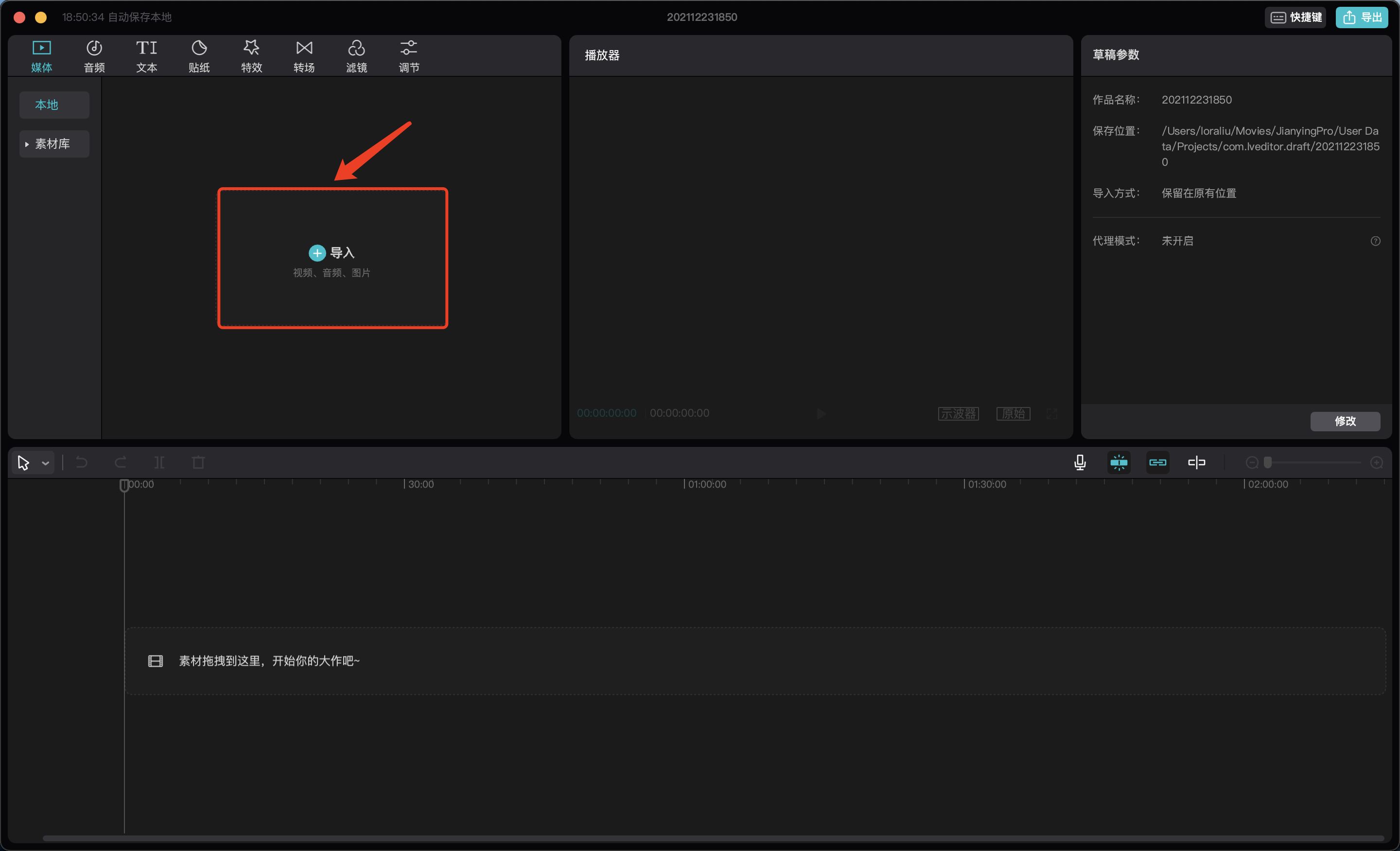
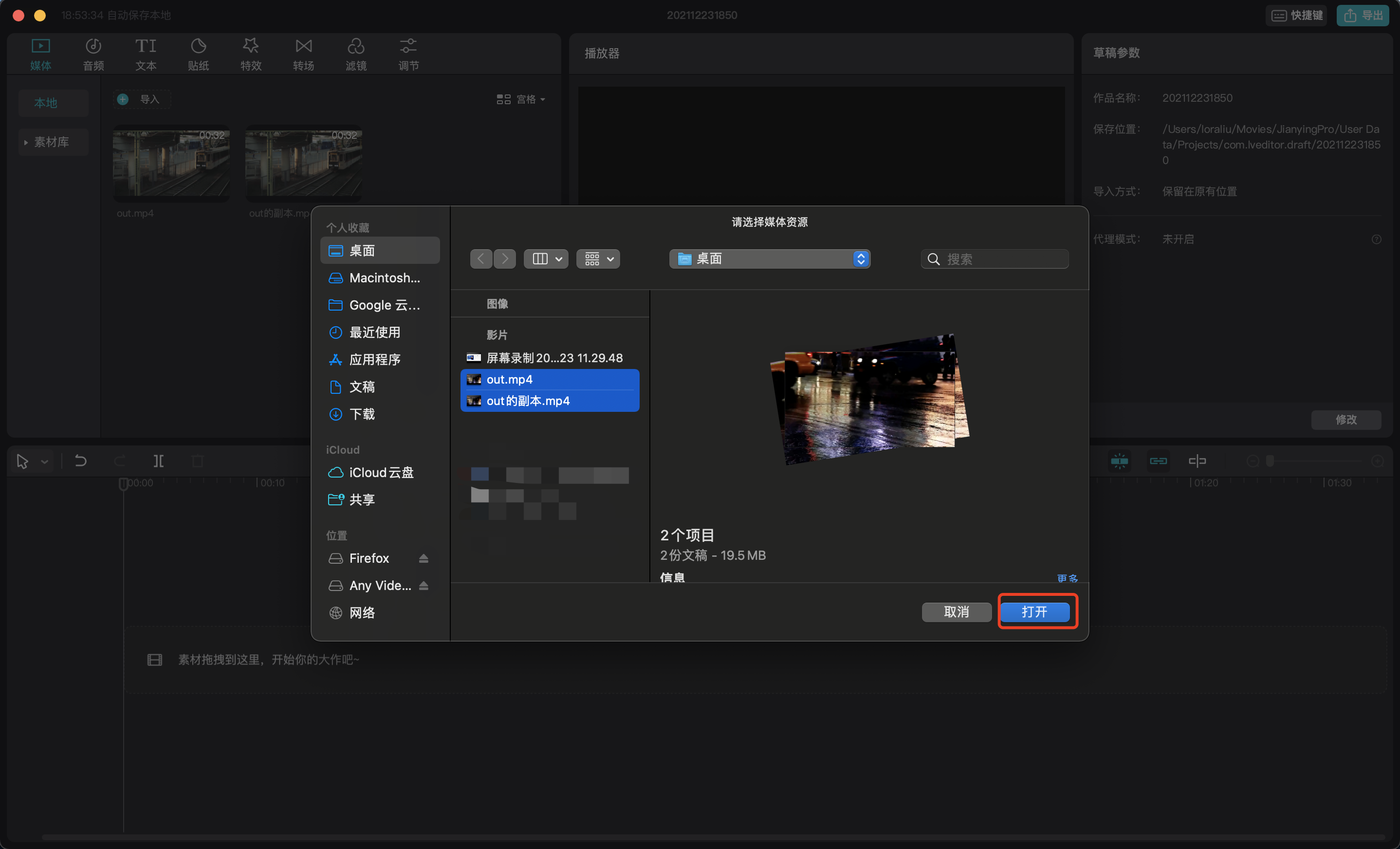
3. Select the files you want to convert the format of. Multiple video files are supported. Click [Open] to import the files.
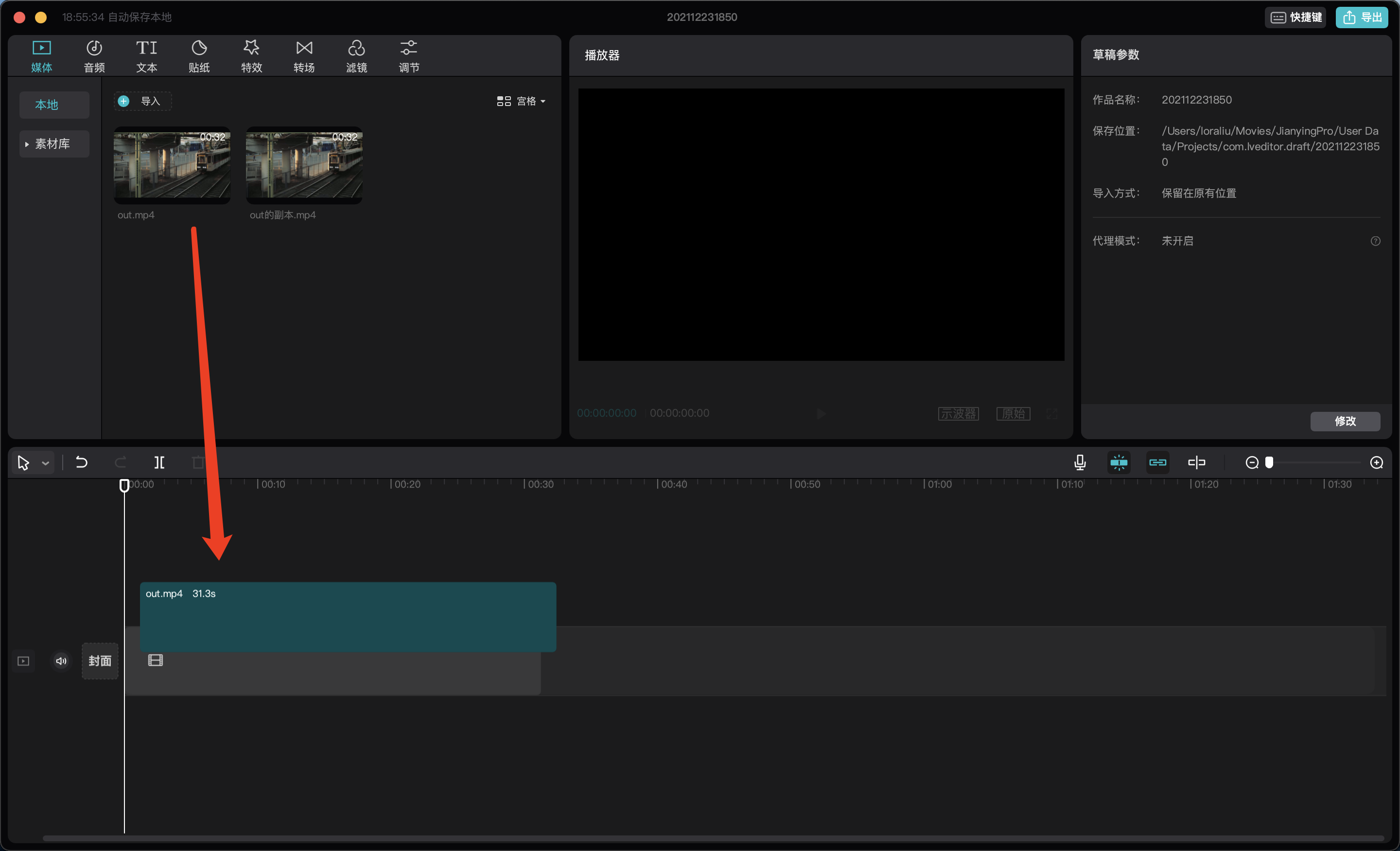
4. Drag one of the files to the editing area. Currently, Jianying only supports transcoding a single file. Multiple files need to be operated multiple times.
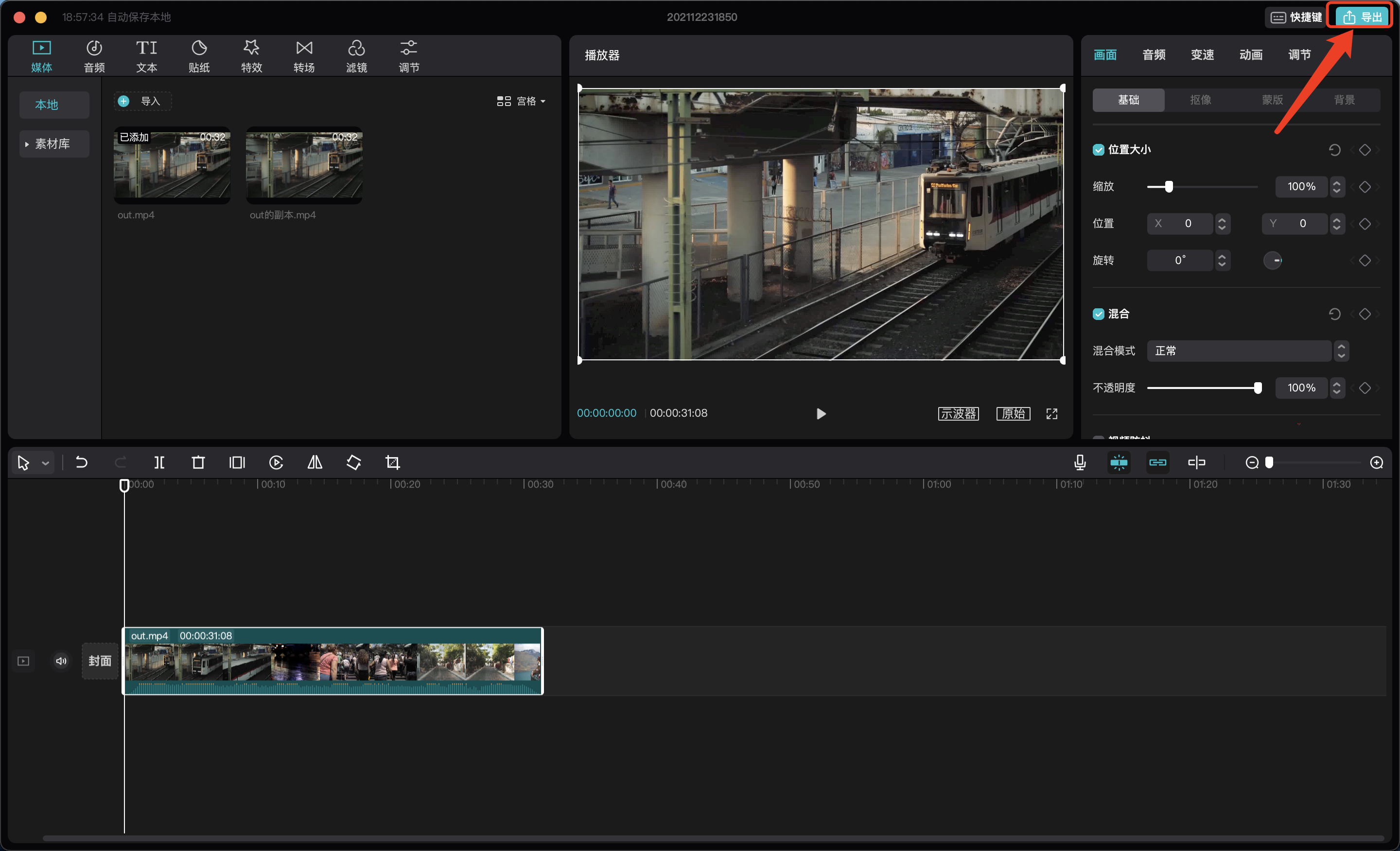
5. Click [Export], and a configuration window will pop up.
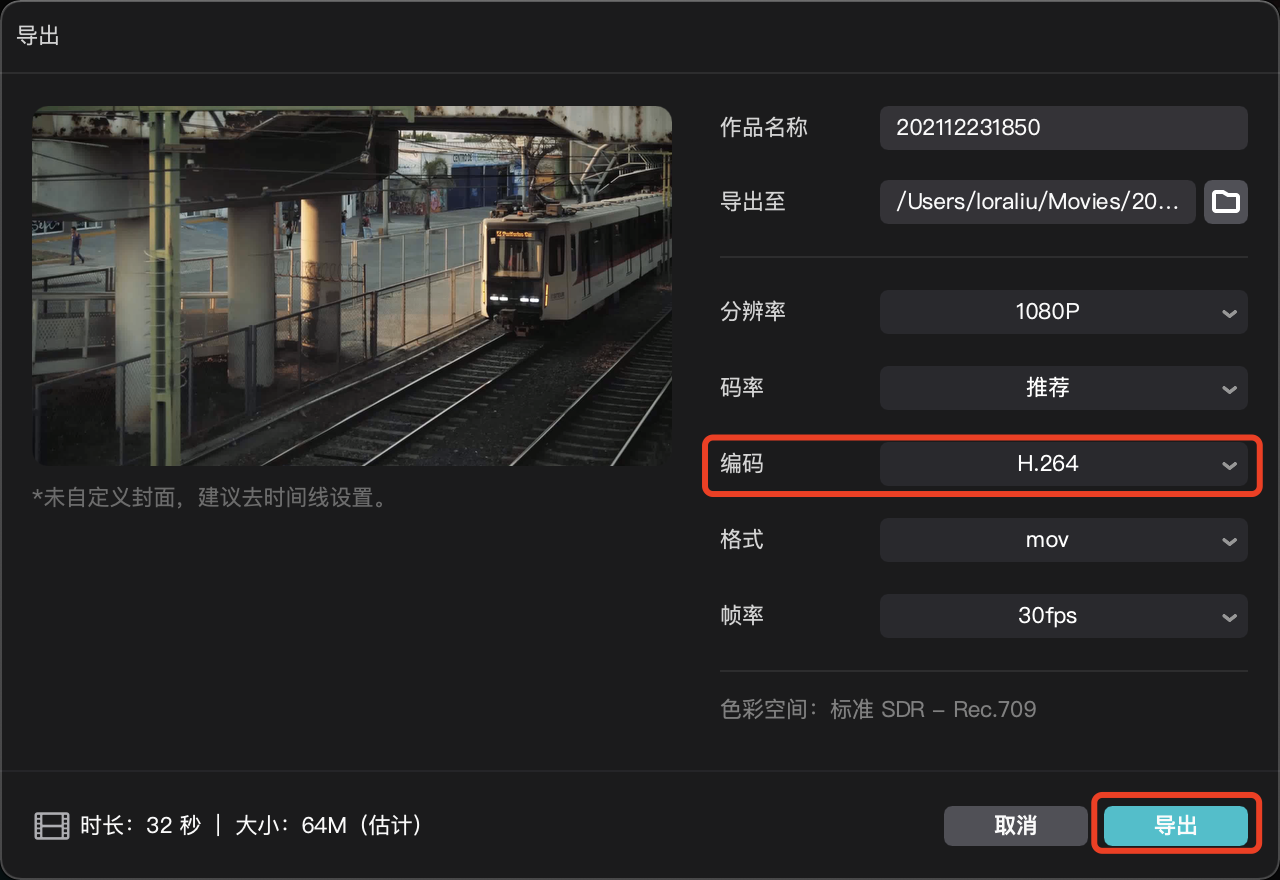
6. Select [Encoding Format: H264] and click [Export].
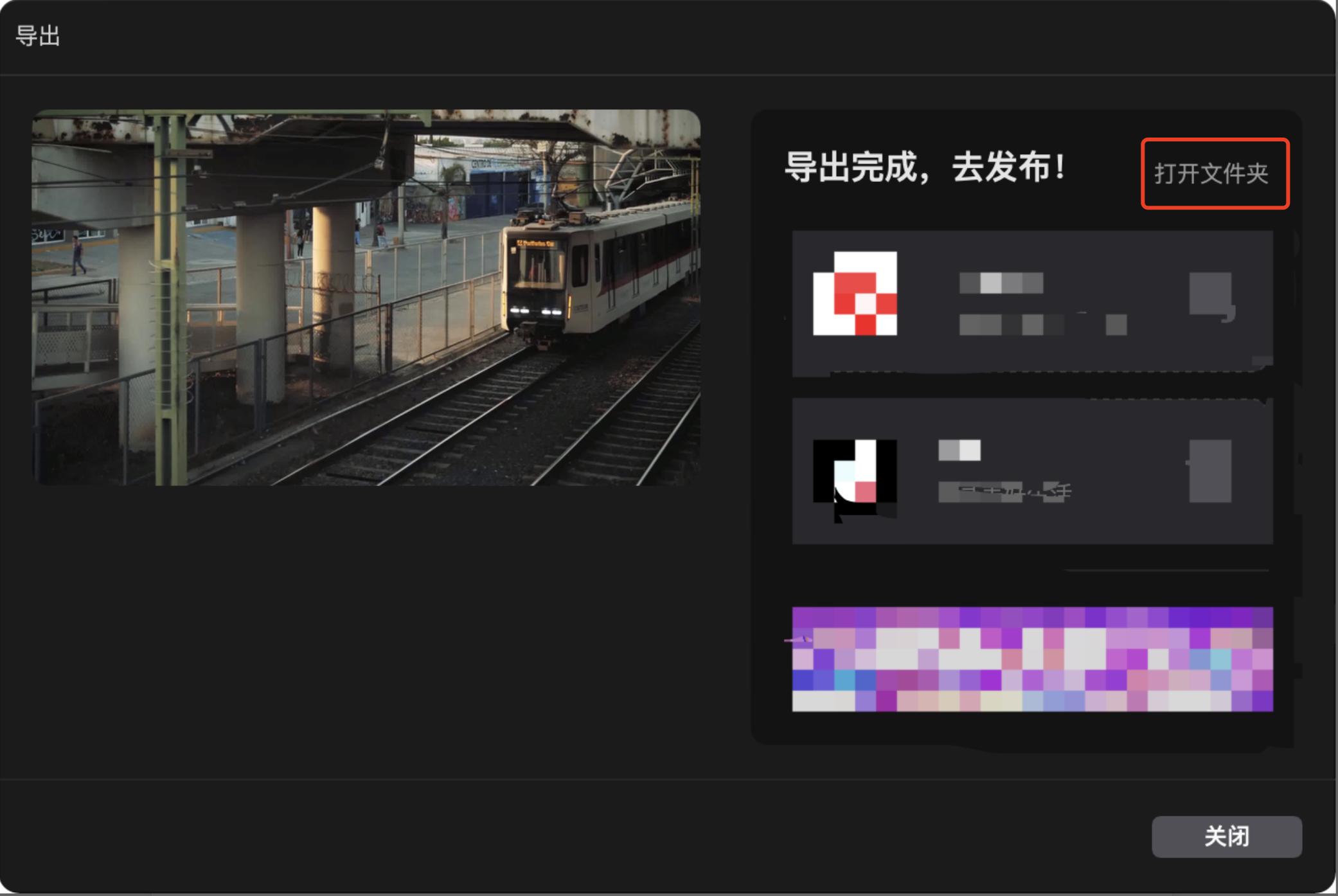
7. After the upload is completed, click [Open Folder] to view the storage location of the transcoded video.
No comments to display
No comments to display