
Tutorial on Configuring and Using the Personal Center
I. Feature Introduction
When users visit an elink online store, a 'Personal Center' (including personal information, purchased courses, learning records, etc.) will be set up for their accounts to save information. As a collection page for merchants' marketing and store services, the Personal Center hosts many important feature entrances. To enhance the store's personalization and user experience, we offer a custom setting function for the Personal Center.
II. Purpose of Use
Merchants can customize and configure the features on the Personal Center interface as needed. On the one hand, this can reflect the personalization of the store's features; on the other hand, it can improve the user experience and make it easier for students to find frequently - used feature entrances.
III. Use Scenarios
Typical scenario: A merchant wants to attract users in the store to become promoters. They can use the custom setting function of the Personal Center to drag the promoter menu bar to the top of the menu and customize the guiding text to encourage users to become promoters.
IV. Operation Path
Merchant side: Desktop management console → Store→Store management → Mobile end → Personal Center
Student side: WeChat H5 store → Personal Center
V. Usage Tutorial
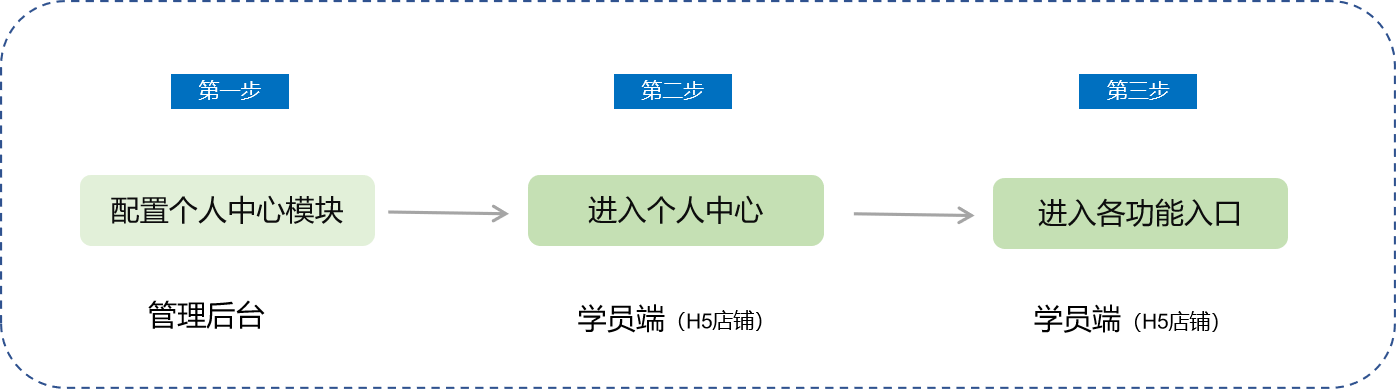
Step 1 Desktop management console
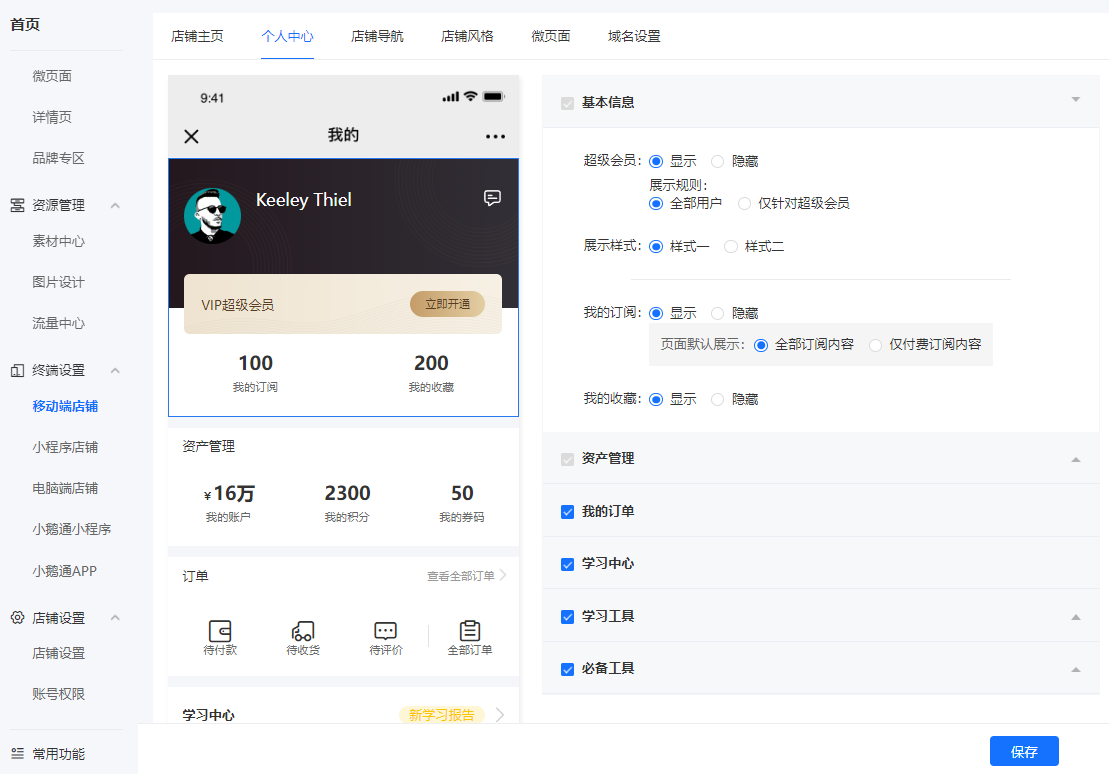
1. When a merchant checks to display a certain menu item, the menu entrance will be shown on the user - side Personal Center page. When the merchant checks not to display a certain menu item, the entrance will not be shown on the user - side Personal Center page.
Note: 'My Achievements' and 'Gift Records' are global entrances and cannot be manually closed.
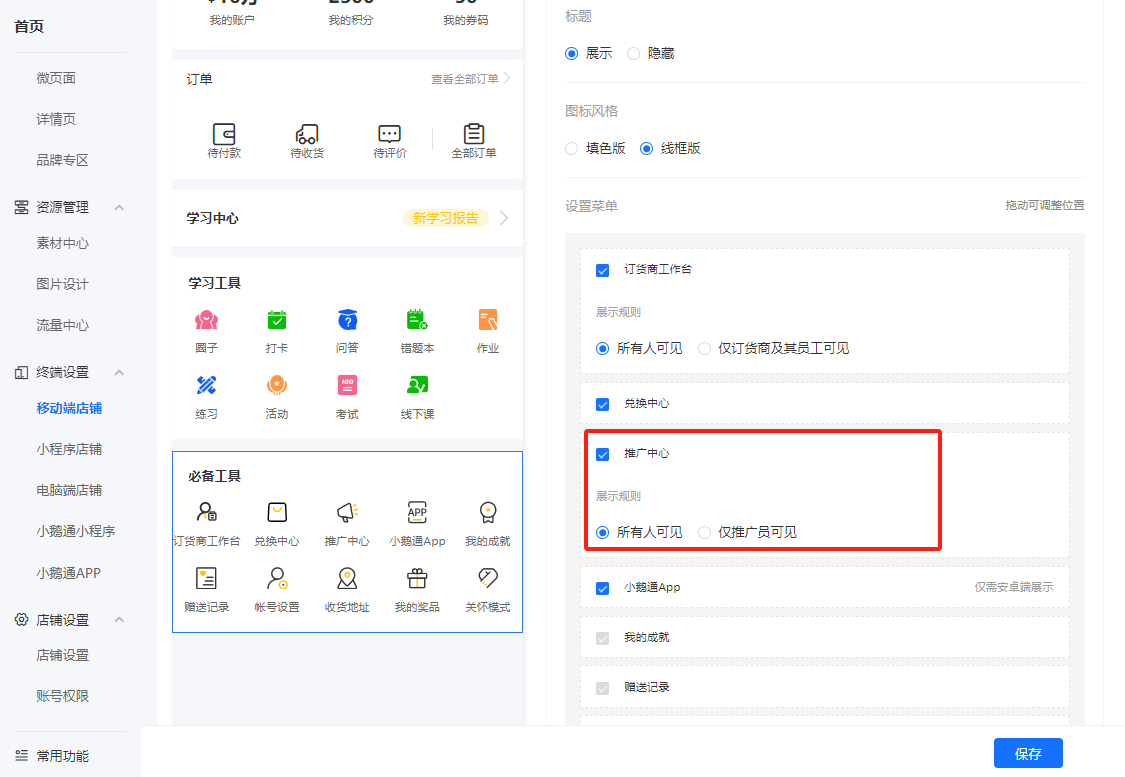
2. When a merchant configures the promoter function, they need to pay attention to the 'Display Rules' configuration item. When 'Visible only to promoters' is selected, the promotion center entrance will only be shown to promoter users, and ordinary users will not be aware of it.
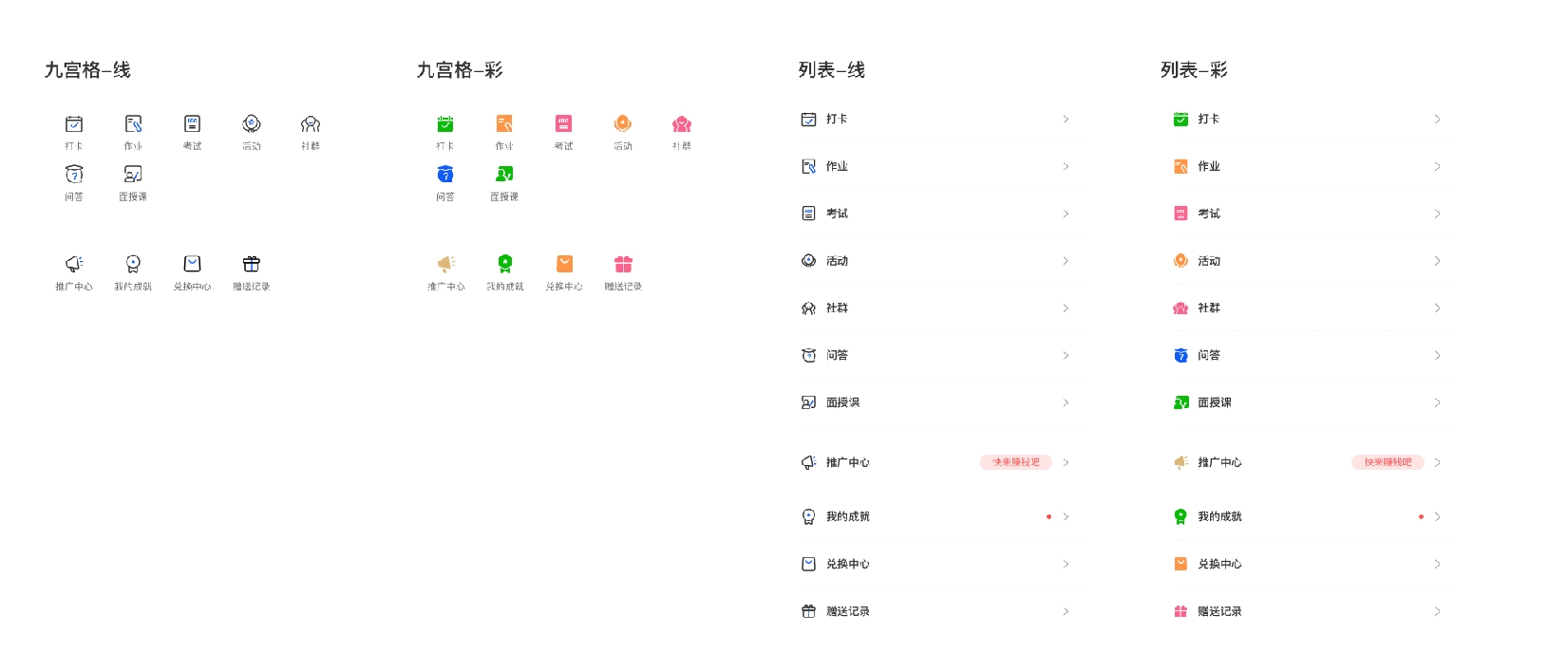
3. Multiple page styles are provided. You can switch between the nine - grid/form styles and also switch between the colored/icon wire - frame versions, giving merchants more freedom in visual style selection.
Note: When the wire - frame version of the icon style is selected, the icon color will follow the theme color.
Step 2 Mobile - end store
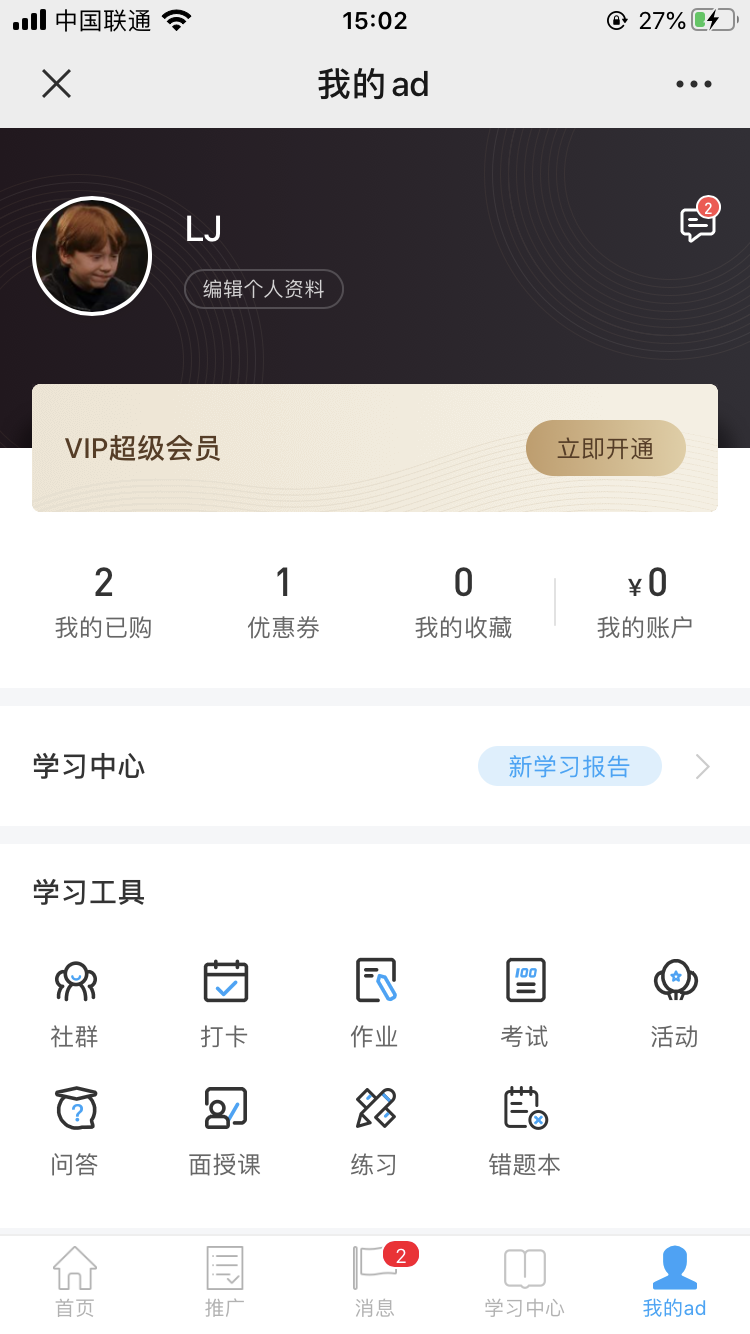
1.Users can intuitively see their assets, coupons, my favorites, learning aids, frequently - used features, etc.
VI. Precautions
1. The main color of the Personal Center is consistent with the store's theme color..
No comments to display
No comments to display