
Course materials usage tutorial
I. Function Introduction
Provide merchants with the ability to set course supplementary materials. Merchants can set relevant materials for courses when creating/editing courses, and learners can download them after purchasing/claiming the courses.
II. Purpose of Use
Help merchants quickly set course supplementary materials, making it convenient for learners to claim and download them during the course learning process.
III. Operation Path
Merchant side: Merchant background → Course management → Create/Edit course → Related materials settings
Learner side: WeChat H5 / PC store → Course details → Download related materials
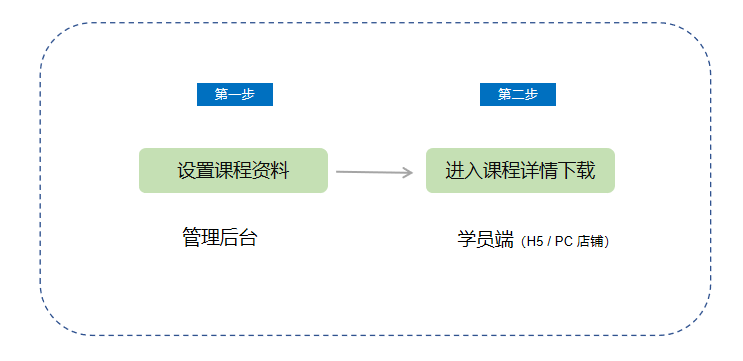
IV. Usage Tutorial
Step 1: Set course materials
1. When creating/editing a course, merchants can set courseware materials in the 'Related materials' section.
● 【For courses】: Text - images, audio, video, e - books, columns/large columns, camps, memberships. (Live streaming and class courses will be supported later).
● 【Supported file formats】: All [image, audio, video, document] formats in the material center are supported.
● 【Supported number of files】: A single course supports a maximum of 20 files.
● 【Download conditions】: Learners can download after purchasing/claiming the course.
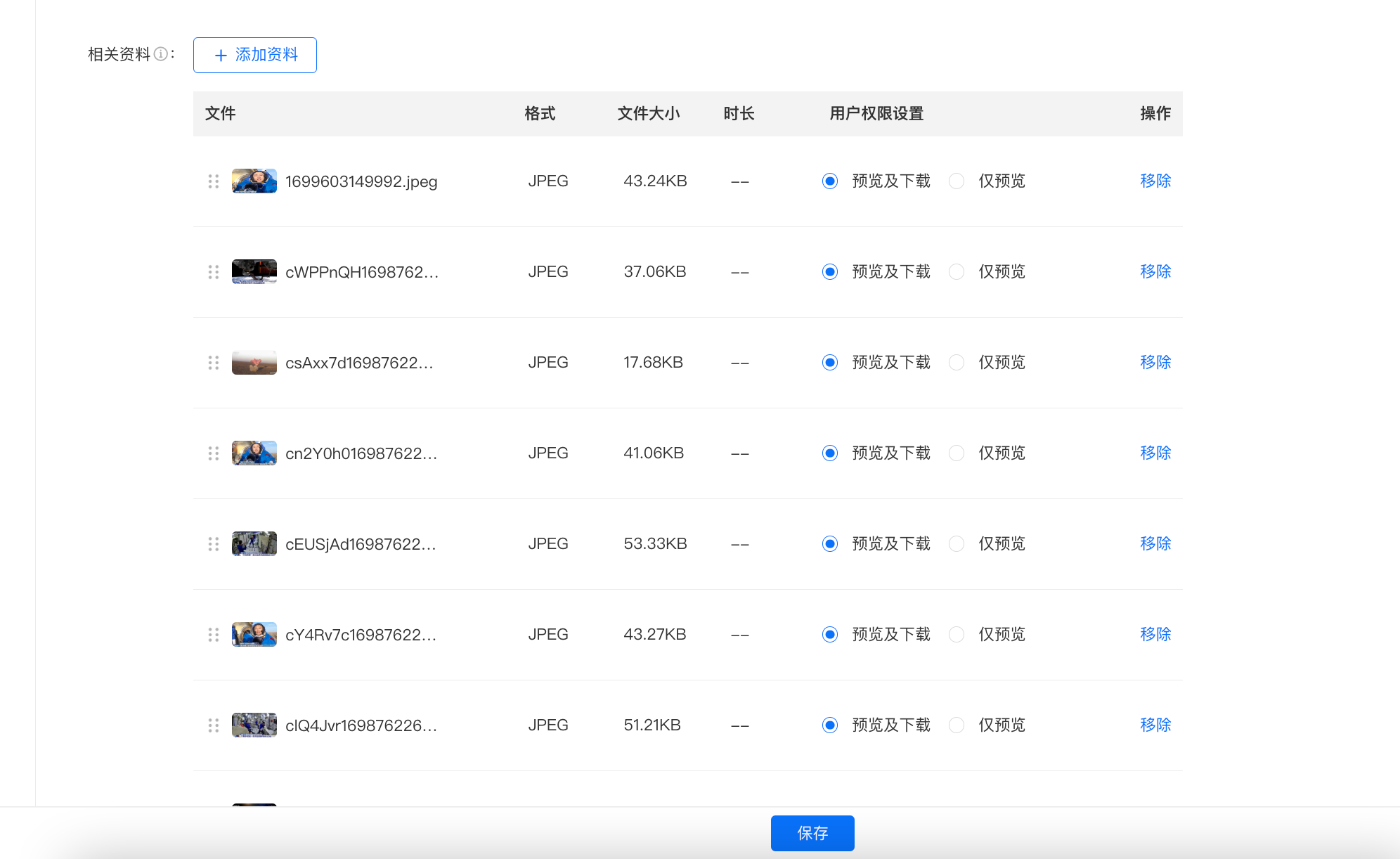
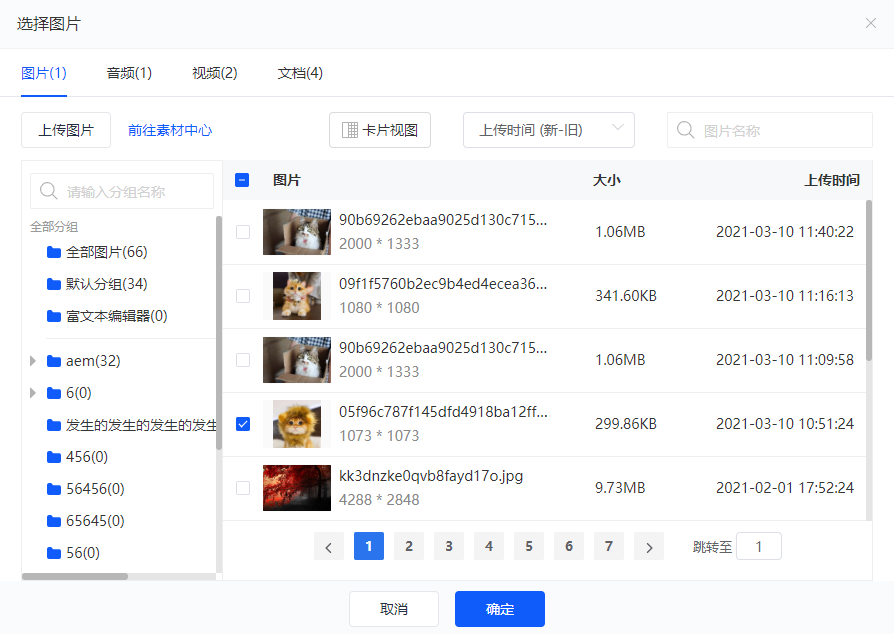
(Management background)
Step 2: Learners enter the course details page on the learner side to download courseware materials (H5 / PC store)
1. 【H5 side】: If merchants have set courseware materials, when learners enter the course details page, the 'Download related materials' entry will be displayed. Learners can download courseware materials after purchasing/claiming the course.
● 【For courses】: Text - images, audio, video, e - books, columns/large columns, camps, memberships.
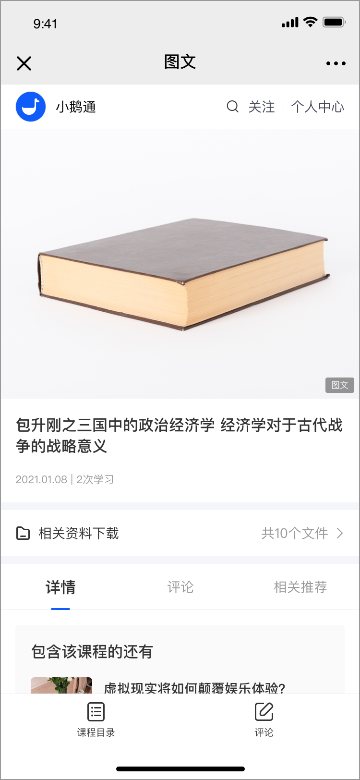
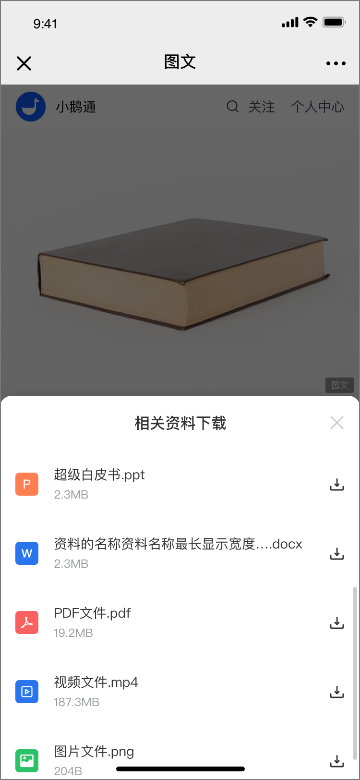
(H5 course details page)
2. 【PC side】: If merchants have set courseware materials, when learners enter the course details page, the 'Download related materials' entry will be displayed. Learners can download courseware materials after purchasing/claiming the course.
● 【For courses】: Text - images, audio, video, columns/large columns, camps. (E - books and memberships: No PC version).
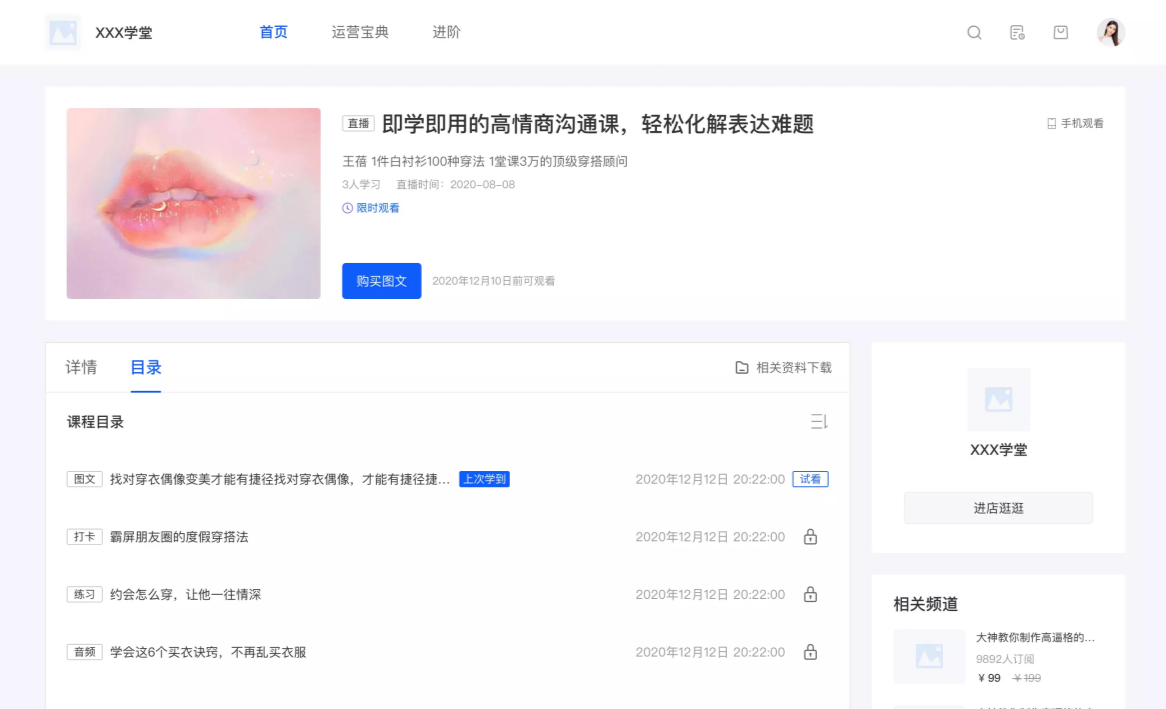
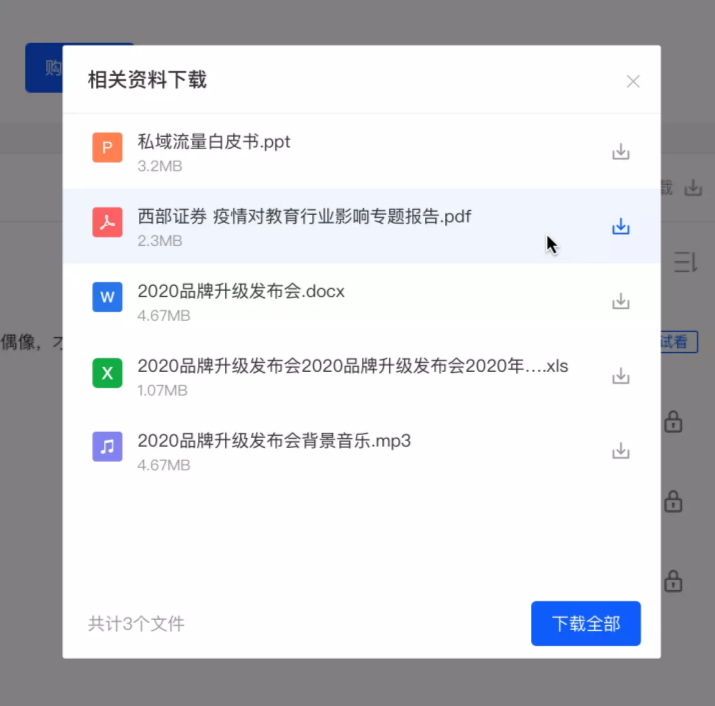
V. Frequently Asked Questions
1. Which courses are supported in the courseware library?
A: Text - images, audio, video, e - books, columns/large columns, camps, memberships. (Live streaming and class courses will be supported later).
2. Where do merchants need to set?
A: In the management background, enter the above course modules, click Create/Edit course, and you can set in the 'Related materials' section.
3. Which file formats are supported in the courseware library? Is there a limit on the number of files?
A: All [image, audio, video, document] formats in the material center are supported. The limit is 20 files.
4. Which learner terminals are supported for using the courseware library?
A: It is supported to use on H5 and PC browsers. Other terminals will be supported later.
5. What are the conditions for learners to download courseware materials?
A: Learners need to purchase or claim the course before they can download the courseware materials.
No comments to display
No comments to display