
Tutorial on Using Product Grouping
I. Feature Introduction
Product grouping is a function for categorizing and displaying knowledge products. It helps merchants customize groups for knowledge products in the store. After grouping, products can be set to be displayed in the knowledge product component on the store homepage or in the store navigation, allowing users to quickly view the knowledge products you've set up.
II. Purpose of Use
To help merchants customize groups for knowledge products in the store.
III. Use Scenarios
An operator of a store groups all literature courses in the store into a product group and sets this group to be displayed on the store homepage. When users visit the store, they can view all the literature courses in this group by clicking 'View All'.
IV. Operation Path
Merchant side: Merchant backend → Store → Product grouping
Learner side: WeChat H5 store → Store homepage → Knowledge product component/Navigation
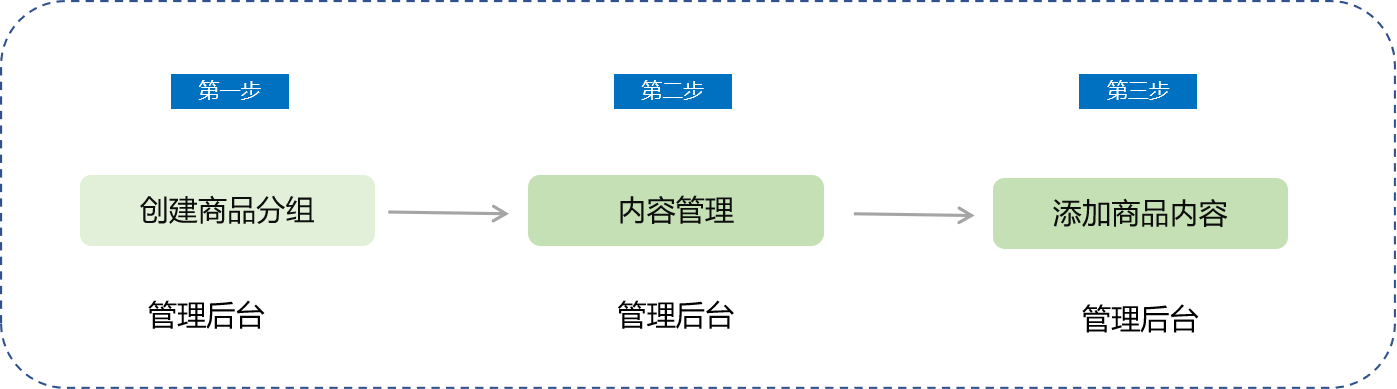
V. Usage Tutorial
Step 1: Configuration in the Management Backend
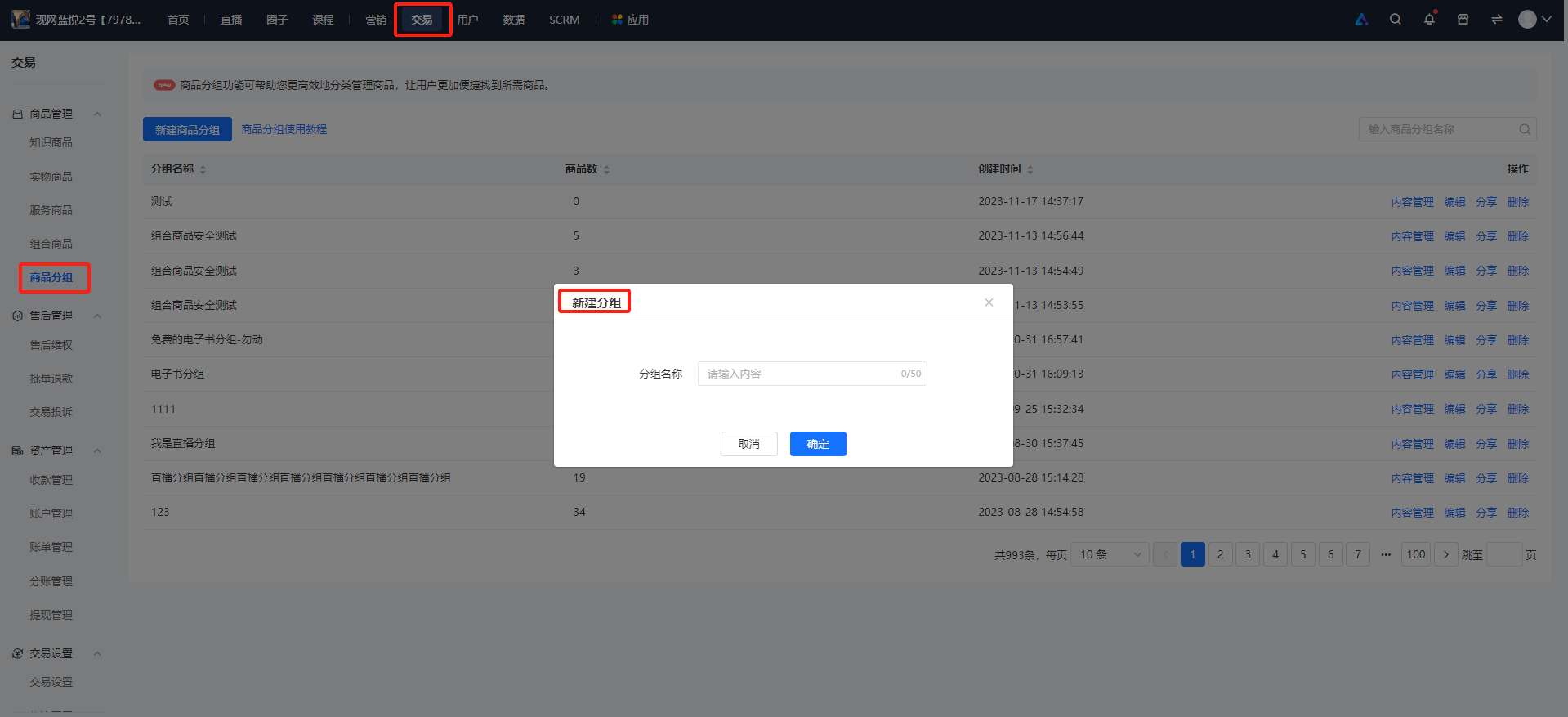
1. Go to the [Transactions] - [Product Management] - [Product Grouping] page and click the 'New Product Group' button. Fill in the group name and click the [Save] button to successfully create a product group.
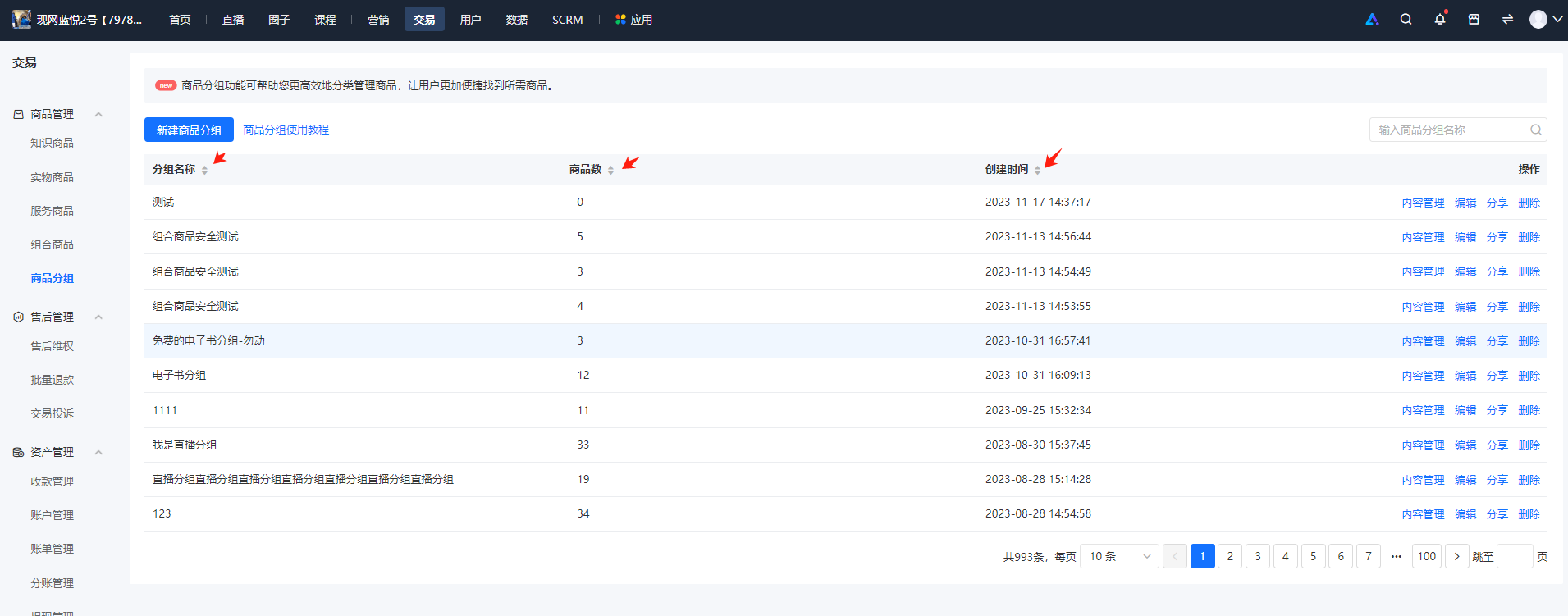
2. Click the gray arrows on the right side of the group name, number of products, and creation time to sort them in ascending or descending order with one click.
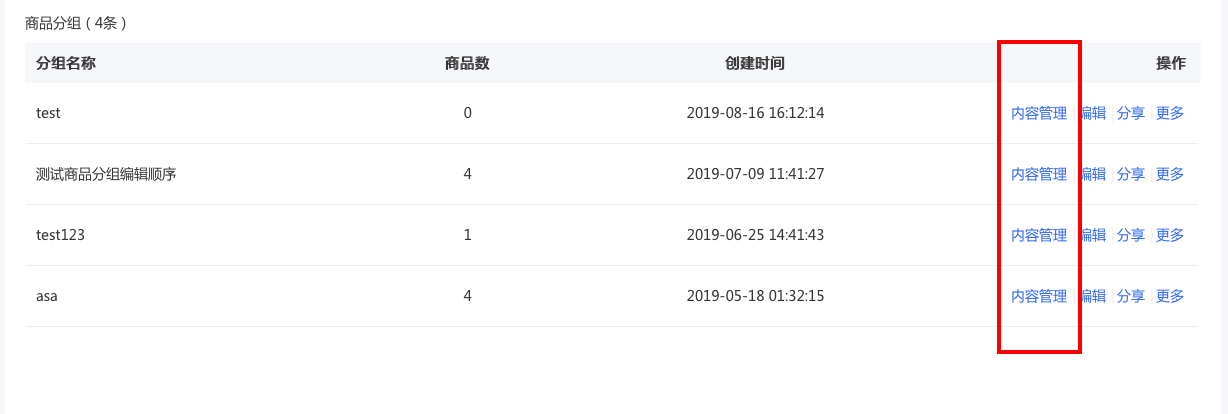
3. Click 'Content Management' to enter the product management page within the group. Click 'Add Product' to add text - image materials, audio, video, live streams, columns, major columns, memberships, affiliate products, AI interactive courses, offline courses, camps, and purchased courses to the product group.
You can also go to the knowledge product creation/editing page and select the corresponding product group in the product editing settings.
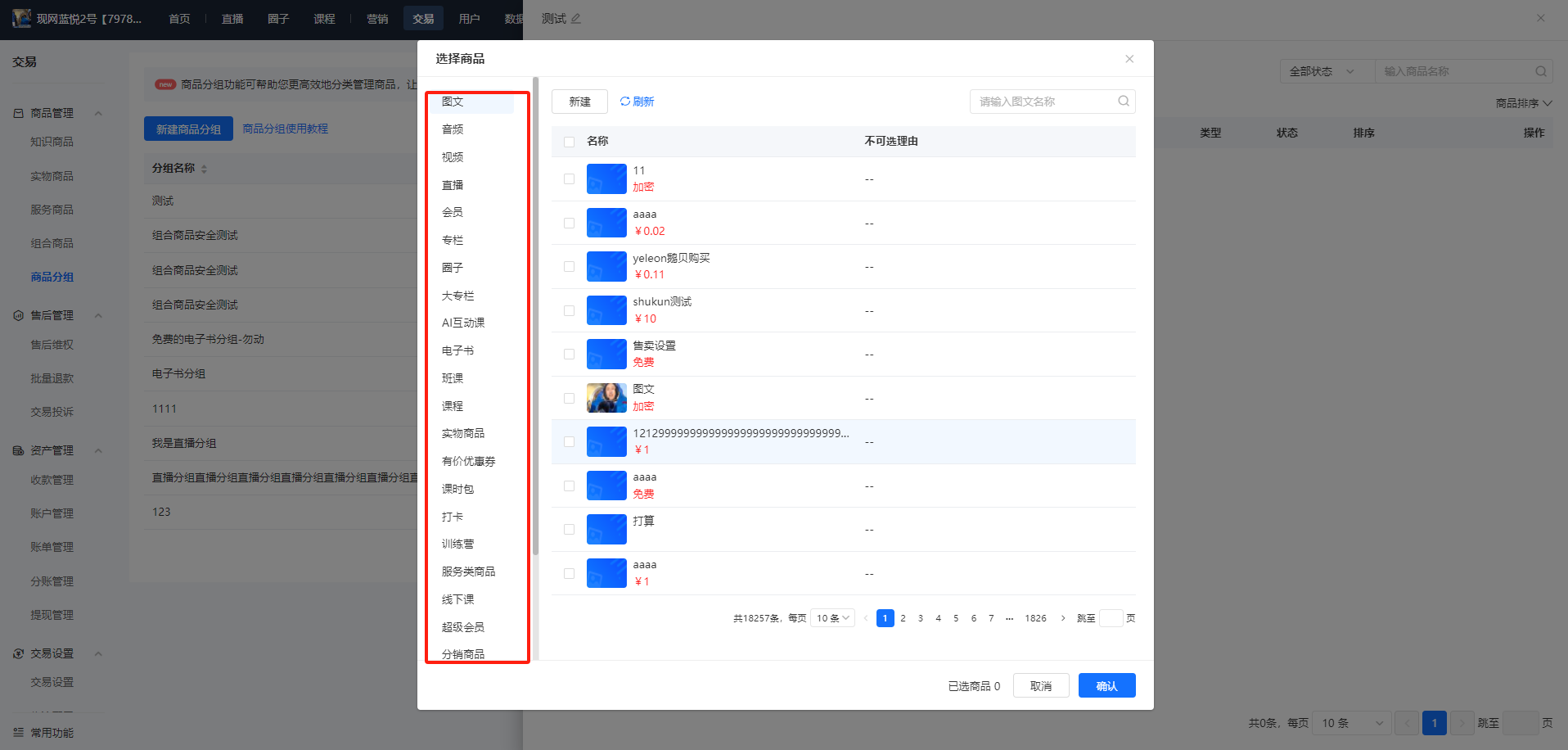
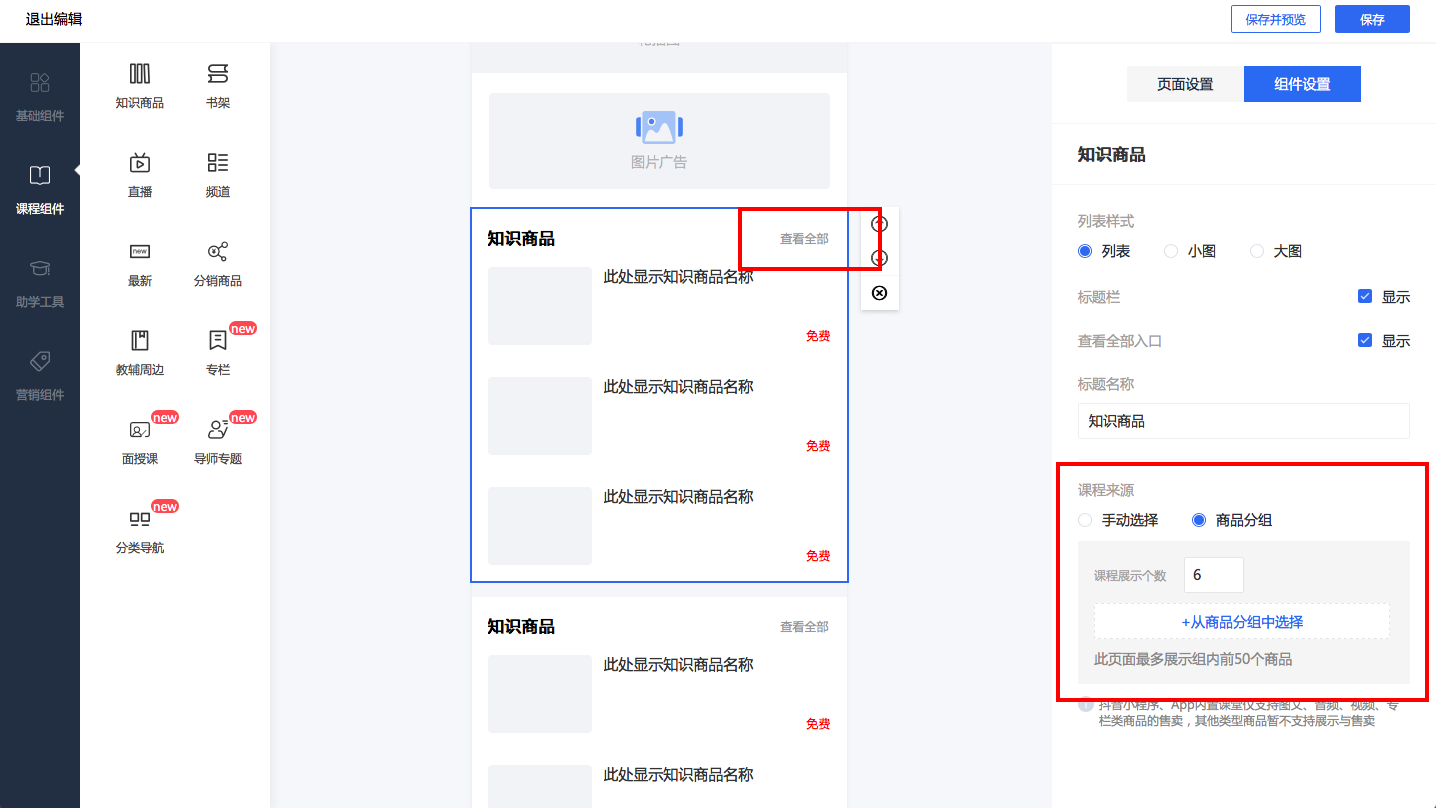
4. Application of product grouping: Product grouping is displayed as a page on the mobile side. When selecting a jump link for the category navigation component, you can choose to jump to a specific product group page.
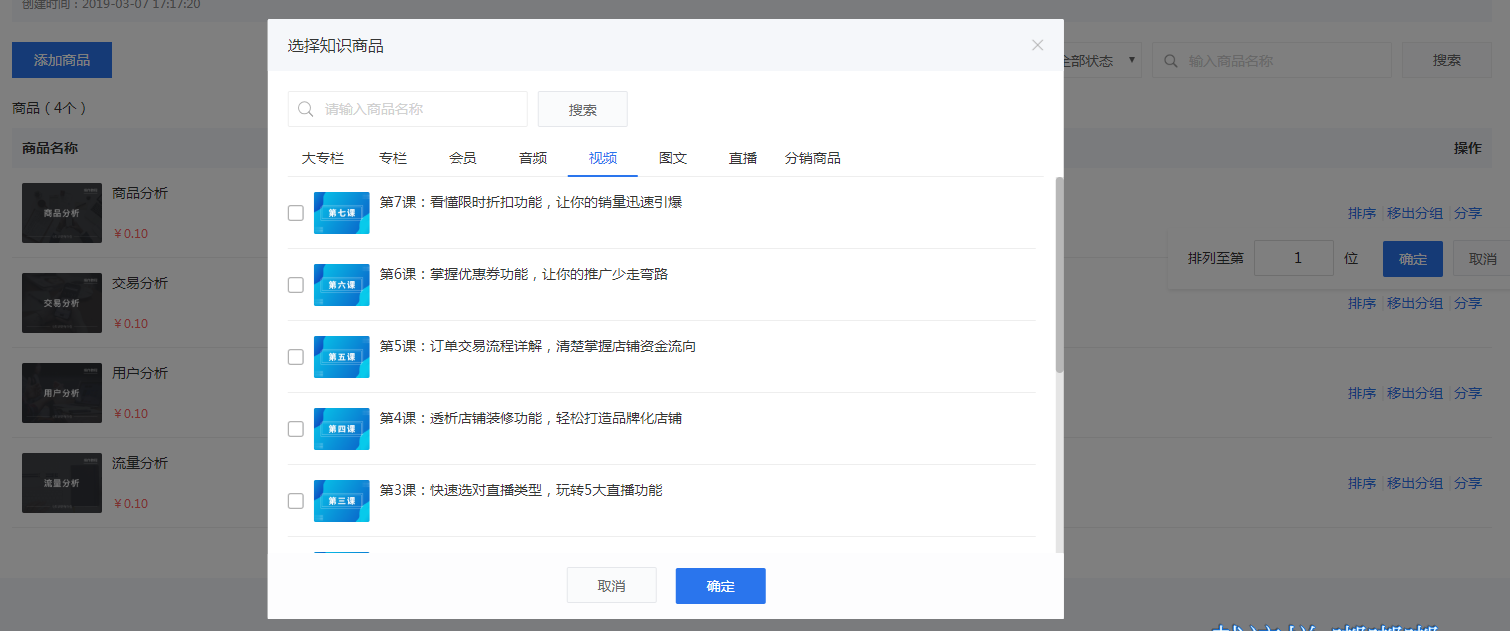
5. Click [Add Product] to manually add multiple courses of the same type, such as [Videos] or [Text - Image Materials].
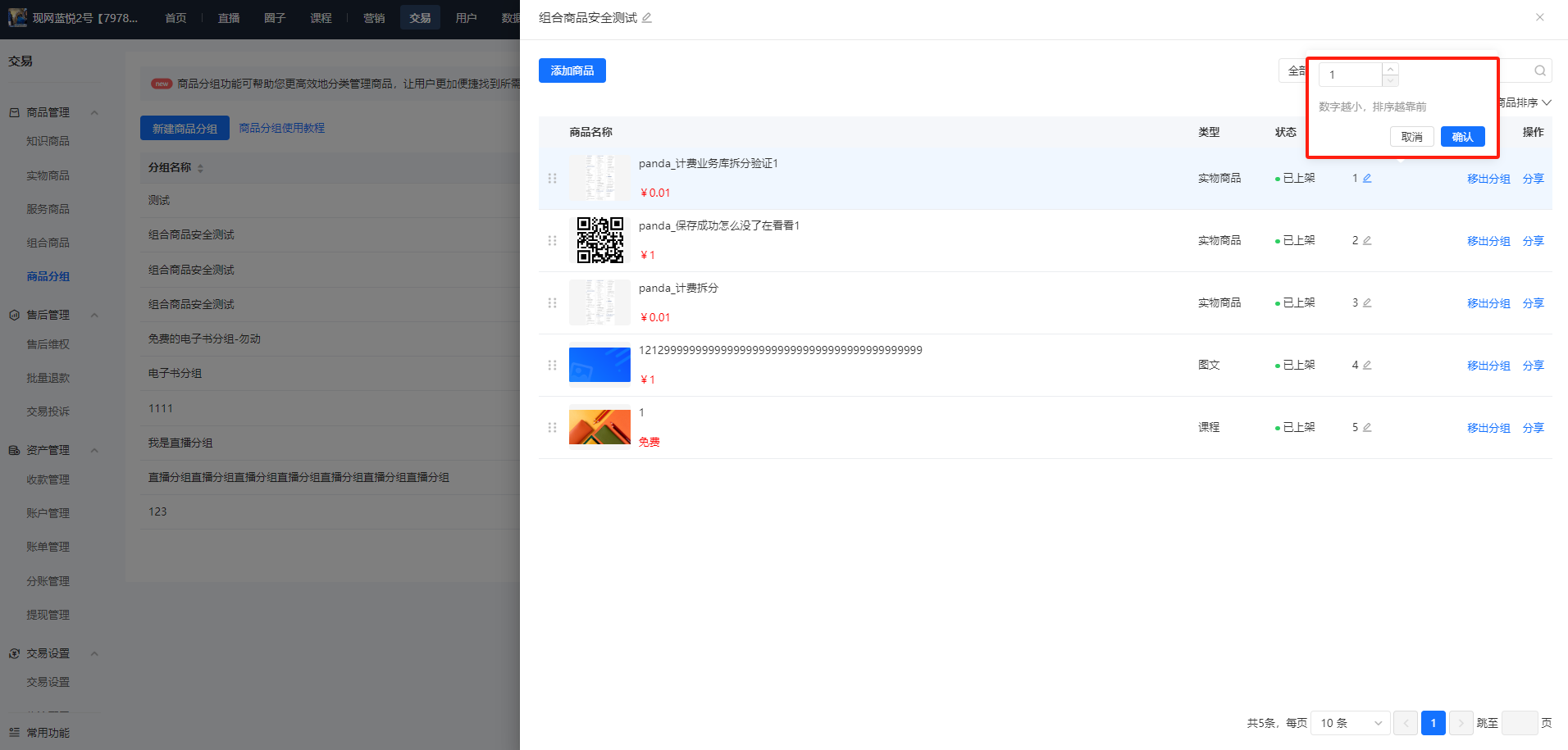
6. Go to [Transactions] - [Product Grouping] - [Content Management] and click [Sort] to set the sorting order.
Step 2: H5 Store
1. Display of product grouping on the H5 store side
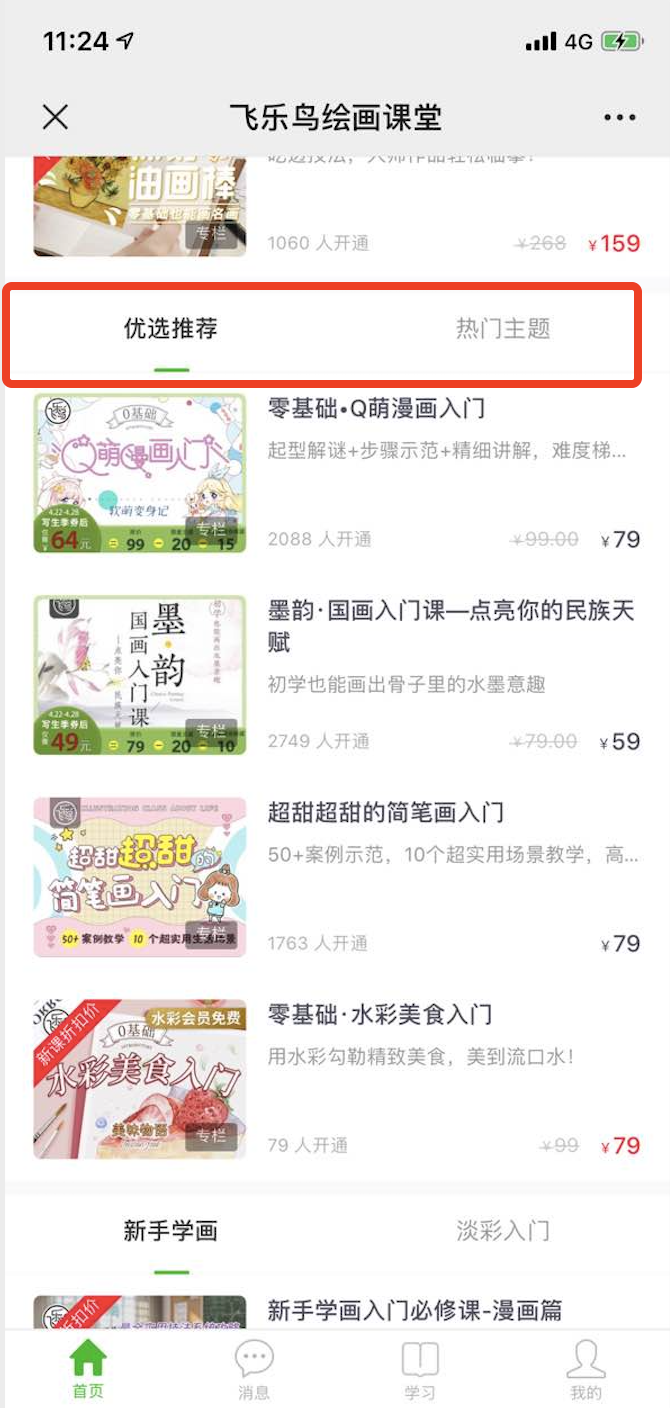
(H5 store homepage)
No comments to display
No comments to display