
Tutorial on Using the Mobile Template Library
I. Function Introduction
The Mini Page Template Library is a Mini Page building solution provided by elink for merchants. Merchants can choose templates that suit their store style and brand tone from 11 different types of templates.
II. Purpose of Use
Depending on the industry and usage scenarios, the Mini Page can be set as the store's homepage, or a link can be set through the bottom navigation of the store to jump to it, or it can be shared as an independent page with specific groups.
III. Usage Scenarios
When creating a new Mini Page, merchants can refer to the provided template solutions to build the page.
IV. Operation Path
Merchant side: Store -> Mobile store -> Mini Page -> Create a new Mini Page
V. Usage Tutorial
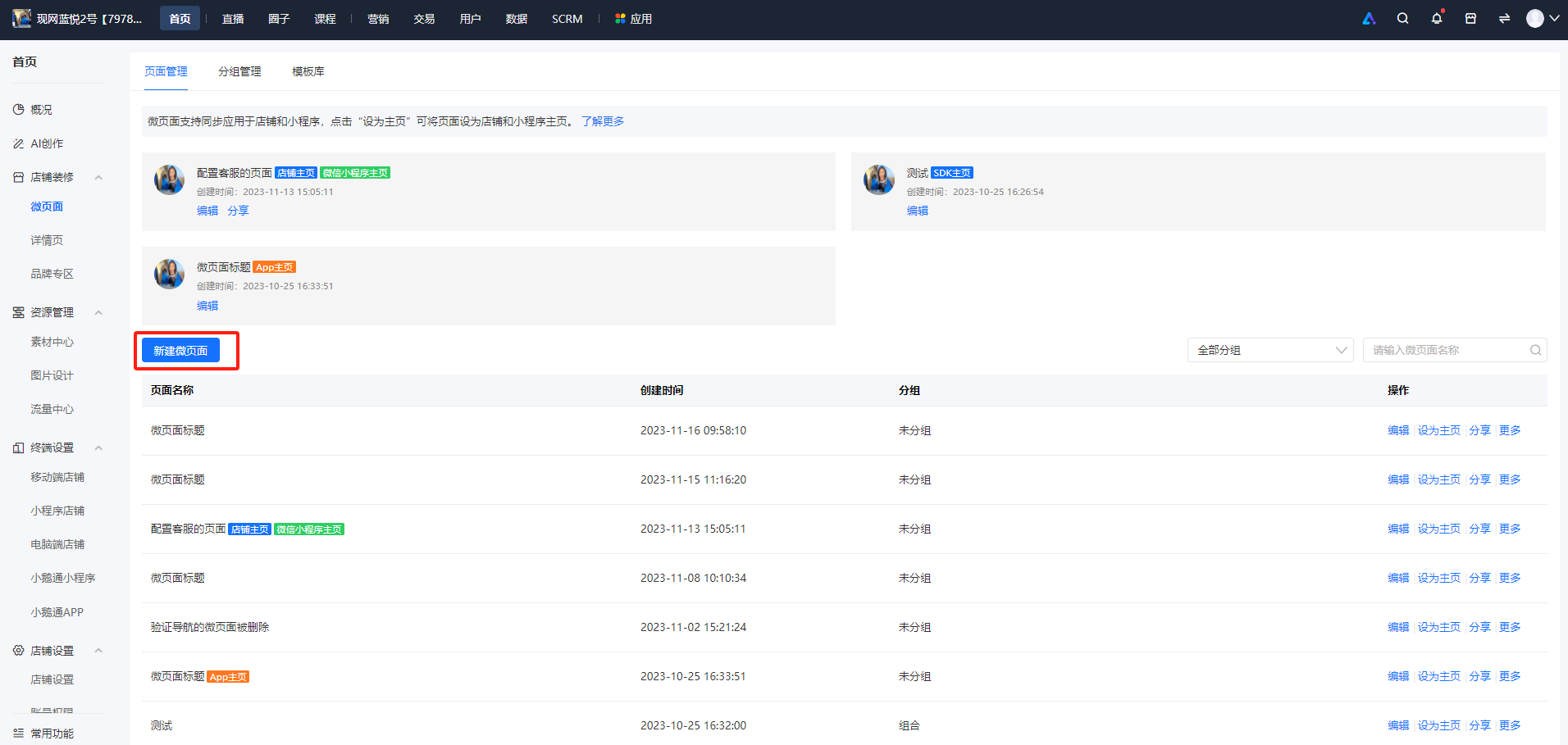
Step 1:Homepage -> Store decoration -> Mini Page -> Create a new Mini Page (Management background)
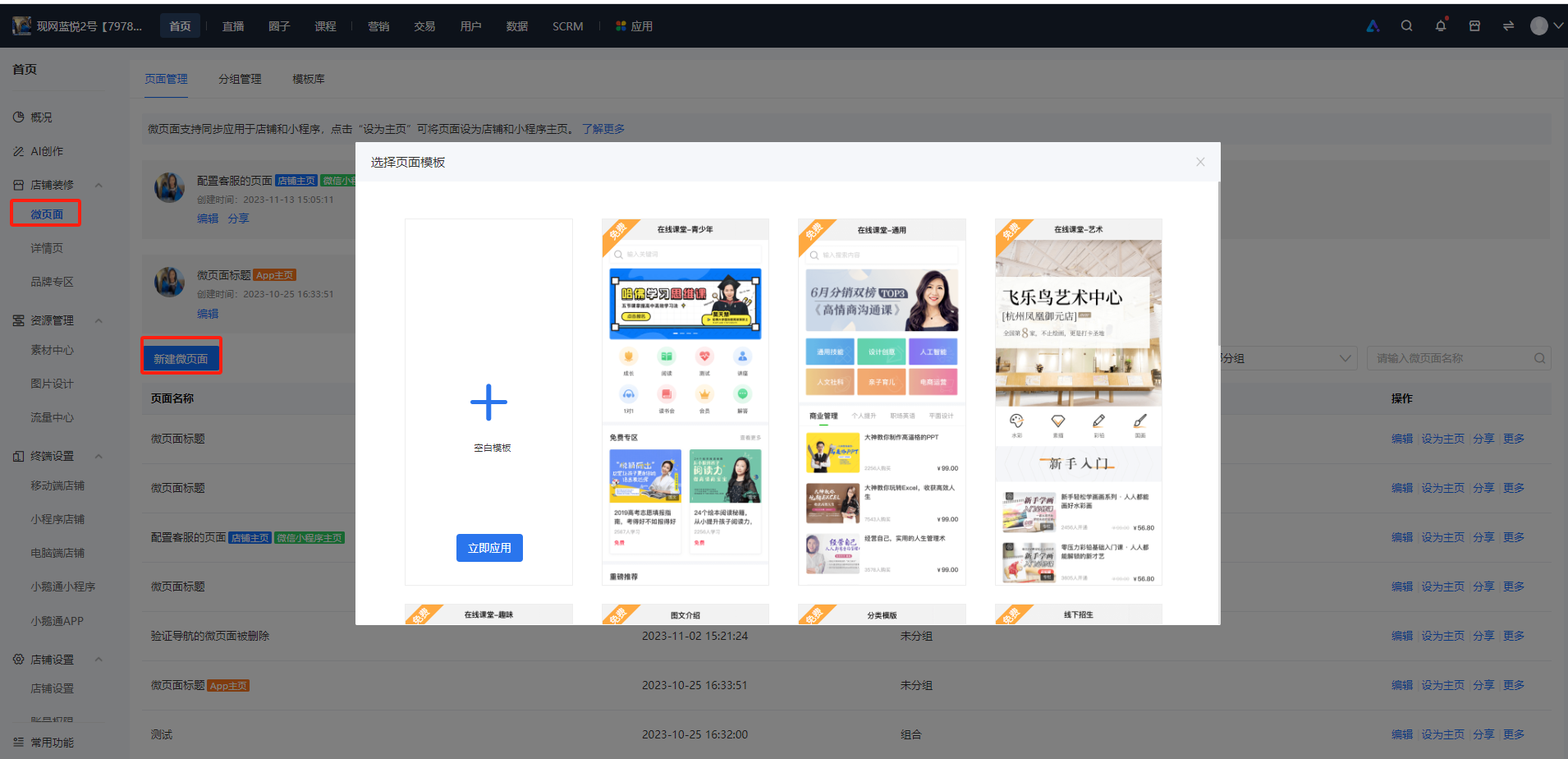
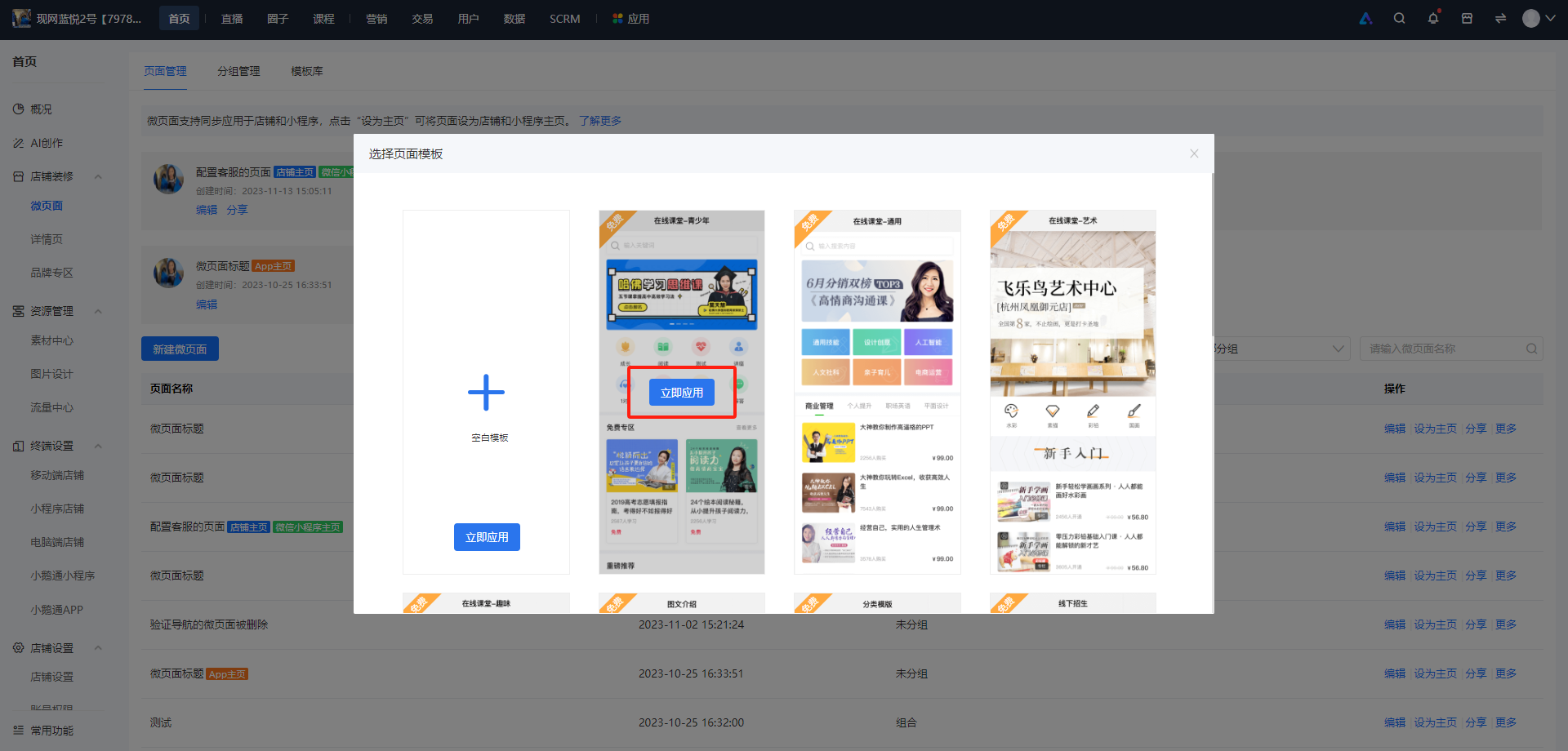
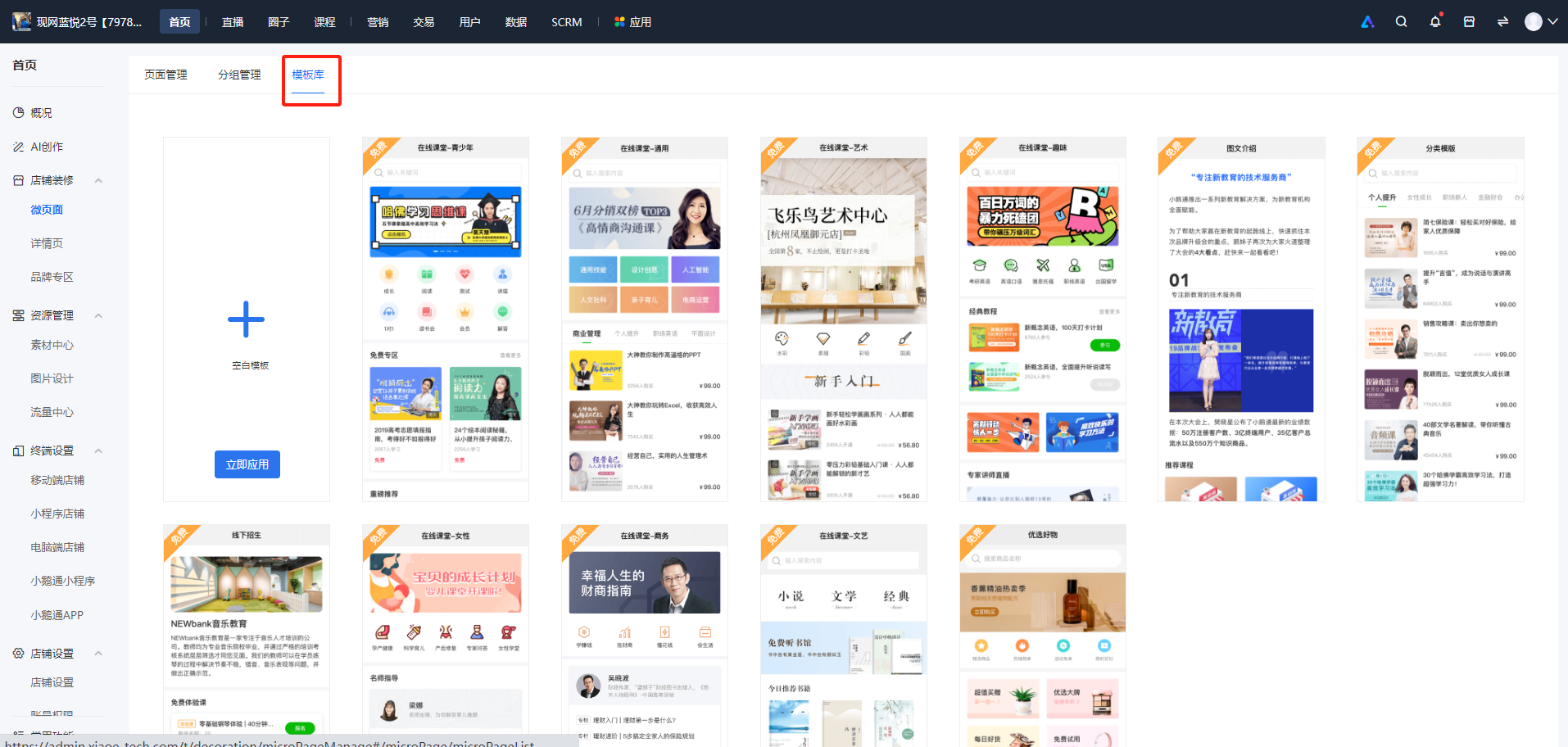
Step 2:Select a suitable template page and click [Apply now] to edit components and upload corresponding material content (Management background)
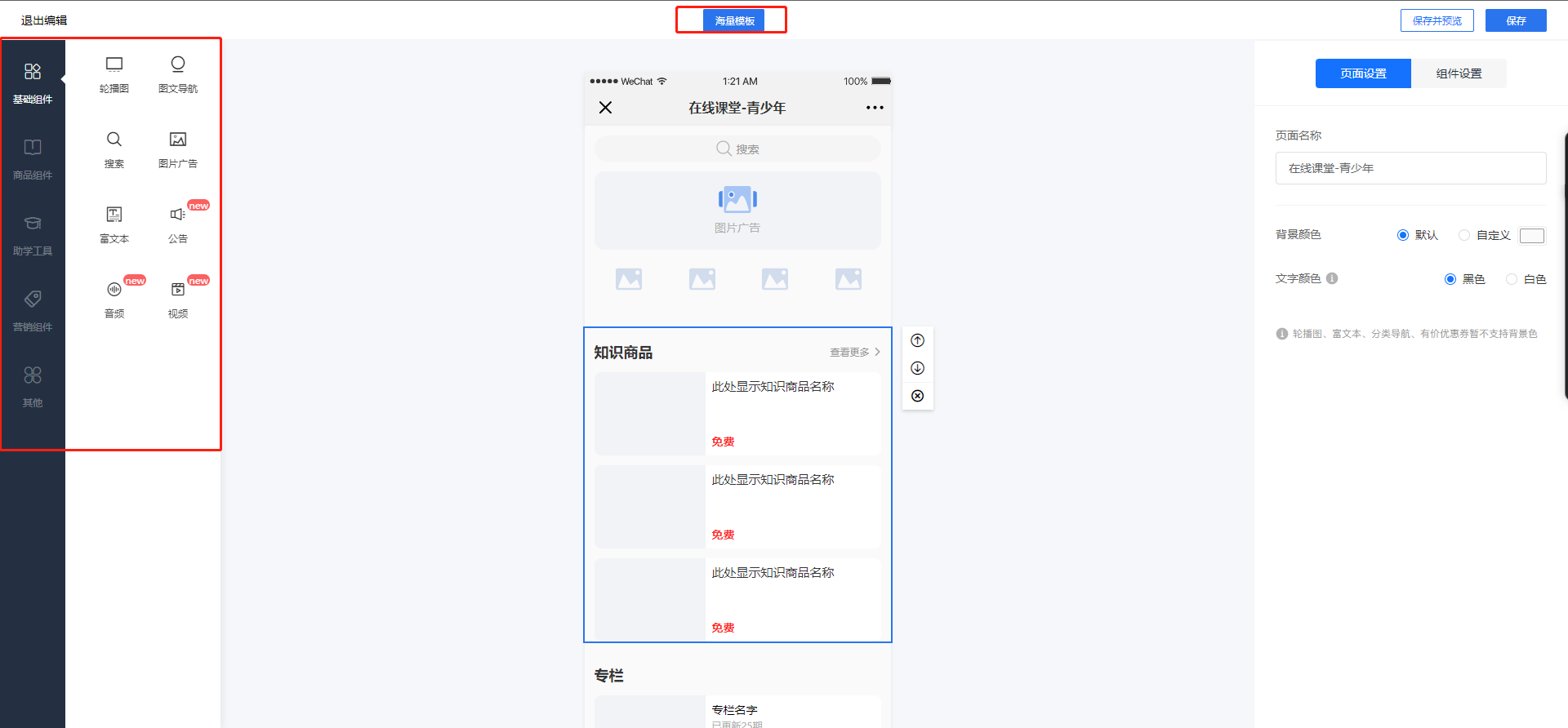
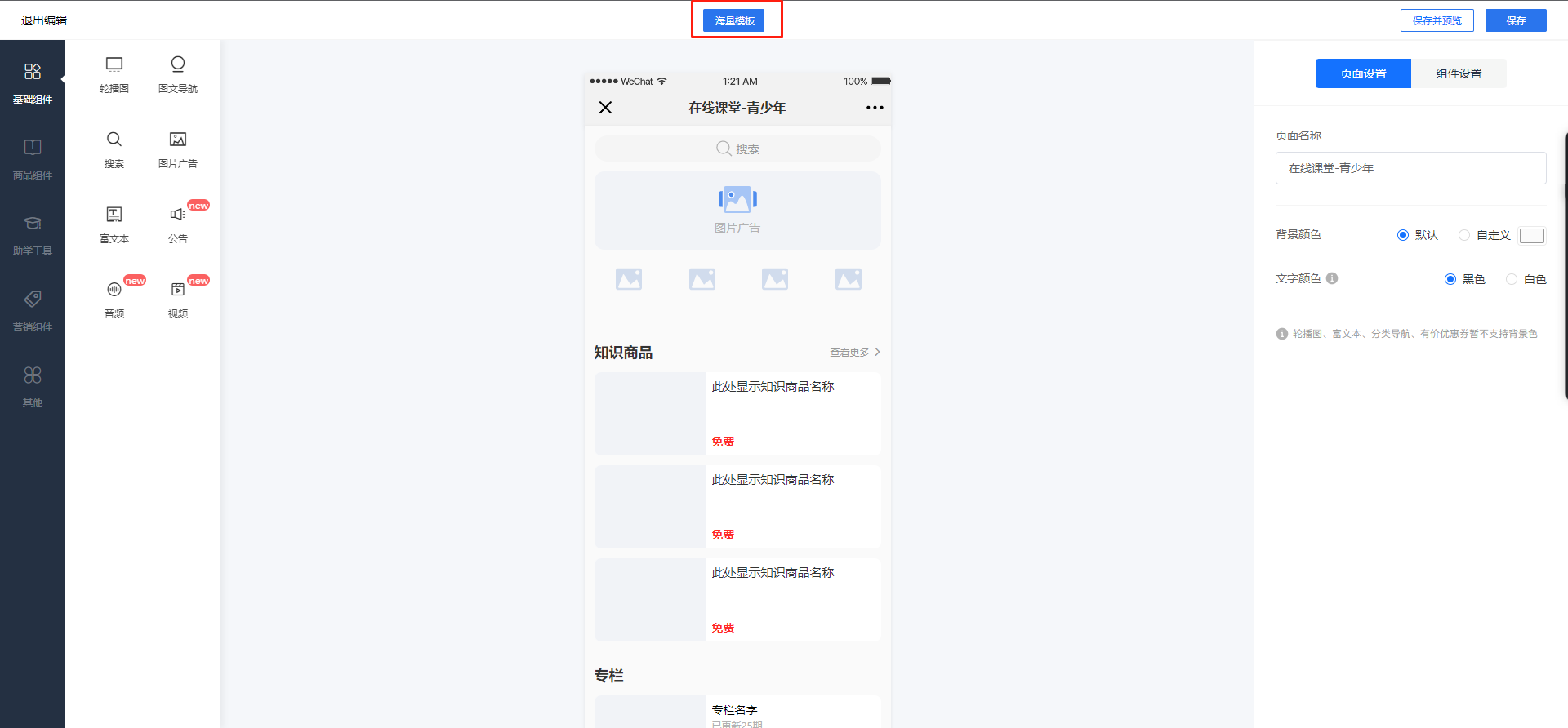
Step 3:On the left are the corresponding classified components. You can add or delete components on the basis of the original template, and users need to upload the content themselves. If you want to change the template during the editing process, click [Massive templates] to re - enter the template library and select a template for editing.
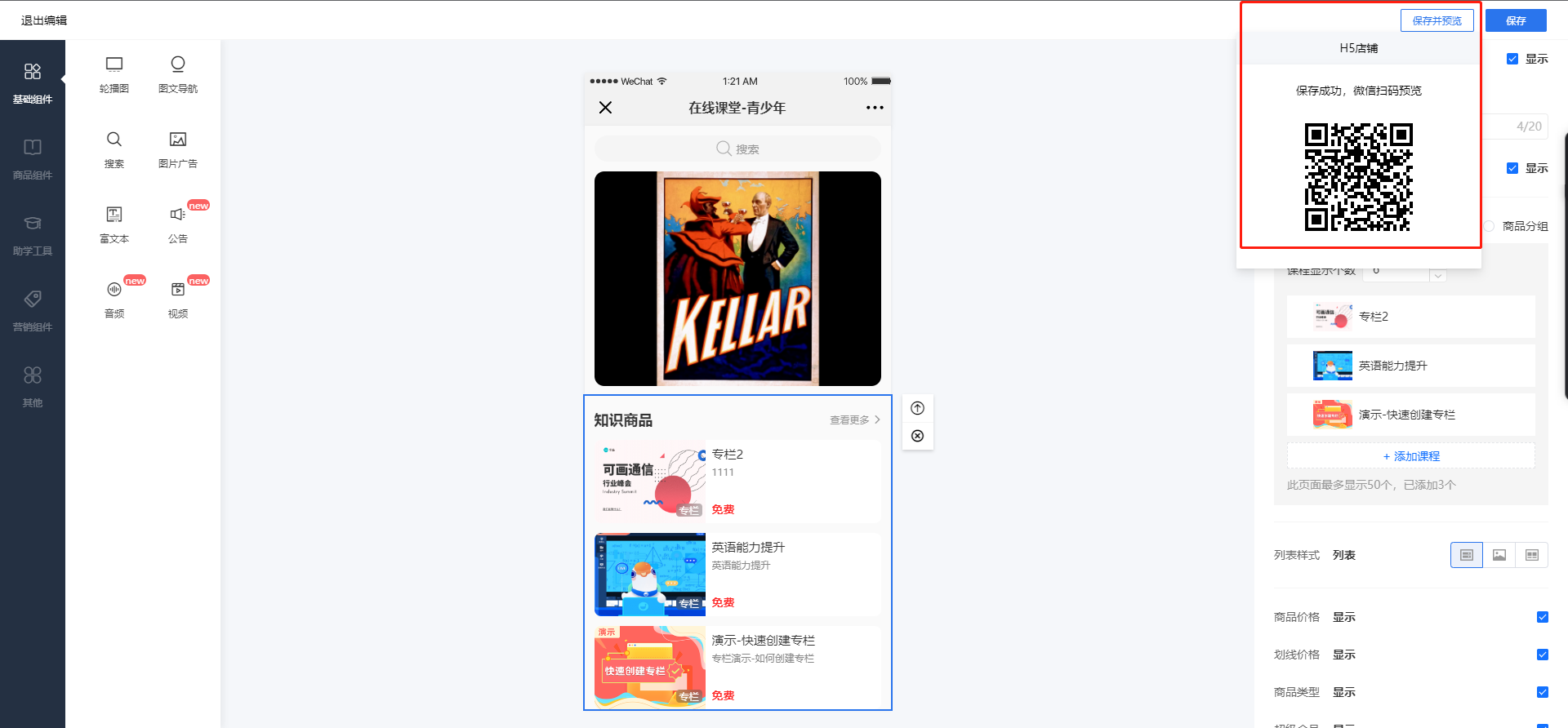
Step 4:Click [Save and preview], and you can scan the QR code in the upper right corner to preview the effect on the mobile device.
VI. Notes
You can enter the template library from the following two places:
1. On the Mini Page list, click the [Create a new Mini Page] button;
2. Click [Template Library] to enter.
You can switch templates at the top of the store decoration page.
As shown in the figure:
No comments to display
No comments to display