
Product Recommendation Usage Tutorial
I. Function Introduction
【Product Recommendation】 is a tool that helps merchants increase the exposure of specified products. After setting it up, when customers view product details, they can see the products you want to promote, increasing product visits and conversion rates.
II. Purpose of Use
Increase product exposure and revenue.
III. Use Scenarios
Scenario 1:
A merchant has newly launched a batch of courses and wants to increase their exposure beyond community media and the store homepage. So, the merchant uses Product Recommendation to guide users to purchase more products, thereby helping to improve conversion rates and extend users' browsing time in the store.
IV. Operation Path
Merchant side: Merchant's computer management console → Marketing → Marketing Tactics → Product Recommendation
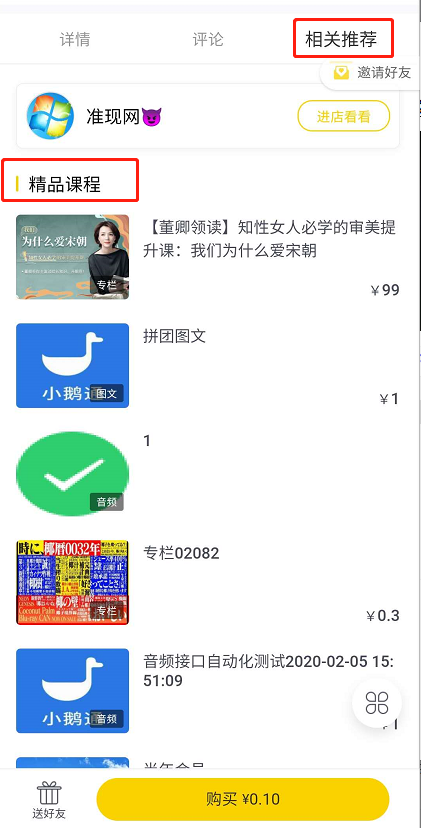
Student side: Visit the product detail page → Related Recommendations → Featured Courses
V. Usage Tutorial
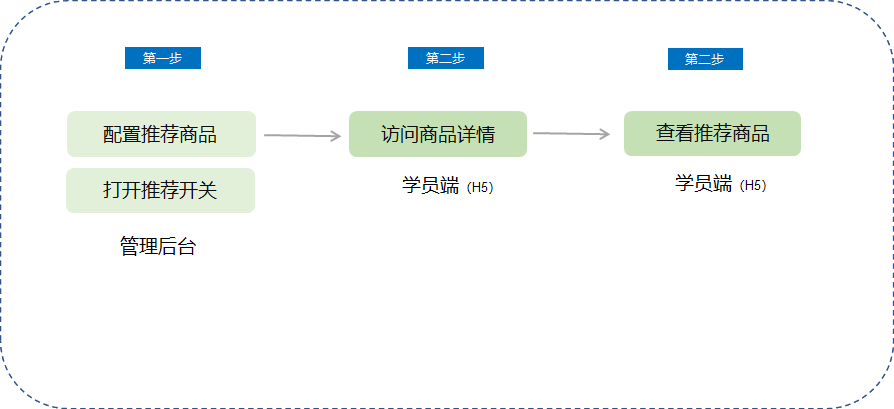
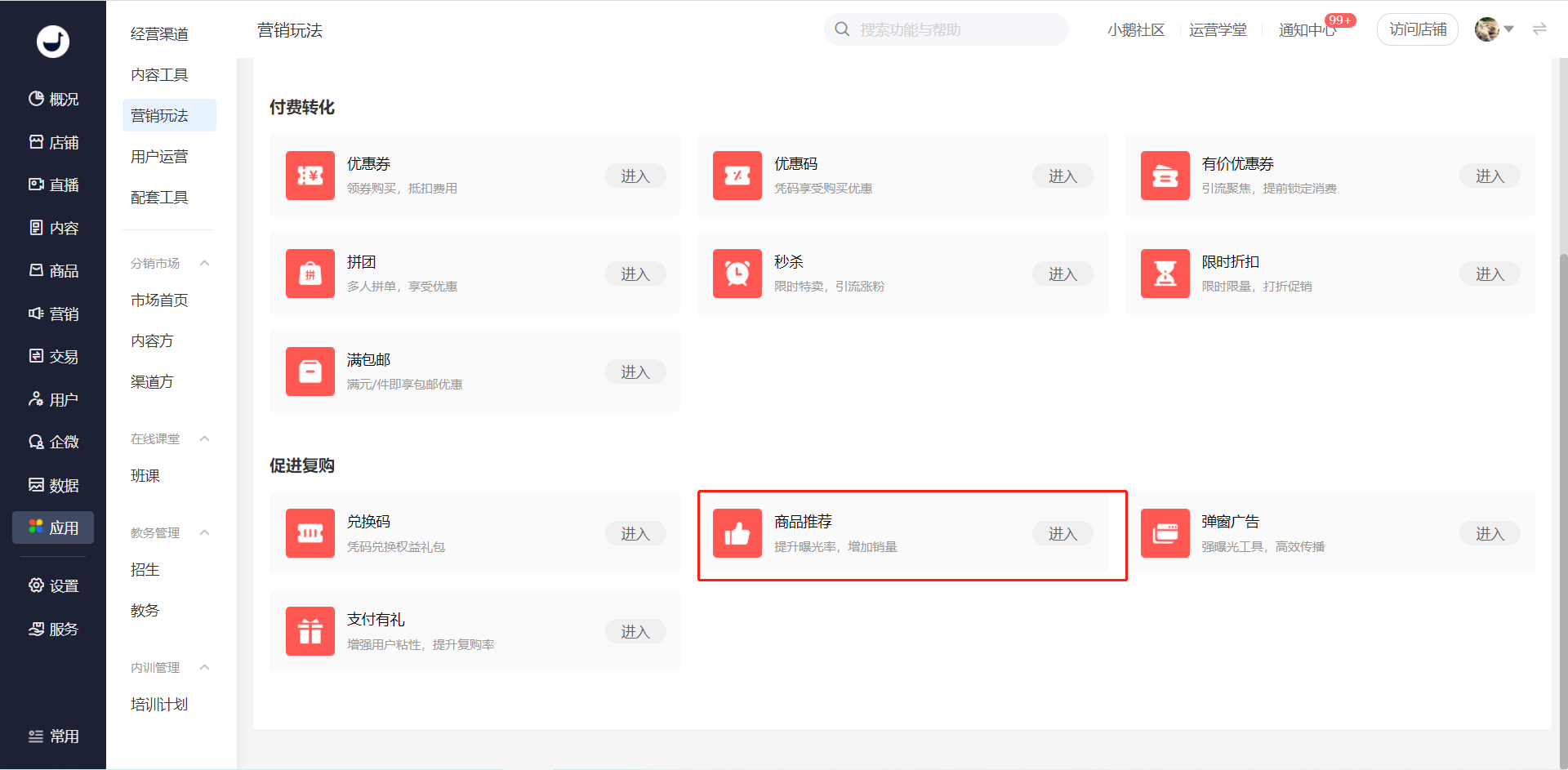
1. Enter the elink management console, click 【Marketing】 on the left, and you can find 【Product Recommendation】 in 【Marketing Tactics】.
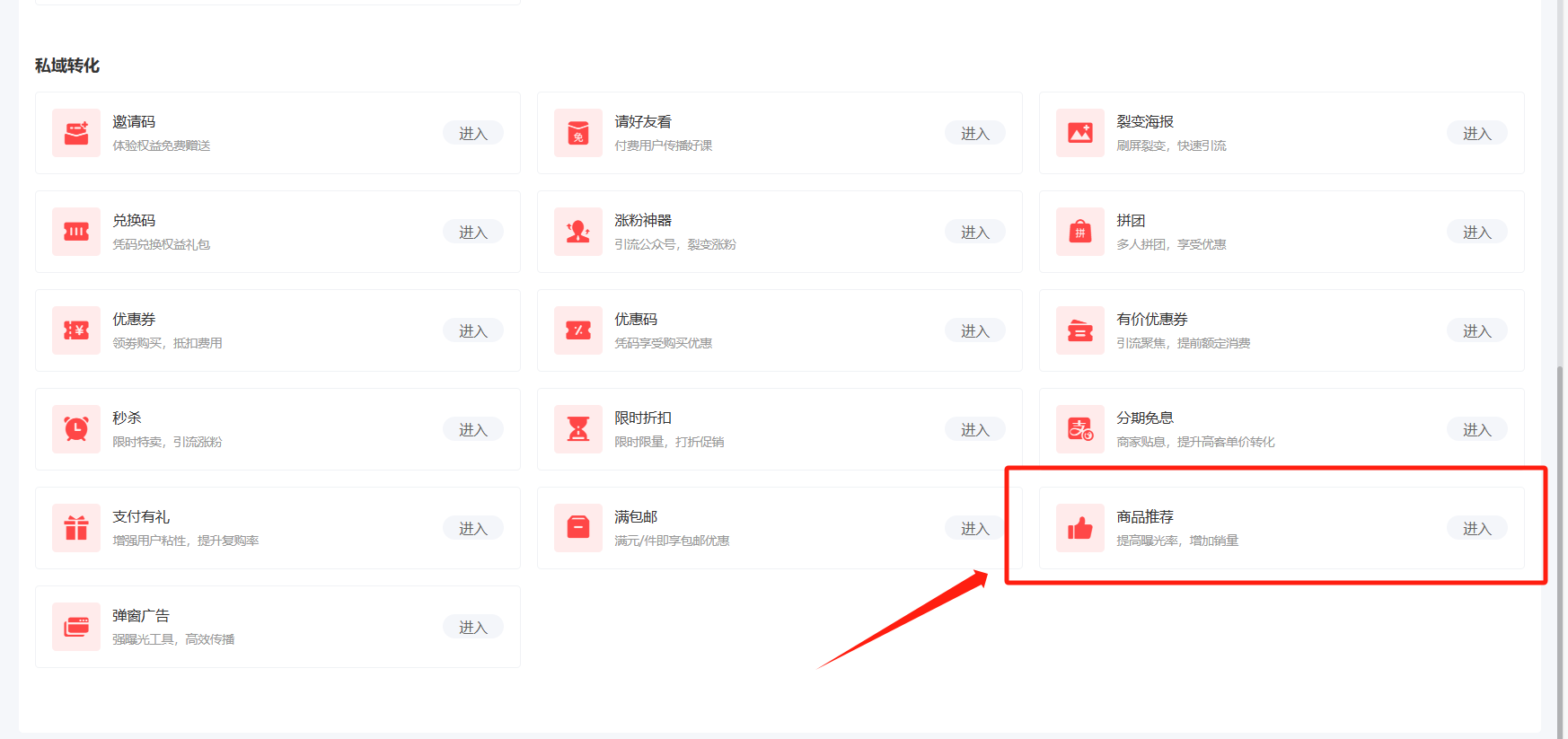
2. Add/Manage Recommended Products
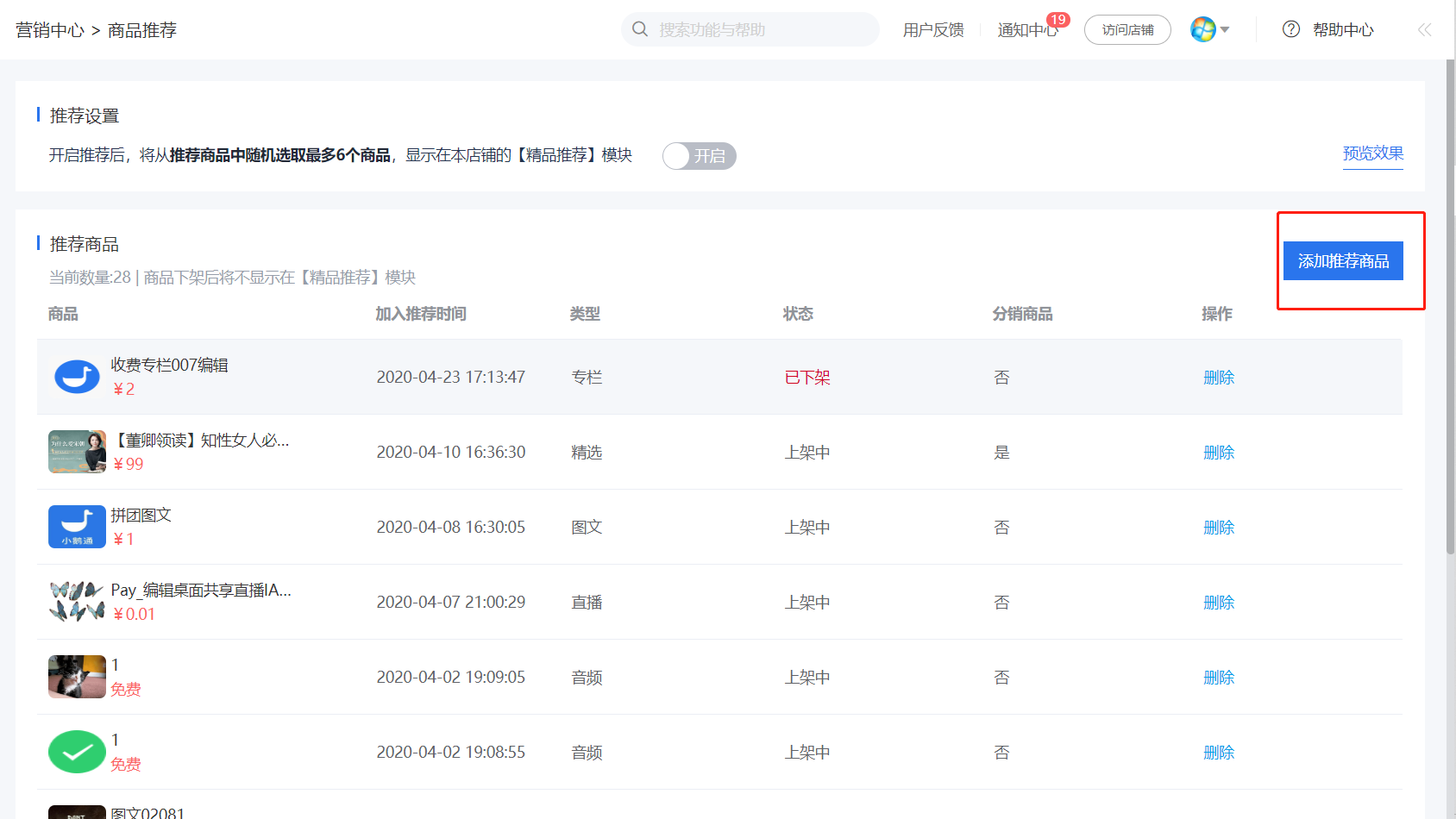
Customers can centrally manage recommended products through the recommendation list, including adding and deleting products.
Scope of recommended products: Customers can recommend all knowledge products in the store.Products that have been taken off the shelves or hidden will not be displayed.
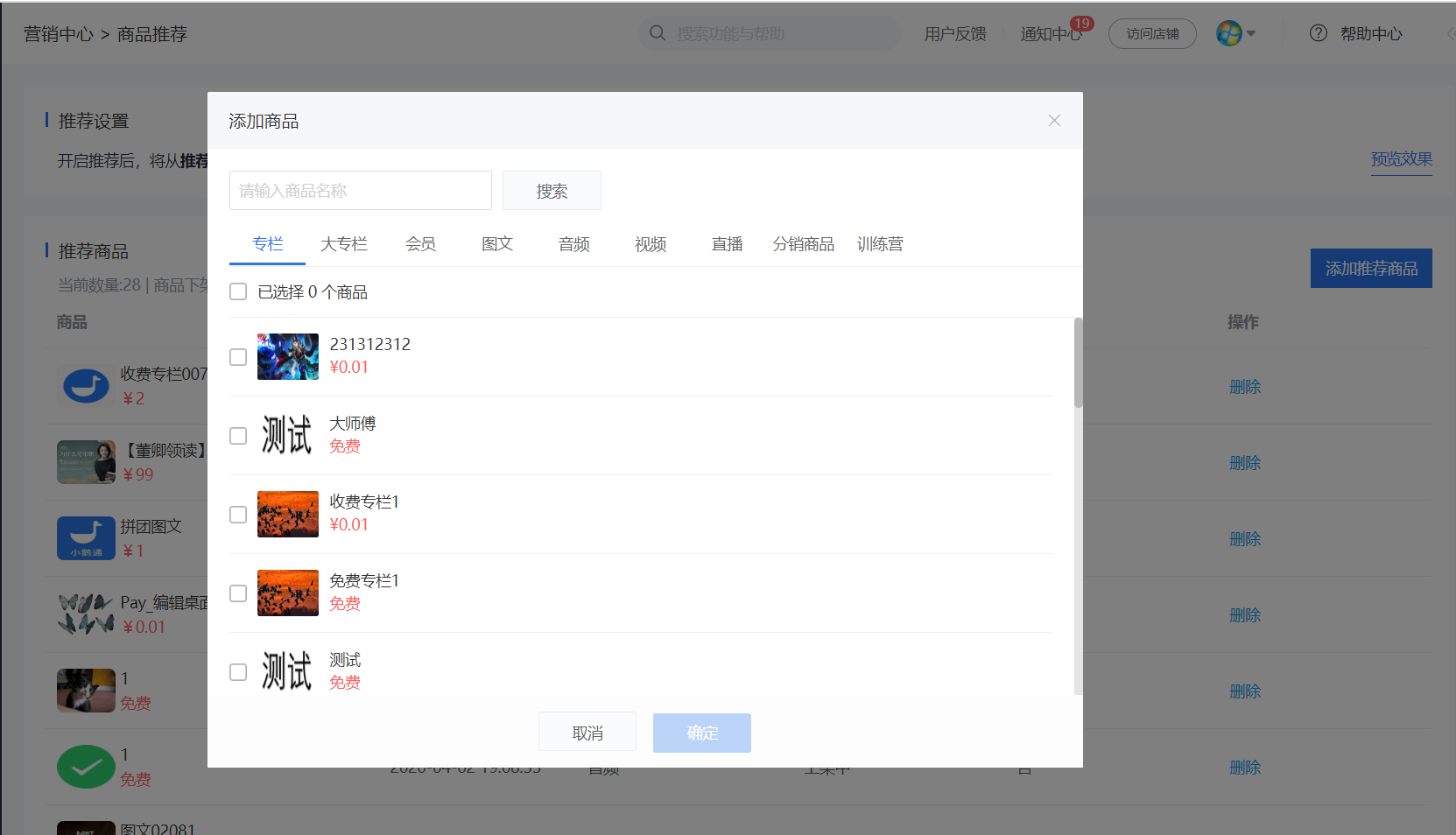
2.1 Add Recommended Products
Click the 【Add Recommended Products】 button, and you can select and add knowledge products from the current store in the product pop - up window. There is no upper limit on the number of products to add, and customers can add them freely according to their needs.
Number of products displayed: In the 【Featured Recommendations】 module on the C - end product detail page, a maximum of 6 products can be displayed.
Recommendation rule: Random recommendation. 6 products are randomly recommended from the recommended product list. The recommended product content is different on different product detail pages.
2.2 Delete Recommended Products
Click the 【Delete】 button in the product list to complete the deletion.
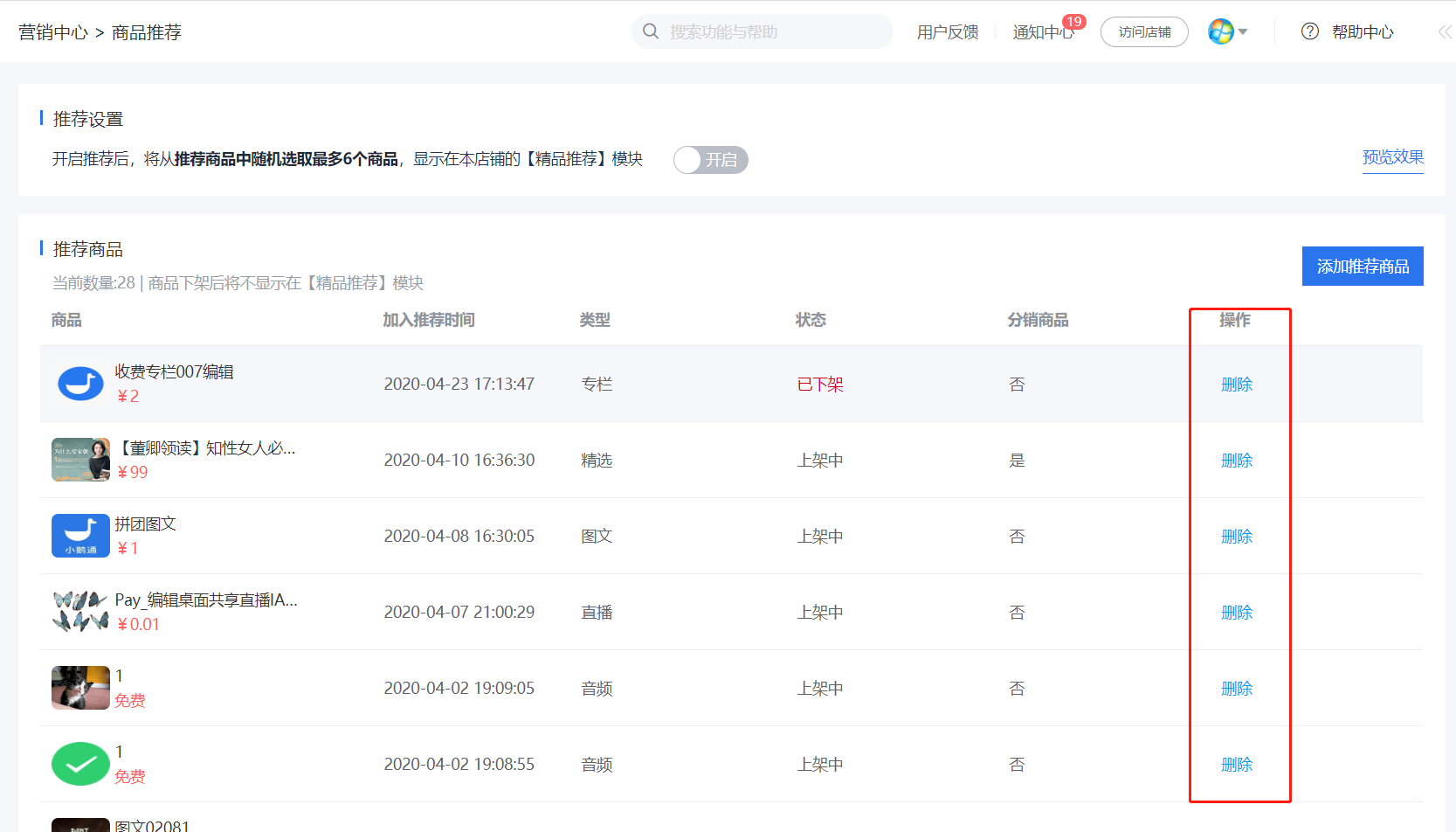
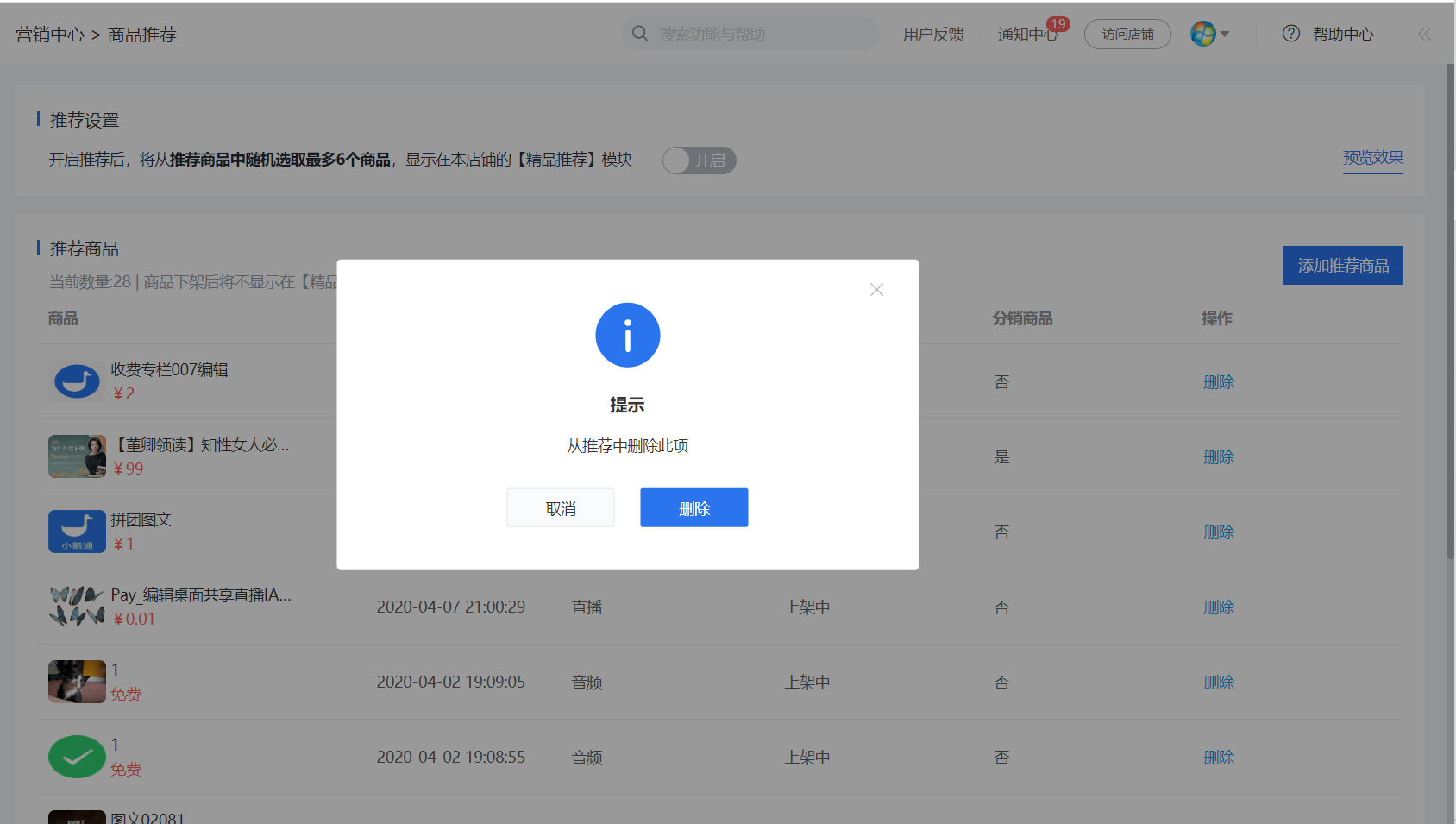
3. Other entry for product recommendation settings: Add products to the recommendation list directly from the product list
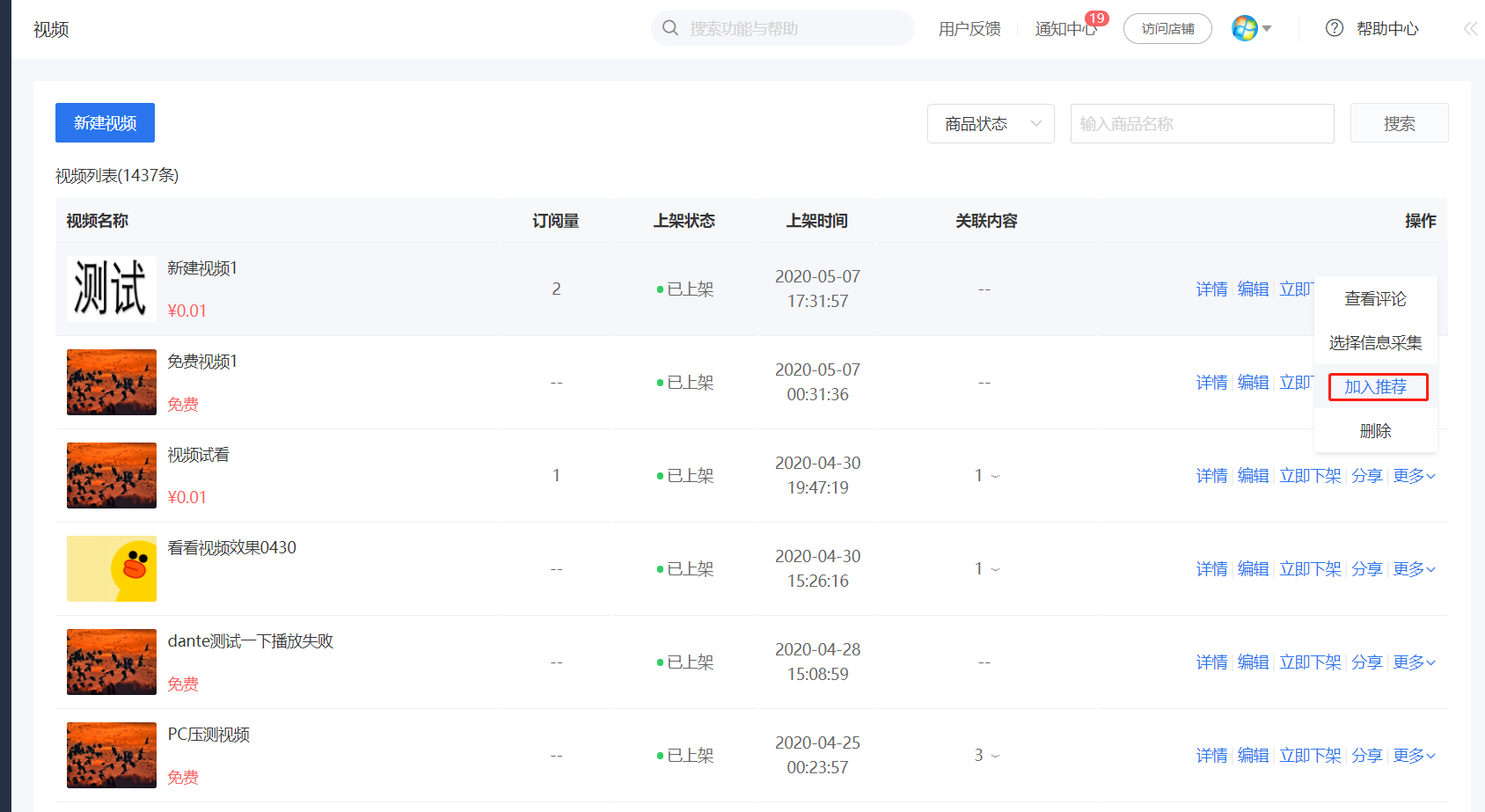
3.1 In the 【Knowledge Products】 module, customers can directly add products from the product list page to the recommendation list. The entry is as follows:
3.2 In the 【Content Market】 module, customers can add distributed products from the content list of the channel provider. The entry is as follows:
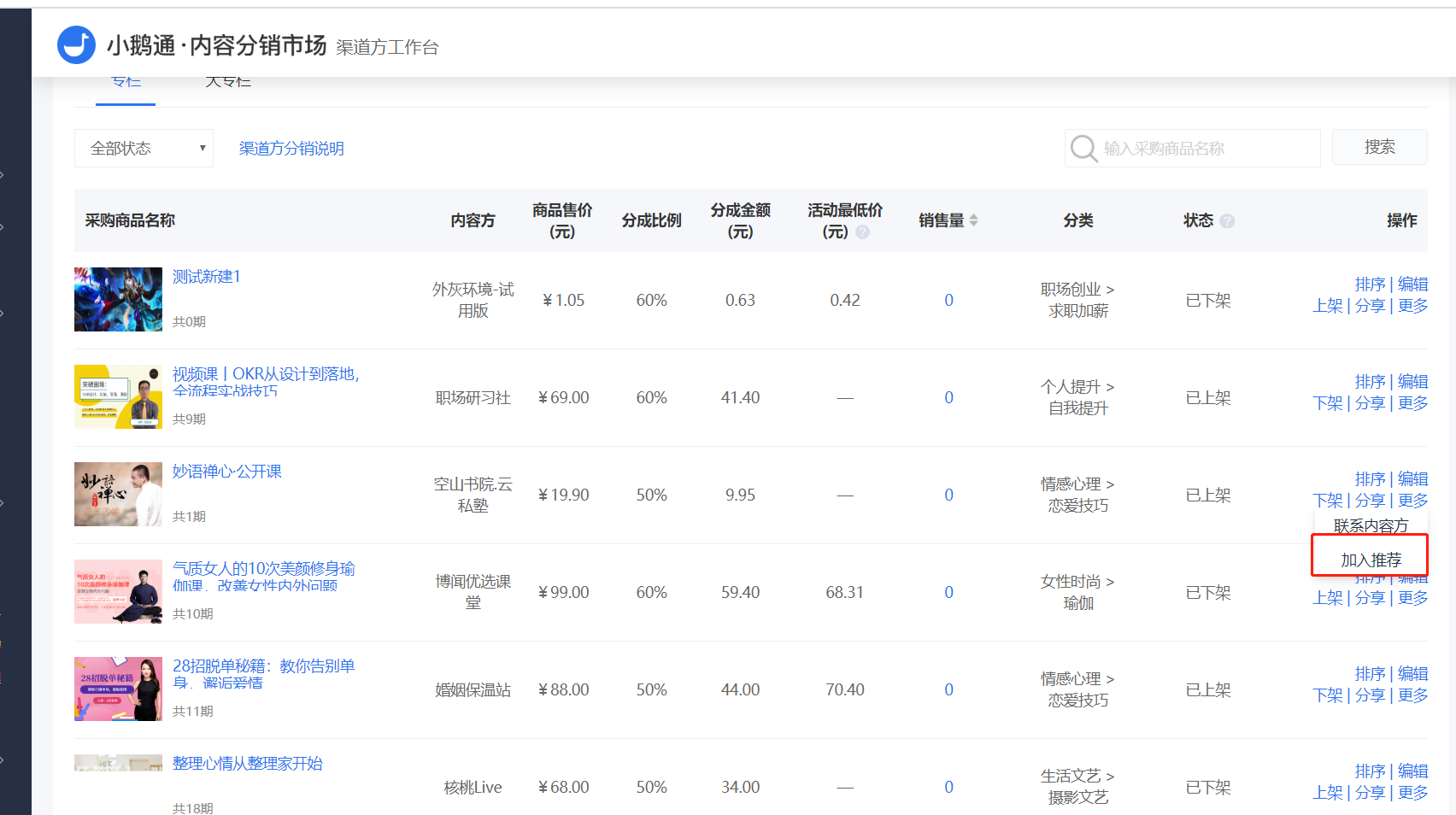
Reminder: The above two recommendation operations can only be used after the 【Recommendation Settings】 button is turned on.
4. Recommendation Settings - Switch
After customers turn on the 【Recommendation Settings】 switch, the 【Featured Recommendations】 product recommendation component will be displayed below the product detail page of the H5 store for users to view.
VI. C - end Effect
The recommendation module is displayed in the related course recommendations - Featured Courses.
No comments to display
No comments to display