
Video Live Streaming Usage Tutorial
I. Function Introduction
Video live streaming supports the combination of real-time video with functions such as courseware, whiteboard brushes, and desktop sharing for live streaming, which is suitable for real-time video interaction with students.
II. Purpose of Use
By starting video live streaming, real-time video, courseware & desktop sharing and other live streaming content can be realized.
III. Usage Scenarios
Suitable for scenarios that require desktop sharing, courseware display, and real-time video live streaming with students.
IV. Operation Path
Merchant side: Enterprise training management background → Live streaming → Video live streaming
Student side: H5 Academy → Watch live streaming
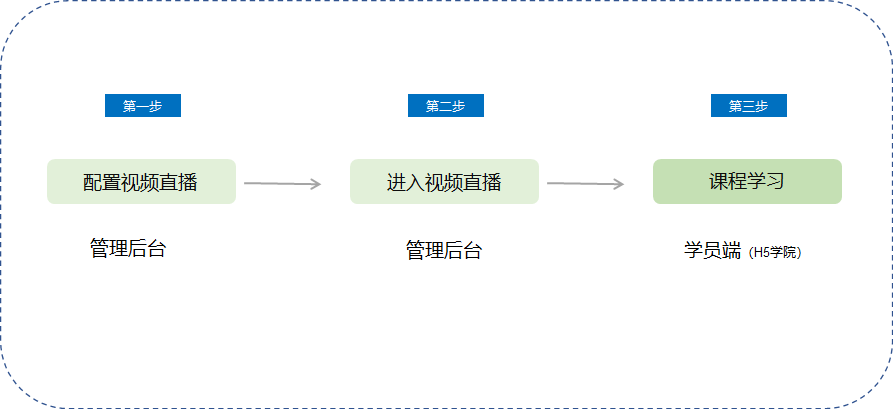
V. Usage Tutorial
Step 1 Configure video live streaming(Management background)
1. Log in to the management console, click [Live streaming], select [Video live streaming] → [Create live streaming], and enter the page for creating video live streaming;
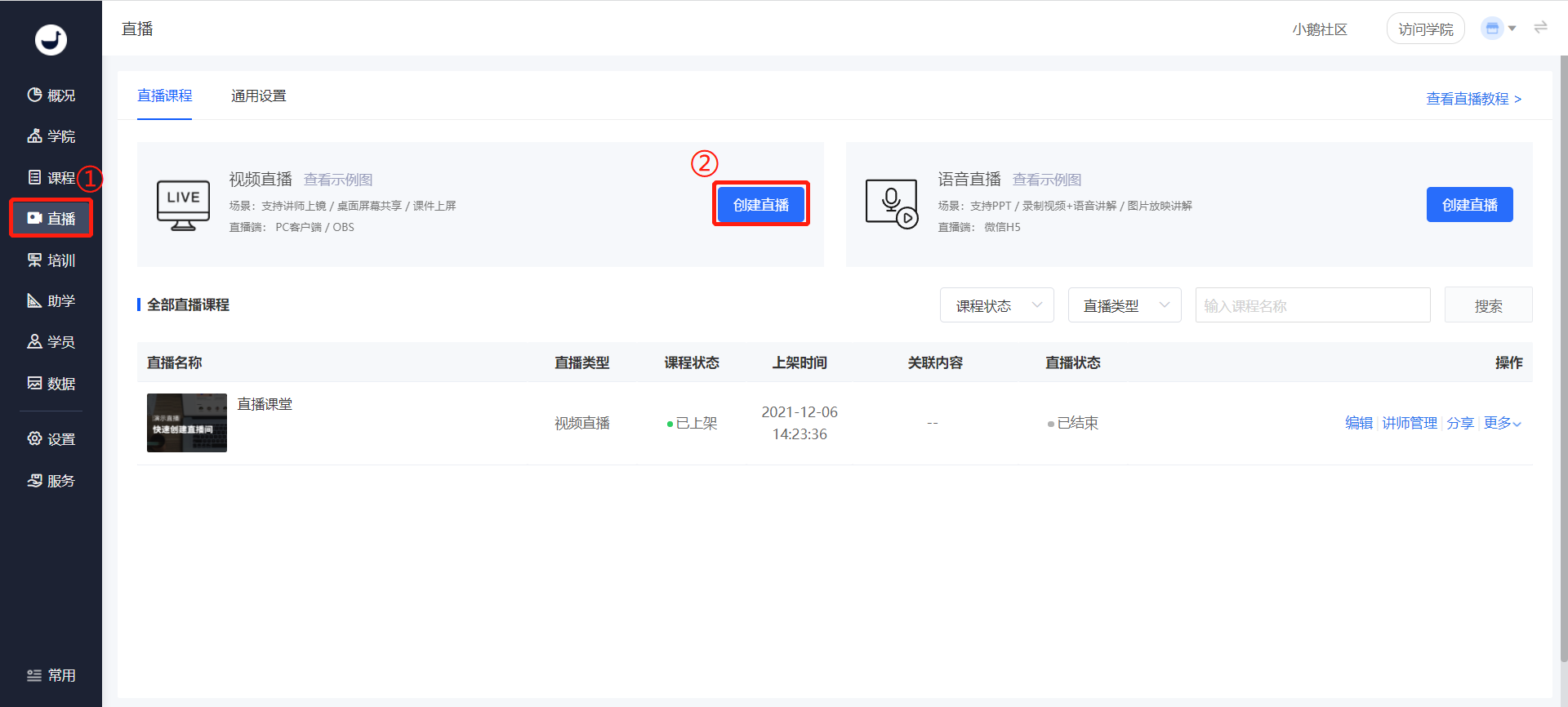
(Management background - Live streaming)
2. Fill in the basic information of the live streaming room
Fill in the live streaming name and live streaming time;
Set the visible scope: You can set the course to be visible to some students;
Live streaming replay settings: Set whether to enable the live streaming replay for users after the live streaming ends;
Completion conditions: You can set the shortest learning time for students;
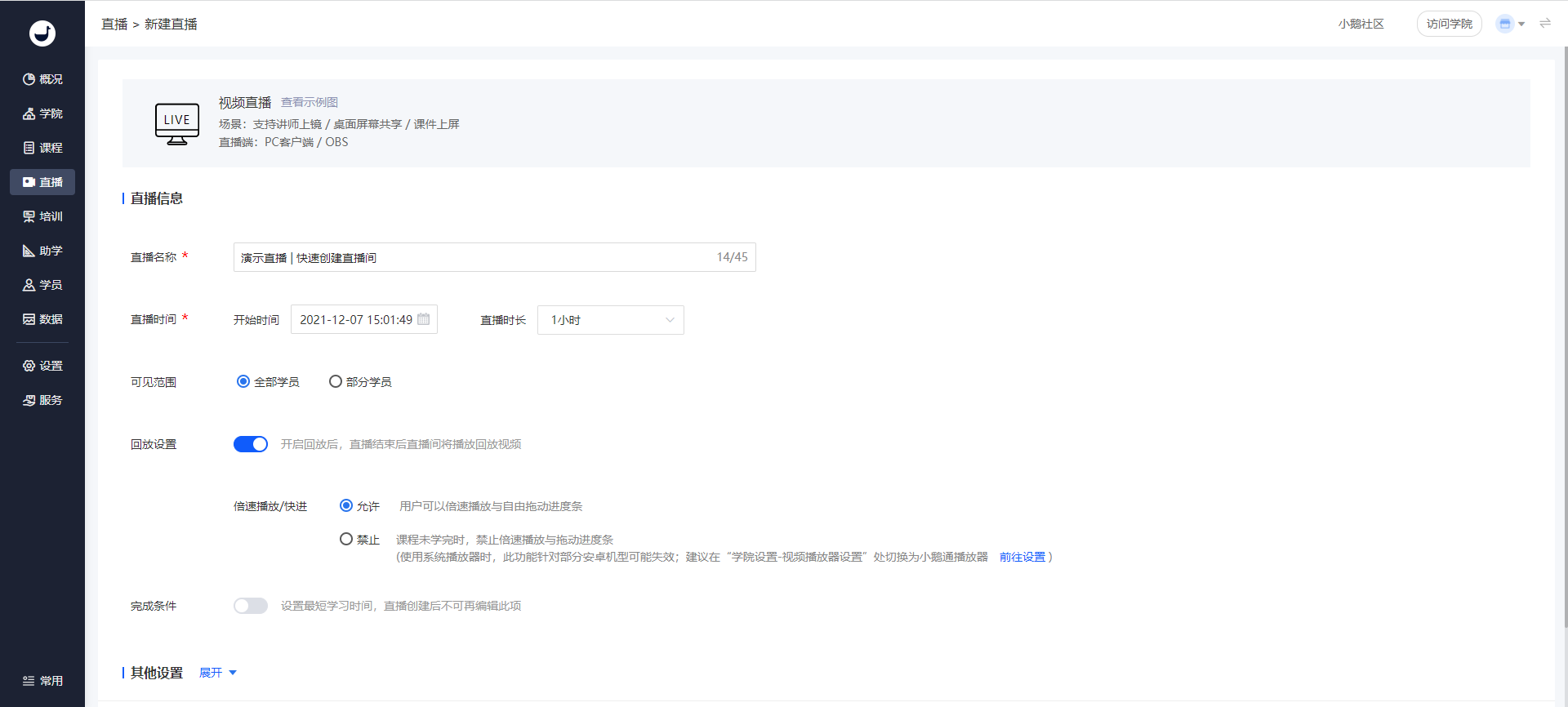
(Management background - Live streaming - Create video live streaming)
3. Other settings
Details cover: The picture displayed when students view the details of the live streaming course;
Live streaming warm-up picture: The picture displayed in the video area before the live streaming starts;
Live streaming promotion cover: The picture displayed at the live streaming entrance on the academy homepage;
Associated courses: You can choose to associate a column or a training plan. After saving, the course information will be displayed in the details of the column and the training plan.
Course grouping: A function to classify and display courses.
Anti-screen recording marquee: After the anti-screen recording marquee is enabled, whether students watch video courses or live streaming courses, their usernames and IDs will be displayed in the form of a marquee on the course playback page. (Note: The marquee will become invalid when playing in full screen).
Shelf settings: Set the shelf time of the course.
4. Click [Save] to create a video course.
5. After creating the live streaming, you need to set up the lecturer. (Note: Only those who have bound WeChat can be added as lecturers. Please ask the lecturer to visit the enterprise training link to bind WeChat first).
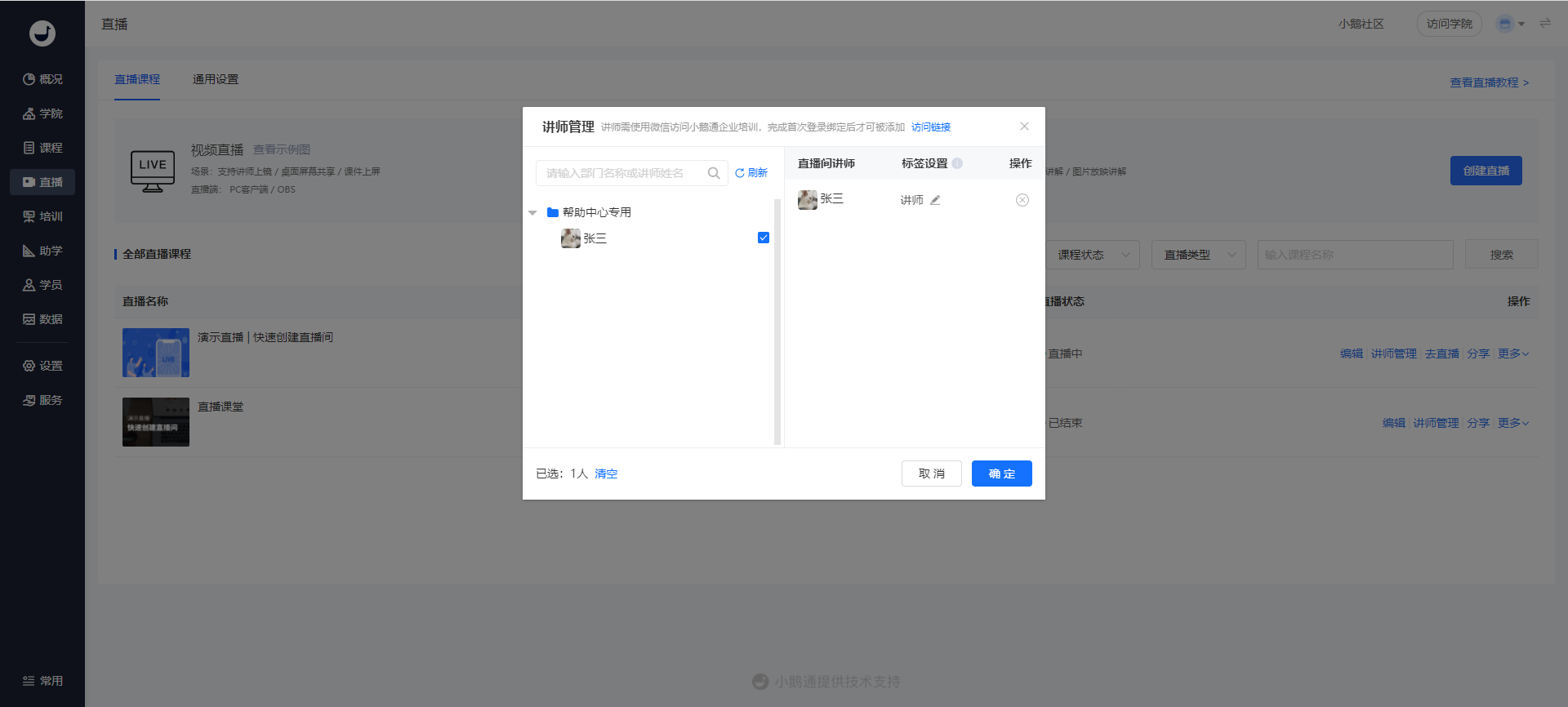
(Management background - Live streaming - Lecturer management)
Step 2 Go live(Management background)
Click [Operation] - [Go live], select a suitable terminal for live streaming. Currently, the computer side supports: web browser, client, and OBS/camera for live streaming; the mobile side supports live streaming via the APP. (You can still switch to other terminals for live streaming after selecting the live streaming terminal).
Different terminals support different functions (corresponding to different display pages on the employee side). The suitable scenarios for each terminal are as follows:
(1) Web browser: Supports PPT courseware display and lecturer taking the stage. You can start the live streaming immediately without downloading software;
(2) Client: Supports desktop sharing, whiteboard brushes, and courseware display combined with real-time video for classroom scenario live streaming;
(3) OBS/camera for live streaming: Suitable for using third - party tools for live streaming;
(4) Mobile APP: You can start the live streaming using the mobile APP, which supports video streaming, beautification, and viewing comments.
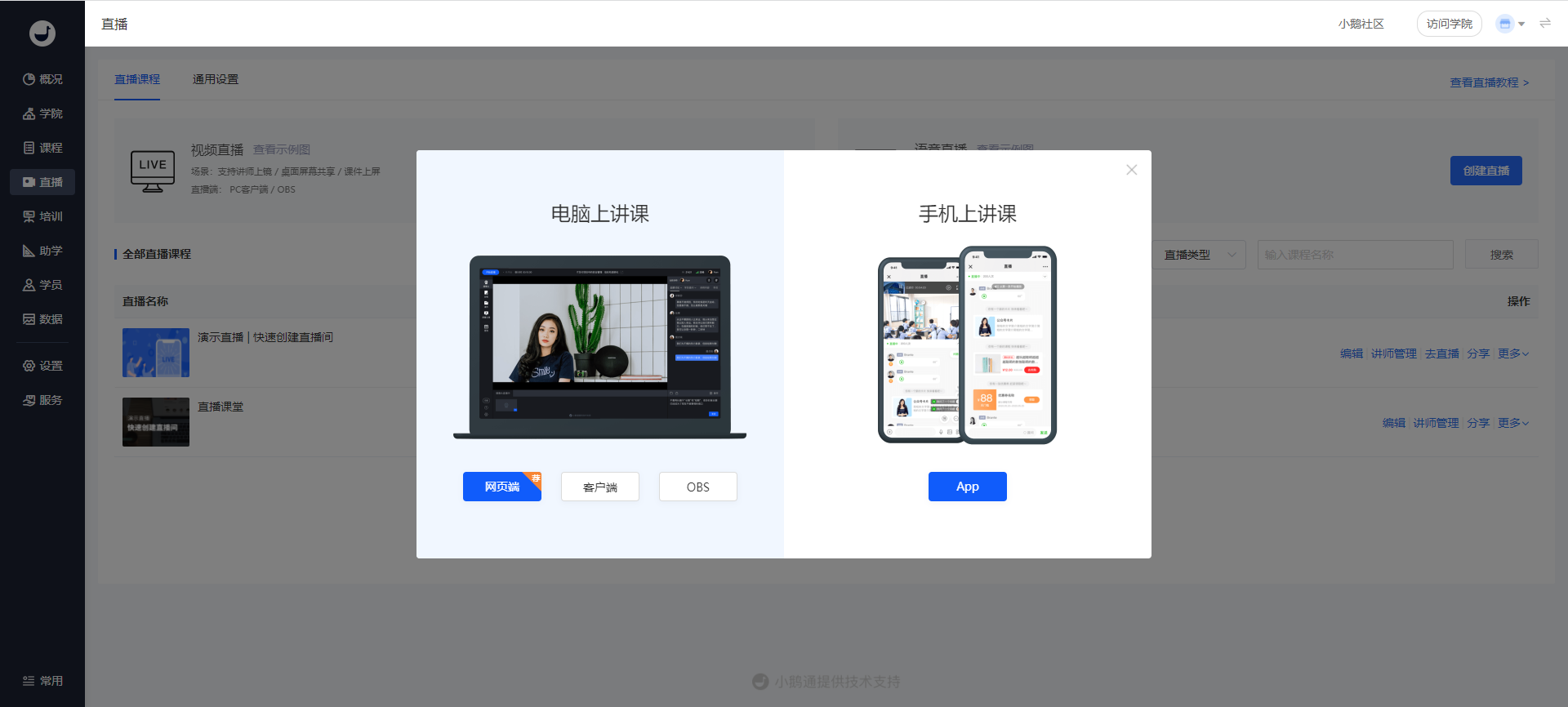
(Management background - Live streaming - Go live)
Step 3 Course learning(H5 Academy)
1. Students log in to the academy.
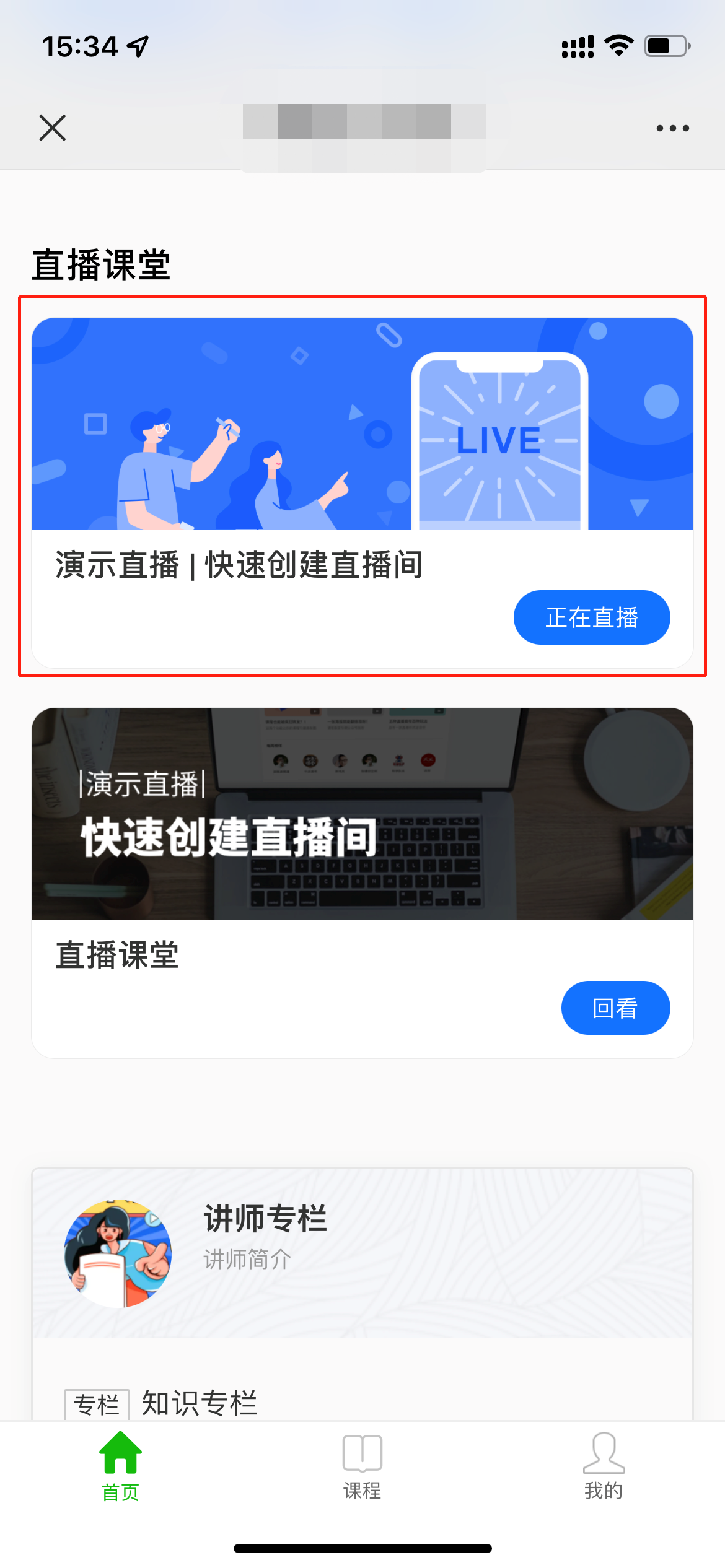
(H5 Academy - Classroom homepage)
2. Students select the corresponding video live streaming course from the courses for learning.
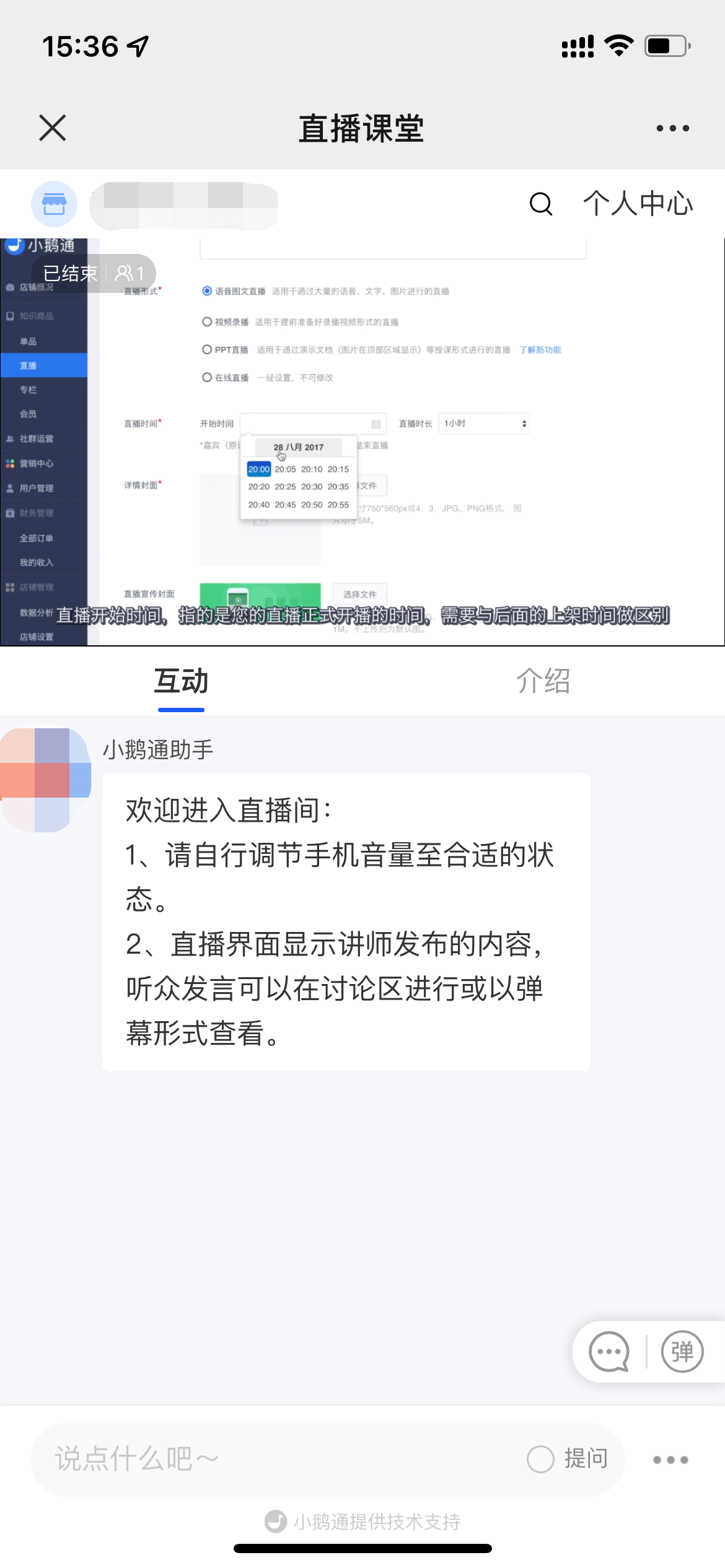
(H5 Academy - Video live streaming)
No comments to display
No comments to display