
Certificate Usage Tutorial
I. Function Introduction
You can issue certificates to students who meet the specified conditions to enhance their sense of achievement upon completing the courses. Currently, certificates are supported for: Exams, Check-ins, Communities, Camps, Camps Pro, and Training Programs.
II. Purpose of Use
Administrators can configure certificates for different training scenarios, supporting custom certificate styles and issuance rules. By issuing certificates, students can gain a sense of accomplishment for completing tasks, which encourages them to persevere in finishing the tasks.
III. Use Scenarios
1. Exams:Instructors can customize the background and comments of exam certificates. Students who achieve high scores or meet the standards will automatically receive exam certificates after passing the exams, enhancing their sense of achievement in learning outcomes.
2. Check-ins:Administrators or operators can set up check-in certificates in advance when creating check-ins and inform students in the check-in introduction that they can obtain completion certificates by meeting certain conditions, thus motivating students to persist in completing the check-ins as required. When students meet the certificate issuance rules, the system will automatically issue the configured certificates.
3. Communities:Community owners can set up community certificates in advance when creating community courses. When students meet the certificate issuance rules during the process of completing course tasks in the community, the system will automatically issue the certificates.
4. Camps:Instructors can set up camp certificates in advance after creating camp sessions. When students meet the certificate issuance rules during the process of completing camp session tasks, the system will automatically issue the certificates. Note: Free camps do not support certificate settings.
5. Camps Pro:Instructors can set up Camps Pro certificates in advance after creating Camps Pro. When students meet the certificate issuance rules during the process of completing Camps Pro, the system will automatically issue the certificates. Note: Free Camps Pro supports certificate settings.
6. Training Programs:A company has launched a corporate culture training course for newly recruited employees. To showcase the training results of employees and recognize those who have passed the training exams, the company can set assessment criteria in the training program. Students who pass the assessment will automatically receive training certificates.
IV. Operation Path
Administrator: Management Backend → Courses → (Interactive Management) Certificates → New Certificate
Student End:WeChat H5 → My → My Achievements
V. Usage Tutorial
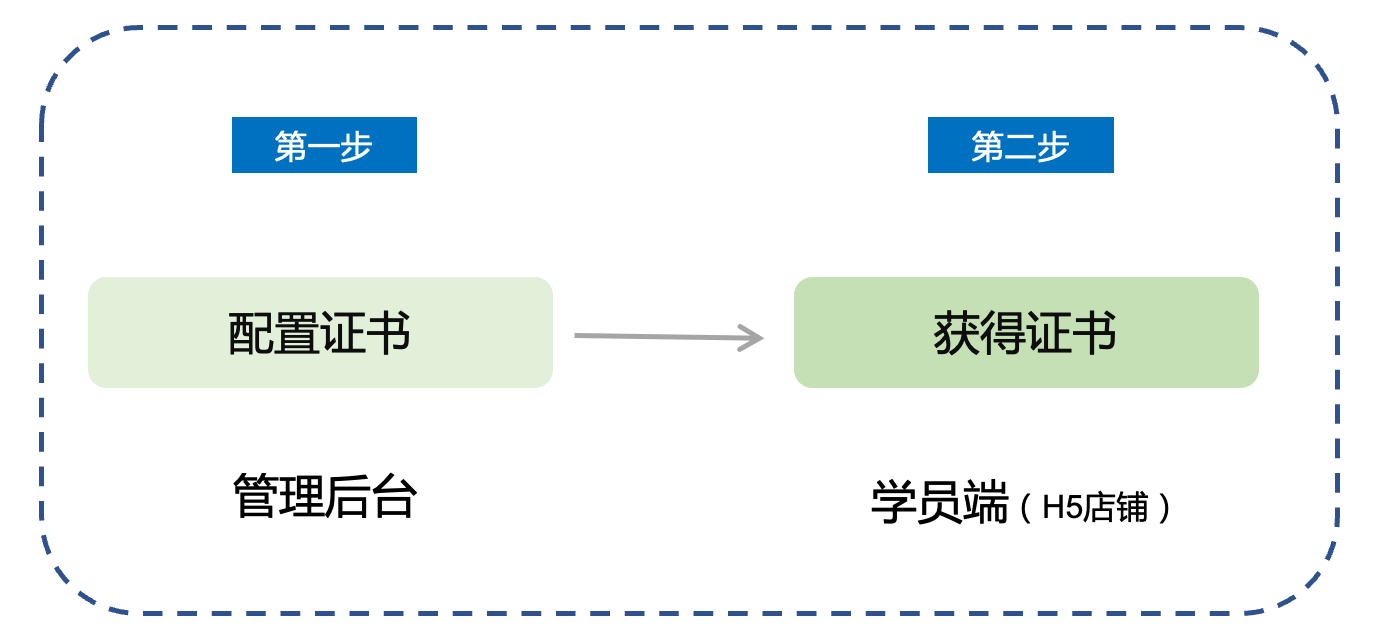
Step 1: Configure Certificates - Management Backend
Four ways to configure certificates:
Method 1: Click “New Certificate” through “Courses → Interactive Management → Certificates”, select the certificate type, and associate the created exams/check-ins/communities/camps/courses/training programs to complete the certificate settings.
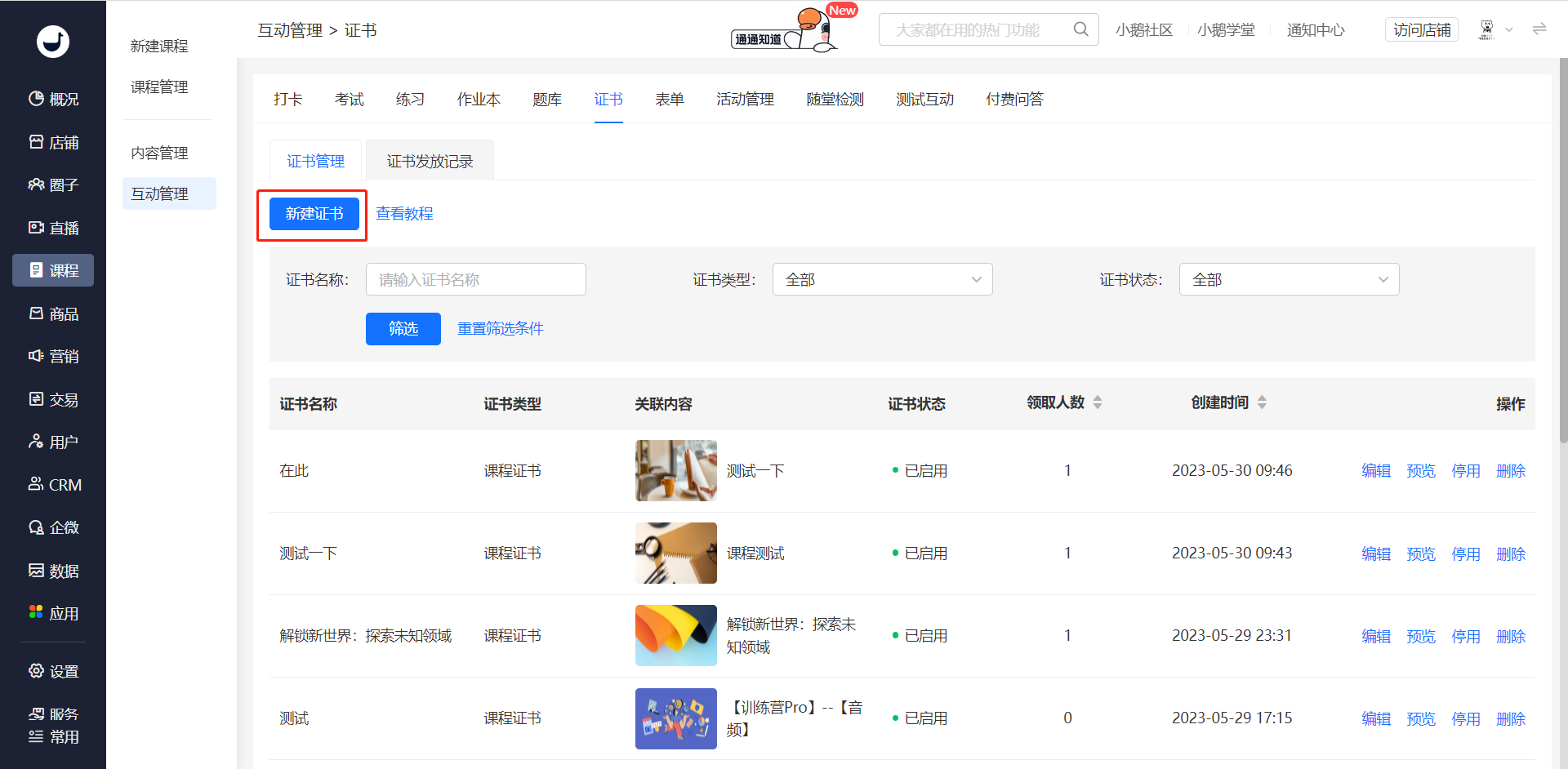
Method 2:After creating check-ins, communities, or courses, enter the certificate settings through the settings on other pages.

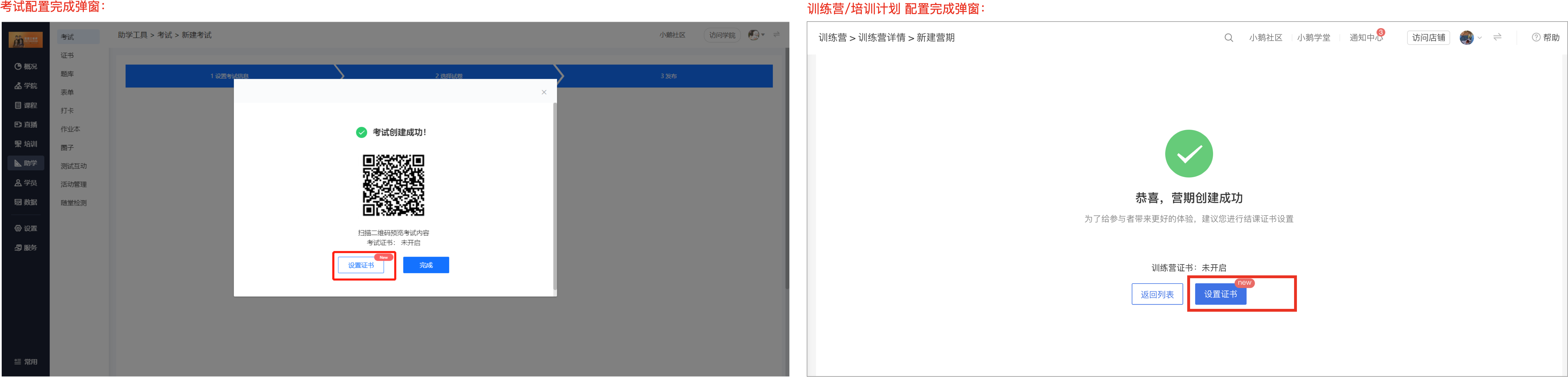
Method 3:In the final step of creating exams, camps, or training programs, jump to the certificate settings.
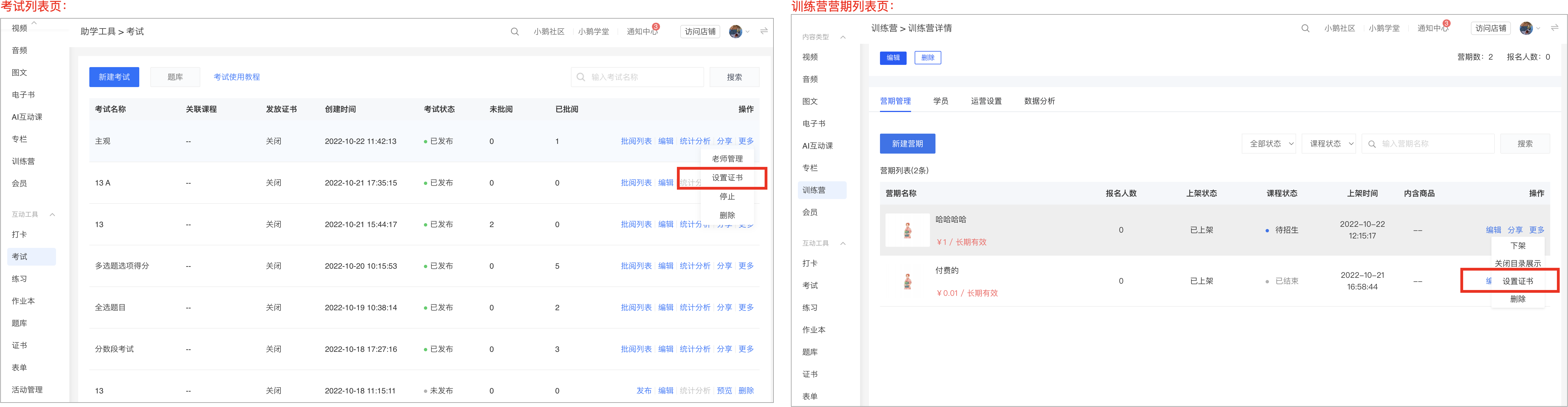
Method 4:On the list pages of configured exams or camps, jump to configure certificates through the list.
*Note: The [Certificates] function needs to be used in conjunction with functions that support certificates. Certificates cannot be issued independently.
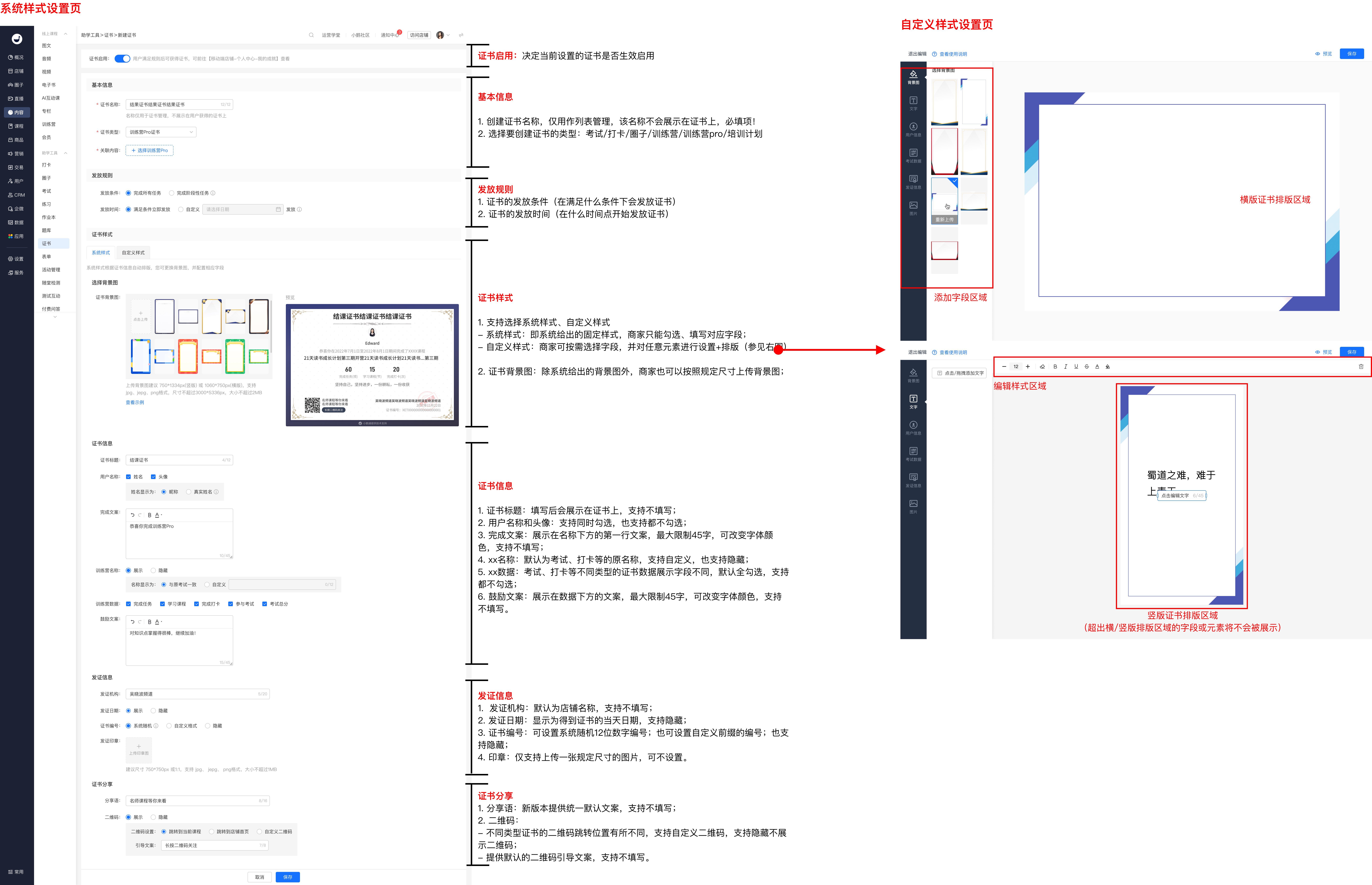
Certificate Settings Page - Setting Instructions:
Taking the Camps Pro certificate as an example, the settings of other types of certificates are similar, with only some field settings being different. Please refer to the page display for details.
Step 2: View Certificates - Student End
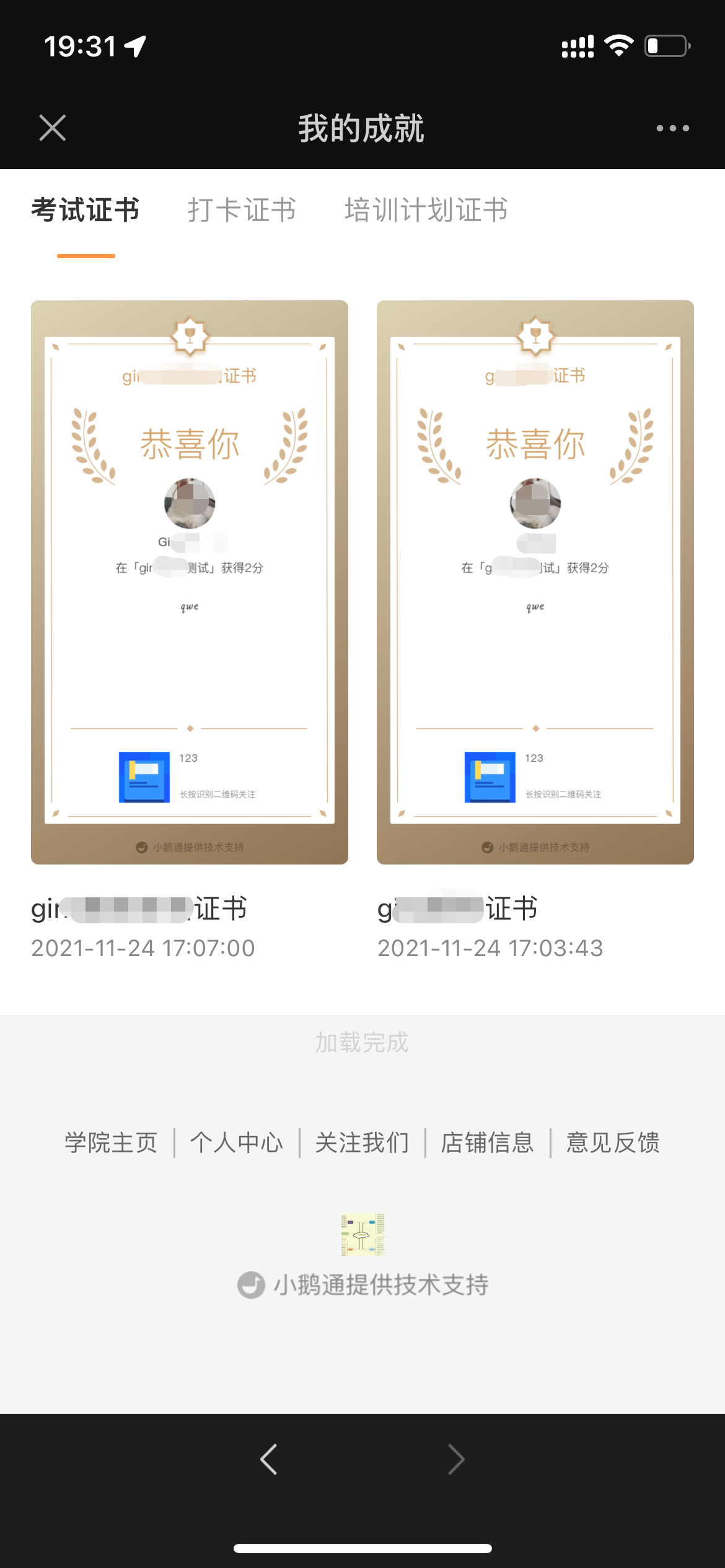
Students can view relevant certificates by clicking [My] - [My Achievements]
No comments to display
No comments to display