
Practice Tutorials
I. Function Introduction
The practice feature meets the need of students for an independent question - answering practice tool. Clicking on the answer will immediately show the explanation. Students can deepen their memory and improve their learning effectiveness through repeated practice.
II. Purpose of Use
Repeatedly practicing questions can improve students' learning effectiveness. For example, if you have 100 real - exam questions each year that you want users to practice, you can assign these 100 questions to one or more categories in the question bank. Then, use the practice feature to associate with the question - bank categories, set up the relevant practice settings, and students can practice answering questions on their mobile devices.
III. Usage Scenarios
Used when students need to practice answering questions independently.
IV. Operation Path
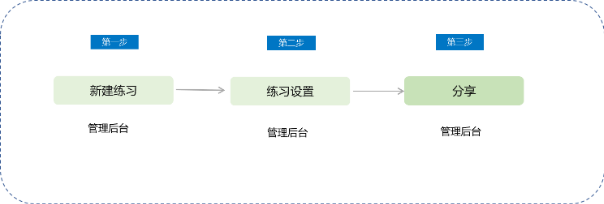
Instructor's end (Computer - based management console): Content → Create New Practice → Share
V. Operation Steps
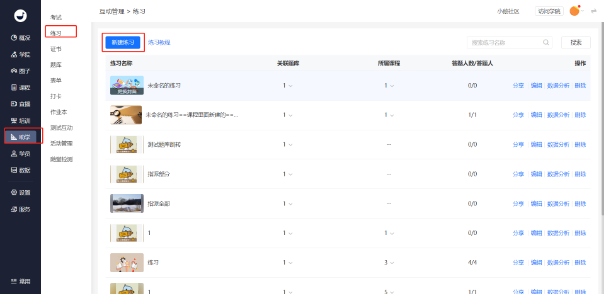
Step 1: Enter the practice function page and click 'Create Practice'.
Step 2: Fill in the relevant setting information and save it.
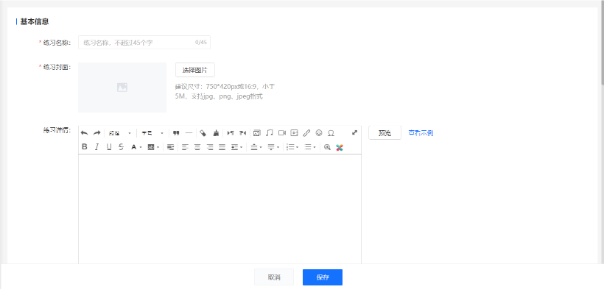
Explanation of relevant settings:
1. Practice Name: The name of the practice, such as 'Real exam questions for the ** exam in 2019'. The maximum length of the practice name is 45 characters.
2. Practice Cover: The cover image of the practice. It is recommended to choose an image with a size of 750*420px or in a 16:9 ratio.
4. Practice Introduction: Optional. Write a concise introduction for your practice.
5.Associated Question Bank: You can associate one or more categories in the question bank. Subjective questions are not supported for now, and relevant question types will be filtered out after selection.
6.Visibility Scope: You can set the visibility scope for students.
7. Question - Answering Settings: You can set the questions to be presented randomly or in order. If set to random, the specified number of questions will be randomly selected from the associated question bank. If set to order, questions will be presented in the order of the associated question - bank categories (if multiple question - bank categories are selected, you can sort the categories). The questions in the question bank will be cyclically selected according to the specified number of questions.
8. Number of Questions: The number of questions in a single practice. For example, if set to 20, students will practice 20 questions each time. The maximum number of questions per practice can be set to 1000.
9. Difficulty Setting: Set a difficulty coefficient for your practice, which will also be displayed on the mobile device.
10,SelectionCourse Participation: You can setthe practice to be associated with a certain course, so that students can access and learn the practice from the video or the course.;
11,Private Domain Traffic Generation: You can set to display contact information such as QR codes in the practice.
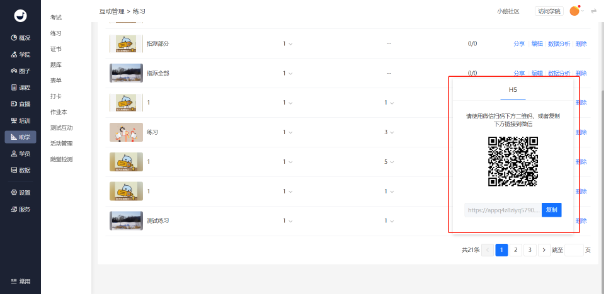
After creation is completed, click 'Share' to get the relevant link and QR code, and you cansharethe practice with students.
Step 4: Click 'Data Analysis' in the practice list to view students' practice data.
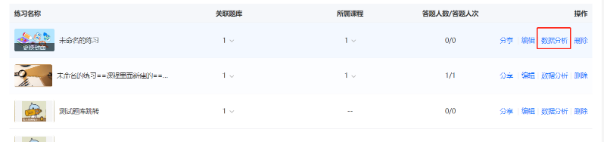
(Practice List)
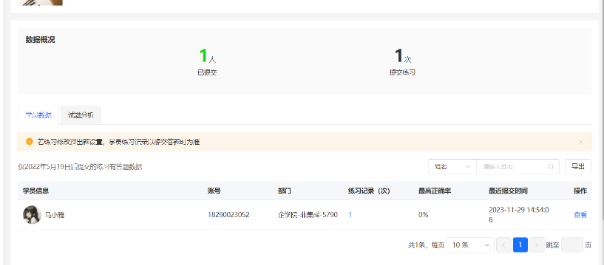
(Practice Data Analysis)
No comments to display
No comments to display