
Exam Usage Tutorial
I. Function Introduction
Administrators can design exams based on course content. Exams can consist of multiple question types, including single-choice, multiple-choice, true-false, and Q&A questions.
II. Purpose of Use
A function used to assess the learning effectiveness of students.
III. Use Scenarios
A college has created many courses, but after they were launched, it has no idea whether students have truly mastered the course content, and there is also a lack of direction on how to optimize the courses in the future. After using the exam function, students can take in-class exams while learning the courses to consolidate their knowledge. Based on their exam scores, students will then study the courses more targeted, truly improving their learning effectiveness. Meanwhile, administrators can get feedback on the learning effectiveness through the exam results and optimize the subsequent courses according to the feedback.
IV. Operation Paths
Merchant side: Management console → Learning assistance → Exams → Create a new exam
Student side: H5 College → My → Learning tools → Exams
V. Usage Tutorial
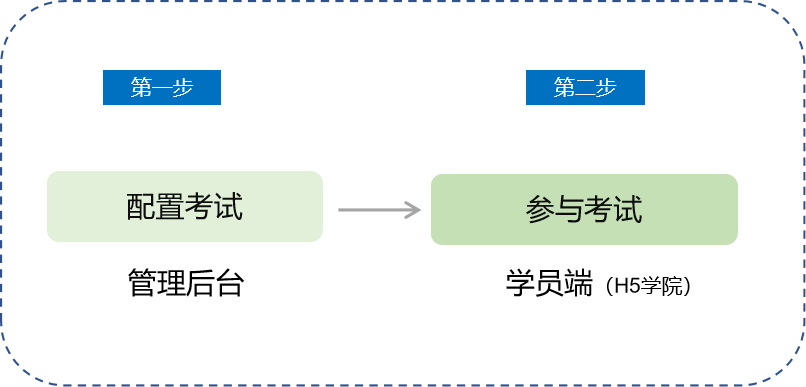
Step 1: Configure the exam
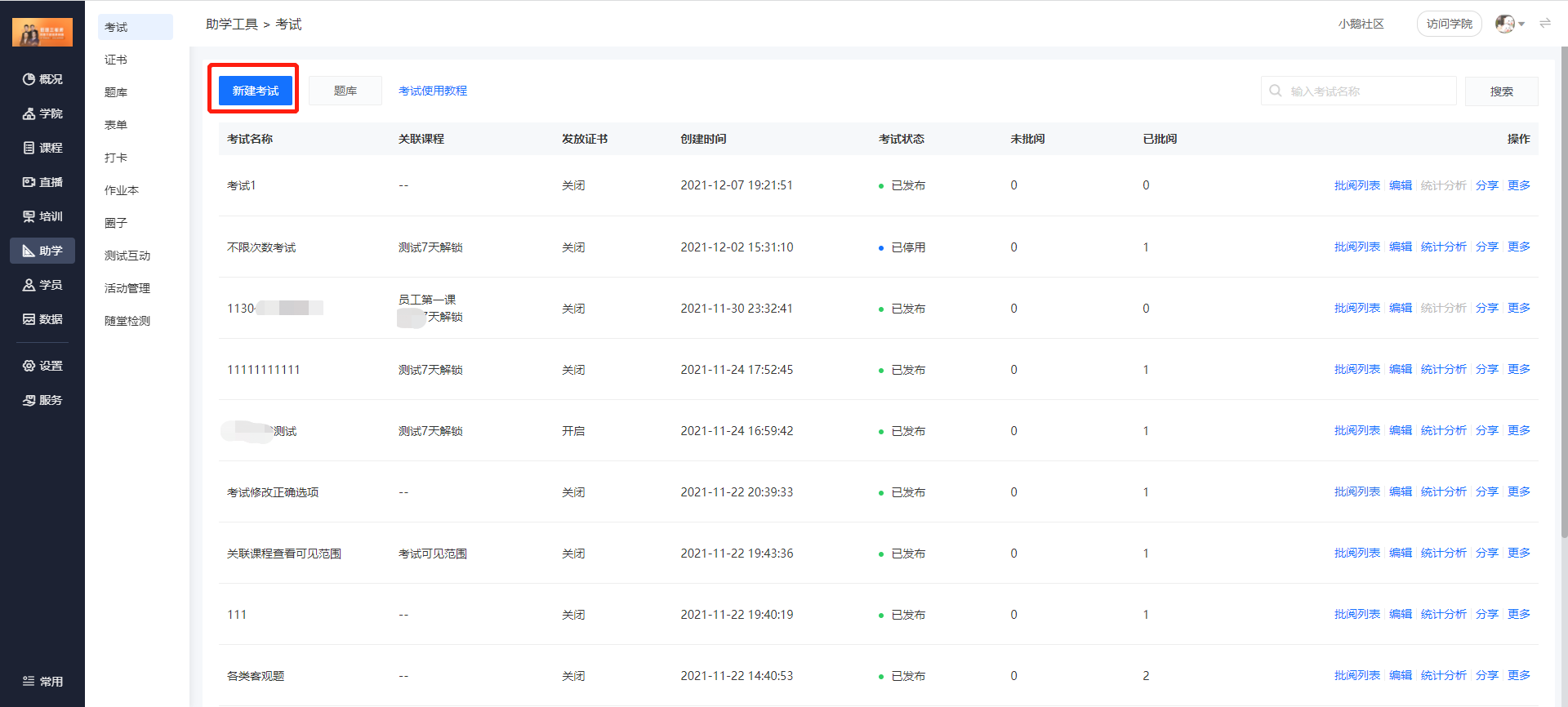
(Management console)
2. Set the exam information
(1) Basic information: Fill in the exam name and details, and upload the cover image.
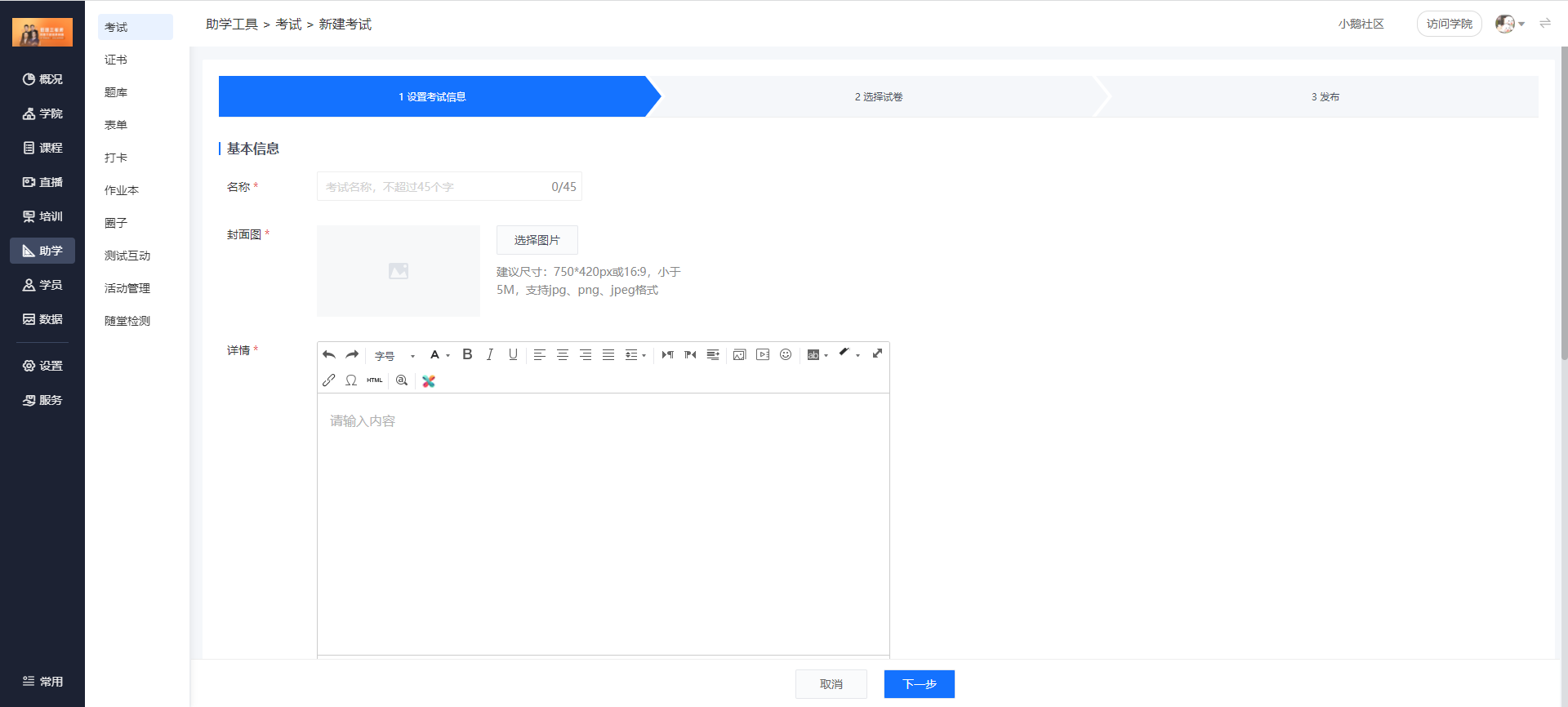
(Management console)
(2) Associate courses: You can associate the exam with text, audio, video, and columns. Multiple courses can be associated (optional to not associate).
(3) Exam settings: Set the scope of candidates, exam time limit, duration for taking the exam, number of exam attempts, etc.
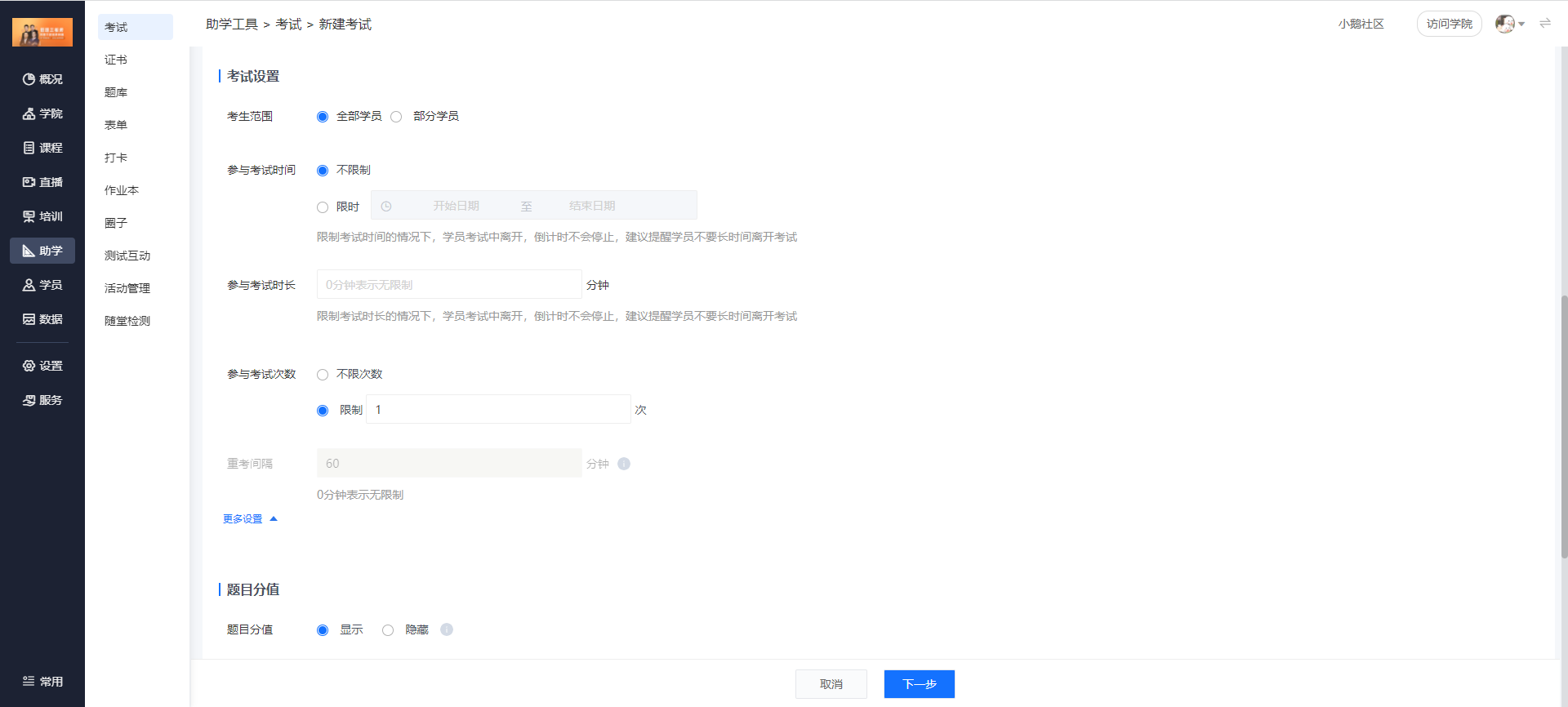
(Management console)
(4) Click "Next" to add questions.
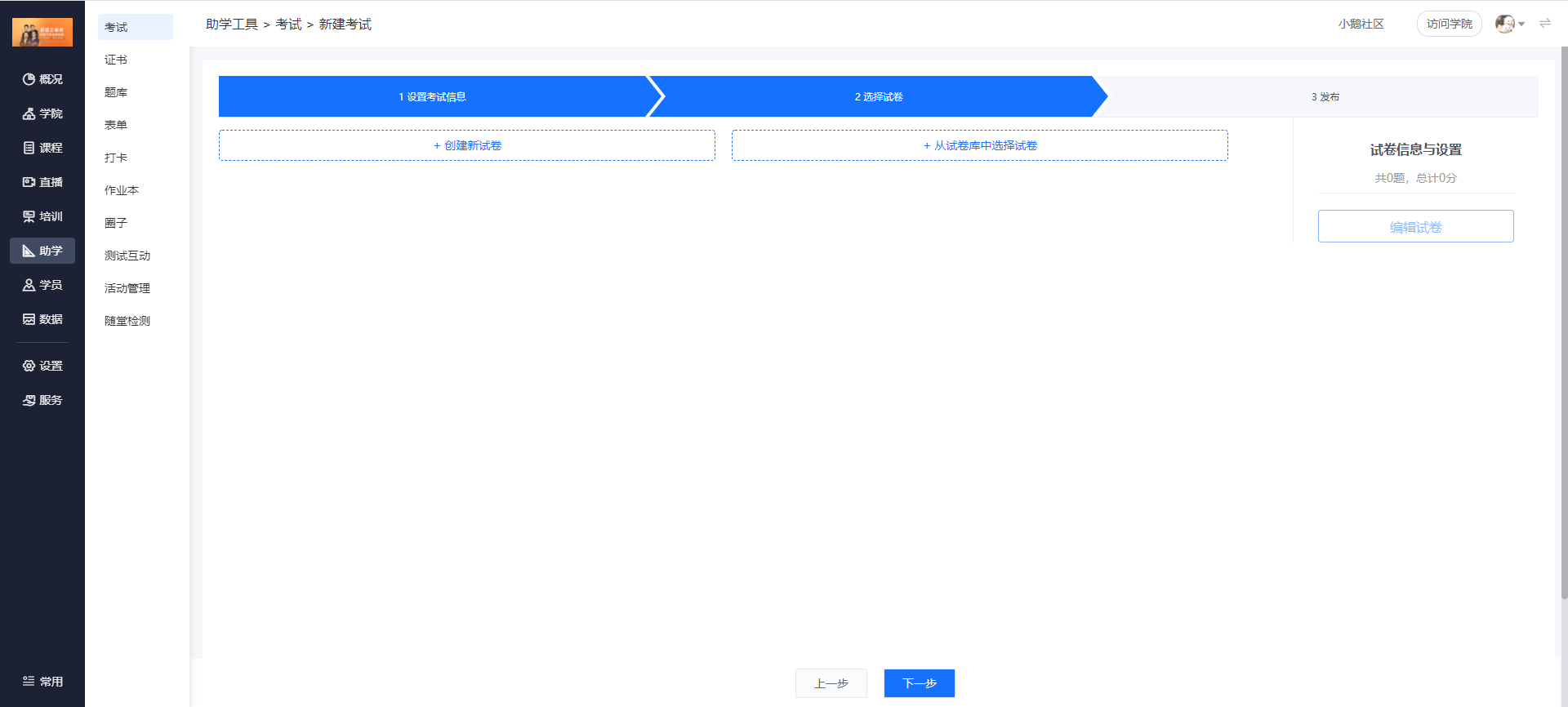
(Management console)
(5) Add questions: Create a new test paper or select a test paper from the test paper library.
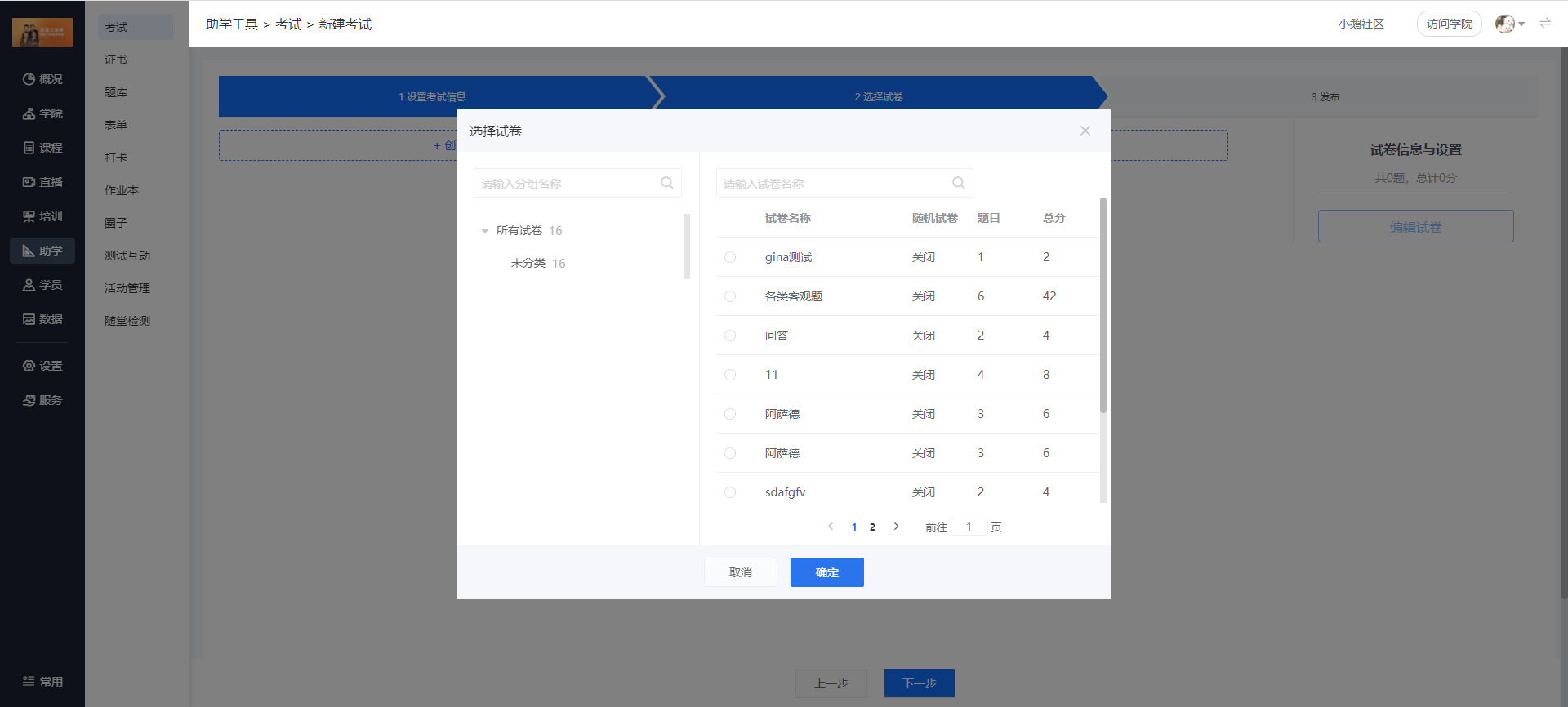
(Management console)
(6) Publish the exam: Click "Create" to complete the creation of the exam.
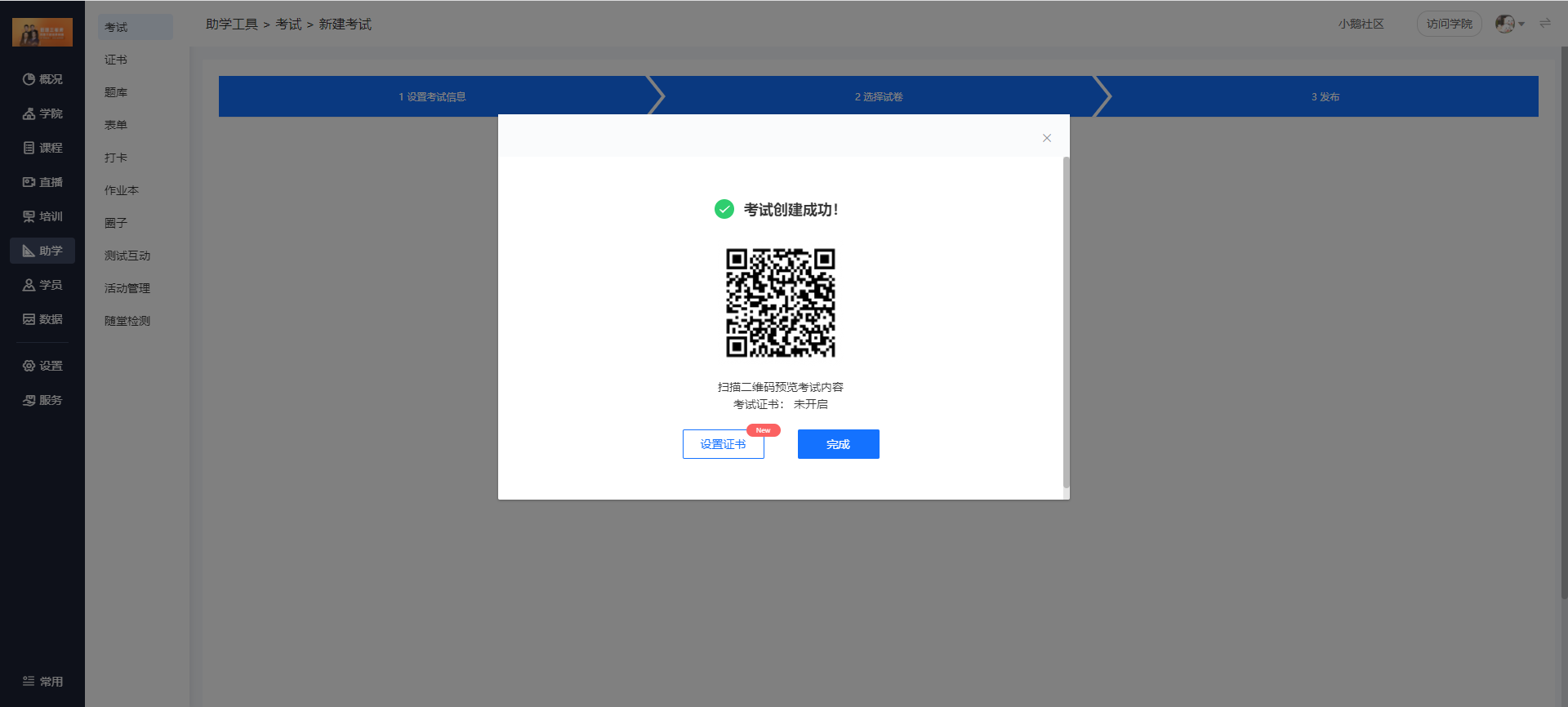
(Management console)
(7) Set certificates: You can add certificates to the exam.
3. Grade the exams
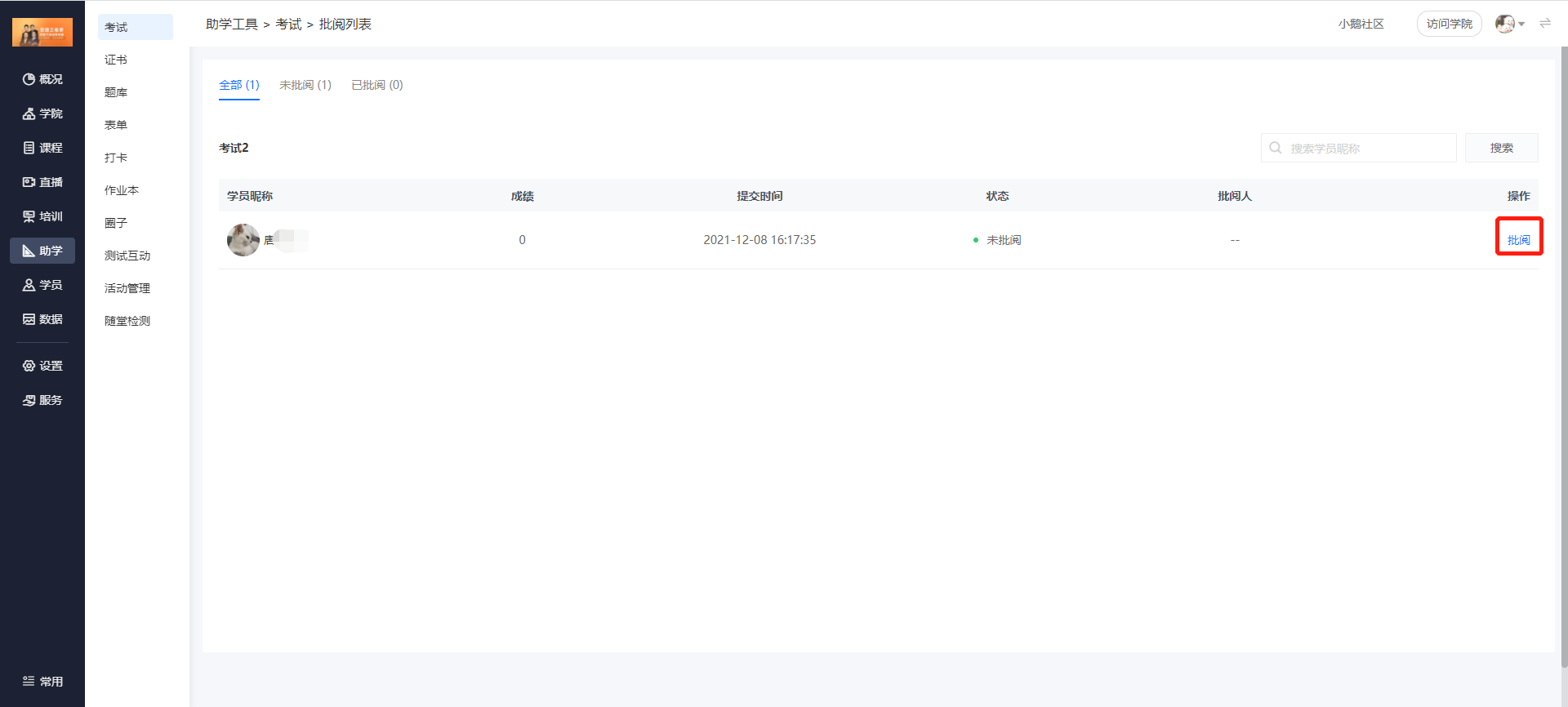
(1) Click [Grading list] - [Grade] to enter the exam grading page.
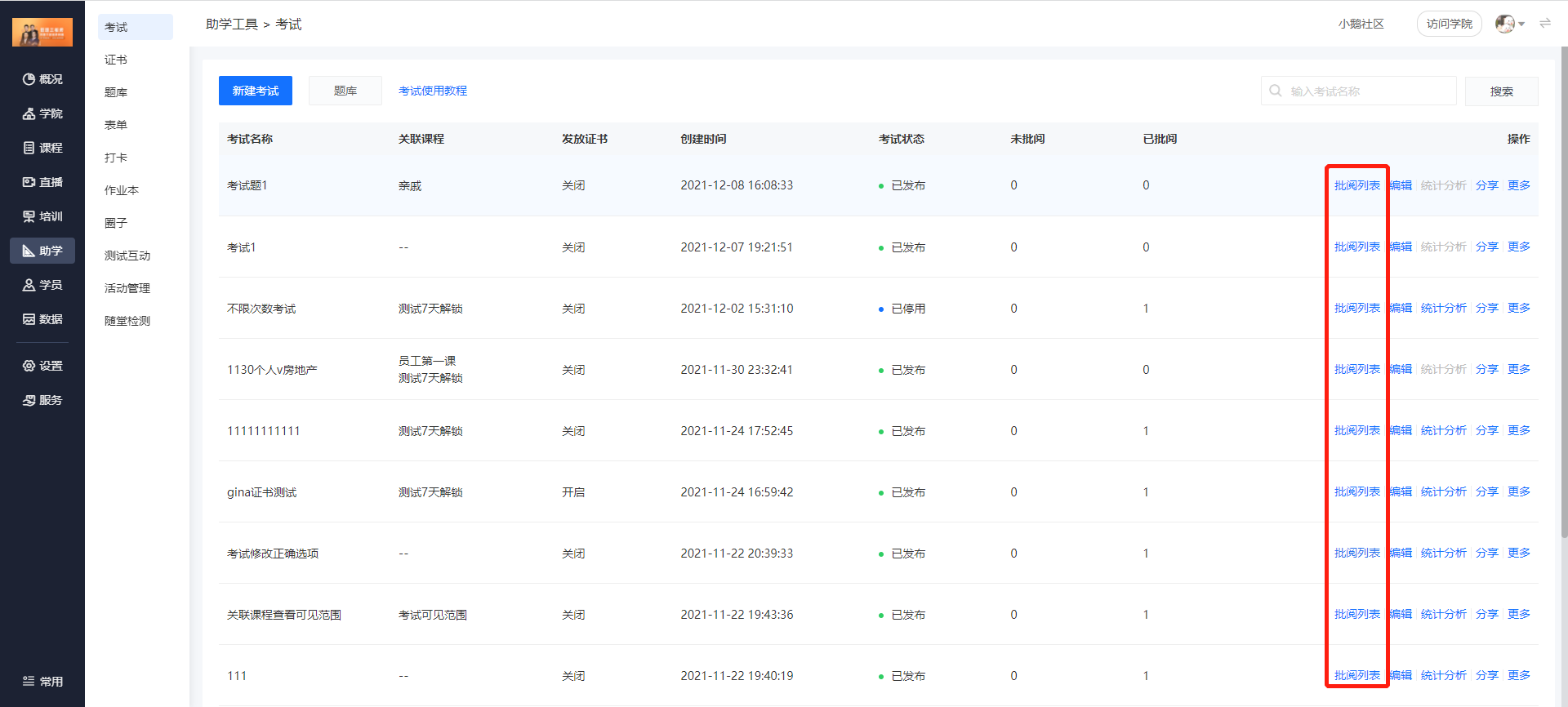
(Management console)
(Management console)
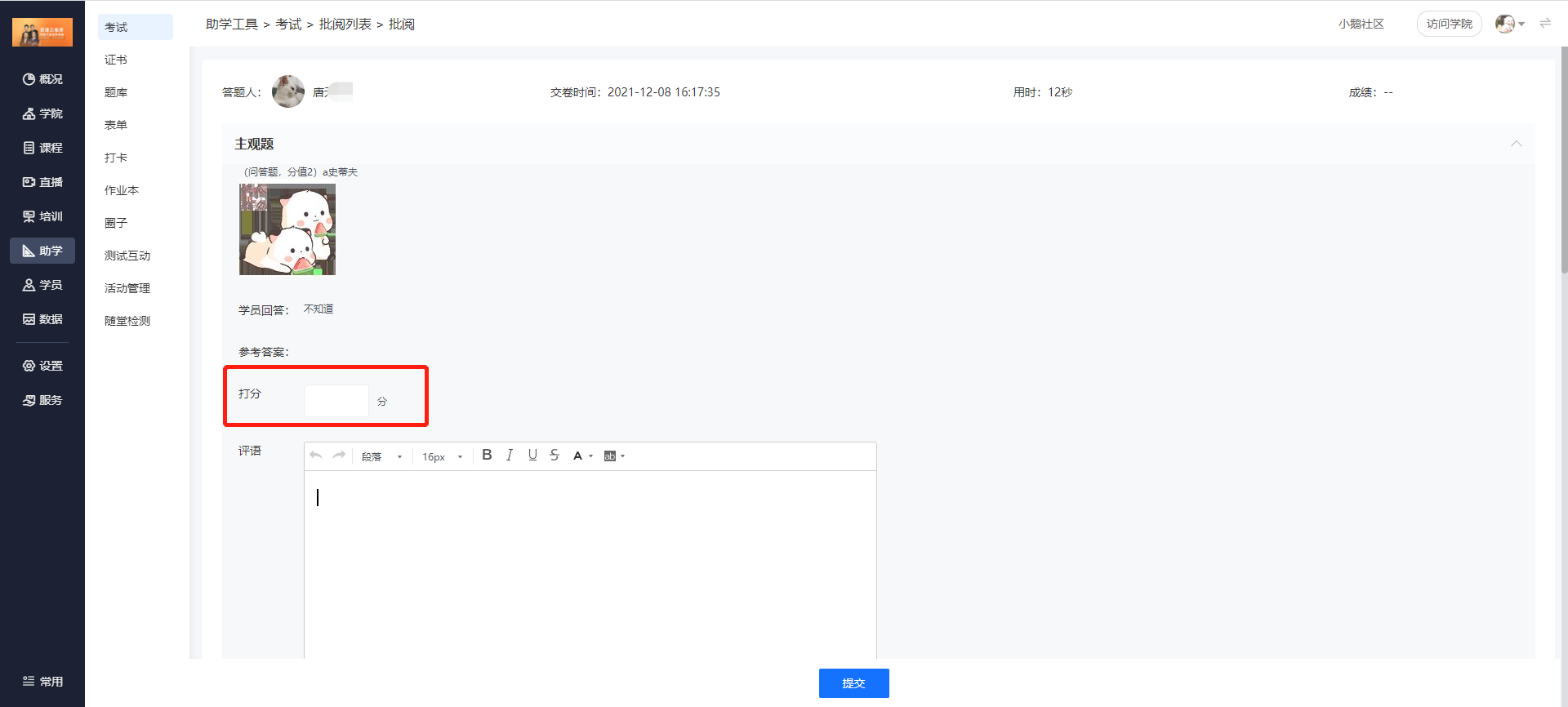
(2) Score: Enter the score directly in the [Score] box.
The system will automatically grade multiple-choice questions, while essay questions need to be graded manually. If the exam content consists entirely of multiple-choice questions, the system will grade directly, and students can get their scores without waiting for teachers to grade.
(Management console)
Step 2: Exams - Student side (Two methods)
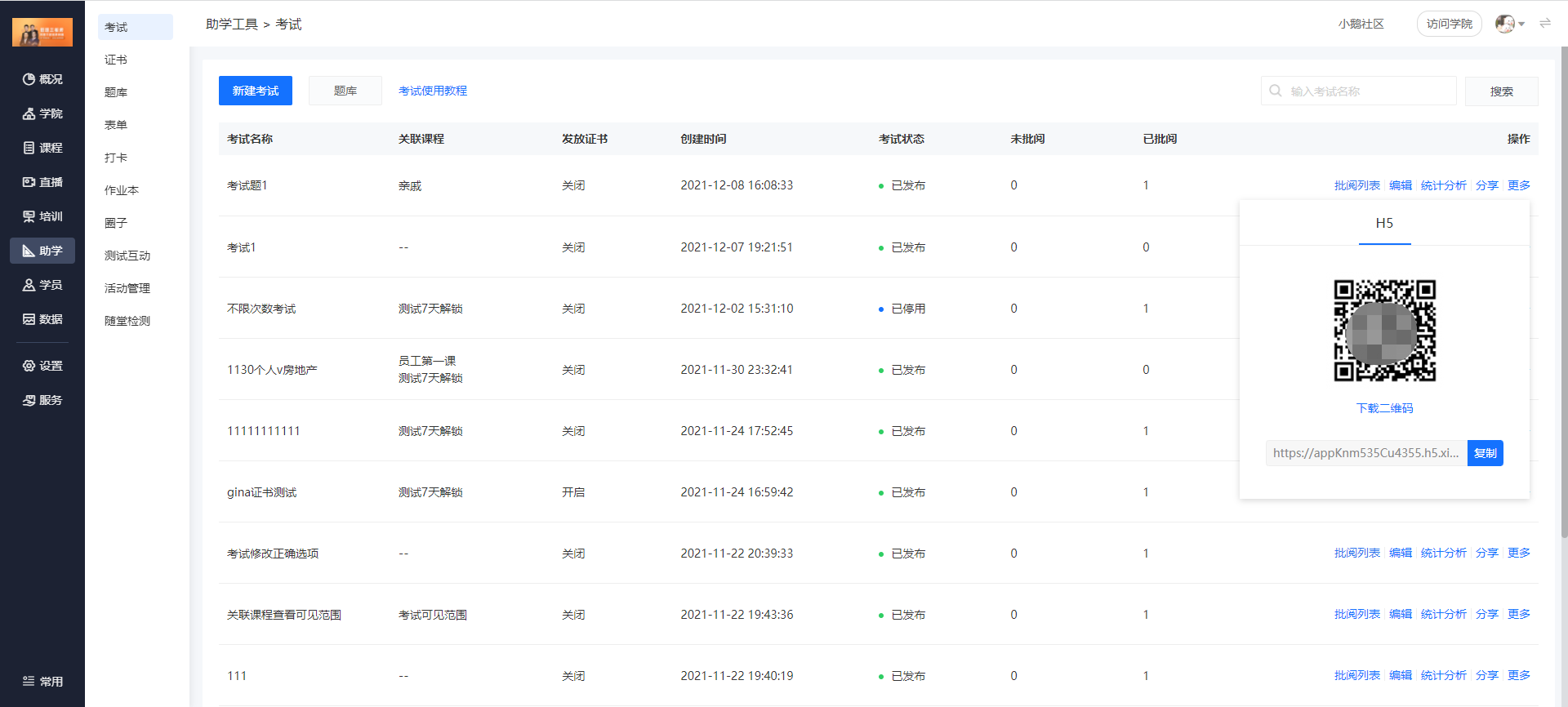
Method 1: Students directly scan the exam code shared by the administrator to enter the "Start the exam" page. Click [Start the exam] to enter the formal exam page and start answering questions.
After finishing answering the questions, click [Submit the test paper] to complete the exam and enter the grading page.

Method 2: Students enter the college homepage through the enterprise training QR code shared. Through the path [My] - [Learning tools] - [Exams] - [My exams], select an exam and enter the formal exam page to participate in the exam.
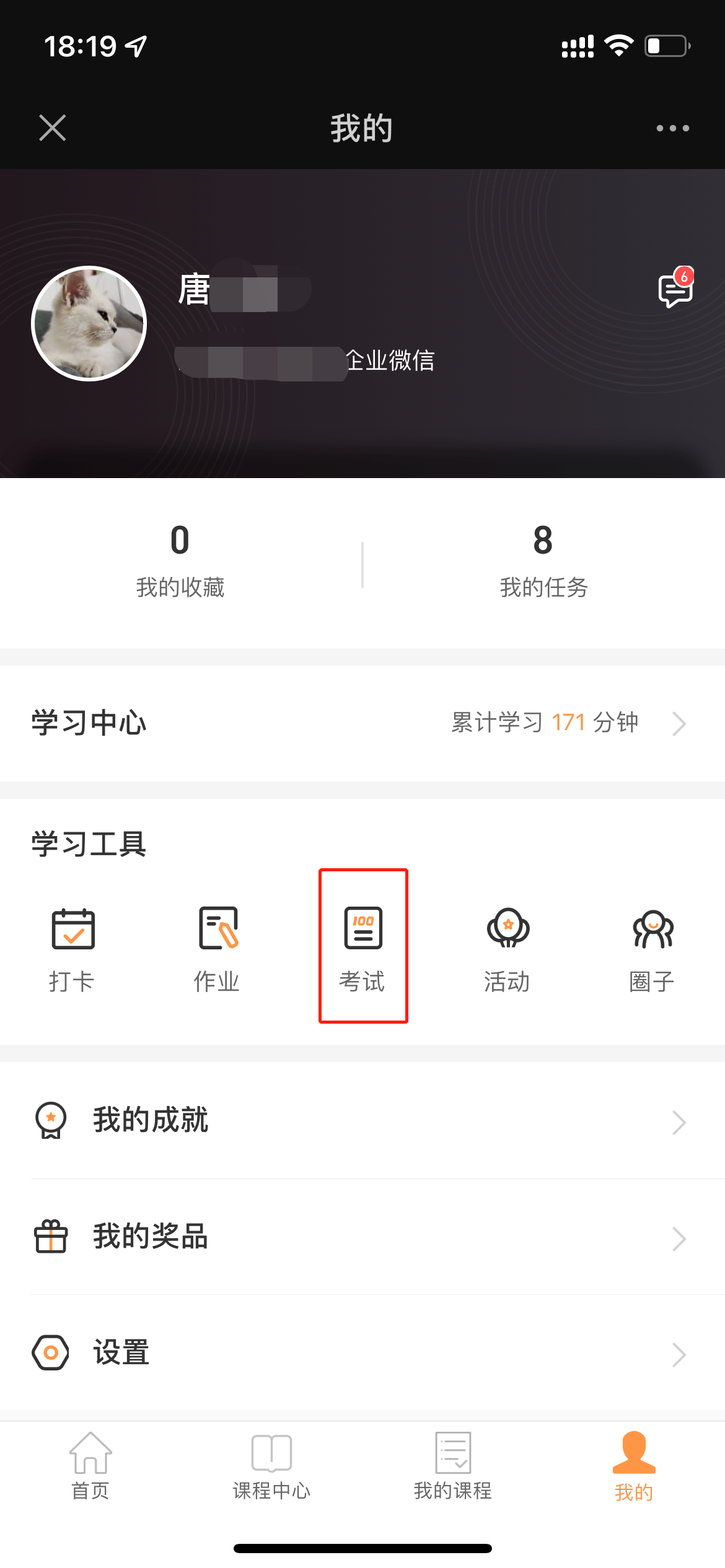
("My" on the student side)
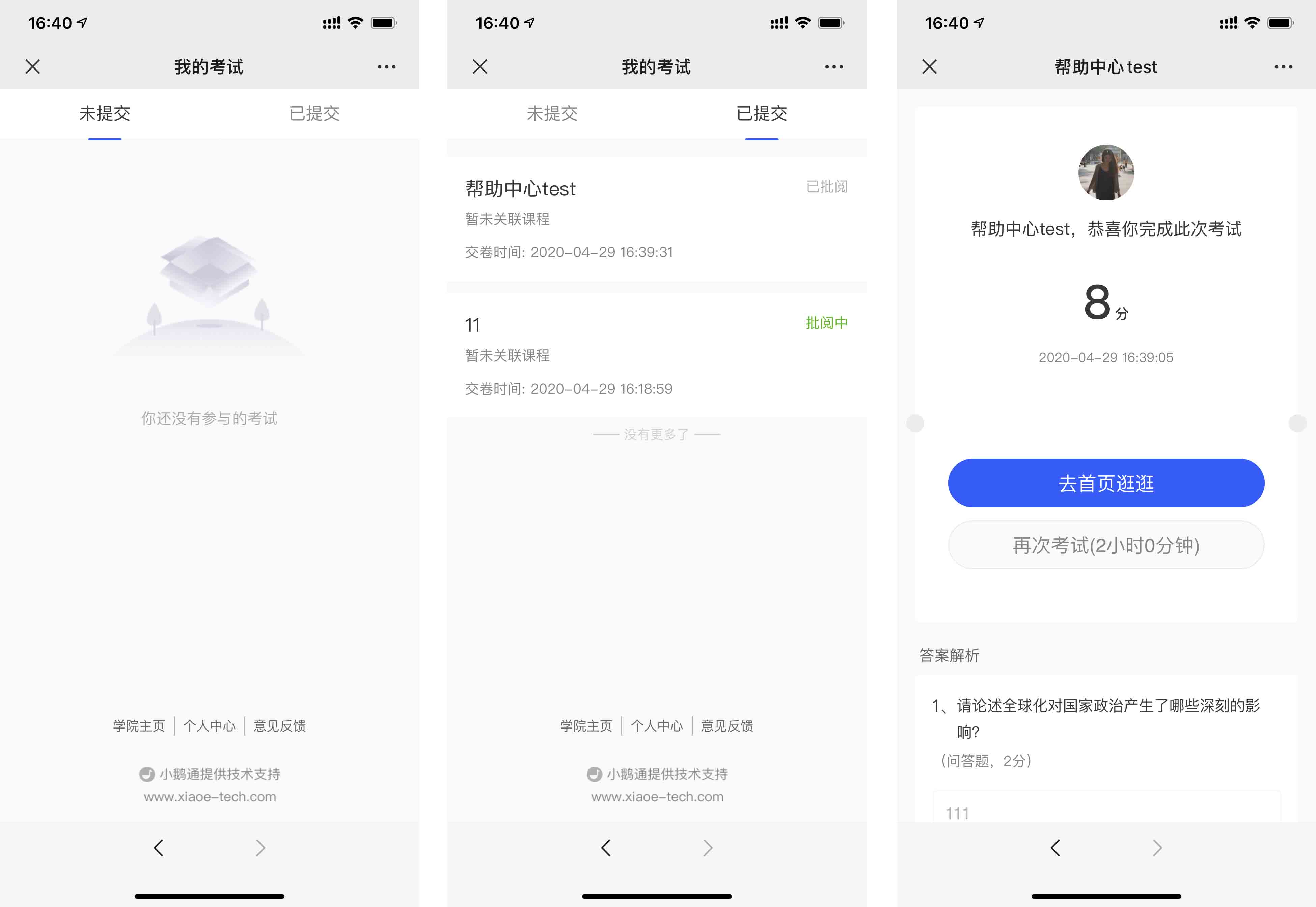
View scores: Students can view their scores through [My] - [Exams] - [Submitted]
No comments to display
No comments to display