
Tutorial on Using Voice Live Streaming
I. Function Introduction
Voice live streaming courses can send a large amount of voice, text, and images, thus achieving the purpose of interacting with students.
II. Purpose of Use
Provide training to students in the form of voice live streaming.
III. Usage Scenarios
Suitable for learning scenarios with a large amount of learning materials and the need to interact with students simultaneously. Students can learn by watching the voice live stream, ask questions, and the instructor can answer them immediately.
IV. Operation Path
Merchant side: Enterprise Academy Management Console → Course Management → Live Streaming → Voice Live Streaming
Student side: WeChat H5 Academy → Classroom Homepage
V. Usage Tutorial
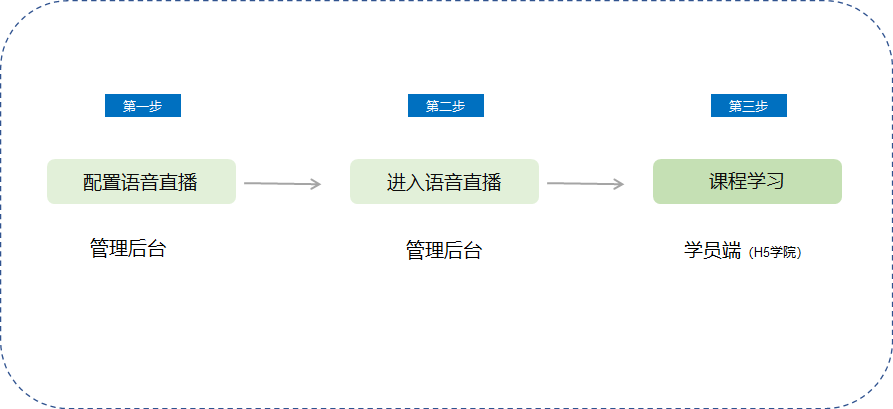
Step 1: Configure Voice Live Streaming (Management Backend)
1. Log in to the management console. Select [Live Streaming] → [Voice Live Streaming] → [Create Live Streaming] from [Course Management] to enter the page for creating voice live streaming.
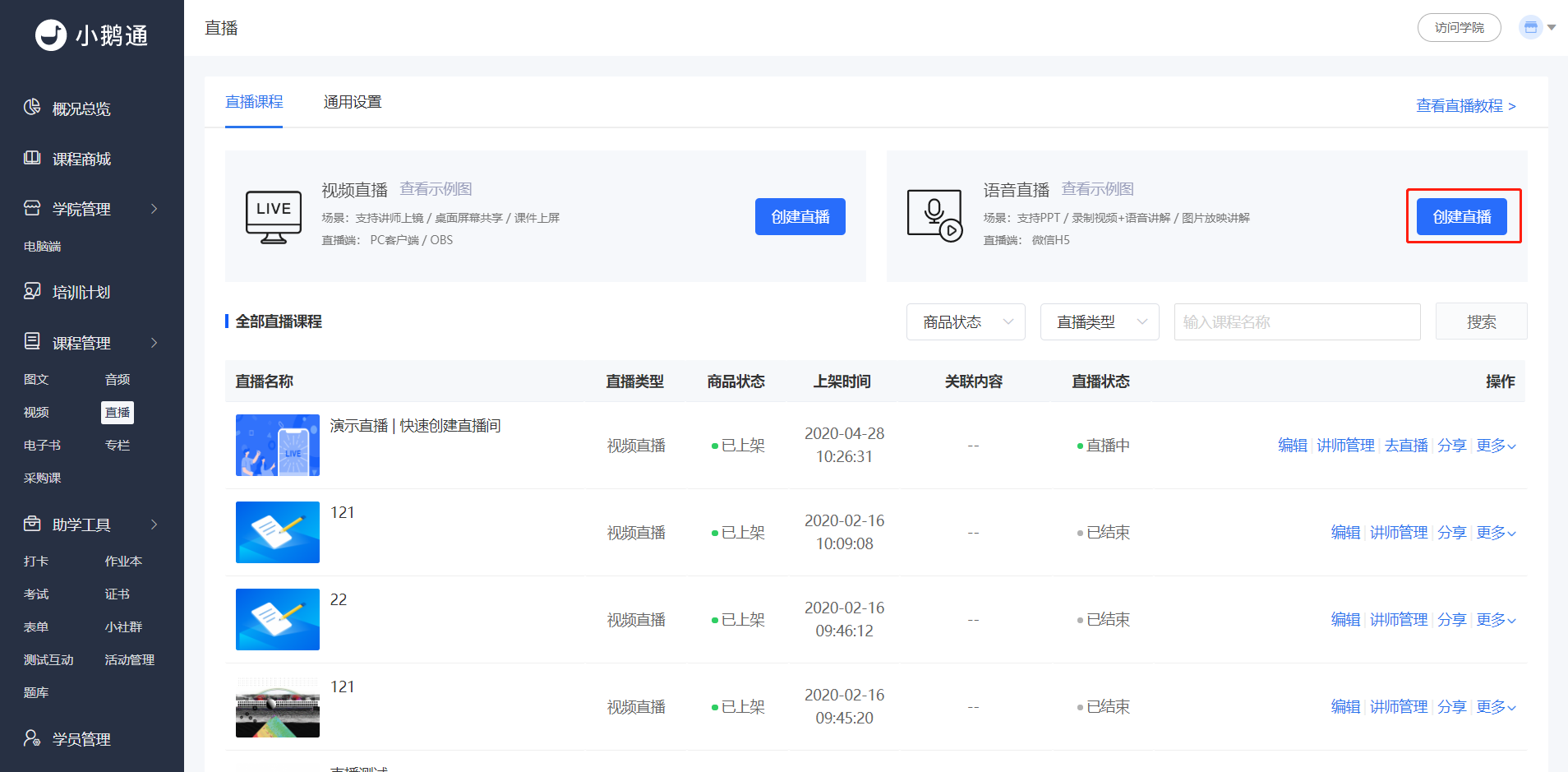
(Management Backend - Live Streaming)
2. Basic Information
Live streaming information: Fill in the live streaming name and time;
Set the visibility range: Set the course to be visible to specified students. For details, please readSet the Visibility Range;
Add courseware:
Do not add: If you choose not to add, guests can still upload PPTs after entering the live streaming room, but they cannot upload videos.
Add courseware: Currently, uploading PPTs on the management console is not supported. Guests can enter the live streaming room to upload courseware.
Add videos: The uploaded videos will automatically play after the live streaming starts. 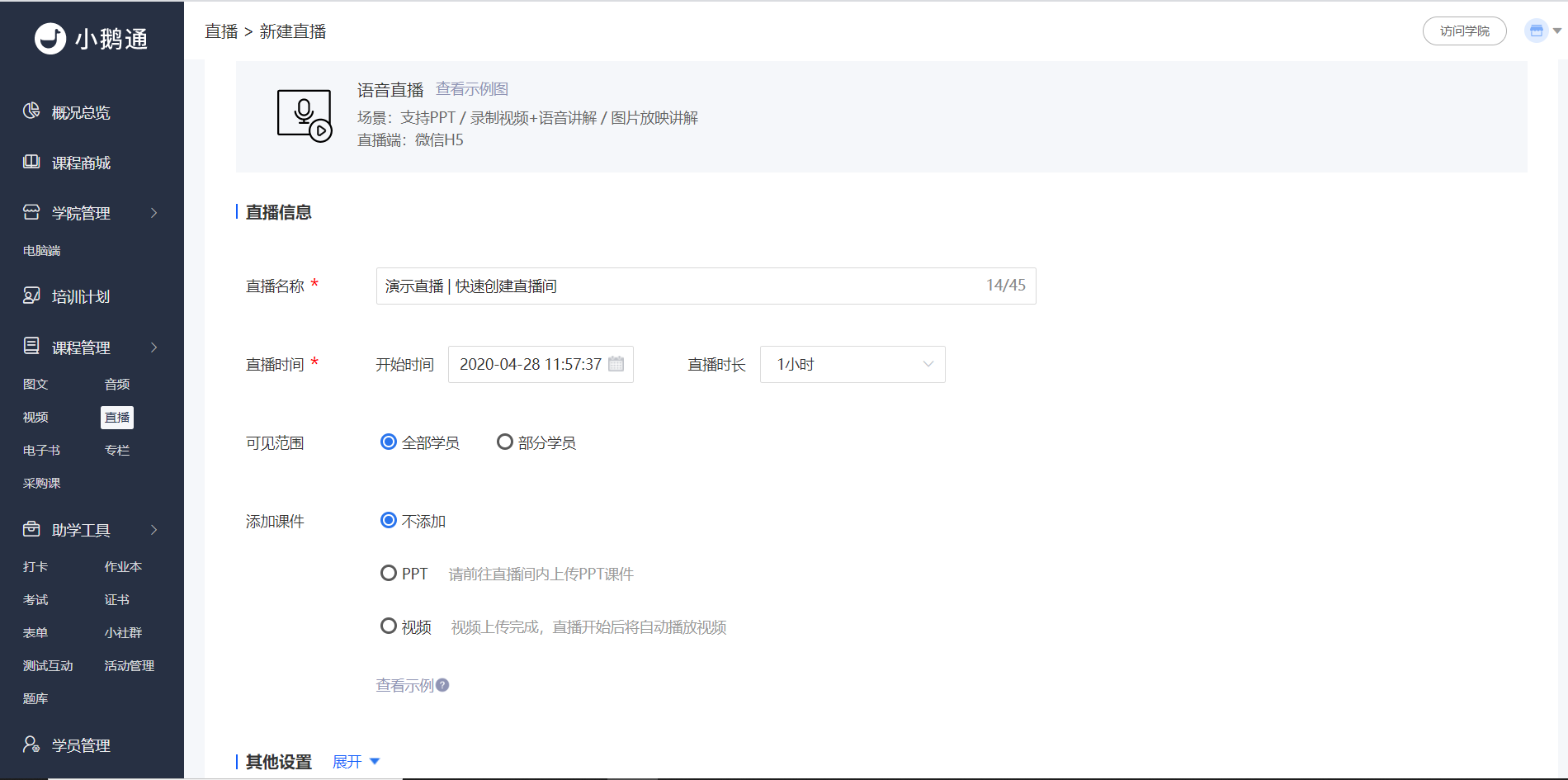
(Management Backend - Live Streaming - Create Voice Live Streaming)
3. Other Settings
Information: Fill in the live streaming introduction and details;
Details cover: The picture displayed when students view the details of the live streaming course;
Live streaming warm - up picture: The picture displayed in the video area before the live streaming starts;
Live streaming promotion cover: The picture displayed at the live streaming entrance on the academy homepage for students;
Associated courses: You can choose to associate with a column or training plan. After saving, the course information will be displayed in the details of the column and training plan.
Course grouping: A function to classify and display courses. For details, please readCourse Grouping Usage Tutorial.
Shelving settings: Set the shelving time of the course. For details, please readShelving and Unshelving Settings.
4. Click [Save] to create an audio course.
5. After returning to the interface, the system will prompt you to add an instructor. Select to add an instructor. Or click [Instructor Management] for the corresponding live streaming to add (Note: Only those who have bound their WeChat accounts can be added as instructors. Please ask the instructors to log in to the enterprise academy to bind their WeChat accounts first).
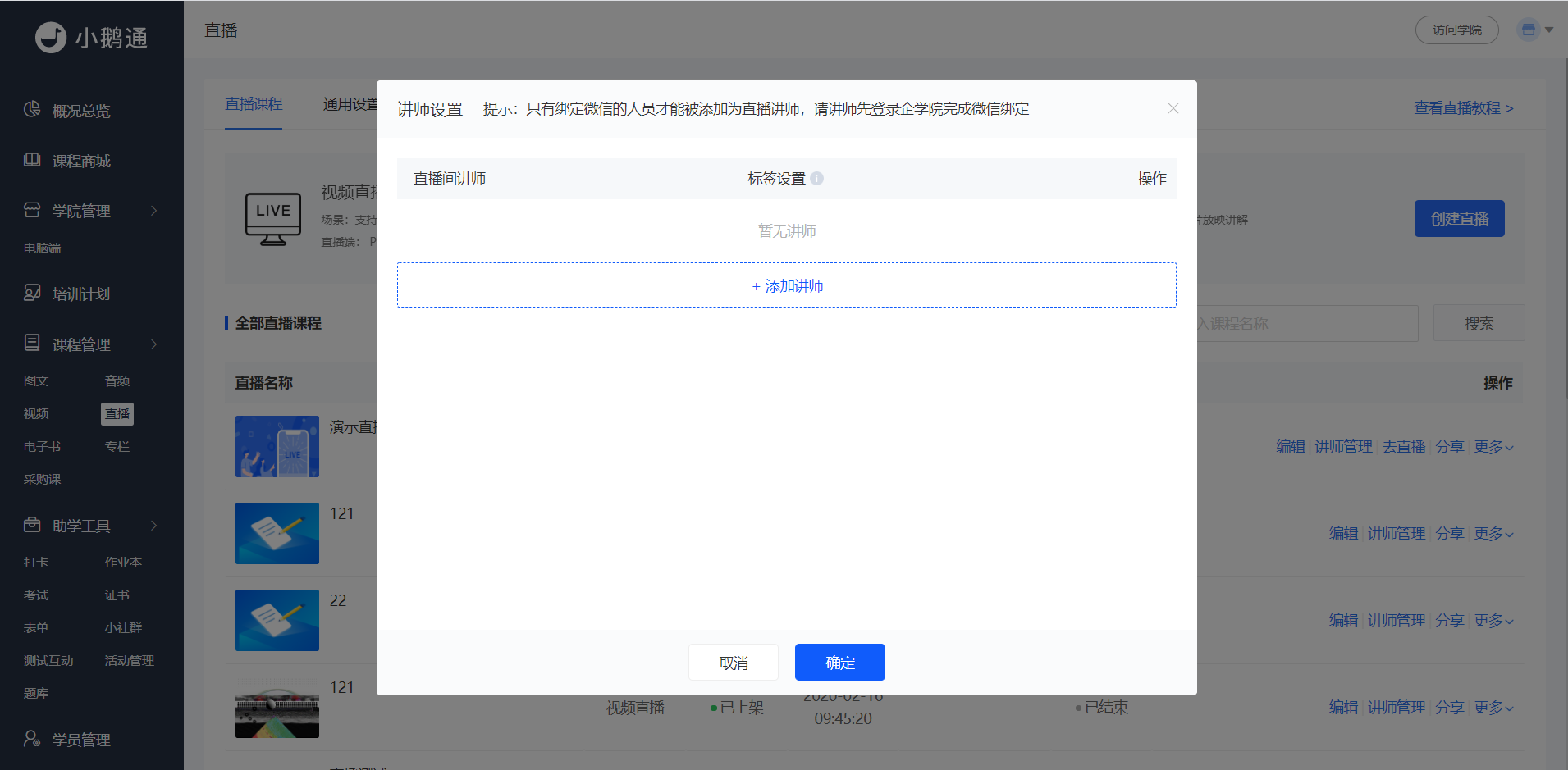
(Management Backend - Live Streaming - Instructor Management)
6. Select the instructor to be added, click [Add] → [OK] to complete the addition of the instructor. You can use the "Tag Settings" function to edit the title of the instructor displayed in the live streaming room.
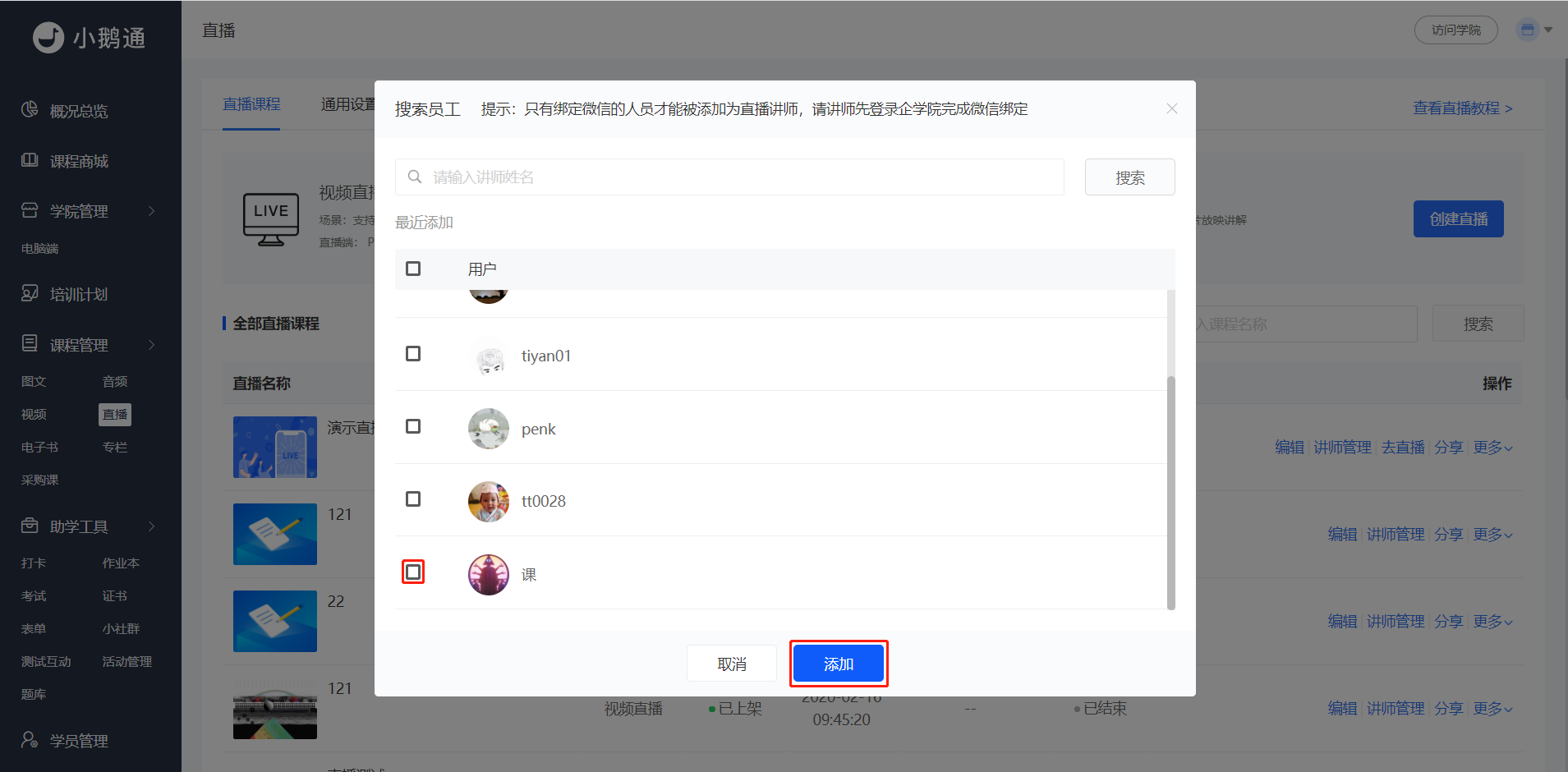
(Management Backend - Live Streaming - Instructor Management)
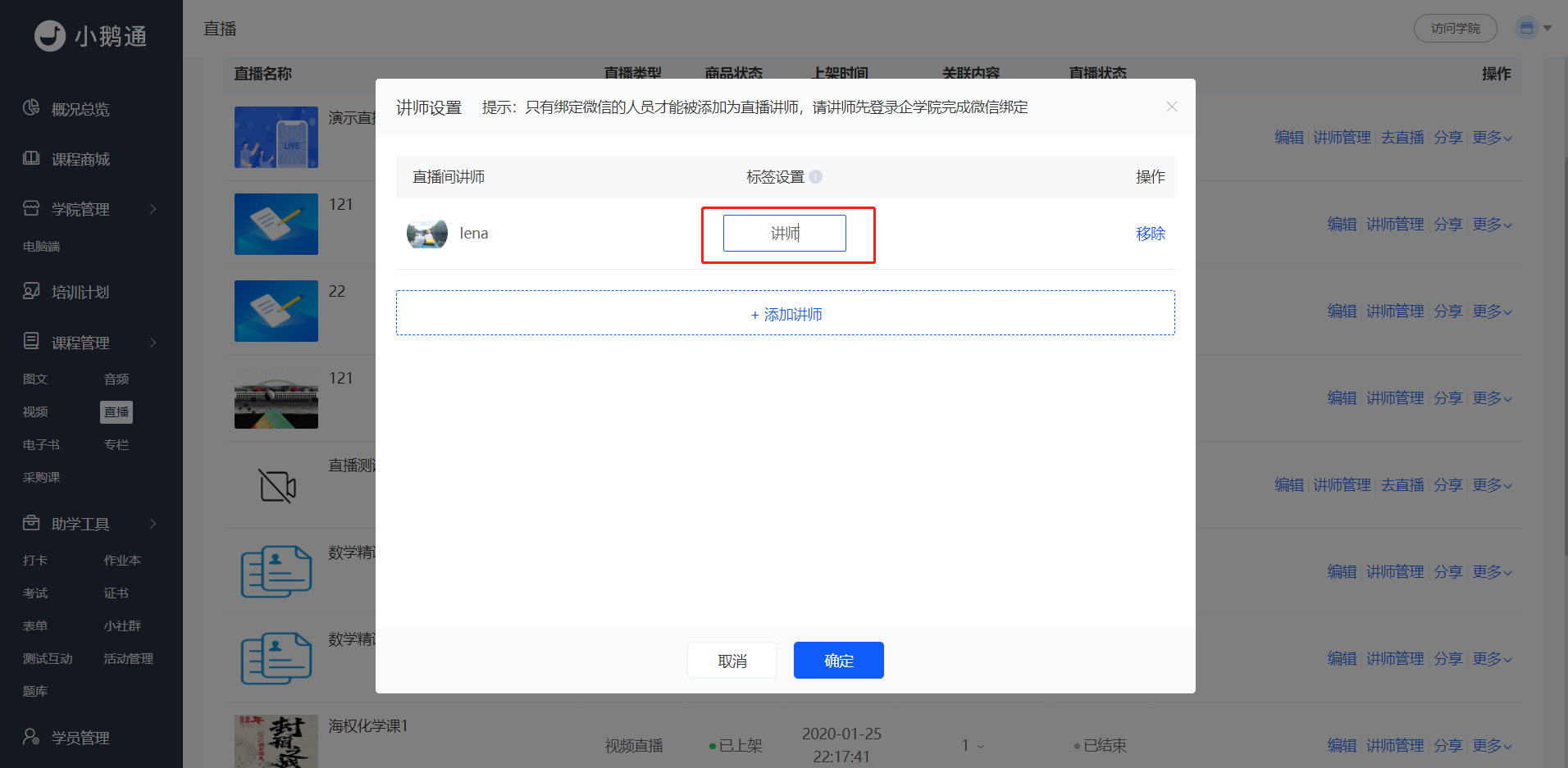 (Management Backend - Live Streaming - Instructor Management)
Step 2: Enter Voice Live Streaming (Management Backend)
Click [Operation] - [Go to Live Streaming], and select a suitable terminal for live streaming. Currently supported: Web terminal, WeChat terminal.
Different terminals support different functions (the display pages on the employee side are different). Suitable scenarios for each terminal:
(1) Web terminal: Supports PPT and voice explanations for recorded videos or pictures. For details, please readVoice and Image - Text Live Streaming Instructor - Side Usage Tutorial;
(2) WeChat terminal: Supports voice explanations for pre - uploaded PPTs, videos, or pictures. For details, please readVoice and Image - Text Live Streaming Usage Tutorial;
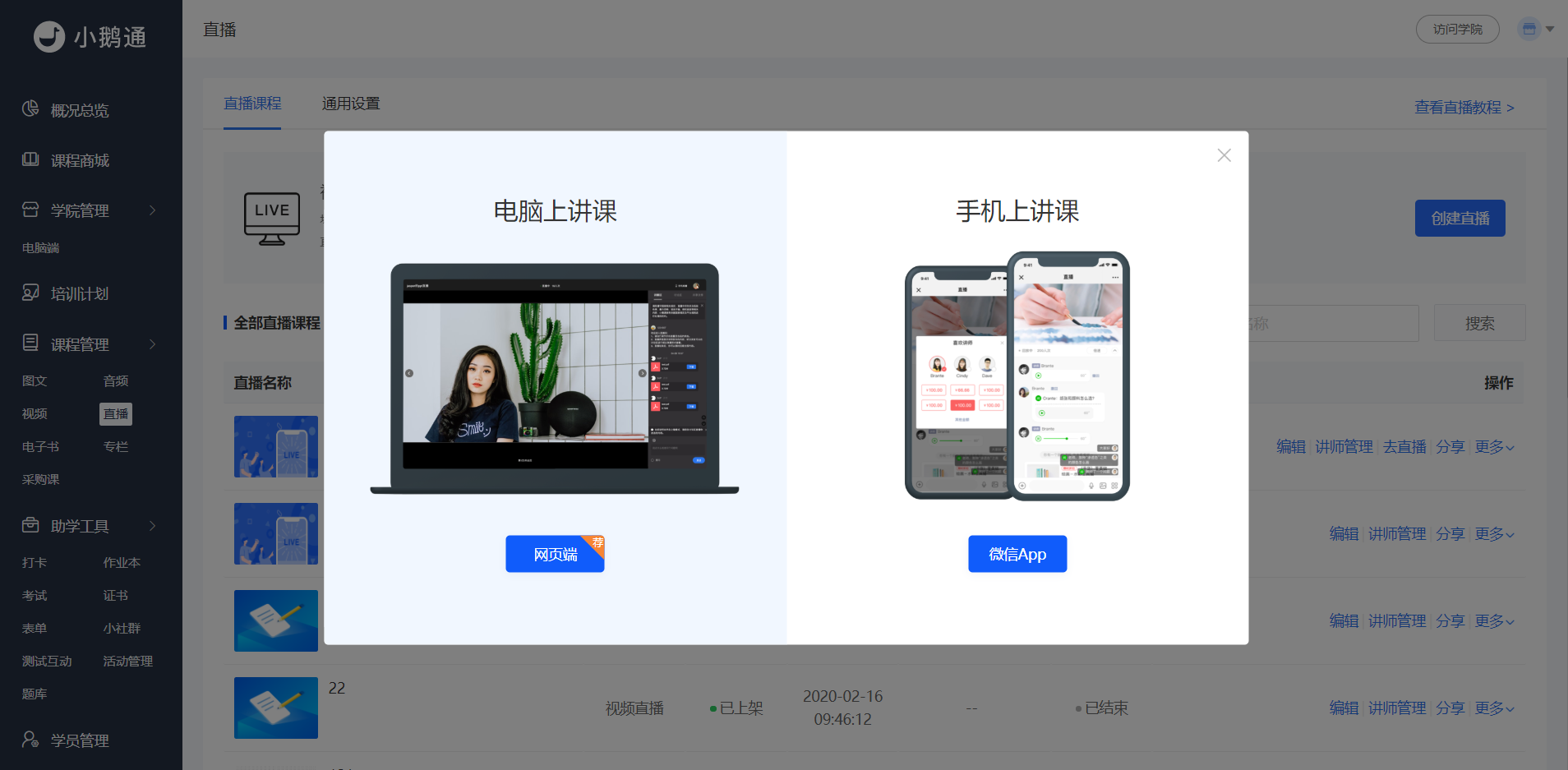
(Management Backend - Live Streaming - Go to Live Streaming)
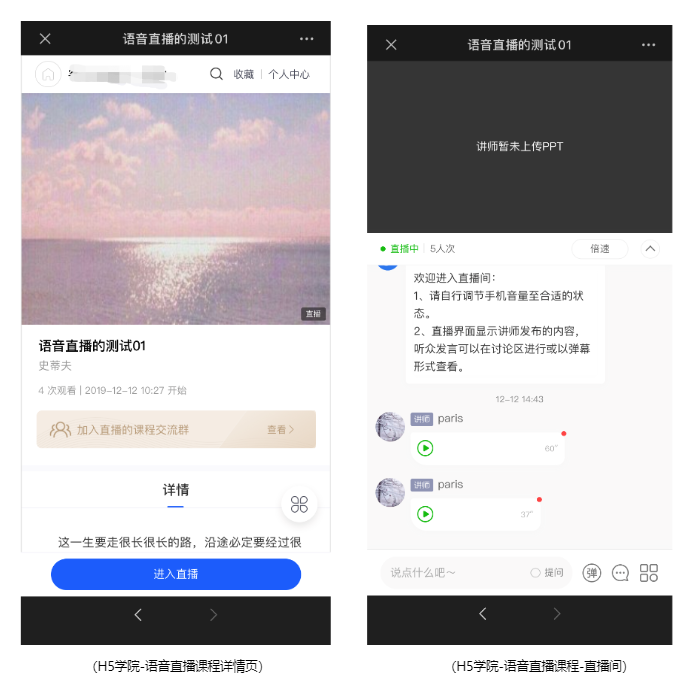
Step 3: Course Learning (H5 Academy)
1. Students log in to the academy.
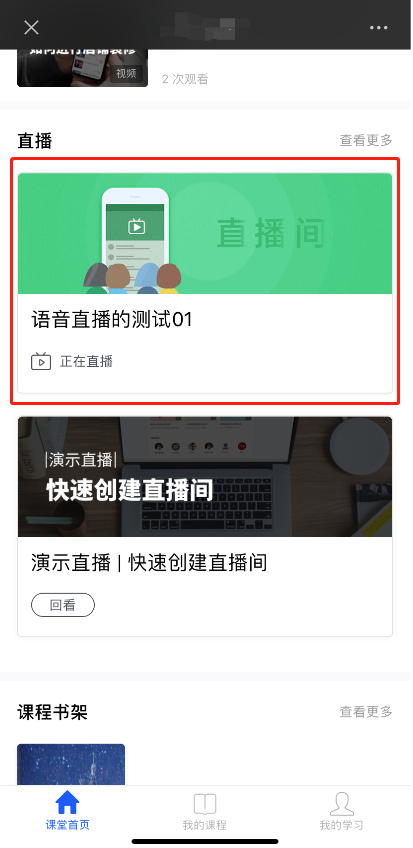
(H5 Academy - Classroom Homepage)
2. Students select the corresponding video live streaming course from the courses to learn.
No comments to display
No comments to display