
Super Member Usage Tutorial
I. Function Introduction
Super Memberships are special user privileges that are inseparable from the processes of customer acquisition, activation, retention, and viral marketing. They are not only sold as privilege products but also serve as a powerful tool for user operations, enabling merchants to manage users throughout their entire lifecycle, thereby increasing the number of customers, retention rate, and user activity.
II. Purpose of Use
1. Expand the private traffic pool and increase the number of store members.
2. Assist merchants in user operations, enhance the stickiness of core students, improve store retention and activity, and expand the merchant's brand influence.
III. Use Scenarios
Scenario 1:Merchant A has accumulated a group of store students, but their activity is low, and the number of students entering the store each week is small. Merchant A can operate high - stickiness users through Super Memberships, offer exclusive privileges and services, and improve retention and activity.
Scenario 2:Merchant B hopes to attract more high - stickiness users but lacks operational capabilities. Merchant B can use Super Memberships for viral marketing and customer acquisition. Users can obtain free trial privileges by sharing Super Memberships, and the more they share, the more privileges they can accumulate.
IV. Operation Path
Merchant side: Desktop management console → Users → User Operations → Super Memberships
V. Usage Tutorial
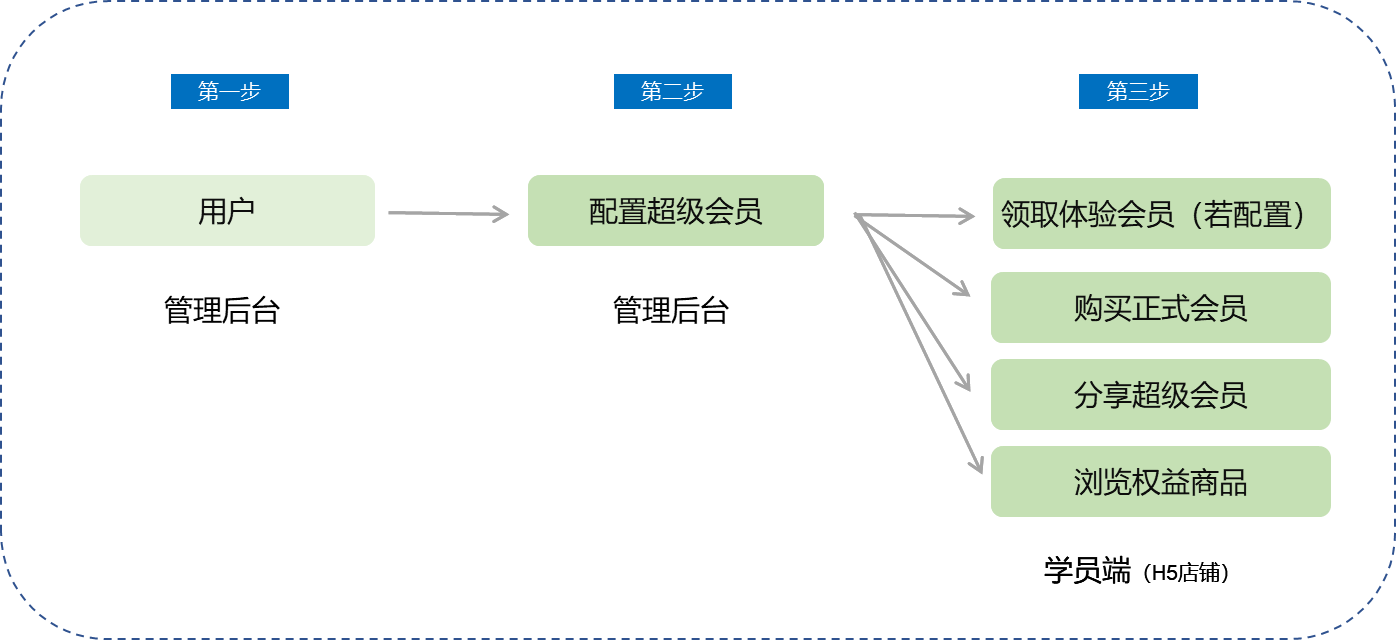
1. Enter Super Memberships for the first time
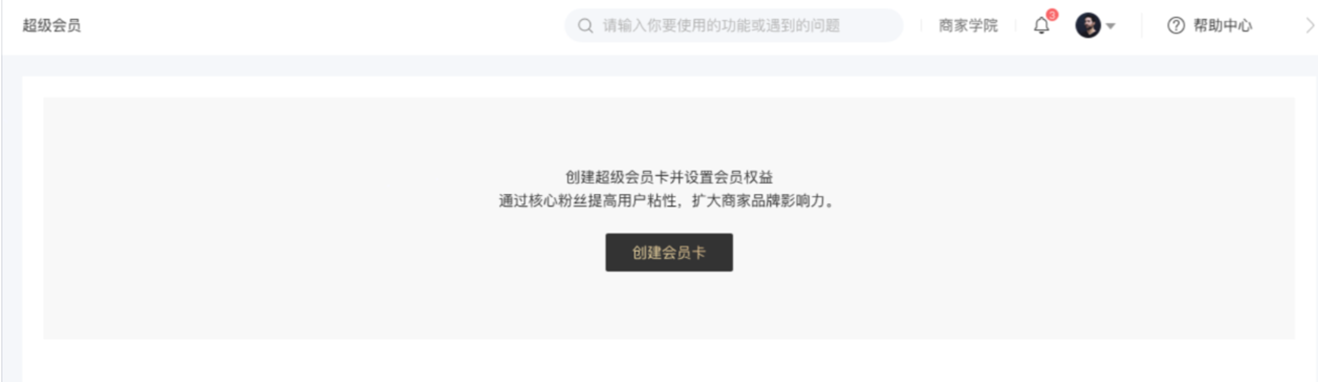
● Click [Create Membership Card] to enter the new membership card creation page.
2. Edit Super Memberships - Membership Card Settings
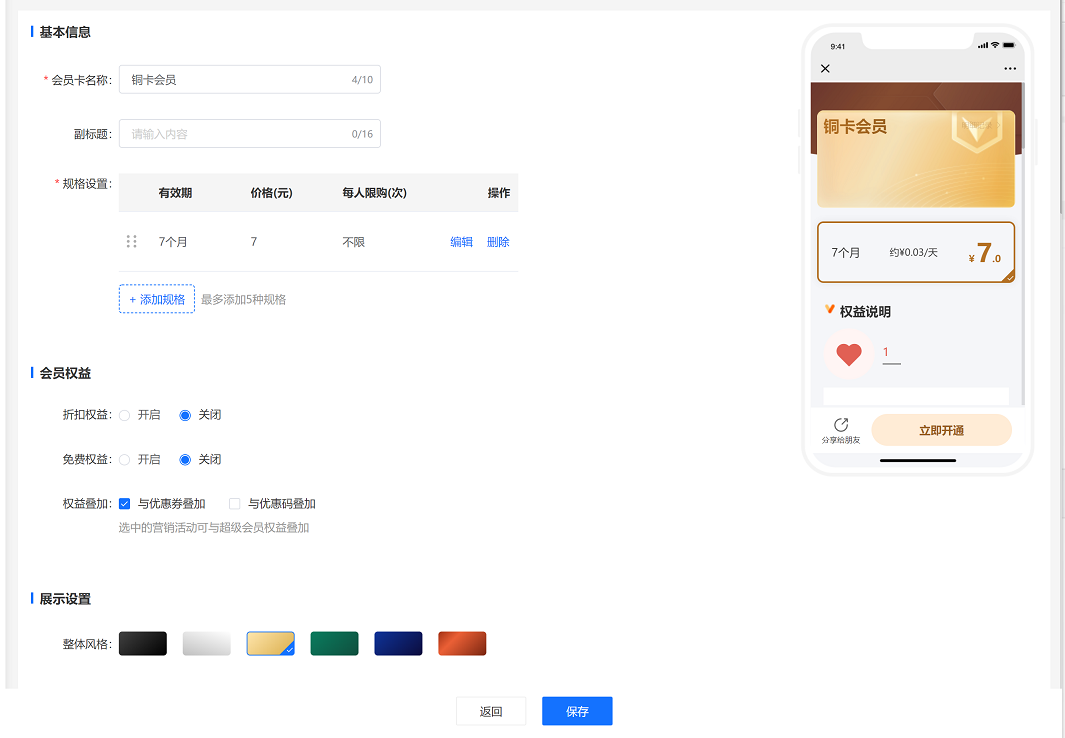
● Basic information: Name, subtitle
● Membership specifications: Validity period, price, purchase limit (maximum of 5 settings)
● Membership privileges: Partial/Full - store discounts, partial/full - store free access
● Membership description: Privilege description, membership introduction, usage instructions (supports rich text editing)
3. Edit Super Memberships - Membership Card Settings
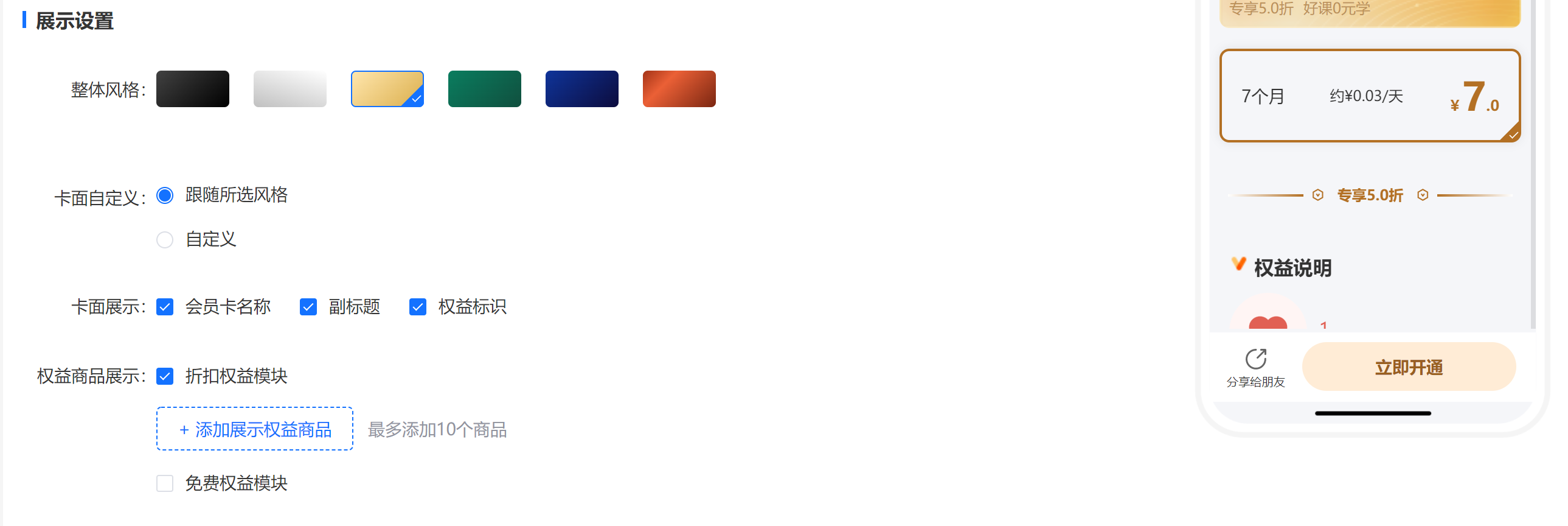
● Overall style: Supports 6 styles
● Card face customization: Can choose to follow the style or upload your own
● Privilege content display:
a. Free product display module (maximum of 10 products can be added)
b. Discount product display module (maximum of 10 products can be added)
● Membership description
4. Membership Operations - Membership List
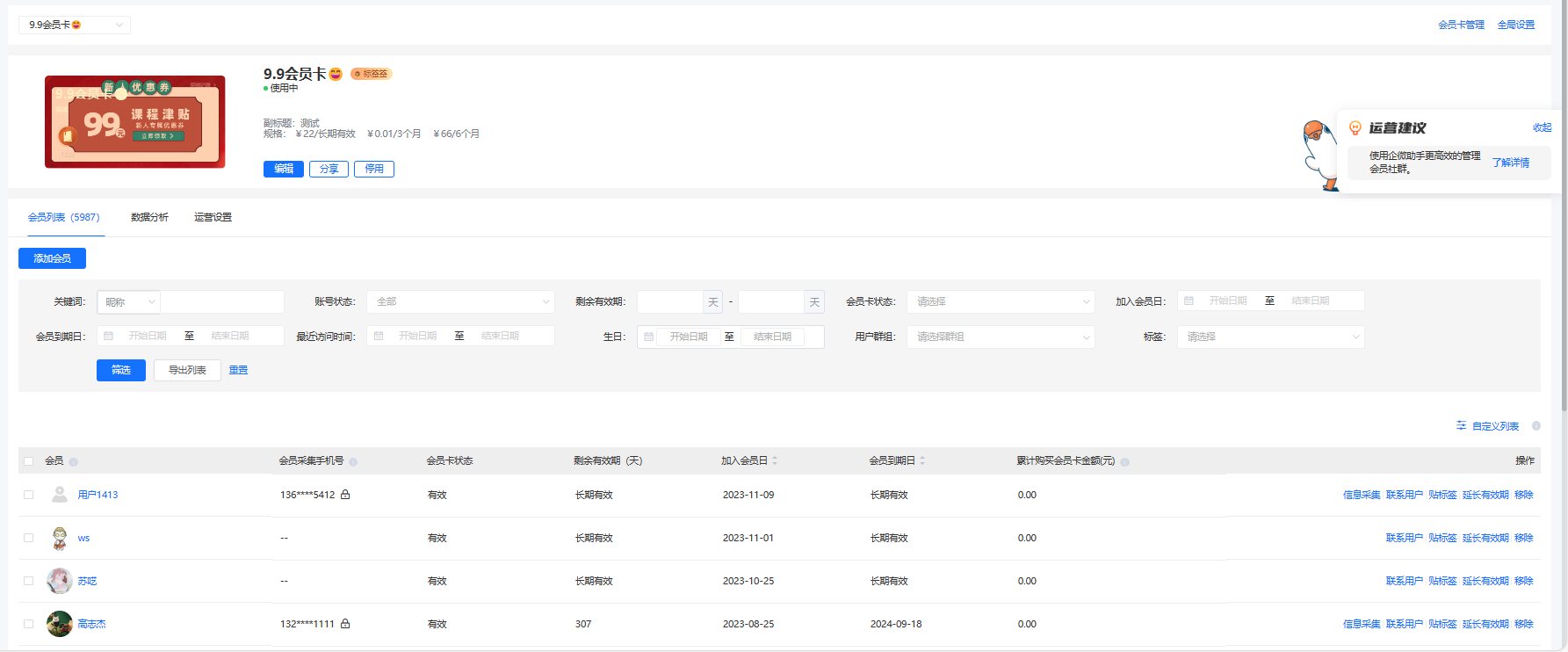
● You can select the membership cards to be displayed through the drop - down menu in the upper - left corner.
● You can directly add Super Memberships.
● You can filter and export the list.
● You can view the information filled in during user information collection.
● You can batch tag users.
● You can contact users (supports sending SMS to the user's account mobile number and the mobile number collected during information collection).
● Click on the avatar/nickname to jump to the user's personal details page.
● You can directly remove the user's Super Membership privileges (Note: After removal, the user will lose the Super Membership privileges, and the system will not automatically refund. You need to contact the user manually for a refund.)
5. Membership Operations - Operation Settings
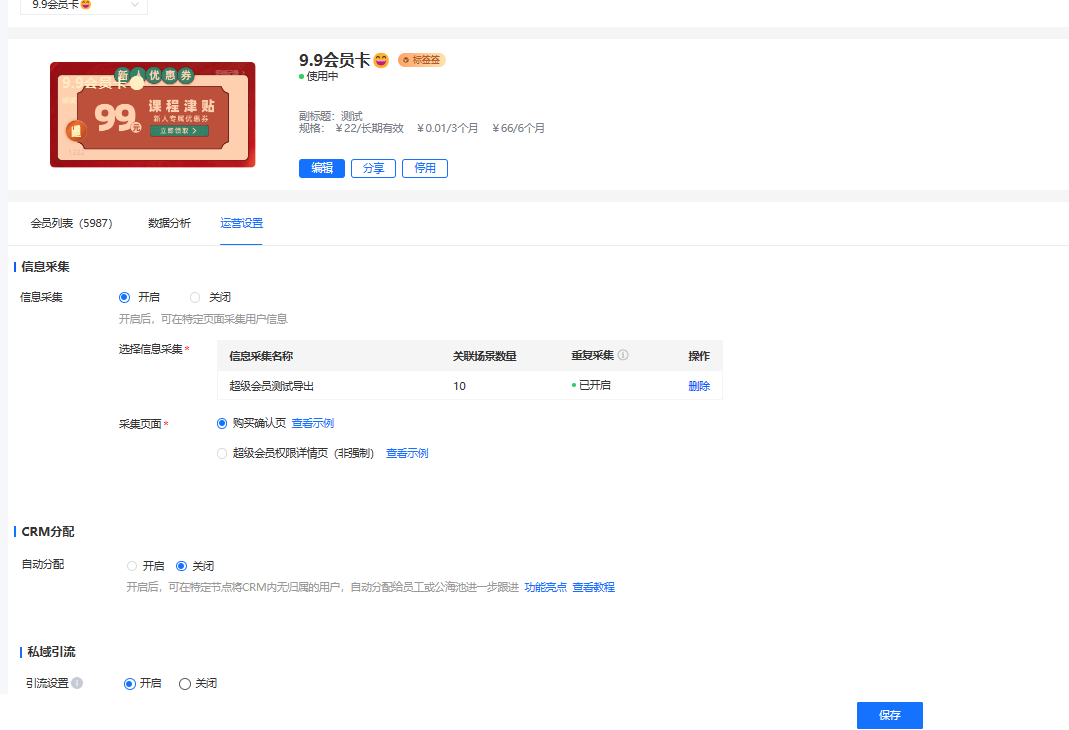
● Information collection: Supports invoking the information collection function.
● Private domain customer acquisition, including:
a. Customer acquisition settings (add a QR code for users to scan and join the community);
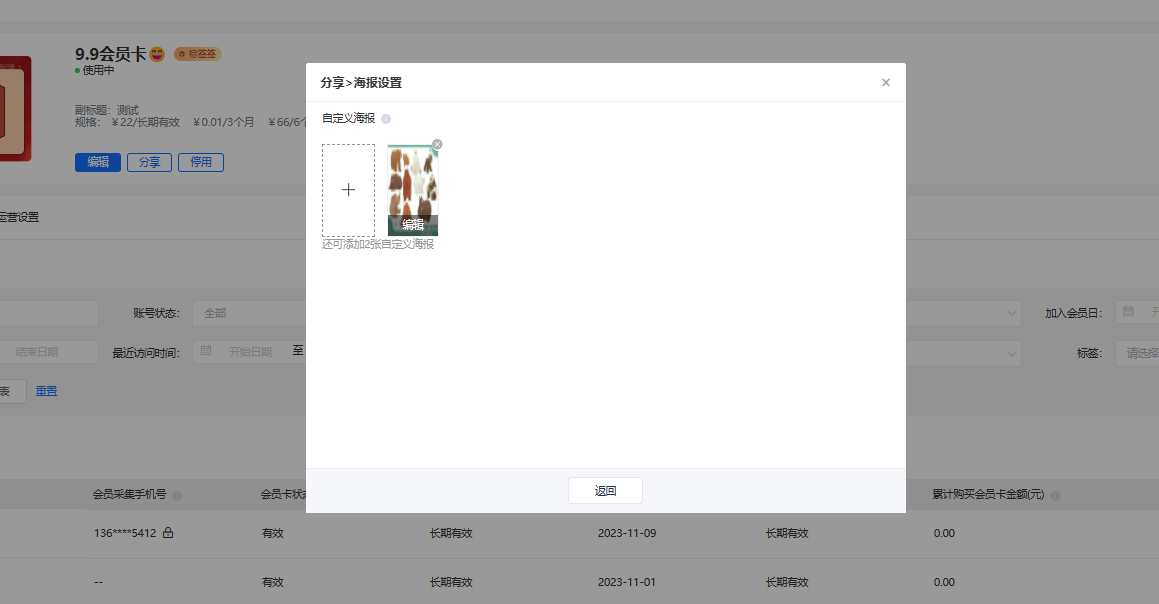
b. Sharing guidance (configure sharing posters in [Sharing - Poster Settings])
6. Membership Operations - Data Analysis
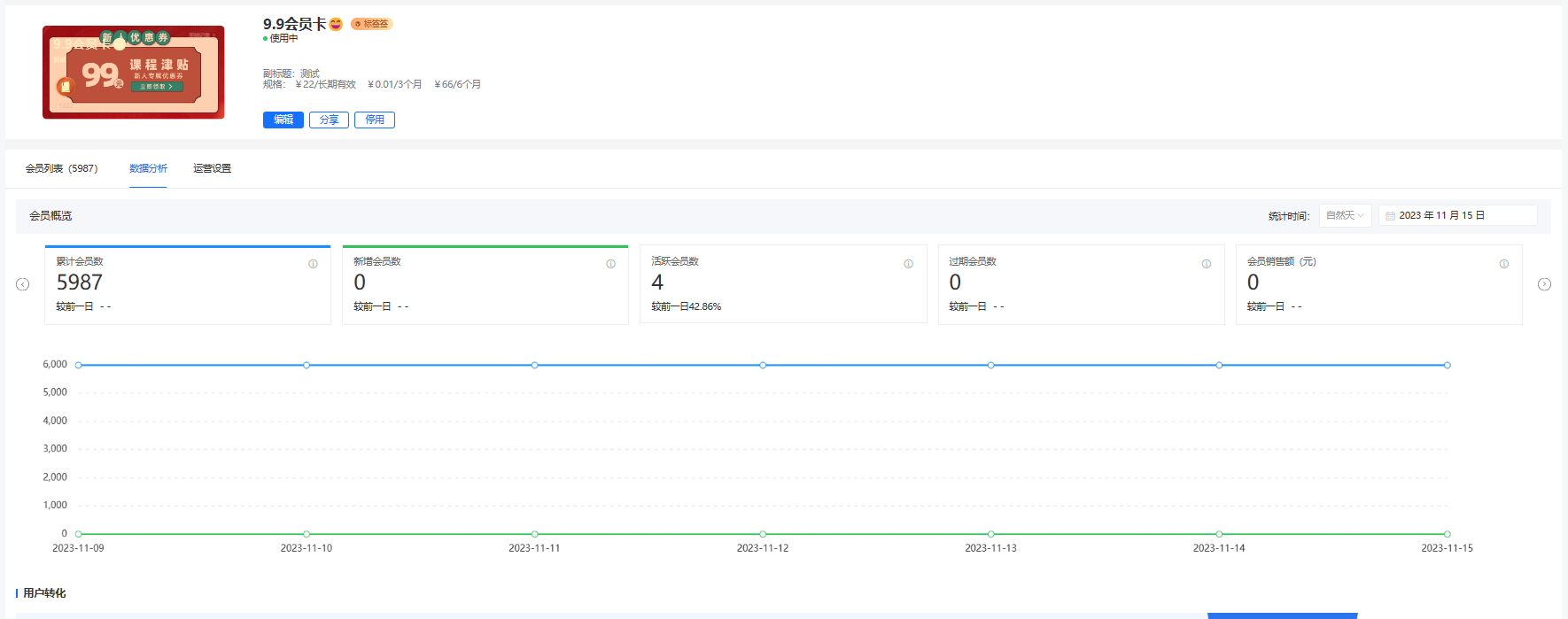
● Membership overview (basic data, user conversion, membership specification distribution)
● Membership geographical distribution
● Membership activity
● Membership retention analysis
7. Membership Operations - Sharing Settings
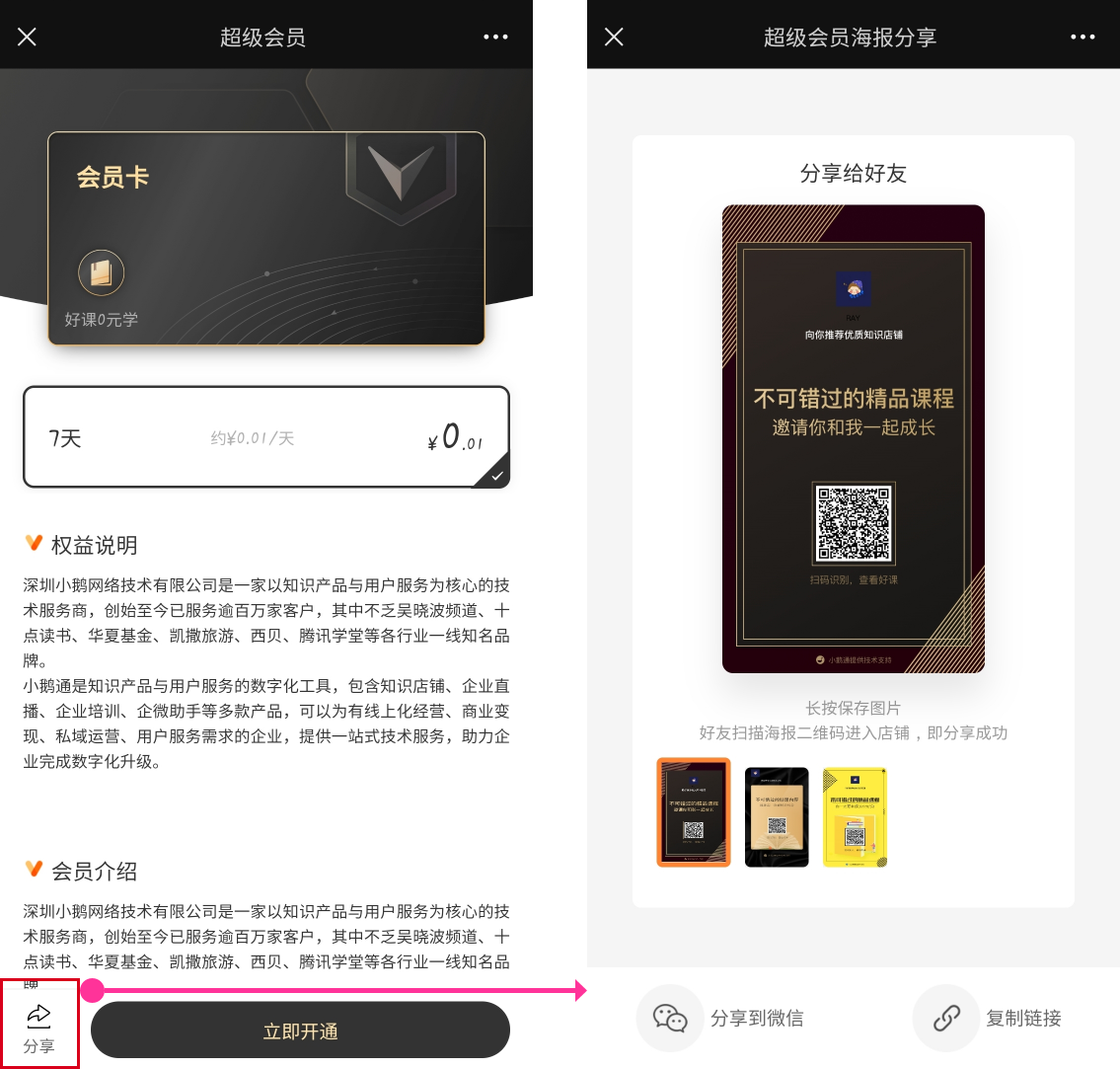
● Sharing posters: You can customize and upload three posters for users to share and spread virally.
8. Membership Card Management
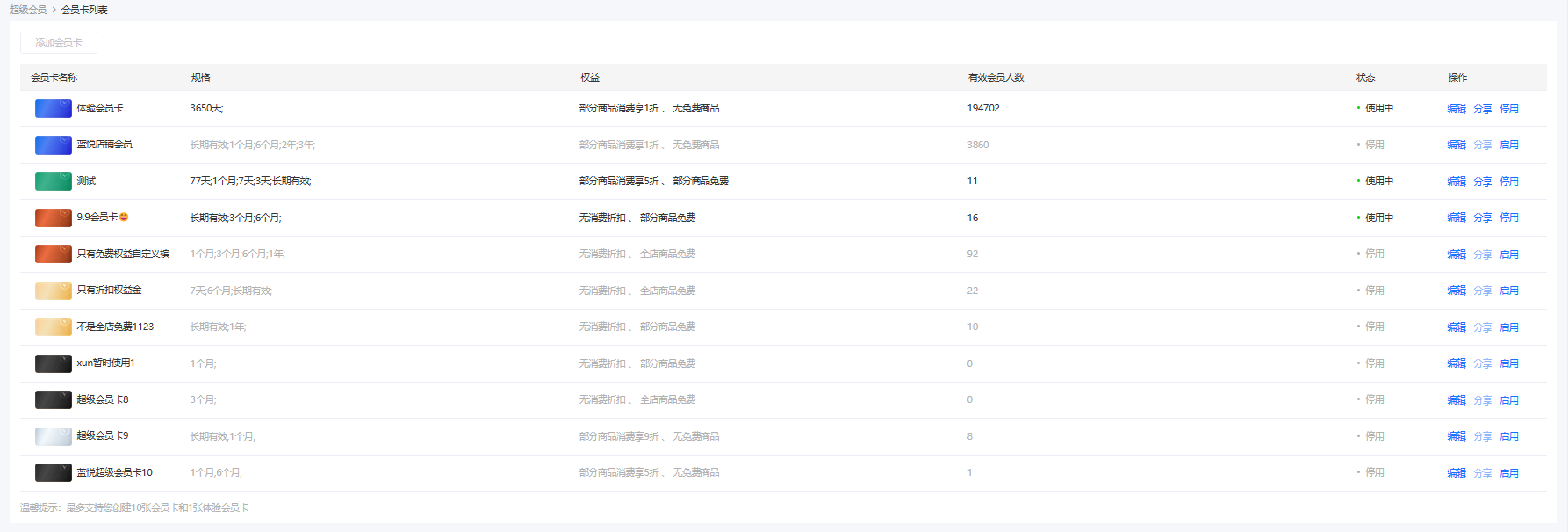
● Supports adding 10 official membership cards and one trial membership card.
9. Global Settings
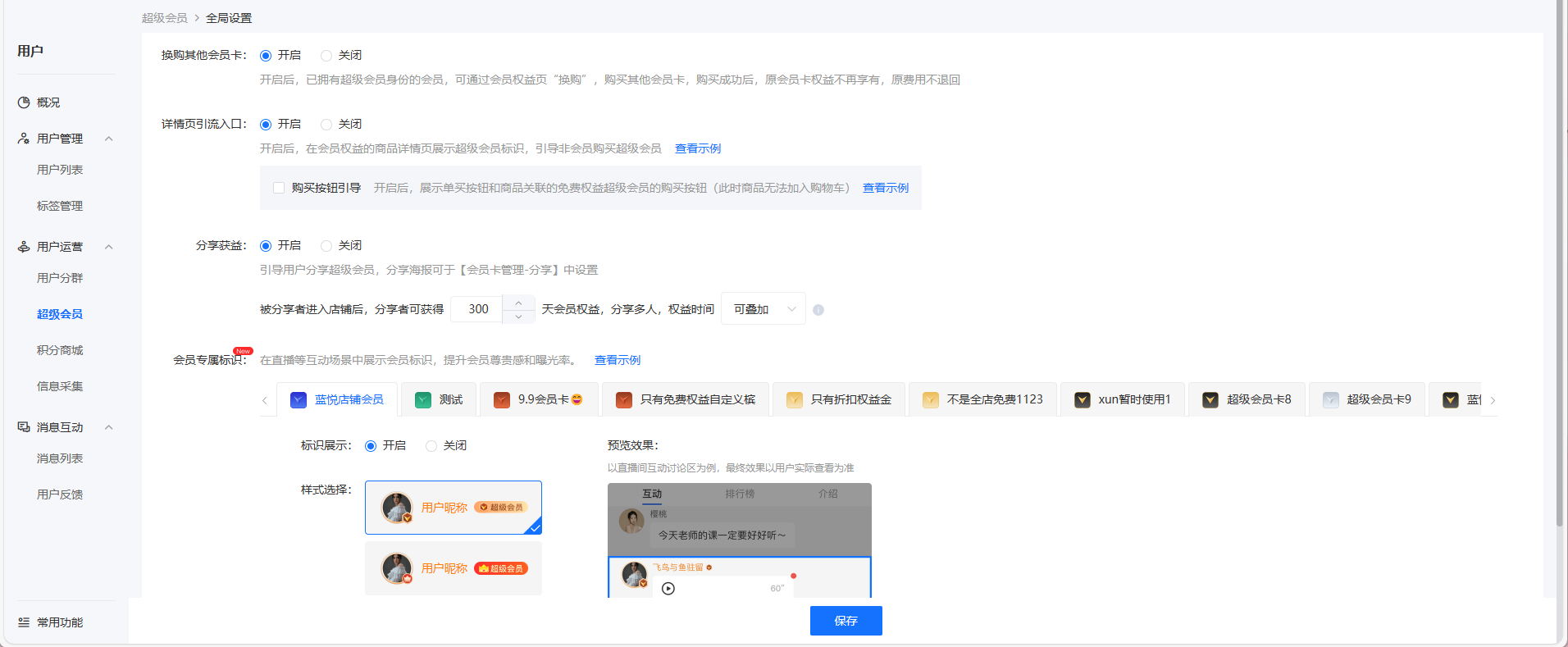
● Exchange for other membership cards:
After enabling, members within the validity period can exchange for other membership cards.
● Super Membership entrance
Under the membership privilege products, display the Super Membership guidance entrance for non - members.
● Sharing benefits
(2) If a user receives a trial membership and the sharing is successful, the validity period of the trial membership will be extended.
(3) If a user purchases an official membership and the sharing is successful, the validity period of the official membership will be extended.
(4) Definition of successful sharing: If the shared user scans the code and enters the store, the sharing is considered successful.
(6) Stackable/Non - stackable rules: If one person shares a Super Membership with multiple people and the sharing is successful, the privileges can be stacked/non - stacked. (If stacking is selected, consider the risk that the shared user can receive unlimited privileges.)
10. Super Membership Entrance (User Side)
● Entrance on the course details page for users who have not purchased the Super Membership

● Super Membership entrance in the personal center (not activated, trial/official membership activated)
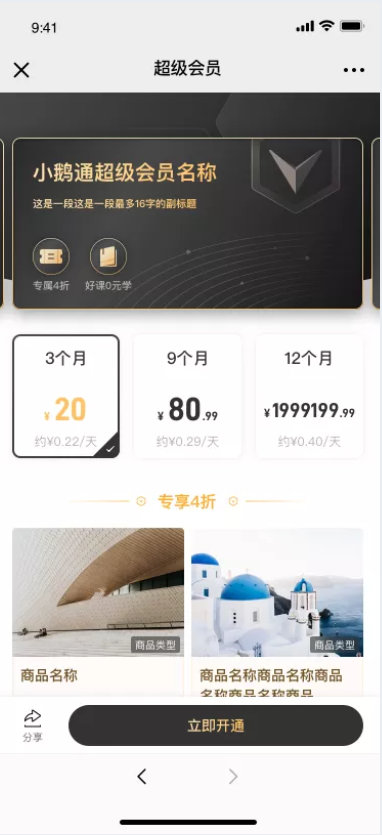
10. Super Membership Details Page (User Side): Users can browse the specifications and purchase/renew the membership.
12. Super Membership Details Page - Sharing (User Side)
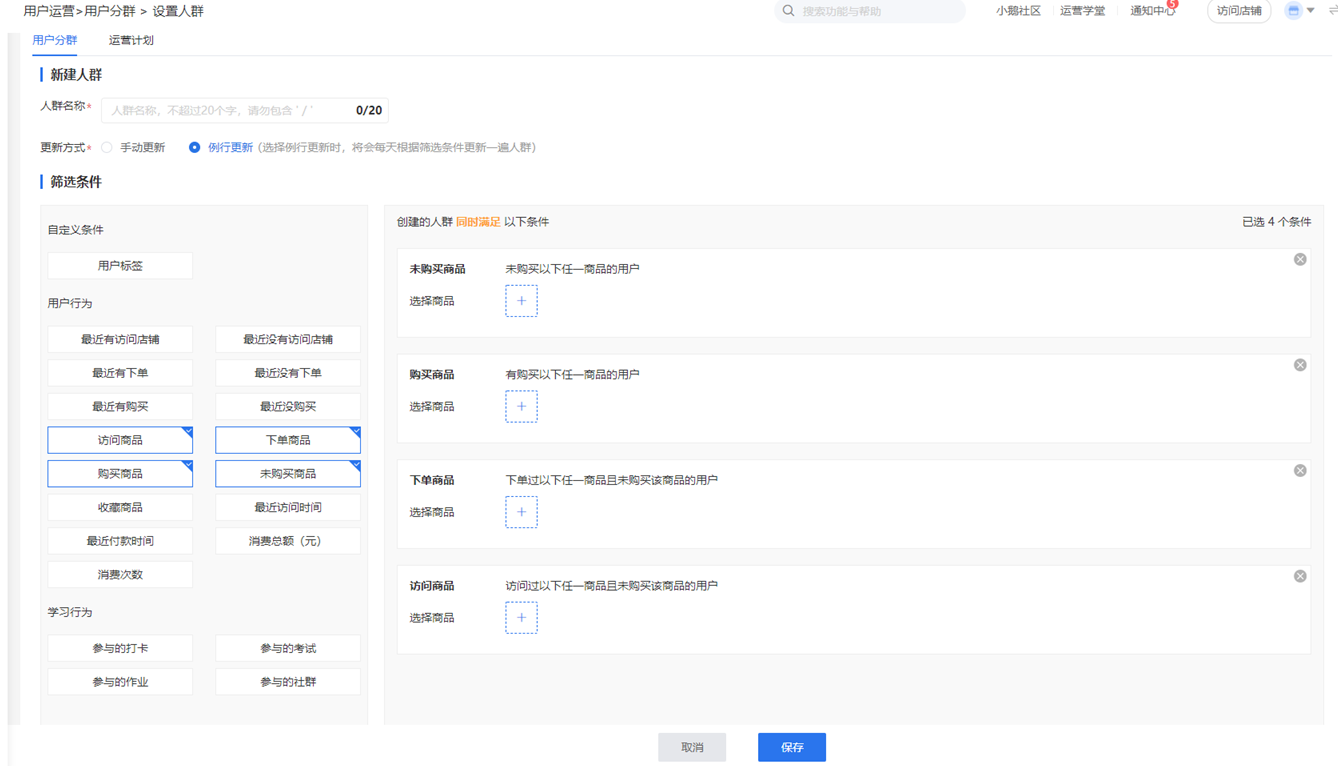
● You can select Super Membership products (official membership + trial membership) for user grouping.
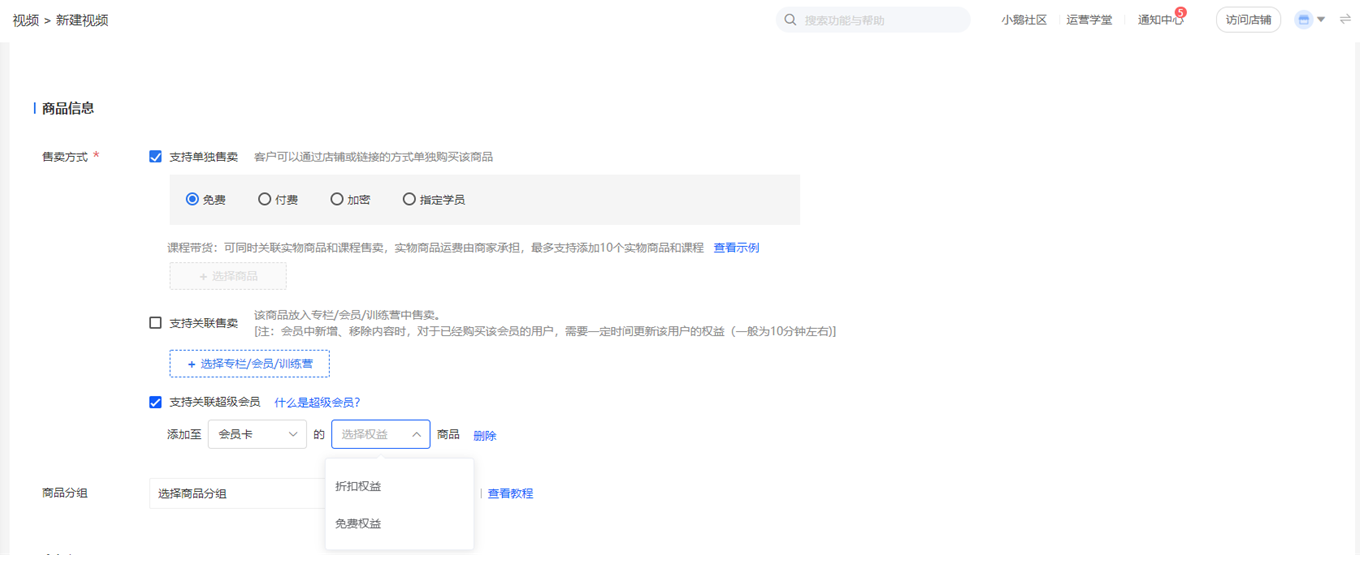
● When creating/editing products, you can choose whether to add them to the Super Membership free/discount products.
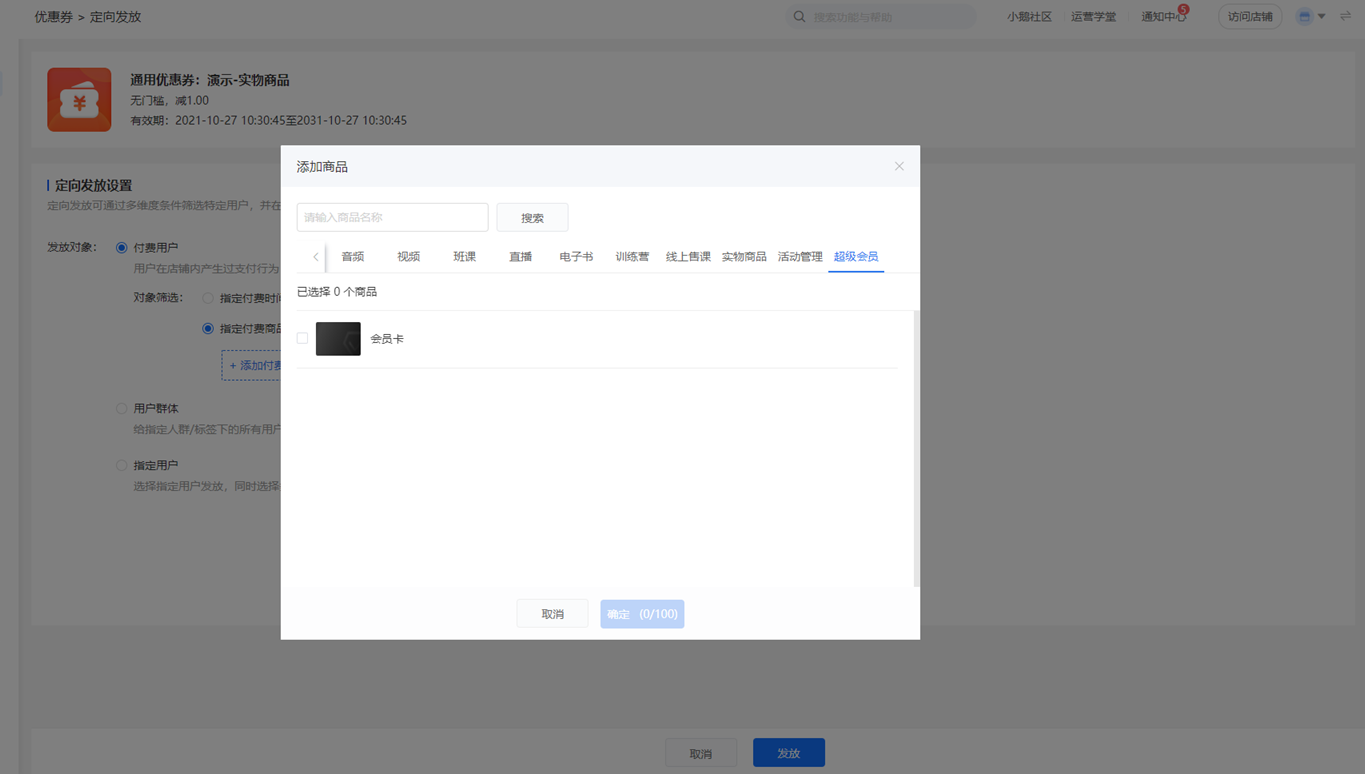
● Supports adding the group of users who have purchased the Super Membership (official members + trial members)
No comments to display
No comments to display