
Elink Live Streaming Usage Tutorial
Usage tutorial for full - screen interaction in elink Live
Usage tutorial for background playback in elink Live
Usage tutorial for setting group to - do items in elink Live
How to obtain the path to configure the elink Live Mini Program?
I. Function introduction
The elink Live Mini Program is a live - streaming efficiency tool. It supports one - click live streaming, allows students to watch live broadcasts, and enables the creation of live streams. It also has functions such as appointment reminders, providing users with a better live - streaming experience. (Merchants and students can use it directly without applicationand no technical service fees are charged for the time being.)
II. Purpose of use
Enable instructors to start live streams and students to watch live broadcasts in the Mini Program, lower the threshold for starting/watching live streams, and at the same time enhance the live - streaming experience, helping merchants conduct live streams more conveniently.
III. Usage scenarios
Scenario 1:[Merchants start live streams quickly]After merchants with existing stores create a live stream, if instructors want to start the live stream on the mobile side, they can use the [elink Live Mini Program] to start the live stream with one click, saving the cumbersome process.
Scenario 2: [Students watch live broadcasts]Currently, when students watch live broadcasts, there are problems such as difficulty in finding the h5 entrance and difficulty in saving. By using the [elink Live Mini Program], students can view all the live broadcasts they need to participate in without worrying about not being able to find the live stream.
Scenario 3: [Individual users experience quickly]Merchants who do not have a store and want to purchase elink - related products can use the [elink Live Mini Program] to quickly create a live stream for experience.
IV. Operation paths
Path 1 (Created in the Online Store):
Store live stream:Create a live stream (on the PC management console) - Go to the live stream - Select [elink Live Mini Program] for the lecture - Start the live stream;
Students watch the live stream:Scan the QR code/Click the link/Search - Enter the [elink Live Mini Program] - Enter the live - streaming room - Watch the live stream;
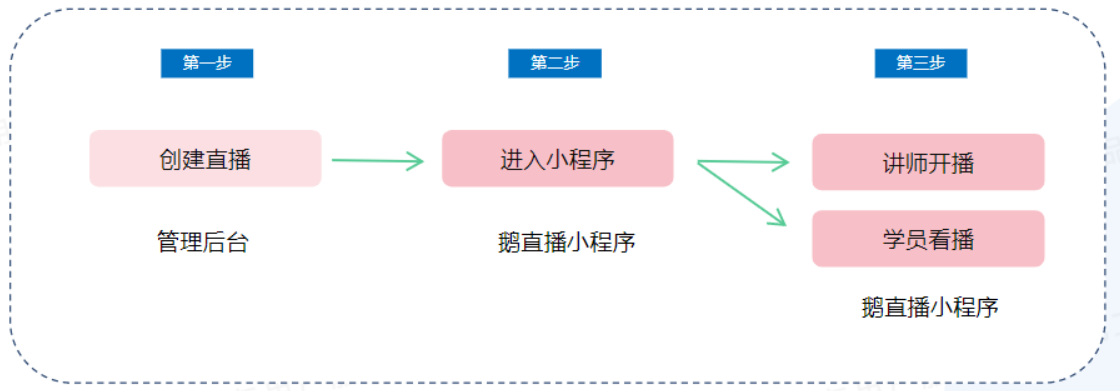
Path 2 (Created in the Mini Program):
Create a personal live stream:Enter the [elink Live Mini Program] - Create a live stream - Start the live stream.

V. Usage tutorials
(1) Tutorial for store live streams
Step 1: Create a live - streaming room and select the Mini Program to start the live stream
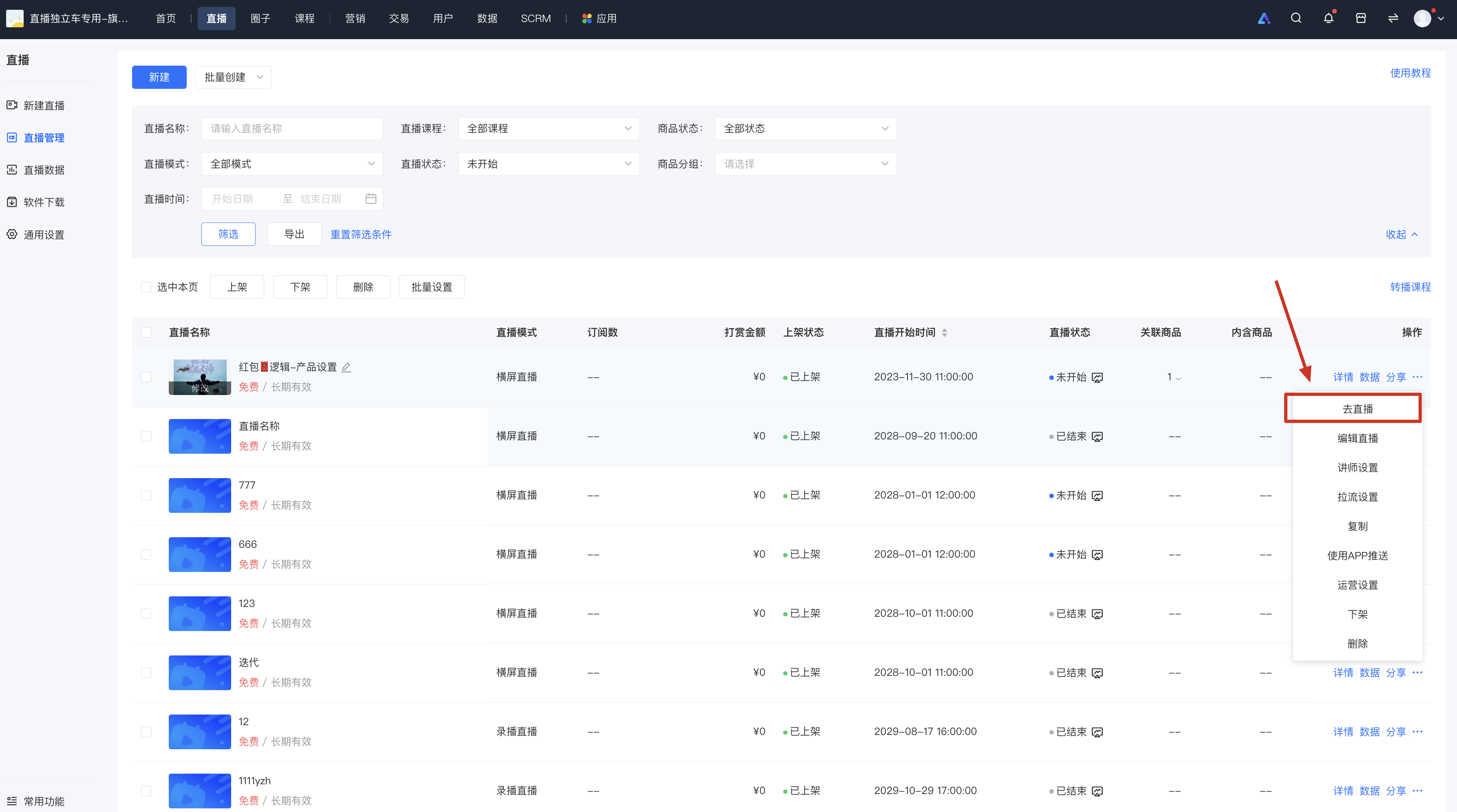
1. Enter the [Live - streaming settings]
1) Enter the merchant management background, select [Live stream] - [New live stream], fill in the information to complete the creation of the live - streaming room, and enter the live - streaming room details page;
2) Find [Go to the live stream] in [More] of the target live - streaming room that has been created, and click to enter the [Live - streaming settings].
2. Select [Go to the live stream] of the [elink Live Mini Program]
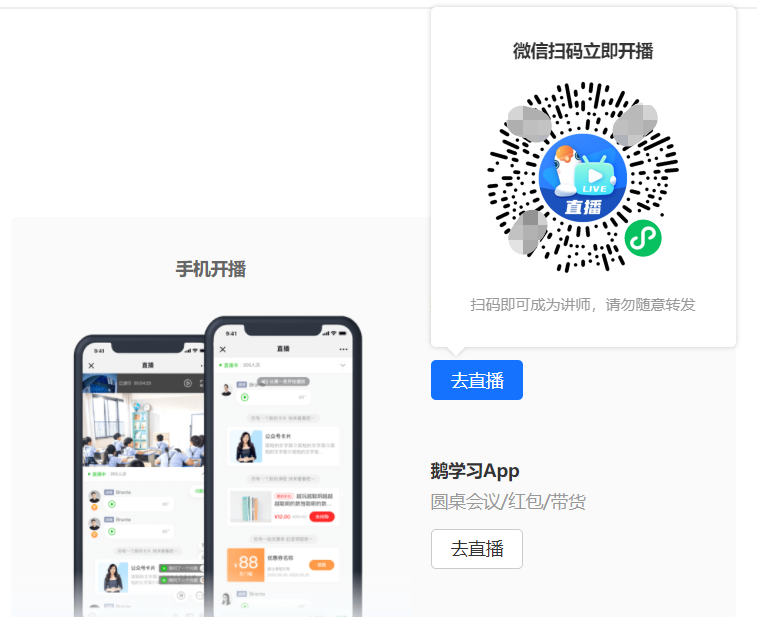
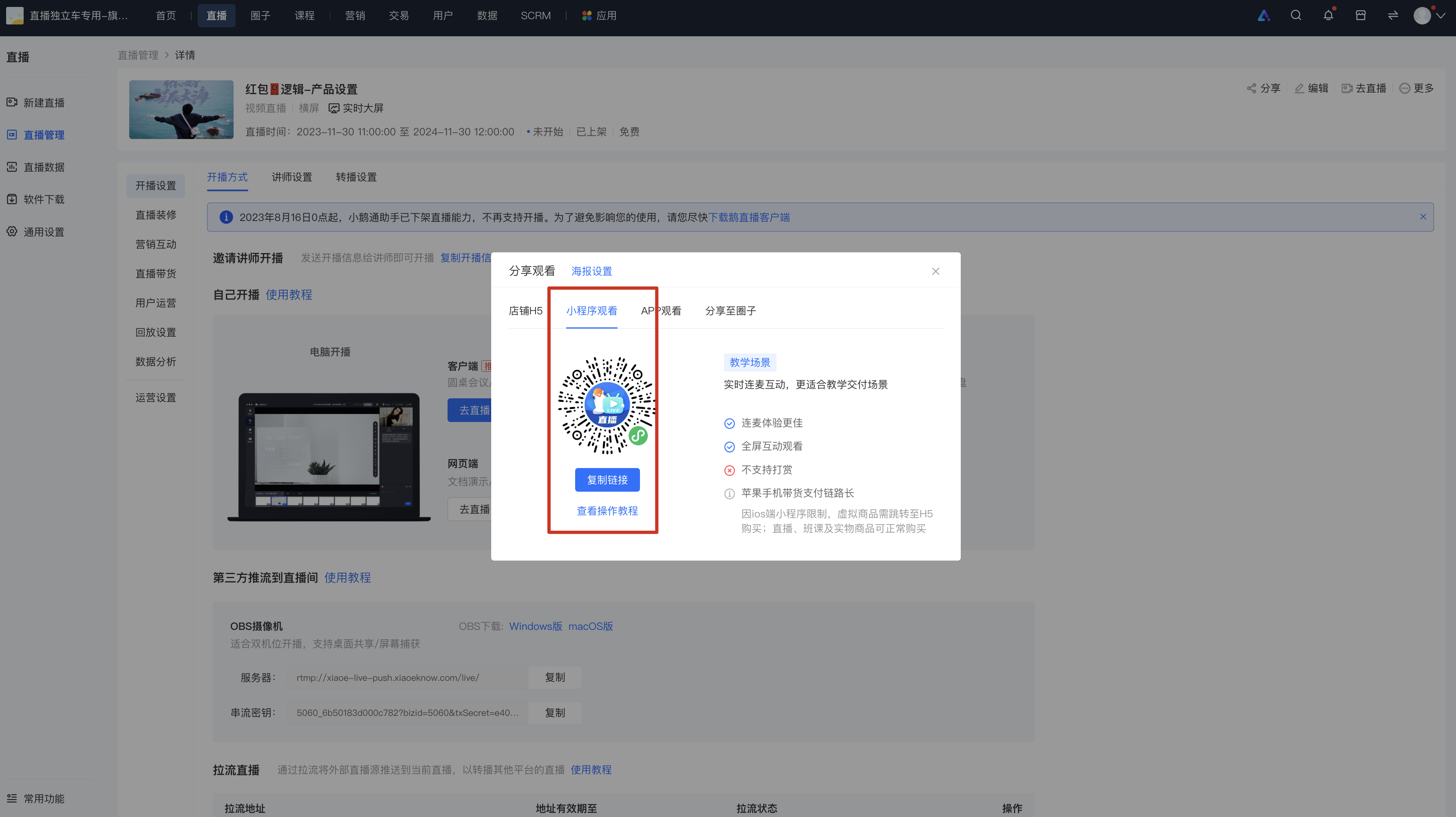
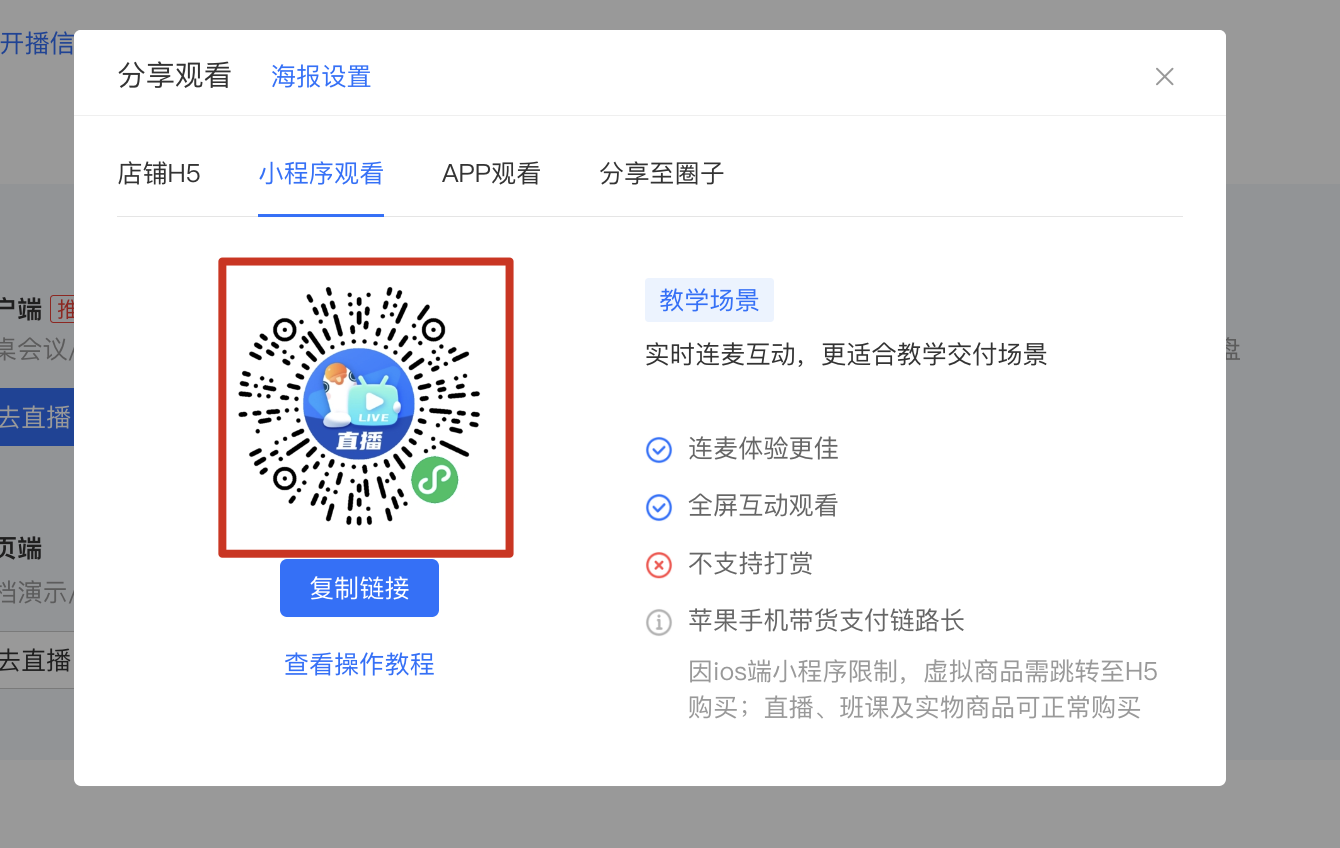
After entering [Live - streaming settings] - [Live - streaming method], click the [Go to the live stream] button under the [Start live stream on mobile] module, and scan the code with your mobile WeChat to enter the live - streaming room and automatically become the instructor.
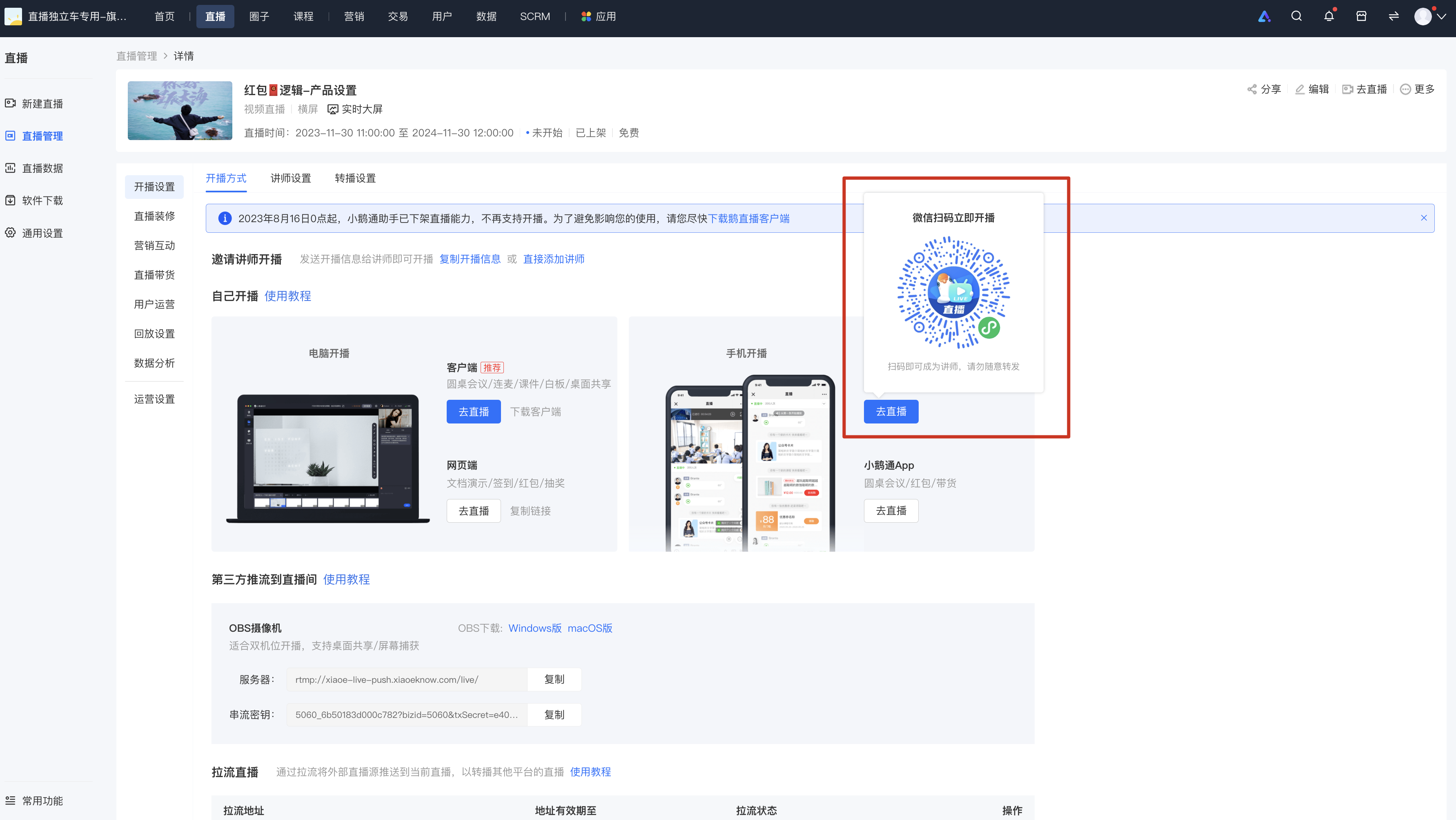
*The QR code can be shared with friends. After friends scan the code, they will automatically become the instructor of the live - streaming room.
Step 2: Start the live stream
After the instructor enters the live - streaming room, click [Start live stream] to start the live - streaming push.
1. Enter through the QR code:
2. Enter by searching for "elink Live Mini Program" on WeChat:
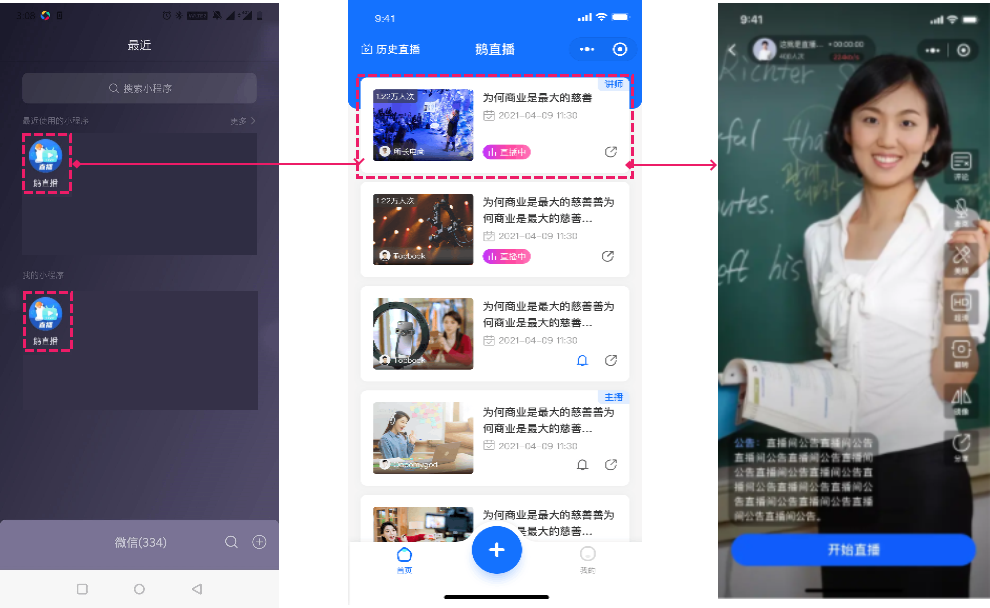
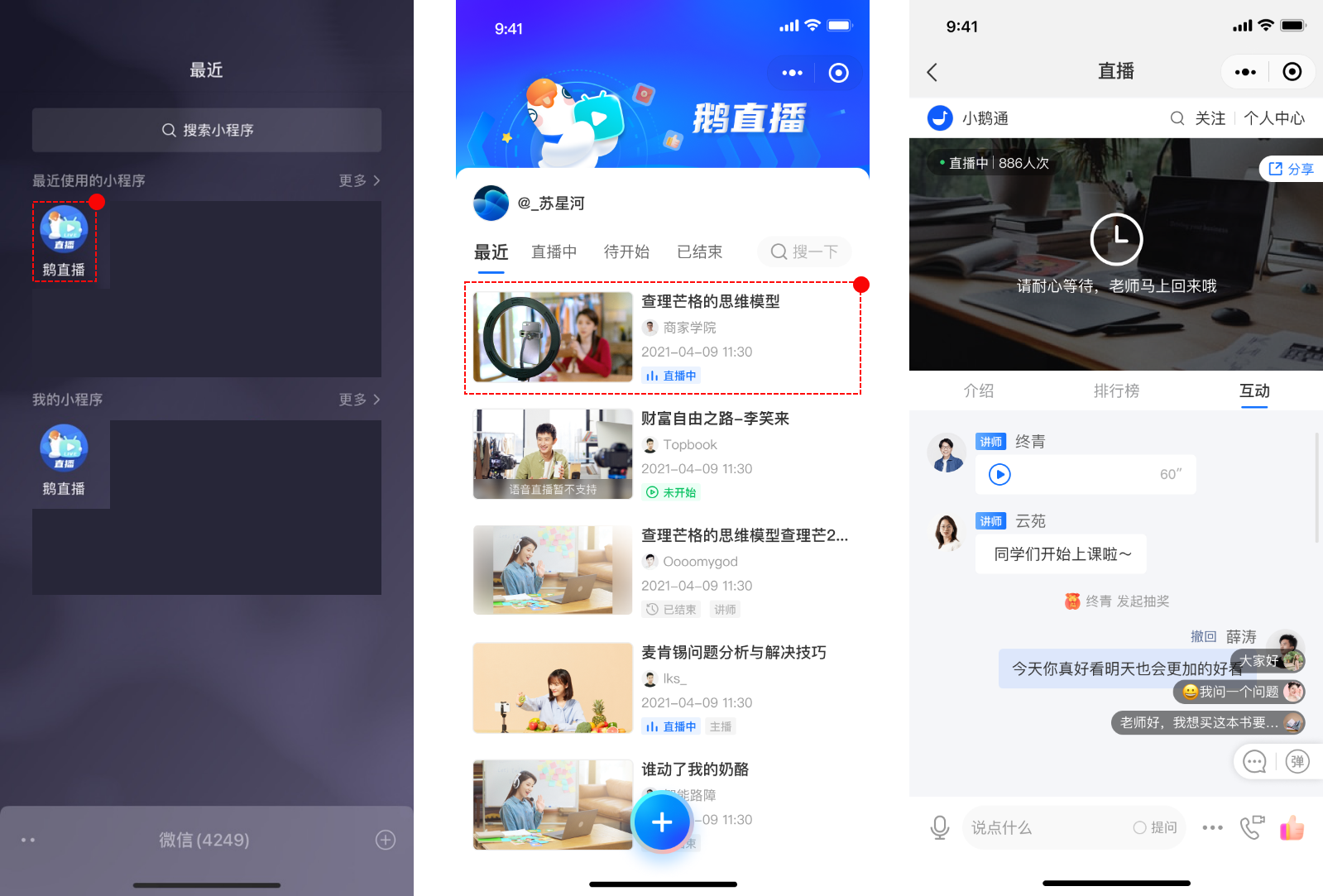
(2) Tutorial for students to watch live broadcasts
1. Enter the live - streaming roomthrough the link:
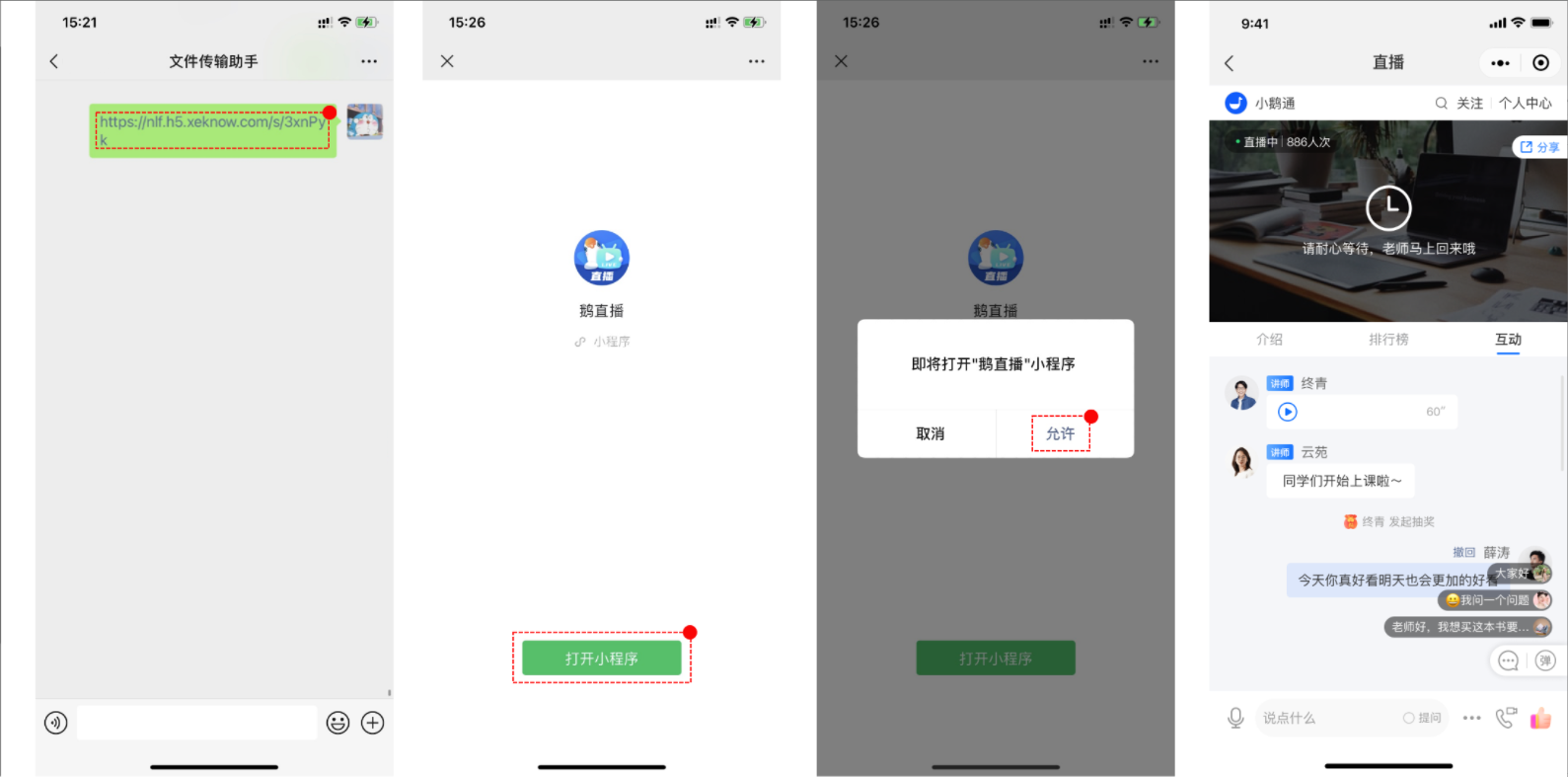
2. Enter the live - streaming room through the QR code:
3. Enter by searching for the elink Live Mini Program on WeChat:
(3) Tutorial for individual users to start live streams
1. Individual users start live streams
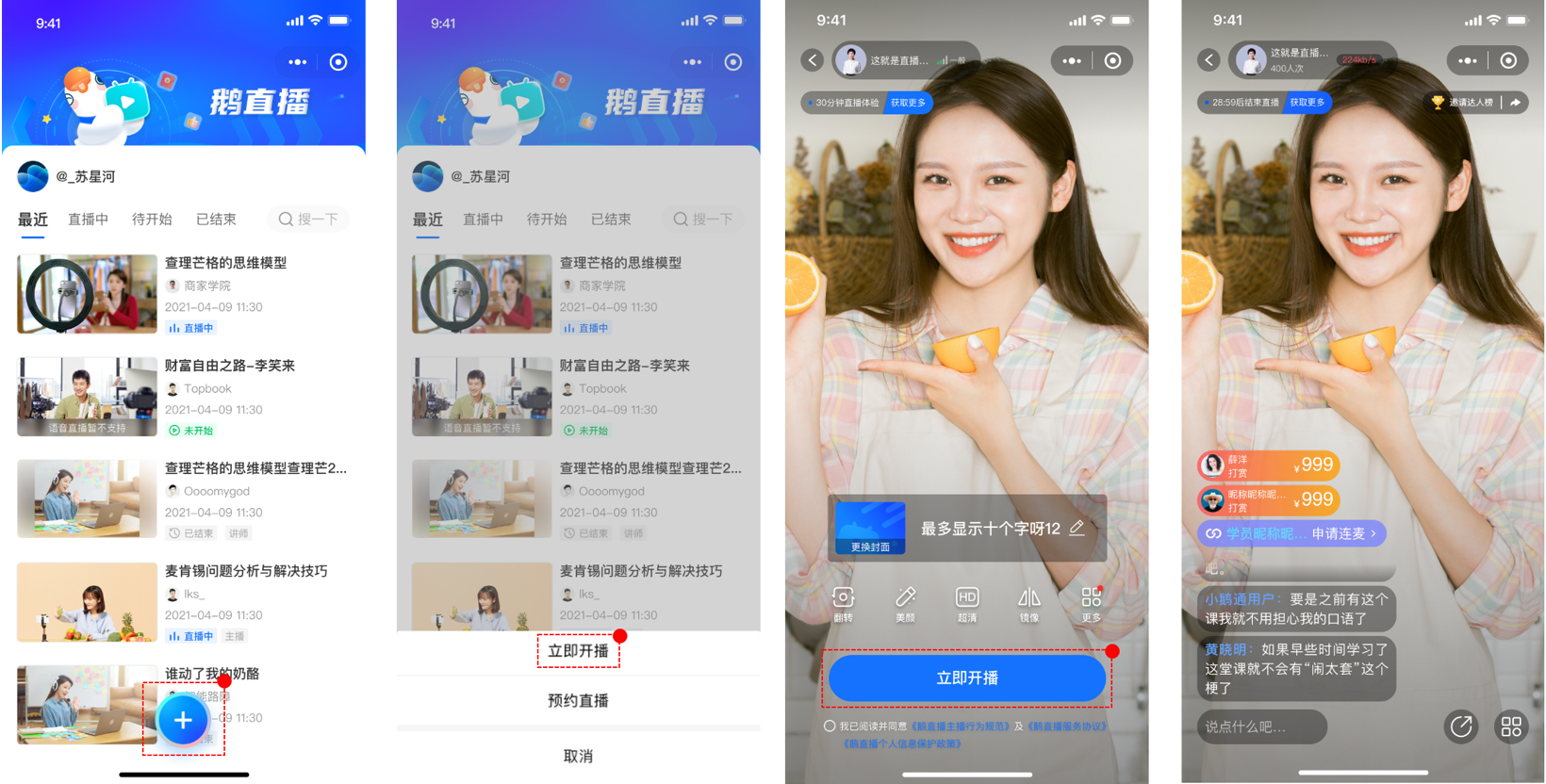
(1) Start the live stream immediately
Enter the home page of the [elink Live Mini Program], click "+", a selection pop - up window will appear. Select [Start live stream immediately], fill in the relevant information, and then click [Start live stream immediately] to start the live stream.
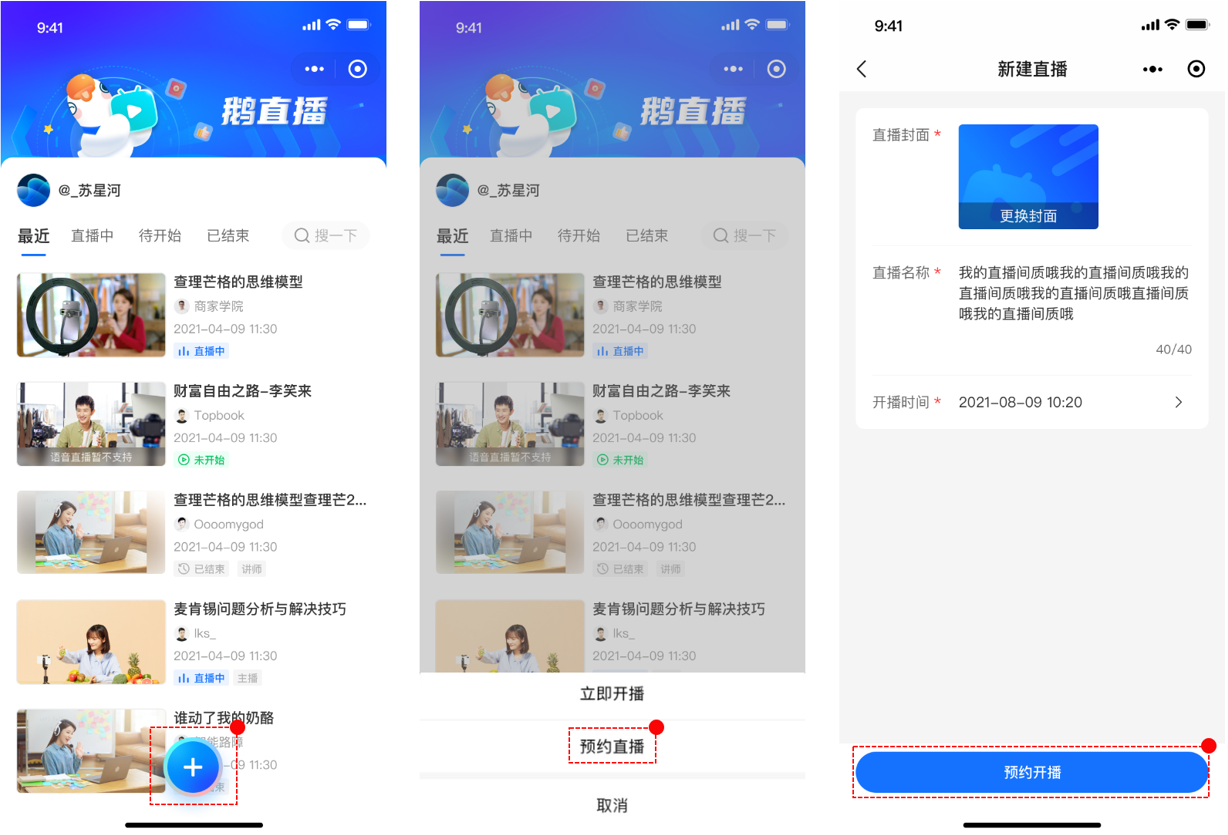
(2) Schedule the live stream
Enter the home page of the [elink Live Mini Program], click "+", a selection pop - up window will appear. Select [Schedule live stream], fill in the relevant information, and then click [Schedule live stream]. You will automatically return to the home page. Find the live - streaming room and click to enter the live - streaming start page. Click [Start live stream] to start the live stream.

After you start the live stream, click the share button in the live - streaming room to share the live - streaming room with friends.
After you create the live - streaming room, click the share button in the live - streaming room to share the live - streaming room with friends.

No comments to display
No comments to display