# Elink Live Streaming Usage Tutorial
[中文](/books/18d80/page/c0c7c)
**Related documents:**
[Usage tutorial for full - screen interaction in elink Live](https://helpcenter.xiaoe-tech.com/#/problem/detail?document_id=doc_62a6f65e2e84a_rqt7k "鹅直播全屏互动使用教程")
[Usage tutorial for background playback in elink Live](https://admin.xiaoe-tech.com/helpCenter/problem?first_id=600&second_id=1191&document_id=doc_62a708f32ee0d_yEHK3 "鹅直播后台播放使用教程")
[Usage tutorial for setting group to - do items in elink Live](https://helpcenter.xiaoe-tech.com/#/problem/detail?document_id=doc_62a70a99b583d_u7s4z "鹅直播设置群待办使用教程")
[How to obtain the path to configure the elink Live Mini Program?](https://helpcenter.xiaoe-tech.com/#/problem/detail?document_id=doc_6497ee6a4f28c_SmiHR "如何获取配置鹅直播小程序的路径?")
**I. Function introduction**
The elink Live Mini Program is a live - streaming efficiency tool. It supports one - click live streaming, allows students to watch live broadcasts, and enables the creation of live streams. It also has functions such as appointment reminders, providing users with a better live - streaming experience. (Merchants and students can use it directly without applicationand no technical service fees are charged for the time being.)
**II. Purpose of use**
Enable instructors to start live streams and students to watch live broadcasts in the Mini Program, lower the threshold for starting/watching live streams, and at the same time enhance the live - streaming experience, helping merchants conduct live streams more conveniently.
**III. Usage scenarios**
**Scenario 1:\[Merchants start live streams quickly\]**After merchants with existing stores create a live stream, if instructors want to start the live stream on the mobile side, they can use the \[elink Live Mini Program\] to start the live stream with one click, saving the cumbersome process.
**Scenario 2: \[Students watch live broadcasts\]**Currently, when students watch live broadcasts, there are problems such as difficulty in finding the h5 entrance and difficulty in saving. By using the \[elink Live Mini Program\], students can view all the live broadcasts they need to participate in without worrying about not being able to find the live stream.
**Scenario 3: \[Individual users experience quickly\]**Merchants who do not have a store and want to purchase elink - related products can use the \[elink Live Mini Program\] to quickly create a live stream for experience.
**IV. Operation paths**
**Path 1 (Created in the Online Store):**
**Store live stream:**Create a live stream (on the PC management console) - Go to the live stream - Select \[elink Live Mini Program\] for the lecture - Start the live stream;
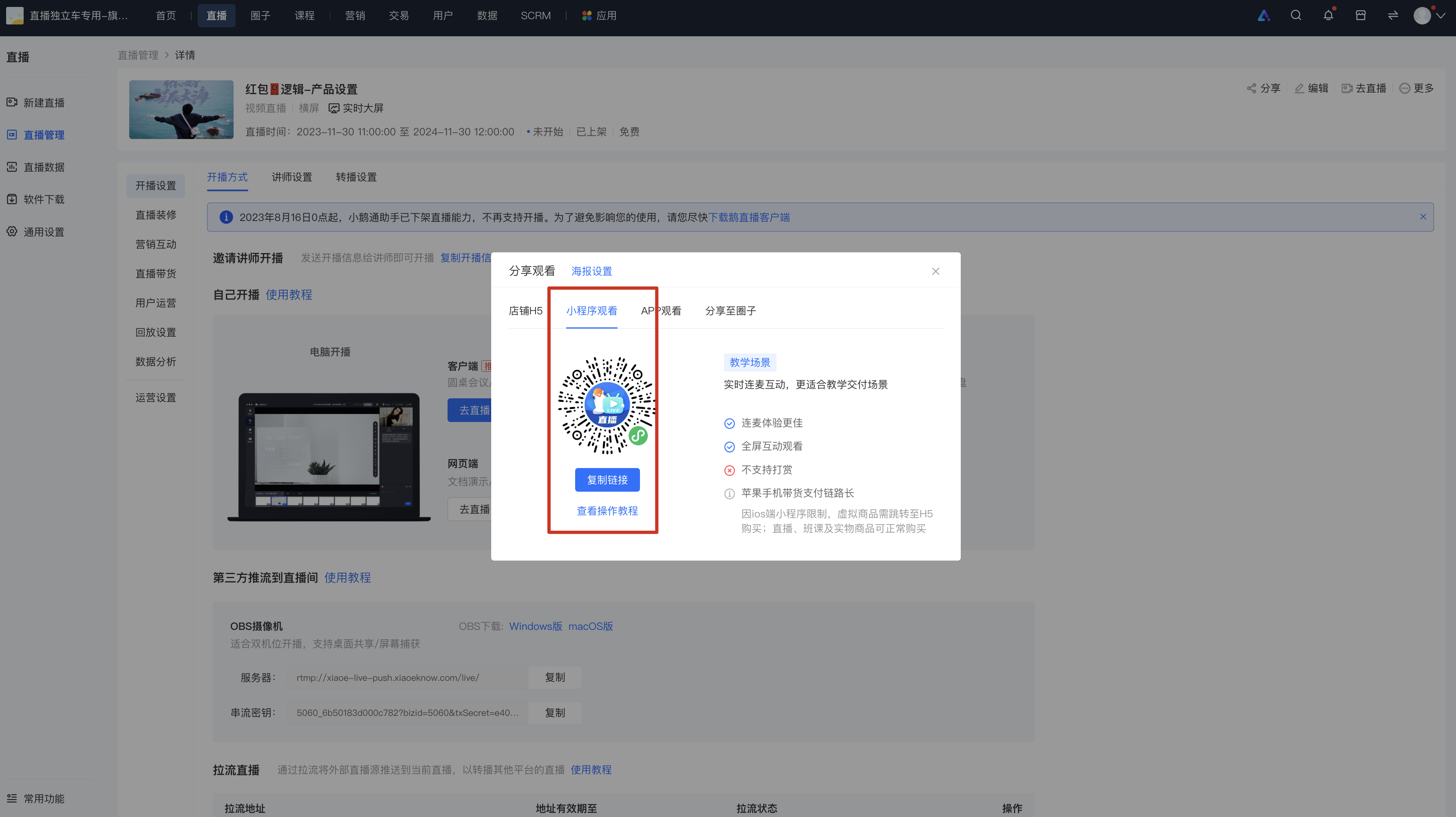
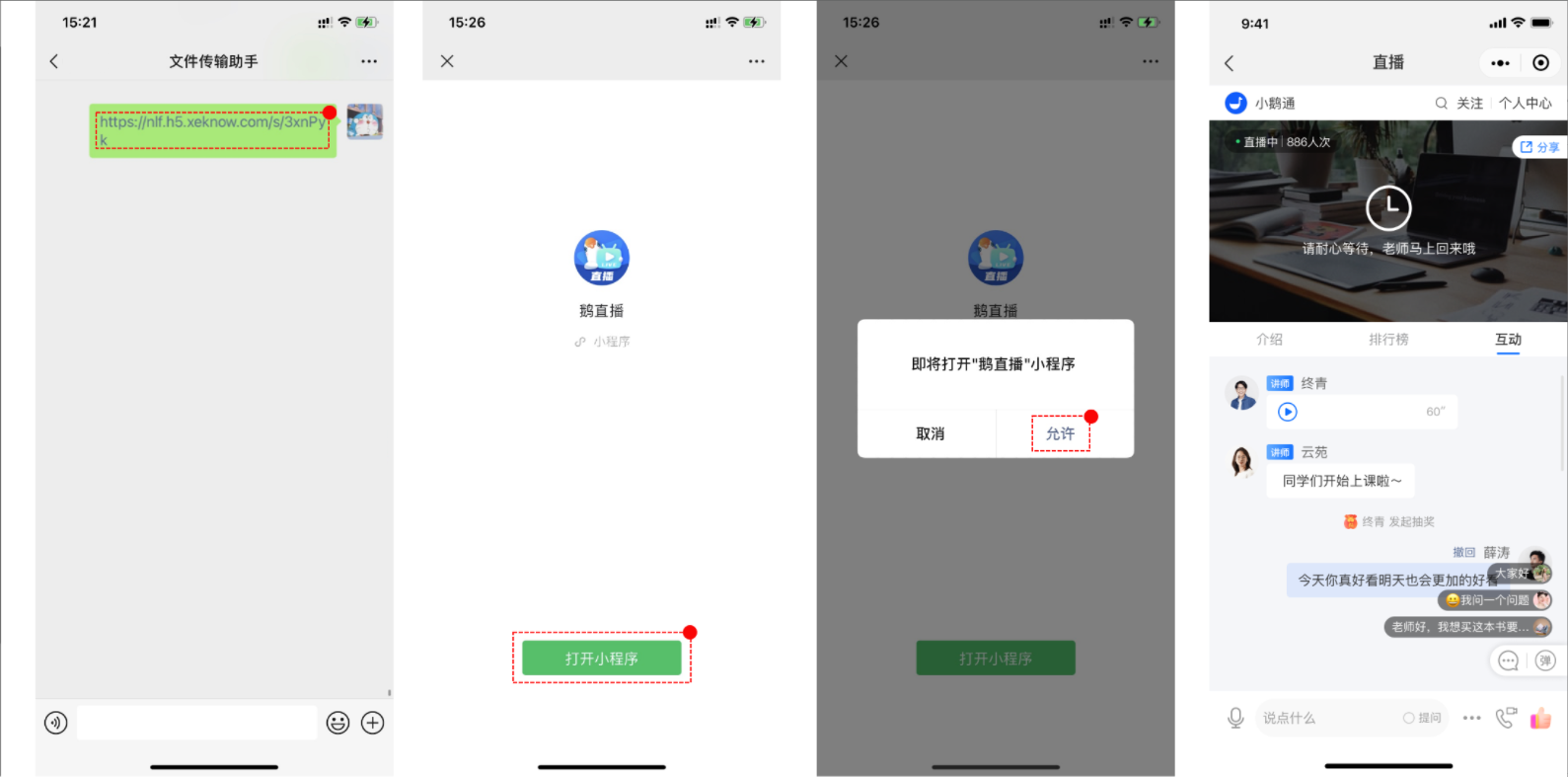
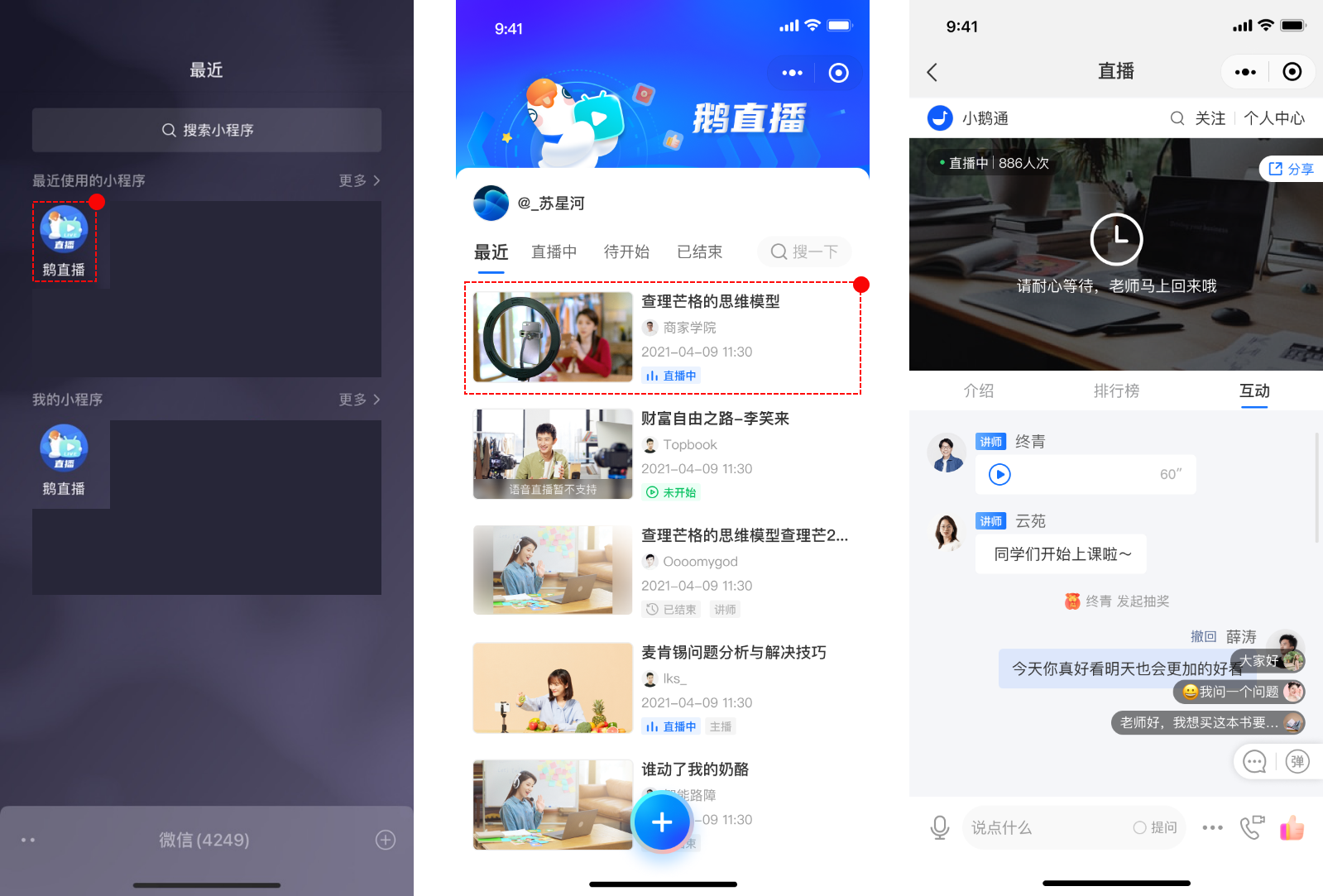
**Students watch the live stream:**Scan the QR code/Click the link/Search - Enter the \[elink Live Mini Program\] - Enter the live - streaming room - Watch the live stream;
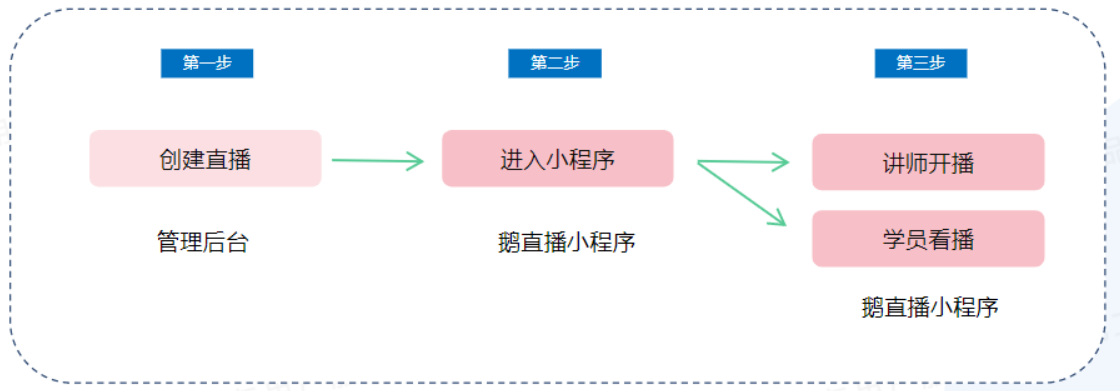
**Path 2 (Created in the Mini Program):**
**Create a personal live stream:**Enter the \[elink Live Mini Program\] - Create a live stream - Start the live stream.

**V. Usage tutorials**
**(1) Tutorial for store live streams**
**Step 1: Create a live - streaming room and select the Mini Program to start the live stream**
**1. Enter the \[Live - streaming settings\]**
1\) Enter the merchant management background, select \[Live stream\] - \[New live stream\], fill in the information to complete the creation of the live - streaming room, and enter the live - streaming room details page;
2\) Find \[Go to the live stream\] in \[More\] of the target live - streaming room that has been created, and click to enter the \[Live - streaming settings\].
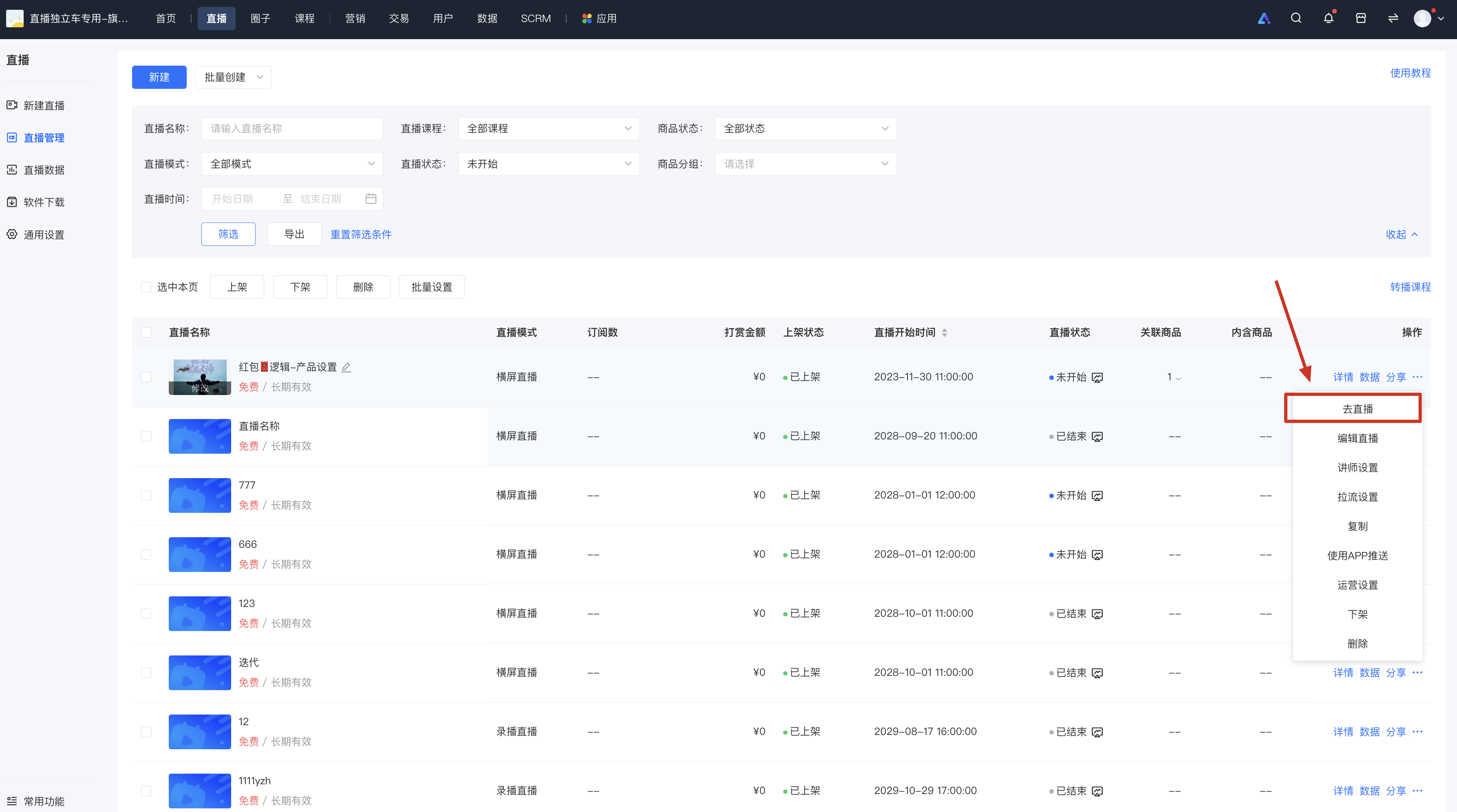
**2. Select \[Go to the live stream\] of the \[elink Live Mini Program\]**
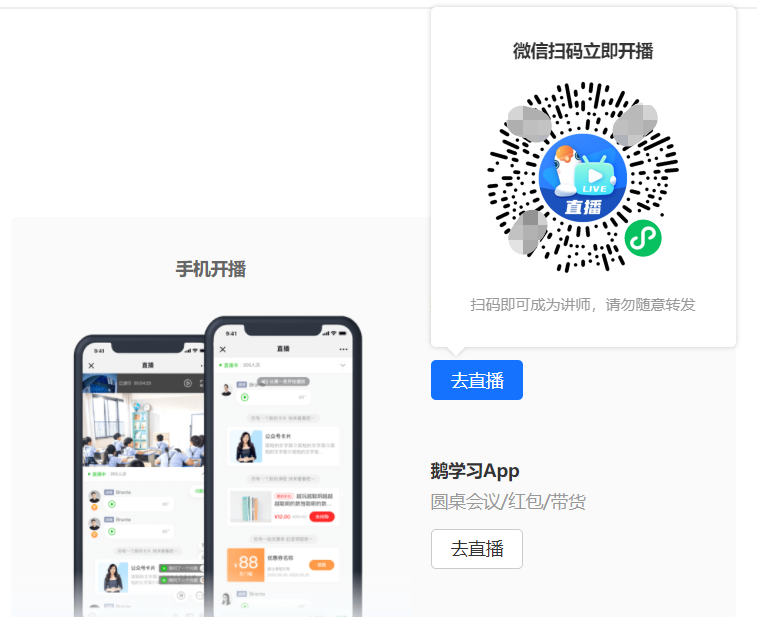
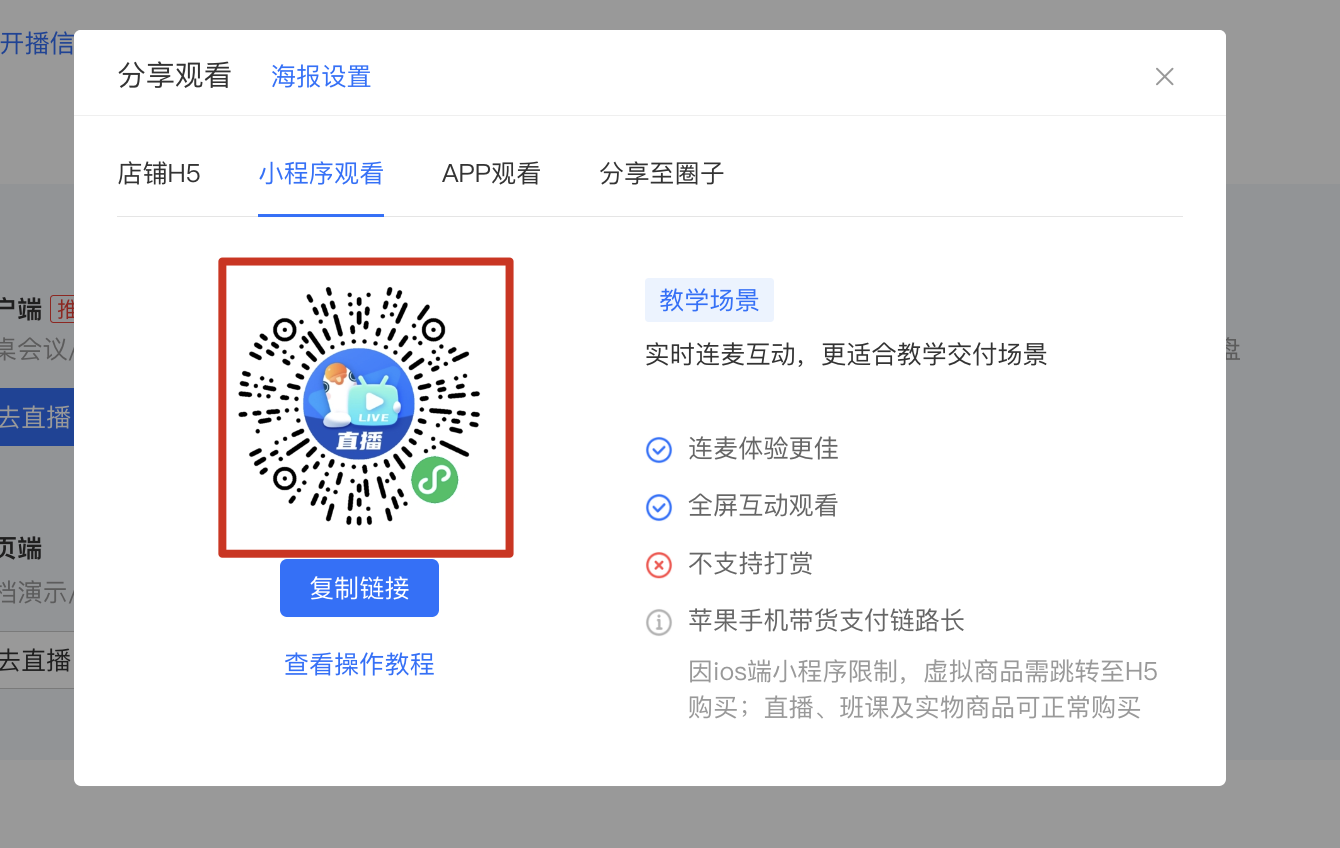
After entering \[Live - streaming settings\] - \[Live - streaming method\], click the \[Go to the live stream\] button under the \[Start live stream on mobile\] module, and scan the code with your mobile WeChat to enter the live - streaming room and automatically become the instructor.
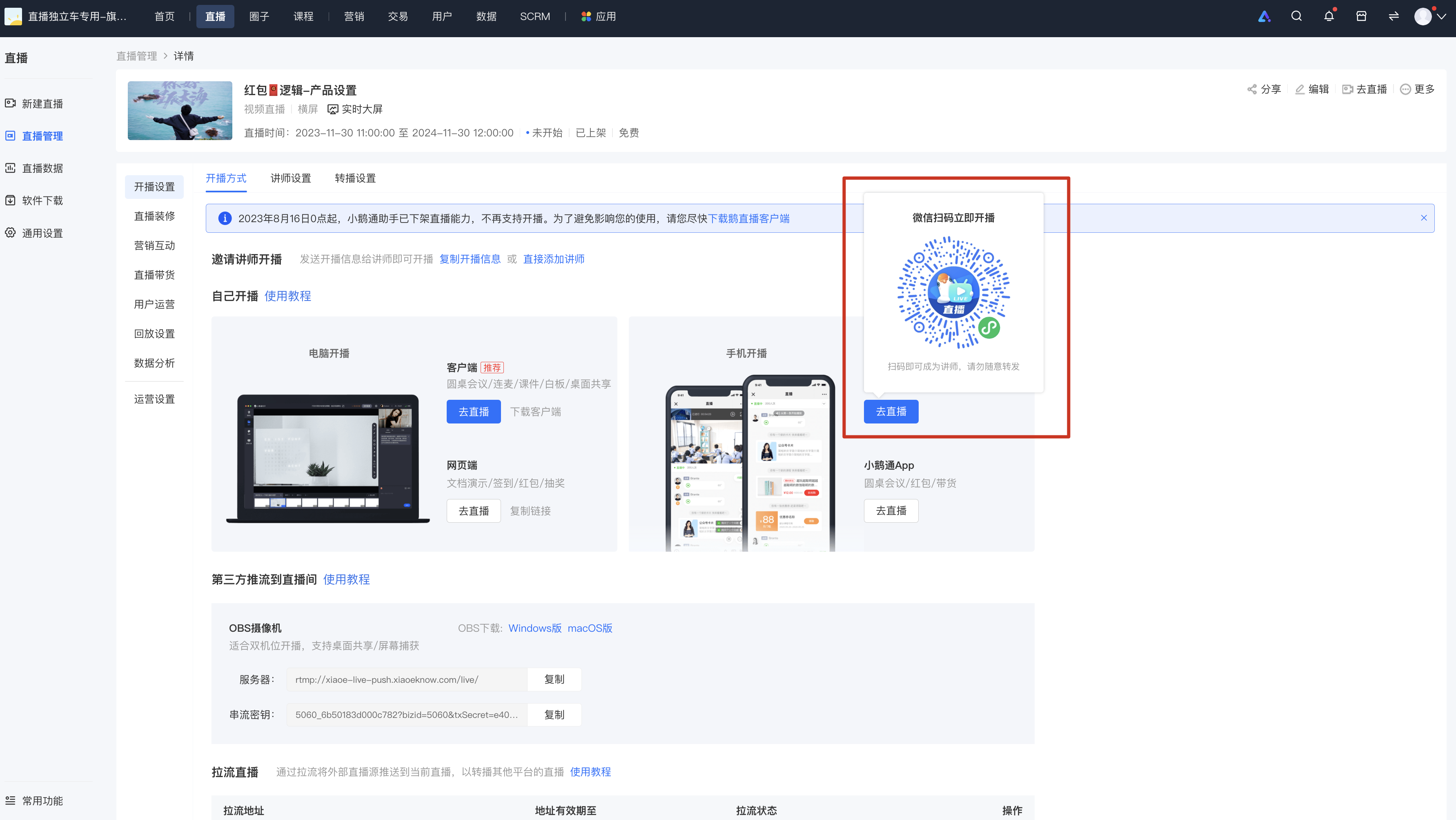
\*The QR code can be shared with friends. After friends scan the code, they will automatically become the instructor of the live - streaming room.
**Step 2: Start the live stream**
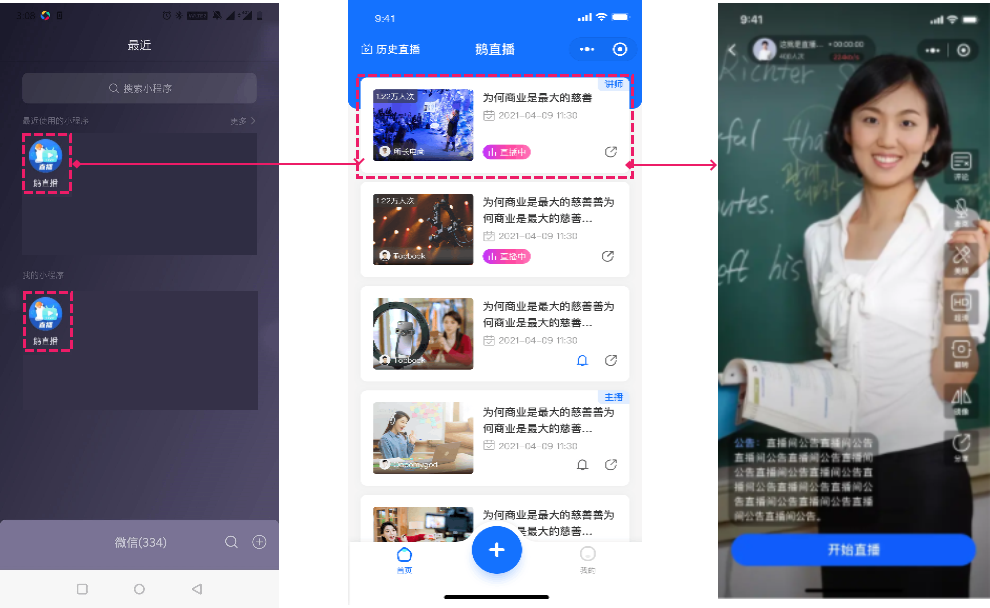
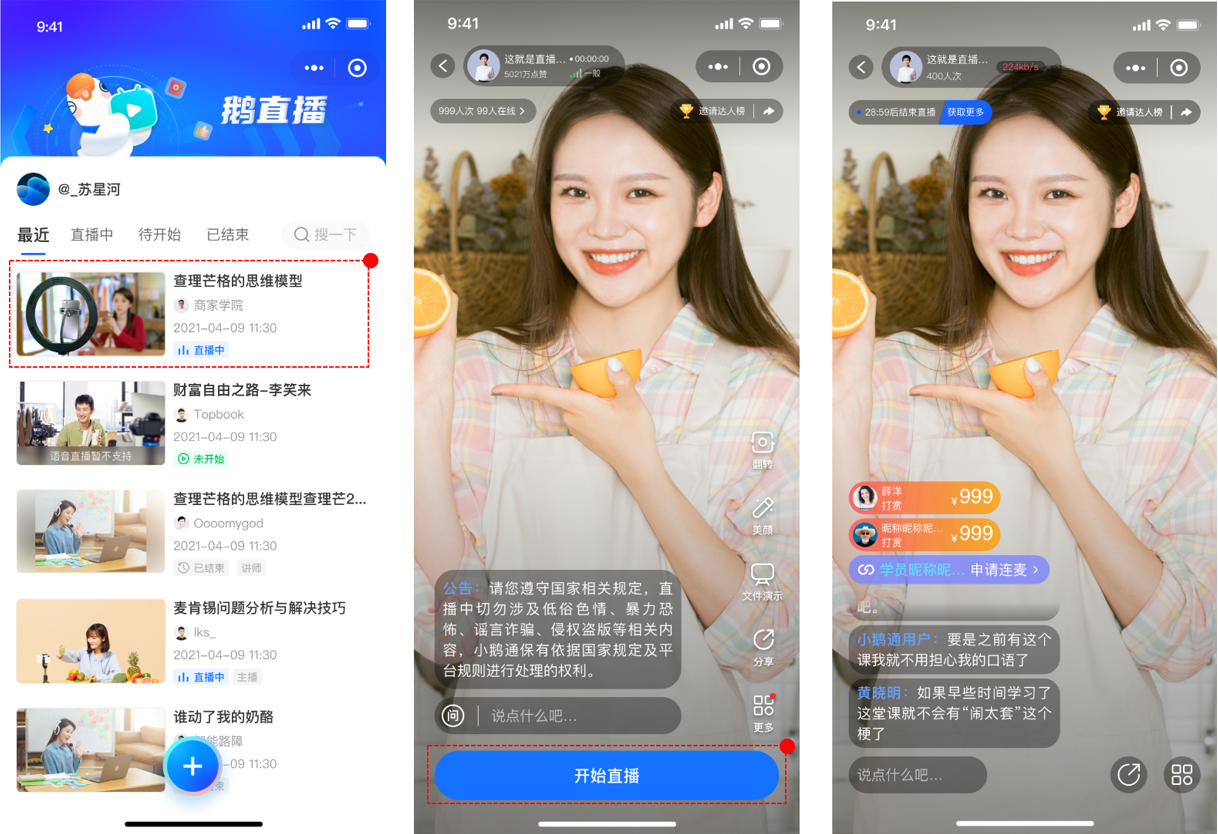
After the instructor enters the live - streaming room, click \[Start live stream\] to start the live - streaming push.
**1. Enter through the QR code:**
**2. Enter by searching for "elink Live Mini Program" on WeChat:**
**(2) Tutorial for students to watch live broadcasts**
**1. Enter the live - streaming roomthrough the link:**
**
**
**2. Enter the live - streaming room through the QR code:**
**3. Enter by searching for the elink Live Mini Program on WeChat:**
**
**
**(3) Tutorial for individual users to start live streams**
**1. Individual users start live streams**
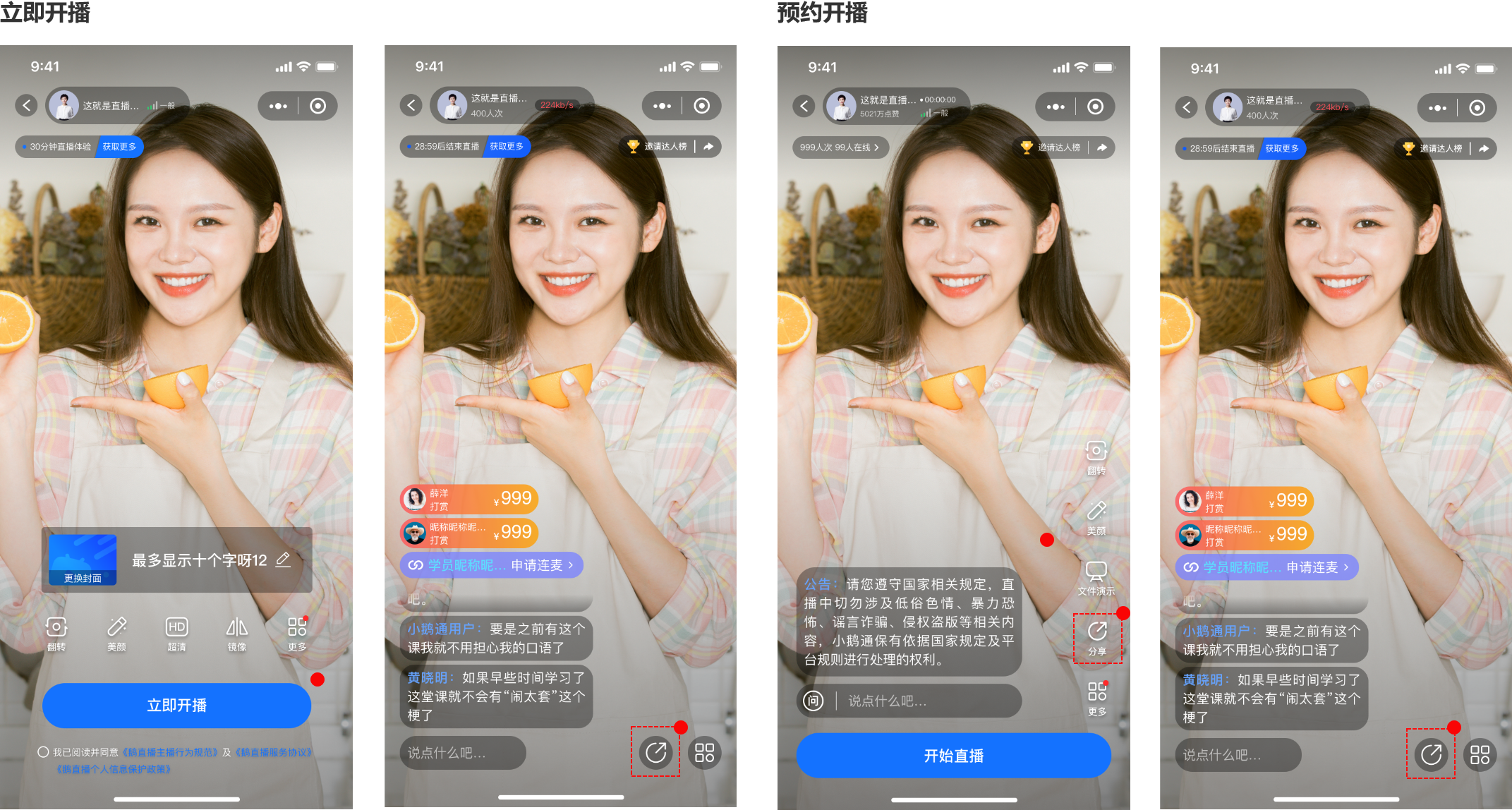
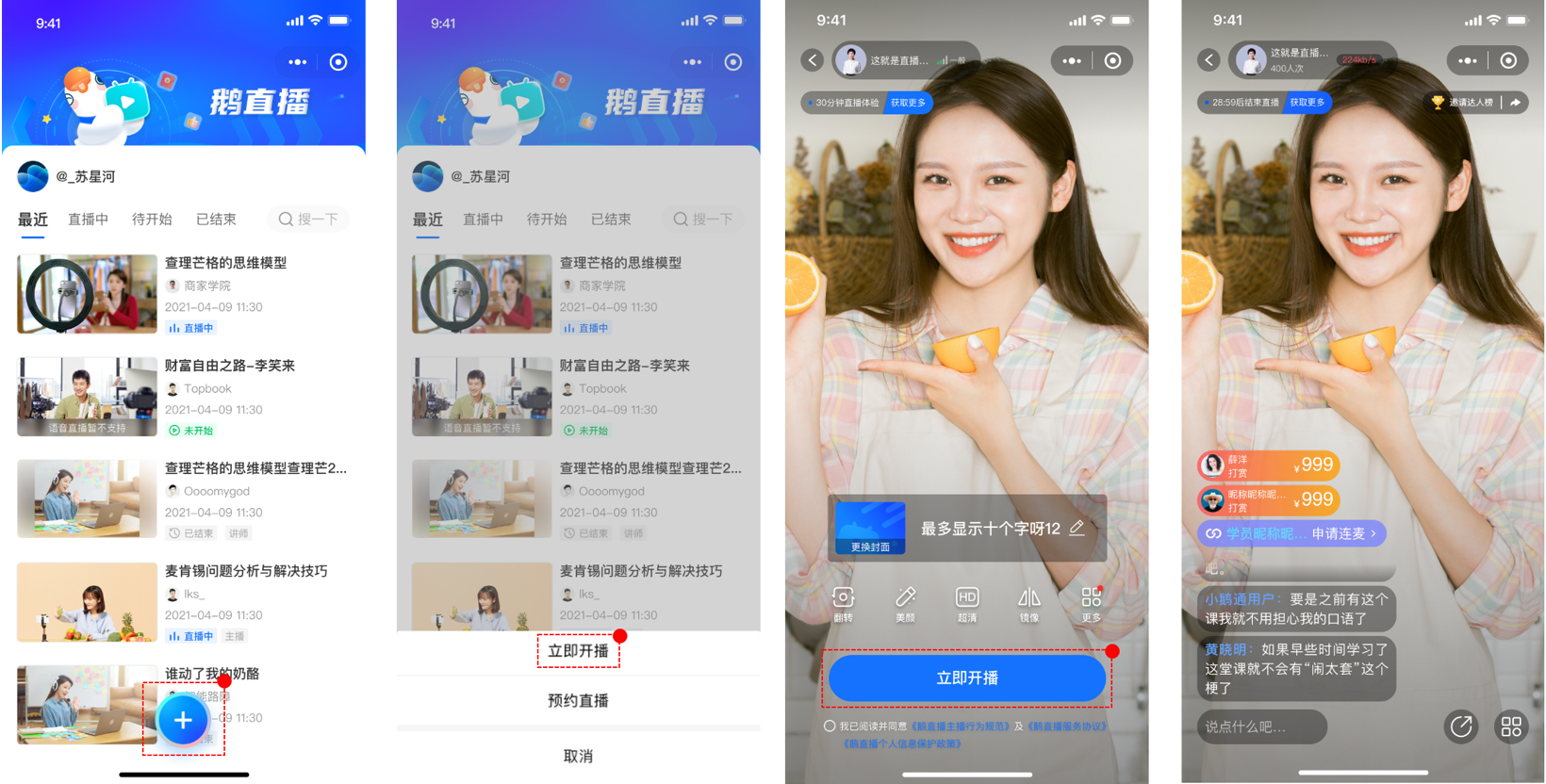
(1) Start the live stream immediately
Enter the home page of the \[elink Live Mini Program\], click "+", a selection pop - up window will appear. Select \[Start live stream immediately\], fill in the relevant information, and then click \[Start live stream immediately\] to start the live stream.
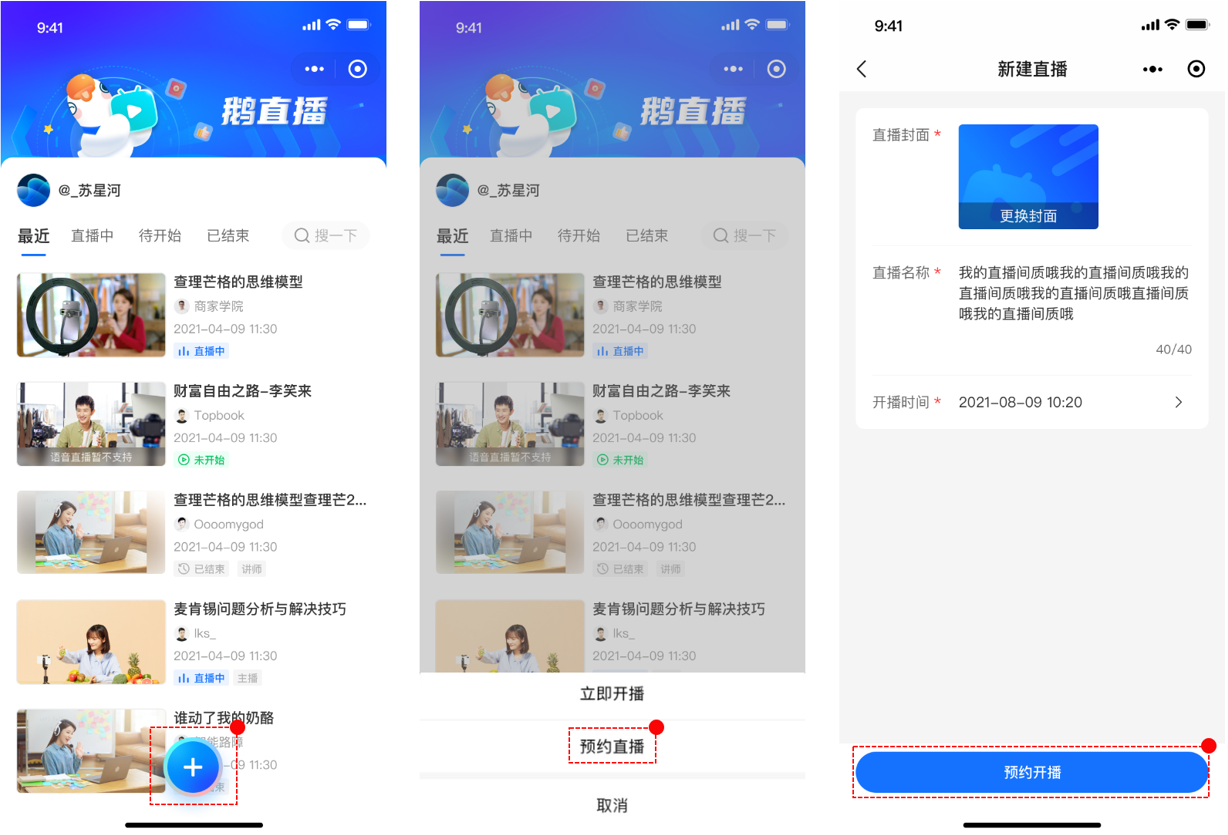
**(2) Schedule the live stream**
Enter the home page of the \[elink Live Mini Program\], click "+", a selection pop - up window will appear. Select \[Schedule live stream\], fill in the relevant information, and then click \[Schedule live stream\]. You will automatically return to the home page. Find the live - streaming room and click to enter the live - streaming start page. Click \[Start live stream\] to start the live stream.
**2. Share the personal live stream with students**
**(1) Share when starting the live stream immediately**
After you start the live stream, click the share button in the live - streaming room to share the live - streaming room with friends.
**(2) Share when scheduling the live stream**
After you create the live - streaming room, click the share button in the live - streaming room to share the live - streaming room with friends.