
Multi-segment editing of live replay videos
Step 1: Enter the live stream details page
Click [Live Stream Management] - [Live Streams]. Find the live stream you need to edit in the live stream list, and click [Details] of this live stream to enter the live stream details page.
Step 2: Enter the video replay settings page
On the live stream details page, click [Replay Settings] to find all replay videos of this live stream. Find the segment you need to edit and click to edit it.
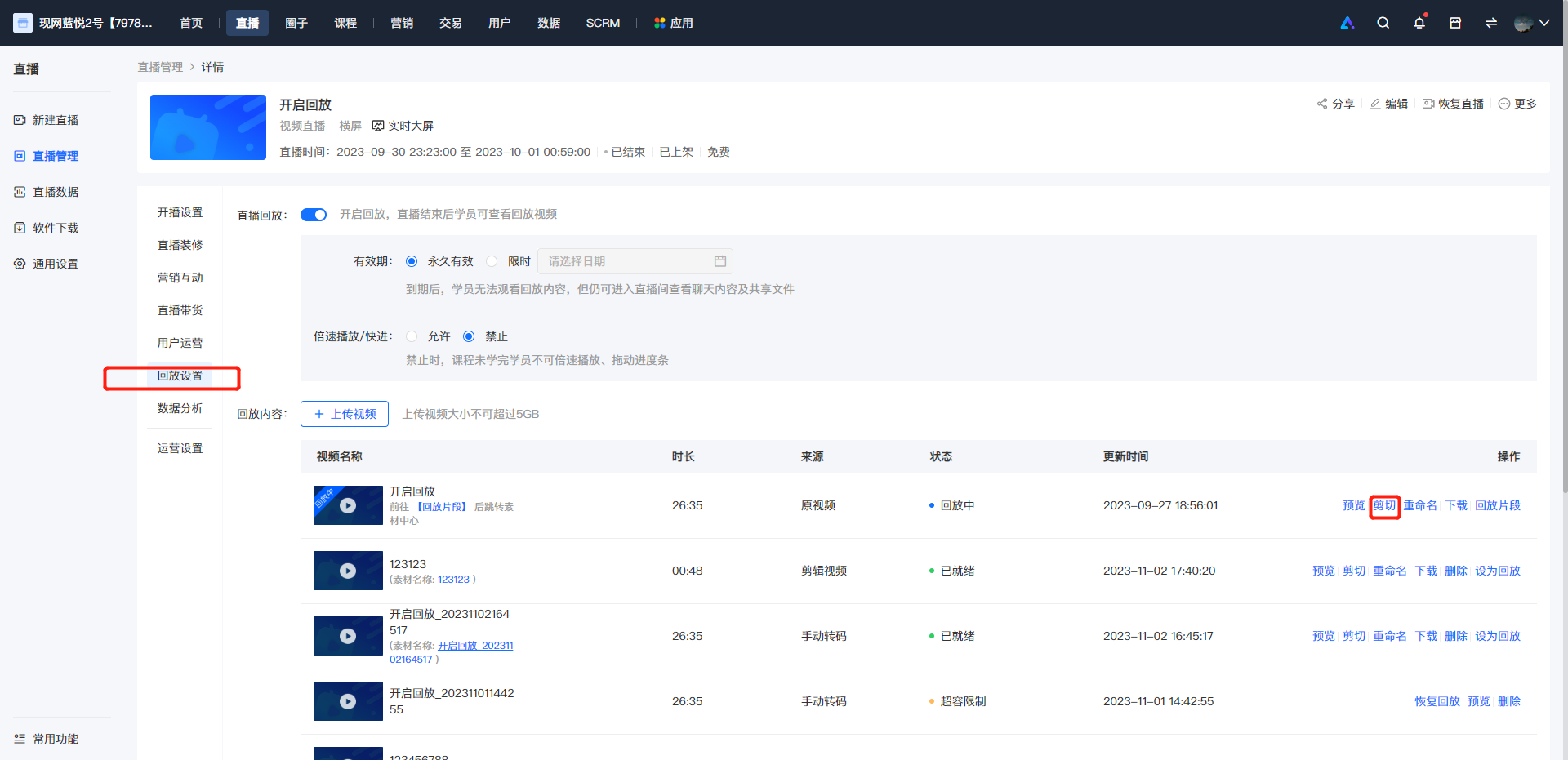
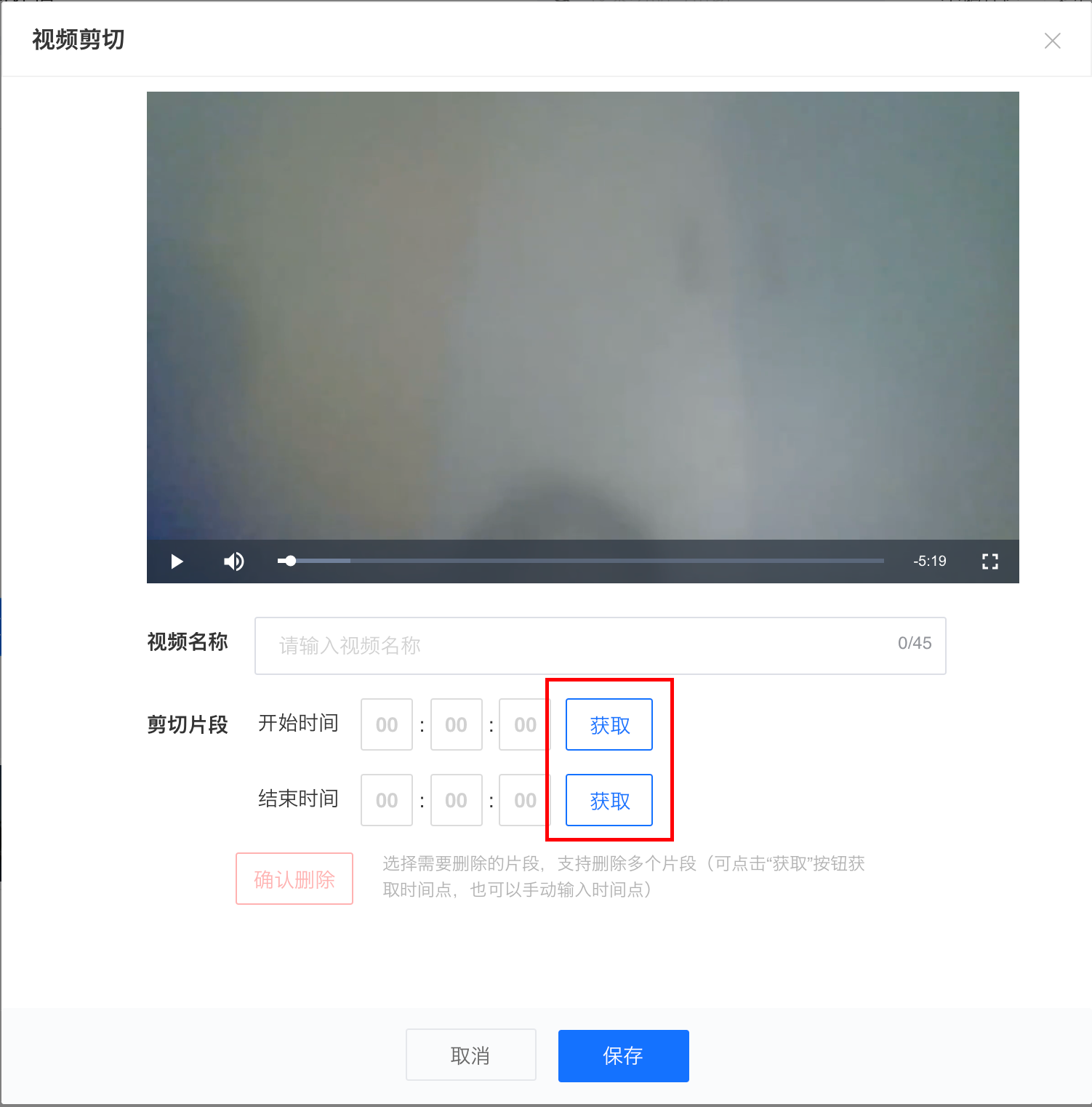
Step 3: Select the start - end time of the segment to be deleted
Click 'Get' to obtain the current video playback time point
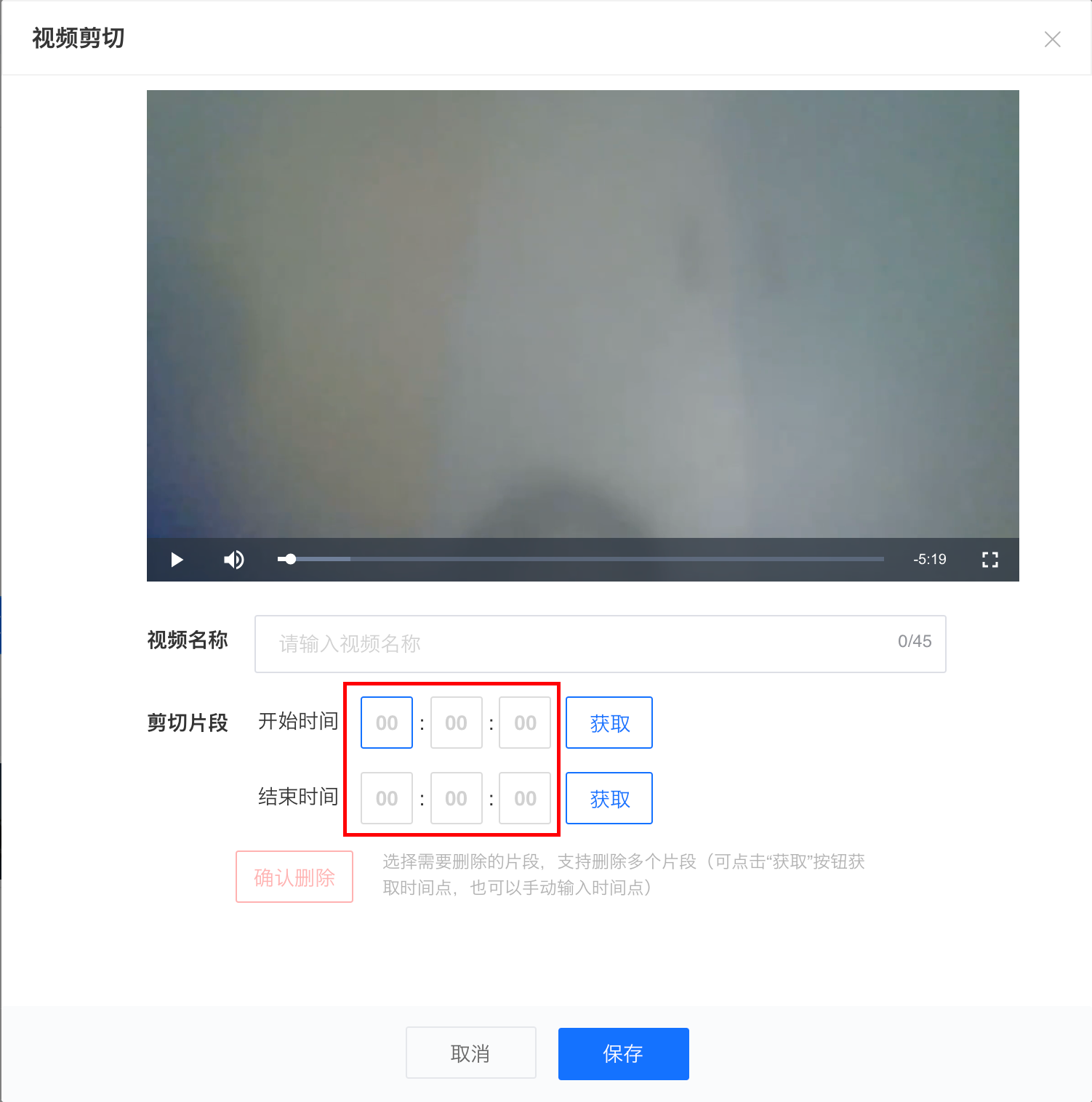
You can also manually enter 'hours - minutes - seconds' to select the time point (simply enter manually without clicking the 'Get' button again)
Step 4: Delete the segment
After selecting the start and end deletion time points, click 'Delete Segment' to delete the corresponding video segment
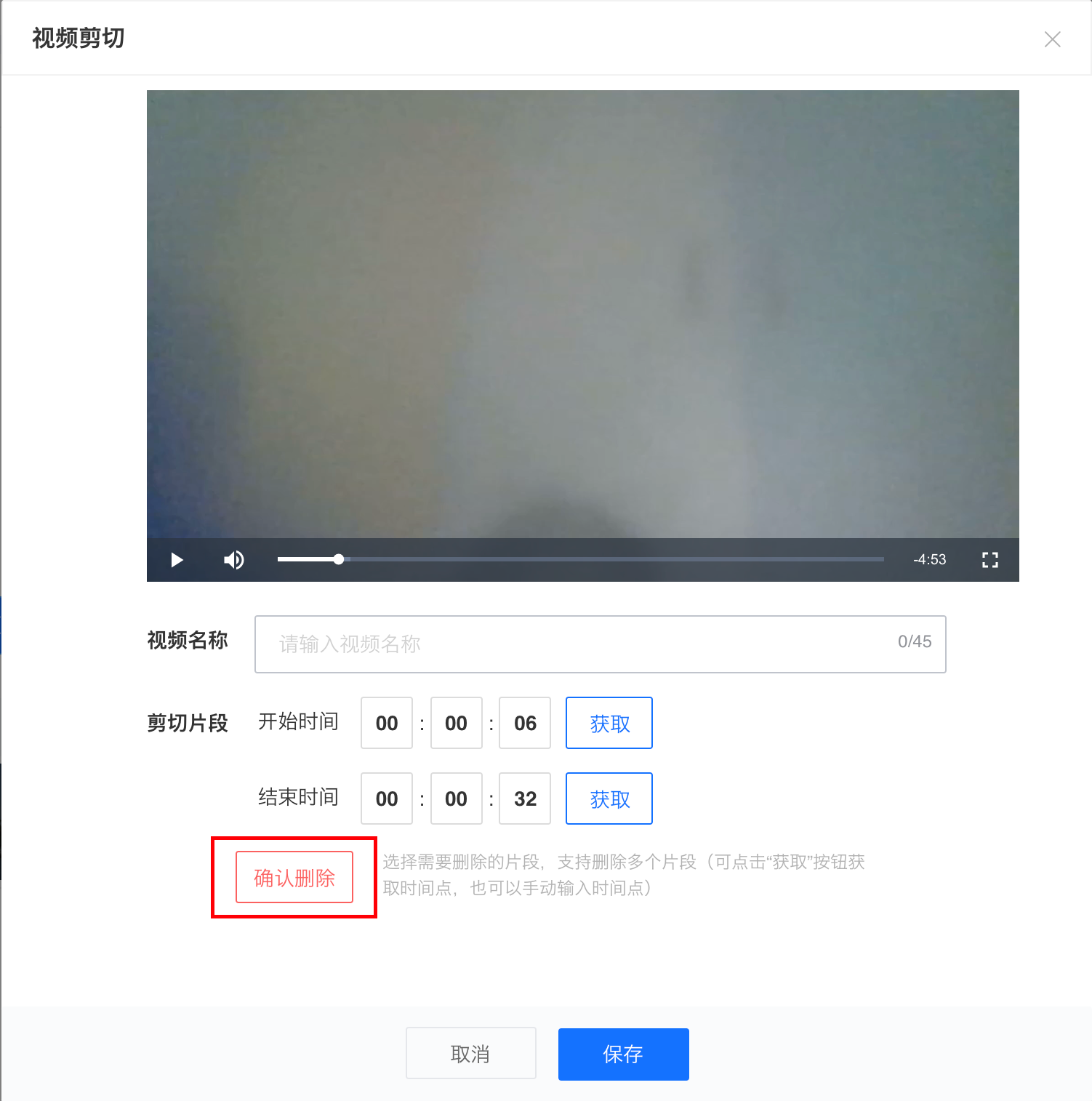
After confirming the deletion, the progress bar of the deleted video segment will be marked in red.
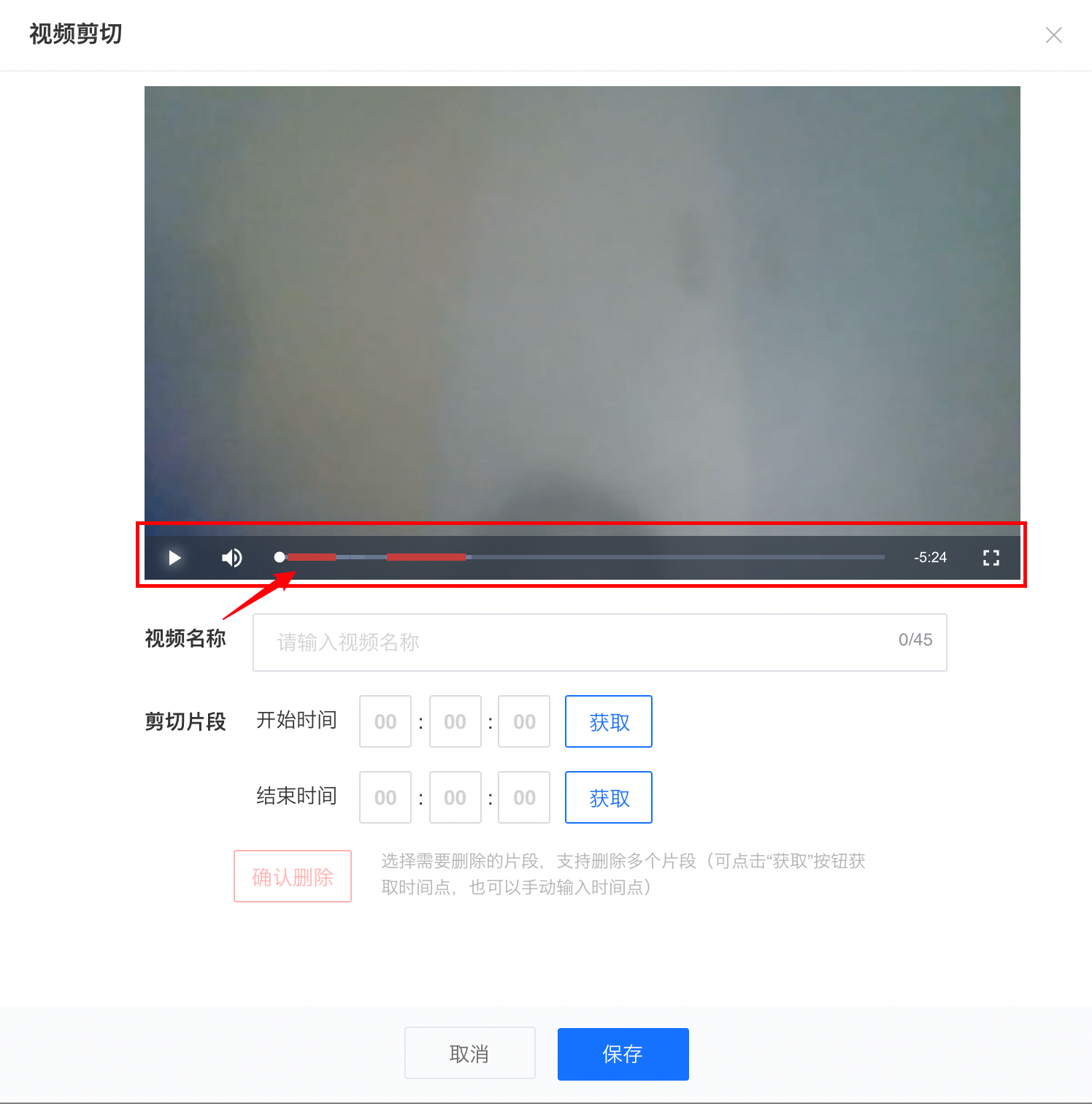
Repeat the above steps to delete multiple segments.
Step 5: Enter the video name
Click on the video name area to enter the video name
Step 6: Save the video
Click 'Save Video'. The segments marked in red will be deleted, and the remaining segments will be spliced together to form a new edited video.
If you need to set the edited video as a live stream replay, after saving, you need to wait for the video transcoding to succeed, and then click to set it as the replay video.