
Tutorial on Using Shipping Fee Templates
I. Function Introduction
The shipping fee template is a shipping fee tool mainly used to solve the problem of sellers having to frequently modify shipping fees after a transaction is completed. Through the shipping fee template, sellers can address the issue of different shipping fees for buyers in different regions when purchasing products.
Core Functions
·Supports setting deliverable regions
·Allows flexible setting of shipping fees for different deliverable regions
·Supports setting shipping fees based on the number of purchased items
·Batch modify product shipping fees. After modifying the shipping fee template, the shipping fees of associated products will be modified accordingly.
II. Purpose of Use
1. Automatically match shipping fees according to the deliverable region, solving the problem of sellers frequently modifying shipping fees.
2. Improve the operational efficiency of merchants in setting shipping fees.
III. Usage Scenarios
Scenario 1: Suitable for all merchants selling physical products. Merchants can independently select deliverable regions, set different shipping fees for different regions, and set additional shipping fees based on the number of product items.
IV. Operation Path
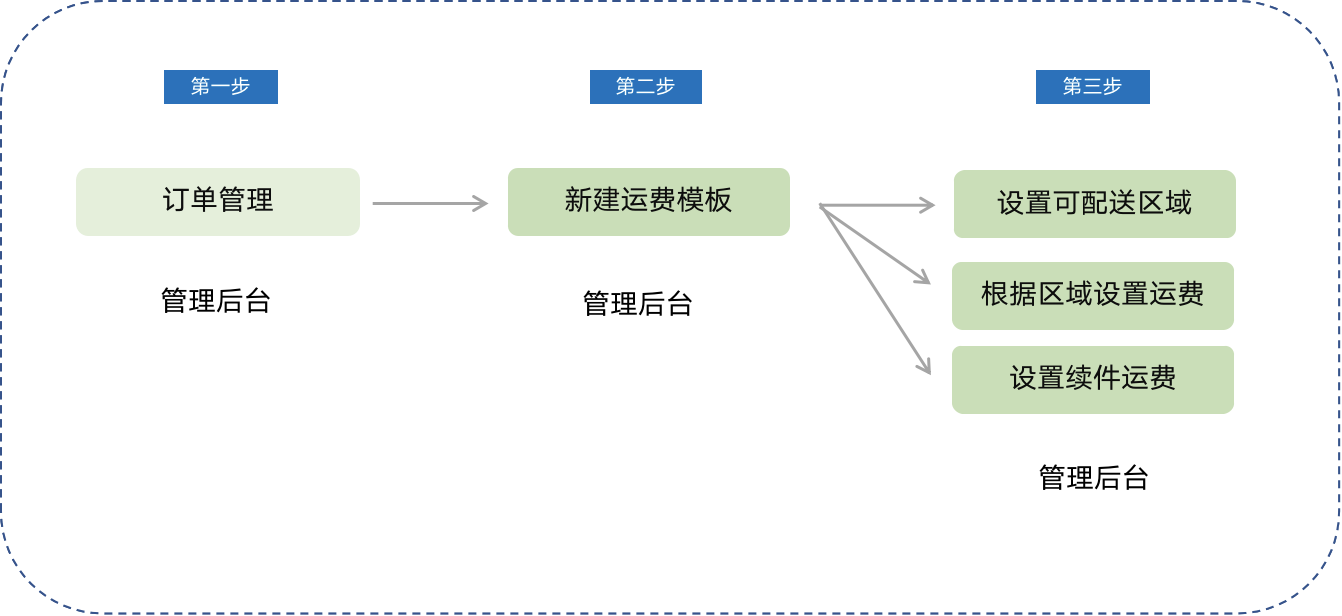
Merchant side: Merchant computer - side management background → Transaction and Order Management → Shipping Fee Template → Create a new shipping fee template
V. Usage Tutorial
Step 1: Create a new shipping fee template
Entry: Transaction → Transaction Settings → Delivery Settings
·On the delivery management list page, you can create a new shipping fee template.
·By default, there are three templates: Free shipping nationwide (except remote areas), No free shipping, and Free shipping in Jiangsu, Zhejiang, and Shanghai. You can 'Edit' and 'Delete' the templates.
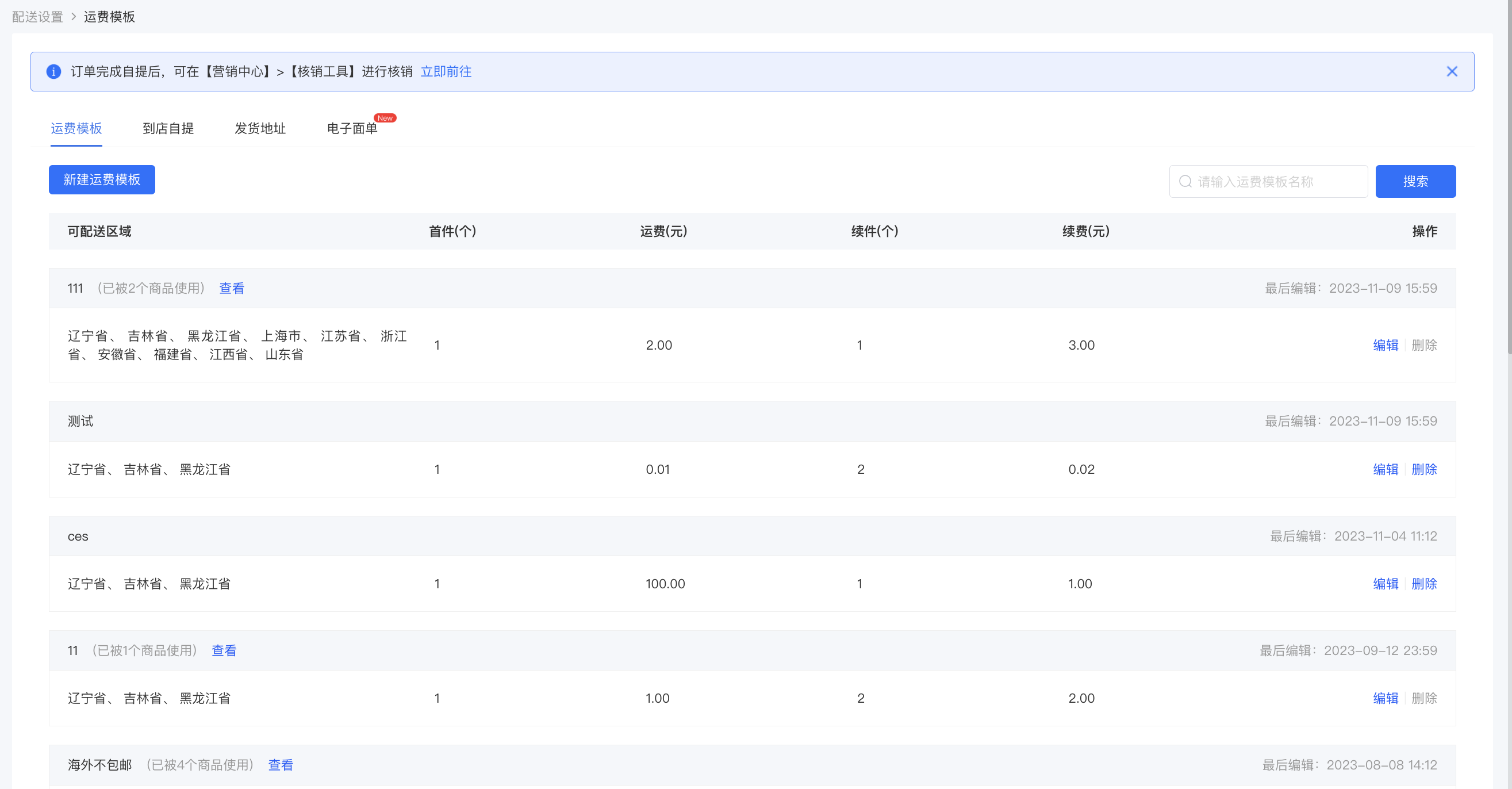
·Shipping fee templates that are in use by products cannot be deleted.

Step 2: Select deliverable regions
·Select deliverable regions. Click 'Cancel' to return to the shipping fee template list page. All content on the page is required. If any content is not filled in or is partially filled, it cannot be saved.
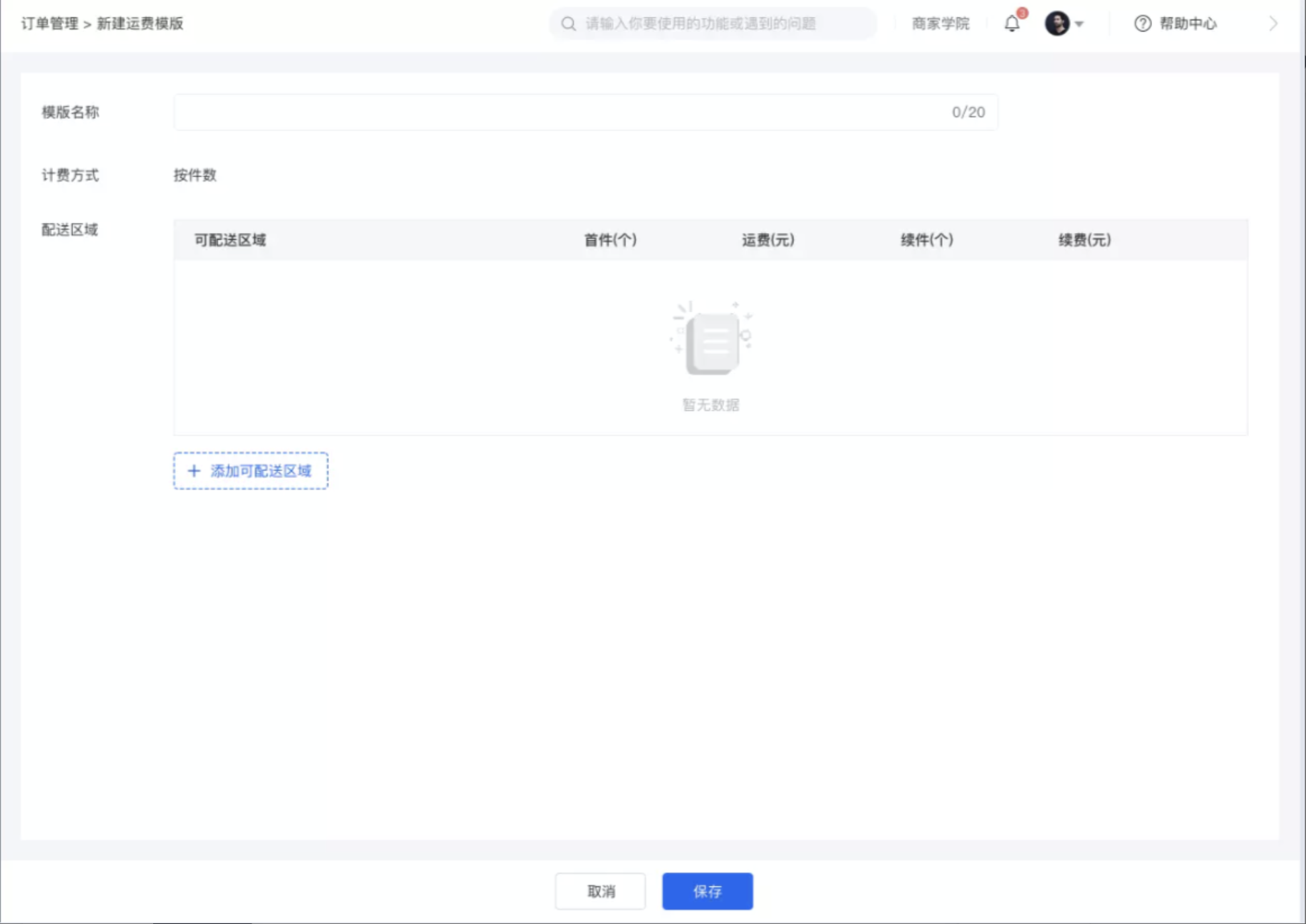
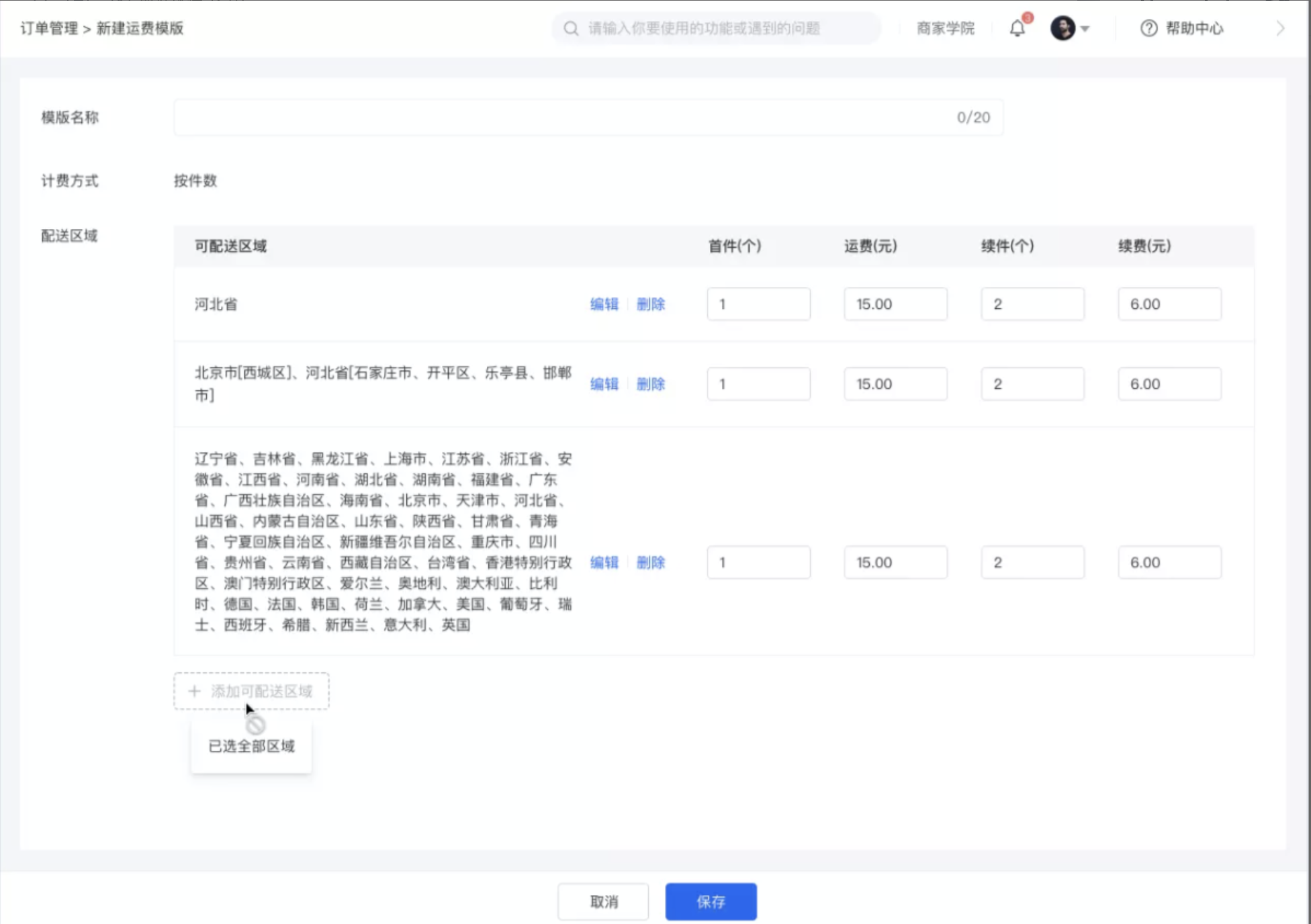
·The delivery regions support full - selection. Selected regions support delivery, and unselected regions do not support delivery.

Step 3: Set shipping fees
·You can flexibly set shipping fees according to different regions. The number of first - piece items should be greater than or equal to 1.
·Shipping fee calculation rule: First - piece shipping fee + Additional fee (Note: If the number is less than the additional - piece quantity, it will be calculated as the additional - piece quantity).
·Click 'Edit' to modify the deliverable region.
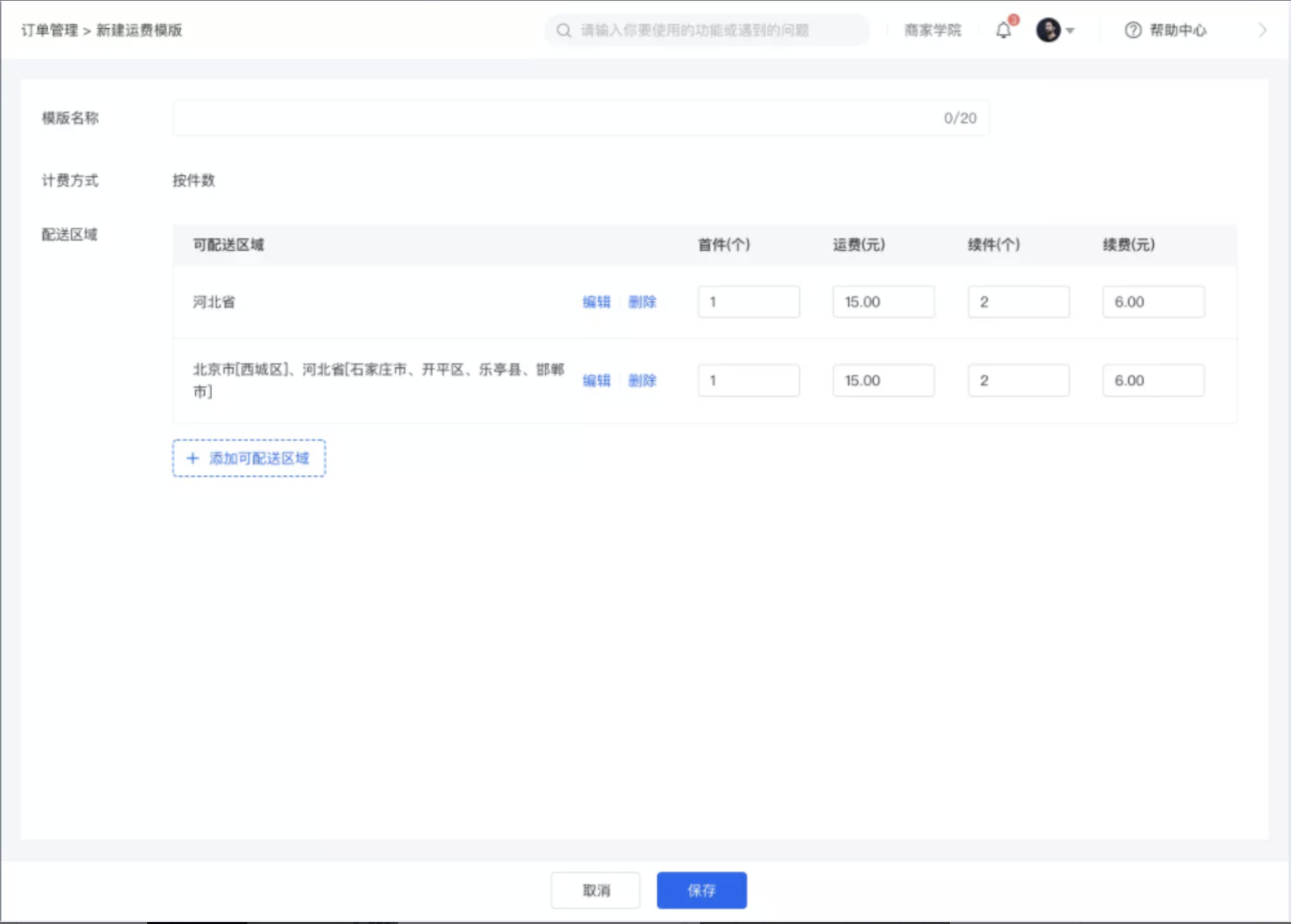
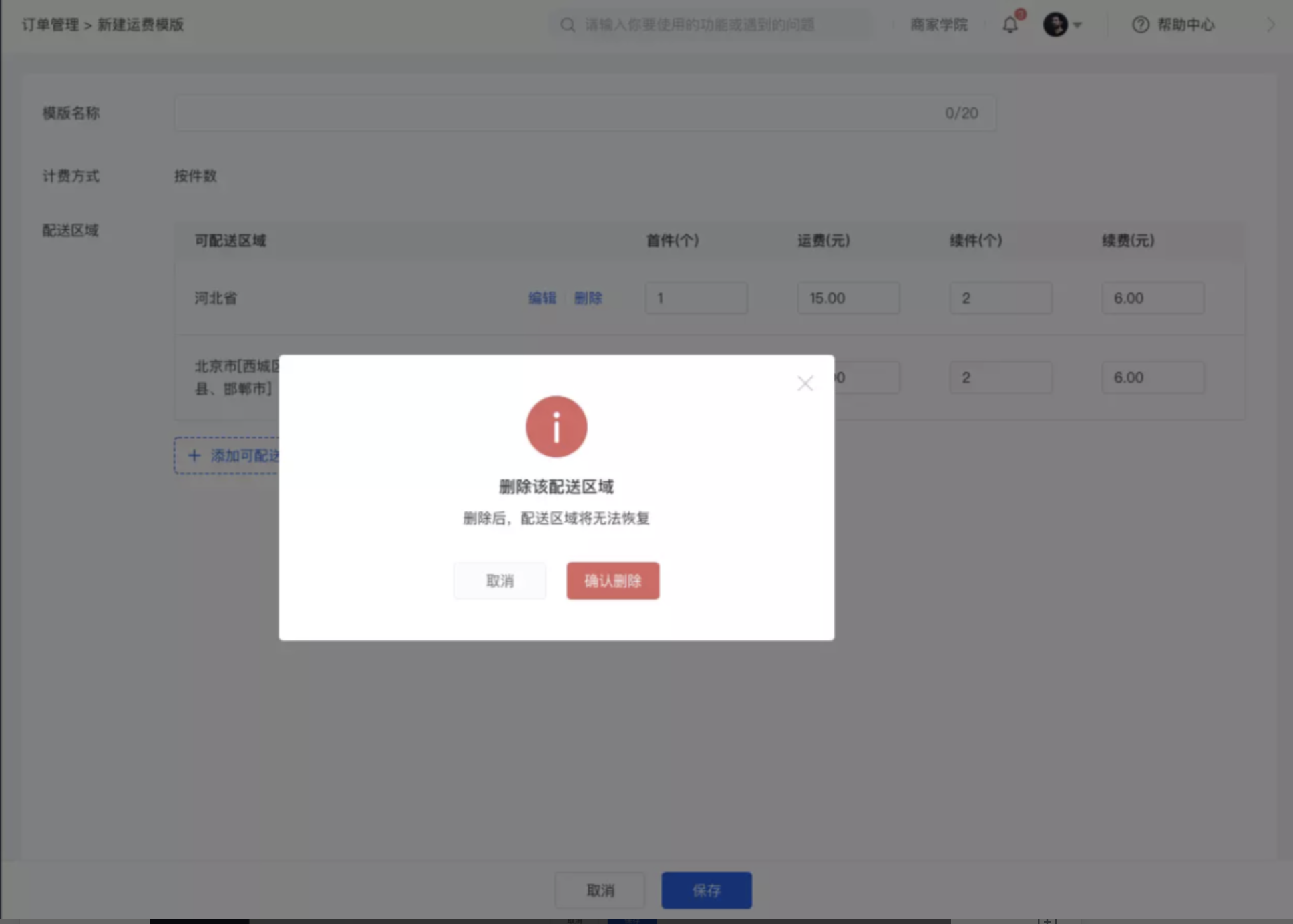
·Click 'Delete' to delete the selected region and the corresponding shipping fee, and it cannot be restored. You need to edit it again.
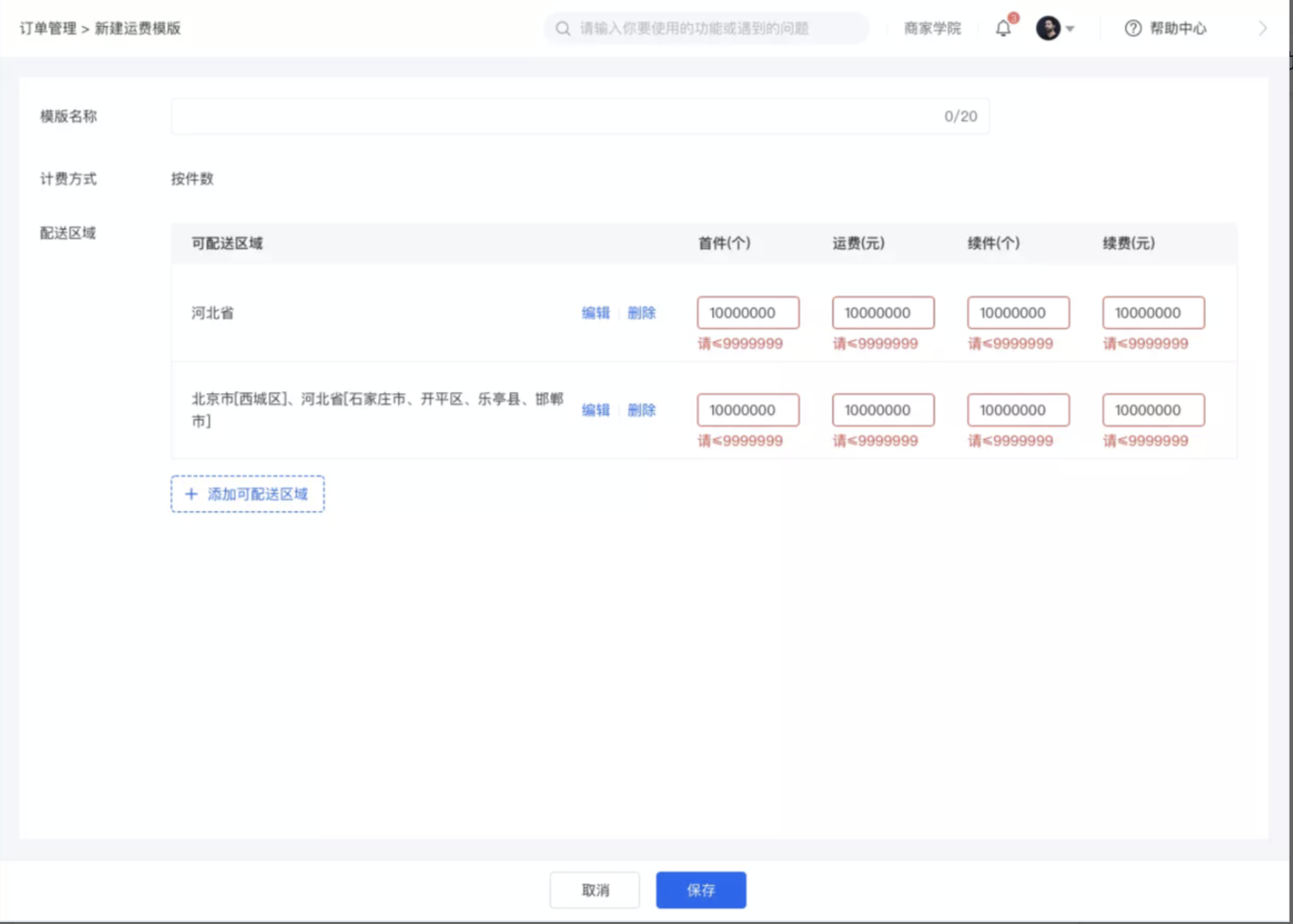
·When the number of shipping fee templates exceeds the limit
·First - piece: The maximum input unit is one million (7 digits: 9999999).
·Shipping fee: The maximum input unit is one million.
·Additional piece: The maximum input unit is one million.
·Additional fee: The maximum input unit is one million.
·Click 'Add deliverable region' to add a new deliverable region. When all deliverable regions are selected, 'Add deliverable region' cannot be clicked.
Step 4: Use the shipping fee template
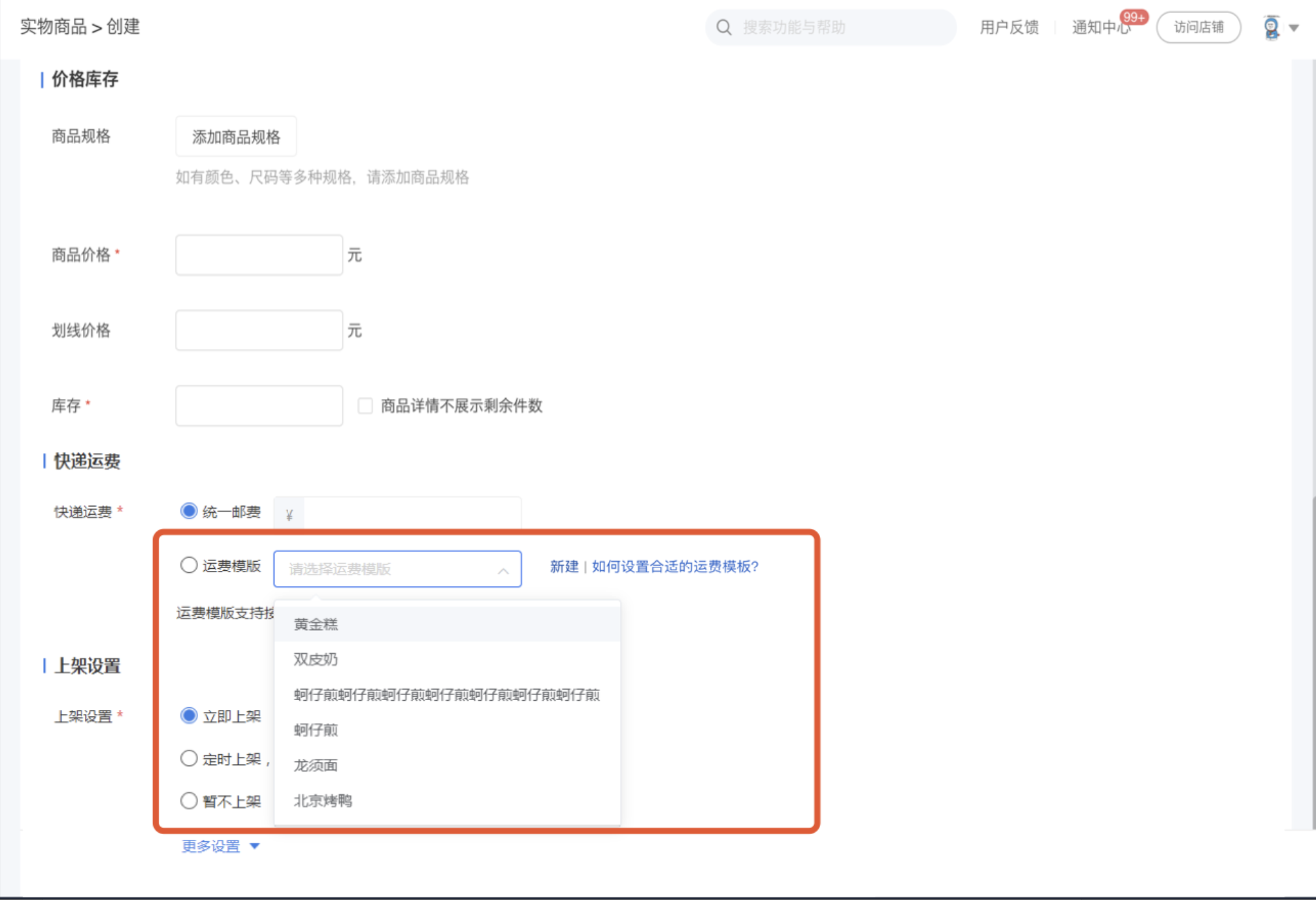
·The shipping fee template is used when creating/editing physical products.
·Click the drop - down list of the shipping fee template and select the shipping fee template you want to set.
·Click 'New' to jump to create a new shipping fee template.
Step 5: Shipping fee display on the C - end
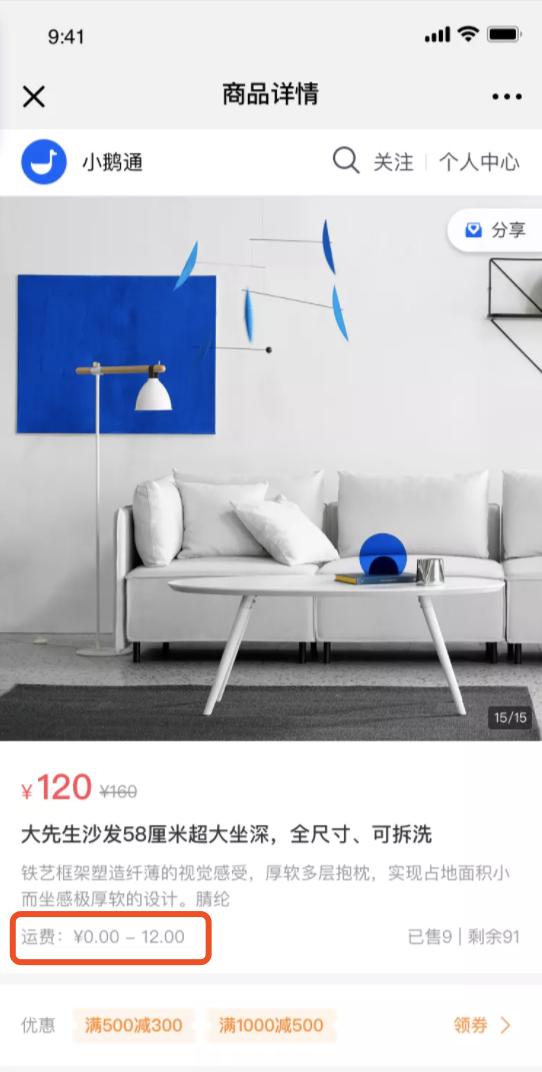
·If the shipping fee template used by a product has multiple shipping fee specifications, the shipping fee range is: First - piece shipping fee (lowest) - First - piece shipping fee (highest).
·If the first - piece shipping fees of the shipping fee template used by a product are the same, it will display: First - piece shipping fee.
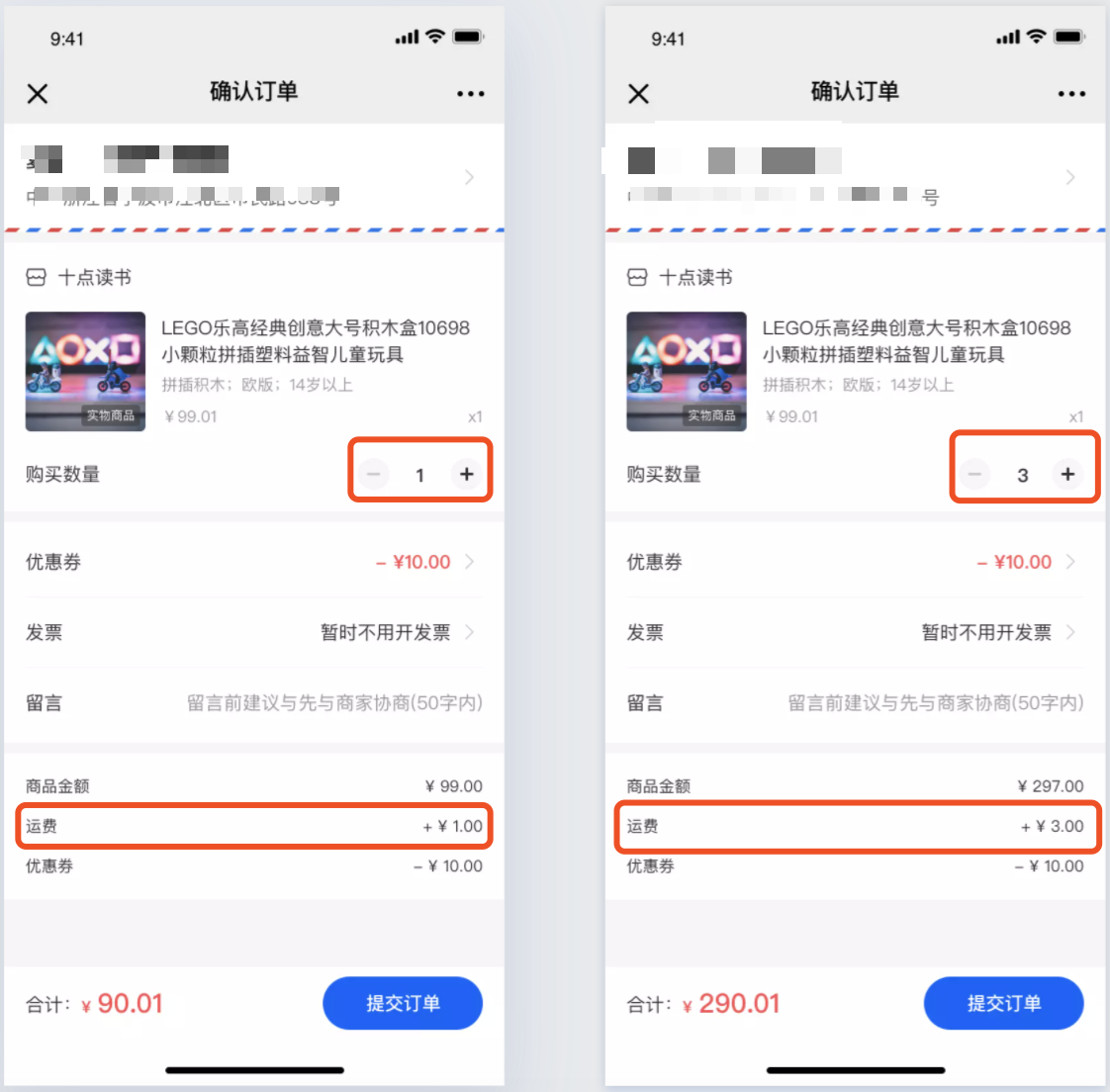
·When purchasing multiple products, the shipping fees will be automatically added up according to the shipping fees set in the shipping fee template.
Step 6: Shipping address
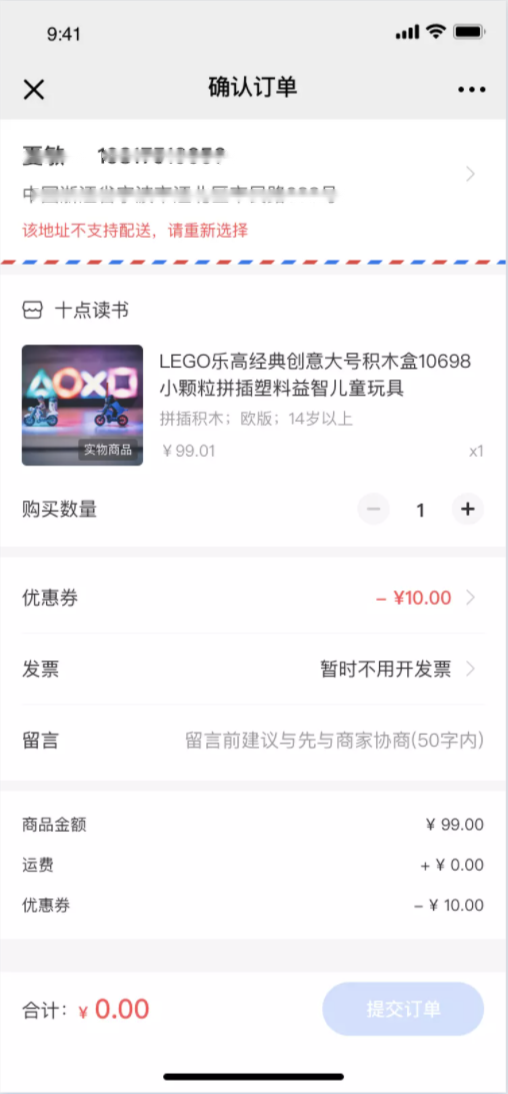
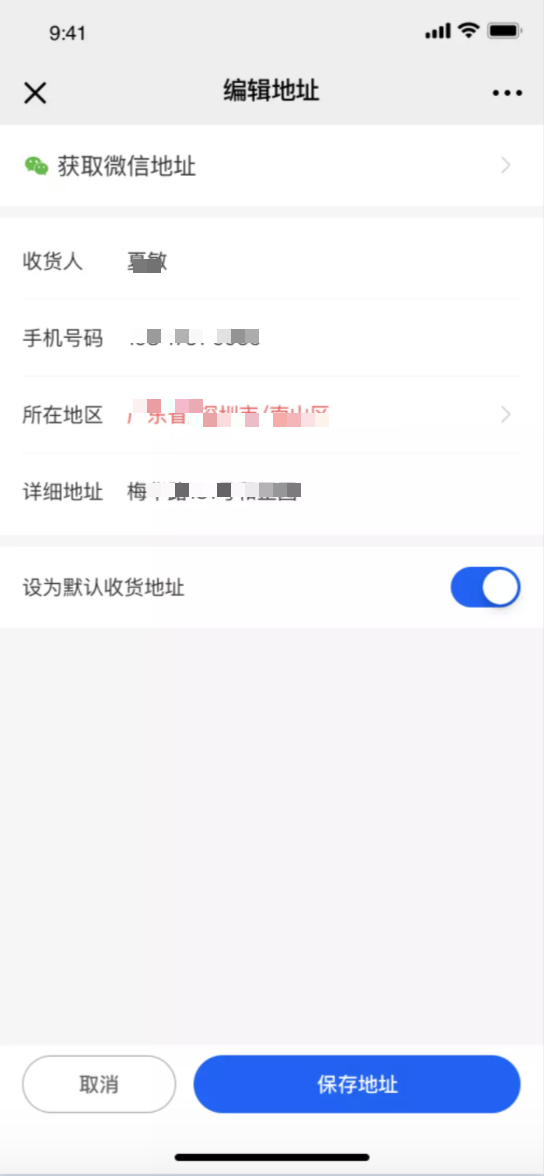
·If the shipping address filled in by the user is not within the merchant's deliverable region, the order cannot be submitted, and the user will be prompted: This address does not support delivery. Please select again.
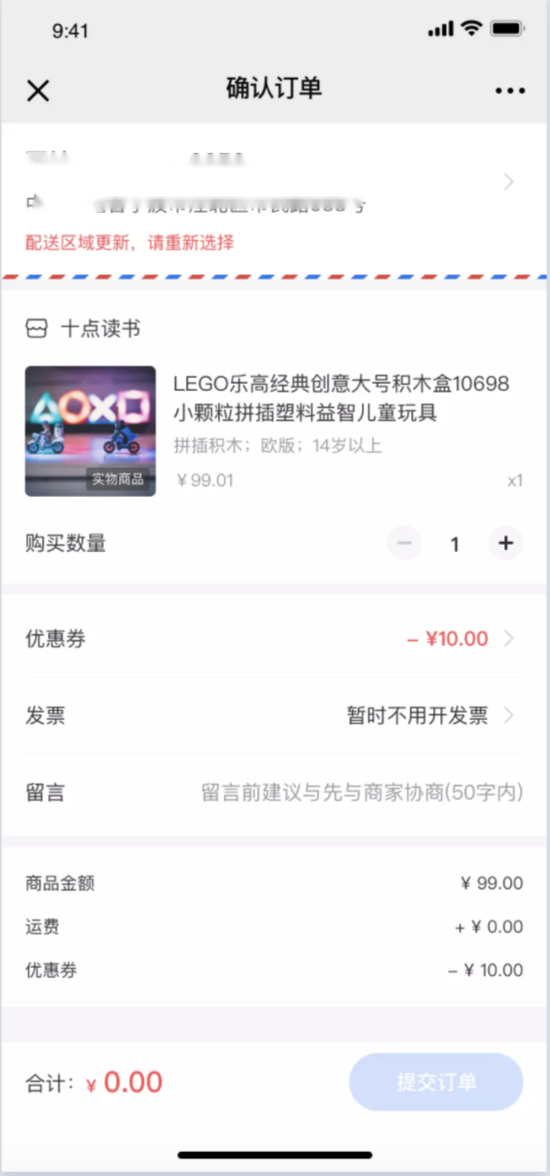
·When the user's old address does not match the address in the current address selector, the order cannot be submitted, and the user will be prompted to edit the address again.
Precautions:
1. Personnel without the 'Order Management - Delivery Management' permission cannot create shipping fee templates and cannot add them when creating physical products. They can use them normally after the permission is enabled.
2. After modifying the shipping fee template used by a product, the modified content will be synchronized to the products using this shipping fee template.
3. Unchecked 'Deliverable regions' do not support delivery.