How to download live replay videos using the [m3u8 Downloader]?
I. Feature Introduction
To prevent merchants from waiting too long for video transcoding or encountering transcoding failures, install the 'm3u8 Downloader' to immediately download live replay videos.
II. Use Scenarios
Scenario 1: Live Management - Live Details - Replay Settings - Download Live Replay Video;
Scenario 2: Material Center - Videos - Download Live Replay Video;
III. Operation Path
Merchant Side:
1. Management Console -Live Management - Live Details - Replay Settings- Download Live Replay Video - A pop - up window appears - Install"m3u8 Downloader" - Copy the video link - Paste the link into the "m3u8 Downloader" --Select the file save path - Click"m3u8 Downloader" [Download]button - Start downloading the video;
2. Management Console -Material Center - Videos - Download Live Replay Video- Download Live Replay Video - A pop - up window appears - Install"m3u8 Downloader" - Copy the video link - Paste the link into the "m3u8 Downloader" --Select the file save path - Click"m3u8 Downloader" [Download]button - Start downloading the video;

IV. Usage Tutorial
Step 1: Click the [Download] button for the live replay video on the management console - A pop - up window appears
1. Enter the management console - Live Management - Live Details - Replay Settings - Click [Download];
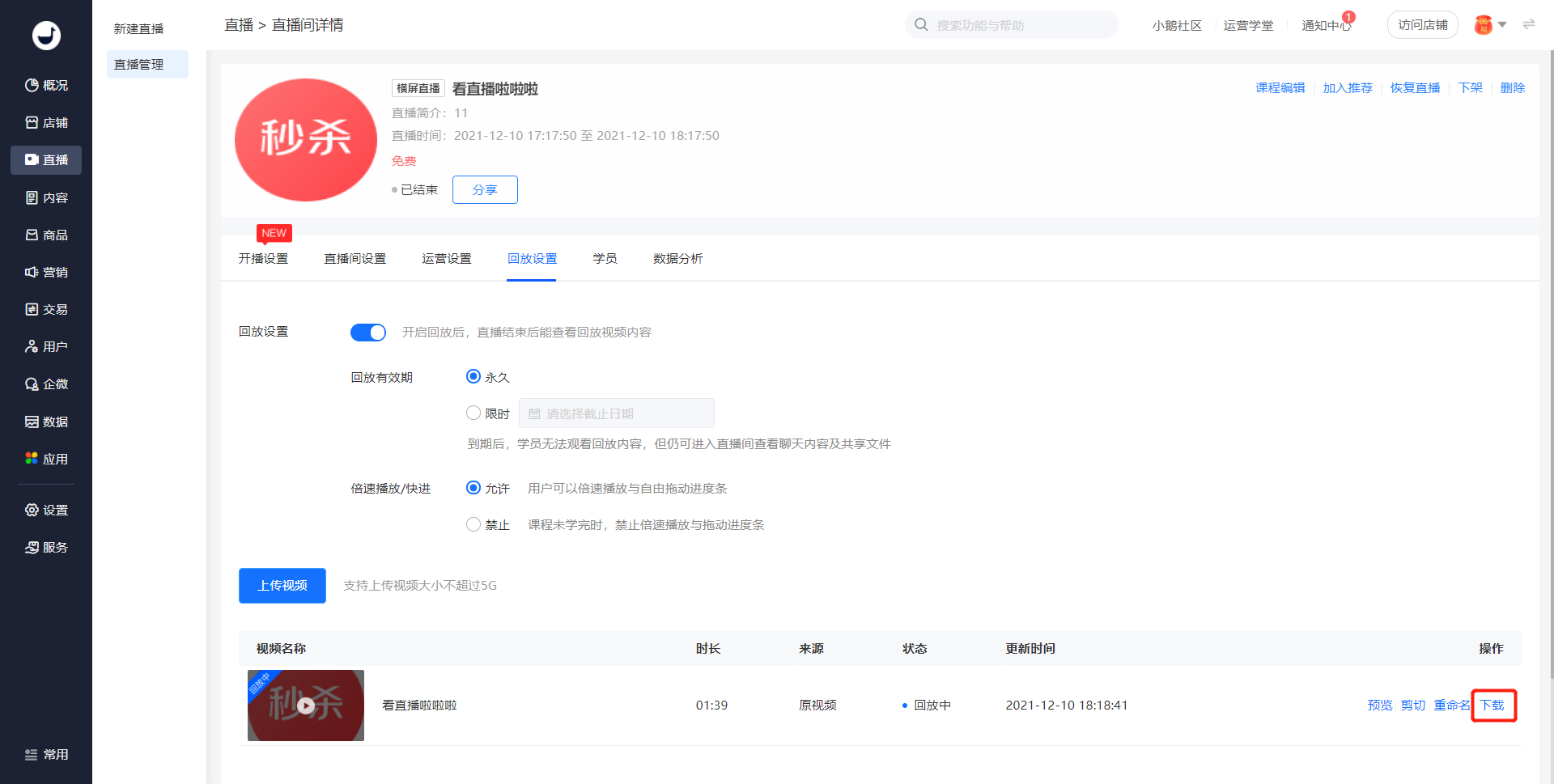
Or enter the management console - Material Center - Videos - Live Replay Video - Click [Download];

2. A pop - up window guiding you to download the live video appears
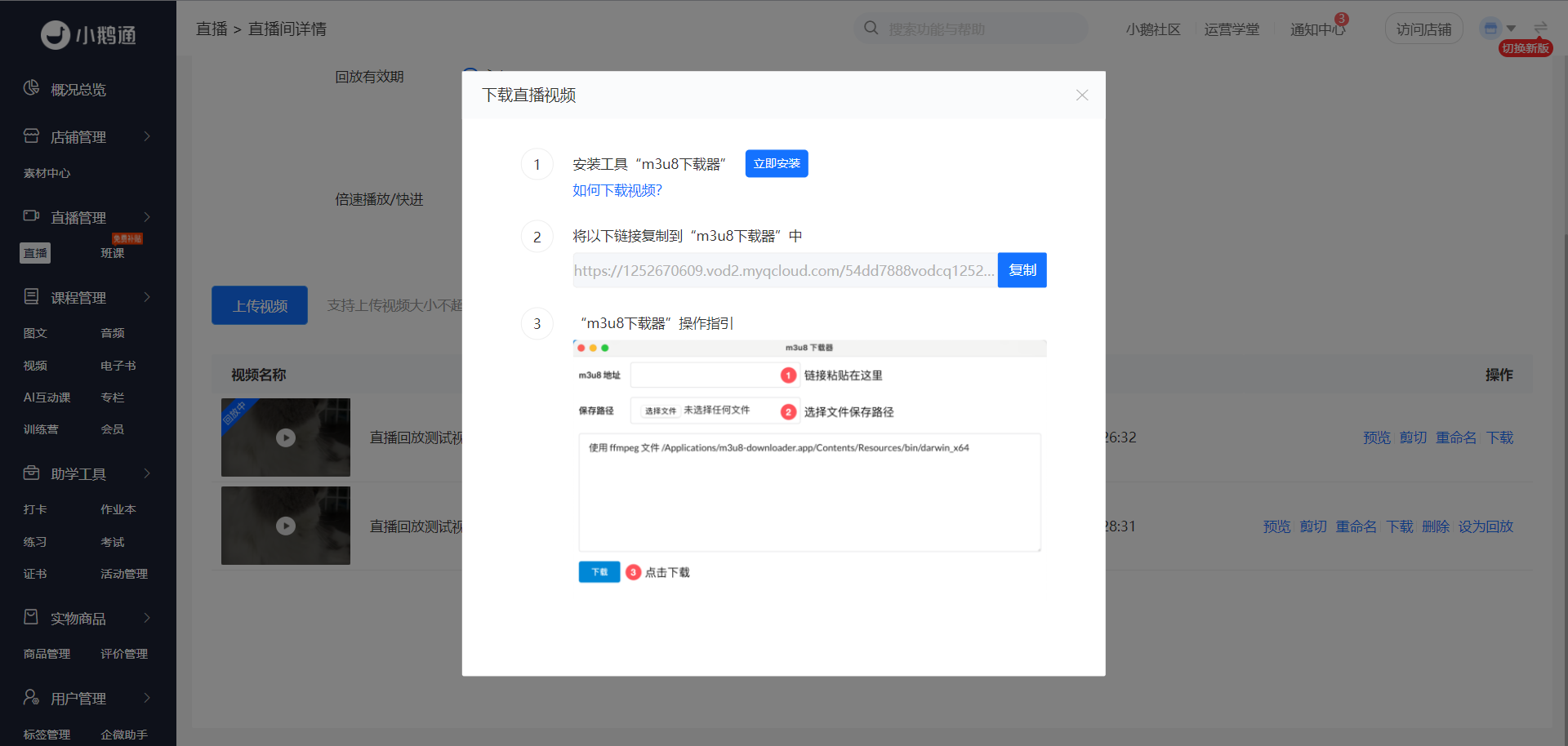
Step 2: Download the 'm3u8 Downloader' installation package
Click [Install Immediately] in the pop - up window - Start downloading the 'm3u8 Downloader' installation package;
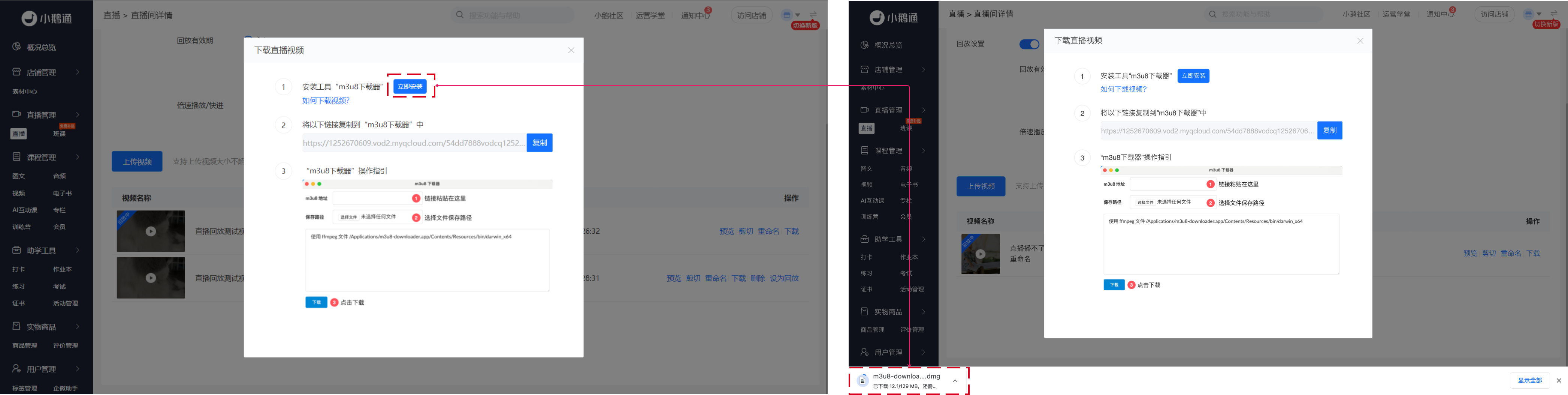
Or click the following URLs to download the 'm3u8 Downloader' installation package
● Windows installation package:https://xiaoetong - 1252524126.cdn.xiaoeknow.com/m3u8 - downloader.exe
● macOS installation package:https://xiaoetong - 1252524126.cdn.xiaoeknow.com/m3u8 - downloader.dmg
Step 3: Install the 'm3u8 Downloader'
1. Installation for macOS system users
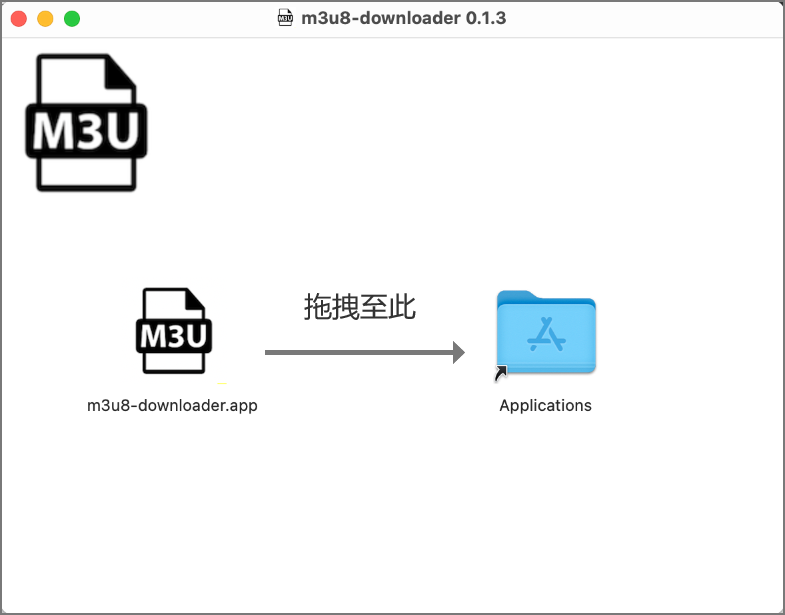
(1) Drag the 'm3u8 Downloader' file to the 'Applications' folder;
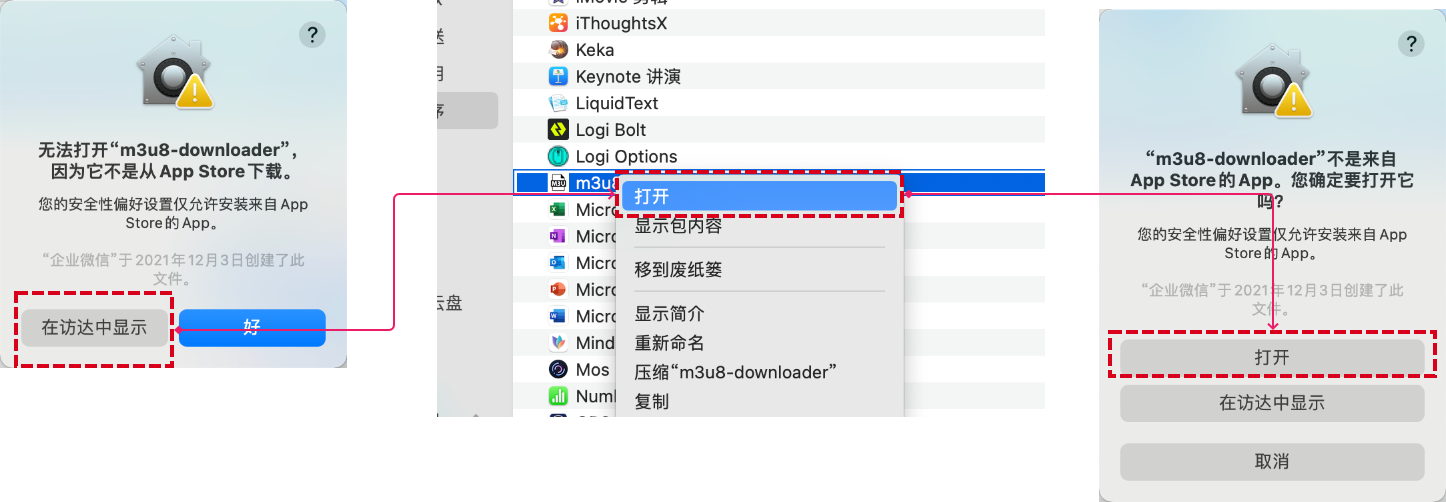
(2) When opening the software for the first time, click [Show in Finder]. After clicking, the Finder window will pop up. Find the m3u8 Downloader, right - click to open it, and click [Open] in the confirmation pop - up window;
(3) Open the 'm3u8 Downloader'

2. Installation for Windows system users
(1) Open the [Installation Package] and start the installation;

(2) After the installation is complete, open the 'm3u8 Downloader';

Step 4: Download the video
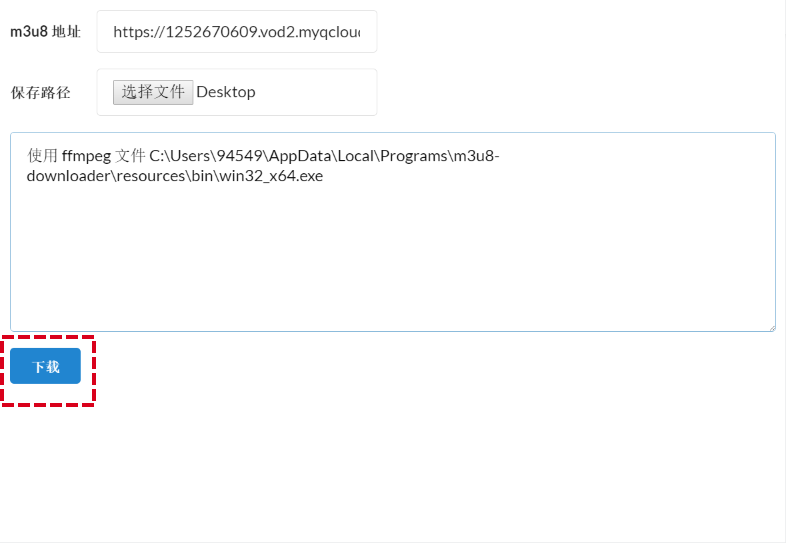
1. Copy the video link: Management Console - Download Live Video Pop - up Window - Click the [Copy] button;
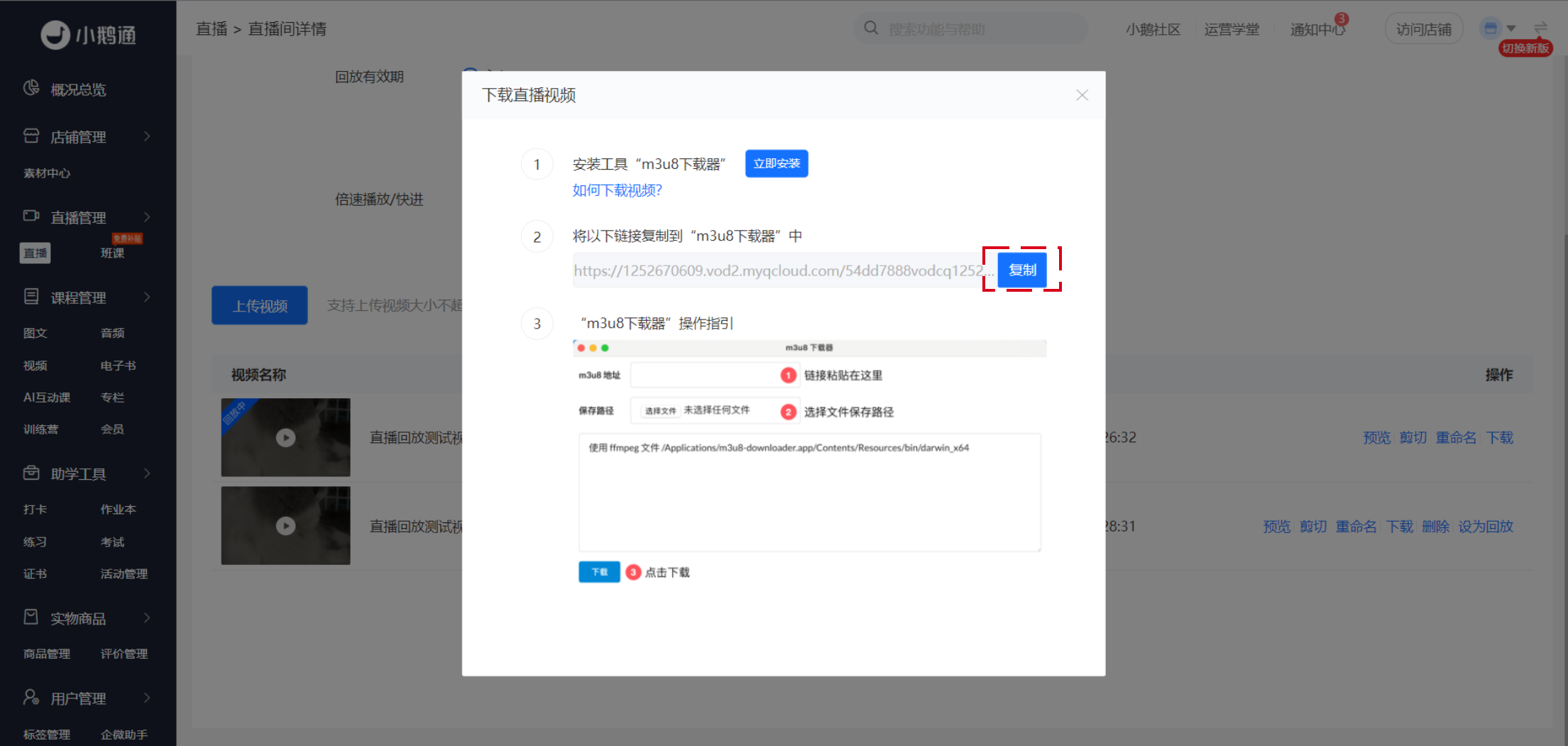
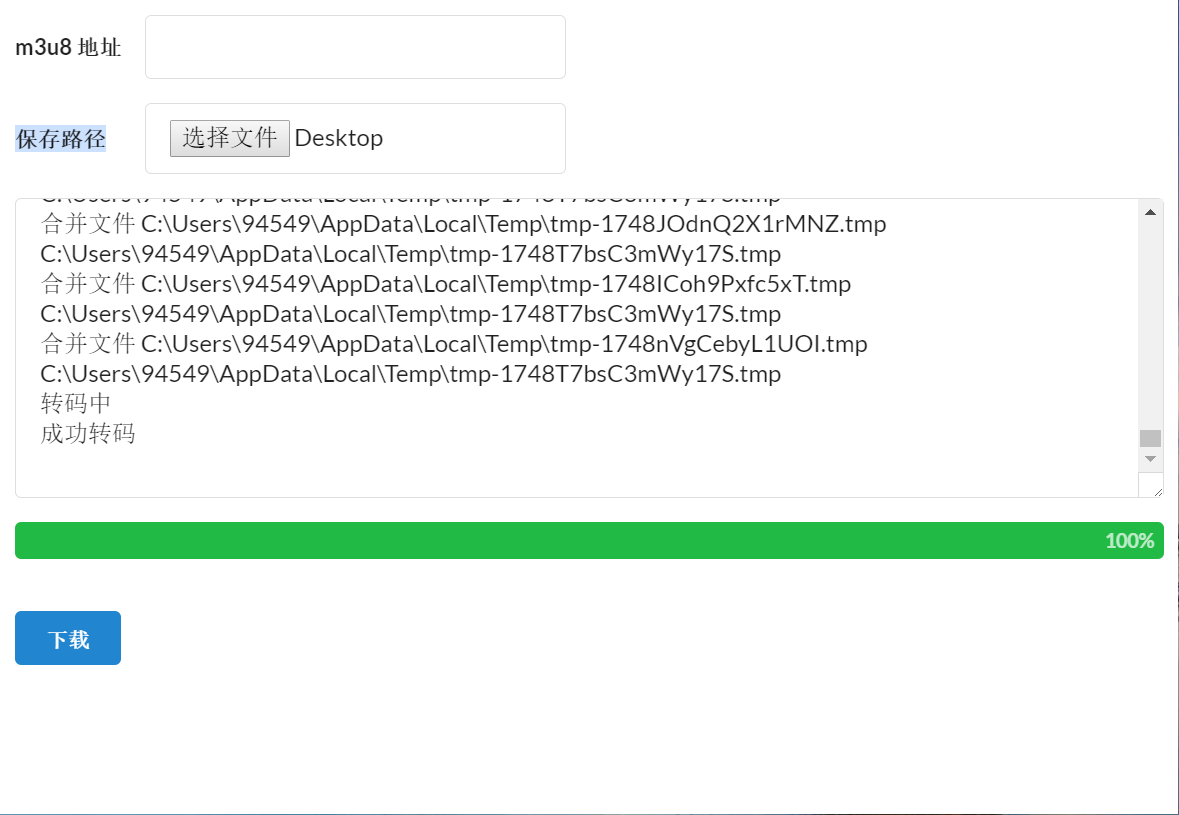
2. Open the 'm3u8 Downloader' and paste the video link into the downloader;

3. Select the file save path;
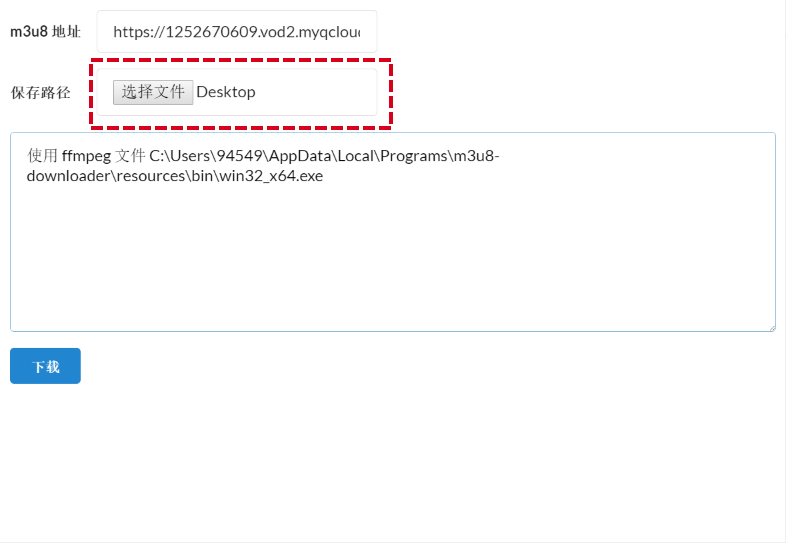
4. Click [Download] - Start downloading the video;

5. The download is complete.