Tutorial on Message Interaction Usage
I. Function Introduction
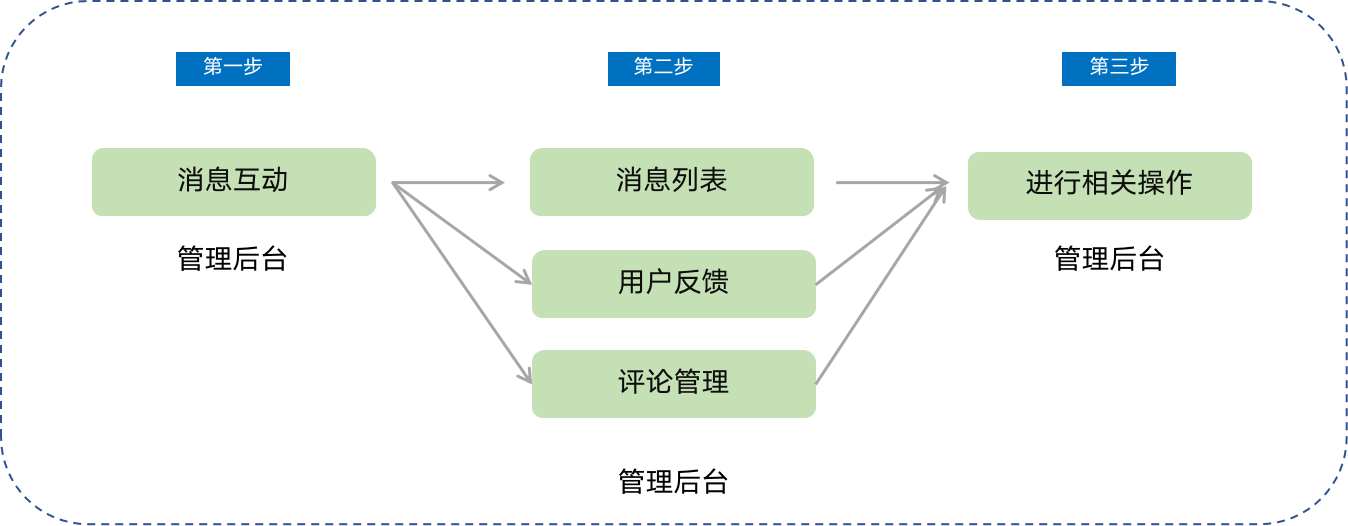
Message interaction allows merchants to centrally manage and handle store messages. It includes three modules: message list, user feedback, and comment management.
II. Purpose of Use
Merchants can manage messages, feedback, and comments from store students, keep abreast of the latest situation of students, and adjust product strategies in a timely manner based on feedback.
III. Usage Scenarios
Scenario 1: Merchant A has newly launched a course product and plans to send messages about the new product to users in the store. They can send messages to all users in the message list to achieve the purpose of promoting new products.
Scenario 2: Merchant B is unclear about user needs and plans to explore user needs through market research. Therefore, they interact with users through user feedback and comments to listen to users' real voices and launch better products based on user needs.
IV. Operation Path
Merchant side: Merchant backend → Users → Message Interaction
V. Usage Tutorial
1. Message List
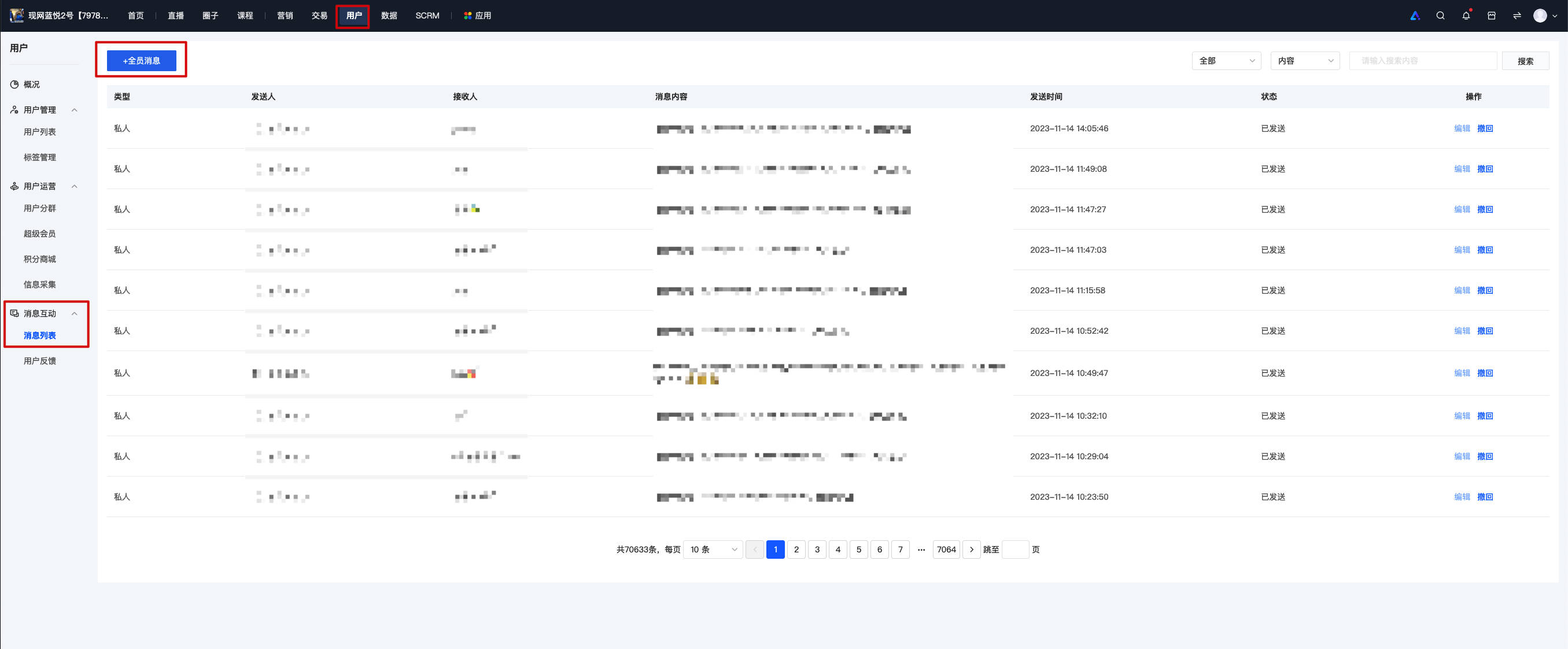
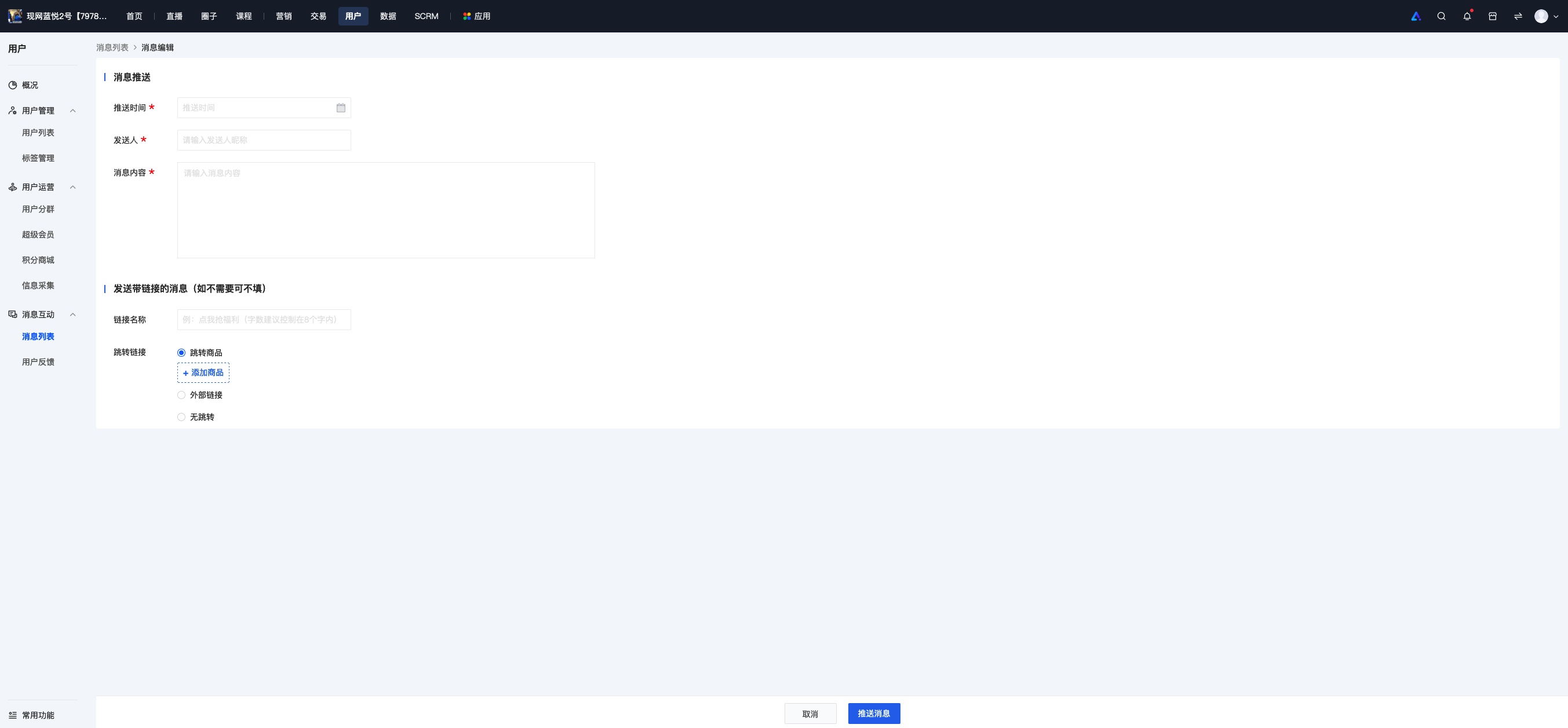
a. Click the top button [+ Message to All Users] to send a message to all users, including the push time, sender, message content, and link information. After filling in the information, click [Push Message], and the message will be automatically sent at the specified time.
b. You can view the details of sent messages in the list and edit or recall sent messages.
Before the push time, you can click the edit button to edit the message; sent messages cannot be edited, so please check carefully before sending. Incorrectly sent messages can be recalled by clicking the [Recall] button.
2. User Feedback
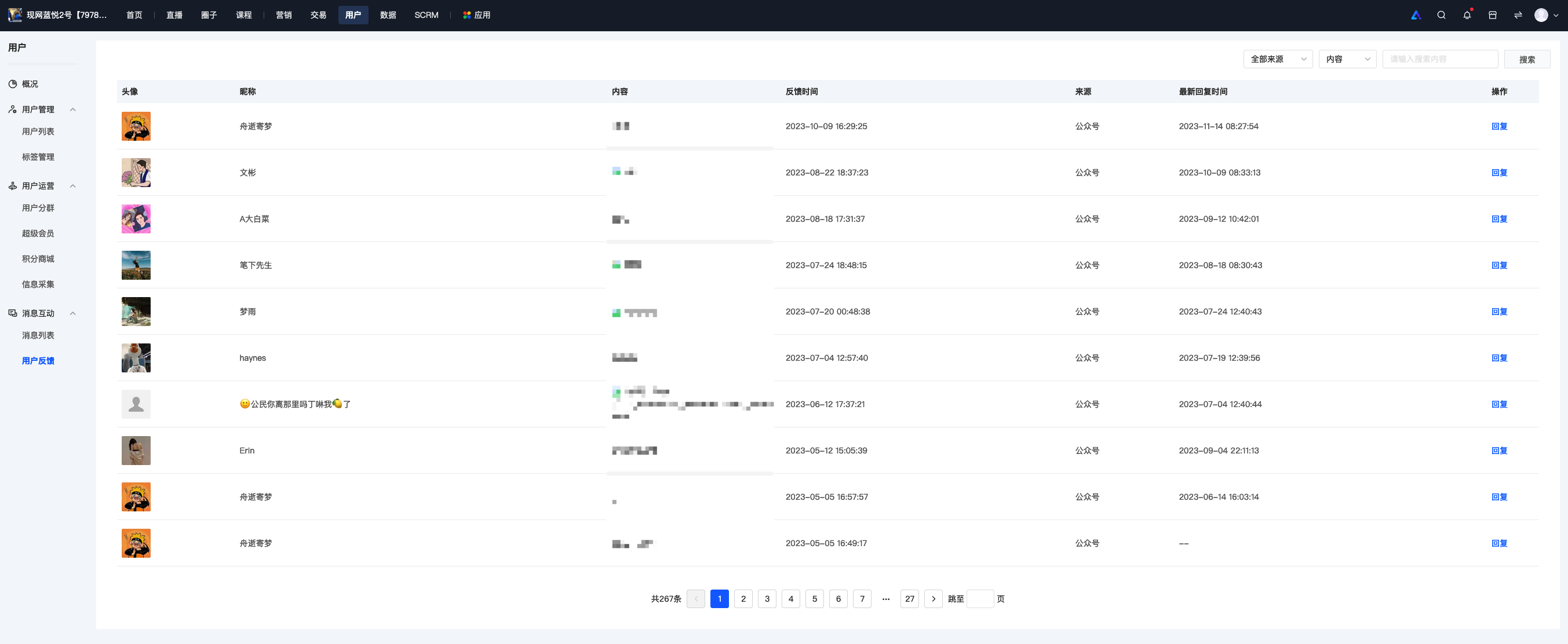
You can view and reply to feedback submitted by employees.