
[OBS] Streaming shows no connection to the server (some office networks may have restrictions)
Problem Phenomenon
OBS shows that the service is not connected. Please refer to the following methods to solve the problem:
Method 1: Check the streaming address
① Check if the streaming link settings in the settings are correct
② Click the settings button in the lower right corner of the OBS page. Enter the settings page, select “Stream” in the left sidebar, and check if the streaming information is consistent with the streaming address of the live room
Method 2: Switch the network
① Try to change the network (such as using a 4G hotspot)
② If the problem still exists after switching the network, please change the DNS
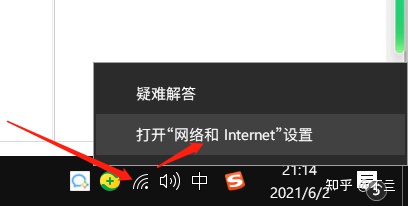
<1> Right - click the network icon in the lower right corner and select “Open Network & Internet settings”.
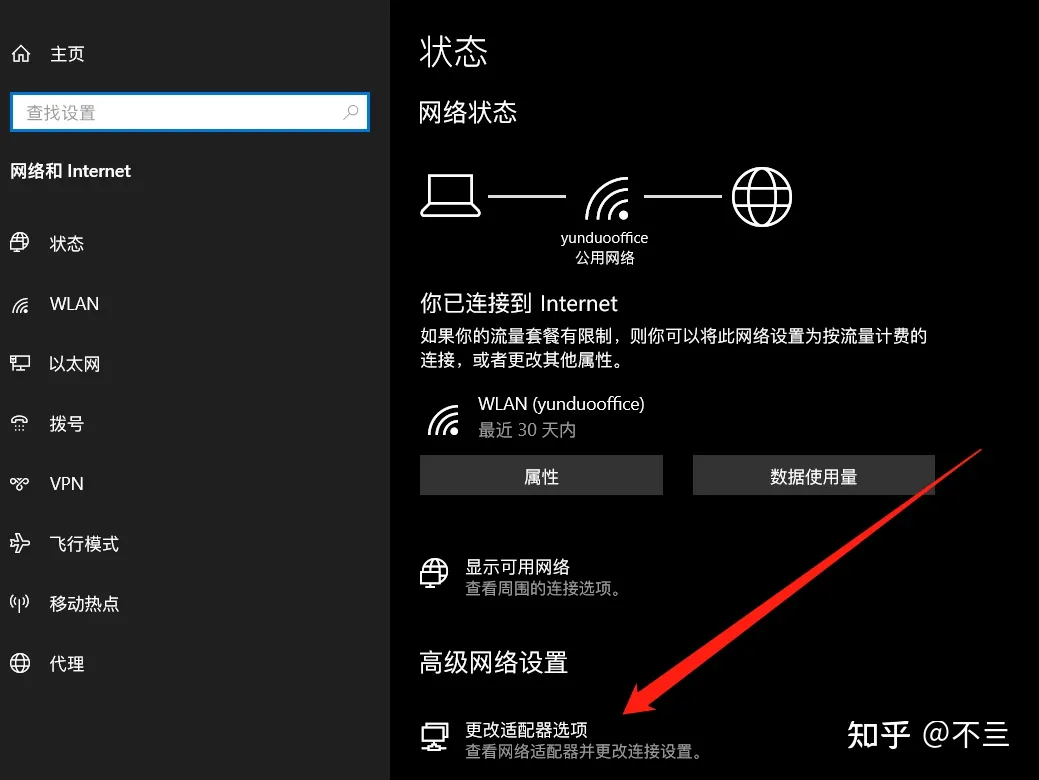
<2>Select “Change adapter options”.
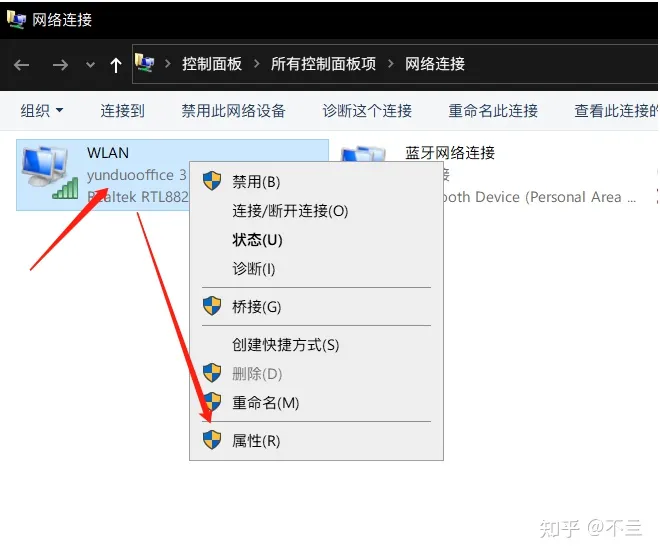
<3> Right - click the “WLAN” icon and select “Properties” (if you are connected via Ethernet, you need to change the properties of “Ethernet”. Just change the properties of the network you are using).
<4> In the properties, select “Internet Protocol Version 4 (TCP/IPv4)” and double - click to open it. Change the DNS from “Obtain automatically” to “Manual input”, enter a set of DNS, and save it.
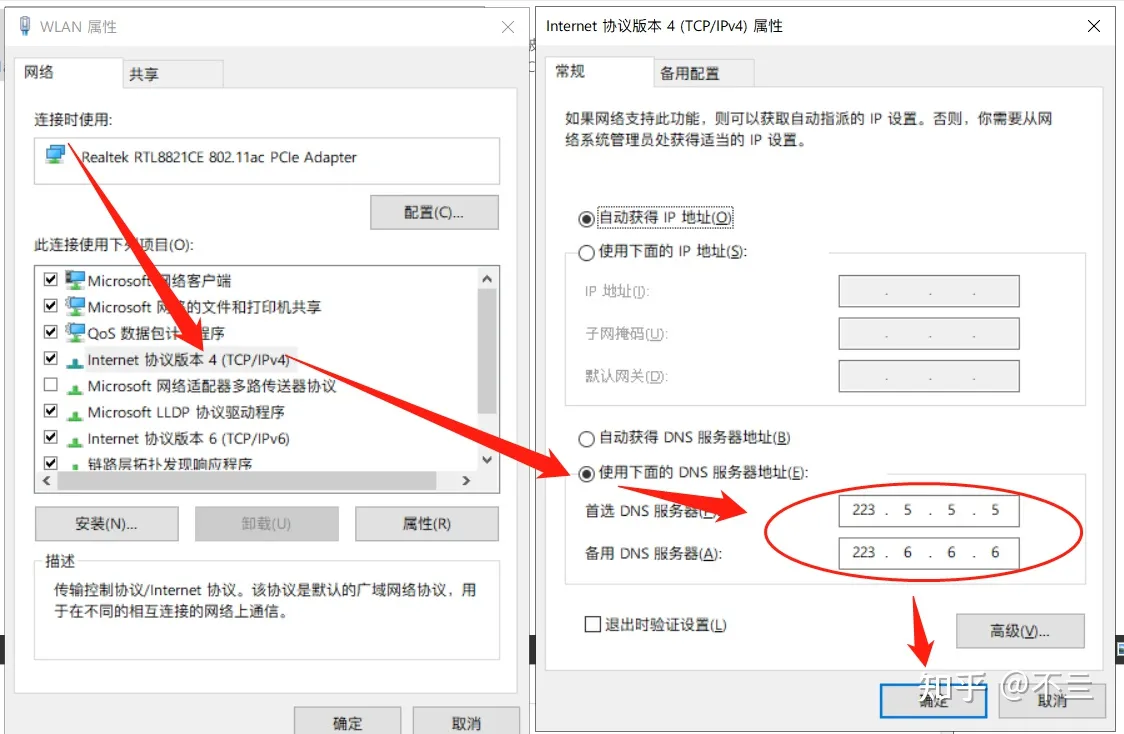
Common public DNS
Tencent: 119.29.29.29
Alibaba: 223.5.5.5, 223.6.6.6
③ If the problem still cannot be resolved after changing the DNS as described above, please use the following method:
<1> Open the following detection website link in your browser
https://ping.huatuo.qq.com/thirdpush.xiaoeknow.com
<2> After all the content data on the page has finished loading, click the blue button “Copy result URL for sharing”
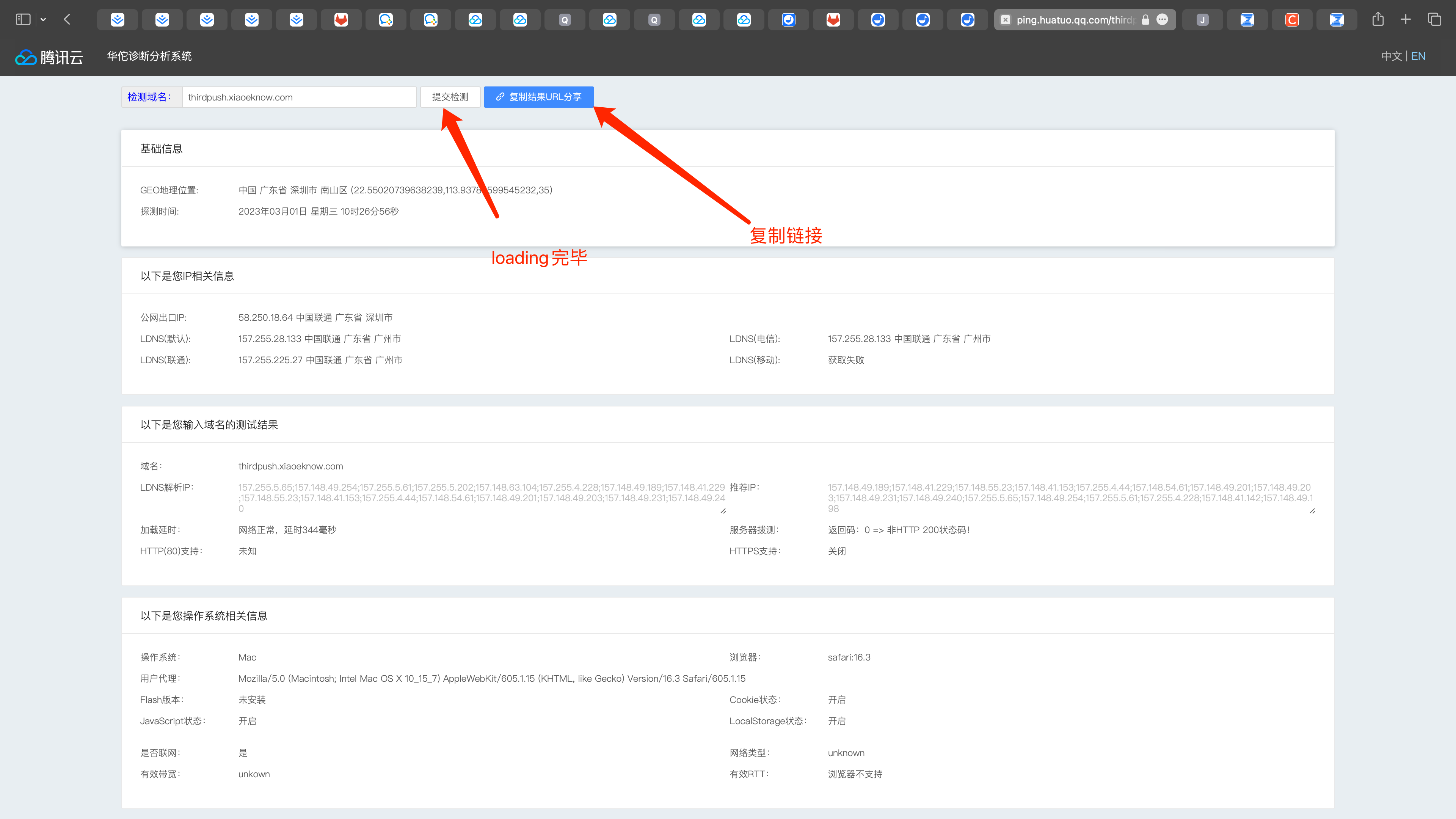
<3> Send the copied content to your service manager, and the service manager will perform further troubleshooting for you.