How to share videos during a live stream?
Terminals supporting instructors to share videos: eLink Live Client, eLink Assistant Client, ComputerWeb version,H5Live streaming room
The operation steps are as follows:
eLink Assistant Client
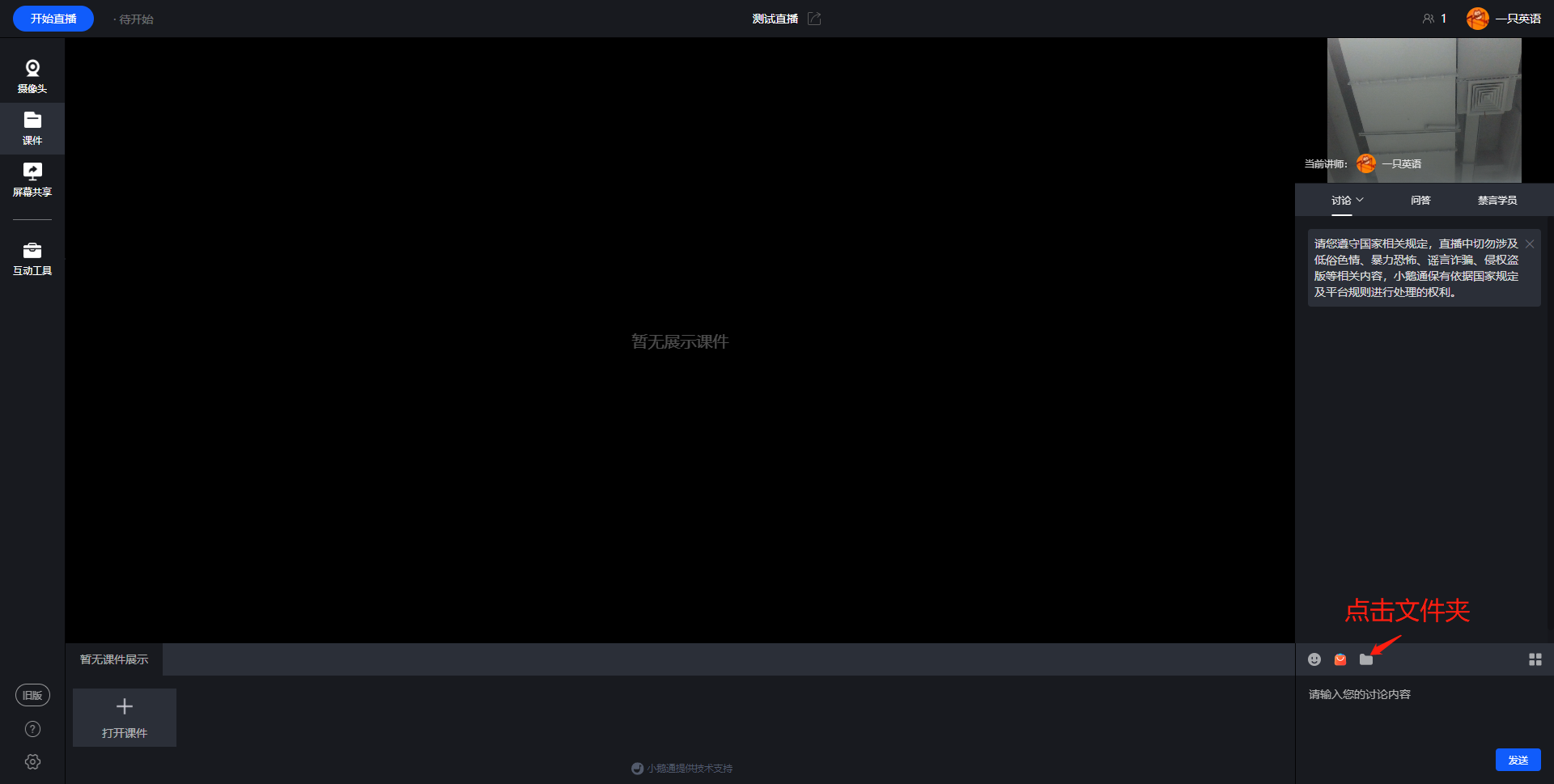
1. The instructor enters the live streaming room, clicks the [Folder] button, and a pop - up window appears.
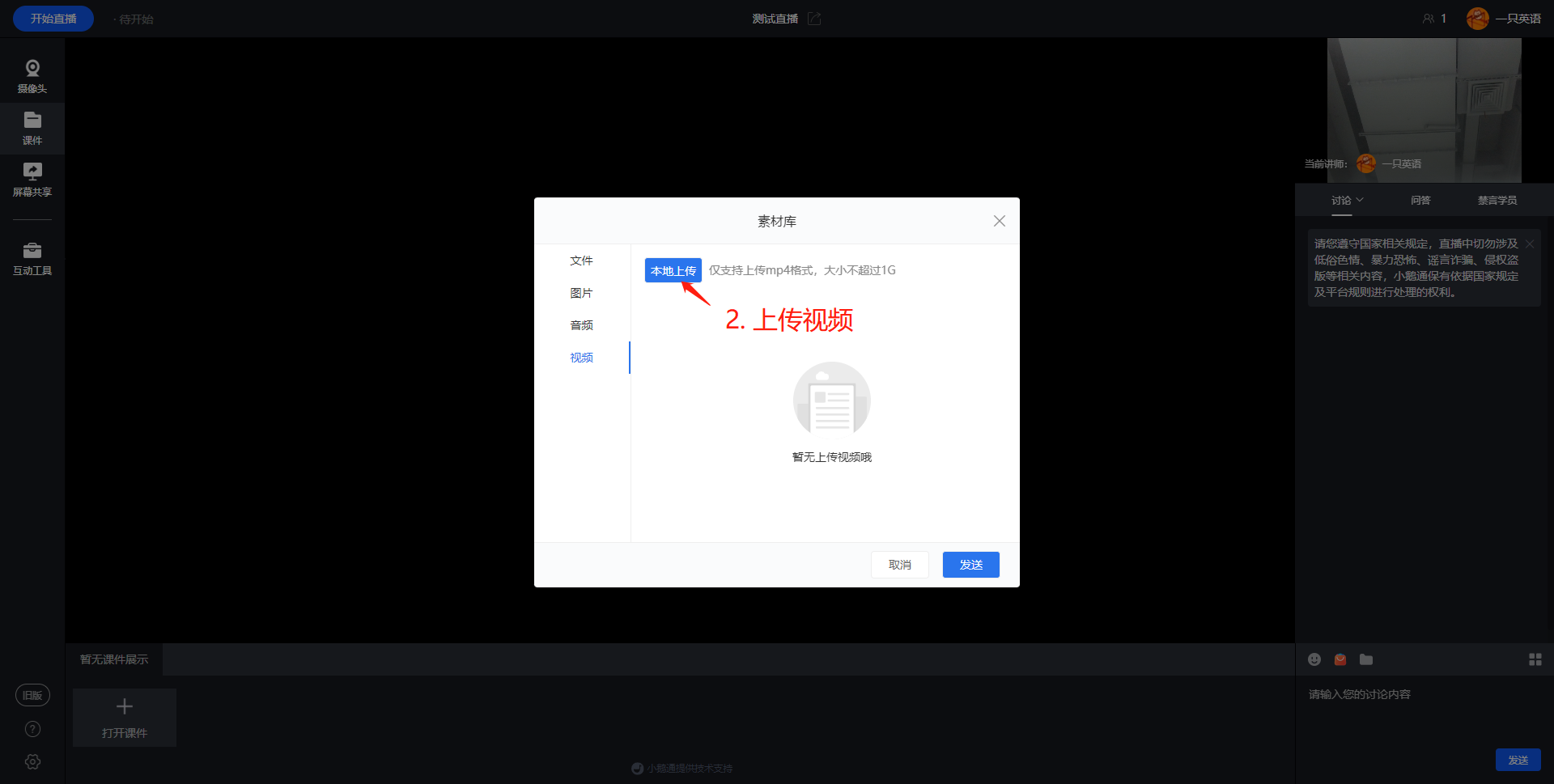
2. Switch to the video type in the pop - up window, click [Upload from local], and upload the video.
eLink Live Client
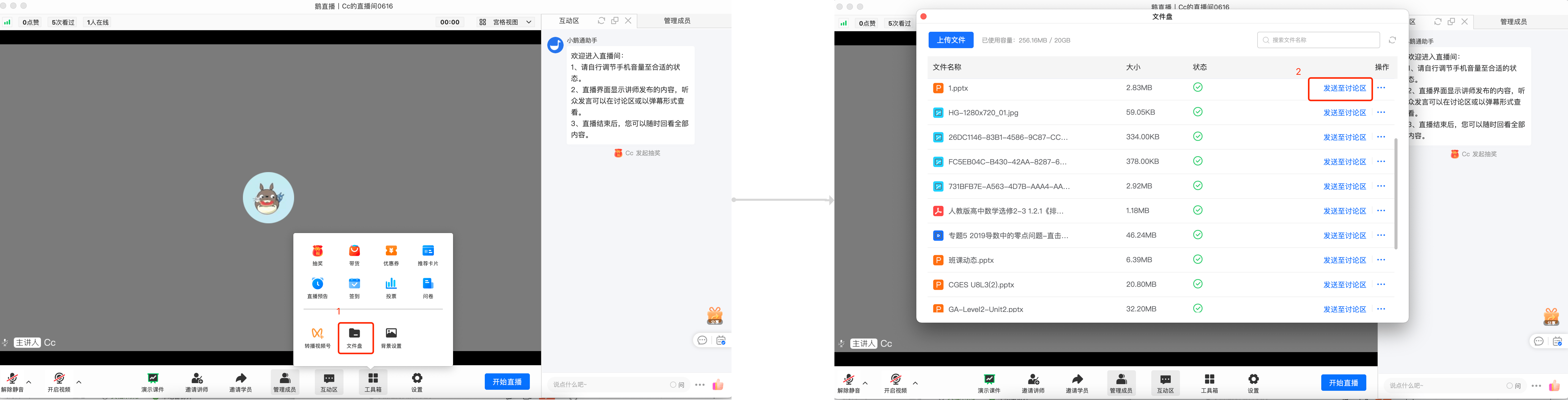
Open the toolbox, select the "File Disk", find the corresponding video file, click "Send to the discussion area", and the file will be sent to the discussion area for students to view and download.
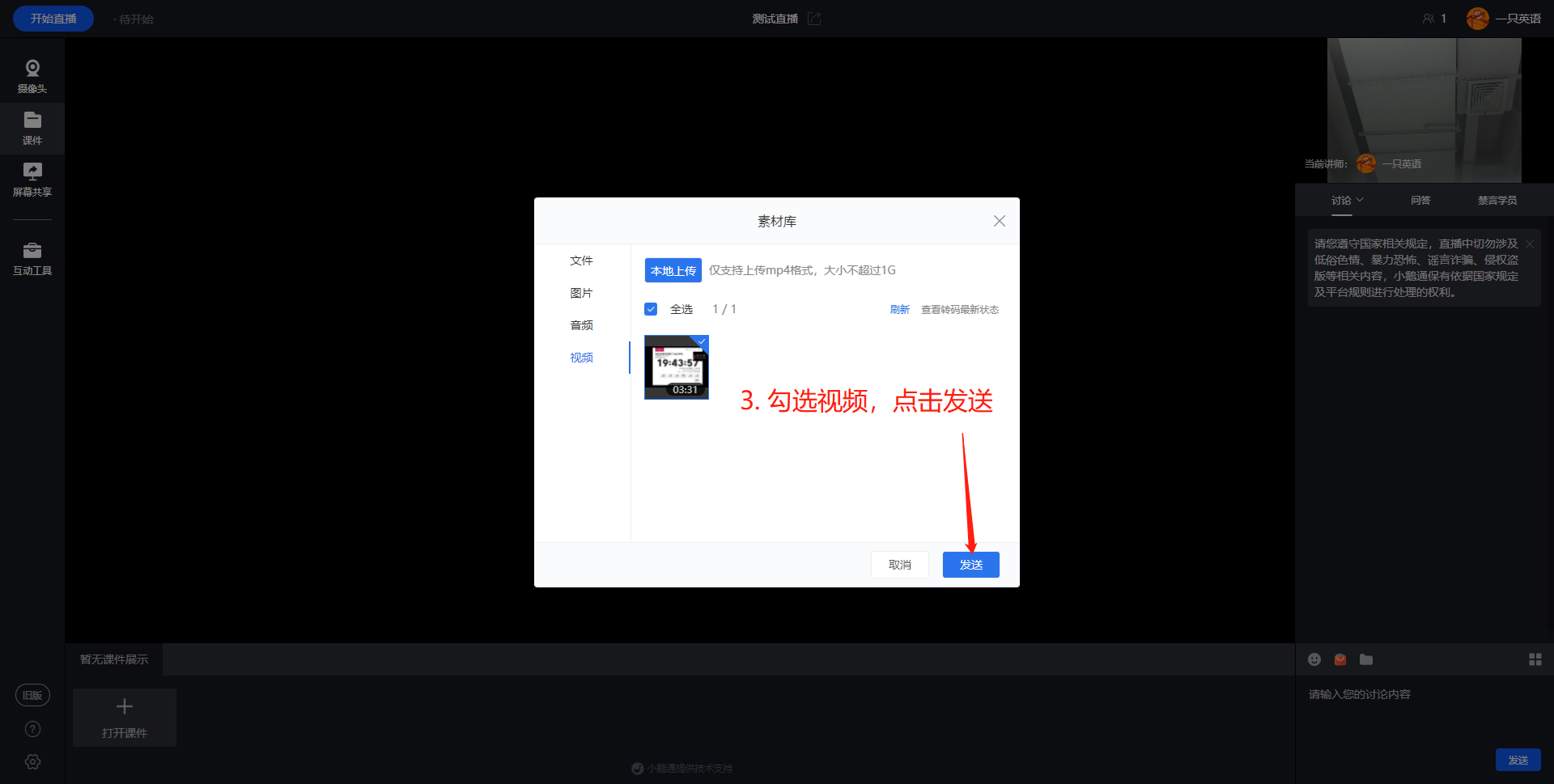
3. Wait for the video to be transcoded. After successful transcoding, you can select the video, click the [Send] button, and the video will be sent.
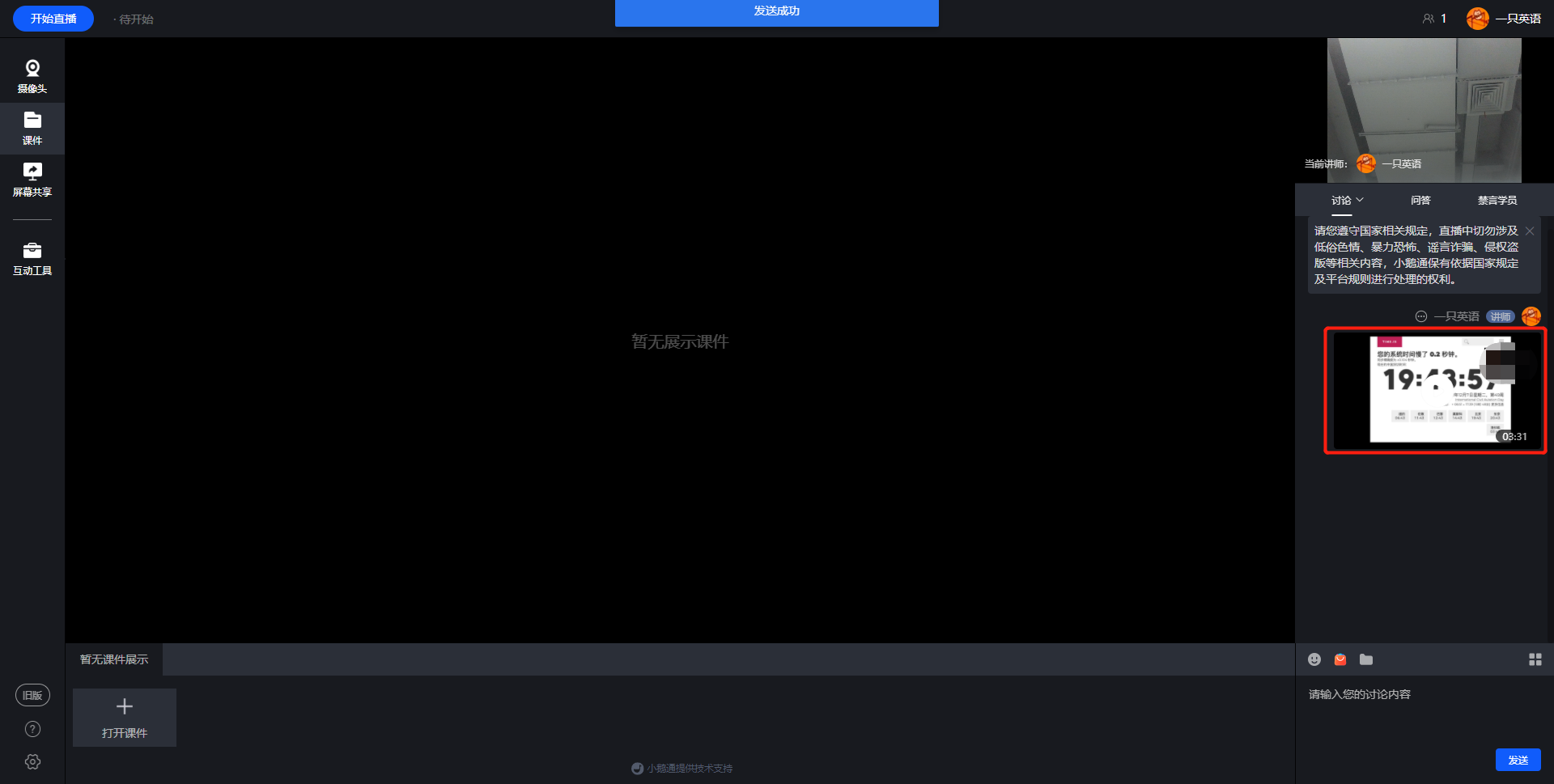
4. After sending, students can see the video in the discussion area.
eLink Assistant Client