How to set up a live stream instructor and how to invite instructors (guests)?
Setting Method 1: Add and manage guests directly on the management console
In the live broadcast list, find the live room, go to [Management -> Live broadcast settings -> Instructor settings], and click [Add instructor/teaching assistant]. You can directly select an instructor added previously, or click [Add by mobile phone number] and enter the mobile phone number to grant instructor permissions.


Setting Method 2: Invite guests on the WeChat side
In the live broadcast list, find the live room, go to [Management -> Live broadcast settings -> Instructor settings], click [Add instructor/teaching assistant], and then click [Invite via WeChat]. An invitation guide pop - up window will appear. You can add instructors through the following methods:
1. Invitation via link: You can click "Copy invitation information -> Copy all information", and then send it to the instructor via other chat tools such as WeChat on your mobile phone. The instructor can become an instructor by clicking the link in the text.
2. Invitation via QR code: You can scan the QR code with your WeChat on your mobile phone to invite yourself or others to become an instructor.
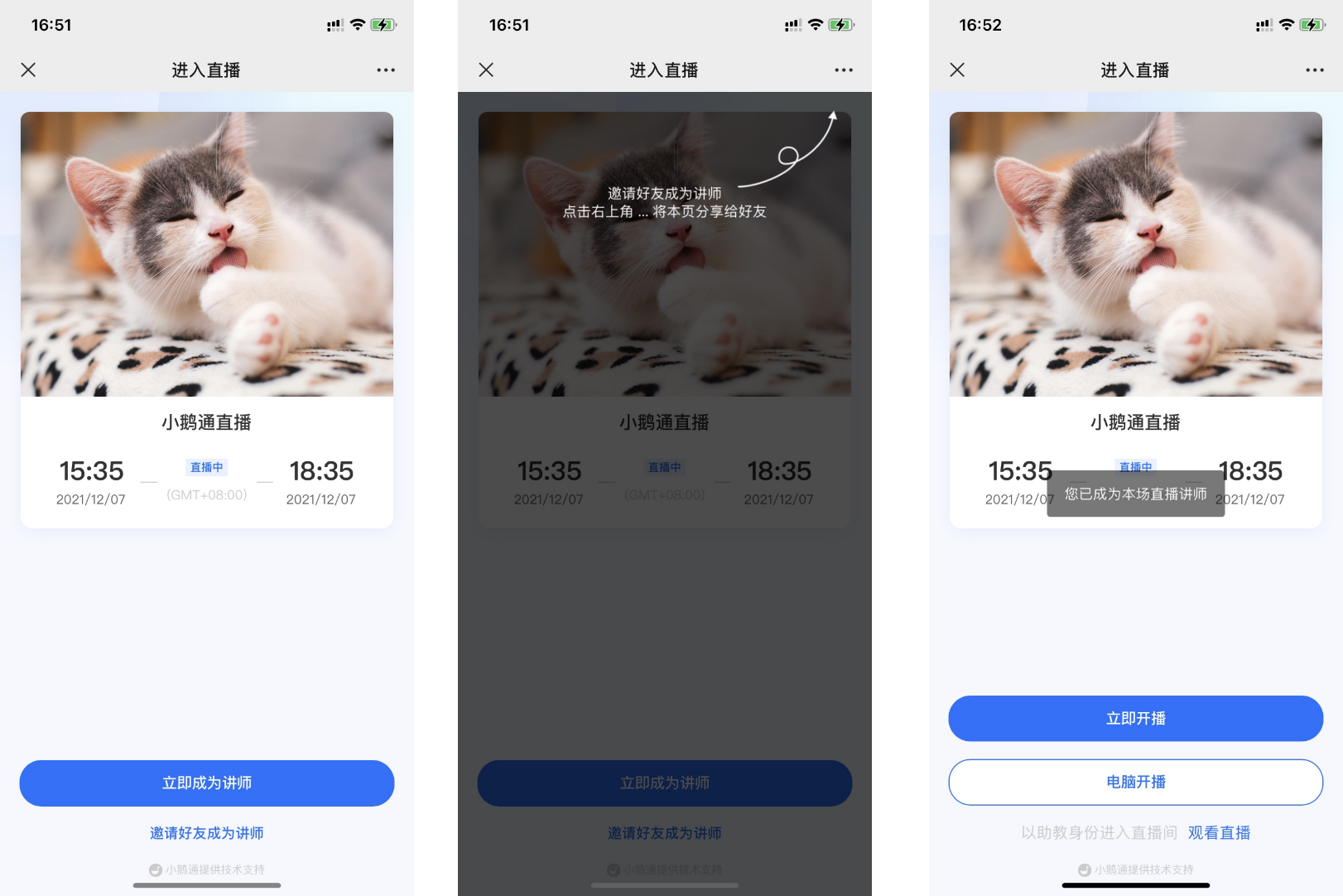
After scanning the QR code on your mobile phone
(1) You can click "Become an instructor immediately" to grant yourself instructor permissions.
(2) You can click "Invite friends to become instructors". After clicking, click the top - right corner to forward the page to your friends. Your friends can become instructors after accepting the invitation.