
Tutorial on Store Account and Operator Settings
elink supports creating multiple stores under one account, unified account settings, and adding operators.
I. Account Settings
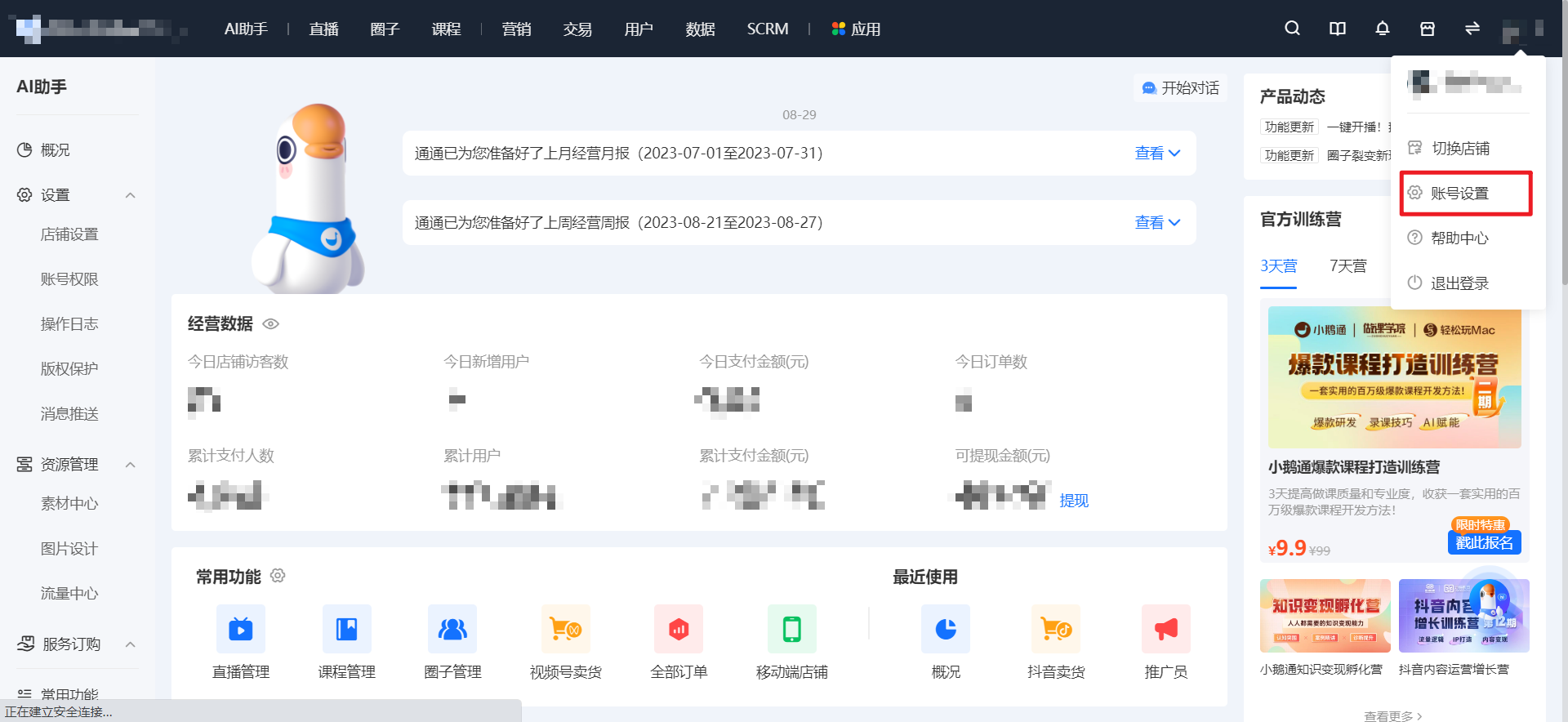
Step 1:Enter the store management console, click on the personal account avatar in the top - right corner, and select [Account Settings].
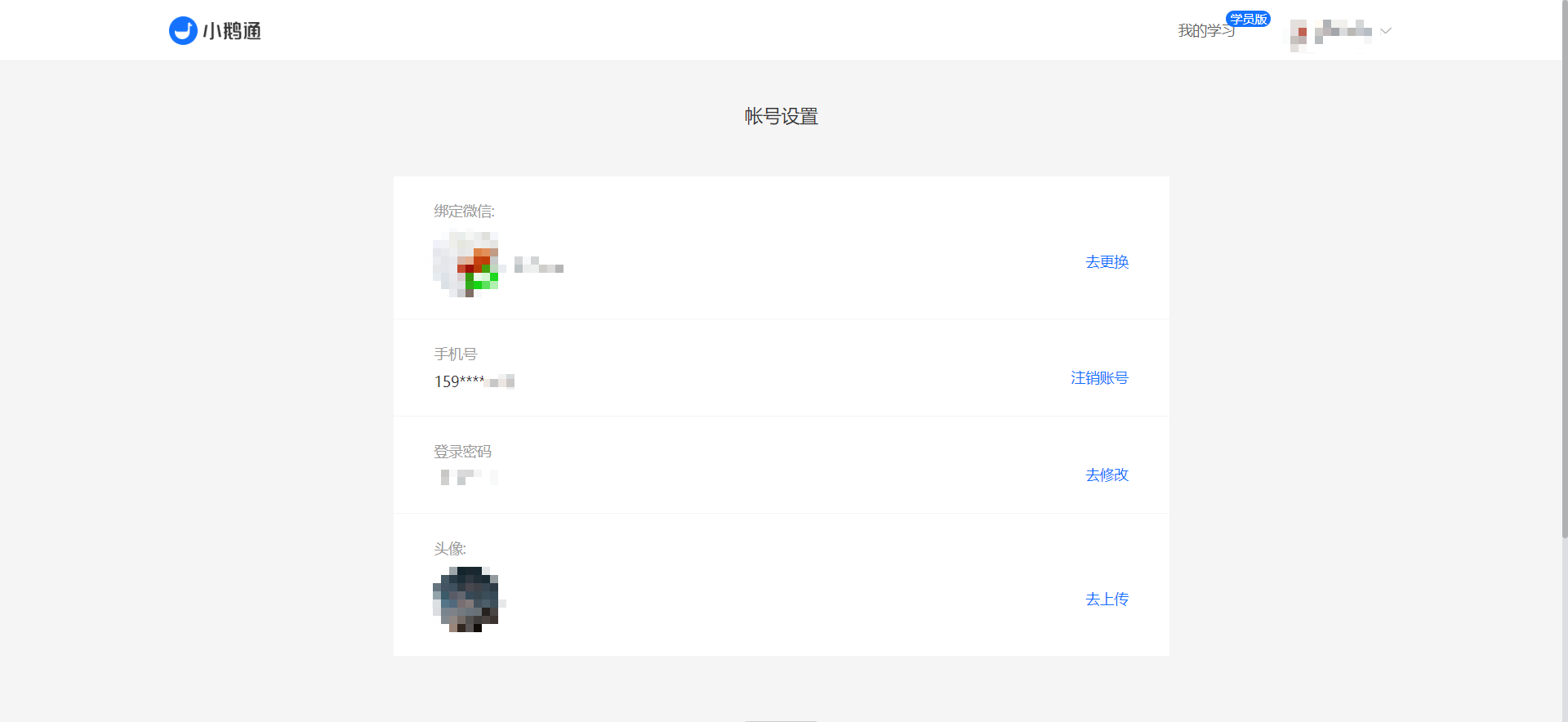
Step 2:Modify the login password, the bound WeChat account, and the avatar.
II. Operator Settings
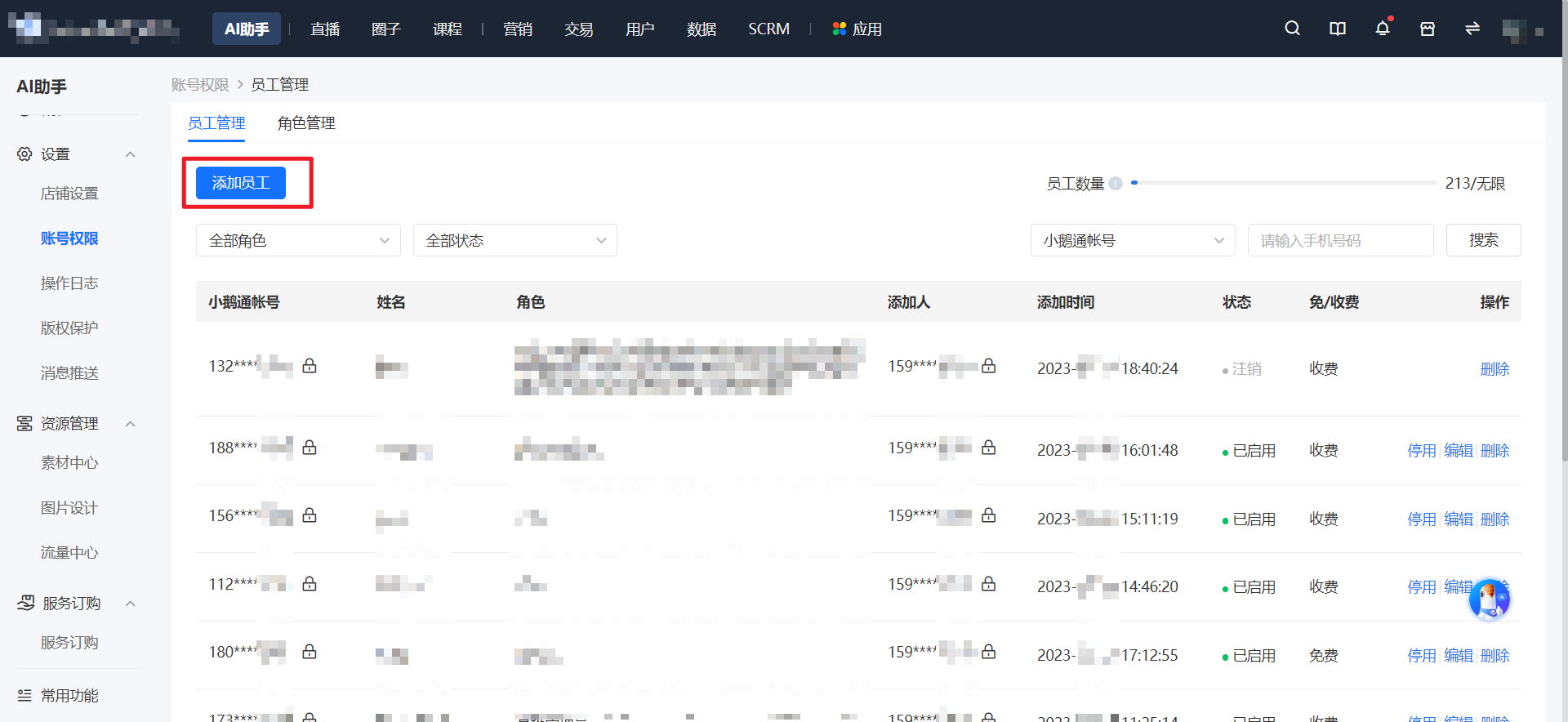
Step 1:Open the store backend. In [AI Assistant - Settings - Account Permissions - Employee Management], click [Add Employee].
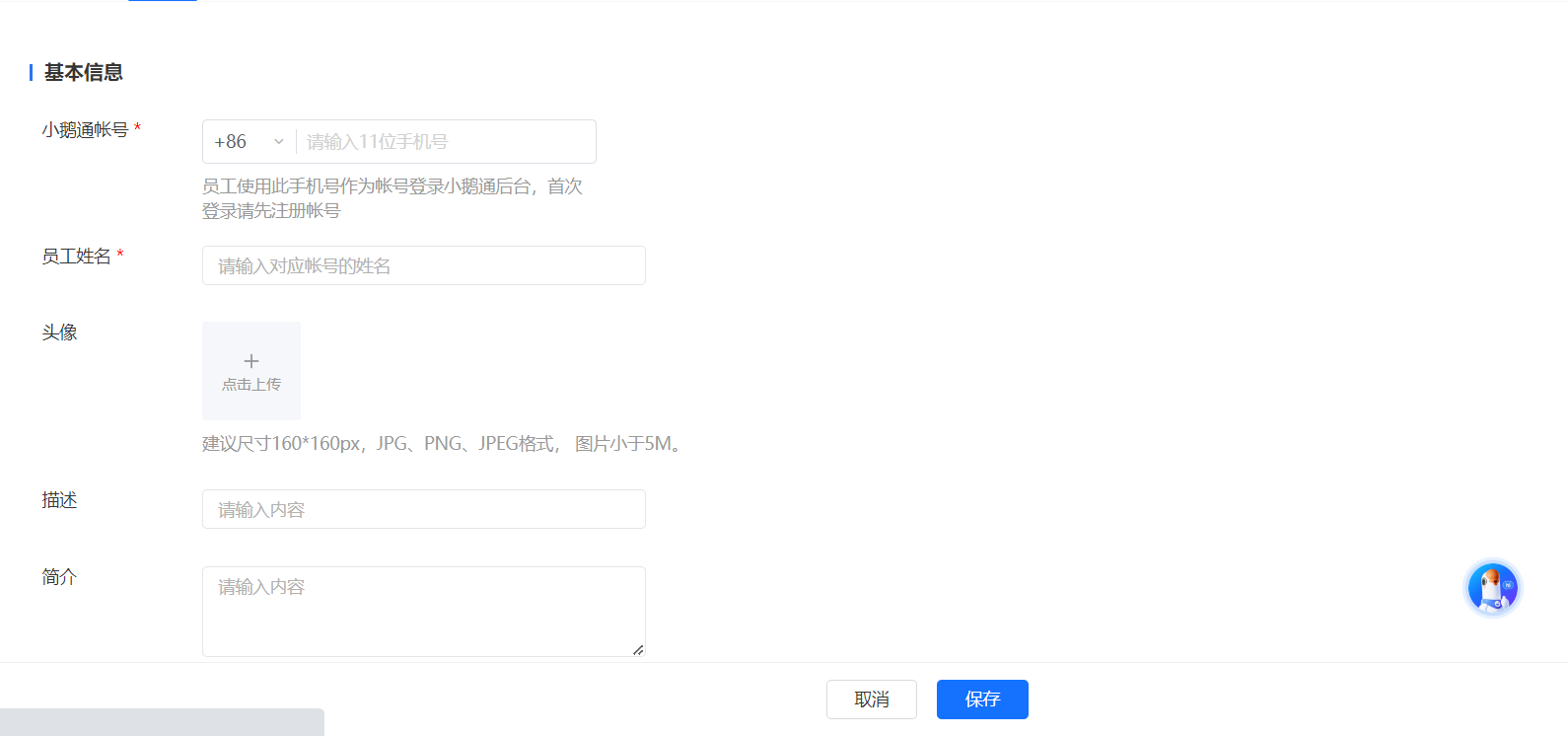
Step 2:Fill in the employee's basic information.
If the added operator is already a registered elink user, the permissions will be automatically bound. If the operator has not registered for elink, you can actively send an invitation SMS to invite the user to become a store operator.
**Note:If it isbefore December 29, 2019the bound operators can still log in with their original account passwords.
Step 3:Fill in the role management. You can select the default role or customize a role.
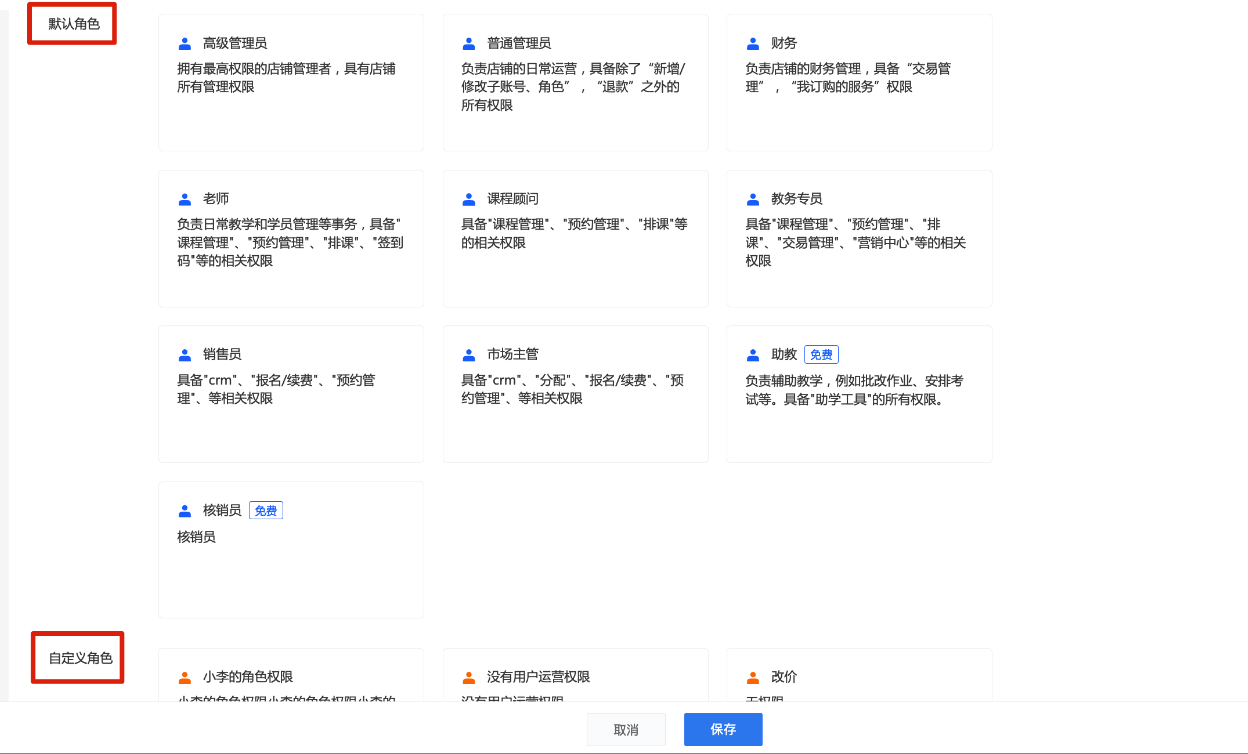
Step 4:Finally, confirm the employee's permissions and save to complete the settings.