
Tutorial on Using Message Interaction
I. Feature Introduction
The message interaction feature provides a communication platform for administrators and trainees. Through this feature, administrators can send messages to trainees and view the comments made by trainees during the learning process.
II. Purpose of Use
III. Use Scenarios
The message interaction feature covers modules including images and texts, audio, video, and e-books.
IV. Operation Path
Merchant side: Corporate Training Management Console → Course Management → View Comments
Trainee side: WeChat H5 Academy → Course Homepage → Course Details → Comments
V. Usage Tutorial
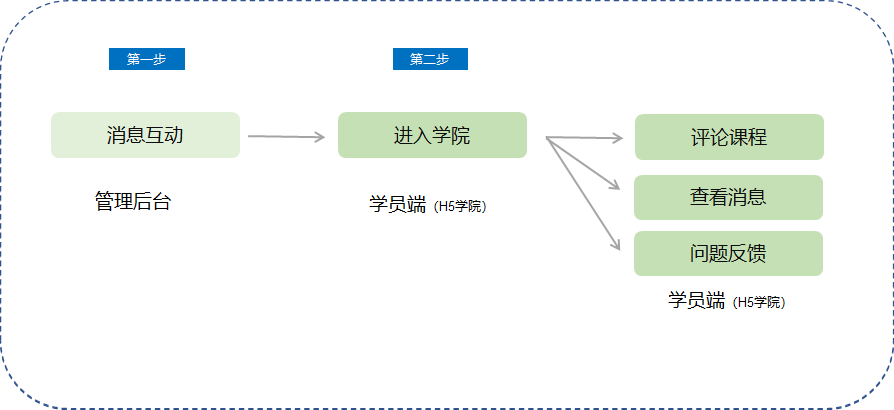
Step 1: Message Interaction(Management Backend)
1. Taking video as an example, select [Operation] → [View Comments] to view message interactions. Message interactions include message push and comment management.
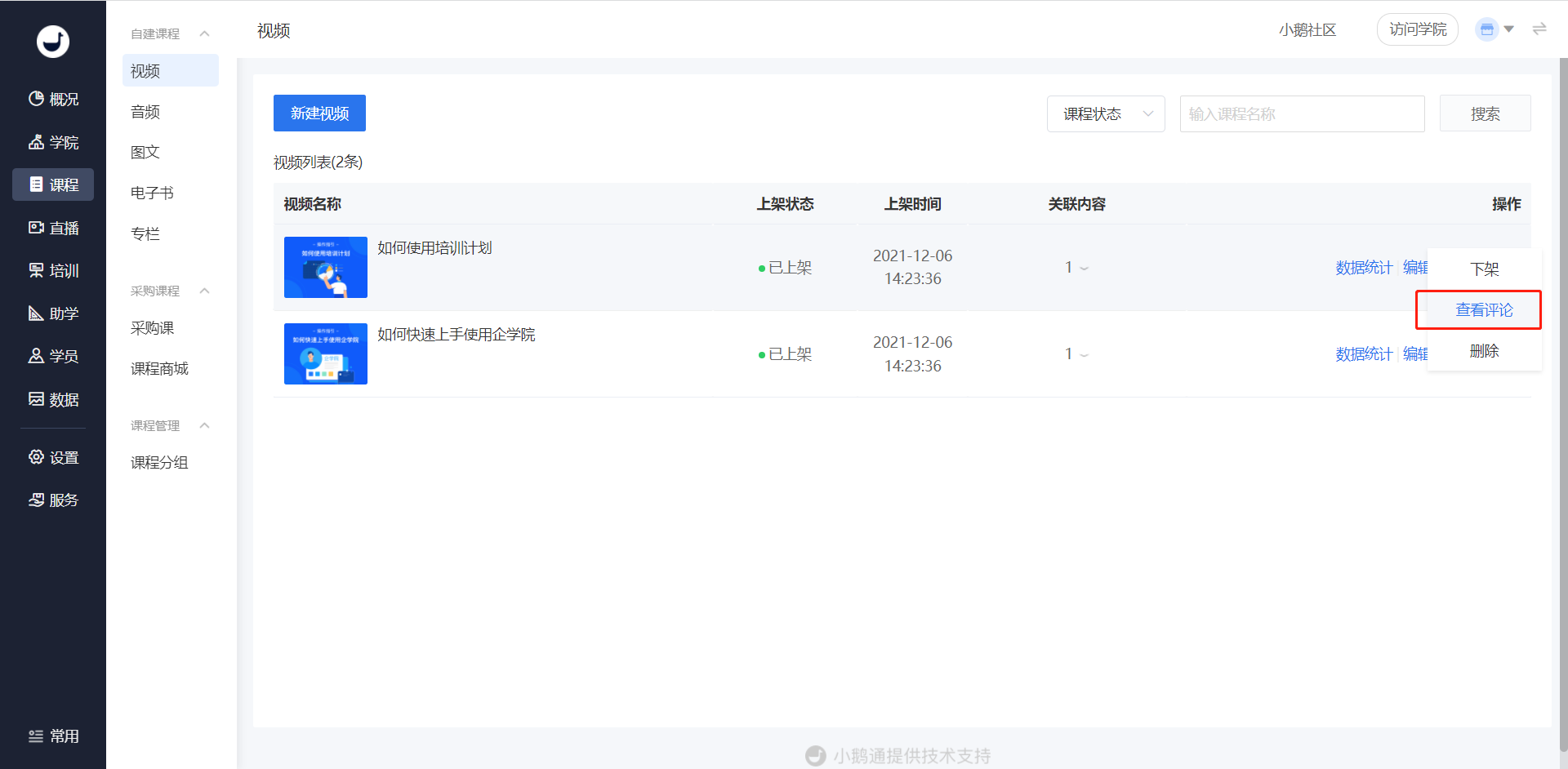
(Management Backend - Course Management - Video)
2. Comment Management
In the comment management module, you can view and manage the comments made by employees in the courses. You can reply to trainees' comments, send private messages, hide/show comments, set trainees' comments as featured comments, etc. You can also select multiple trainees' comments for batch hiding/showing.
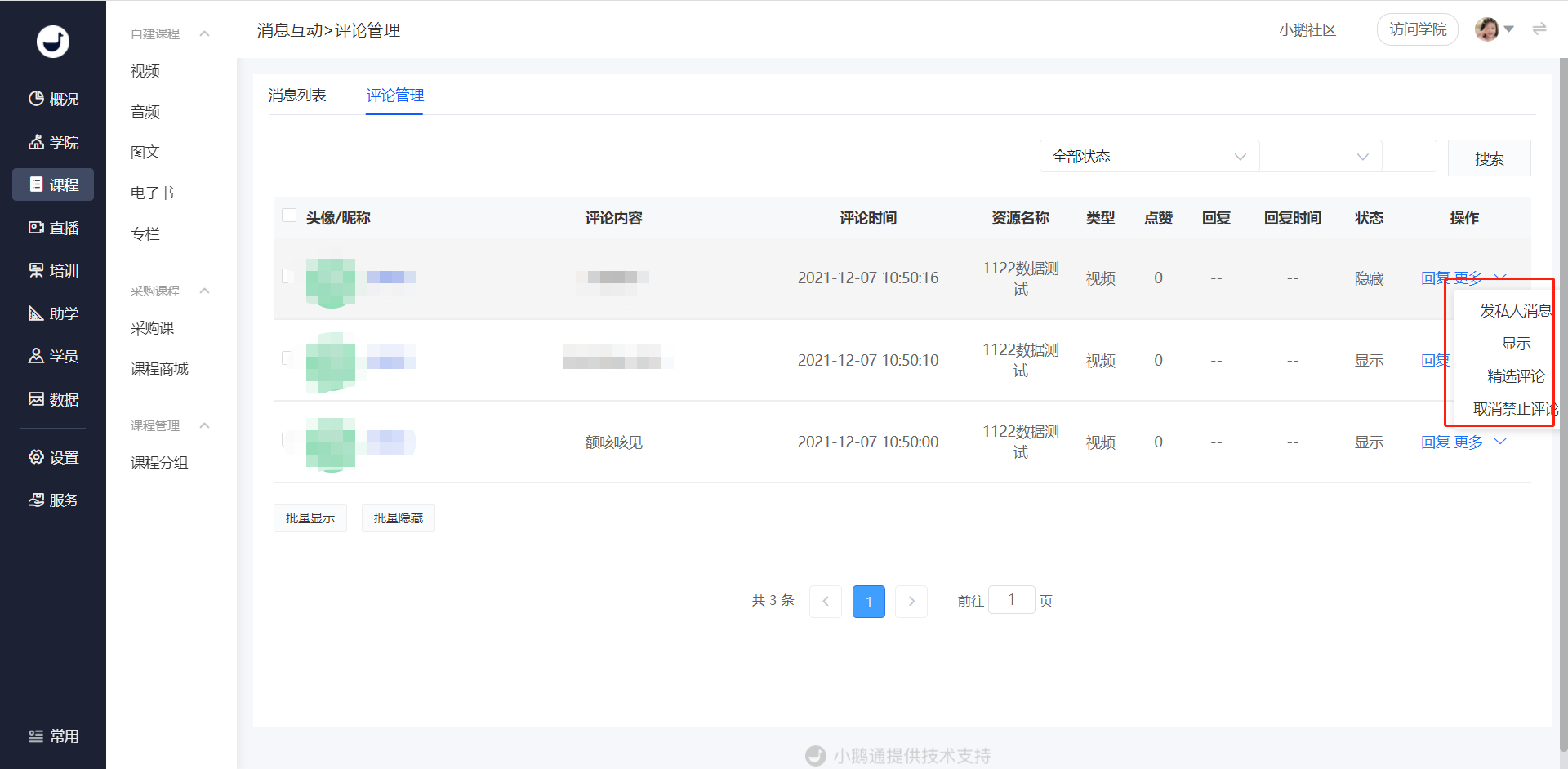
(Management Backend - View Comments)
3. Message List
In the message list, you can view the messages sent by the administrator to trainees and send messages to all trainees at the same time.
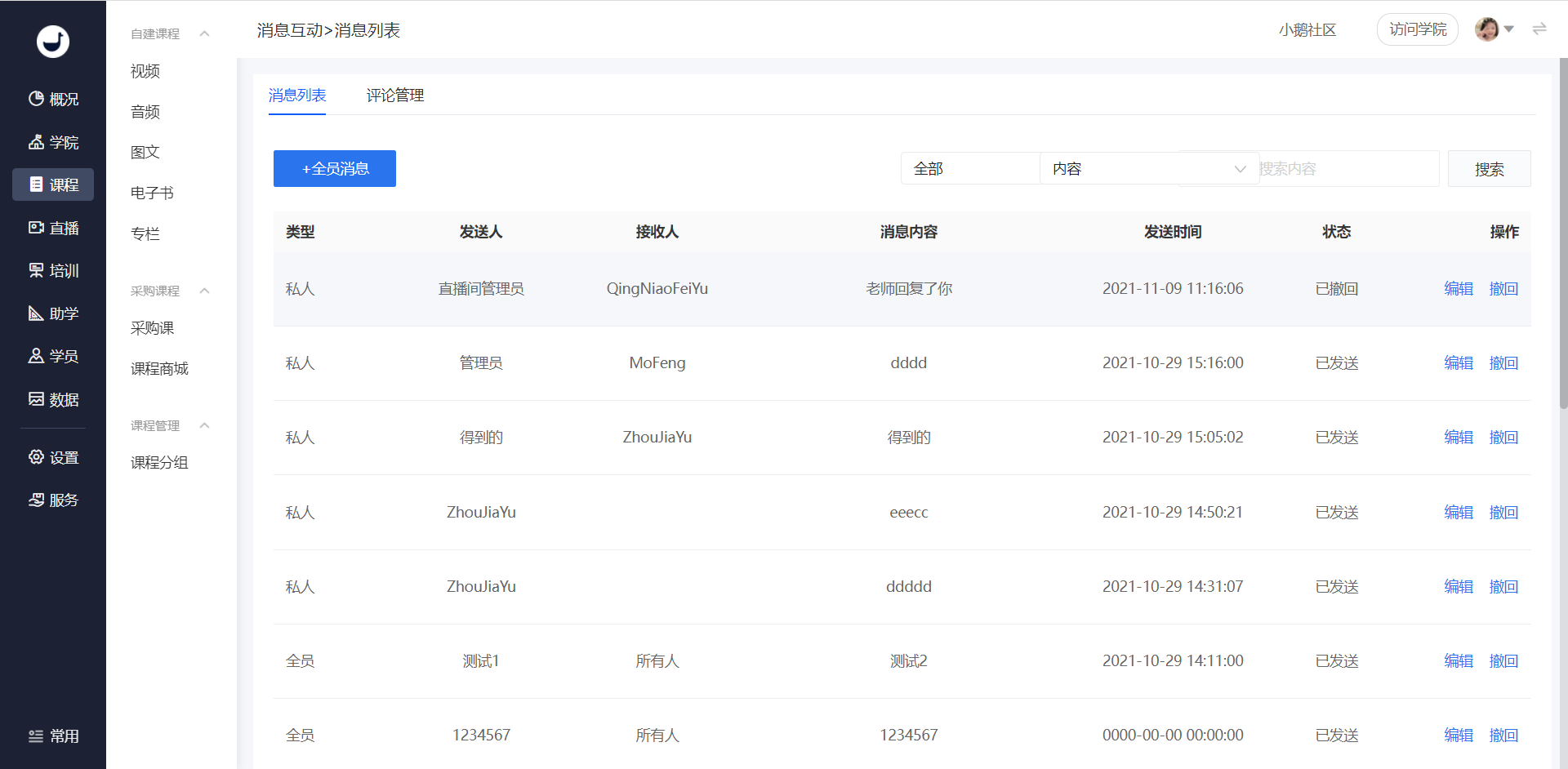
(Management Backend - Message Interaction - Message List)
Send messages to all trainees: Fill in the push information, including the push time, sender, message content, and link information. If necessary, you can fill in a message with a link. After filling in, click [Push Message], and the push message will be automatically sent to all trainees at the specified time. All - trainee messages can be edited again before the push time.
Sent messages cannot be edited. Please check carefully before sending.
Mis - sent messages can be recalled by clicking the [Recall] button.

(Management Backend - Course Management - Audio - Message Interaction - Message List - Send Messages to All Trainees)
Step 2: Enter the Academy(H5 Academy)
Trainees log in to the academy on the trainee side.
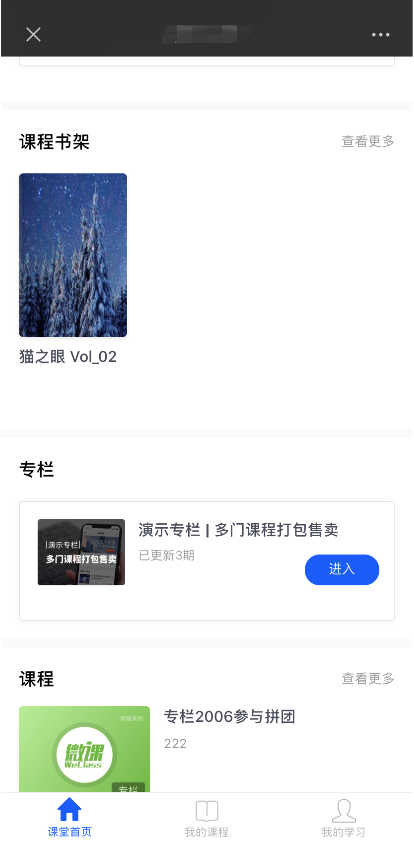
(H5 Academy - Classroom Homepage)
1. Comment on the Course
Trainees click [Write a Comment] on the corresponding course learning page, enter the comment content, and click [Publish].
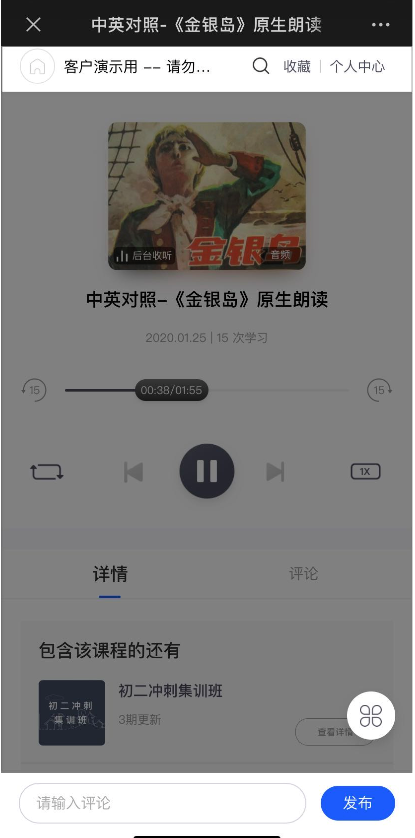
(H5 Academy - Course Details Page - Write a Comment)
2. View Messages
Click [My]. When there are new messages, there will be a message prompt in the upper - right corner. Click the icon button to view the message list.
