Tutorial on Using Assignment Check-ins
I. Function Introduction
Assignment check-in is a check-in activity based on "assignments". The administrator assigns a certain amount of assignment tasks to students. Students need to complete them within the specified time and can adjust the order of assignment completion by themselves, so as to independently control the learning pace and provide learning feedback.
II. Purpose of Use
Check-in can be used to urge students to complete assignments, enabling them to arrange their learning pace and assignment completion time independently. At the same time, by setting a time limit for assignment completion, students will feel a sense of urgency to complete assignments as soon as possible, thus being urged to finish their learning.
III. Usage Scenarios
For students, some assignments require more preparation time. For example, writing a book review, an after - class reflection, or an article expressing opinions often takes several days to complete. In this case, assignment check - in can be used to reasonably arrange the check - in time, allowing students to more flexibly control the assignment completion time.
IV. Operation Path
Merchant side: Management background → Courses → Interaction Management →Check - in → Assignment Check - in → Create New Assignment Check - in
Student side: H5 Academy → My → Learning Tools → Check - in
V. Usage Tutorial
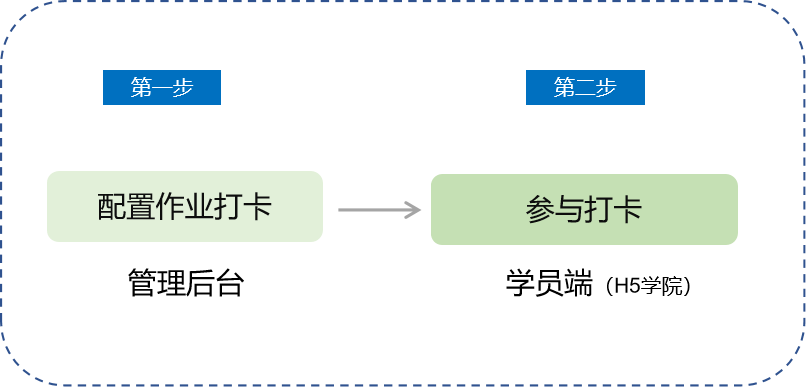
(Tutorial Flowchart)
Step 1: Configure Assignment Check - in(Management background)
1. Create a New Assignment Check - in
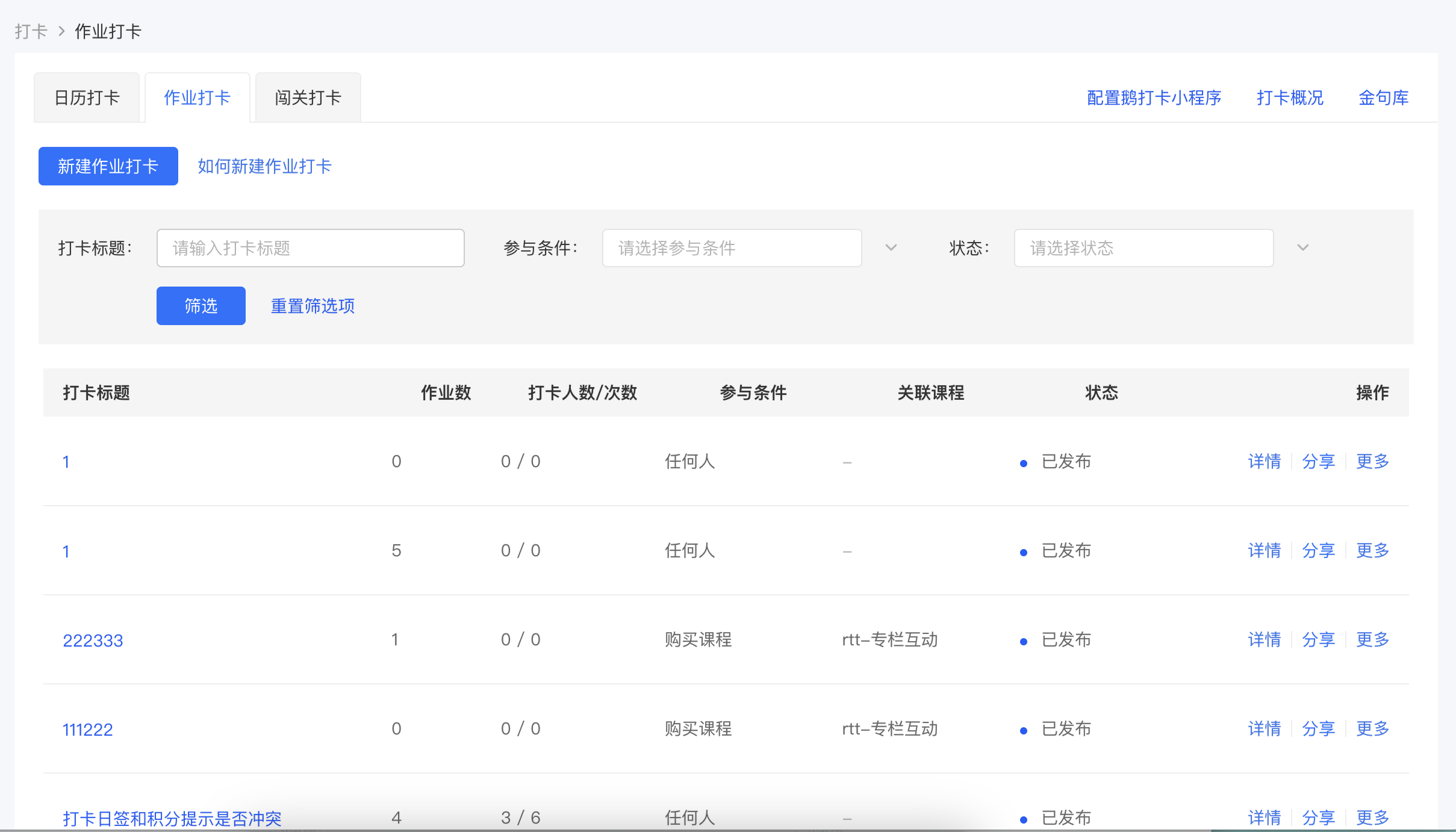
(Management background)
2. Set Check - in Information
Fill in the check - in name and select the participation conditions, which are required fields. The check - in rules and other settings can be set optionally.
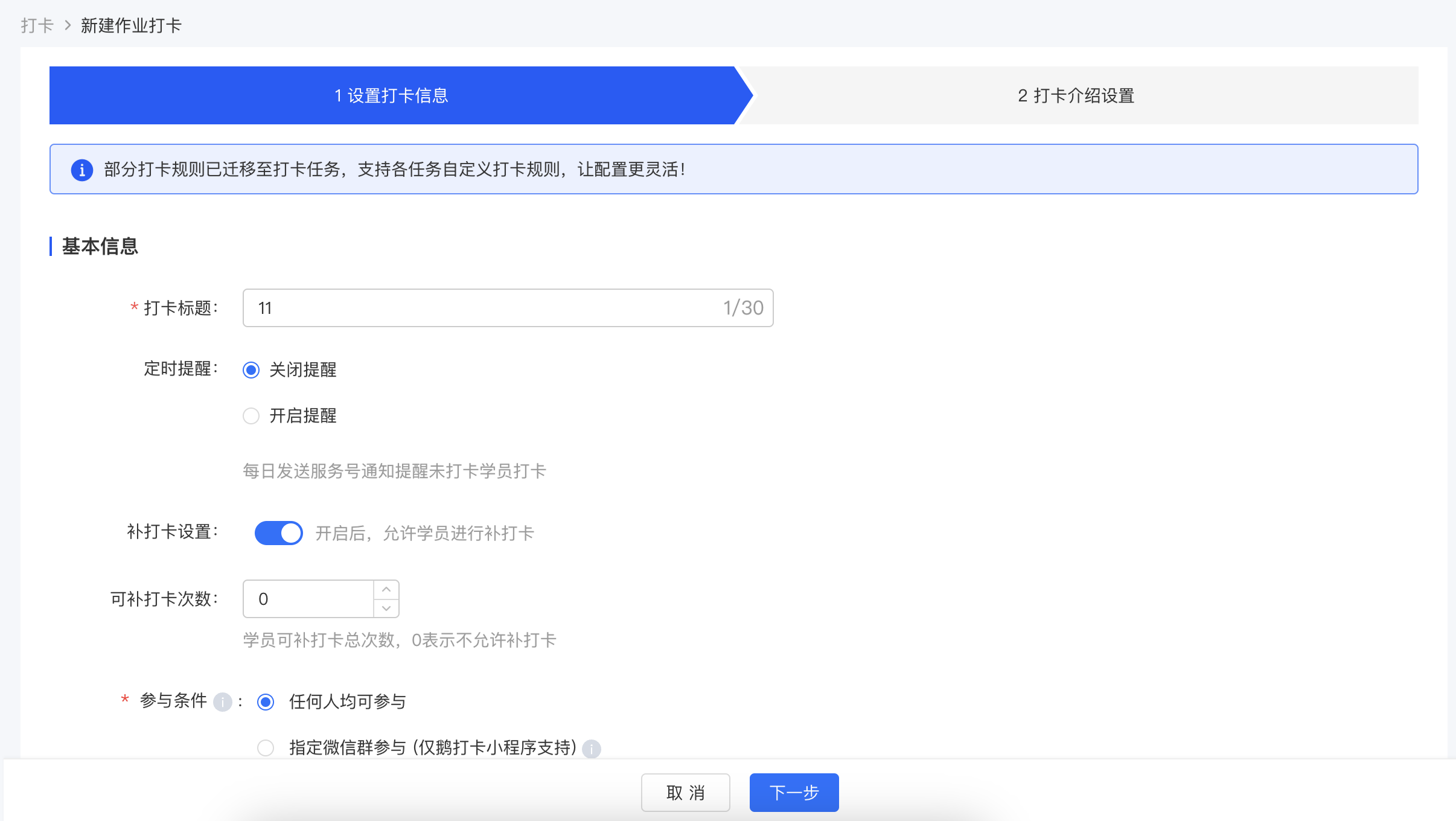
(Management background)
3. Fill in the Check - in Introduction Settings. Replace the check - in introduction cover and edit the check - in introduction content. Click Publish to create an assignment check - in.
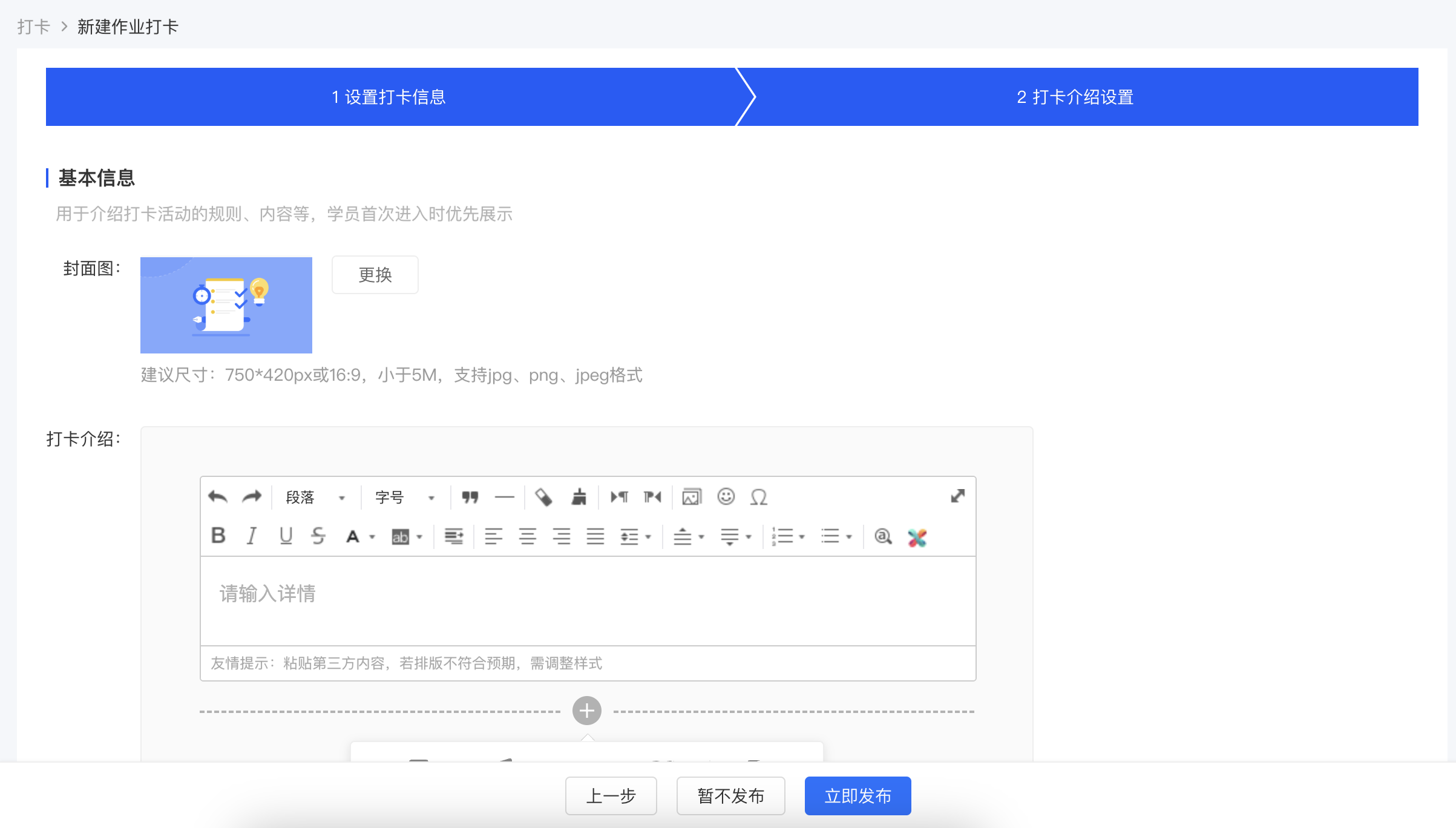
(Management background)
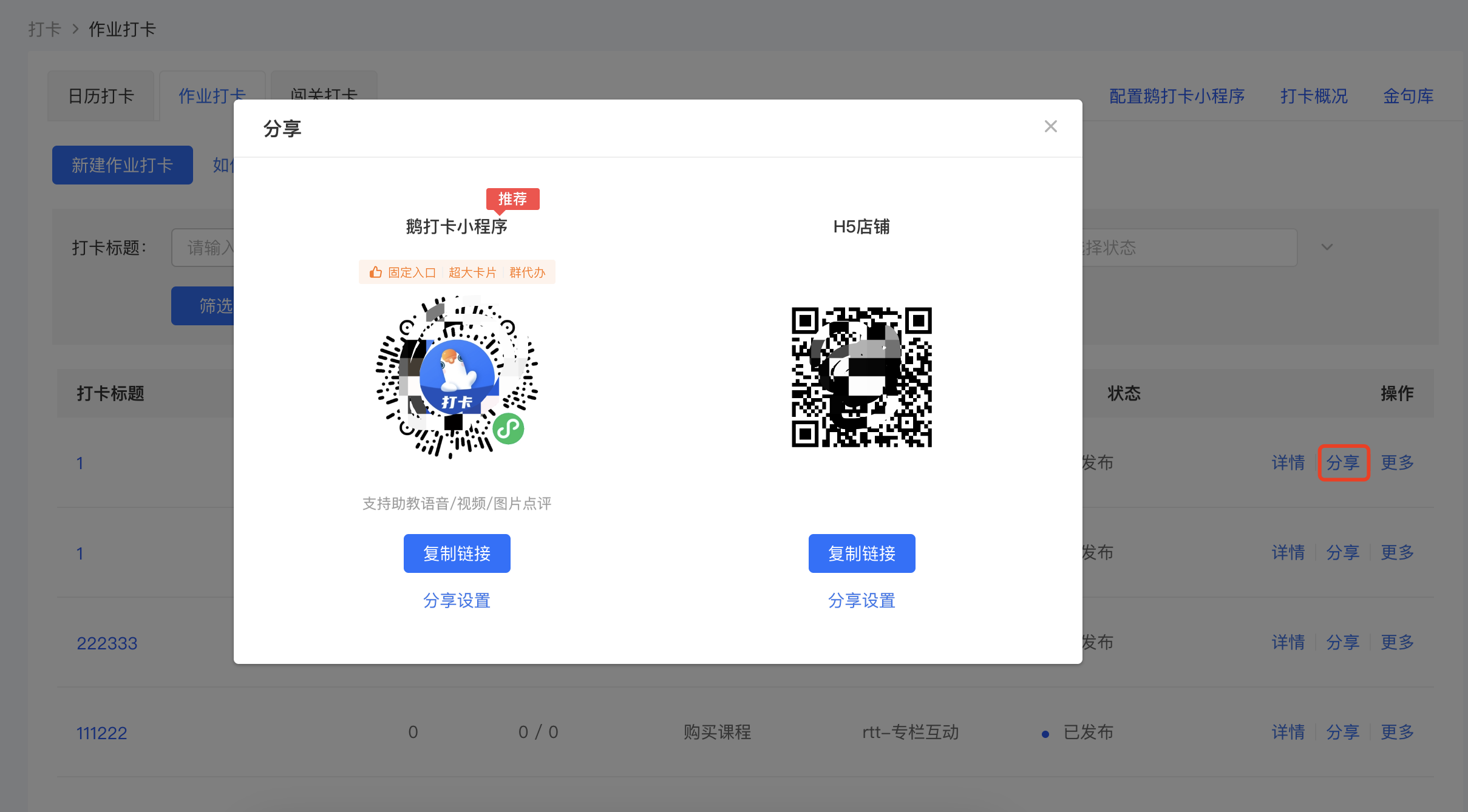
(Management background)
5. Make More Settings after Creating the Assignment Check - in (Optional). Click 【Student Support】-【Interaction Management】-【Check - in】-【Assignment Check - in】-【Details】 to enter the assignment check - in details page and make more settings.
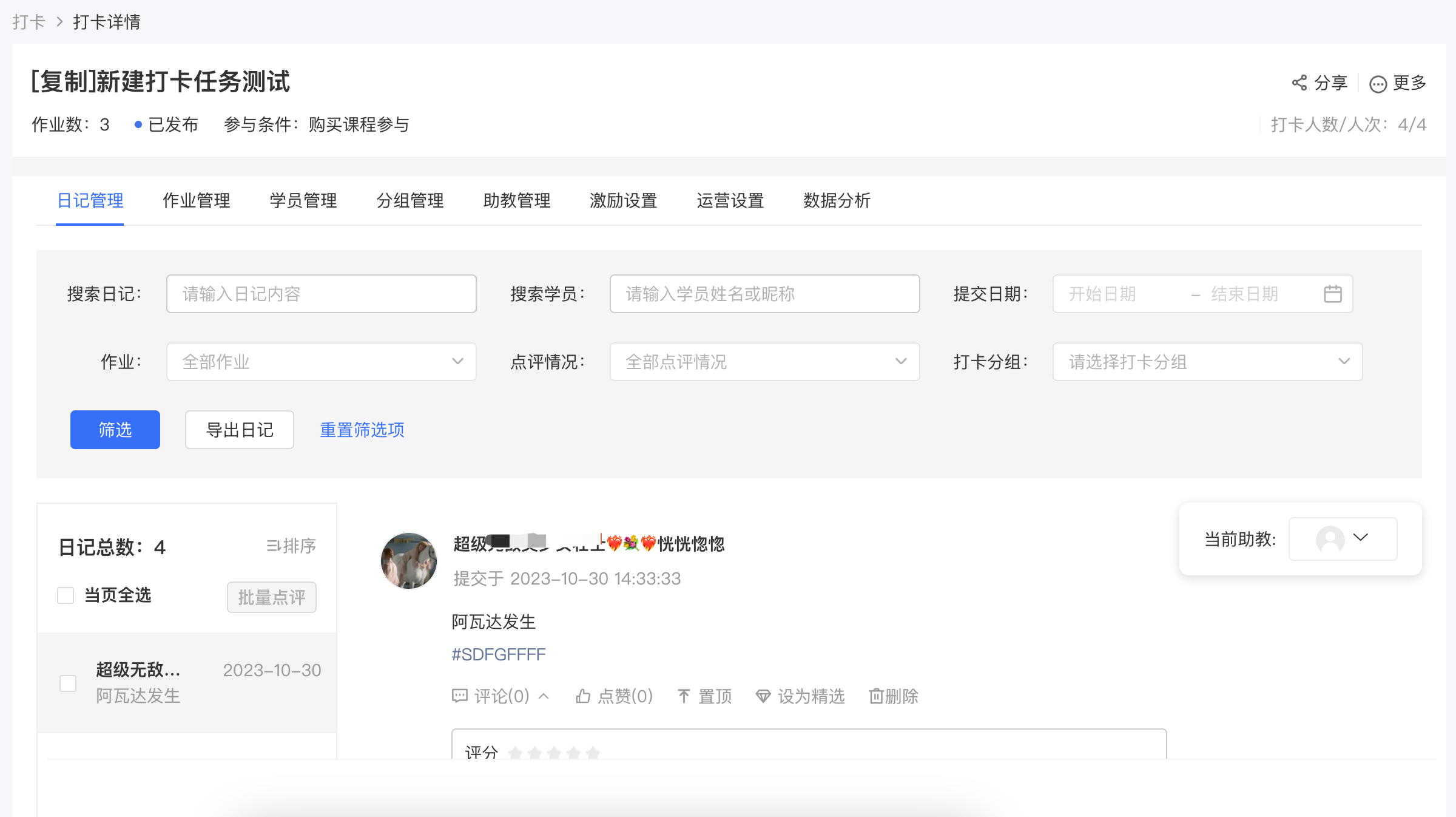
(Management background)
Step 2: Check - in - Student Side
Method 1: Students directly scan the check - in code shared by the administrator to enter the "Check - in Introduction" homepage. Click "Participate in Check - in" to enter the check - in homepage. Select the assignment you want to check in for, enter the "Assignment Details", and click 【Check in Now】 to enter the "Publish Diary" page.
Fill in the diary content (optional) to complete the assignment check - in.
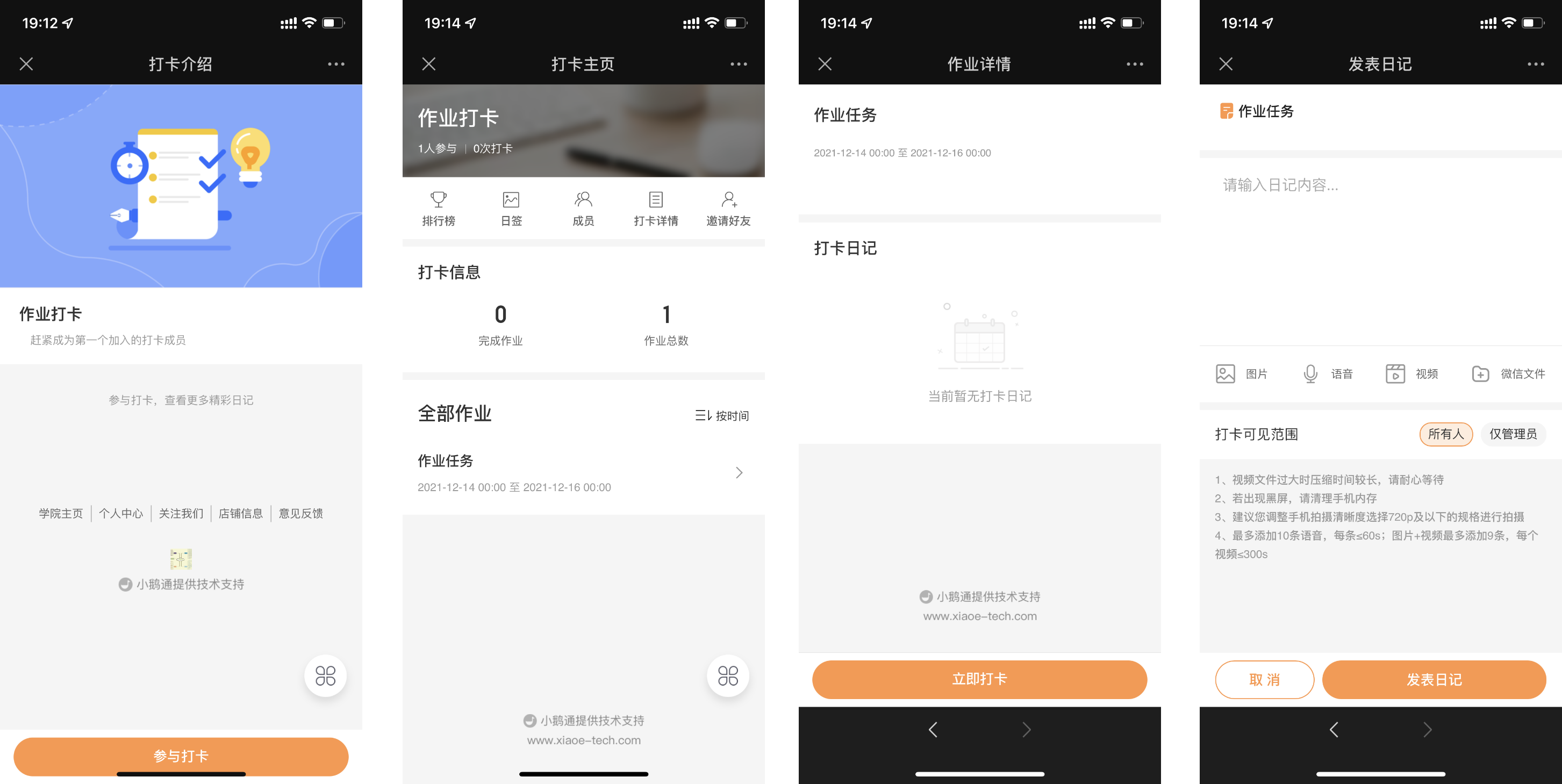
Method 2: Students enter the H5 Academy. Through the path 【My】-【Learning Tools】-【Check - in】- 【My Check - ins】, select the activity that needs to be checked in for and click 【Check in】 to enter the check - in page and complete the check - in.