
Tutorial on Creating New Products
I. Function Introduction
Through recruitment - online course sales, merchants can configure the created courses in the store and sell them online in the form of products.
II. Purpose of Use
Suitable for various education and training institutions to publish offline courses online for sales and recruitment.
III. Use Scenarios
Xiaomei recently had a trial piano lesson at the "Nord Piano Studio". She thought the experience was great, but considering the high price, she didn't sign up on - site. She saw on her WeChat Moments that the teacher from the "Nord Piano Studio" shared a 50% - off course for Double 11. By signing up online directly, she could use a 1500 - off coupon when the order reached 3000. So she paid and signed up for the beginner - level piano course.
After that, the teacher contacted Xiaomei to confirm the class schedule and added Xiaomei to the class corresponding to the course she purchased. From then on, Xiaomei can follow the class schedule for lessons and consume the course.
If Xiaomei's class time is quite random and she can't attend classes regularly with the class, she doesn't need to be added to the class corresponding to the course she purchased. In this way, when she wants to take a class, she can make an appointment for a scheduled class of the purchased course on the WeChat H5 store (provided that the appointment for this class is available).
IV. Operation Path
Merchant side: Merchant background → Education + → Recruitment → Online course sales → New product
Student side: WeChat H5 store → Offline course product list → Offline course product details → Purchase offline course products
V. Usage Tutorial
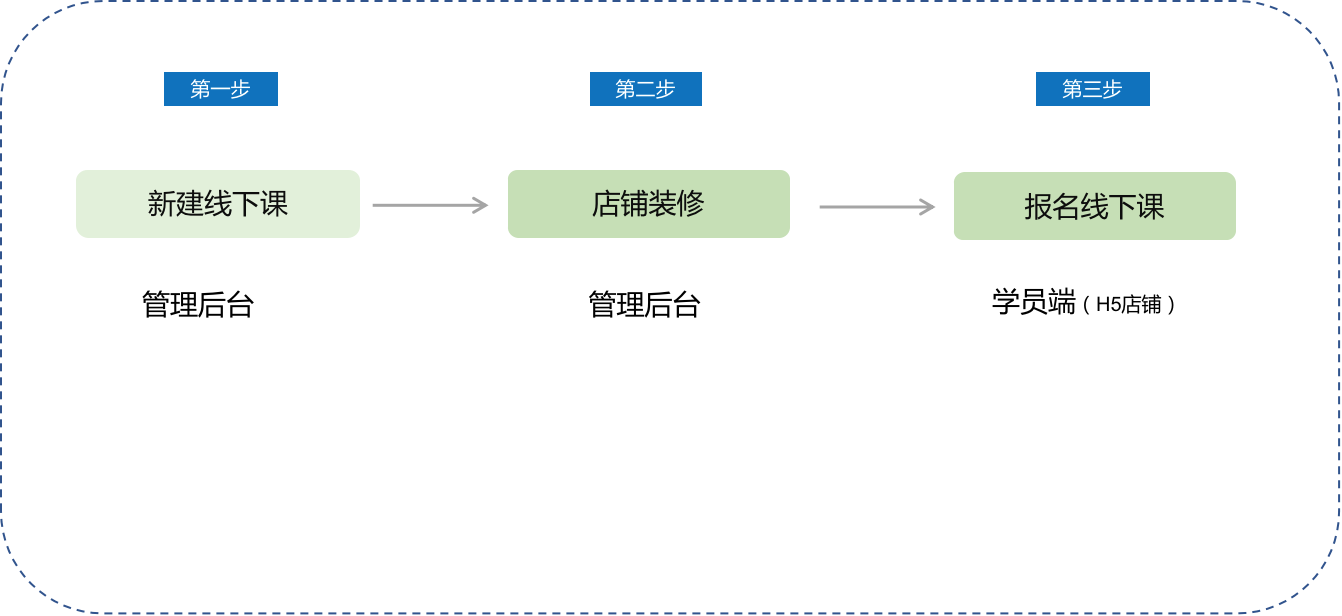
Step 1: Create a new product
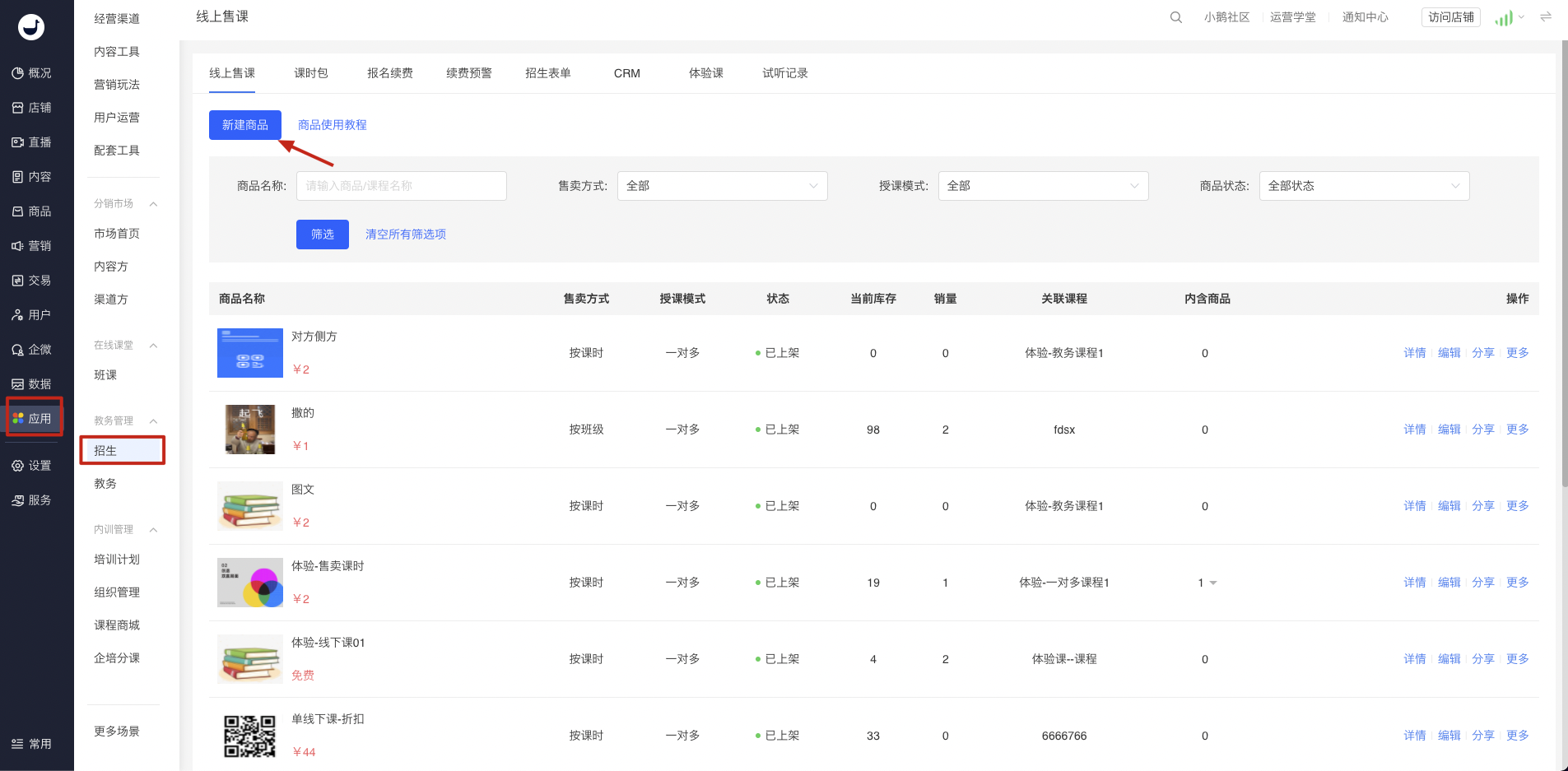
Click [Applications] - [Teaching management] - [Recruitment], then click [Create new product]
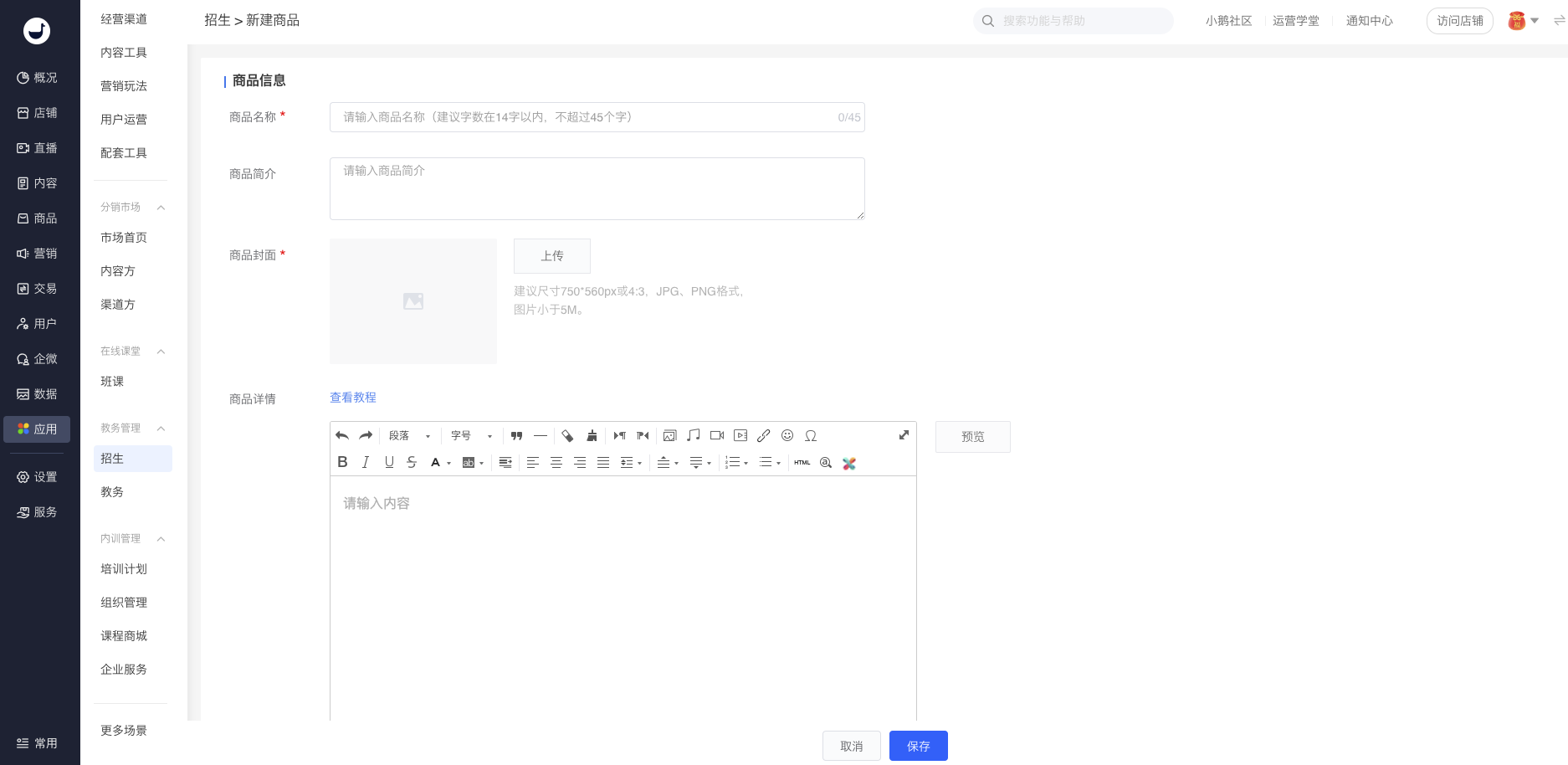
(1) Edit basic product information
You can edit the product name, product description, product cover, and product details
Pricing methods: There are 2 types: per class hour and per time period. Each course must select at least one pricing model. The pricing model set on the course side is the total pricing model for this course. The available sales methods in [Recruitment - Online course sales] and [Recruitment - Enrollment and renewal] are all restricted by the pricing model set for the course.
If you set it to be listed immediately, the product will be displayed in the store upon release.
If you set it to be listed at a scheduled time, the product will be displayed in the store after the set time.
If you set it to be hidden after listing, the product can only be accessed via a link.
If you set a listed product to stop sales, the product will no longer be sold.
(2) Edit course start information
After creating the product, you can edit the relevant information about the course start in the product details.
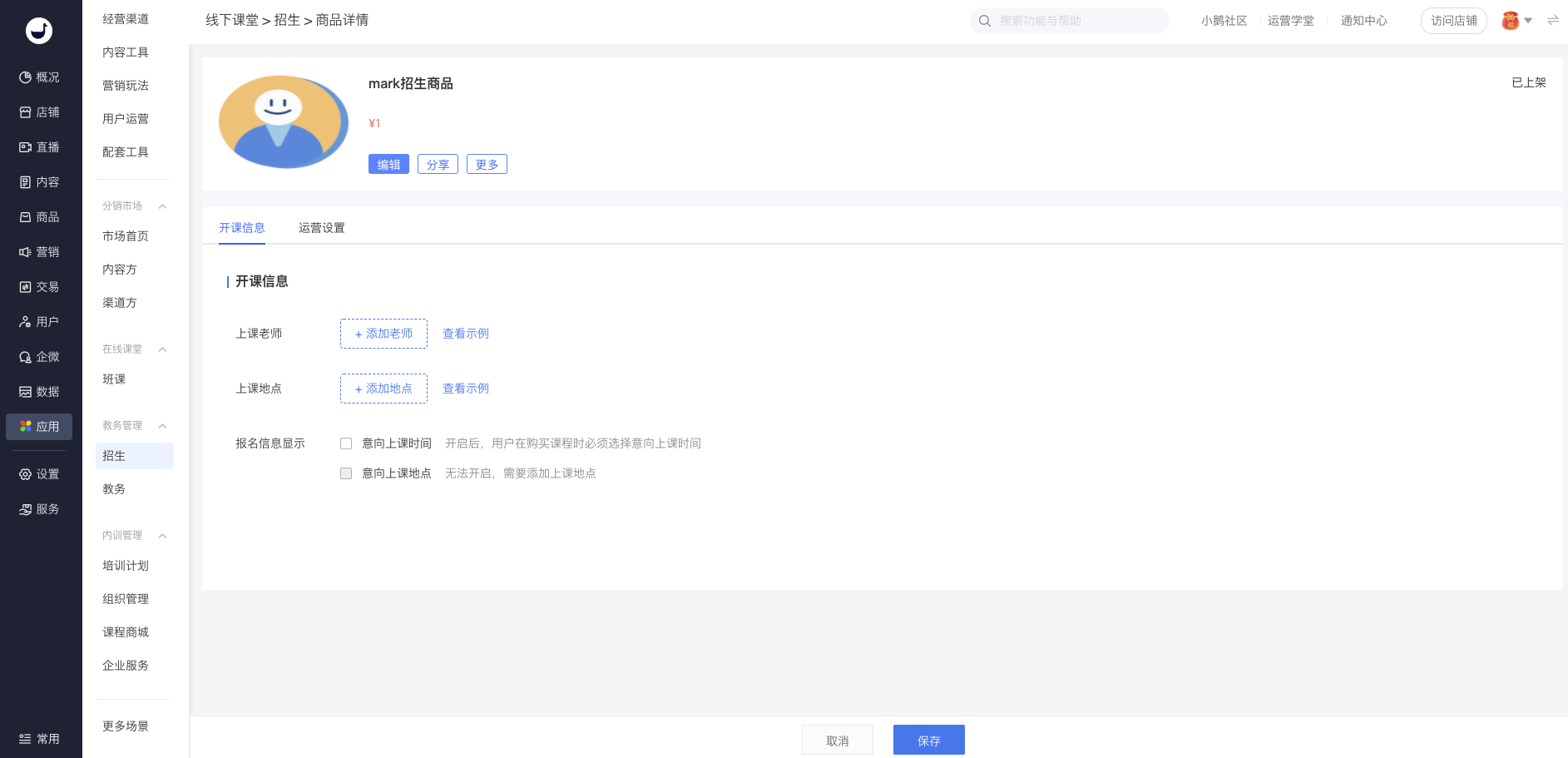
[Instructor]: You can add instructors. Only employees with the role of "teacher" can be associated with the course.
- For teachers, you can add their nicknames, which will be displayed on the purchase page for users.
- You can add the teacher's job description, avatar, and introduction. After associating them with the course, well - known teachers can attract more users to purchase.
[Class location]: You can associate the institutional stores where this course can be taught. Users can see the store address and view the specific location when purchasing on the user side.
[Enrollment information display]
- Intended class time: If the course requires users to note the specific time for on - site experience when placing an order, you can check the "Intended class time".
- Intended class location: If you want users to note the intended class location for experience when placing an order, you can check the "Intended class location". If this option is checked, the merchant must associate the course with an accurate specific class location.
(3) Edit operation settings
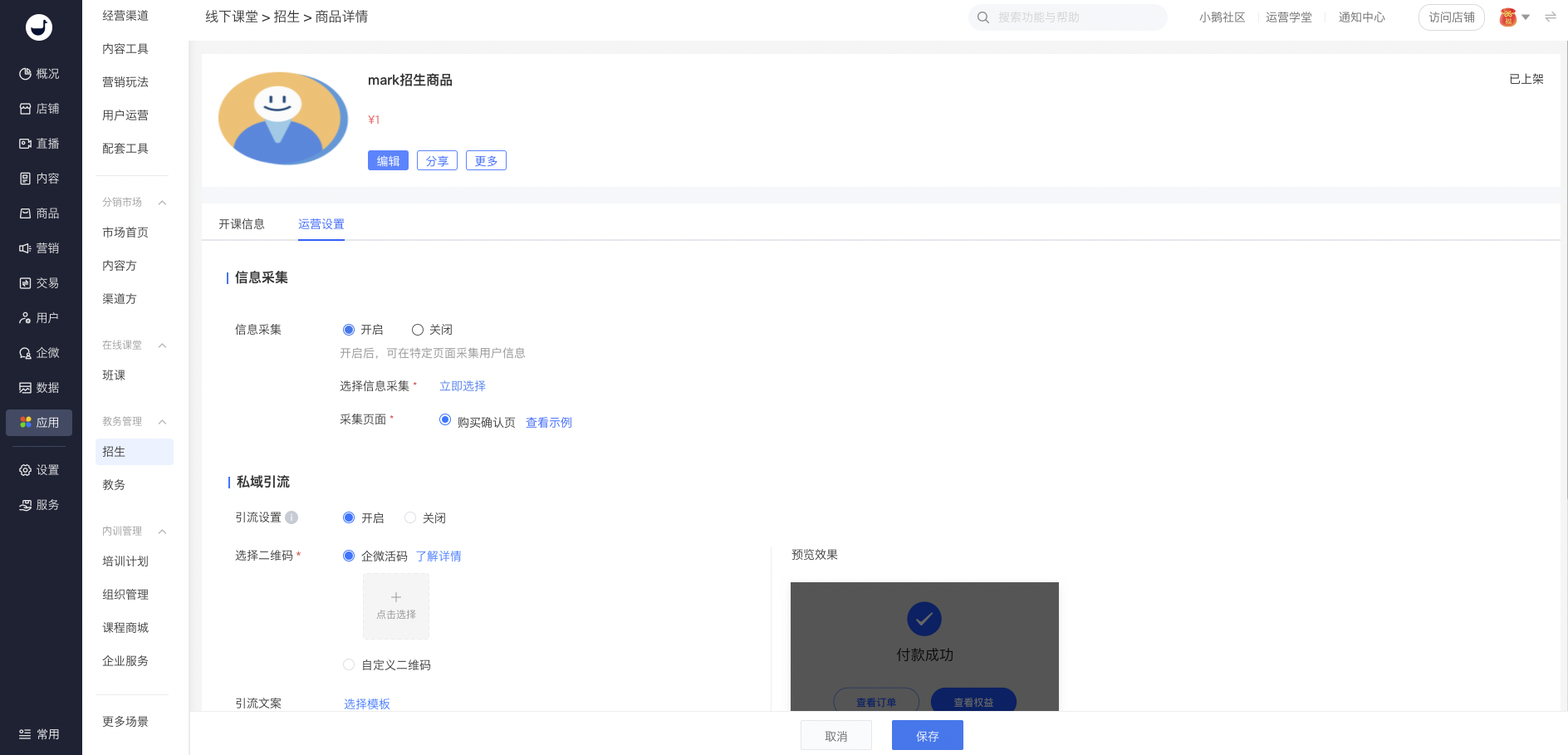
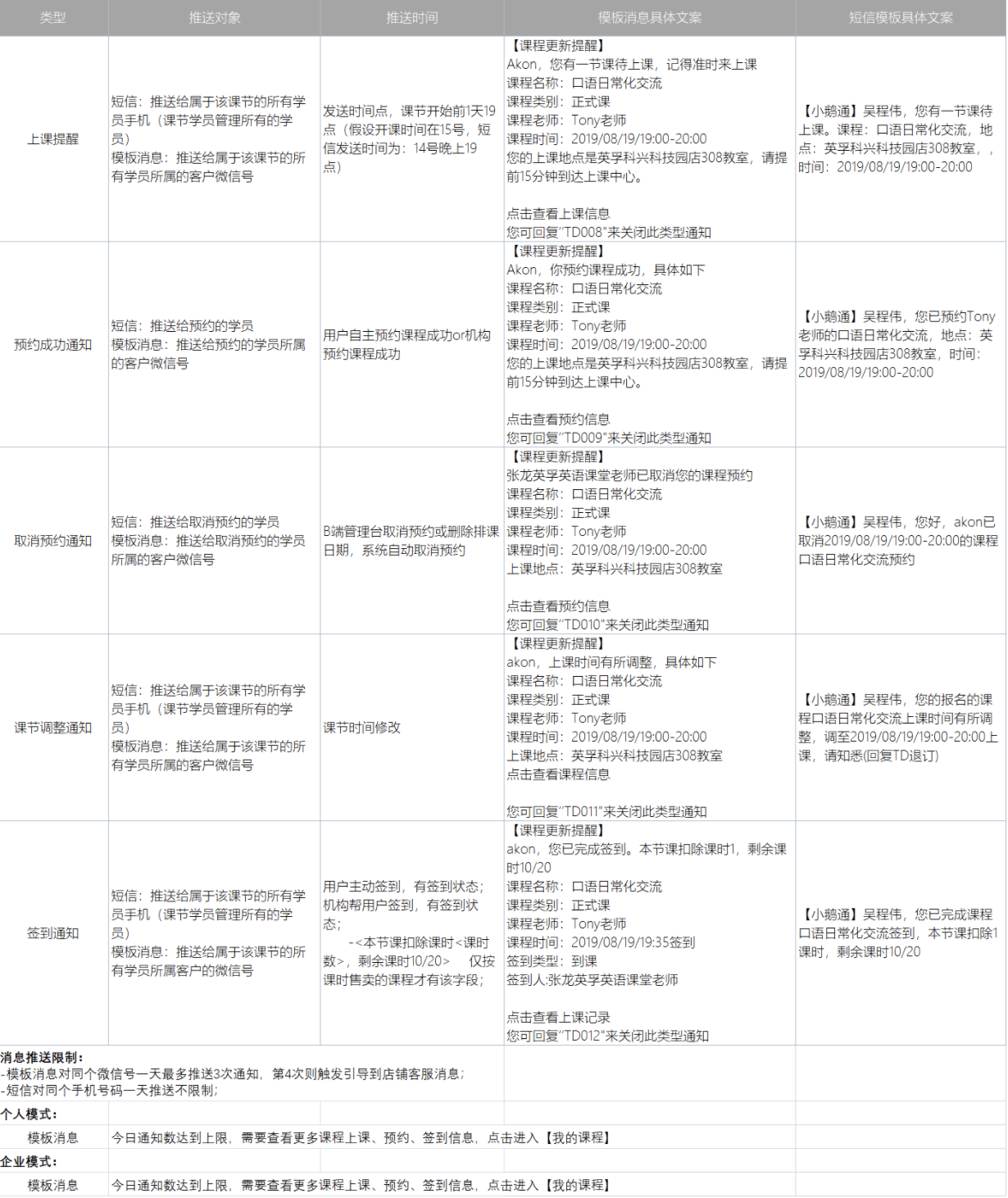
[Reminder notification settings]: After enabling, class reminders, successful reservation notifications, reservation cancellation notifications, class adjustment notifications, and sign-in notifications will be pushed to users/students via WeChat template messages and SMS. SMS requires recharge, and 200 free SMS messages are provided by default upon activation.
[Message push template]
[Guide to join the community]: After enabling the guide to follow, merchants need to upload the QR code to be followed and the guiding copy. After C-end users make a purchase, the QR code + guiding copy will be displayed on the payment completion page.
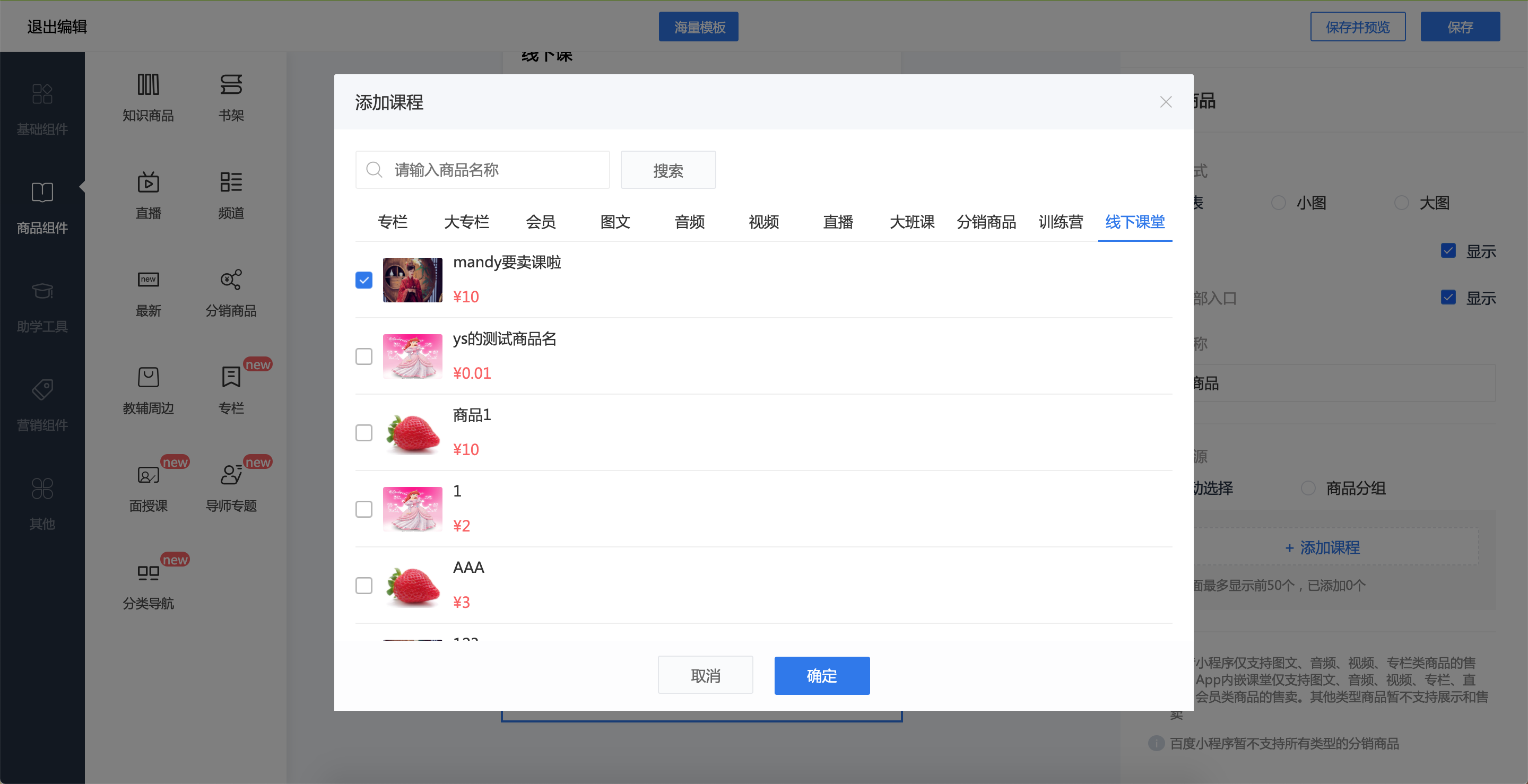
Step 2: Add offline classroom components of knowledge products during store decoration
Add knowledge product components. After adding offline classrooms to the page, users on the promotion page can browse and purchase. The decoration components based on the characteristics of the education and training industry generate more professional sales pages to enhance the user's purchase experience.
Support for selecting offline classroom products
Step 3: User registration process
(1) Users can directly reach the homepage or course details page through the promotion QR code;
(2) On the course details page, users can browse the course name, introduction, teacher introduction, class location, and course details;
(3) When placing an order, you can customize whether users need to fill in the intended class time and location, and additional basic information of students is required to submit the registration;
(4) After payment is completed, users can view the courses in My Purchased - Offline Courses in the personal center.
Step 4: Merchants process orders
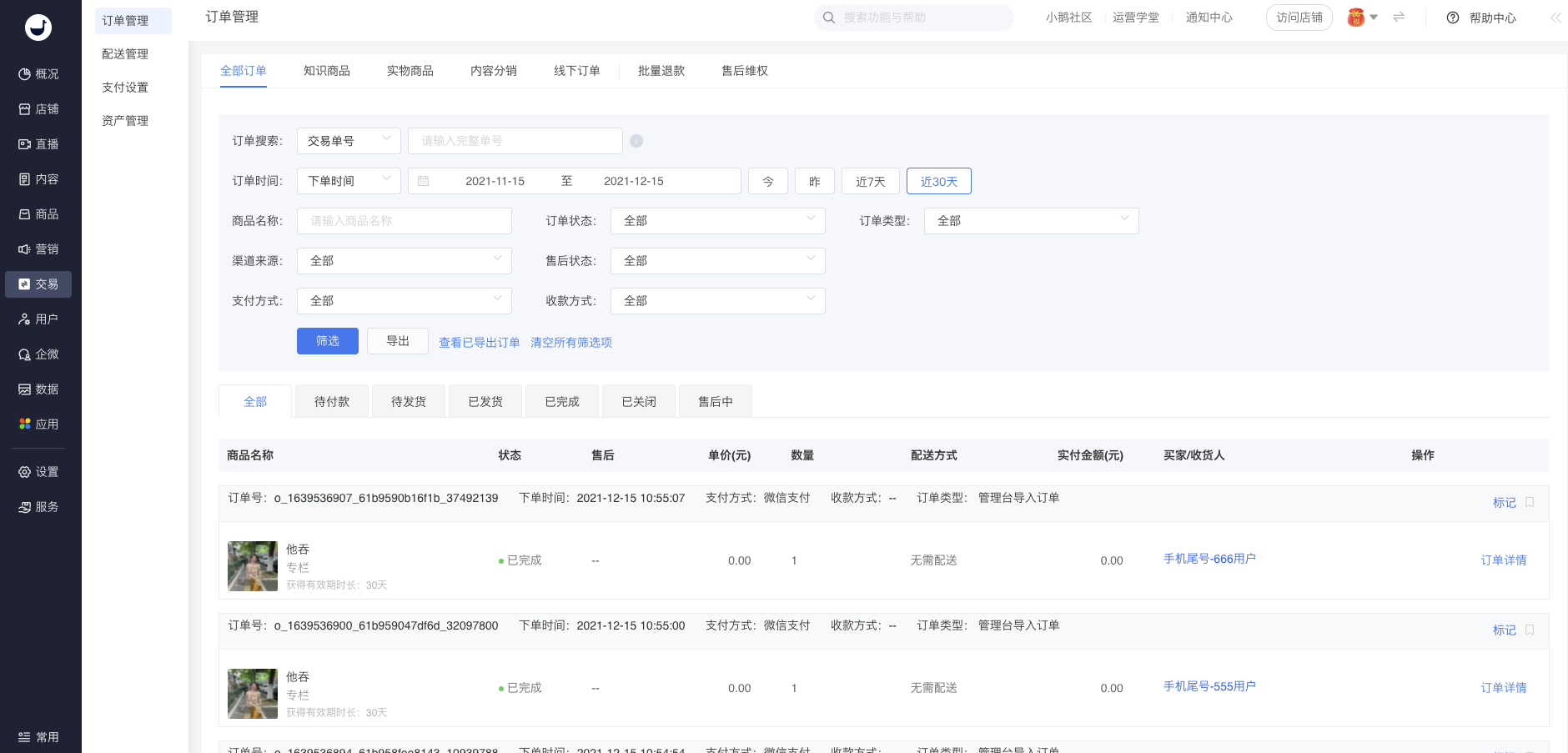
(1) Order viewing and export
Support for an independent list of offline course product orders. Click to view the list of all knowledge product - offline course orders.
After users make a purchase, the registration information can be viewed in the order list, and the order information can be exported.
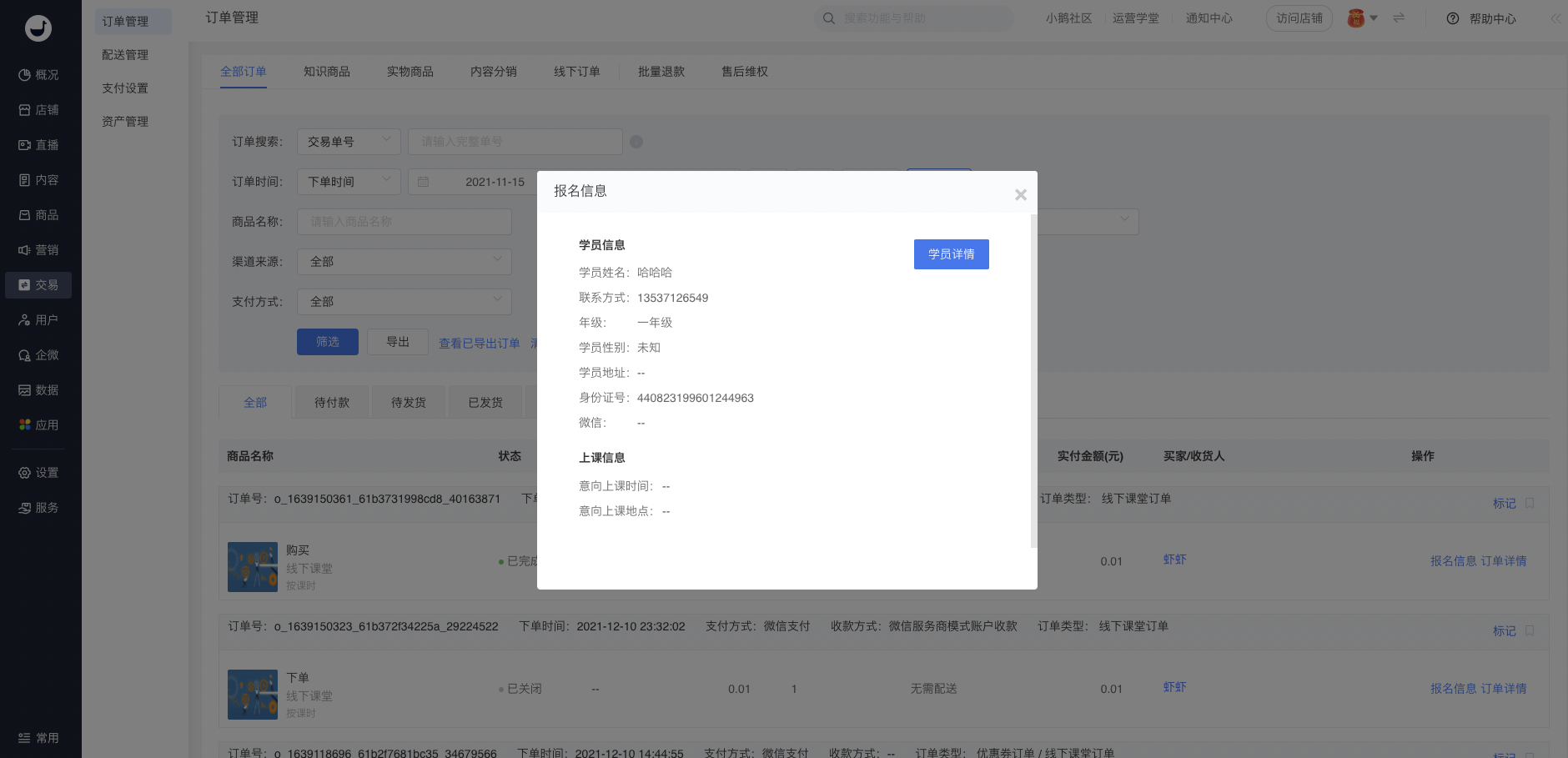
(2) Registration information
You can view the registration information of the order, including student information and class information, and jump to the student details page.
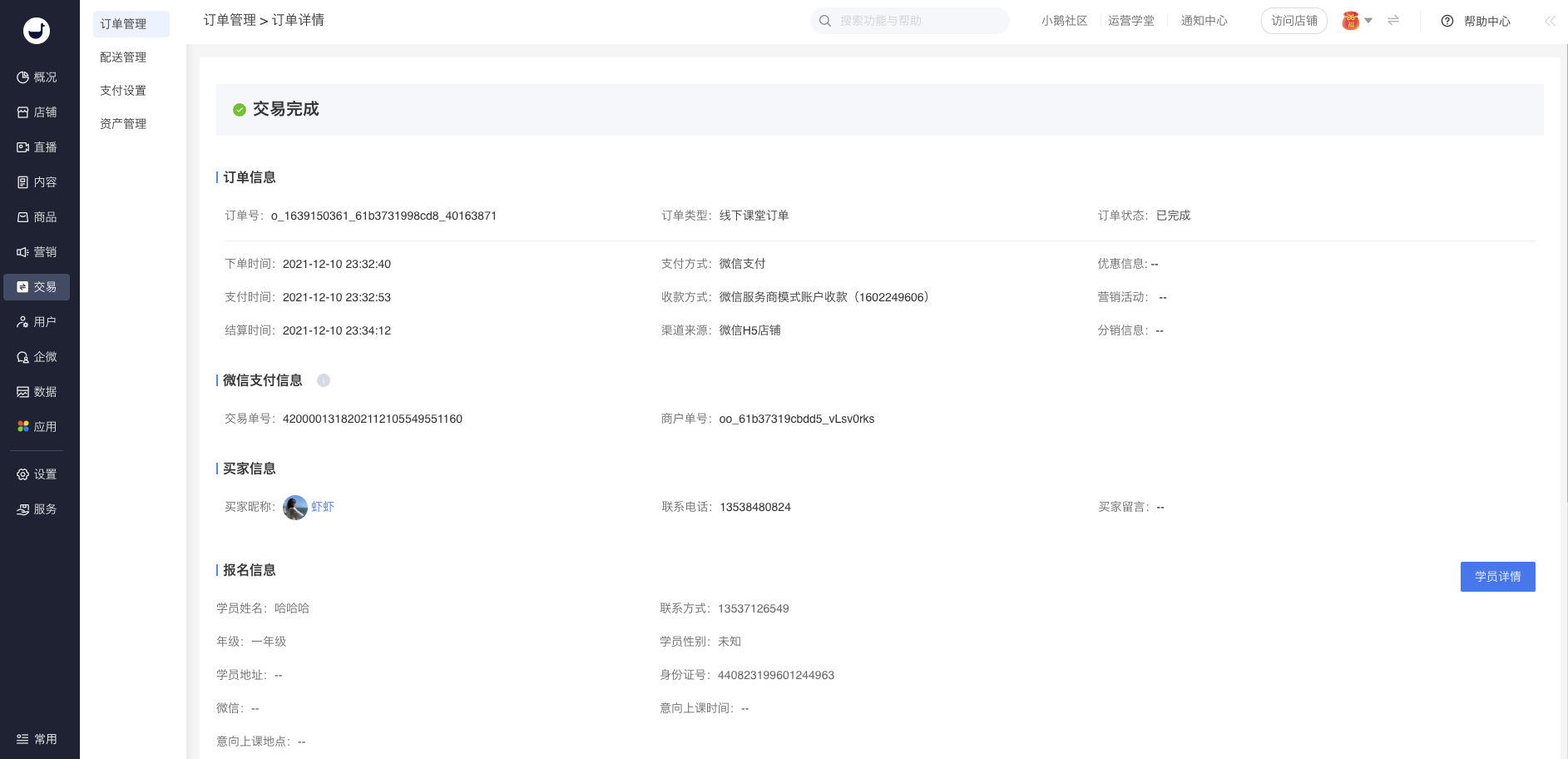
(3) Order details
The details of offline course orders include order information, WeChat payment information, buyer information, and registration information.
(4) Refund for offline course orders
Online refund for offline course product orders is not supported for the time being. If you need to refund a student's offline course product order, please operate in Students - Enrolled Courses - Withdraw from Courses and complete the refund offline.
No comments to display
No comments to display