Tutorial on Using Event Management
I. Function Introduction
You can use the event management function to organize offline events, completing processes such as online event information release, user registration, collection of registration user information, management of registration status, and on - site check - in in one stop.
II. Purpose of Use
It can be used to organize and manage offline events, inform users of event details, manage registration status, and on - site check - in.
III. Use Scenarios
A company invites external guests to give presentations to employees every week. The administrator uses the event management function to publish information about each presentation event, and employees register online. At the presentation event site, employees complete check - in to indicate their attendance.
IV. Operation Path
Merchant side: Desktop management console → Courses → Interactive Management→Event Management → Publish Event
Student side: WeChat H5 Store → My → Events → Register
V. Usage Tutorial
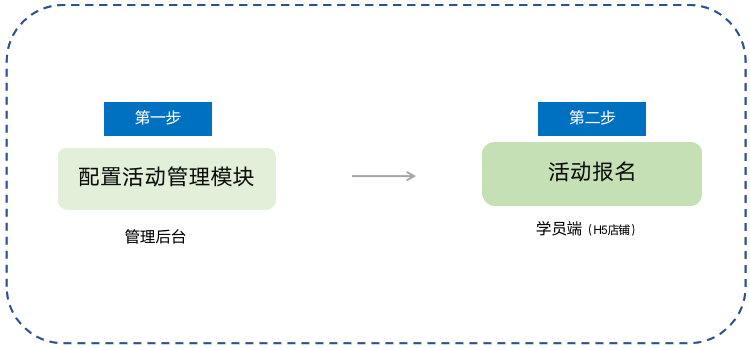
Step 1: Configure the Event Management Module - Back - end
1. [Courses] - [Interactive Management] - [Event Management] - [Publish Event]:
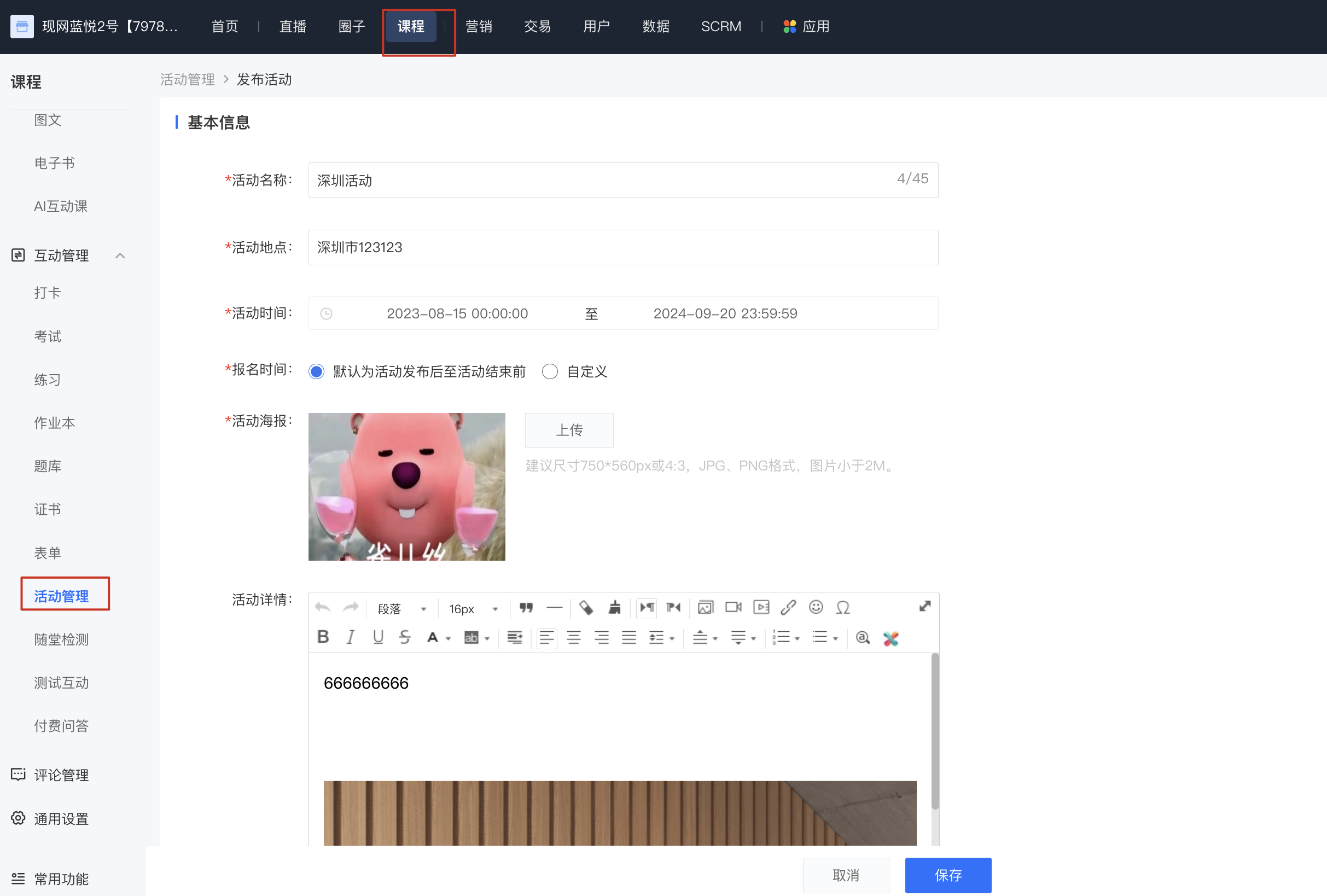
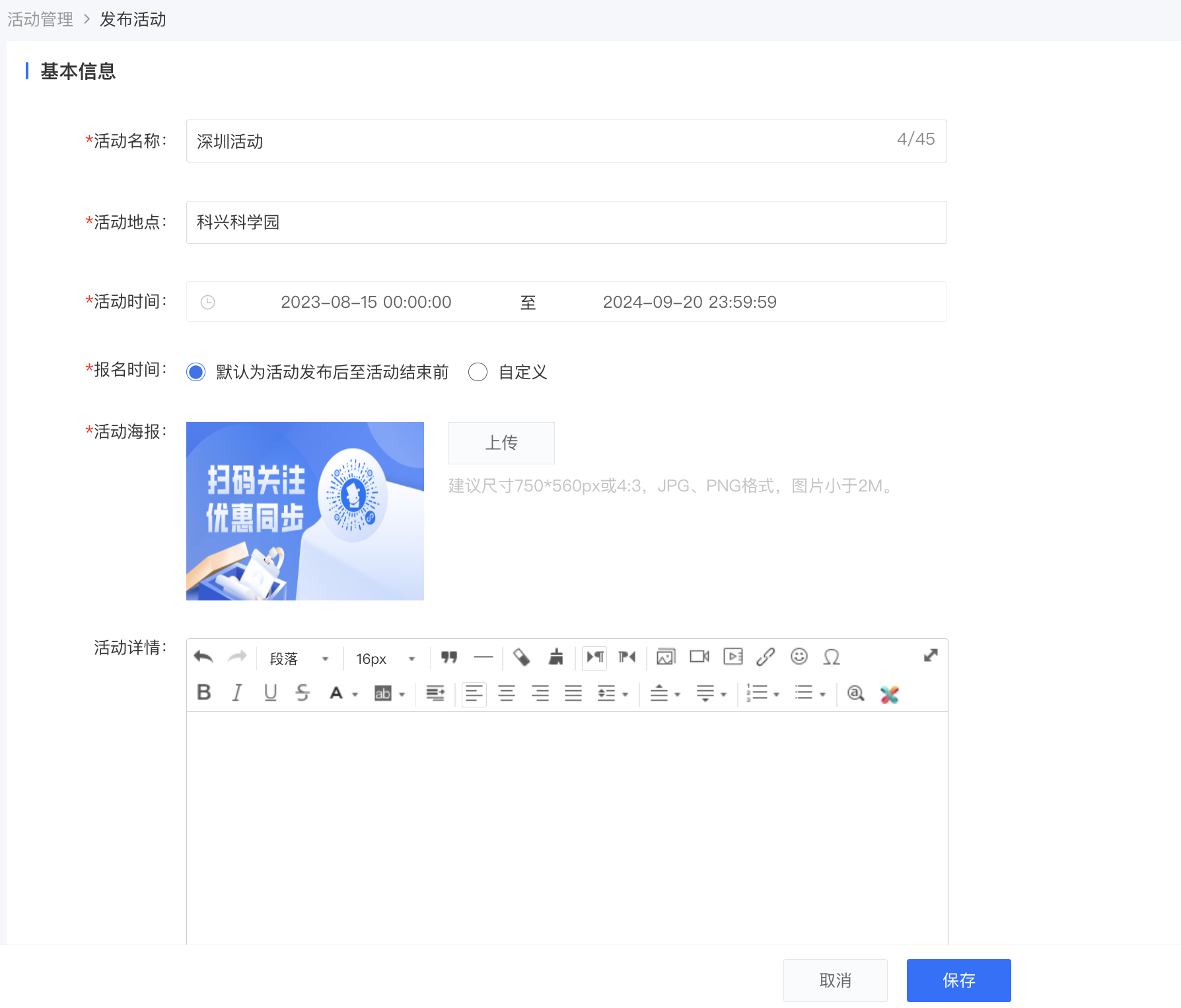
2. Fill in basic information: Fill in the event name, location, event time, registration time, event details, and upload the event poster.
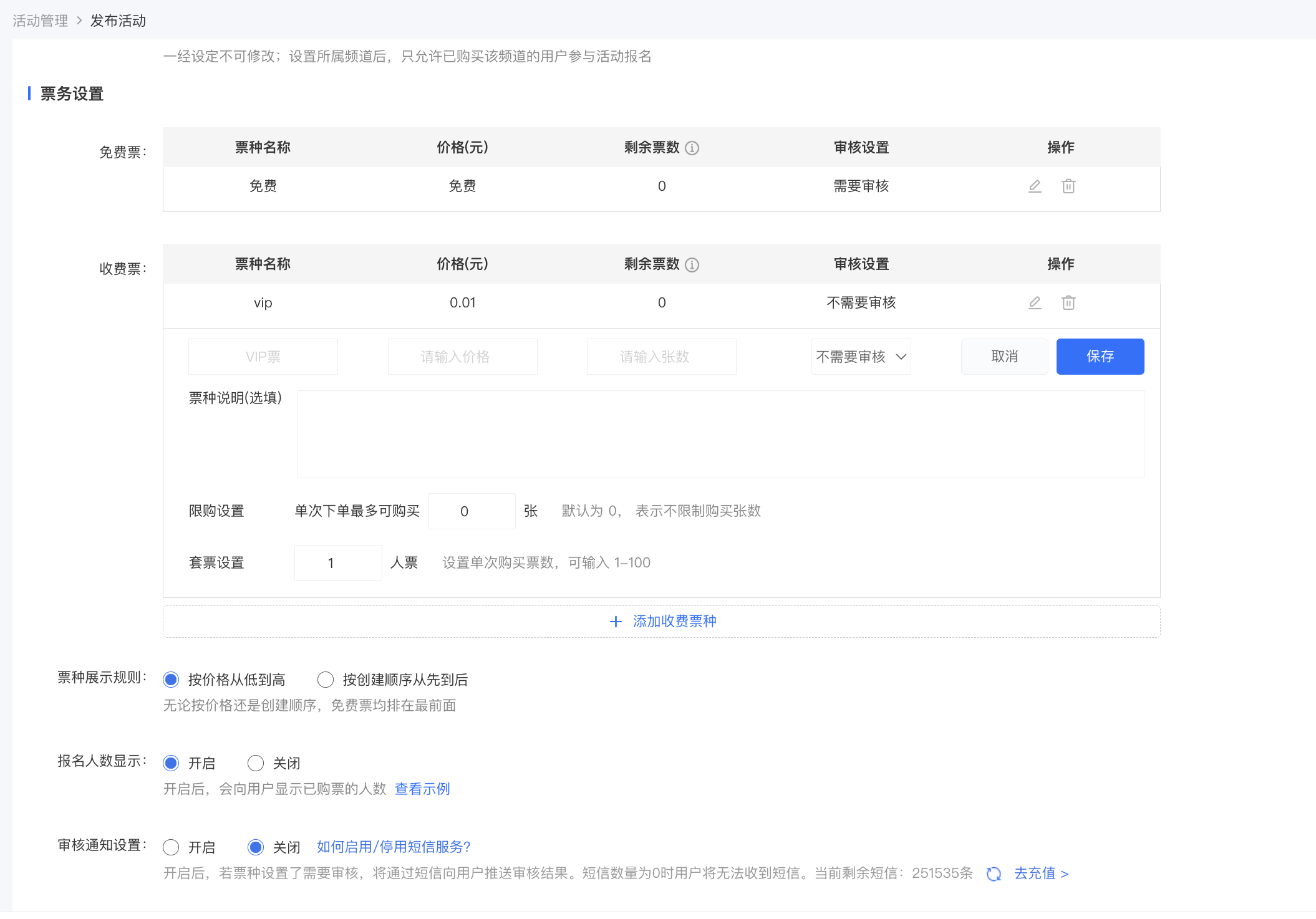
3. Ticket settings: Add event ticket types, set the number of tickets, review settings, and purchase limit settings. You can fill in ticket type descriptions. You can choose whether to display the number of registrants on the event registration page.
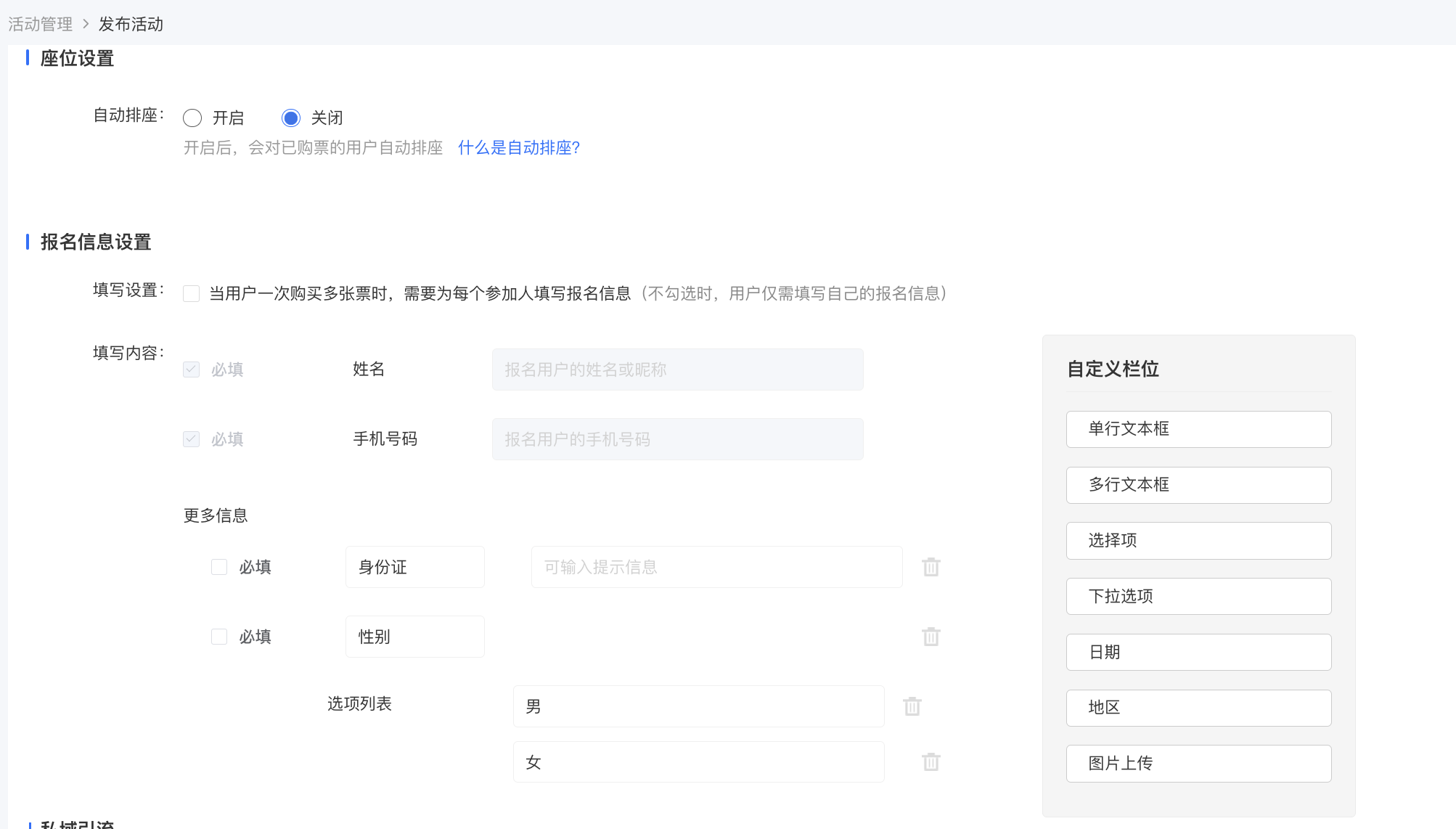
4. Form settings: You can enable the registration form to collect information from registered users. The registration form collects names and mobile phone numbers by default. You can use components to customize other information to be collected.
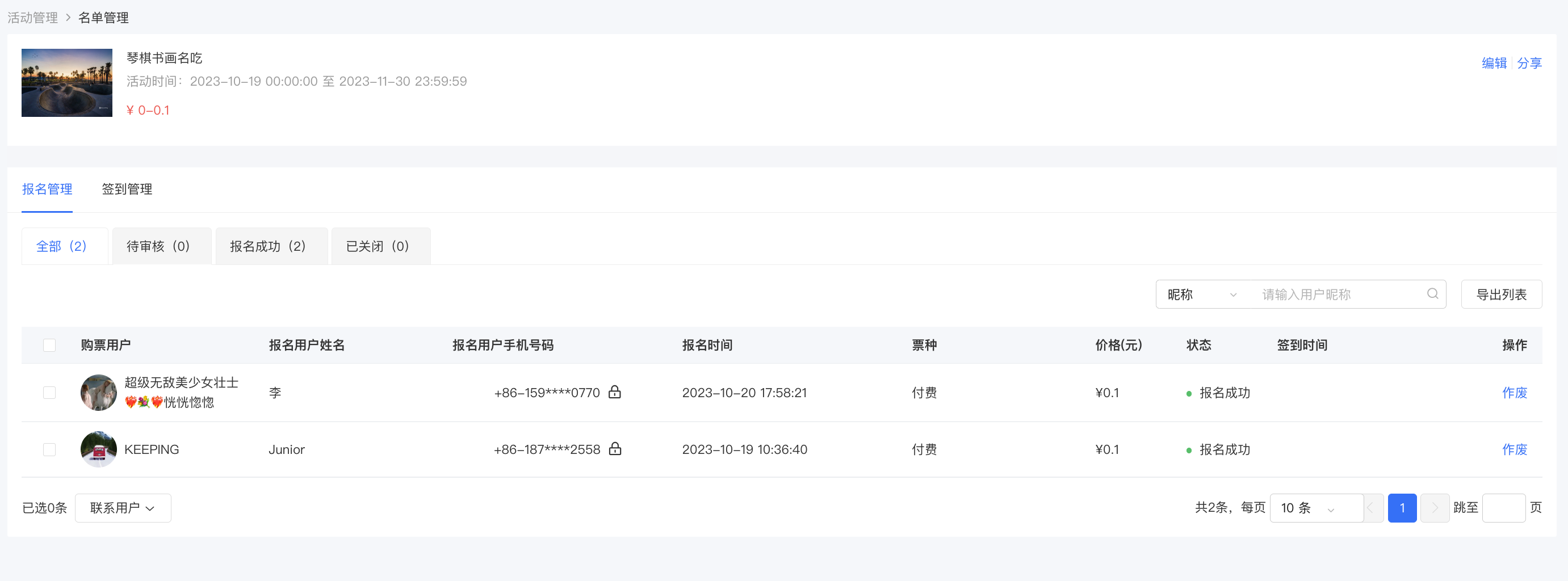
5. Registration and Review
After the event is published, you can view and manage users' registration status on the management console.
1) Click [Courses] - [Interactive Management] - [Event Management] - [List Management] - [Registration Management] on the management console.
2) For events that require registration review, you can choose to 'Approve' or 'Reject' users' registrations; for events that do not require registration review, users' registrations will be automatically approved after they register.
3) After a user's registration is approved, the status will show as 'Registration Successful', and the user will receive a ticket to participate in the event. Before the user checks in, you can invalidate the user's ticket, and the user will not be able to participate in the event after invalidation.
6. On - site Check - in
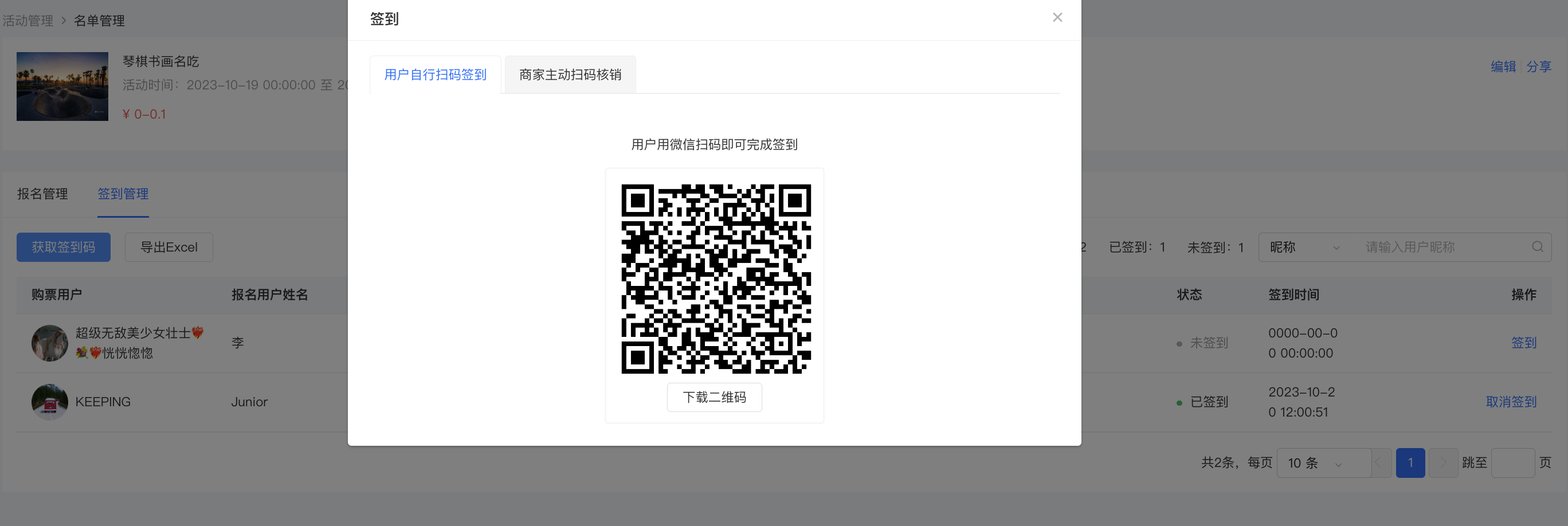
Method 1: Scan - code Check - in
elink automatically generates a dedicated check - in QR code for each event. Download and print the check - in QR code and place it at the event venue. Users can complete check - in by scanning the QR code with WeChat after arriving at the venue.
Path: Management console [Courses] - [Interactive Management] - [Event Management] - [List Management] - [Check - in Management] - [QR Code Check - in]
Method 2: Manual Check - in
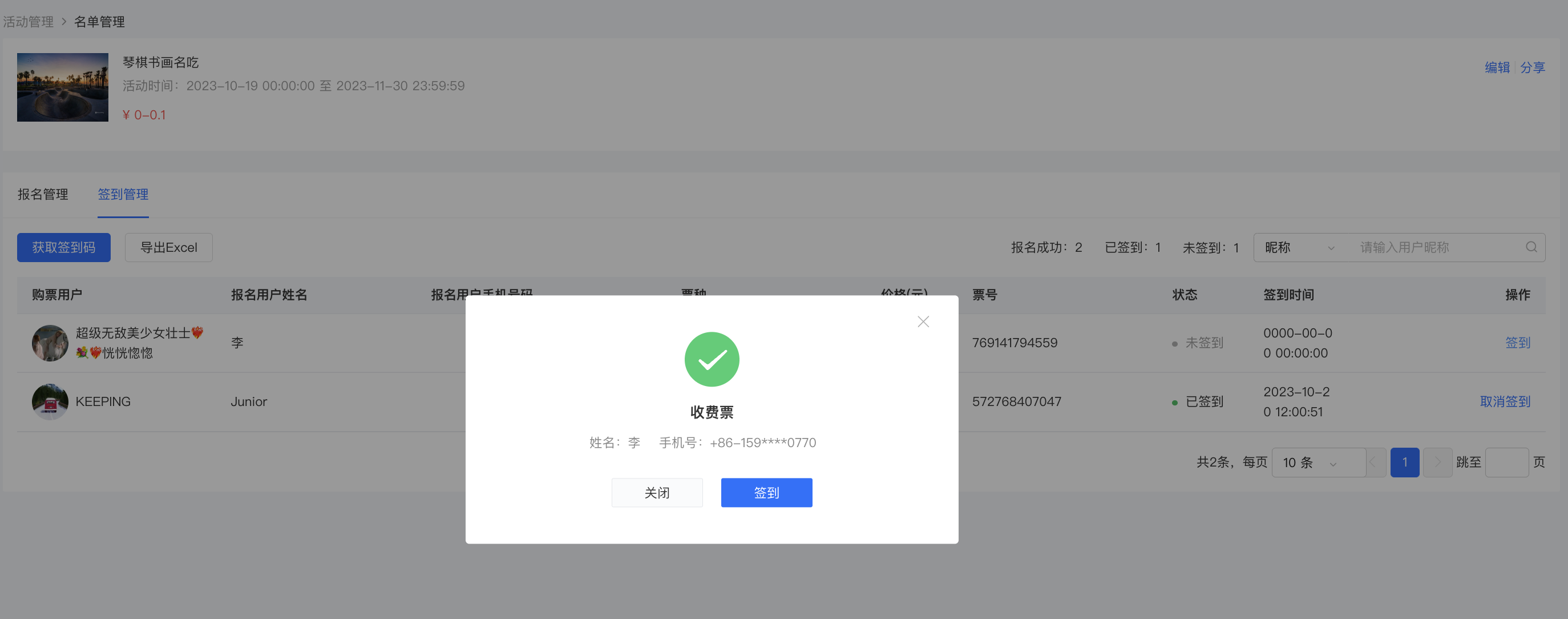
In case of unstable network environment at the event site or unexpected situations such as a user's phone being turned off, which prevent users from completing check - in by scanning the code, you can temporarily complete 'manual check - in' using a paper check - in form. Then search for the registered user's name or mobile phone number on the management console and click the [Check - in] button on the right side of the user list to complete the event check - in statistics.
Path: Management console [Courses] - [Interactive Management] - [Event Management] - [List Management] - [Check - in Management]
Step 2: Event Registration - Student Side
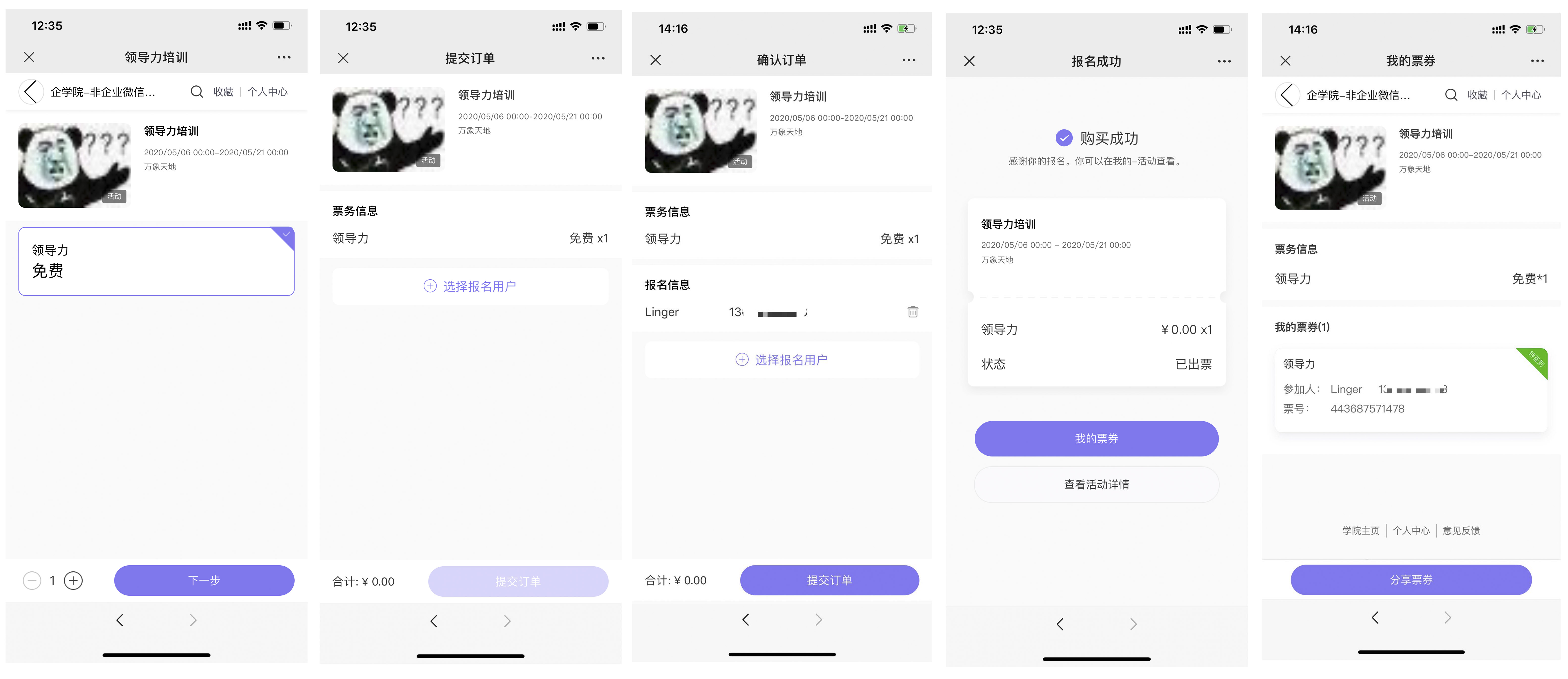
1. Students can enter the event registration page through the sharing link or QR code and complete the event registration information according to the page prompts to participate in the event. After successful registration, users will receive event tickets.
2. Enter the 'My Events' page through the 'My' page of the academy - [Events] to view the list of registered events.
3. Click on an event to view the ticket.