Course Usage Tutorial
【Courses】 are a type of systematic courses that place more emphasis on course services and the learning outcomes of students. They provide a flexible and comprehensive solution for teaching, learning, and evaluating learning outcomes.(1) In terms of content, it supports secondary directories, allowing for the arrangement of live streams, content, and various interactive tools, providing more diverse content combinations and learning, practice, and testing experiences.(2) In terms of course start methods, it supports three ways of taking courses: students can learn at their own pace, start at a fixed time, or within a fixed start and end time. It also provides multiple ways to unlock directories, meeting the needs of various customized learning plans.(3) In terms of course management, it supports the configuration of certificates, setting compulsory and optional sections, and completion conditions. It also supports data analysis at the overall course, section, and student levels, meeting more comprehensive data analysis capabilities and supervision and management needs.2. Supported Content TypesLive streams, images and texts, audio, videos, documents, e - books;3. Supported Interactive ToolsAssignments, exams, exercises, check - ins, forms, interactive tests, communities, certificates.
II. Purpose of Use
CoursesIt focuses on creating systematic courses that combine learning, practice, and testing, providing students with a more excellent learning experience. Managers can conduct more refined operations on students, improve students' learning outcomes, enhance the teaching reputation of merchants, and increase sales revenue.
III. Use Scenarios
1.CoursesAdd multi - leveldirectories and combine multiplelive streams,content, etc. Students can freely learn the combined courses. For example, "Employee Management Manual".2. Add content and assignments to the course, set the course start time, restrict students to enter and complete the training requirements at the same time, and manage students during a unified camp period. For example, "September Sales Improvement Class".3. Add various interactive tools such as content, check - ins, exercises, and certificates to the course.CoursesAdd various interactive tools such as content, check - ins, exercises, and certificates.Set a fixedstart and end time, set the unlocking time for each section, and require students tocomplete the corresponding content and interactive tasks every day as required. Achieve the goal of completing learning requirements and strong learning effects within a fixed time through refined operations. For example, "3 - Day New Employee Training Plan", "21 - Day New Store Support Plan"
IV. Operation Path
Merchant Side:AcademyManagement Console → Course Management →Series Courses→ Courses
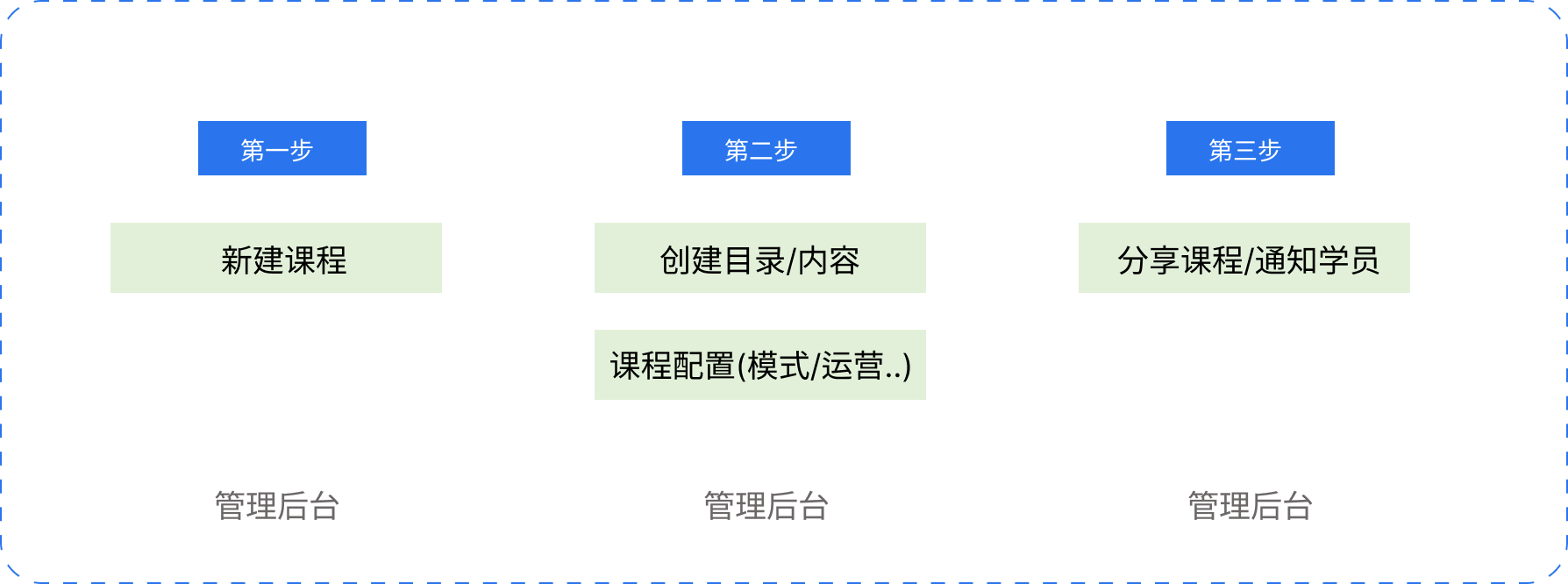
V. Usage Tutorial
Step 1: Create a New Course (Management Background)
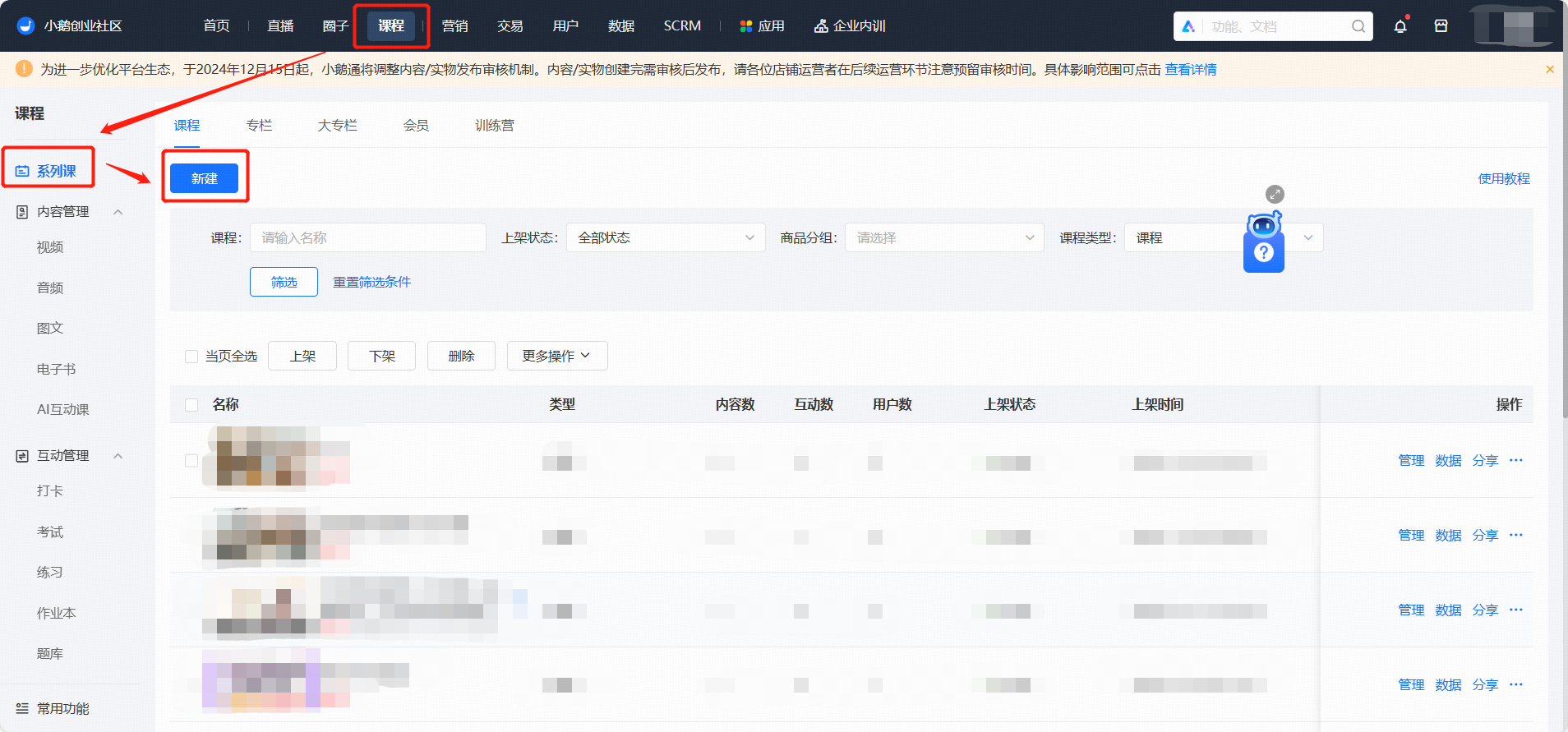
1. Create a Course
Log in to the elink Management Console, select 【Series Courses】 → 【New】 from 【Courses】;
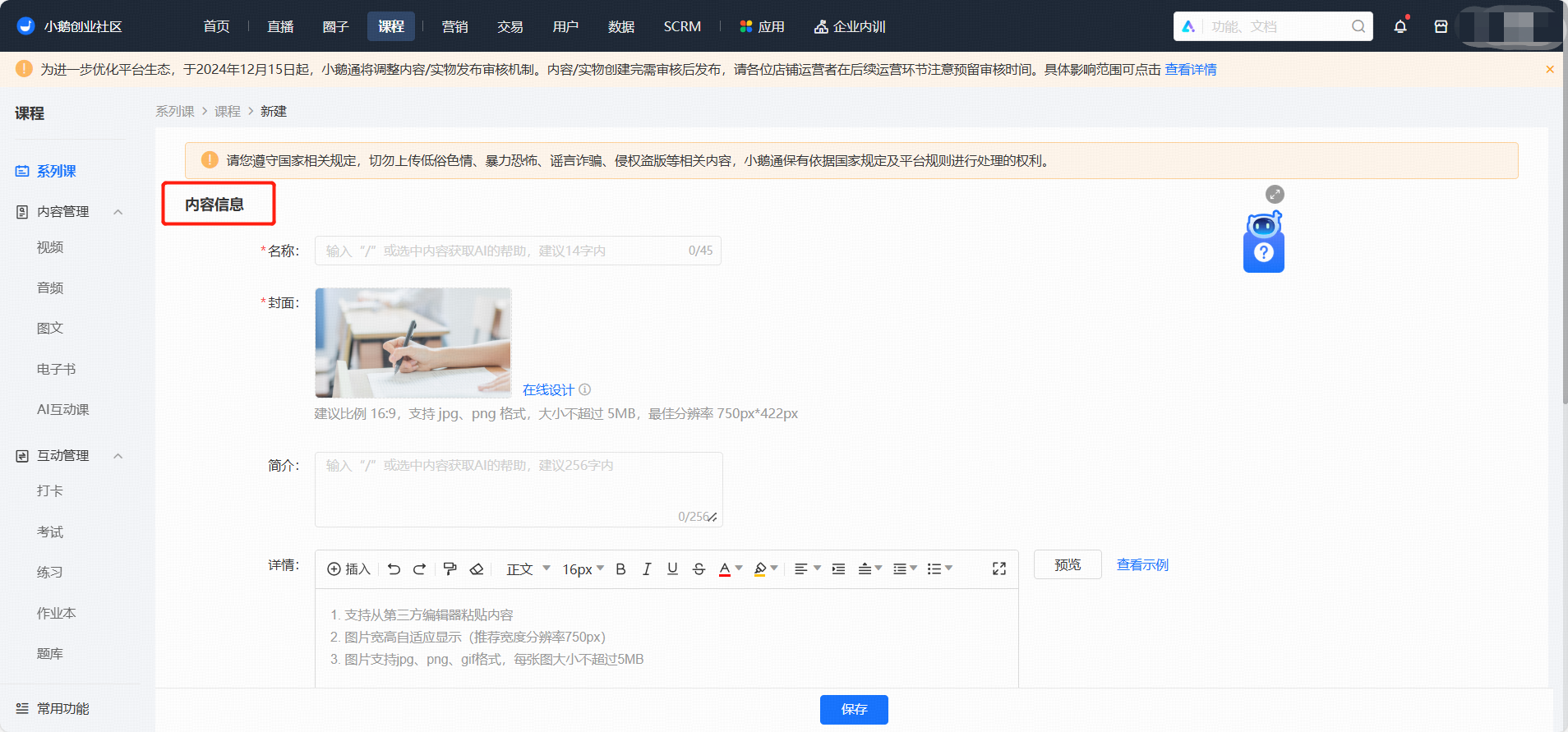
2. Content Information
Fill in the course name, cover, introduction, and details
● Name: You can enter up to 45 characters. It is recommended to enter within 14 characters.
● Cover: It is recommended to upload a picture with a ratio of 16:9, a resolution of 750*420px, and a size less than 5M.
● Introduction: The maximum input is 256 characters.
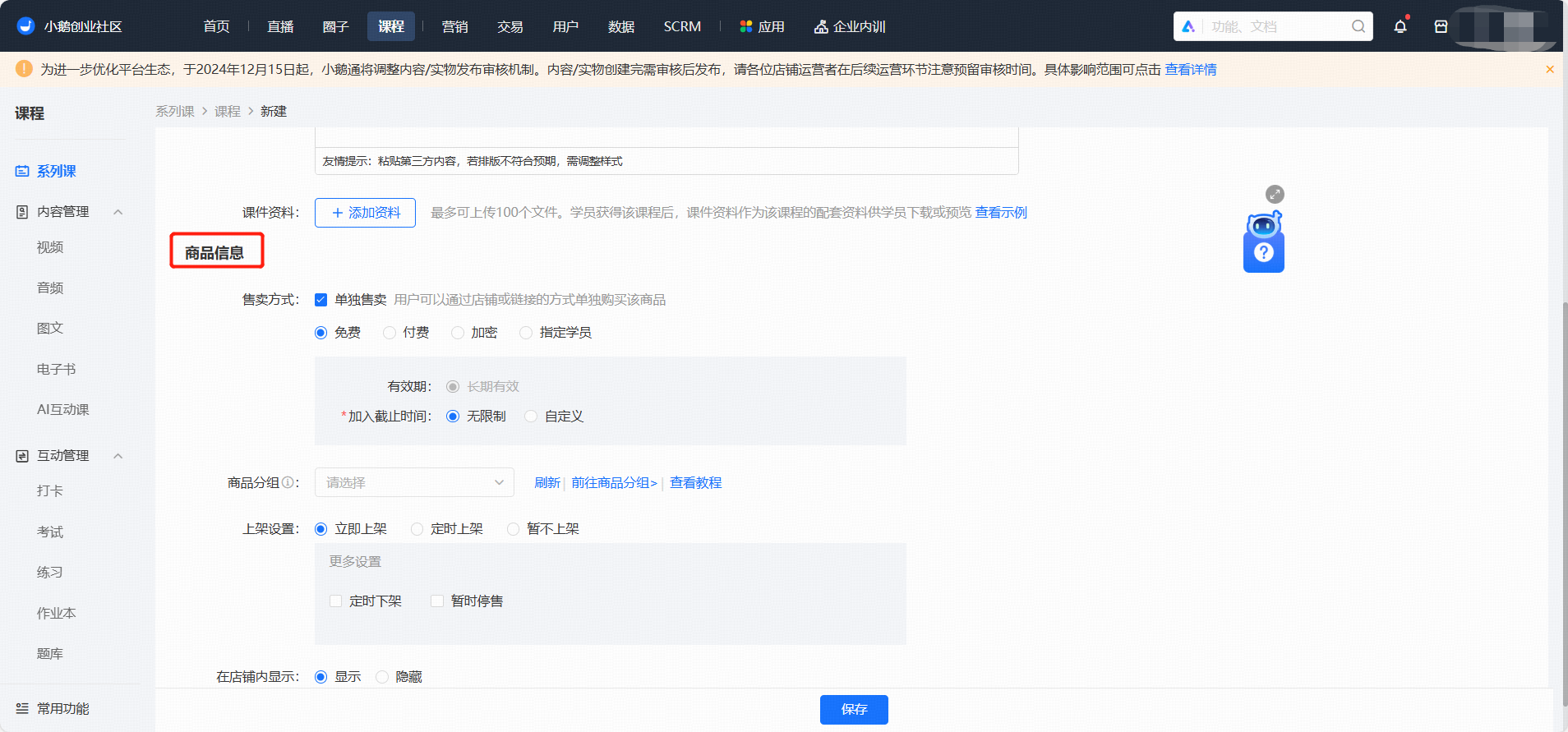
3. Course Information
Fill inProduct grouping, listing and delisting information,student visibility range
Step 2: Add Content/Course Configuration(Management Background)
1. Directory Management
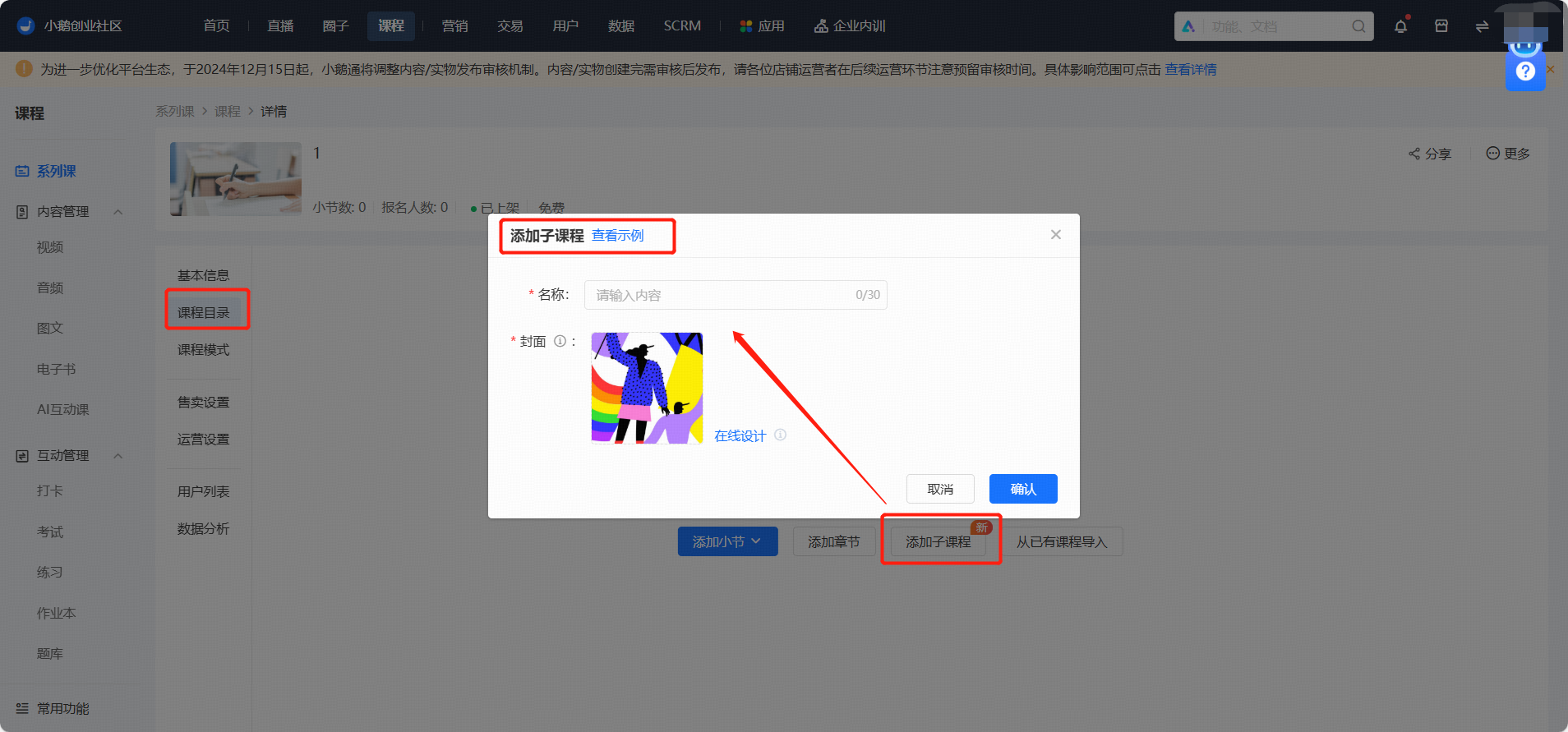
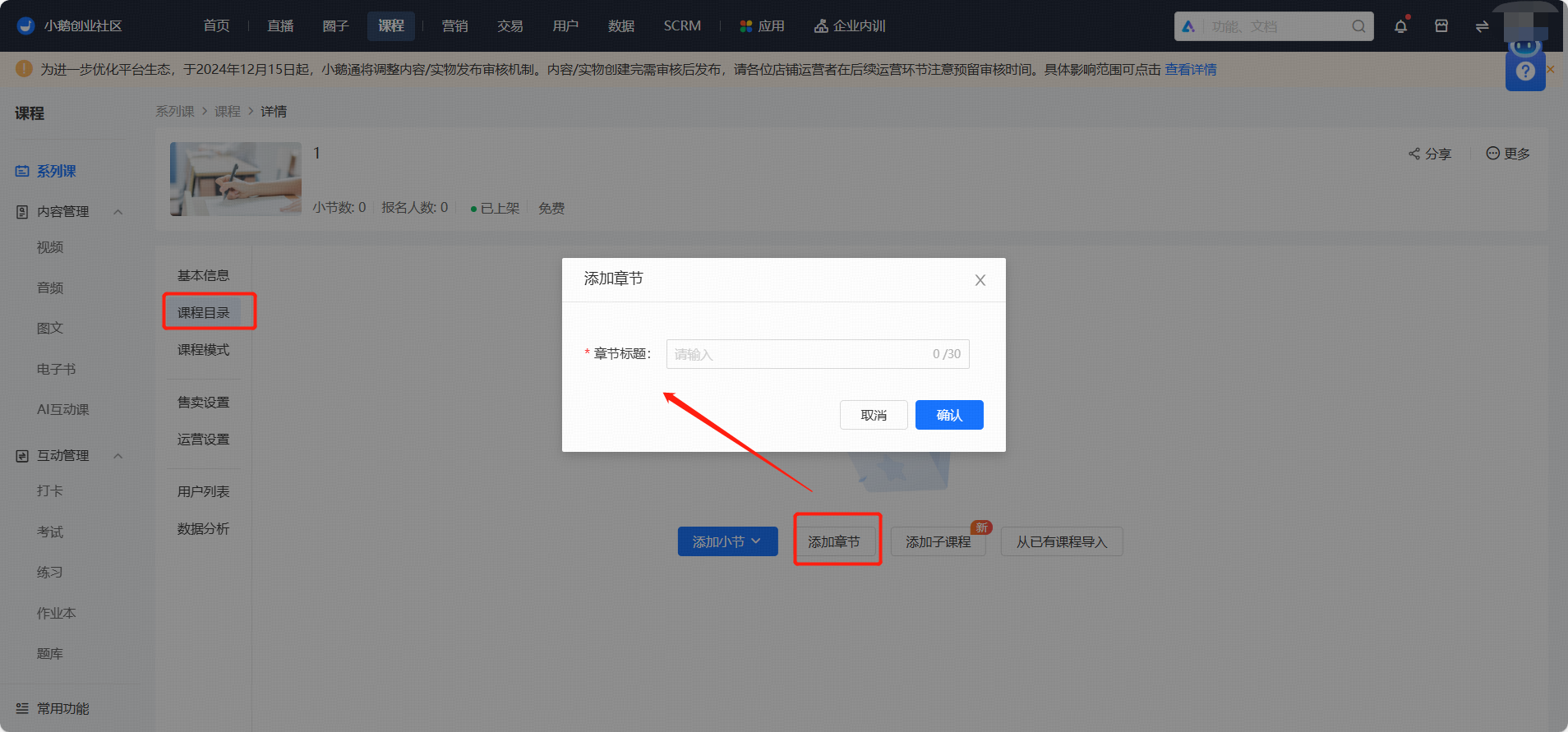
The directory hierarchical structure is: Course - Sub - course - Chapter - Section
Click 【Add Sub - course】 to add a first - level directory
Click 【New Chapter】 to add a first - level directory or a second - level directory under a sub - course;
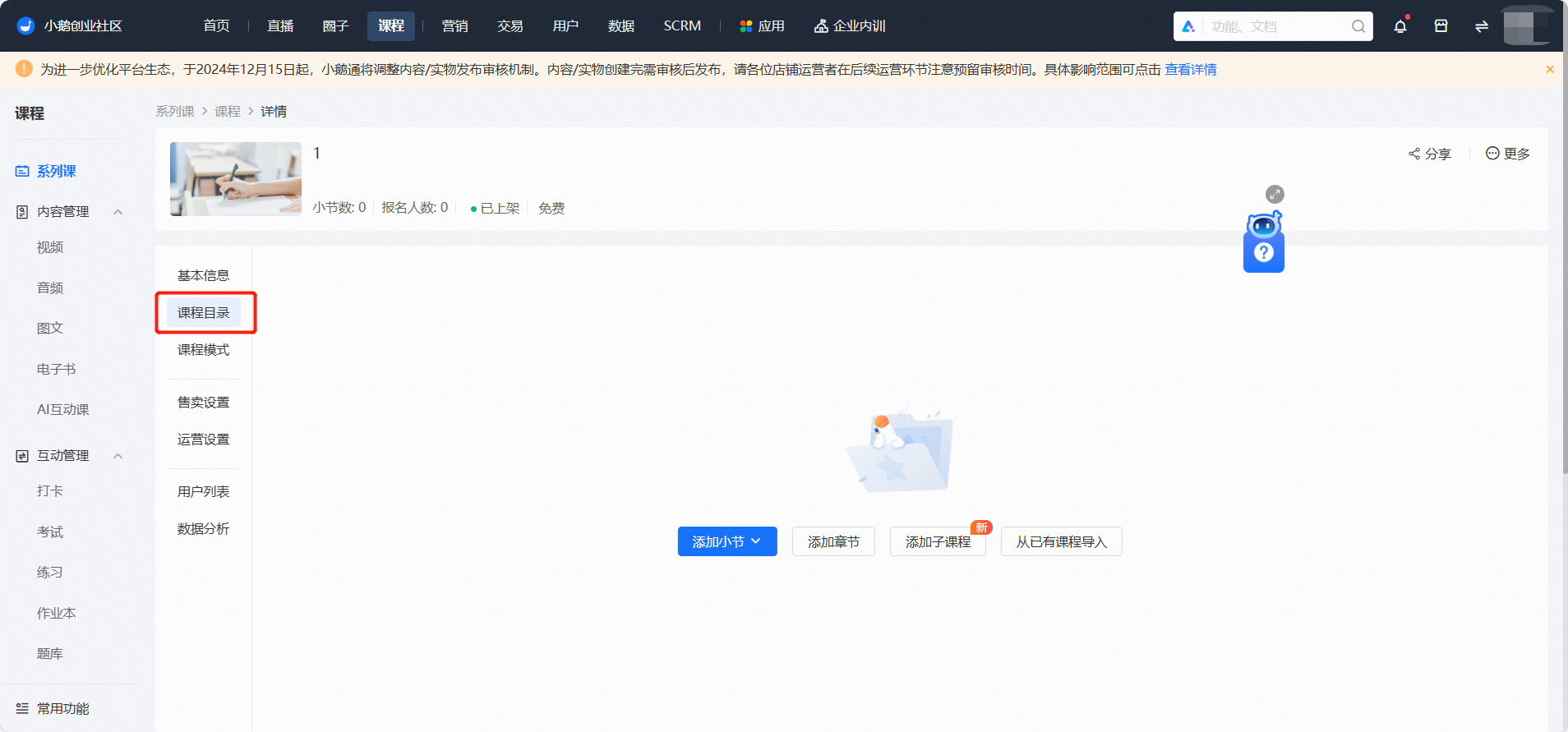
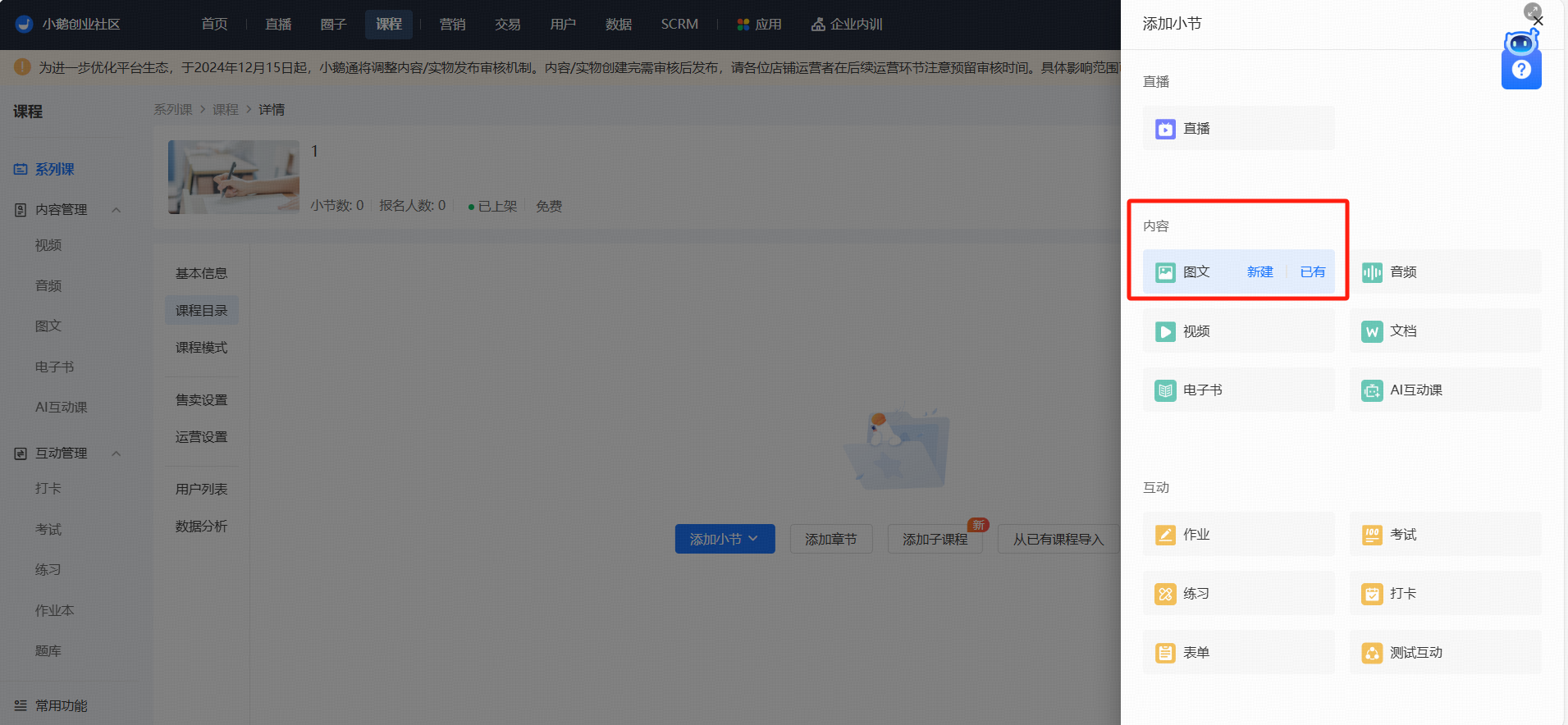
Click 【Add Section】 to addassociatedvarious course content, supporting live streams, images and texts, audio, videos, documents, e - books, assignments, exams, exercises, check - ins, forms,interactive tests;
【Add Section】 supports creating new on the current page, and also supports associating or copying existing tasks;
2. Course Settings
(1) Basic Information (already filled in during creation, can be skipped)
Fill in basic course information such as name and cover, and
