Basic operations
- Register a Store
- Bind Official Account
- How can learners quickly access the merchant's Online Store?
- How can learners find the courses they've purchased from me?
- elink Backstage Image Specification List
- How to log in to the Online Store
Register a Store
Step 1: Register an account
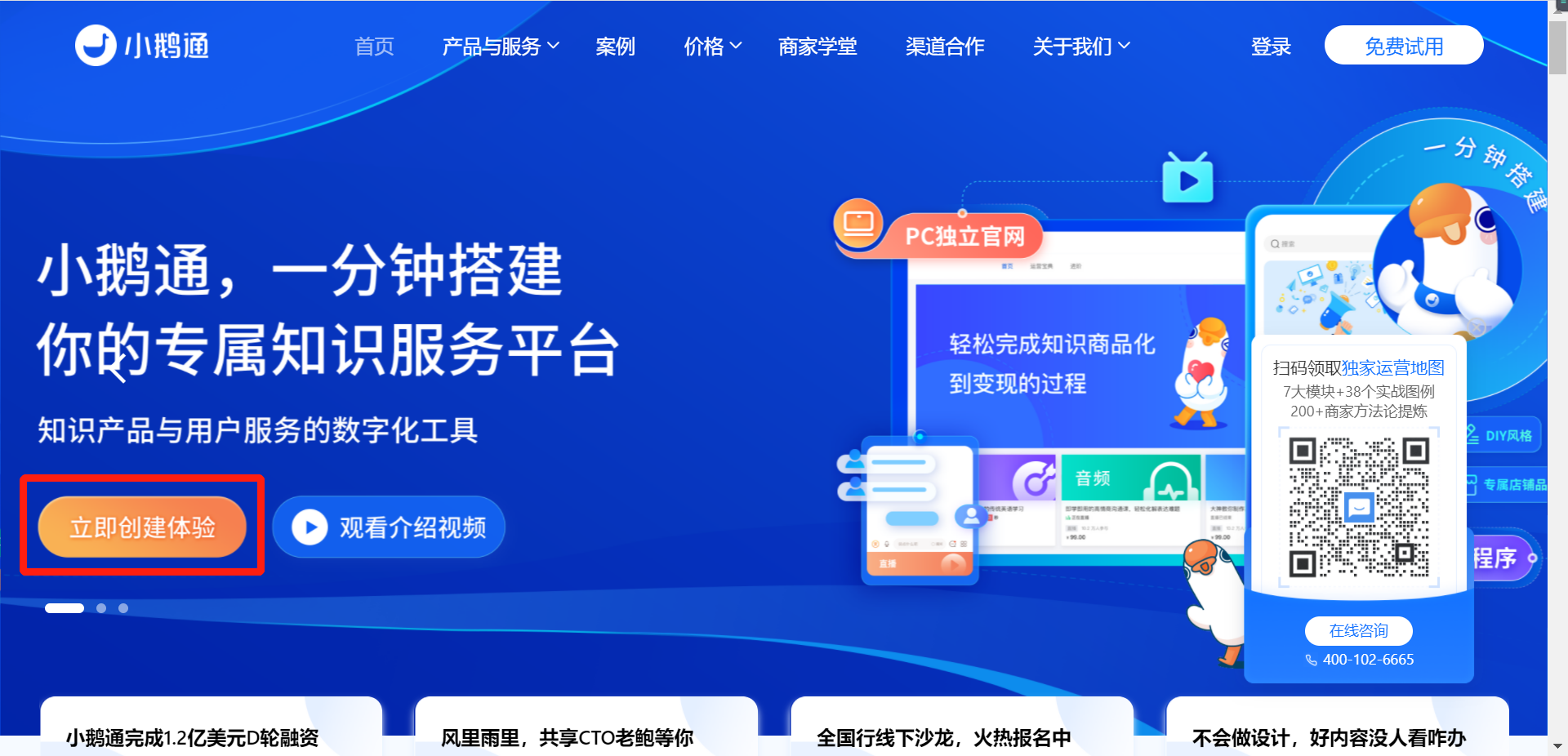
1. Visit the official website of elink:www.xiaoe-tech.com
2. Click on【Create an experience now】/【Free trial】button
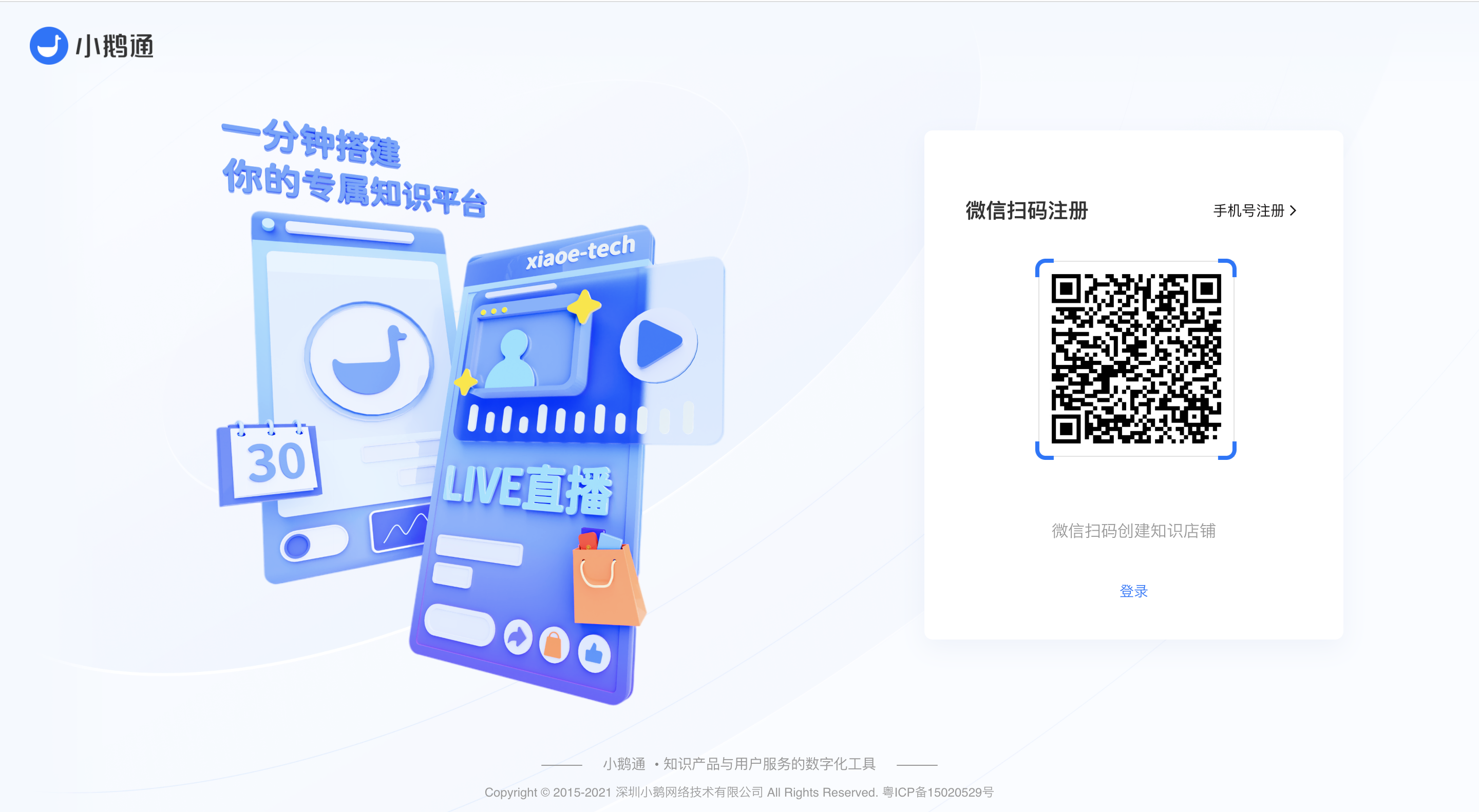
3. Scan the QR code with WeChat to register a store, then follow the instructions to bind your mobile phone number
Step 2: Create a store
Click 【Create a Online Store】, enter the name of the Online Store, and then click the “Start creating” button. Your Online Store is now created!
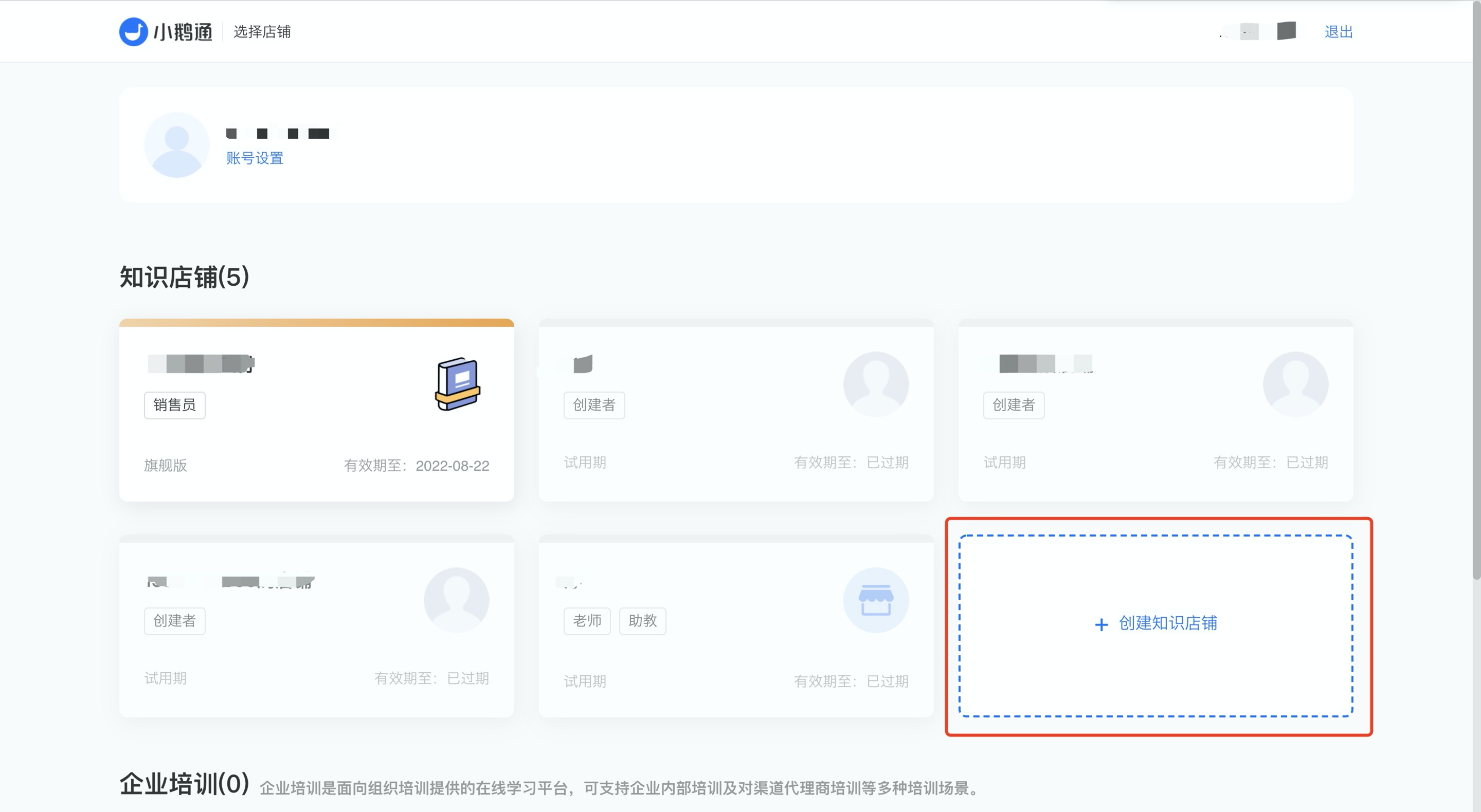
After creating the store, get familiar with the functions in the desktop management console first! The main functional modules of the Online Store will be listed in the left sidebar, includingLive streaming applications, content products, marketing strategies, monetization capabilities, and user managementand other functions, which will be explained later.
Bind Official Account
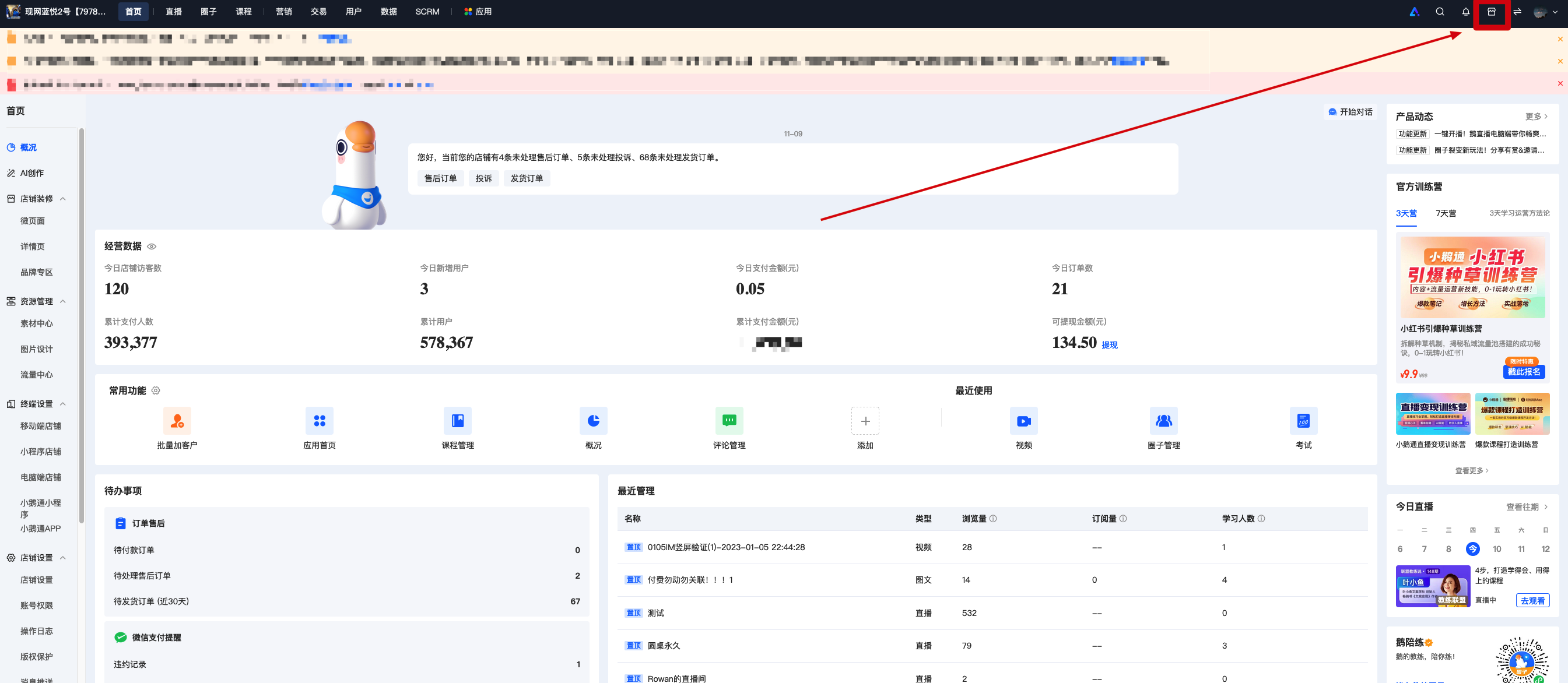
Step 1: Copy the store link
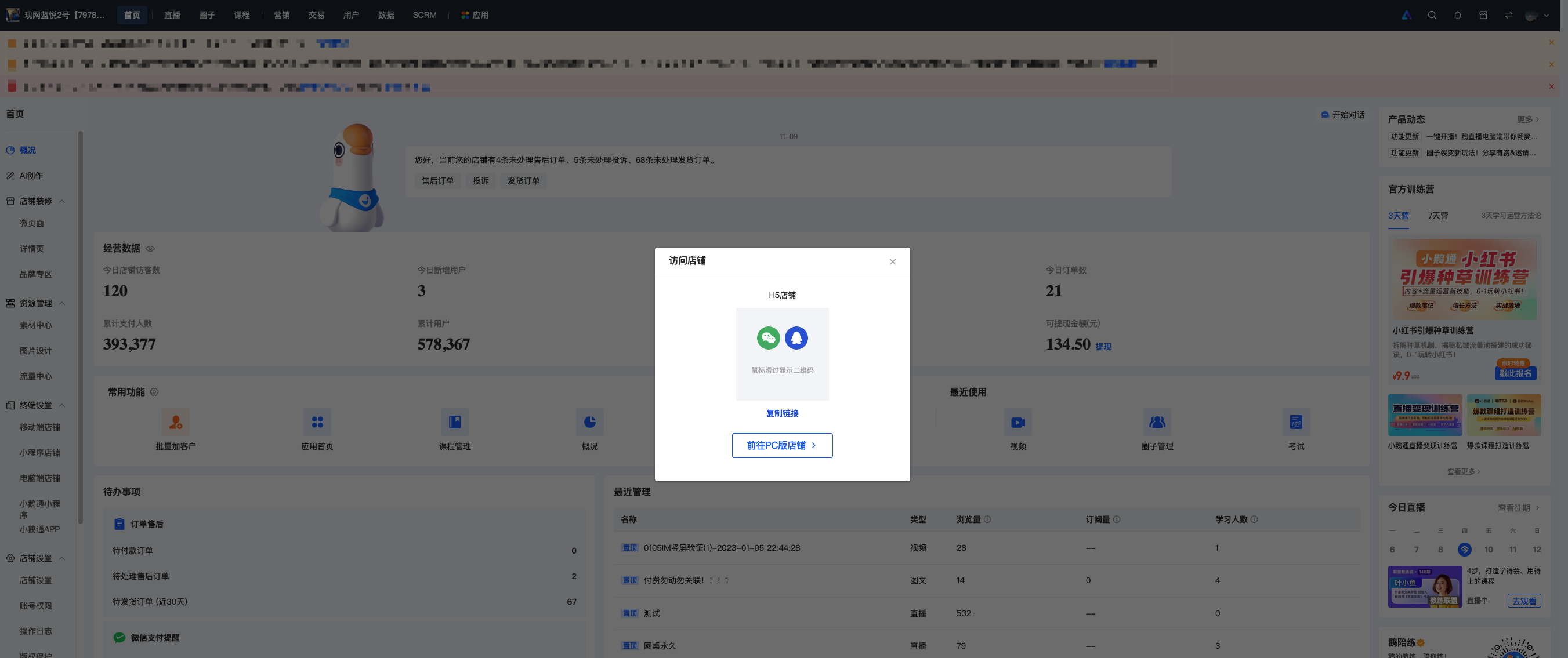
Log in to your elink account and access the desktop management console.Click on the top right corner of the overview pageClick the “Visit Store” button and copy the page link in the pop - up window.
Step 2: Log in to your WeChat official account
Log in to the WeChat public platform (https://mp.weixin.qq.com)Login to your WeChat official account.
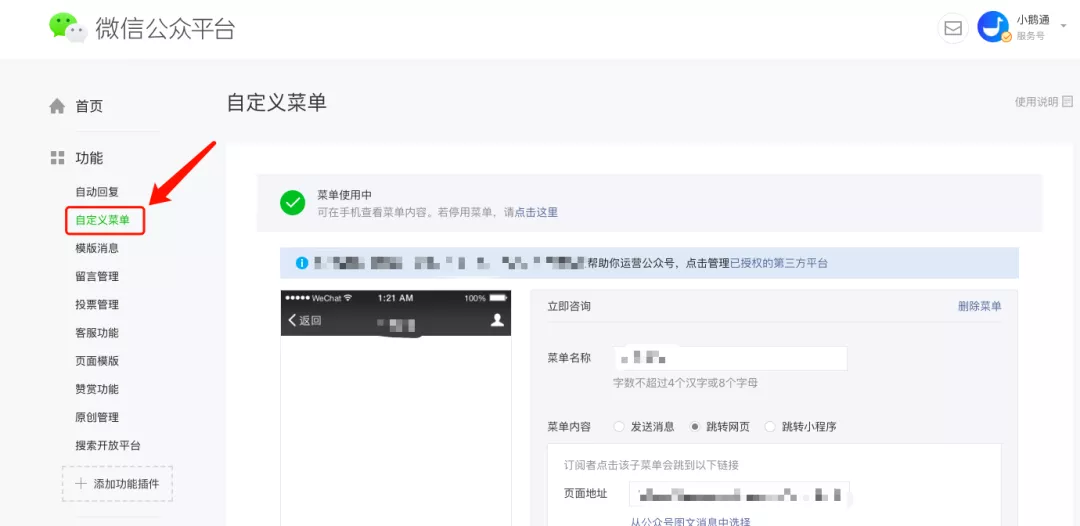
Step 3: Embed the store link in the official account menu
Click on “Custom Menu” in the left - hand menu barThen add a custom menuSelect “Jump to Webpage”And copy your store link.
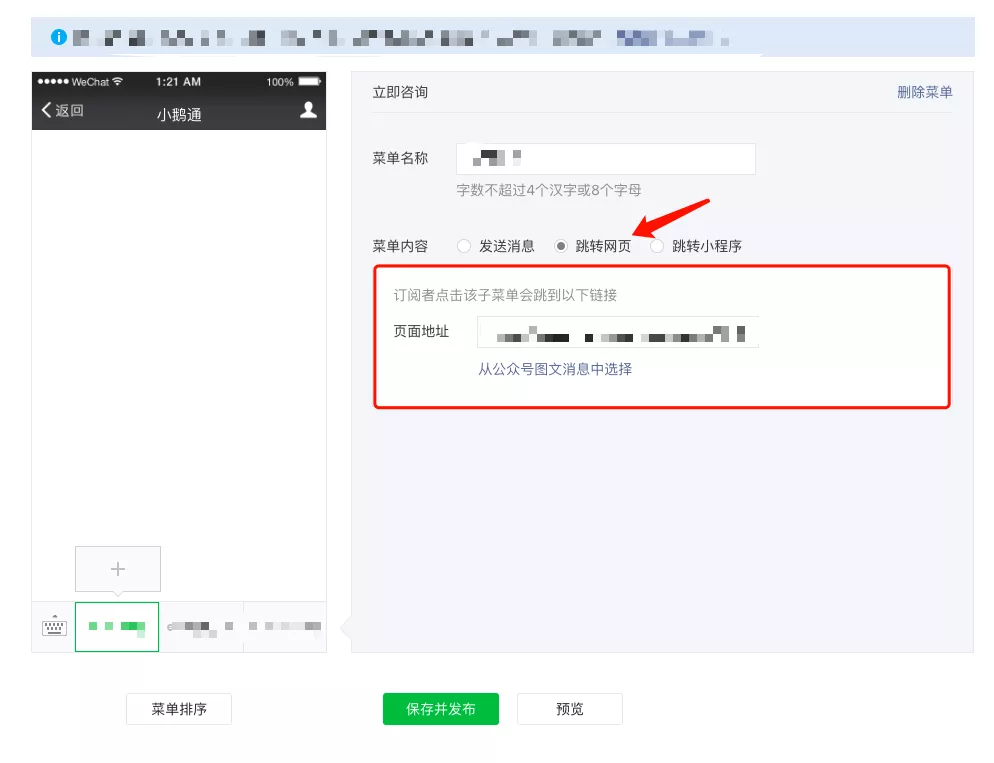
Note: Only WeChat official accounts that have passed WeChat verification can jump to webpages from the menu bar.
After successful publication, you can access your personal Online Store page from the official account.

How can learners quickly access the merchant's Online Store?
After students purchase a course, they can access the merchant's store throughfive channels: Mobile Store (H5), Mini Program Store, Desktop Store, elink APP, and QQ Storeto enter the merchant's store.
I. Mobile Store (H5)
1. Method 1: [Students can obtain the course/store link]The merchant links the store to the sub - menu of the Official Account, or shares it in the Community or Moments. Students can enter the merchant's store by clicking the link or scanning the QR code.
● Operation path: Official Account/Poster/Course link, etc. —— Click the link/scan the QR code —— Enter the store
2. Method 2: [Follow the elink Official Account]If students cannot find the Official Account/store address/course link, they can follow the "elink Knowledge Assistant Official Account" to enter the merchant's store.
● Operation path: Follow the Official Account "elink Knowledge Assistant" — My Purchases — Find the course — Store homepage

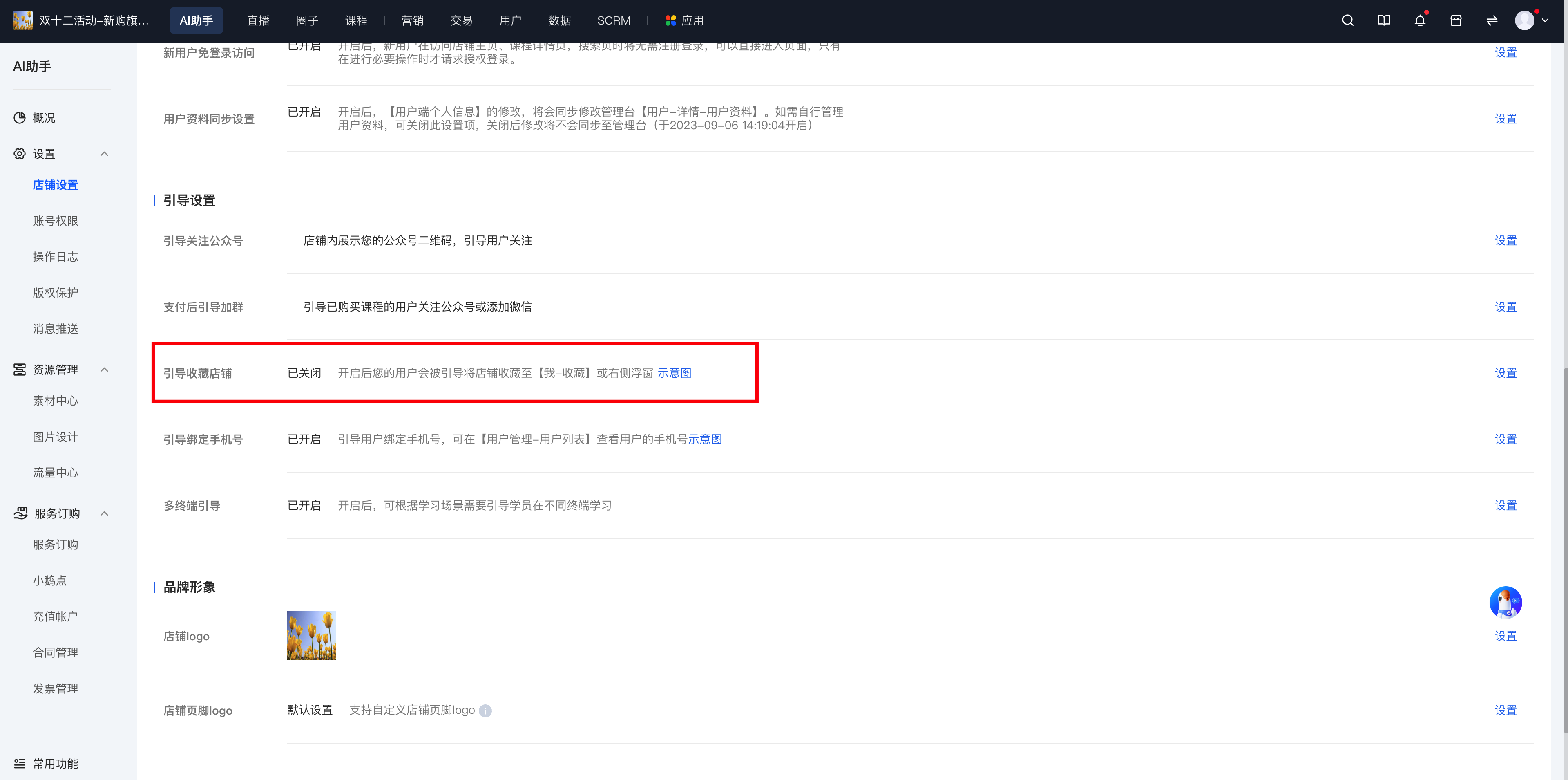
3. Method 3: [Students bookmark the store]The merchant can set up a guide for students to bookmark the store. After bookmarking, students can enter the merchant's store through WeChat - Bookmarks.
● Operation path: AI Assistant — Settings — Store settings - Guide settings — Enable the guide to bookmark the store
II. Mini Program Store
[The merchant's elink store is connected to the WeChat Mini Program]. Students only need to search for the merchant's store name in the Mini Program to directly enter the merchant's elink store and find the purchased courses in "My Purchases" (free courses will not be displayed in My Purchases).

III. Desktop Store
1. Method 1: [The merchant has opened a desktop store]If the merchant has opened a PC - version store, students can copy the merchant's course link/store link, open it directly in a computer browser, log in by scanning the WeChat QR code or using an account + password, and then click the icon to enter "My Purchases".

2. Method 2: [The merchant has not opened a PC - version store]If the merchant has not opened a PC - version store, students need to copy the course/store link and open it in the PC - version of WeChat.


IV. elink APP
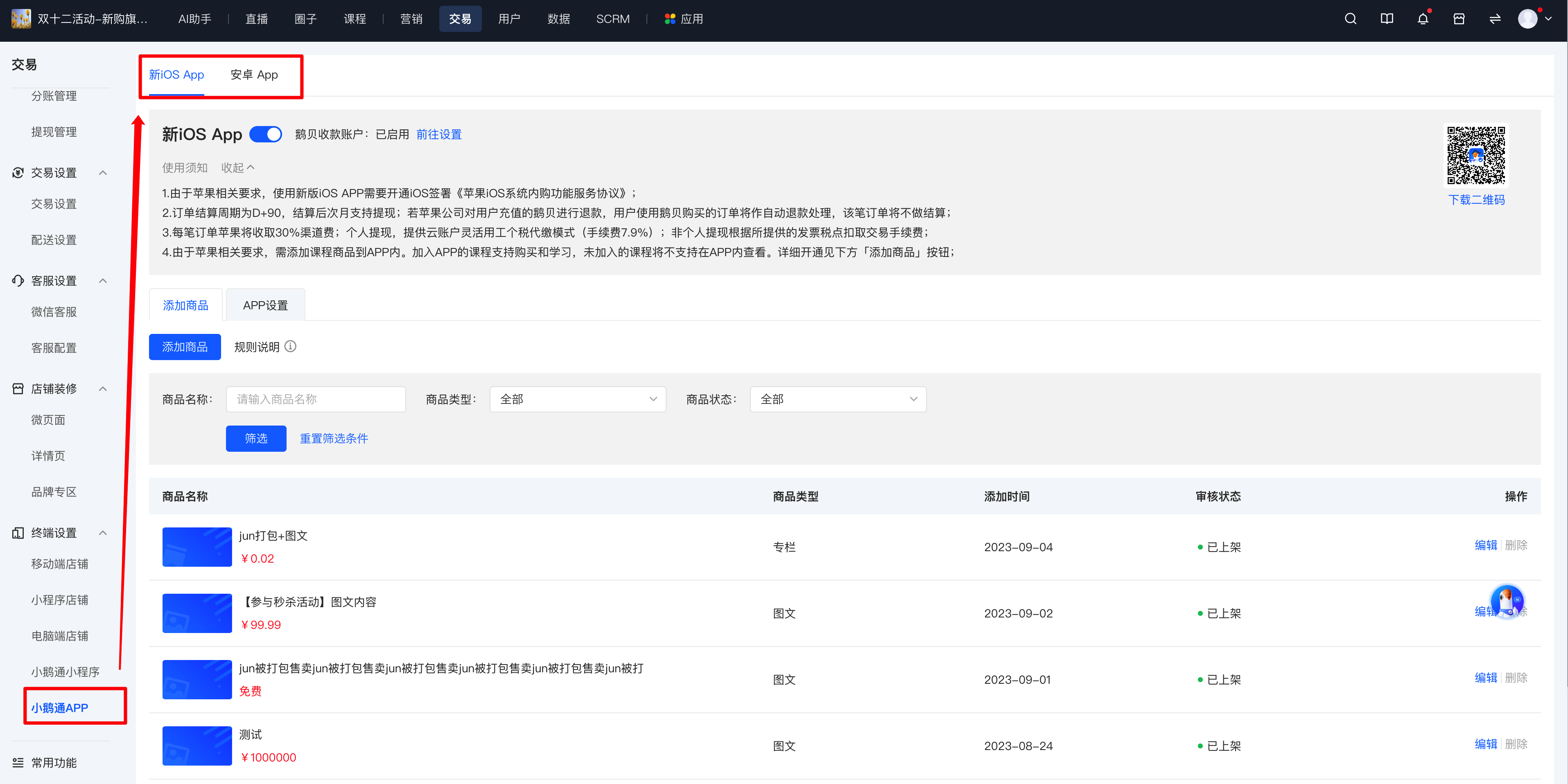
Students can download the "elink Learning APP" on their mobile phones. After logging in and selecting the student identity, they can see all the free/paid courses from the elink merchant's store in "My Courses" (Note: The merchant needs to enable the courses to be displayed in the APP; otherwise, students cannot view them after downloading).
● Merchant operation path: Desktop management console — Transactions — elink APP
● Student operation path: Search for "elink" in the app market/App Store — Download — Install — Log in — View courses on the homepage

V. Access the store via QQ
Students can copy the merchant's store/course link/QR code and send it to QQ. Then they can click the link or scan the QR code to open the course. When accessing the merchant's store via QQ for the first time, students need to log in with their account + verification code to merge their accounts (merge with their WeChat account). After the account merge, courses purchased with the WeChat account can also be directly viewed on QQ.
1. Method 1: Mobile QQ
Students can copy the merchant's store/course link/QR code and open it in Mobile QQ to directly enter the H5 store. They can query courses in the Personal Center - My Purchases.


2. Method 2: Desktop QQ
Students can copy the merchant's store/course link/QR code and open it in the PC - version of QQ. The system will automatically pop up a browser to open the PC - version store. Click the icon to enter "My Purchases".

How can learners find the courses they've purchased from me?
I. Scenario Description:
After purchasing a course, learners can quickly find their purchased courses through the following methods.
II. Methods:
Learners can search for the [elink Mini Program] on WeChat or download the [elink APP] to view their purchased courses.
III. Specific Operation Reference:
1.WeChatScan the QR code to identify the [elink Mini Program]. Select/Switch the store to view all purchased courses.

2. Search for the [elink APP] in the app market and download it. After logging in with WeChat, select the student identity. Switch the store in the 'Learning Center' to see all purchased courses.(Note: The merchant needs to enable the course to be displayed in the APP; otherwise, learners cannot see the course in the app.)
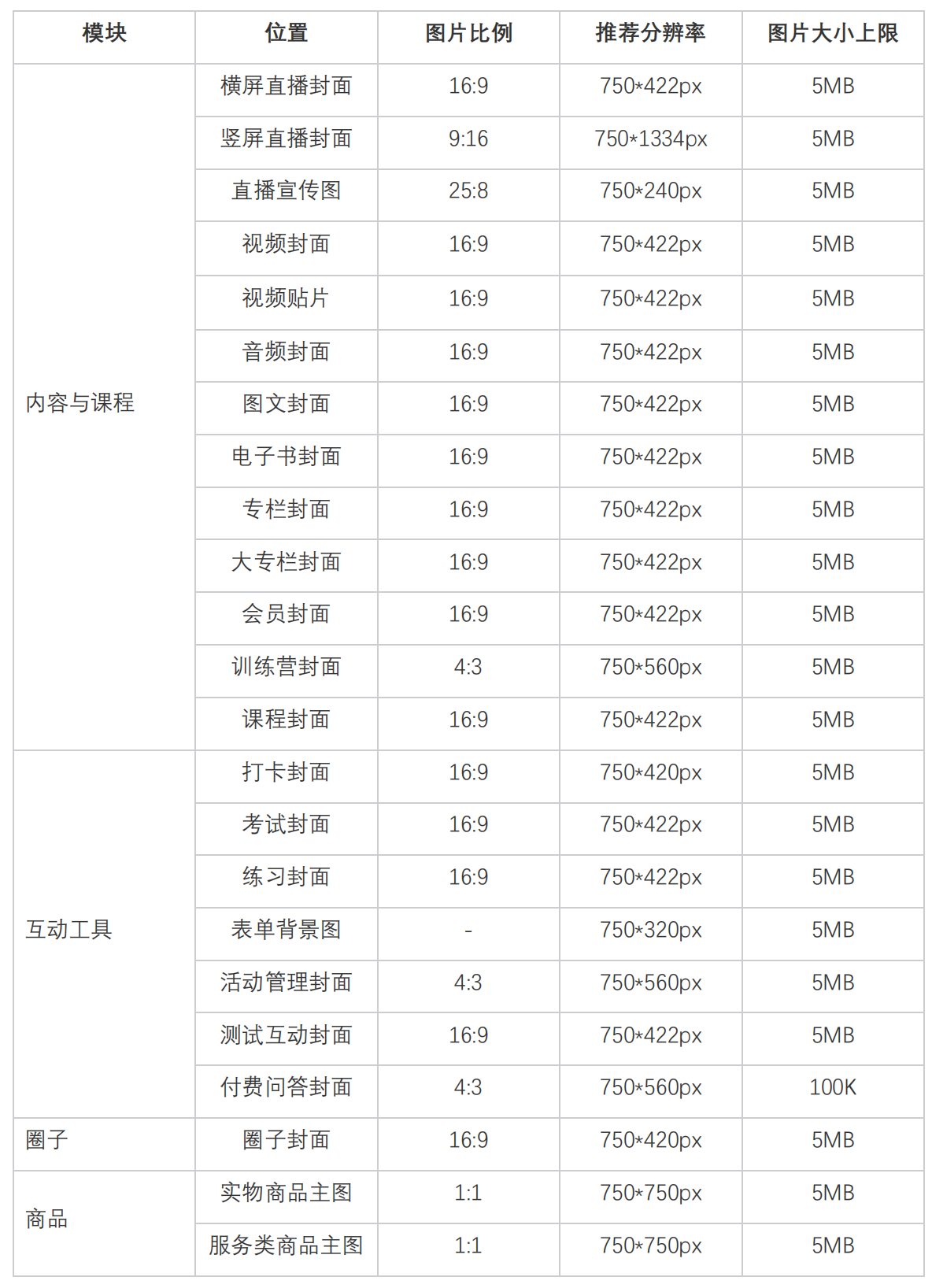
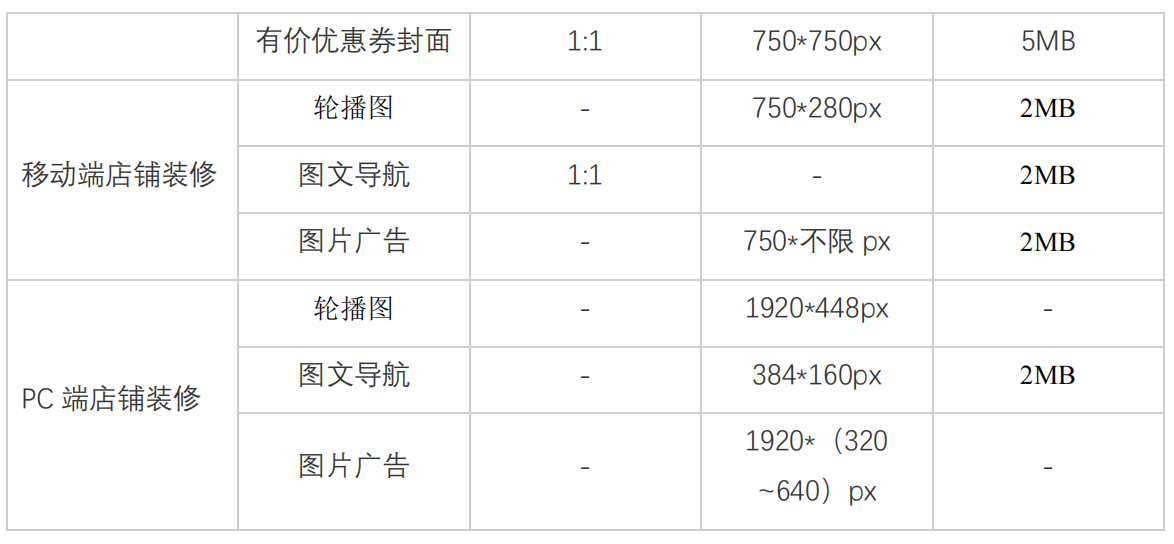
elink Backstage Image Specification List
How to log in to the Online Store
1. Log in to the Online Store via the web
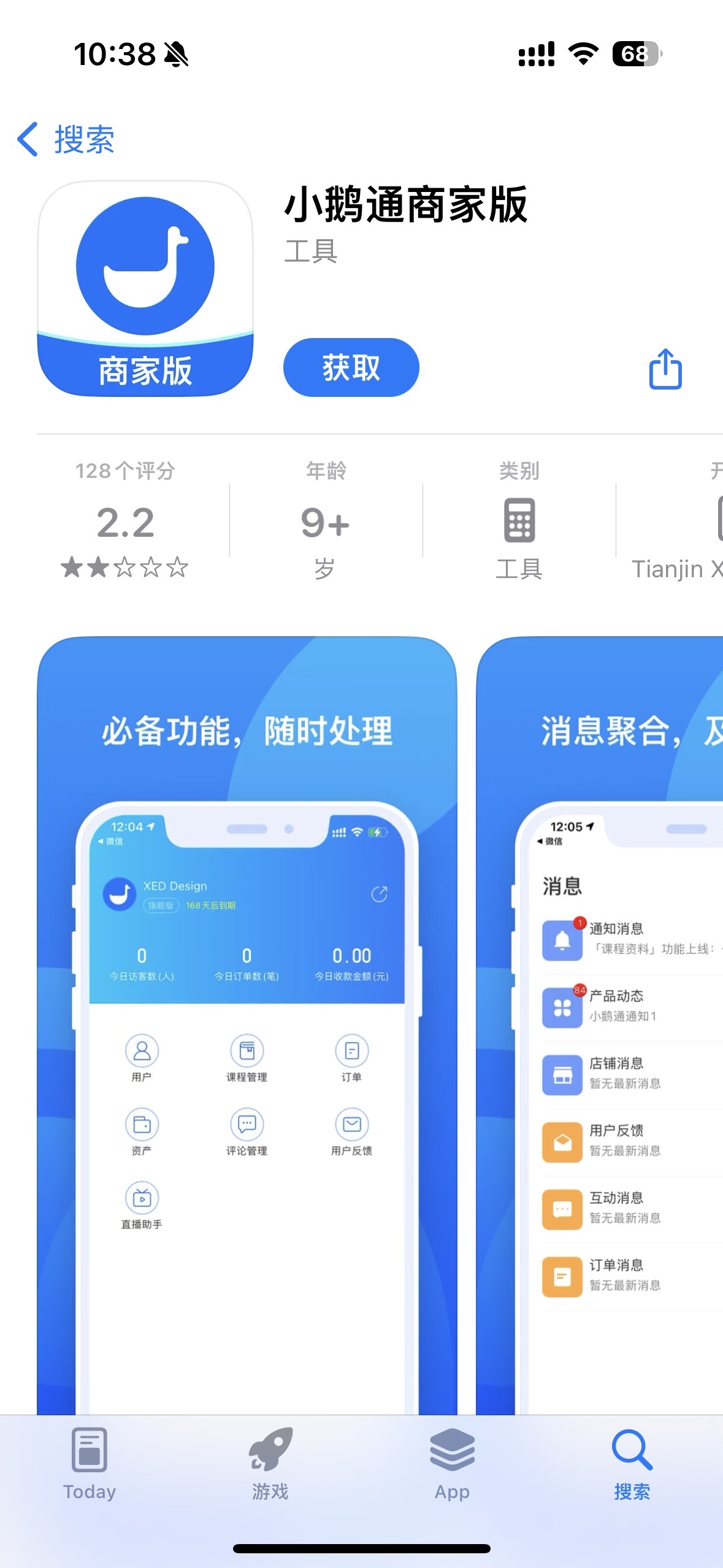
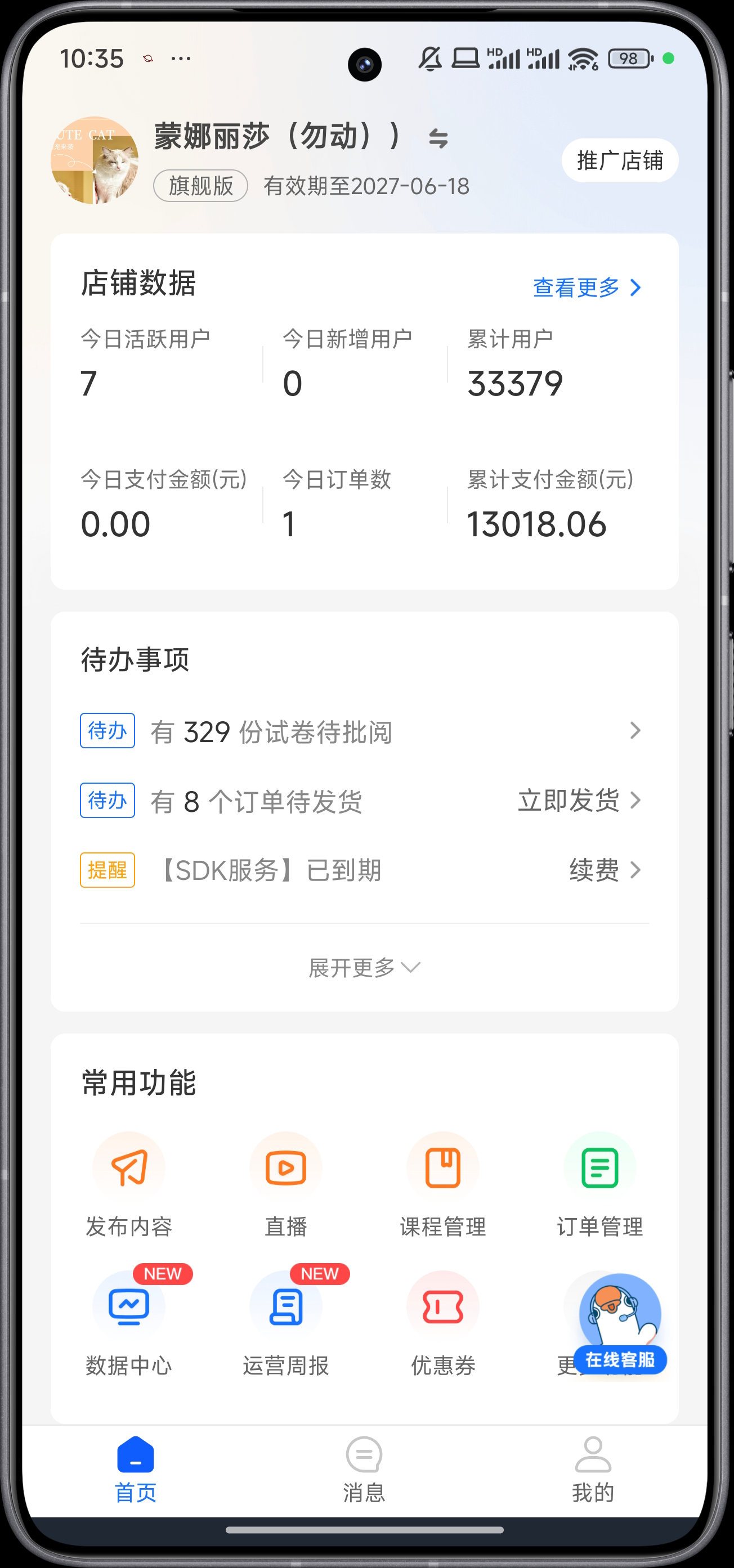
2. elink Merchant Edition APP
Note: Only some functions can be managed on the mobile APP.
3. elink Merchant Edition Mini Program
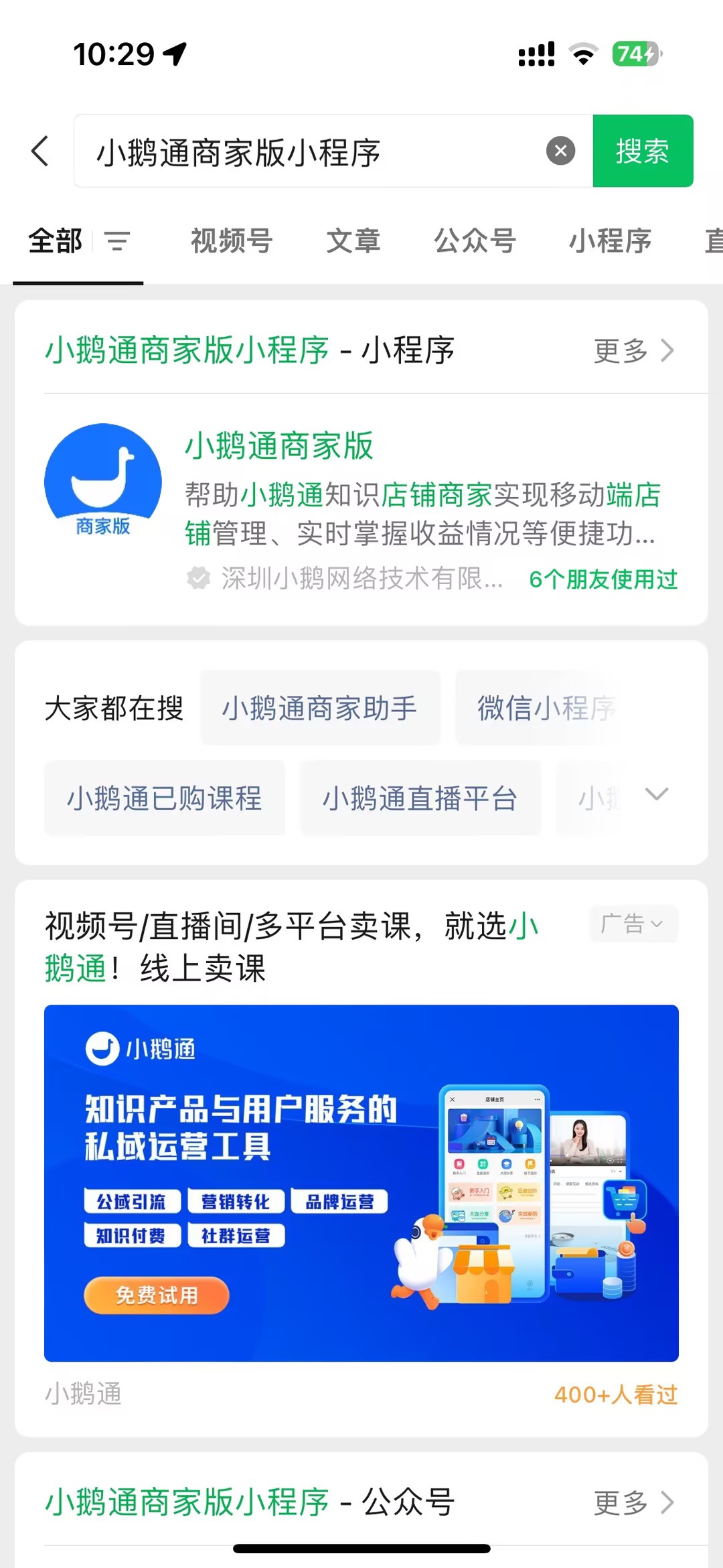
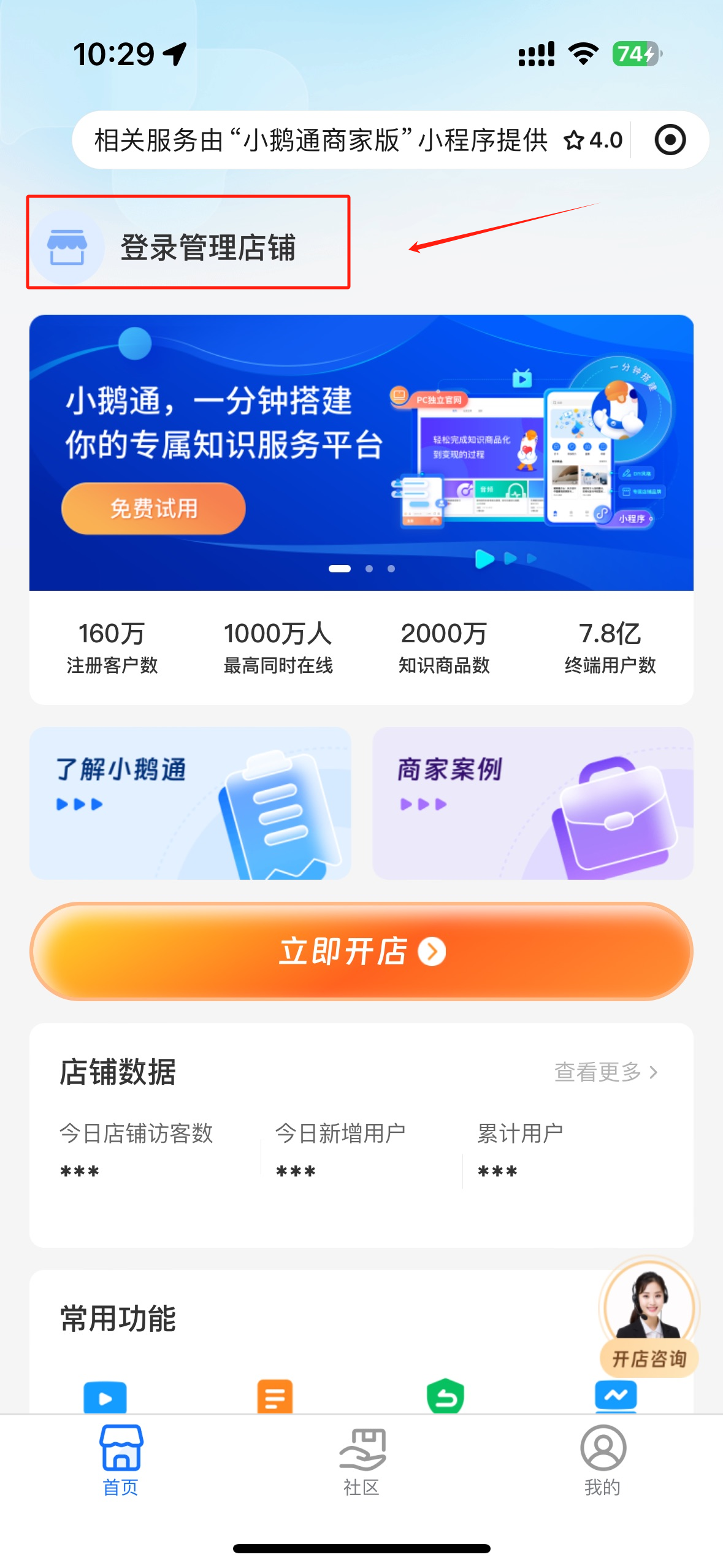
Search for "elink Merchant Edition Mini Program" on WeChat to enter the Mini Program interface, and click [Log in to manage the store] to complete the login.
Note: Only some functions can be managed on the Mini Program.